1
Manually Configuring Network Settings
Table of Contents
sections
1
2
3
4
5
6
7
8
9
10
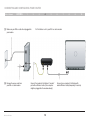
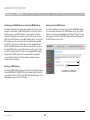
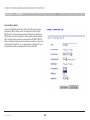
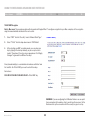
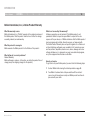
Manually Configuring Network Adapters in Mac OS X
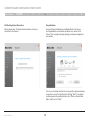
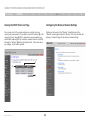
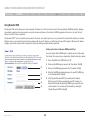
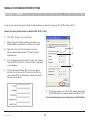
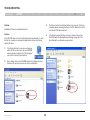
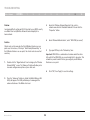
1. Click on the “System
Preferences” icon.
(1)
(2)
(4)
(3)
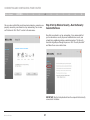
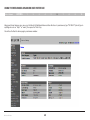
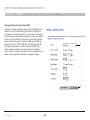
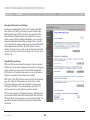
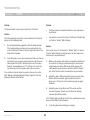
2. Select “Network” from the “System Preferences” menu.
Wireless G Router
79
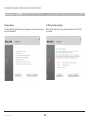
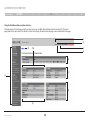
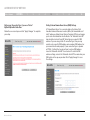
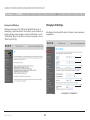
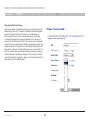
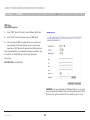
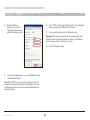
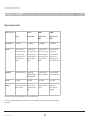
3. Select “Built-in Ethernet” (1) next to “Show” in the “Network” menu.
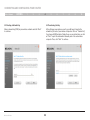
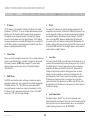
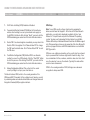
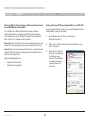
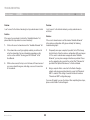
4. Select the “TCP/IP” tab (2). Next to “Configure:” (3), you should see
“Manually” or “Using DHCP”. If you do not, check the PPPoE tab
(4) to make sure that “Connect using PPPoE” is NOT selected. If it
is, you will need to configure your Router for a PPPoE connection
type using your user name and password.