1
AUDIO
Unlocking a Channel and removing a Lock Code
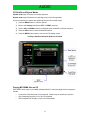
1) Tune the satellite radio to the locked Category and Channel. No audio will play and the
Locked notification will appear.
2) Press the MENU key.
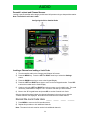
3) Press the LEFT or RIGHT arrow key to select the Settings screen.
4) Press the DOWN arrow key to move to the keyboard.
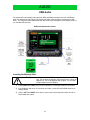
5) Enter the Lock code as set in the previous section by pressing the LEFT and RIGHT
arrow keys to move to the first keyboard number. Press SEL to enter the number into the
Code Display.
6) Continue using the LEFT and RIGHT arrow keys to enter the 4 digit code.
7) Move to the “UL” keypad button and press SEL to unlock the Channel.
8) Press MENU to return to the Sirius audio screen.
Accessing a Locked Channel
This feature allows access to a channel as needed. Enter the lock code only when the
specific channel is active. Once the channel is changed, the channel will stay locked until the
lock code is reentered.
1) Tune the satellite radio to the locked Category and Channel. No audio will play and the
Locked notification will appear.
2) Press the MENU key.
3) Press the LEFT or RIGHT arrow key to select the Settings screen.
4) Press the DOWN arrow key to move to the keyboard.
5) Enter the Lock code as set in the previous section by pressing the LEFT and RIGHT
arrow keys to move to the first keyboard number. Press SEL to enter the number into the
Code Display.
6) Continue using the LEFT and RIGHT arrow keys to enter the four-digit code.
7) Move to the “A” keypad button and press SEL to unlock the Channel.
8) Press MENU to return to the Sirius audio screen
Resetting the Lock Code
To reset the lock code to the factory default of 0000 follow this procedure.
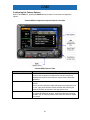
1) Press the Audio button to until Satellite is selected.
2) Once in the Satellite application, press the MENU key to access the satellite menu.
3) Press and hold the DOWN arrow key for 5 seconds.
4) Press MENU to return to the Sirius audio screen
15