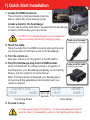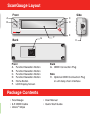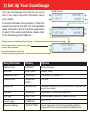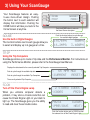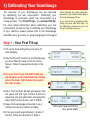
1
Helpful Hints
•When filling the tank on your second fill-up, •To maintain accurate “TO EMPTY” informatry to use the same pump you used for your
first fill-up with the vehicle pointed in the
same direction. If you fill up your fuel tank
with your vehicle on an incline, it can have
an effect on the amount of fuel the pump
can dispense into your tank.
•When filling your tank, let the pump shut off
tion in the ScanGauge’s trip computers,
you should always fill your tank to capacity
and follow the FILLUP sequence in Step 2.
•Once
you have completed your second
fill-up, subsequent fill-ups may not require
adjusting the gallons/liters before pressing
DONE.
automatically. Do not top off.
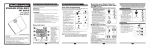
Step 2 - Your Second Fill-up and Subsequent Fill-ups
Home Screen
<SCAN
<TRIP
<DISPLAY
<SETUP
GAUGE>
MORE>
FILLUP>
MORE>
< 14.3 GALLONS >
0.0%
DONE>
<
$3.00
>
Fuel Cost
SAVE>
Once you have set the fuel
cost, press SAVE.
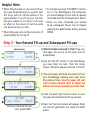
1) When the tank is around 1/4 full, fill up your
tank again. Be sure to let the pump shut off
automatically
2) Use the FILLUP function to tell ScanGauge
you have filled the tank. From the Home
Screen, follow the sequence shown to the left.
3) The next screen will show the amount of fuel
your ScanGauge believes was used since
the previous fill-up. Use the upper left and
right function buttons (A,C) to adjust the
amount of fuel you actually put in the tank.
4) Push the lower right function button to save
the value and complete the fill-up process.
5) Next, the Fuel Cost screen will appear. Enter
the cost per gallon/liter and press the SAVE
button.