1
Run mode features
20.3.4 Assign playback scenes to banks and faders
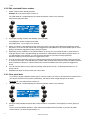
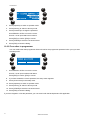
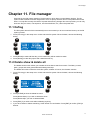
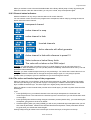
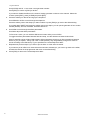
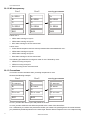
1. Press {Fader PBX} in the extended dialog. Xciter shows the internal list of playback scenes on LCD1.
2. Use SCR1 to locate the scene you wish to assign.
3. Press the softkey on the right of the scene name to select it.
4. Use PG and NL 1-20 or SCR2 to select a playback bank. You can compose up to 160 playback banks of 6
faders.
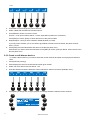
5. Press the SM bounce button under the fader you wish to link to the scene.
6. To remove a scene from a fader, hold [CLEAR], press SMB under the fader and release [CLEAR]. The link
to the playback scene will be gone but the playback scene itself will not be deleted from the internal list.
7. Repeat steps 2-4 until you have finished managing the playback banks.
8. Press [ESC] to exit the playback manager. Xciter asks to store the new playback configuration.
9. Press [ENT] to confirm, [ESC] to cancel. Xciter returns to the extended cue dialog.
20.3.5 Link a playback bank to a cue
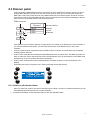
The playback banks are independent of cues, meaning that whatever cue is running, you get the same 160
playback banks. But sometimes you need quick access to a specific bank, instead of scrolling through all
banks.
Example: When you launch a cue for some slow music, you need a bank of playbacks that do something
on the mirror ball. If you link that bank to the cue, Xciter will jump to it the moment you launch the cue. Of
course you can still scroll to other banks. If you want to return to the linked bank, select the current cue
again (press the blinking cue button).
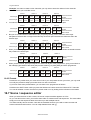
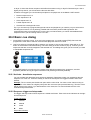
1. Make sure you are in the extended dialog.
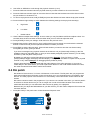
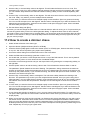
2. Use ARROW or SCR2 to locate the playback bank you wish to link. AP (Active Playback Bank) shows the
number of the playback bank that is displayed.
3. Press {PP=} to link the displayed bank to the current cue.
If you want to keep this setting, you need to store the run mode settings.
20.3.5.1 Audio settings
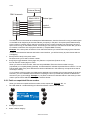
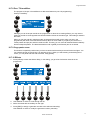
The audio settings are global, meaning they are the same for all cues. All sequences you set on the audio
trigger instantly react to these settings.
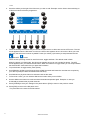
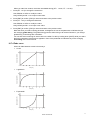
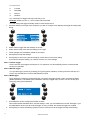
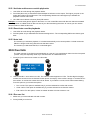
In the top left corner you see the mode of the graphical analyzer. You can switch between signal (S) and
differential (D) with the softkey next to it. Signal means you see the actual amplitude of the incoming
signals from the audio filters. Differential means you only see the differences in amplitude of the rising
edges. The easiest way to set the audio thresholds is with the graphical analyzer in differential mode. Use
the signal mode to adjust the volume of the audio feed.
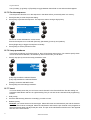
In the top right corner you see the level of the currently selected parameter.
On the bottom line you see the parameter labels:
S
Sub (60 Hz)
L
Low (400 Hz)
M
Mid (1.5 kHz)
H
High (12.5 kHz)
On the second line from the bottom you see the beat counters for each audio band. A counter will
increment by 1 every time an audio beat comes on its audio band. Keep an eye on this counter when you
set the audio threshold.
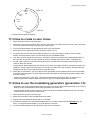
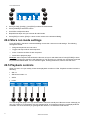
1. Press {Audio}.
Xciter user manual
77