1
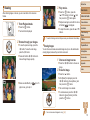
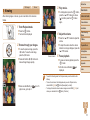
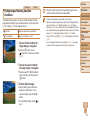
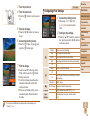
2 Rotate the image.
Before Use
Editing Still Images
Basic Guide
zz
Press the <q><r> buttons to choose an
image.
zz
The image is rotated 90° each time you
press the <m> button.
zz
To return to the menu screen, press the
<n> button.
• Rotation is not possible when [Auto Rotate] is set to [Off] (= 69).
Deactivating Auto Rotation
Follow these steps to deactivate automatic image rotation, which rotates
images based on the current camera orientation.
zz
Press the <n> button, choose [Auto
Rotate] on the [1] tab, and then choose
[Off] (= 22).
• Image editing (= 69 – 71) is only available when the memory
card has sufficient free space.
Still Images
Resizing Images
Advanced Guide
Camera Basics
Auto Mode
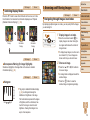
Save a copy of images at a lower resolution.
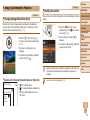
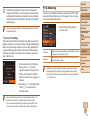
1 Choose [Resize].
zz
Press the <n> button and choose
[Resize] on the [1] tab (= 22).
2 Choose an image.
zz
Press the <q><r> buttons to choose an
image, and then press the <m> button.
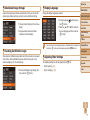
3 Choose an image size.
zz
Press the <q><r> buttons to choose the
Other Shooting
Modes
P Mode
Playback Mode
Setting Menu
Accessories
Appendix
Index
size, and then press the <m> button.
zz
[Save new image?] is displayed.
• Images cannot be rotated (= 68) when you set [Auto Rotate] to
[Off]. Additionally, images already rotated will be displayed in the
original orientation.
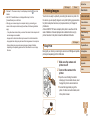
4 Save the new image.
zz
Press the <q><r> buttons to choose
[OK], and then press the <m> button.
zz
The image is now saved as a new file.
69