1
“MAIN” button to stop the recording process and then hold the “MENU” or “MAIN” button to save the
recording.
2. Manual Tuning:
Press the “PRE” button for the stations to go backward by 100KHZ;
Press the “NEXT” button for the stations to go forward by 100KHZ.
3. Saving a station
Press the “MENU” button to enter into the “Radio” sub-menu to save a broadcast station and then press
the “MENU” button once again to save it.
4. Listening to the saved stations
If there are many saved broadcast stations, you could press the “MAIN” button to listen to them one by
one.
5. Automatic Tuning
Press the “MENU” button to enter into the sub-menu, press the “NEXT” button to choose “Auto search“.
The player will begin to search automatically in intervals of 100KHZ and will stop and save found
stations.
8. Text
Enter the Text mode by pressing the [MENU] button, and then you can read and edit the article in the
device. The device only can recognize articles which are in “txt.” format.
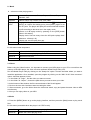
9. Picture
Under the main menu, press [PRE] or [NEXT] button to select Picture mode, then press the [MENU]
button to confirm.
Local
folder
Choose the folder where picture is saved
Playback
set
Manual play or auto play(there’s a time gap for auto play from
1-10 seconds which you may choose)
Delete file
Delete current picture
Delete all
Delete all pictures
Exit
Exit from sub-menu
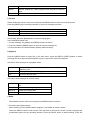
10. Settings
Under main menu, press [PRE] or [NEXT] button to select Set up mode, Press the [MENU] button again
to enter into the sub-menu:
Clock
Set the time and date
LCD set
Dark mode: set the time to turn off the screen when there is
no activity on the player. Choose from 0---50 seconds. 0
means the screen will never turn off when there is no activity.
Exit: exit from the sub-menu
Language
Multiple languages
Power off
Off time: set the time for the unit to turn off on its own. The
time unit is in seconds. 0 means that the function is turned
off. Sleep time: set the time for the unit to go off time after