1
Maintenance & Troubleshooting
6-3
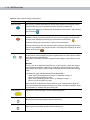
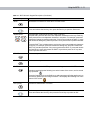
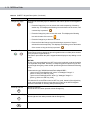
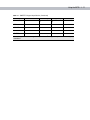
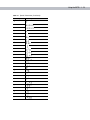
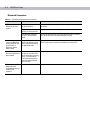
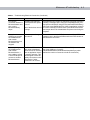
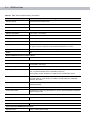
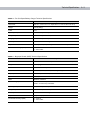
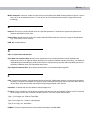
Table 6-1 Troubleshooting the EDA (Continued)
Problem
Cause
Solution
Screen is not
calibrated correctly.
Re-calibrate the screen. See Calibrating the Screen on page 1-8.
The system is not
responding.
Warm boot the system. See Resetting the EDA on page 2-25.
Too many files stored
on the EDA.
Delete unused memos and records. If necessary, save these
records on the host computer (or use an SD card for additional
memory).
Too many
applications installed
on the EDA.
Remove user-installed applications on the EDA to recover memory.
Select Start - Settings - System tab and tap the Remove Programs
icon. Select the unused program and tap Remove.
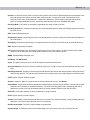
EDA keeps powering
down to protect
memory contents.
The EDA’s battery is
low.
Recharge the battery.
The radio is powered
on for a long time.
Because this mode requires battery power, power it off when not
needed. Using the SetDeviceState() API (refer to the SMDK Help
File), set the Bluetooth to D4 power state.
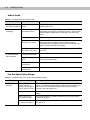
The EDA does not
accept scan input.
Scanning application
is not loaded.
Load a scanning application on the EDA. See the system
administrator.
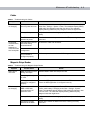
Unreadable bar
code.
Ensure the symbol is not defaced.
Distance between
exit window and bar
code is incorrect.
Place the EDA within proper scanning range.
EDA is not
programmed for the
bar code.
Program the EDA to accept the type of bar code being scanned.
EDA is not
programmed to
generate a beep.
If the EDA does not beep on a good decode, set the application to
generate a beep on good decode.
Battery is low.
If the scanner stops emitting a laser beam upon a trigger press,
check the battery level. When the battery is low, the scanner shuts
off before the EDA low battery condition notification.
Note: If the scanner is still not reading symbols, contact the
distributor or Symbol Technologies.
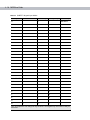
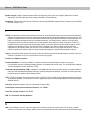
Tapping the window
buttons or icons does
not activate the
corresponding feature.
A message appears
stating that the EDA
memory is full.







































































![MC55 User Guide [English] (P/N 72E-108859-03 - JUTA](http://vs1.manualzilla.com/store/data/006882354_1-8ed62205e5cc251336dd82c461c5426f-150x150.png)
![MC55 User Guide [English] (P/N 72E-108859-01 Rev. A)](http://vs1.manualzilla.com/store/data/006870229_1-8cd1722eddedcf0f959f7037555512d5-150x150.png)