1
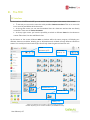
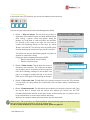
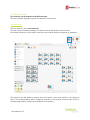
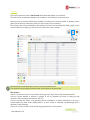
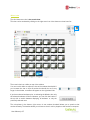
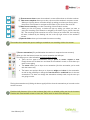
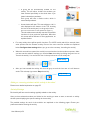
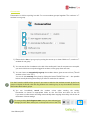
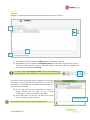
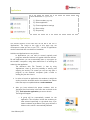
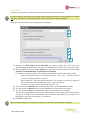
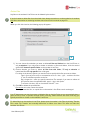
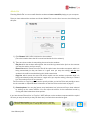
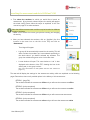
Interacting with more than one student To interact with more than one student, click on the teacher icon in the classroom view. If your interaction involves all students, you do not need to make a selection first If your interaction only includes some students, you need to select them first before continuing. More about selecting students is explained in this manual on page 20. 6 4 5 1 2 3 1) To speak to all/some students : click on the teacher’s microphone This is also possible using the action shortcut explained on page 12. 2) To show the teacher’s (left) screen to all/some students : click the computer screen 3) To send a message to all/some students : type in a message where it says “Type here and press Enter” 4) Close the messenger on the students’ computer after you have sent a message by clicking the top icon next to the conversation window. This will also erase the conversation from your screen. 5) Erasing the messages without closing the messenger on the students’ computers can be done by clicking the eraser tool to the right of the conversation window. 6) From this window, the teacher can also go straight into Edumatic. To return to the class view, click the grey cross in the top right corner or press the ESCape key on your keyboard. The students’ icons always tell you if there is a function active. A vertical blue bar means that they are engaged in a browsing activity (p.31), a small teacher icon on the students’ screen icons means you are speaking to a selection of them (p.20), a greyed out student means nobody has logged on,… User Manual p.19