1
KUMO Quickstart Guide — KUMO Quick-start
QuickStart Setup
and Control
Methods
Regardless of Direct Connection or LAN Connection, KUMOs are controlled over a
network by connecting to KUMO’s internal webserver with a standard web browser on
a Mac or PC. To do this you first need to establish a network connection between the
computer and the KUMO to be controlled. There are various methods supported for
doing this depending on the operating system and/or web browser being used.
Choose one of the following quick-start procedures that best fits your environment;
each procedure is presented in step-by-step form later on these pages:
Mac OSX
• Setup and Control from a Safari Browser on Mac OSX using Bonjour
• Setup and Control from a Browser on Mac OSX using a Static IP Address
Windows 7
1
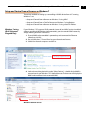
• Setup and Control from a Browser on Windows 7 using UPnP
• Setup and Control from a FireFox Browser on Windows 7 using Bonjour
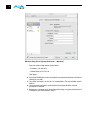
• Setup and Control from a Browser on Windows 7 using a Static IP Address
Windows XP
• Setup and Control from a Browser on Windows XP using UPnP
• Setup and Control from a FireFox Browser on Windows XP using Bonjour
• Setup and Control from a Browser on Windows XP using a Static IP Address
All of the above methods are explained on the following pages. Select the method that
works the best for you and your environment.
Physical Equipment
Setup
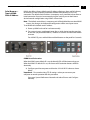
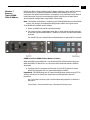
Before setting up the KUMO router(s) and KUMO CP panels, ensure you’ve got all
equipment interconnected (direct or via LAN as already discussed):
1. Connect power supplies (1 or 2 for redundancy) to KUMO(s).
2. Connect source and destination SDI equipment (this step can be deferred).
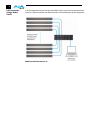
3. Direct Connection: connect a KUMO and a Mac or PC via an Ethernet Cable
LAN Connection: connect a KUMO to a hub or switch and connect a PC or Mac to
the same LAN via a hub or switch.
4. Proceed to your desired Setup and Control QuickStart method using one of the
methods on the following pages.
5