1
Viewing Live Video
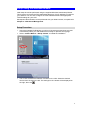
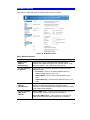
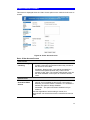
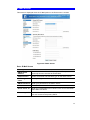
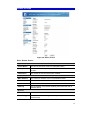
After installing the ActiveX component, you will be able to view the live video stream in
its own window, as shown below.
Figure 6: View Video Screen
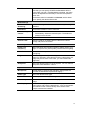
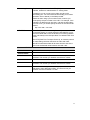
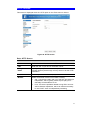
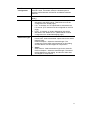
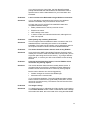
There are a number of options available on this screen, accessed by select list, button
or icon. See the table below for details.
General Options
These options are always available, regardless of the type of camera you are
connected to.
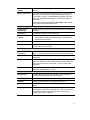
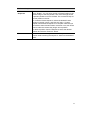
Camera Patrol. Move through the Preset positions in the sequence
defined by the Camera Administrator.
Camera Auto Pan. Click this to have the camera moved from left to
right automatically.
Motion Detection. Click this button to have the camera moved to the
Motion Detection Preset position.
Direct P/T. Use this to move the camera to the Pan/Tilt position
directly.
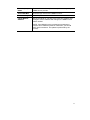
Resolution. Use this drop-down list to select the desired video size.
Zoom. A digital zoom feature is available. To zoom in on a section of
the window, click this icon. Then use your mouse to select the
section you want to magnify. Click the icon again to disable the zoom
feature.
Snapshot. Click this to take a single JPEG "snapshot" image of the
current video.
15