1
Read Me First
IM 05P05A01-01EN
2. Operating Environment
LL50A
Parameter Setting Software
with Ladder Program Building Function and Network Profile Creating Function
Installation Manual
6th Edition : Apr. 2015
This manual describes the installation/uninstallation of LL50A.
Product Registration
Thank you for purchasing YOKOGAWA products.
YOKOGAWA provides registered users with a variety of information and services.
Please allow us to serve you best by completing the product registration form
accessible from our homepage.
http://www.yokogawa.com/ns/reg/
Contents
Introduction
1. Safety Precautions
2. Operating Environment
3. Installing USB Converter Driver Software
4. Installing LL50A Parameter Setting Software
5. Installshield Wizard screen appears. Click Next.
n Verifying Installation
PC
Applicable OS: Windows 7 Professional (32-bit/64-bit versions)
Windows 8.1 Pro Update (32-bit and 64-bit versions) (Desktop type)
Recommended CPUs:Pentium 4 Processor 3.0 GHz or higher
Pentium D Processor 2.6 GHz or higher
Pentium Core 2 Duo Processor 1.8 GHz or higher
Pentium Dual-Core Processor 1.6 GHz or higher
Recommended Main Memory: 2 GB or more
Hard disk space:
Program storage capacity: 100 MB or more
.NET Framework 4.0 storage capacity: 620 MB or more
Display: 1024 x 768 pixels or more
Color: 256 or more colors
Communication port: For communication with a dedicated cable, use the USB port/
one channel.
For communication via an RS-485 communication terminal, use an RS232C port (An RS-232C/RS-485 converter is required; Model ML2 is
recommended)
For Ethernet communication, use 10BASE-T/100BASE-TX.
CD-ROM drive: One (required for installation)
Paper size; Letter or A4 (required for printing)
Printer:
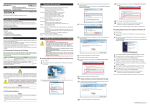
1. From the Start menu of Windows, select Control Panel > Device manager.
that the virtual COM port driver (1) “YOKOGAWA USB Serial Port
2. Verify
(COMn)” is displayed under “Ports (COM & LPT)” as COM port and the USB
device driver (2) “YOKOGAWA USB Serial Converter A1053UR” is displayed
under “Universal Serial Bus controllers.”
(1)
6. Click Install.
3. Installing USB Converter Driver Software
Introduction
Thank you for purchasing the UTAdvanced Series Digital Indicating Controller and
LL50A Parameter Setting Software.
This manual describes the installation/uninstallation of LL50A. Please read though
this user’s manual carefully before using the product.
For the function and operating method of LL50A Parameter Setting Software, see
“LL50A Parameter Setting Software User’s Manual.”
For details of each function, refer to the electronic manual. User’s manuals can be
downloaded or viewed at the following URL.
http://www.yokogawa.com/ns/ut/im/
• Install USB converter driver software as an administrator.
• Avoid entering just the drive as the installation location, such as
C:\. Enter the full directory path.
CAUTION • Before installing USB converter driver software, quit all running
applications.
• When reinstalling USB converter driver software, uninstall the
installed USB converter driver software first, and then reinstall
USB converter driver software.
(2)
COM port number assigned to the dedicated cable can be verified by
3. The
the port number displayed in (1) “YOKOGAWA USB Serial Port (COMn)” of
7. The Windows Security screen appears. Click Install. (USB device driver)
Device Manager (see the step 3). To change the COM port number, doubleclick (1), select Port Settings tab of Properties screen and click Advanced.
Change the COM port number in the Advanced Settings for COMn screen.
1. Start Windows.
the CD of LL50A into the CD-ROM drive. The start-up screen appears
2. Insert
automatically.
n Checking the Contents of the Package
Before using the product, refer to the table of Model and Suffix Codes to make sure
that the delivered product is consistent with the model and suffix codes you ordered.
Model and Suffix Code
Model
Suffix code
8. The Windows Security screen appears. Click Install. (COM port driver)
Description
Parameter Setting Software (with Ladder Program Building Function
and Profile Creating Function)
LL50A
-00
Always “-00”
Also make sure that the following items are included in the package.
Parameter Setting Software/USB converter driver CD-ROM (Parts No.: L4502XH).... x1
Dedicated cable (Parts No.: A1059UR) and dedicated adapter (Parts No.: L3502LP).... x1
LL50A Installation Manual (this document).................................................. x1 (A3 size)
User’s Manual (CD-ROM)............................................................................ x1
1. Safety Precautions
Note: If the start-up screen does not appear automatically and the AutoPlay screen appears, click
Run startup. exe to display the start-up screen.
n Uninstalling USB Converter Driver Software
3. Click USB Driver Installation.
Unplug the dedicated cable if it is connected to a personal
computer.
9. When installation is complete, the Finish dialog box appears. Click Finish.
CAUTION
The following symbol is used on the instrument. It indicates the possibility of injury
to the user or damage to the instrument, and signifies that the user must refer to
the user’s manual for special instructions. The same symbol is used in the user’s
manual on pages that the user needs to refer to, together with the term “WARNING”
or “CAUTION.”
1. Unplug the dedicated cable if it is connected to a personal computer.
the Start menu of Windows, select Control Panel > Programs and
2. From
Features.
3. Select YOKOGAWA A1053UR Installer and click Uninstall.
4. The User Account Control screen appears. Click Continue.
5. The Confirm Uninstall screen appears. Click Yes.
Calls attention to actions or conditions that could cause injury to
the user or damage to the instrument or property and indicates
precautions that should be taken to prevent such occurrences.
CAUTION
Note
4. The User Account Control screen appears. Click Continue.
Identifies important information required to operate the instrument.
The dialog box closes. You have completed installing the driver software.
n CD Handling Guideline
Note
• While the CD is being accessed, do not remove the CD from the CD-ROM drive,
cut the power to the PC, or reset the computer.
• Please store your original CDs carefully.
Install the program on your hard disk, and run it from your hard disk during actual use.
When you connect the dedicated cable to a USB port on your computer, the driver
becomes available automatically.
6. The Uninstall Complete screen appears. Click Finish.
You have completed uninstalling the driver software.
IM 05P05A01-01EN page 1/2
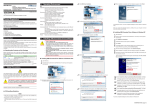
Select Installation Folder screen appears. Select Everyone or Just
11. The
me. Click Next.
4. Installing LL50A Parameter Setting Software
• Install the software as an administrator.
• Do not set LL50A user file save directory in Program Files folder.
The LL50A will not work properly.
CAUTION • Before installing LL50A Setting Software, quit all running
applications.
• Avoid entering just the drive as the installation location, such as
C:\. Enter the full directory path.
• When .NET Framework 4.0 is not installed on personal computer,
.NET Framework 4.0 is installed to start LL50A.
• When reinstalling LL50A, uninstall the installed LL50A first, and
then reinstall LL50A.
Note
When you install the LL50A after "Everyone" is selected, even if other users
log in, it is possible to start LL50A from the Start menu > Programs menu.
When you install the LL50A after "Just me" is selected, even if other users log
in, LL50A is not displayed in the Programs.
The Setup Type screen appears. Select Complete and click Next. (We
12. recommend
choosing Complete.)
n Installing LL50A Parameter Setting Software
1. Start Windows.
the CD of LL50A into the CD-ROM drive. The start-up screen appears
2. Insert
automatically.
Note1: If you chose Complete, go to the procedure 13.
Note2: If you chose Custom, continue the procedure as follows:
Choose each installation method (*1) of LL50A, or Profile and Setting, then click Next.
(1)
(2)
Note: If the start-up screen does not appear automatically and the AutoPlay screen appears, click
Run startup. exe to display the start-up screen.
3. Click LL50A Installation.
.NET Framework 4.0 is not installed on a personal computer, the
4. When
license agreement for installing it appears. Click Accept.
message “Copying required files” appears. And then the message
5. The
“Installing .NET Framework 4.0” appears.
6. The User Account Control screen appears. Click Continue.
7.
8. The message “Setup must reboot before proceeding.” may appear. Click Yes.
9. Personal computer reboots. The LL50A Setup Wizard appears. Click Next.
The message “Please wait while Setup configures the components.” appears.
*1: Profile is to install Network Profile Tool.
Setting is to install Parameter Setting Tool.
(1) On the LL50A, select Entire feature will be installed on local hard drive.
(2) On the Profile and Setting, select either Will be installed on local hard drive, or
Entire feature will be unavailable.
13. The Confirm Installation screen appears. Click Next.
message “Installing LL50A” appears. The User Account Control screen
14. The
appears. Click Allow.
begins. When installation is completed, a confirmation message
15. Installation
appears. Click Close.
The following icons are appeared on the desktop.
[Setting Tool]
[Network Profile Tool]
You have completed installing the LL50A parameter setting software.
n Verifying Installation of LL50A Parameter Setting Software
From the Start menu of Windows, point to All Programs, then UTAdvanced and
verify that the Setting Tool and the Network Profile Tool is registered.
License Agreement for Package Software Product appears. Read this
10. The
license agreement carefully. If you agree, select I Agree. Click Next.
n Uninstalling LL50A Parameter Setting Software
From the Start menu of Windows, select Control Panel > Programs and
Features (*1) > LL50A and uninstall it.
The User Account Control screen appears. Click Allow. The LL50A is uninstalled.
*1: From the Start menu of Windows, select Control Panel > Uninstall a program if the
control panel's display method is “Control Panel Home.”
YOKOGAWA ELECTRIC CORPORATION
Network Solutions Business Division
2-9-32, Naka-cho Musashino-shi, Tokyo 180-8750 JAPAN
YOKOGAWA CORPORATION OF AMERICA
Head office and for product sales
2 Dart Road, Newnan, Georgia 30265, USA
Note: If I Do Not Agree is selected, you cannot install the LL50A. Click Cancel.
YOKOGAWA EUROPE B.V.
Headquarters
Euroweg 2, 3825 HD Amersfoort, THE NETHERLANDS
www.yokogawa.com/ns
IM 05P05A01-01EN page 2/2