1
When the event triggered, the device will report the messages
to the nodes in the group 1. The messages also include the
temperature and the illumination level. The user can switch the
report by configuration setting NO. 5. Caution: In the “Home
Automation Mode” if the environment luminance higher than the
setting, the device won’t report the message.
MULTISENSOR
QUAD
QUICK INSTALLATION GUIDE
v1.3
POWER UP PROCEDURE
BATTERY POWER CHECK
When the power up, the device will detect the power level of the
battery immediately. If the power level is too low, the LED will
continue flash about 5 seconds. Please change another new
battery.
PIR WARM UP
When the event triggered, if the environment luminance is less
than the setting of the configuration setting NO. 4, the device will
emit the signal to turn ON the lighting equipment, those nodes in
the group 2. And delay a while to turn OFF the lighting equipment.
The delay time is setting by the configuration setting NO. 9.
The PIR motion re-detected interval, in the “Test Mode” fixed to 6
seconds. In the “Home Automation Mode”, will start detect before
turn OFF the lighting equipment. In the “Security Mode”, according
to the setting of configuration setting NO. 8.
Notice: When the tamper key of the back side is in the released
state, the device always in the “Test Mode”, no matter the DIP
switch setting.
BATTERY INSTALLATION
Put the Z-Wave Controller in inclusion mode.
Pressing tamper key three times within 1.5 seconds will enter
inclusion mode.
After inclusion successful, the device will wake to receive the
setting command from Z-Wave Controller in about 20 seconds.
INSTALLATION
In the first time, add the device into the Z-Wave network. First,
make sure the primary controller is in the inclusion mode. And then
power on the device, just take out the insulation Mylar in the back
side of the device. The device will auto start the NWI (Network Wide
Inclusion) mode. And it should be included in 5 seconds. You will see
the LED light ON one second.
NWI
When the power on, the device will check is it already adding to the
network? If doesn’t, it will auto start the NWI mode. The LED will flash
in every second and continue 30 seconds. Until timeout or the device
successful to inclusion by controller. You can press the tamper key 3
times to abort the NWI mode.
WAKE
Back view
2
2
After finish the test and decide to fix, then you can remove tape A, and
mounting the sensor by using tape B. This will close the tamper key
and let the sensor enter normal mode.
M2
Description
ON
ON
Test Mode.
ON
OFF
Security Mode.
OFF
ON
Home Automation Mode
OFF
Program Mode. According to the
configuration setting NO.5 to set the
operation mode.
OFF
Notice: Always Reset a Z-Wave device before trying to add it to a
Z-Wave network.
Notice: When the device into NWI mode, the sensor functionality will
useless. The NWI mode will timeout after 30 seconds. You can press
the tamper key 3 times to abort the NWI mode.
Z-WAVE NOTIFICATION
After the device adding to the network, it will wake-up once per
day in default. When it wake-up it will broadcast the “Wake Up
Notification” message to the network, and wake-up 10 seconds for
receive the setting commands.
The wake-up interval minimum setting is 30 minutes, and
maximum setting is 120 hours. And the interval step is 30 minutes.
If the user want to wake-up the device immediately, please remove
the
front cover, and press the tamper key once. The device will wakeup 10 seconds.
3
M1
Have Z-Wave Controller entered association mode.
Pressing tamper key three times within 1.5 seconds will enter
association mode.
Note: The device support 2 groups. The group 1 is for receiving
the report message, like triggered event, temperature,
illumination etc. The group 2 is for light control, the device will
send the “Basic Set” command to this group.
Including a node ID allocated by Z-Wave Controller means inclusion.
Excluding a node ID allocated by Z-Wave Controller means
exclusion.
Failed or success in including/excluding the node ID can be viewed
from Z-Wave Controller.
1
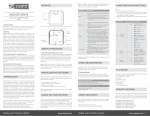
There is one function DIP switch in front of the device. Remove the
front cover in the right top of the PCB, and also has mark “M1” and
“M2” for two switch.
ASSOCIATION:
1-1
FUNCTION DIP SWITCH
RESET:
ressing tamper key four times within 1.5 seconds and do not
P
release the tamper key when you press it the 4th time, and the
LED will turn ON.
After 3 seconds the LED will turn OFF, after that within 2 seconds,
release the tamper key. If successful, the LED will light ON one
second. Otherwise, the LED will flash once.
3. IDs are excluded and all settings will reset to factory default.
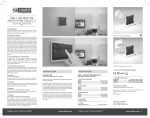
In the accessory pack. There are two type of double coated tape,
one is thicker (hereinafter referred to as A tape) and another is
thinner (hereinafter referred to as B tape), you can use A tape for the
test at the beginning. The right way for A tape installation is stick it
to the position below tamper key. The thicker tape won’t let the
tamper key close, so the sensor will enter the test mode, You may
test if installed position is good or not by this way.
When the device report the low battery message. The user should
replace the battery to new one.
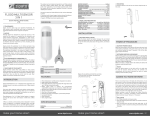
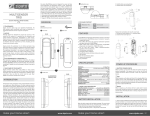
The way to open the front cover please follow below steps.
Using a tool like (1) to press 1-1 till hear a click sound
Hold the front cover and pull back
Hold the front cover and pull up
When the power on, the device will wake about 20 seconds. In
this duration, the controller can communicate with the device.
Normally the device is always sleeping to save the battery energy.
EXCLUSION:
Put the Z-Wave Controller in exclusion mode.
Pressing tamper key three times within 1.5 seconds will enter
exclusion mode. Node ID has been excluded.
Let Controller associate with Group 1 of the device, any light
switch that intend to be turned on when the device trig please
associate to Group 2 of the device.
Testing Sponge
When the power on, the PIR need to warm up before operation. The
warm up time about 1 minute, the LED will flash in every 2 seconds.
After finish the procedure the LED will light ON three times
INCLUSION:
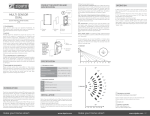
Don’t let the device facing the source of heat. Like heater.
Replace the new battery and install the cover back.
1. Put the front cover bottom to 1-1, and press down.
2. Push the front cover top to 2-1.
2-1
2
Z-WAVE MESSAGE REPORT
OPERATION MODE
ADDING TO Z-WAVE NETWORK
There are three operation modes of the device. The user can
choosing the suitable mode for application. There are three
modes “Test”, “Home Automation” and “Security”. “Test Mode”
is for the user test the sensor function when installation. “Home
Automation Mode” focus in automatic to control the lighting
equipment. For convenience and save energy. “Security Mode”
focus in surveillance, warning.
1-1
1
When the event triggered, normally the LED won’t indicated,
unless the battery is in the low level, the LED will flash once. And
in the “Test Mode” the LED also will light ON one second.
make your home smart
CHOOSING A SUITABLE LOCATION
The recommended mounting height is 160cm
Don’t let the device facing the window or the sunlight.
www.zipato.com
There are two tamper keys in the device, one is in the back
side,another is in the front side. They have the same function. Both
of them can inclusion, exclusion, reset or association from Z-Wave
network.
In the first time, add the device into the Z-Wave network. First,
make sure the primary controller is in the inclusion mode. And
then power on the device, just take out the insulation Mylar in the
back side of the device. The device will auto start the NWI (Network
Wide Inclusion) mode. And it should be included in 5 seconds. You
will see the LED light ON one second.
make your home smart
MOTION REPORT
When the PIR motion detected, the device will unsolicited to send
the “Sensor Binary Report” to the nodes in the group 1.
Sensor Type: Motion (0x0C)
Sensor Value: 0xFF
DOOR/WINDOW REPORT
When the Door/Window state changed, the device will unsolicited to
send the “Sensor Binary Report” to the nodes in the group 1.
Sensor Type: Door/Window (0x0A)
Sensor Value: 0x00 is closed, 0xFF is opened.
www.zipato.com 02