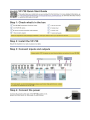
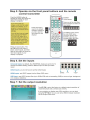
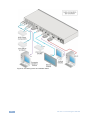
1
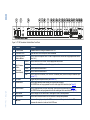
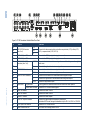
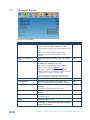
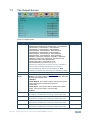
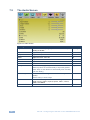
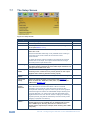
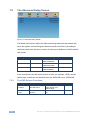
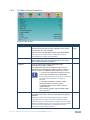
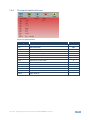
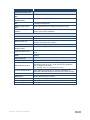
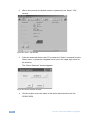
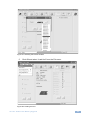
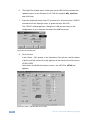
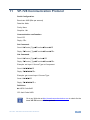
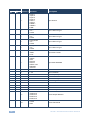
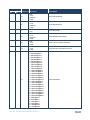
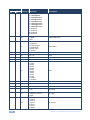
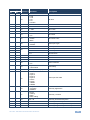
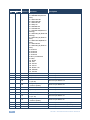
K R A ME R E LE CT R O N IC S L T D . USER MANUAL MODEL: VP-728 Presentation Switcher/Scaler P/N: 2900-000363 Rev 9 Contents 1 Introduction 1 2 2.1 2.2 Getting Started Achieving the Best Performance Recycling Kramer Products 2 2 2 3 3.1 4 Overview Defining the VP-728 Presentation Switcher/Scaler Installing in a Rack 3 5 9 5 5.1 Connecting the VP-728 Connecting a PC 10 13 6 6.1 6.2 6.3 6.4 7 7.1 7.2 7.3 7.4 7.5 7.6 7.7 7.8 7.9 8 Presentation Switcher / Scaler Buttons Switching an Input The PIP Button Feature Locking and Unlocking the Front Panel The Infrared Remote Control Transmitter Configuring the VP-728 via the OSD MENU Screens The Input Screen The Picture Screen The Output Screen The PIP Screen The Audio Screen The Geometry Screen The Setup Screen The Advanced Setup Screen The Info Screen Using Text Overlay 14 14 15 19 20 21 22 24 25 27 28 29 30 32 37 38 9 9.1 9.2 9.3 Audio Flash Memory Upgrade Downloading from the Internet Connecting the PC to the RS-232 Port Upgrading the Audio Firmware 40 40 41 41 10 Technical Specifications 46 11 11.1 VP-728 Communication Protocol Error Codes Description 51 62 VP-728 – Contents i Figures Figure 1: VP-728 Presentation Switcher/Scaler Front Panel Figure 2: VP-728 Presentation Switcher/Scaler Rear Panel Figure 3: Connecting to the VP-728 Rear Panel Figure 4: Crossed Cable RS-232 Connection Figure 5: Straight Cable RS-232 Connection with a Null Modem Adapter Figure 6: PIP Source over Background Figure 7: The SWAP Status Figure 8: IR Remote Control Transmitter Figure 9: MENU Items Figure 10: Input Screen Figure 11: Picture Screen Figure 12: Output Screen Figure 13: PIP Screen Figure 14: Audio Screen Figure 15: Geometry Screen Figure 16: Setup Screen Figure 17: Advanced Setup Screen Figure 18: Misc Screen Figure 19: Input Functions Figure 20: Output Functions Figure 21: Active Video Functions Figure 22: Information Screen Figure 23: Text Overlay Application Screen Figure 24: Splash Screen Figure 25: Atmel – Flip Window Figure 26: Device Selection Window Figure 27: Selecting the Device Window Figure 28: Loading the Hex Figure 29: RS-232 Window Figure 30: Atmel – Flip Window (Connected) Figure 31: Atmel – Flip Window (Operation Completed) ii 6 8 12 13 13 16 17 20 21 22 24 25 27 28 29 30 32 33 35 36 37 37 38 41 42 42 43 43 44 44 45 VP-728 - Contents 1 Introduction Welcome to Kramer Electronics! Since 1981, Kramer Electronics has been providing a world of unique, creative, and affordable solutions to the vast range of problems that confront the video, audio, presentation, and broadcasting professional on a daily basis. In recent years, we have redesigned and upgraded most of our line, making the best even better! Our 1,000-plus different models now appear in 11 groups that are clearly defined by function: GROUP 1: Distribution Amplifiers; GROUP 2: Switchers and Routers; GROUP 3: Control Systems; GROUP 4: Format/Standards Converters; GROUP 5: Range Extenders and Repeaters; GROUP 6: Specialty AV Products; GROUP 7: Scan Converters and Scalers; GROUP 8: Cables and Connectors; GROUP 9: Room Connectivity; GROUP 10: Accessories and Rack Adapters and GROUP 11: Sierra Products. Congratulations on purchasing your Kramer VP-728 Presentation Switcher / Scaler, which is ideal for the following typical applications: • Projection systems in conference rooms, boardrooms, auditoriums, hotels and churches, production studios, rental and staging • Any application where high quality conversion and switching of multiple and different video signals to graphical data signals is required for projection purposes VP-728 – Introduction 1 2 Getting Started We recommend that you: • Unpack the equipment carefully and save the original box and packaging materials for possible future shipment • Review the contents of this user manual • Use Kramer high performance high resolution cables • Use only the power cord that is supplied with this machine i 2.1 Go to http://www.kramerelectronics.com to check for up-to-date user manuals, application programs, and to check if firmware upgrades are available (where appropriate). Achieving the Best Performance To achieve the best performance: • Use only good quality connection cables to avoid interference, deterioration in signal quality due to poor matching, and elevated noise levels (often associated with low quality cables) • Do not secure the cables in tight bundles or roll the slack into tight coils • Avoid interference from neighboring electrical appliances that may adversely influence signal quality • 2.2 Position your Kramer VP-728 away from moisture, excessive sunlight and dust Recycling Kramer Products The Waste Electrical and Electronic Equipment (WEEE) Directive 2002/96/EC aims to reduce the amount of WEEE sent for disposal to landfill or incineration by requiring it to be collected and recycled. To comply with the WEEE Directive, Kramer Electronics has made arrangements with the European Advanced Recycling Network (EARN) and will cover any costs of treatment, recycling and recovery of waste Kramer Electronics branded equipment on arrival at the EARN facility. For details of Kramer’s recycling arrangements in your particular country go to our recycling pages at http://www.kramerelectronics.com/support/recycling/. 2 VP-728 - Getting Started 3 Overview The Kramer VP-728 is a 9-input Proscale™ Presentation Switcher / Scaler with unbalanced stereo and digital S/PDIF audio. The VP-728 scales any composite, s-Video (Y/C), component video (YUV), HDMI or computer graphics video signal, as well as JPEG files (via USB) up or down to a selectable graphics or HDTV output resolution. It also provides glitch-free switching between sources through FTB™ (fade-thru-black) switching technology, in which the video fades to black and then the new input fades from black for glitch-free and smooth switching. The output signal provides constant sync so the display never glitches. The output signal is available simultaneously on a 15-pin HD computer graphics video (UXGA) connector and on an HDMI connector. The VP-728 features include: • Silicon Optix HQV® Video Processing - HQV (Hollywood Quality Video) processing represents the state-of-the-art in video processing technology, with the highest quality de-interlacing, noise reduction, and scaling performance for both standard-definition and high-definition signals • K-IIT XL™ Picture-in-Picture Image Insertion Technology - ultra stable picturein-picture, picture-and-picture, and split screen capability. Any video source can be inserted into or positioned next to a computer graphics video source or vice versa with window positioning and sizing controls • Four user definable (universal) video inputs (each can be set as composite video, s-Video (Y/C) or component video), two computer graphics video inputs, two HDMI inputs and 1 USB input (for reading JPEG picture files that are recognized up to 2048x1536 and do not exceed 1MB) • HDTV compatible component input • HDTV output resolutions - 720p 1080i, and 1080p • Scaled video outputs - HDMI and computer graphics video • HDMI support of up to 2.25Gbps bandwidth per graphic channel Suitable for resolutions up to UXGA at 60Hz, and for all HD resolutions • Multiple computer graphics output resolutions - including a user-defined output resolution with selectable refresh rates VP-728 – Overview 3 • Multiple aspect ratio selections • Companion AFV (audio-follow-video) for every analog video input • Embedded audio on the two HDMI inputs and output The embedded audio feature is not available for the RGB resolutions 1920x1200 and 1920x1080. (It is available for 1080p) • Built-in noise reduction and picture enhancement features • Audio inputs - four (stereo audio or S/PDIF on two RCA connectors) for each of the four universal video inputs; two unbalanced stereo audio (on 3.5mm mini jacks) for the two computer graphics video inputs; and embedded audio on the HDMI inputs • Audio outputs - S/PDIF and unbalanced stereo audio (RCA connectors). The machine transcodes stereo or S/PDIF audio to both stereo and S/PDIF audio and embeds audio into the HDMI output Tip: To use a 5.1 digital audio source, connect this HDMI or S/PDIF source (for example, a Blu-ray player) directly to your receiver or display • Built-in Time Base Corrector - stabilizes video sources with unstable sync • Built-in video Proc-Amp - color, hue, sharpness, contrast, and brightness are set individually for each input • A BLANK button, a FREEZE button, a RESET TO XGA/720P button (to hardware-reset the output resolution); and a PANEL LOCK button The front panel blank, freeze and lock buttons can be programmed via the OSD menu (see Page 34) • Built-in audio Proc-Amp with bass, treble, balance and loudness control, as well as audio delay • Firmware upgrade performed via the USB port • Slideshow option, letting you run a slideshow via the USB port • An OSD (On-Screen Display) – for making adjustments – that can be located anywhere on the screen 4 VP-728 - Overview In addition, the VP-728: • Includes non-volatile memory that retains the last settings, after switching the power off and then on again • Digitally reprocesses the signal to correct mastering errors and regenerates the video at a higher line and pixel rate format, providing native-resolution video for LCD, DLP and plasma displays • Is specifically designed to improve video quality by reducing chroma noise • Scales and zooms (to up to 400% of the original size) • Can provide non-linear scaling for 4:3 and 16:9 transformation Control your VP-728 directly via the front panel push buttons, or: • By RS-232 serial commands transmitted by a touch screen system, PC, or other serial controller • Remotely, from the infrared remote control transmitter (with on-screen menus) The VP-728 is housed in a 19” 1U rack mountable enclosure, with rack “ears” included and is fed from a 100-240 VAC universal switching power supply. 3.1 Defining the VP-728 Presentation Switcher/Scaler 13B This section defines the VP-728. VP-728 – Overview 5 6 Figure 1: VP-728 Presentation Switcher/Scaler Front Panel # Feature Function 1 POWER Switch Illuminated switch for turning the machine ON or OFF 2 IR Receiver / LED Lights red when the unit accepts IR remote commands 3 UNIVERSAL INPUT Selector Buttons Press to select the composite video / s-Video / component video source and the appropriate audio source (from 1 to 4) 4 UXGA 1 Press to select the UXGA source 1 and the appropriate audio source 5 UXGA 2 Press to select the UXGA source 2 and the appropriate audio source HDMI 1 Press to select the HDMI source 1 6 7 8 INPUT Selector Buttons (illuminates when selected) HDMI 2 Press to select the HDMI source 2 USB Press to select the USB source (JPEG files on a USB memory stick) and also run/stop the slideshow (see Section 7.7.1) VP-728 – Overview 9 PIP Button Toggles the picture-in-picture function (see Section 6.2) 10 BLANK Button Press to toggle between a blank screen (blue or black) and the display. The BLANK button can be programmed to mute the audio signal at the same time (see Page 34) 11 FREEZE Button Press to freeze/unfreeze the output video image, as well as pause the slideshow (see Page 31). The FREEZE button can be programmed to mute the audio signal at the same time (see Page 34) 12 MENU Button Press to display the OSD menu screen. Press again to return to normal operation. 13 ENTER Button Press to move to the next level in the OSD screen or to accept a new parameter 14 Button Decreases the range by one step in the OSD screen or moves to the previous level in the OSD screen. Decreases the volume level, when not in the OSD menu VP-728 – Overview # Feature Function 15 Button Moves up one step (in the same level) in the OSD screen, or moves to the previous slide when running a slideshow (see Section 7.7.1) 16 Button Increases the range by one step in the OSD screen Increases the volume level, when not in the OSD menu 17 Button Moves down one step (in the same level) in the OSD screen, or moves to the next slide when running a slideshow (see Section 7.7.1) 18 RESET TO XGA/720p Button Press and hold to reset to the default resolution (toggles between RESET TO XGA and 720p) 19 PANEL LOCK Button Press to lock/unlock the front panel to prevent unintentional operation 20 USB Connector Connects to a USB drive to read JPEG files (smaller than 1MB and up to a resolution of 2048x1536) and also to download new firmware 7 8 Figure 2: VP-728 Presentation Switcher/Scaler Rear Panel # 21 22 23 Feature Function UNIV. IN RCA Connectors (from 1 to 4) 24 UXGA 1 IN 15-pin HD Connector 25 UXGA 2 IN 15-pin HD Connector 26 AUDIO IN UNIV. IN RCA Connectors (from 1 to 4) 27 28 AUDIO IN 3.5 Mini Jack 29 30 AUDIO OUT RCA Connectors 31 32 33 VP-728 – Overview 34 Y/CV PB/C PR Connects to the UXGA (analog interface) graphics source 1 Connects to the UXGA (analog interface) graphics source 2 L/S/PDIF Connects to the left unbalanced stereo analog audio source. Alternatively, connect to a digital audio source R Connects to the right unbalanced stereo analog audio source UXGA 1 Connects to the unbalanced stereo analog audio source 1 UXGA 2 Connects to the unbalanced stereo analog audio source 2 L Connects to the left channel of the unbalanced stereo analog audio acceptor R Connects to the right channel of the unbalanced stereo analog audio acceptor S/PDIF AUDIO PROG Connects to the video acceptor which can be either composite video (Y/CV), s-Video (Y/CV, PB/C ) or component video (Y/CV, PB/C, PR) Connects to a digital audio acceptor Program Button Push to upgrade to the latest Kramer audio firmware. Release for normal operation Terminal Block Connector Connects to a PC for audio firmware upgrade 35 HDMI 1 IN Connector 36 HDMI 2 IN Connector Connects to the HDMI 1 source Connects to the HDMI 2 source 37 HDMI OUT Connector Connects to the HDMI acceptor 38 UXGA OUT 15-pin HD Connector Connects to the video acceptor that displays the scaled output. In the default HDTV mode, the signal is transmitted via 3 pins: PIN 1 is Pr, PIN 2 is Y, PIN 3 Pb 39 RS-232 9-pin D-sub Connector Connects to a PC or serial controller 40 Power Connector with Fuse AC connector for connecting power to the unit 4 Installing in a Rack This section provides instructions for rack mounting the unit. VP-728 - Installing in a Rack 9 5 Connecting the VP-728 i Always switch off the power to each device before connecting it to your VP-728. After connecting your VP-728, connect its power and then switch on the power to each device. To connect the VP-728 as illustrated in the example in Figure 3, do the following: 1. Connect the video sources: A component video source (for example, a DVD player) to the UNIV. IN 1 RCA connectors, Y/CV, PB/C and PR Component video is sometimes called YUV, or Y, B-Y, R-Y An s-Video source (for example, a DVD player) to the UNIV. IN 4 RCA connectors, Y/CV and PB/C A computer graphics source to the UXGA 1 IN 15-pin HD computer graphics video connector An HDMI source (for example, a DVD player) to the HDMI 1 IN connector A graphics data source (for example, JPEG files that should be smaller than 1MB and should not exceed a resolution of 2048x1536, from a PC or a USB flash drive) to the USB connector on the front panel of the machine 2. Connect the unbalanced stereo or digital audio sources: The audio of the component video source 1 to the AUDIO UNIV IN 1 S/PDIF RCA connector The audio of the s-Video source 4 to the AUDIO UNIV IN 4 L and R RCA connector The audio of computer graphics source to the AUDIO UXGA 1 3.5mm mini jack Although this connecting example shows only several inputs that are connected, you can connect all the inputs simultaneously 10 VP-728 - Connecting the VP-728 3. Connect the video outputs: The HDMI OUT connector to an HDMI acceptor (for example, a plasma display) The UXGA OUT 15-pin HD computer graphics video connector to a video acceptor (for example, an analog display) In the HDTV mode, the signal goes out via three PINS: PIN 1 is Red or Pr, PIN 2 is Green or Y, PIN 3 is Blue or Pb 4. Connect the AUDIO OUT L and R unbalanced stereo audio output and/or the S/PDIF digital audio output to audio acceptors, for example, power amplifiers. 5. Connect the power cord. We recommend that you use only the power cord that is supplied with this machine 6. i If required, connect a PC via RS-232, (see Page 13). The USB connector, audio sources and acceptors, and power cord are not shown in Figure 3. VP-728 - Connecting the VP-728 11 Figure 3: Connecting to the VP-728 Rear Panel 12 VP-728 - Connecting the VP-728 5.1 Connecting a PC You can connect to the unit via a crossed RS-232 connection, using for example, a PC. A crossed cable or null-modem is required as shown in method A and B respectively. If a shielded cable is used, connect the shield to pin 5. Method A (Figure 4)—Connect the RS-232 9-pin D-sub port on the unit via a crossed cable (only pin 2 to pin 3, pin 3 to pin 2, and pin 5 to pin 5 need be connected) to the RS-232 9-pin D-sub port on the PC. Note: There is no need to connect any other pins. 5 4 3 2 9 8 7 6 9 8 7 6 1 5 4 3 2 PC 1 Figure 4: Crossed Cable RS-232 Connection Hardware flow control is not required for this unit. In the rare case where a controller requires hardware flow control, short pin 1 to 7 and 8, and pin 4 to 6 on the controller side. Method B (Figure 5)—Connect the RS-232 9-pin D-sub port on the unit via a straight (flat) cable to the null-modem adapter, and connect the null-modem adapter to the RS-232 9-pin D-sub port on the PC. The straight cable usually contains all nine wires for a full connection of the D-sub connector. Because the null-modem adapter (which already includes the flow control jumpering described in Method A above) only requires pins 2, 3 and 5 to be connected, you are free to decide whether to connect only these 3 pins or all 9 pins. 9 8 7 6 5 4 3 2 1 Null-Modem Adapter to PC Figure 5: Straight Cable RS-232 Connection with a Null Modem Adapter VP-728 - Connecting the VP-728 13 6 Presentation Switcher / Scaler Buttons The VP-728 includes the following front panel buttons: 6.1 • Nine INPUT selector buttons • A PIP button • BLANK and FREEZE buttons • Six OSD buttons • A RESET TO XGA/720p button • A PANEL LOCK button Switching an Input Each INPUT SELECTOR button can be used to select the source. When selected, the button illuminates. You can switch seamlessly between each input that is connected to a source by pressing the appropriate INPUT SELECTOR button. SEAMLESS SWITCHING - FTB™ switching for glitchless transitions between inputs 14 VP-728 - Presentation Switcher / Scaler Buttons 6.2 The PIP Button Feature The Picture-in-Picture inserter (PIP) uses K-IIT XL™ image insertion technology to present video and graphic sources simultaneously so that you can display: • An inserted video source PIP over a graphic source background • An inserted graphic source PIP over a video source background VIDEO SOURCE – can be composite or s-Video GRAPHIC SOURCE – can be HDMI, UXGA or component For example, you can show a live video window on top of a graphic background and vice versa. If the HDMI signal is HDCP protected, it cannot appear on a display that is not HDCP compliant and the machine will not output a picture on the VGA output The VP-728 supports three PIP modes: • Picture-in-Picture, with a smaller window superimposed over a full screen image • Picture + Picture, where both images are placed side-by-side with the same height • Split, where both images appear side-by-side and the aspect ratios of both images are maintained 6.2.1 Activating the PIP Feature Activate the PIP feature in any of the following ways: • Press and hold the PIP front panel button while pressing the input button of the required PIP source • Press the PIP key on the IR remote control transmitter (see Section 6.4) • Access the OSD PIP menu (see Figure 13) and selecting PIP On VP-728 - Presentation Switcher / Scaler Buttons 15 6.2.2 Selecting the PIP Source To easily select the PIP source, press and hold the PIP front panel button while pressing the input button of the required PIP source. For example, to select UXGA 2 as the graphic PIP source over a video background, press the PIP front panel button while pressing the UXGA 2 front panel button. To select the PIP source using the IR remote controller, press the desired PIP source on the remote controller. For example, if you want to select HDMI 2 as the PIP source, press the HDMI 2 button in the PIP source area on the IR remote controller. To set the PIP source via the OSD menu, do the following: 1. Press the MENU button to enter the OSD menu. 2. Press the 3. Scroll down to select Source and press ENTER. 4. Use the button to move to the PIP icon. or buttons to select the PIP Source from the drop-down list box, and press ENTER (see Figure 13). 5. To exit the OSD menu, press the MENU button. Figure 6: PIP Source over Background 16 VP-728 - Presentation Switcher / Scaler Buttons To replace a PIP source in the same category (for example, changing the PIP source from HDMI 2 to HDMI 1), press the required PIP Source on the remote control transmitter and the PIP display will change accordingly. i 6.2.3 When attempting to select a PIP source of the same category as the background source (for example, video on video, which is not compliant with the table on Page 18), a message is displayed, “Unavailable Operation”. Toggling between the PIP and the Screen Source (Swap) To toggle back and forth between the PIP source and the main display, as Figure 7 illustrates, press the Swap key on the infrared remote control transmitter (see Figure 8). You can also do this via the OSD menu by selecting a new Input Source through the Input menu and a new PIP source through the PIP menu. Figure 7: The SWAP Status When selecting one PIP source, the VP-728 automatically recognizes and displays the selected graphic PIP source on all the video displays and the selected video source on all the graphic displays, compliant with the table on Page 18. The PIP source appears even if the input signal is not connected. In this case the PIP appears over a blank screen VP-728 - Presentation Switcher / Scaler Buttons 17 To replace a PIP in the same input signal category (for example, changing from UXGA 1 to HDMI 2), press the button for that PIP Source on the remote control transmitter and the PIP display will change accordingly. PIP Source Appearance Availability PIP Source HDMI 2 USB* USB Comp HDMI 2 HDMI 1 HDMI 1 VGA 2 VGA 2 Comp VGA 1 VGA 1 YC YC Video Video Comp Input 4 Comp YC YC Video Video Comp Input 3 Comp YC YC Video Video Comp Input 2 Comp YC YC Video Input 1 Video Input 4 Input 3 Input 2 Input 1 Main Source means Yes; means No *For a USB source with the PIP enabled, the output image size is limited to 960 horizontal pixels 18 VP-728 - Presentation Switcher / Scaler Buttons 6.3 Locking and Unlocking the Front Panel To prevent changing the settings accidentally or tampering with the unit via the front panel buttons, lock your VP-728. Unlocking releases the protection mechanism. When the front panel is locked, control is still available via RS-232. To lock the VP-728: • Press the PANEL LOCK button on the front panel. The front panel is locked and the PANEL LOCK button is illuminated. Pressing any button other than the PANEL LOCK button has no effect To unlock the VP-728: • Press the illuminated PANEL LOCK button on the front panel The front panel unlocks and the PANEL LOCK button is no longer illuminated The Save Lock and Input Lock OSD functions are defined in the table on Page 34. VP-728 - Presentation Switcher / Scaler Buttons 19 6.4 The Infrared Remote Control Transmitter You can control the VP-728 remotely from the infrared remote control transmitter which is powered by two AAA size 1.5V DC batteries. The IR remote control transmitter: • Has a range of up to 15 meters • Delivers instantaneous results Figure 8: IR Remote Control Transmitter 20 Key Function Freeze Pauses the output video and can be programmed to mute the audio signal at the same time (see Page 34) Blank Toggles between a blank screen (blue or black) and the display POWER Cycles power Main Source 9 keys for selecting one of the following sources: Input 1, Input 2, Input 3, Input 4, VGA 1, VGA2, HDMI 1, HDMI 2, and USB Reset Press and hold to reset to the default resolution (toggles between RESET TO XGA and 720p) Info Press to toggle the Info OSD menu Capture Captures an image to place as a logo or background (see Page 33) MENU Shows the main OSD Menu Navigation arrows Allows maneuvering within an OSD screen (left, right, up and down, as well as the ENTER arrow at the center). The + and - buttons increase and decrease the volume level, respectively (when not in the OSD menu) Auto Image Press to assess the image and improve the quality accordingly, by automatically adjusting the phase, frequency and position Save Press to save a profile Recall Press to recall a profile Picture Press to display the Picture OSD menu PIP source 9 keys for selecting one of the following PIP sources: Input 1, Input 2, Input 3, Input 4, VGA 1, VGA2, HDMI 1 and HDMI 2 Mute Press to mute the audio signal Swap Press to toggle between the PIP content and the parent screen content PIP Press to select the picture-in-picture (the PIP button illuminates) see Page 15 VP-728 - Presentation Switcher / Scaler Buttons 7 Configuring the VP-728 via the OSD MENU Screens The VP-728 uses an on-screen display (OSD) menu for system configuration. The menu appears as an overlay over any images that are output from the VP-728. There are eight sub-menus that are used to configure the VP-728. You can activate and navigate these menus from the front panel buttons, or from the IR remote control. Figure 9: MENU Items To access and use the OSD menus, push the button for the desired input signal, then press the MENU front panel OSD button or the MENU key on the infrared remote control transmitter to display the main MENU screen which shows the eight interactive icons. • Press the or buttons to select the desired sub-menu, and then press ENTER • Press the or buttons to select the menu item to be adjusted, and then press ENTER • Press the or buttons to make the adjustment and then press ENTER, or • Press the or buttons to increase or decrease the (numerical) value as needed To return to the previous menu level, press the front panel MENU button or the MENU key on the remote control. All settings and adjustments are automatically saved in non-volatile memory for each of the inputs (except USB). i The values defined in the different menus may change according to the firmware version (you can download the up-to-date firmware version from our Web site at http://www.kramerelectronics.com). VP-728 - Configuring the VP-728 via the OSD MENU Screens 21 7.1 The Input Screen Figure 10: Input Screen Setting Function Source Select the source: Input 1, Input 2, Input 3, Input 4, VGA 1, VGA 2, HDMI 1, HDMI 2 or USB Default When switching sources, the image fades through black The source is automatically updated when pressing an input front panel button on the machine Input (1 to 4) Source Type Select the source type: Component, YC or video (CV) Image Name Select the file name of the image displayed when the USB port is selected as an input Video This feature is available when the slideshow feature is set to Off (see Section 7.7.1) This feature supports JPEG format only. The JPEG file should be smaller than 1MB and should not exceed a resolution of 2048x1536. If the image file is not within the definition, the machine displays the message: “Size Too Big” Color Format Select the color format: Auto, RGB or YUV Auto Video Standard Select the video standard: Auto, NTSC, PAL, PAL-M, PAL-N, NTSC 4.43, SECAM or PAL-60 Auto H-Position Set the horizontal position according to the input resolution V-Position Set the vertical position according to the input resolution For UXGA and component video inputs Frequency Adjust the frequency: 0 to 50 0 For UXGA inputs 22 Phase Adjust the phase: 0 to 31 Auto image Assesses the image and improves the quality accordingly, by automatically adjusting the phase, frequency and position 0 VP-728 - Configuring the VP-728 via the OSD MENU Screens 7.1.1 Reading JPEG Files You can read the JPEG files via the USB input. The JPEG files can be used to display a JPEG image, download a new Logo or background (see Page 33) or create a slideshow (see Section 7.7.1). To read JPEG files: 1. Load the JPEG images (the JPEG file should be smaller than 1MB and should not exceed a resolution of 2048x1536) to the route directory of a USB memory stick. 2. Connect the Memory stick to the USB connector on the front panel. 3. Select the USB INPUT button on the front panel. 4. Select the desired image. VP-728 - Configuring the VP-728 via the OSD MENU Screens 23 7.2 The Picture Screen The Brightness, Contrast, Color and Hue picture settings are saved individually for each input (except USB). Figure 11: Picture Screen Setting Function Brightness Adjust the brightness: 0 to 100 Default 50 Contrast Adjust the contrast: 0 to 100 50 Color Adjust the color: 0 to 100 55 Hue Adjust the hue: 0 to 360 180 Sharpness Adjust the sharpness: 0 to 100 50 Output Gamma Adjust the gamma: Gamma 1 to Gamma 5 Gamma 1 Film Mode Set the film mode: Auto, Video, Film Auto Temporal NR Set the temporal noise reduction level: Off, Low, Medium, High High Mosquito NR Set the Mosquito noise reduction level: Off, Low, Medium, High Low Block NR Set the block noise reduction level: Off, On Off Detail Enhancement Set the detail enhancement: Off, Low, Medium, High Medium If the USB input is selected, Detail Enhancement is set to Off 24 Luma Transition Enhance Set the luminance transition enhance level: Off, Low, High Low Chroma Transition Enhance Set the chrominance transition enhance level: Off, Low, High Low VP-728 - Configuring the VP-728 via the OSD MENU Screens 7.3 The Output Screen Figure 12: Output Screen Setting Function Resolution Set the resolution: Native HDMI, 640x480x60Hz, 640x480x75Hz, 800x600x50Hz, 800x600x60Hz, 800x600x75Hz, 1024x768x50Hz, 1024x768x60Hz, 1024x768x75Hz, 1280x768x50Hz, 1280x768x60Hz, 1280x720x60Hz, 1280x800x60Hz, 1280x1024x50Hz, 1280x1024x60Hz, 1280x1024x75Hz, 1366x768x50Hz, 1366x768x60Hz, 1400x1050x50Hz, 1400x1050x60Hz, 1600x1200x50Hz, 1600x1200x60Hz, 1680x1050x60Hz, 1920x1080x60Hz, 1920x1200x60Hz, 480px60Hz, 576px60Hz, 720px50Hz, 720px60Hz, 1080ix50Hz, 1080ix60Hz, 1080px50Hz, 1080px60Hz, 720x480x59.94Hz, 1280x720x59.94Hz, 1920x1080ix59.94Hz, 1920x1080x23.98Hz, 1920x1080x29.97Hz, 1920x1080x59.94Hz or Custom (from 1 to 4) Default 1024x768@60Hz Note that any change in the resolution must be confirmed via the count-down message that appears on the screen The embedded audio feature is not available for the RGB resolutions 1920x1200 and 1920x1080. (It is available for 1080p) HDMI Type Set the HDMI type: Auto, HDMI, DVI Auto Aspect Ratio Set the aspect ratio (also see Section 7.3.1): Best Fit - the best possible compromise between the input and the output aspect ratios Letterbox Follow Output - If the input ≤ output, scale up the picture. If the input ≥ output, scale down the picture Virtual Wide Follow Input - If the input ≤ output, display with a blank border. If the input ≥ output, crop the image Custom Follow Output H-Pan Horizontal pan: -16 to 16 0 This feature is available when selecting Custom aspect ratio V-Pan Vertical pan: -16 to 16 0 This feature is available when selecting Custom aspect ratio H-Zoom Horizontal zoom: -8 to 8 0 This feature is available when selecting Custom aspect ratio V-Zoom Vertical zoom: -8 to 8 0 This feature is available when selecting Custom aspect ratio VP-728 - Configuring the VP-728 via the OSD MENU Screens 25 Setting Function Default Zoom Set the Zoom: 100%, 150%, 200%, 225%, 250%, 275%, 300%, 325%, 350%, 375%, 400% or Custom 100% Custom Zoom Set the Zoom: From 100% to 400% 7.3.1 Zoom H-Pan 0 to 31 16 Zoom V-Pan 0 to 31 16 Selecting the Correct Aspect Ratio You can configure the aspect ratio of any output image to fit your application. The VP-728 offers six different aspect ratio settings: Best Fit, Letterbox, Follow Output, Virtual Wide, Follow Input, and Custom. Here is how each of these settings works. BEST FIT – This setting re-sizes the video or graphics input signal to “best fit” the output resolution while maintaining the aspect ratio of the input signal. For example, a composite video signal (4:3 aspect ratio) will “best fit” to the top and bottom of a widescreen output image, resulting in black pillars on either side. LETTERBOX – This setting compresses the top and bottom edges of the input signal, but fills the width of the screen. FOLLOW OUTPUT – The aspect ratio and resolution of the input signal is re-sized to precisely match the aspect ratio and resolution of the VP-728 output signal. This may result in some distortion to the input signal images VIRTUAL WIDE – The input signal is stretched horizontally to fit the width of a widescreen output image from the VP-728. This setting is used to expand anamorphic (horizontally compressed) video images from DVDs FOLLOW INPUT – The aspect ratio and resolution of the input video or graphics signal are both preserved. For example, a composite video image with a 4:3 aspect ratio will appear with the same aspect ratio on a 1080p (16:9) output image, surrounded by black bars CUSTOM – Use this menu to define a custom aspect ratio by adjusting the output image horizontal size (width) and vertical size (height) 26 VP-728 - Configuring the VP-728 via the OSD MENU Screens 7.4 The PIP Screen Figure 13: PIP Screen Setting Function Default On/Off Activate/deactivate the PIP feature: On/Off Off For a USB source with the PIP enabled, the maximum output image size is 960 horizontal pixels Type Source Select the PIP type: Picture-In-Picture, Picture + Picture or Split (see Section 6.2) Picture-InPicture Select the PIP source (see table in Page 18) When changing the PIP source, the display fades through black PIP Size Select the PIP size: 1/25, 1/16, 1/9, 1/4, or Custom 1/4 The PIP size can be set up to the full height and up to half the width of the screen H-Position Set the horizontal position of the PIP on the display: 0 – 128 3 V-Position Set the vertical position of the PIP on the display: 0 – 128 0 H-Size Set custom size: 1 – 256 V-Size Set custom size: 1 – 256 Frame Turn the PIP frame on or off: On/Off On Frame Color Select the color of the PIP frame: Red, Green or Blue Blue The actual range depends upon the input resolution The actual range depends upon the input resolution VP-728 - Configuring the VP-728 via the OSD MENU Screens 27 7.5 The Audio Screen Figure 14: Audio Screen Setting Function Default Type Select the audio input type (available for IN 1 to IN 2): Analog or S/PDIF Analog Input Volume Adjust the input volume: -22 to 22 0 Output Volume Adjust the output volume: -100 to 24 0 Bass Adjust the bass: -36 to 36 0 Treble Adjust the treble: -36 to 36 0 Balance Adjust the balance: -10 to 10 0 Loudness Set the loudness: On/Off Off Delay Define the delay type: Dynamic or User Define Dynamic Select Dynamic for the audio delay to equal the pipeline video delay or User Define to set the delay time manually (via User Delay) 0 User Delay Available when selecting the User Defined delay: 0 to 340 (msec) USB Select the audio signal to follow the USB signal: No Audio, Input 1, Input 2, Input 3, Input 4, VGA 1, VGA 2, HDMI 1 or HDMI 2 No Audio HDMI 1/HDMI 2 Select the audio source to be embedded HDMI Set the delay in 2msec steps 28 VP-728 - Configuring the VP-728 via the OSD MENU Screens 7.6 The Geometry Screen Figure 15: Geometry Screen Setting Function Default Application Select the output application: Keystone, Anyplace or Rotation Keystone Location Select the location of the display: Front, Rear, Ceiling or Rear ceiling Front Horizontal Keystone Adjust the horizontal keystone: -40 to 40 If the projector is located at an angle to the left or right of the screen 0 Vertical Keystone Adjust the vertical keystone: -30 to 30 If the projector is located at an angle above or below the screen 0 Diagonal Projection Move the location of each corner of the display separately: Top Left, Top Right, Bottom Left, Bottom Right or Reset (to reset diagonal projections settings) Top Left Pincushion/Barrel Adjust the pincushion or barrel appearance of the screen: -20 to 20 0 Rotation Rotate the display by 180 degrees clockwise or counterclockwise: -180 to 180 0 Reset all Resets the geometry values to their default value The settings available for each application are defined in the following table: Application Available Settings Keystone Location, horizontal keystone, vertical keystone, pincushion/barrel and Reset all Anyplace Location, Diagonal Projection and Reset all Rotation Location, pincushion/barrel, Rotation and Reset all VP-728 - Configuring the VP-728 via the OSD MENU Screens 29 7.7 The Setup Screen Figure 16: Setup Screen Setting Function Save Saves up to eight profiles from 1 to 8 Default Recall Recalls a profile from 1 to 8 Slideshow Set the speed for the slide show to Min, Low, Mid, Long, Max or Off (see Section 7.7.1) Min Frame Lock Locks the vertical refresh rate of the output to that of the input. Set to On or Off. Off Note that seamless switching is not possible when working in the Frame Lock mode unless all sources are frame synchronized. In cases where the output resolution can support the vertical refresh rate of the input, the output refresh rate will change according to the input refresh rate 30 Auto Image Automatically adjusts and aligns the picture each time one of the UXGA inputs is selected or if the UXGA input resolution has changed. Set to Manual or Auto Manual Switching Mode Selects seamless switching (fade-through-Black) or Fast switching which is faster but may cause glitches on the output (applies when switching between analog inputs) Seamless Factory Reset Select Yes to reset your VP-728 to its preset default settings Advanced Setup Opens the advanced setup menu screen (see Figure 17), which includes the: Mode Set, OSD, Misc, Input and Output OSD menus (Section 7.8) HDMI Switch Behavior Set to DVD/Normal or PC/Bypass HDMI Input HDCP Set to On or Off for each HDMI input HDCP support can be enabled (On) or disabled (Off) for each of the HDMI inputs, allowing the source to transmit a nonHDCP signal if required (for example, when working with a Mac computer) Normal Set to Normal for sources with HDCP. When in Normal operation, the unit sends a hot plug to the source for any Group/Scaler switching request. There might be some graphic cards that might shut OFF the VGA/HDMI output following the hot plug detection. To prevent this, set this parameter to the Bypass mode so the unit will not send a hot plug for switching request (the hot plug will be detected by the source only when plugging a physical connection) VP-728 - Configuring the VP-728 via the OSD MENU Screens 7.7.1 The Slideshow Feature The VP-728 lets you run a slideshow via the USB input and set the slideshow speed via the slideshow feature. To prepare a slideshow: 1. Load the slideshow JPEG images to a USB memory stick. The slides will appear in alphabetical order. The JPEG file should be smaller than 1MB and should not exceed a resolution of 2048x1536 2. Open the Setup menu and set the desired speed in the slideshow item and then close the menu. 3. Connect the Memory stick to the USB connector on the front panel. 4. Select the USB INPUT button on the front panel. The slideshow begins at the set speed. You have to set the slideshow parameters before you run the slideshow You can control the slide show by pressing the: • FREEZE button to pause • USB button to play and stop the slideshow • (up arrow) button to go to the previous slide • (down arrow) button to go to the next slide VP-728 - Configuring the VP-728 via the OSD MENU Screens 31 7.8 The Advanced Setup Screen Figure 17: Advanced Setup Screen The Mode Set functions define the desired working resolution and refresh rate when the system cannot distinguish between similar resolutions (for example, resolutions that have the same number of lines can be defined to identify refresh rate values. Setting Function Selection/Range Default Mode 1 Set mode 1 1400x1050x60Hz 1680x1050x60Hz 1400x1050x60Hz Mode 2 Set mode 2 1280x1024x75Hz 1280x1024x76Hz 1280x1024x75Hz Mode 3 Set mode 3 1280x768x60Hz 1366x768x60Hz 1280x768x60Hz If two resolutions have the same number of lines (for example, 1050), we can define them so that the unit identifies them as 1400x1050 or as 1680x1050. 7.8.1 32 The OSD Screen Functions Setting Function Selection/Range Default Menu Position Set the location of the OSD menu Center, Top Left, Top Right, Bottom Left, Bottom Right Center Time Out (sec) Set the OSD menu timeout 5, 10, 20, 30, 60, 90 or Off 30 VP-728 - Configuring the VP-728 via the OSD MENU Screens 7.8.2 The Misc Screen functions Figure 18: Misc Screen Setting Function Default Logo Select On, Off or Custom Choose ON for the start up logo to appear on the screen Choose OFF for it not to appear Set to Custom to download a custom Logo (Flash ROM). Kramer Logo The logo can be obtained via the Capture function or downloaded via USB (Logo Download) Blank Color Select Black or Blue Set the blank color (the color that appears on the screen when the blank button is pressed) Capture Press to capture the currently displayed image. The machine prompts “Capture”. This captured image can be used as a logo or as the background if the background setting is set to Custom, or when no input is connected and the output sync is ON. 1. The unit can capture the image for an input source with a resolution up to 1920x1200 i Background Blue If the output resolution is too high, the machine prompts "Output resolution too high for Capture" 2. The output resolution must be <1400 horizontal pixels in order to capture 3. The PIP must be off in order to use the capture feature The machine prompts “Cannot Capture with PIP” If PIP is on Select Blue, Black, Custom or Disable Analog Sync to set the background screen color if an input without a signal is selected Default Selecting Custom will automatically bring up a custom (captured) screen image, that can be obtained via the Capture function or downloaded via USB (Logo Download) Selecting Disable Analog Sync will cause the output SYNC to turn to off if an output is not connected for over 2 minutes for better energy efficiency VP-728 - Configuring the VP-728 via the OSD MENU Screens 33 Setting Function Default Save Lock Select On or Off Set to ON to save the lock status when the machine is powered down Off Input Lock Select On or Off Set to OFF so you can still use the SOURCE buttons on the front panel even when the lock button is on On Firmware Download Select and confirm to download the firmware via the USB connection Logo Download Download a new logo via the USB connection Make sure the USB is not selected as the system input when downloading the logo Blank Select Blank & Mute, Blank or Mute to determine the behavior of the BLANK front panel button Set to Blank & Mute to blank the output image and mute the audio Set to Blank to blank the output Set to Mute to mute the audio Blank & Mute Freeze Select Freeze & Mute, Freeze or Mute to determine the behavior of the FREEZE front panel button Set to Freeze & Mute to Freeze the output image and mute the audio Set to Freeze to Freeze the output Set to Mute to mute the audio Freeze & Mute HDCP Setting Select Follow Input or Follow Output to define whether the HDCP will follow the input or the output When Follow Input is selected, the scaler changes its HDCP output setting (for the HDMI output) according to the HDCP of the input. Follow Output This option is recommended when the HDMI scaler output is connected to a splitter/switcher (in this mode, switching may not be glitch-free) When Follow Output is selected, the scaler matches its HDCP output to the HDCP setting of the HDMI acceptor to which it is connected. This ensures smooth switching, regardless of the input Overscan Select On or Off Set to On to Allow stretching of the outputted picture Off This feature is enabled only for HD input resolutions 34 VP-728 - Configuring the VP-728 via the OSD MENU Screens 7.8.3 The Input Functions Screen Figure 19: Input Functions Setting Function Custom Input Custom Input from Custom 1 to custom 4 HT Horizontal Total 1344 HW Horizontal sync pulse width 136 HS Horizontal active start point 296 HA Horizontal active region 1024 HP Horizontal polarity VT Vertical Total VW Vertical sync pulse width 6 VS Vertical active start point 35 VA Vertical active region 768 VP Vertical polarity OCLK Output clock 65 Enable Set to On to enable parameter change Save Apply settings Off N/A VP-728 - Configuring the VP-728 via the OSD MENU Screens Default Custom 1 806 35 7.8.4 The Output Functions Screen Figure 20: Output Functions Setting Function Custom Output Custom 1 to Custom 4 Default HT Horizontal total 1344 HW Horizontal sync pulse width 136 HS Horizontal active start point 296 HA Horizontal active region 1024 HP Horizontal polarity VT Vertical total VW Vertical sync pulse width 6 VS Vertical active start point 35 VA Vertical active region 768 VP Vertical polarity OCLK Output clock Apply Press to apply the settings Save Save setup Set Current Import the values of the currently selected output resolution into the User Mode Setting Read EDID Reads the EDID file from the acceptor that is connected to the HDMI output. The EDID is stored as a custom output resolution. 806 65 N/A This allows automatic handling of LED screens that support very low non-standard resolutions 36 VP-728 - Configuring the VP-728 via the OSD MENU Screens Figure 21 illustrates horizontal and vertical sync pulse width, timing and active video area for a typical frame of video. Figure 21: Active Video Functions 7.9 The Info Screen From the Information screen (see Figure 22), you can verify the main source, PIP source, the output resolution, the SYNC mode, as well as the firmware revision and the audio board firmware version (for example, 2.9 in Figure 22): Figure 22: Information Screen i When the output resolution is 1920x1080 or 1920x1200, “No Embedded Audio” will appear in brackets next to the resolution. VP-728 - Configuring the VP-728 via the OSD MENU Screens 37 8 Using Text Overlay The text overlay feature is accessed via the Application Program (AP). Running this AP with the PC connected to the VP-728 lets you display text over the screen, with features including text color and speed, transparency, text position and repetition. Current text overlay settings can be saved and loaded to the AP. Figure 23: Text Overlay Application Screen 38 VP-728 - Using Text Overlay Feature Function Parameter Setting Area Text Color Dropdown Box Select the Text color Background Color Dropdown Box Set the text background color Transparency Dropdown Box Select On for a transparent background or Off for a nontransparent background Display Height Check Box Set the thickness of the background stripe (72 or 36) Text Position – VPosition Set the vertical position of the text background on the display screen (Top, Center or Bottom) Communication Interface Area Connect/Disconnect Connect the machine or disconnect TCP/IP Check box Not available RS-232 Check box When selected, set the COM port and Baud Rate (9600) to connect via the RS-232 connector Scrolling Mode Area Blank Time (Sec) Dropdown Box Set the blank delay time (from 1 to 5) Speed Dropdown Box Set the speed at which the text moves on the display (from 1 to 5) Mode Set to Still (fixed text) or Scrolling (text moves across the display) Send Text Area Message Type the desired text in the Message box Repeat Dropdown Box Set the number of times that the text message will scroll across the screen (1 to 20), or set to Forever to repeat the text message continuously For example, set to 2 to repeat the text twice H-Offset Dropdown Box After selecting the Static mode, use the H-Offset box to select the horizontal position of the text (Left Center or Right) Start Button Click to display the text on screen Stop Button Click to stop scrolling on screen Quit Button Click to quit the program Load Setting Button Click to load a previously saved setting Save Setting Button Click to save the current setting VP-728 - Using Text Overlay 39 9 Audio Flash Memory Upgrade The VP-728 audio firmware is located in FLASH memory, which lets you upgrade to the latest Kramer firmware version in minutes! Upgrade should be carried out by skilled technical personnel. Failure to upgrade correctly will result in the malfunction of the machine The process involves: • • Downloading from the Internet Connecting the PC to the AUDIO PROG. terminal block connector (Section 9.2) • 9.1 Upgrading Firmware Downloading from the Internet You can download the up-to-date file from the Internet. To do so: 1. Go to our Web site at www.kramerelectronics.com and download the file: “FLIP_VP728.zip” from the Technical Support section. 2. Extract the file: “FLIP_VP728.zip” to a folder (for example, C:\Program Files\Kramer Flash). 3. Create a shortcut on your desktop to the file: “FLIP.EXE”. The files indicated in this section are given as an example only. File names are liable to change from time to time 40 VP-728 - Audio Flash Memory Upgrade 9.2 Connecting the PC to the RS-232 Port Before installing the latest Kramer audio firmware version on a VP-728 unit, do the following: 1. Connect the PC to the AUDIO PROG. terminal block connector, as defined below: RS-232 PINOUT 9 8 7 6 GND Rx Tx 1 To this PIN on the 9-pin D-sub Connector Tx PIN 2 Rx PIN 3 GND PIN 5 2. Push the AUDIO PROG. button using a small screwdriver. 3. Switch the unit ON. i 9.3 5 4 3 2 Connect this PIN on the Terminal Block Connector: This sequence is critical – first push the AUDIO PROG button and then turn on the unit. Upgrading the Audio Firmware Follow these steps to upgrade the audio firmware: 1. Double click the desktop icon: “Shortcut to FLIP.EXE”. The Splash screen appears as follows: Figure 24: Splash Screen VP-728 - Audio Flash Memory Upgrade 41 2. After a few seconds, the Splash screen is replaced by the “Atmel – Flip” window: Figure 25: Atmel – Flip Window 3. Press the keyboard shortcut key F2 (or select the “Select” command from the Device menu, or press the integrated circuit icon in the upper right corner of the window). The “Device Selection” window appears: Figure 26: Device Selection Window 4. Click the button next to the name of the device and select from the list: AT89C51RD2: 42 VP-728 - Audio Flash Memory Upgrade AT89C51RD2 T89C51RD2 Figure 27: Selecting the Device Window 5. Click OK and select “Load Hex” from the File menu. Figure 28: Loading the Hex VP-728 - Audio Flash Memory Upgrade 43 6. The Open File window opens. Select the correct HEX file that contains the updated version of the firmware for VP-728 (for example 44M_V1p2.hex) and click Open. 7. Press the keyboard shortcut key F3 (or select the “Communication / RS232” command from the Settings menu, or press the keys: Alt SCR). The “RS232” window appears. Change the COM port according to the configuration of your computer and select the 9600 baud rate: Figure 29: RS-232 Window 8. Click Connect. In the “Atmel – Flip” window, in the Operations Flow column, the Run button is active, and the name of the chip appears as the name of the third column: AT89C51RD2. Verify that in the Buffer Information column, the “HEX File: VP728.hex” appears. Figure 30: Atmel – Flip Window (Connected) 44 VP-728 - Audio Flash Memory Upgrade 9. Click Run. After each stage of the operation is completed, the check-box for that stage becomes colored green. See also the blue progress indicator on the status bar 10. When the operation is completed, all 4 check-boxes will be colored green and the status bar message: Memory Verify Pass appears: If an error message: “Not Finished” shows, click Run again Figure 31: Atmel – Flip Window (Operation Completed) 11. Close the “Atmel – Flip” window. 12. Disconnect the power on the VP-728. 13. If required, disconnect the rear panel AUDIO PROG. terminal block connector on the VP-728. 14. Release the rear panel AUDIO PROG. button, using a small screwdriver. 15. Connect the power to the VP-728. Upon initialization, the new VP-728 audio software version shows in the Information menu (see Figure 22). VP-728 - Audio Flash Memory Upgrade 45 10 Technical Specifications INPUTS: 4 x universal Y/CV, Pb/C, Pr (composite, s-Video and component) 1 Vpp/75Ω on RCA connectors; 2 x UXGA on a 15-pin HD connector (VGA through UXGA) 2 x HDMI connectors 1 x USB connector For each universal input there is a corresponding (unbalanced) audio stereo input (1V nom./ 25kΩ minimum) and digital stereo S/PDIF input (32kHz to 96kHz sample frequency / 75Ω) on RCA connectors For each UXGA input there is a corresponding (unbalanced) audio stereo input on a 3.5mm mini jack connector OUTPUTS: 1 HDMI connector 1 UXGA format on a 15-pin HD connector 1 unbalanced audio stereo output (1V nom./ 50Ω) on RCA connectors 1 digital stereo S/PDIF output (32kHz to 96kHz sample frequency / 75Ω) on an RCA connector COMPLIANCE WITH HDMI STANDARD: Supports HDMI and HDCP OUTPUT RESOLUTIONS: Native HDMI, 640x480x60Hz, 640x480x75Hz, 800x600x50Hz, 800x600x60Hz, 800x600x75Hz, 1024x768x50Hz, 1024x768x60Hz, 1024x768x75Hz, 1280x768x50Hz, 1280x768x60Hz, 1280x720x60Hz, 1280x800x60Hz, 1280x1024x50Hz, 1280x1024x60Hz, 1280x1024x75Hz, 1366x768x50Hz, 1366x768x60Hz, 1400x1050x50Hz, 1400x1050x60Hz, 1600x1200x50Hz, 1600x1200x60Hz, 1680x1050x60Hz, 1920x1080x60Hz, 1920x1200x60Hz, 480px60Hz, 576px60Hz, 720px50Hz, 720px60Hz, 1080ix50Hz, 1080ix60Hz, 1080px50Hz, 1080px60Hz, 720x480x59.94Hz, 1280x720x59.94Hz, 1920x1080ix59.94Hz, 1920x1080x23.98Hz, 1920x1080x29.97Hz, 1920x1080x59.94Hz or Custom CONTROL: Front panel buttons / OSD, IR remote control, RS-232 on a 9-pin D-sub connector ADDITIONAL CONTROLS: Picture-In-Picture: Video-in-Graphics (or vice versa), Picture-and-Picture or Split Screen (two images side-by-side), freeze, zoom, different selectable vertical refresh rates, Video and Audio ProcAmp control, output image scaling and aspect ratio change, EDID capture, text overlay, slide show POWER SOURCE: 100-240V AC, 50/60Hz, 30VA automatic power supply DIMENSIONS: 19" (W), 9.3" (D) 1U (H) rack mountable WEIGHT: 3kg (6.6lbs) approx. ACCESSORIES: Null-modem adapter, rack “ears”, IR remote control, 2 sets of C-SF/2RVM-0.5 cables, power cord, control application program via RS-232 (PC) Specifications are subject to change without notice For the most updated resolution list, go to our Web site at http://www.kramerelectronics.com 46 VP-728 - Technical Specifications Technical Specifications of the RGBHV / RGBS (PC) / RGsB (PC) Input Signal Resolution Vertical Frequency (Hz) 640x480 60 640x480 67 640x480 Notes Resolution Vertical Frequency (Hz) Notes 1152x870 75 Mac21 1152x900 66 Sun 72 1152x900 76 Sun 640x480 75 1280x720 60 640x480 85 1280x800 60 720x400 70 1280x960 60 720x400 85 1280x960 85 800x600 56 1280x768 60 800x600 60 1280x1024 60 800x600 72 1280x1024 75 800x600 75 1280x1024 76 800x600 85 1280x1024 85 832x624 75 1366x768 60 1024x768 60 1440x900 60 1024x768 70 1400x1050 60 1024x768 75 1400x1050 75 1024x768 75 1600x1200 60 1024x768 85 1680x1050 60 1024x800 84 1920x1080 60 1152x864 75 1920x1200 60 Mac13 Mac16 Mac19 Sun Technical Specifications of the HDMI Input Signal (for RGB Colorspace) Resolution Vertical Frequency (Hz) 640x480 60 640x480 67 640x480 640x480 Resolution Vertical Frequency (Hz) Notes 1152x870 75 Mac21 1152x900 66 Sun 72 75 1152x900 1280x720 76 60 Sun 640x480 85 1280x800 60 720x400 70 1280x960 60 720x400 85 1280x960 85 800x600 56 1280x768 60 800x600 60 1280x1024 60 800x600 72 1280x1024 75 800x600 75 1280x1024 76 800x600 85 1280x1024 85 832x624 75 1366x768 60 1024x768 1024x768 60 70 1400x1050 1400x1050 60 75 1024x768 75 1440x900 60 1024x768 75 1600x1200 60 1024x768 85 1680x1050 60 1024x800 84 1920x1080 60 1152x864 75 1920x1200 60 VP-728 - Technical Specifications Notes Sun Mac13 Mac16 Mac19 Sun Sun 47 Technical Specifications of the Y/C, Video Signal Standard NTSC, NTSC4.43, PAL, PAL-M, PAL-N, SECAM, PAL-60 Technical Specifications of the HDMI Signal (for RGB or YUV Colorspace) Resolution Vertical Frequency (Hz) Notes 1080i 60 YPbPr 1080i 50 YPbPr 1080p 60 YPbPr 1080p 50 YPbPr 1080P 24fps YPbPr 720p 60 YPbPr 720p 50 YPbPr 480i 60 YPbPr 480p 60 YPbPr 576i 50 YPbPr 576p 50 YPbPr Technical Specifications of the Component Input Signal 48 Resolution Vertical Frequency (Hz) Remark 1080i 60 YPbPr 1080i 50 YPbPr 1080p 60 YPbPr 1080p 50 YPbPr 720p 60 YPbPr 720p 50 YPbPr 480i 60 YPbPr 480p 60 YPbPr 576i 50 YPbPr 576p 50 YPbPr VP-728 - Technical Specifications Technical Specifications of the RGBHV/Comp/YPbPr Output Signal Resolution Vertical Frequency (Hz) 640x480 60 640x480 75 800x600 50 800x600 60 800x600 75 1024x768 50 1024x768 60 1024x768 75 1280x720 60 1280x768 50 1280x768 60 1280x800 60 1280x1024 50 1280x1024 60 1280x1024 75 1366x768 50 1366x768 60 1400x1050 50 1400x1050 60 1600x1200 50 1600x1200 60 1920x1080 60 1920x1200 60 1680x1050 60 1080i 60 1080i 50 720p 60 720p 50 480p 60 576p 50 1080p 50 1080p 60 480p 59.94 720p 59.94 1080i 59.94 1080p 23.98 1080p 29.97 1080p 59.94 VP-728 - Technical Specifications 49 Technical Specifications of the HDMI/DVI/RGB Output Signal 50 Resolution Vertical Frequency (Hz) 640x480 60 640x480 75 800x600 50 800x600 60 800x600 75 1024x768 50 1024x768 60 1024x768 75 1280x720 60 1280x768 50 1280x768 60 1280x800 60 1280x1024 50 1280x1024 60 1280x1024 75 1366x768 50 1366x768 60 1400x1050 50 1400x1050 60 1600x1200 50 1600x1200 60 1920x1080 60 1920x1200 60 1680x1050 60 1080i 60 1080i 50 720p 60 720p 50 480p 60 576p 50 1080p 50 1080p 60 1080p 24 480p 59.94 720p 59.94 1080i 59.94 1080p 23.98 1080p 29.97 1080p 59.94 VP-728 - Technical Specifications 11 VP-728 Communication Protocol Serial Configuration: Baud rate: 9600 (Bits per second) Data bits: 8bits Parity: None Stop bits: 1bit Communication confirmation: Send: CR Reply: CR> Set Command: Send: YControl_TypeFunctionParamCR Reply: ZControl_TypeFunctionParamCR> Get Command: Send: YControl_TypeFunctionCR Reply: ZControl_TypeFunctionParamCR> Example: set Input 1 Source Type to Component Send: Y000CR Reply: Z000CR> Example: get current Input 1 Source Type Send: Y10CR Reply: Z100CR > Definition: : ASCII Code 0x20 CR: Ascii Code 0x0D i Go to our Web site at http://www.kramerelectronics.com to check for the latest VP-728 communication protocol. VP-728 - VP-728 Communication Protocol 51 Control Type Function Parameter Set Get Description 0 1 0 0: Input 1 1: Input 2 2: Input 3 3: Input 4 4: VGA 1 5: VGA 2 6: HDMI 1 7: HDMI 2 8: USB 0 1 1 0: Component 1: YC 2: Video Input 1 Source Type 0 1 2 0: Component 1: YC 2: Video Input 2 Source Type 0 1 3 0: Component 1: YC 2: Video Input 3 Source Type 0 1 4 0: Component 1: YC 2: Video Input 4 Source Type 0 1 5 0: Auto 1: RGB 2: YUV Input Color Format Input Video Standard Input Source 0 1 6 0: Auto 1: NTSC 2: PAL 3: PAL-M 4: PAL-N 5: NTSC 4.43 6: SECAM 7: PAL-60 0 1 7 1 ~ 50 Input H-Position 0 1 8 2 ~ 50 Input V-Position 0 1 9 0 ~ 50 Input Frequency 0 1 10 0 ~ 31 Input Phase 0 - 11 N/A Input Auto Image 0 1 12 0~100 Picture Brightness 0 1 13 0~100 Picture Contrast 0 1 14 0~100 Picture Color 0 1 15 0~360 Picture Hue 0 1 16 0~100 Picture Sharpness 0: Gamma 1 1: Gamma 2 2: Gamma 3 3: Gamma 4 4: Gamma 5 Picture Output Gamma 0 1 17 0 1 18 52 0: Auto 1: Video 2: Film Picture Film Mode VP-728 - VP-728 Communication Protocol Control Type Function Parameter Set Get Description 0 1 19 0: Off 1: Low 2: Medium 3: High 0 1 20 0: Off 1: Low 2: Medium 3: High Picture Mosquito NR 0 1 21 0: Off 1: On Picture Block NR Picture Detail Enhancement Picture Temporal NR 0 1 22 0: Off 1: Low 2: Medium 3: High 0 1 23 0: Off 1: Low 2: High Picture Luma Transition Enhance 0 1 24 0: Off 1: Low 2: High Picture Chroma Transition Enhance 25 0 : Native HDMI 1 : 640x480@60Hz 2 : 640x480@75Hz 3 : 800x600@50Hz 4 : 800x600@60Hz 5 : 800x600@75Hz 6 : 1024x768@50Hz 7 : 1024x768@60Hz 8 : 1024x768@75Hz 9 : 1280x768@50Hz 10: 1280x768@60Hz 11: 1280x720@60Hz 12: 1280x800@60Hz 13: 1280x1024@50Hz 14: 1280x1024@60Hz 15: 1280x1024@75Hz 16: 1366x768@50Hz 17: 1366x768@60Hz 18: 1400x1050@50Hz 19: 1400x1050@60Hz 20: 1600x1200@50Hz 21: 1600x1200@60Hz 22: 1680x1050@60Hz 23: 1920x1080@60Hz 24: 1920x1200@60Hz 25: 480p@60Hz 26: 576p@60Hz 27: 720p@50Hz 28: 720p@60Hz 29: 1080i@50Hz 30: 1080i@60Hz Output Resolution 0 1 VP-728 - VP-728 Communication Protocol 53 Control Type Function Parameter Set Get Description 31: 1080p@50Hz 32: 1080p@60Hz 33: [email protected] 34: [email protected] 35: [email protected] 36: [email protected] 37: [email protected] 38: [email protected] 96: Custom1 97: Custom2 98: Custom3 99: Custom4 0 1 26 0: Auto 1: HDMI 2: DVI Output HDMI Type Aspect Ratio 0 1 27 0: Best Fit 1: Letterbox 2: Follow Output 3: Virtual Wide 4: Follow Input 5: Custom 0 1 28 -16 ~ 16 H-Pan 0 1 29 -16 ~ 16 V-Pan 0 1 30 -8 ~ 8 H-Zoom 0 1 31 -8 ~ 8 V-Zoom Zoom 0 1 32 0: 100% 1: 150% 2: 200% 3: 225% 4: 250% 5: 275% 6: 300% 7: 325% 8: 350% 9: 375% 10: 400% 11: Custom 0 1 33 0 ~ 32 Custom Zoom 0 1 34 0 ~ 31 Zoom H-Pan 0 1 35 0 ~ 31 Zoom V-Pan 0 1 36 0: Off 1: On PIP On/Off 0 1 37 0: Picture-In-Picture 1: Picture + Picture 2: Split PIP Type 38 0: Input 1 1: Input 2 2: Input 3 3: Input 4 4: VGA 1 5: VGA 2 6: HDMI 1 PIP Source 0 1 54 VP-728 - VP-728 Communication Protocol Control Type Function Parameter Set Get Description 7: HDMI 2 0 1 39 0: 1/25 1: 1/16 2: 1/9 3: 1/4 4: Custom 0 1 40 0 ~ 128 PIP H-Position 0 1 41 0 ~ 128 PIP V-Position 0 1 42 1 ~ 256 PIP H-Size 0 1 43 1 ~ 256 PIP V-Size 0 1 44 0: Off 1: On PIP Frame 0 1 45 0: Red 1: Green 2: Blue PIP Frame Color 0 1 46 0: Analog 1: S/PDIF Audio Input Type 0 1 47 -22~0~+22 Audio Input Volume 0 1 0 - 0 - -111 Volume Down 0 1 49 -36~0~+36 Audio Bass 0 1 50 -36~0~+36 Audio Treble 0 1 51 -10~10 Audio Balance 0 1 52 0: Off 1: On Audio Loudness 0 1 53 0: Dynamic 1: User Define Audio Delay 1 54 0~340 (2msec steps) User Delay Audio Input For USB 48 PIP Size -100~24 Audio Output Volume 111 Volume Up 0 1 55 0: No audio 1: Input 1 2: Input 2 3: Input 3 4: Input 4 5: VGA1 6: VGA2 7: HDMI1 8: HDMI2 0 1 56 0: Keystone 1: Anyplace 2: Rotation Geometry Application 0 1 57 0: Front 1: Ceiling 2: Rear 3: Rear ceiling Geometry Location 0 1 58 -40 ~ 40 Geometry Horizontal Keystone 0 1 59 -30~30 Geometry Vertical Keystone 0 1 60 -2000~2000 Geometry Diagonal Projection – Top Left H 0 1 61 -2000~2000 Geometry Diagonal Projection – Top Left V VP-728 - VP-728 Communication Protocol 55 Control Type Function Parameter Set Get Description 0 1 62 -2000~2000 Geometry Diagonal Projection – Top Right H 0 1 63 -2000~2000 Geometry Diagonal Projection – Top Right V 0 1 64 -2000~2000 Geometry Diagonal Projection – Bottom Left H 0 1 65 -2000~2000 Geometry Diagonal Projection – Bottom Left V 0 1 66 -2000~2000 Geometry Diagonal Projection – Bottom Right H 0 1 67 -2000~2000 Geometry Diagonal Projection – Bottom Right V 0 - 68 N/A Geometry Diagonal Projection – Reset 0 1 69 -20 ~ 20 Geometry Pincushion/Barrel 0 1 70 -180 ~ 180 Geometry Rotation 0 - 71 N/A Geometry Reset all 72 0: Profile 1 1: Profile 2 2: Profile 3 3: Profile 4 4: Profile 5 5: Profile 6 6: Profile 7 7: Profile 8 Save Setting Recall Setting 0 - 0 - 73 0: Profile 1 1: Profile 2 2: Profile 3 3: Profile 4 4: Profile 5 5: Profile 6 6: Profile 7 7: Profile 8 0 1 74 0: Off 1: On Frame Lock 0 - 75 N/A Factory Reset - 1 76 N/A Firmware Revision Mode Set – Mode 1 0 1 77 0: 1400x1050x60 1: 1680x1050x60 0 1 78 0: 1280x1024x75 1: 1280x1024x76 Mode Set – Mode 2 79 0: Center 1: Top Left 2: Top Right 3: Bottom Left 4: Bottom Right OSD Menu Position OSD Time Out Logo 0 1 0 1 80 0: 5 sec 1: 10 sec 2: 20 sec 3: 30 sec 4: 60 sec 5: 90 sec 6: Off 0 1 81 0: Off 1: On 2: Custom 56 VP-728 - VP-728 Communication Protocol Control Type Function Parameter Set Get Description 0 1 82 0: Black 1: Blue Blank Color 0 - 83 N/A Capture Background 0 1 84 0: Black 1: Blue 2: Custom 3: Disable Analog Sync 0 1 85 0: Off 1: On Save Lock 0 1 86 0: Off 1: On Input Lock Blank key function 0 1 87 0: Blank & Mute 1: Blank 2: Mute 0 1 88 0: Freeze & Mute 1: Freeze 2: Mute Freeze key function 0 1 89 0: Off 1: On Freeze 90 0: Off 1: On Blank Power 0 1 0 1 91 0: Off 1: On 0 - 92 N/A Info 0 - 93 N/A Menu 0 - 94 N/A Top 0 - 95 N/A Down 0 - 96 N/A Left 0 - 97 N/A Right 0 - 98 N/A Enter 0 - 99 N/A Picture 0 - 100 N/A Swap 0 1 101 0: Off 1: On Mute 0 1 102 0: Off 1: On Lock 103 0: 640x480 60 1: 640x480 67 Mac13 2: 640x480 72 3: 640x480 75 4: 640x480 85 5: 720x400 70 6: 720x400 85 7: 800x600 56 8: 800x600 60 9: 800x600 72 10: 800x600 75 11: 800x600 85 12: 832x624 75 Mac16 Main Input status - 1 VP-728 - VP-728 Communication Protocol 57 Control Type Function Parameter Set Get Description 13: 1024x768 60 14: 1024x768 70 15: 1024x768 75 16: 1024x768 75 Mac19 17: 1024x768 85 18: 1024x800 84 Sun 19: 1152x864 75 20: 1152x870 75 Mac21 21: 1152x900 66 Sun 22: 1152x900 76 Sun 23: 1280x960 60 24: 1280x960 85 25: 1280x768 60 26: 1280x1024 60 27: 1280x1024 75 28: 1280x1024 76 Sun 29: 1280x1024 85 30: 1400x1050 60 31: 1400x1050 75 32: 1600x1200 60 33: 1680x1050 60 34: 1080i 60 35: 1080i 50 36: 1080p 60 37: 1080p 50 38: 720p 60 39: 720p 50 40: 480i 41: 480p 42: 576i 43: 576p 44: 1280x800 60 (Reduce blank) 45: 1920x1200 60 46: 1920x1080 60 47: 1280x720 60 48: 1080p 24 49: 1280x800 60 50: 1440x900 60 51: 1440x900 60(Reduced blanking) 52: 1280x768_60 (Reduced blanking) 53: 1680x1050 60(Reduce blank) 54: 1366x768 60 55: 1366x768_60 (Reduce blank) 94: Custom1 95: Custom2 96: Custom3 97: Custom4 58 VP-728 - VP-728 Communication Protocol Control Type Function Parameter Set Get Description 98: No Input detected 99: other 101: NTSC 102: PAL 103: PAL-M 104: PAL-N 105: NTSC 4.43 106: SECAM 107: PAL-60 - 1 104 0: 640x480 60 1: 640x480 67 Mac13 2: 640x480 72 3: 640x480 75 4: 640x480 85 5: 720x400 70 6: 720x400 85 7: 800x600 56 8: 800x600 60 9: 800x600 72 10: 800x600 75 11: 800x600 85 12: 832x624 75 Mac16 13: 1024x768 60 14: 1024x768 70 15: 1024x768 75 16: 1024x768 75 Mac19 17: 1024x768 85 18: 1024x800 84 Sun 19: 1152x864 75 20: 1152x870 75 Mac21 21: 1152x900 66 Sun 22: 1152x900 76 Sun 23: 1280x960 60 24: 1280x960 85 25: 1280x768 60 26: 1280x1024 60 27: 1280x1024 75 28: 1280x1024 76 Sun 29: 1280x1024 85 30: 1400x1050 60 31: 1400x1050 75 32: 1600x1200 60 33: 1680x1050 60 34: 1080i 60 35: 1080i 50 36: 1080p 60 37: 1080p 50 38: 720p 60 39: 720p 50 40: 480i 41: 480p 42: 576i VP-728 - VP-728 Communication Protocol PIP Input status 59 Control Type Function Parameter Set Get Description 0 1 105 512~3071 Advance Input Mode: HT 0 1 106 32~(HS-48) Advance Input Mode: HW 0 1 107 80~(HT-HA-12) Advance Input Mode: HS 0 1 108 640~1920 <= (HT-92) Advance Input Mode: HA 0 1 109 0: Negative polarity 1: Positive polarity Advance Input Mode: HP 0 1 110 384~2047 Advance Input Mode: VT 0 1 111 2~(HS-13) Advance Input Mode: VW 0 1 112 15~(VT-VA-1) Advance Input Mode: VS 0 1 113 480~1200 <= (VT-16) Advance Input Mode: VA 0 1 114 0: Negative polarity 1: Positive polarity Advance Input Mode: VP 0 1 115 25 < OCLK < 165 Advance Input Mode: OCLK(Integer) 0 1 116 25 < OCLK < 165 Advance Input Mode: OCLK(Decimal) 0 1 117 0: Off Advance Input Mode: Enable 43: 576p 44: 1280x800 60 (Reduce blank) 45: 1920x1200 60 46: 1920x1080 60 47: 1280x720 60 48: 1080p 24 49: 1280x800 60 50: 1440x900 60 51: 1440x900 60(Reduced blanking) 52: 1280x768_60 (Reduced blanking) 52: 1280x768_60 (Reduce blank) 53: 1680x1050 60(Reduce blank) 54: 1366x768 60 55: 1366x768_60 (Reduce blank) 94: Custom1 95: Custom2 96: Custom3 97: Custom4 98: No Input detected 99: other 101: NTSC 102: PAL 103: PAL-M 104: PAL-N 105: NTSC 4.43 106: SECAM 107: PAL-60 60 VP-728 - VP-728 Communication Protocol Control Type Function Parameter Set Get Description 0 - 118 N/A Advance Input Mode: Save 0 1 119 512~3071 Advance Output Mode: HT 0 1 120 32~(HS-48) Advance Output Mode: HW 0 1 121 80~(HT-HA-12) Advance Output Mode: HS 0 1 122 640~1920 <= (HT-92) Advance Output Mode: HA Advance Output Mode: HP Advance Output Mode: VT 1: On 0 1 123 0: Negative polarity 1: Positive polarity 0 1 124 384~2047 0 1 125 2~(HS-13) Advance Output Mode: VW 0 1 126 15~(VT-VA-1) Advance Output Mode: VS 0 1 127 480~1200 <= (VT-16) Advance Output Mode: VA Advance Output Mode: VP 0 1 128 0: Negative polarity 1: Positive polarity 0 1 129 25 < OCLK < 165 Advance Output Mode: OCLK(Integer) 0 1 130 25 < OCLK < 165 Advance Output Mode: OCLK(Decimal) 0 - 131 N/A Advance Output Mode: Save 0 - 132 N/A Advance Output Mode: Set Current 0 - 133 N/A Volume Up 0 - 134 n/a Volume Down HDCP Setting 0 1 135 0: Follow Output 1: Follow Input 0 1 136 0:Custom1 1:Custom2 2:Custom3 3:Custom4 Advance Input Mode: Custom Input 0 1 137 0:Custom1 1:Custom2 2:Custom3 3:Custom4 Advance Output Mode: Custom Output 0 1 138 0: Off 1: On Overscan 0 1 139 0: Seamless 1: Fast Switching Mode 0 1 140 0: Manual 1: Auto Auto Image Mode 0 - 141 N/A Slideshow Start 0 - 142 N/A Slideshow Stop 0 - 143 N/A Slideshow Pause 0 - 144 N/A Slideshow Next 0 - 145 N/A Slideshow Previous 146 0: Min 1: Low 2: Mid Slideshow 0 1 VP-728 - VP-728 Communication Protocol 61 Control Type Function Parameter Set Get Description 3: Long 4: Max 5: Off 0 1 147 0: 1280x768x60 1: 1366x768x60 Mode Set – Mode 3 0 1 148 0 : Normal 1 : Bypass HDMI1 Switching Behavior 0 1 149 0 : Normal 1 : Bypass HDMI2 Switching Behavior 150 0 : Input 1 1 : Input 2 2 : Input 3 3 : Input 4 4 : VGA 1 5 : VGA 2 6 : HDMI 1 HDMI1 Audio Input HDMI2Audio Input 0 1 0 1 151 0 : Input 1 1 : Input 2 2 : Input 3 3 : Input 4 4 : VGA 1 5 : VGA 2 6 : HDMI 2 0 - 152 - Custom Output Read HDMI EDID Prefer Timing 153 0 : Off 1 : On HDMI1 Input HDCP On/Off 154 0 : Off 1 : On HDMI2Input HDCP On/Off 0 1 0 1 11.1 62 Error Codes Description Error code Description ERR 1 Unknown command ERR 2 Unknown function ERR 3 Unavailable function ERR 4 Unknown control type ERR 5 Unavailable get function ERR 6 Unavailable set function ERR 7 Unavailable parameter ERR 8 Too few arguments VP-728 - VP-728 Communication Protocol For the latest information on our products and a list of Kramer distributors, visit our Web site where updates to this user manual may be found. We welcome your questions, comments, and feedback. Web site: www.kramerelectronics.com E-mail: [email protected] ! SAFETY WARNING Disconnect the unit from the power supply before opening and servicing P/N: 2900- 000363 Rev: 9