1
IP Phone
User Manual
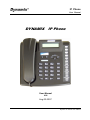
DYNAMIX IP Phone
User Manual
V.08
Aug-23-2007
1/54
Dynamix IP Phone User Manual
IP Phone
User Manual
Copyright and Trademarks
Specifications are subject to change without notice. DYNAMIX is a registered trademark and/or its affiliates in
United Kingdom and certain other countries. Copyright © 2007 Dynamix Pro., Ltd. All rights reserved. Other
brands and product names are trademarks or registered trademarks of their respective holders.
Safety Instructions and Approval
Safety
z
Instructions
To assure the finest performance, please read this manual carefully before
install or operating the unit. Keep it in a safe place for future reference.
z
Only authorized and qualified personnel may install or repair this product.
Do not try to open or repair the unit yourself.
z
Install the unit in a well ventilated, cool, dry, clean place, away from
windows, direct sunlight, heat sources, vibration, dust, moisture, or cold.
Don't touch the antenna unnecessarily.
z
z
To prevent fire or electrical shock, don’t expose to rain or water.
Do not operate the unit upside-down. It may overheat possibly causing
damage.
z
Grounding or polarization – Precaution should be taken so that the
grounding or polarization of the unit is not defeated.
z
To prevent damage by lightning, disconnect the power cord from the wall
outlet during an electrical storm.
z
The voltage to be used must be the same as that specified on this unit.
Using this unit with a higher voltage than that which is specified is
dangerous and may result in a fire or other type of accident causing
damage. Dynamix will not be held responsible for any damage resulting
from use of this unit with a voltage other than that which is specified.
z
Sudden temperature changes and storage or operation in an extremely
humid environment may cause condensation inside the unit.
z
When not planning to use this unit for long period of time (i.e., vacation,
etc.), disconnect the AC power plug from the wall outlet.
z
z
Keep the unit out of reach of children.
When you want to dispose of the unit, please follow local regulations on
conservation of the environment.
2/54
Dynamix IP Phone User Manual
IP Phone
User Manual
Warranty
We warrant to the original end user (purchaser) that the products shall be
confirmed to the relevant specifications and shall be free from defects in
workmanship and materials for a period of one (1) year from date of purchase
from the dealer.
Please keep your purchase receipt as it serves as proof of date of purchase.
During the warranty period, and upon proof of purchase, should the product
have indications of failure due to faulty workmanship and/or materials, we will,
at our discretion, repair or replace the defective products or components,
without charge for either parts or labor, to whatever extent we deem necessary
tore-store the product to proper operating condition. Any replacement will
consist of a new or re-manufactured functionally equivalent product of equal
value, and will be offered solely at our discretion. This warranty will not apply if
the product is modified, misused, tampered with, damaged by an act of God, or
subjected to abnormal working conditions. The warranty does not cover the
bundled or licensed software of other vendors. Defects which do not
significantly affect the usability of the product will not be covered by the
warranty. We reserve the right to revise the manual and online documentation
and to make changes from time to time in the contents hereof without obligation
to notify any person of such revision or changes.
Firmware
&
It’s due to the continuous evolution of Dynamix Pro. Co., Ltd., this model will
Documents
be regularly upgraded. Please consult the DYNAMIX web site for more
Updates
information on latest firmware, tools and documents.
http://www.godynamix.com
3/54
Dynamix IP Phone User Manual
IP Phone
User Manual
DW IP Phone User Manual...................................................................................................................... 1
V.07 1
1 Introduction....................................................................................................................................... 5
1.1
Hardware Overview............................................................................................................... 5
1.2
Software Overview ................................................................................................................ 5
2 Keypad interface for IP Phone demo system ................................................................................... 6
2.1
Keypad description................................................................................................................ 6
2.2
Keypad Function and Setting List. ........................................................................................ 8
3 Setup the DW IP Phone by Web Browser...................................................................................... 12
3.1
Login....................................................................................................................................12
3.2
System Information for the DW IP Phone . .........................................................................12
3.3
Phone Book.........................................................................................................................13
3.4
Phone Setting......................................................................................................................15
3.5
Network ...............................................................................................................................23
3.6
SIP Settings.........................................................................................................................31
3.7
NAT Trans ...........................................................................................................................37
3.8
Others..................................................................................................................................37
3.9
System Auth. .......................................................................................................................41
3.10 Save Change ......................................................................................................................41
3.11
Update Rom firmware: ........................................................................................................42
3.12 Reboot.................................................................................................................................43
4 Engineering webpage..................................................................................................................... 44
4.1
Engineer usage webpage list ..............................................................................................44
4.2
Toneset.htm.........................................................................................................................45
4.3
Speakerset.htm ...................................................................................................................45
4.4
BusyTonePTset.htm ............................................................................................................46
4.5
factory.htm...........................................................................................................................47
4.6
Using CLI command to configure the DW IP Phone...........................................................48
5 Phone function list .......................................................................................................................... 54
4/54
Dynamix IP Phone User Manual
IP Phone
User Manual
1
Introduction
This user manual is tailored for the DW IP Phone, which will explain the keypad instructions, web configurations,
and Telnet command line configurations. Before using the DW IP Phone, some setup processes are required to
make the DW IP Phone work properly. Please refer to the Setup Menu for further information.
1.1
Hardware Overview
The DW IP Phone has the following interfaces for Networking, telephone interface, LED indication, and power
connector.
1.1.1
1.1.2
1.2
Two RJ-45 Networking interface, these two interfaces support 10/100Mps Fast Ethernet.
You can connect one RJ-45 Fast Ethernet port to the ADSL or Switch, and connect the
other one to your computer.
LED Indication: There is one LED indicator in the DW IP Phone to show the function
status, such as speaker phone, register, incoming call etc.
Software Overview
Network Protocol
•
•
•
•
•
•
Tone
•
•
•
•
•
SIP v1 (RFC2543), v2(RFC3261)
IP/TCP/UDP/RTP/RTCP
IP/ICMP/ARP/RARP/SNTP
TFTP Client/DHCP Client/ PPPoE Client
Telnet/HTTP Server
DNS Client
Ring Tone
Ring Back Tone
Dial Tone
Busy Tone
User Programming Tone
Phone Function
•
•
•
•
Codec
•
•
•
•
•
G.711: 64k bit/s (PCM)
G.723.1: 6.3k / 5.3k bit/s
G.726: 16k / 24k / 32k / 40k bit/s (ADPCM)
G.729A: 8k bit/s (CS-ACELP)
G.729B: adds VAD & CNG to G.729
IP Assignment
•
•
•
Voice Quality
•
•
•
•
•
•
•
HTTP 1.1 basic/digest authentication for Web setup
MD5 for SIP authentication (RFC2069/ RFC 2617)
QoS
•
Call Hold
Call Waiting
Call Forward
Caller ID
3-way conference
ToS field
NAT Traversal
•
STUN
Configuration
•
•
•
DTMF Function
•
•
•
Static IP
DHCP
PPPoE
Security
VAD: Voice activity detection
CNG: Comfortable noise generator
LEC: Line echo canceller
Packet Loss Compensation
Adaptive Jitter Buffer
Call Function
•
•
•
•
•
Volume Adjustment
Speed dial, Phone book
Flash
Speaker Phone
In-Band DTMF
Out-of Band DTMF
SIP Info
Web Browser
Telnet
Keypad
Firmware Upgrade
SIP Server
5/54
Dynamix IP Phone User Manual
IP Phone
User Manual
•
•
2
•
•
•
Registrar Server (three SIP account)
Outbound Proxy
TFTP
HTTP
FTP
Keypad interface for IP Phone demo system
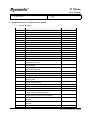
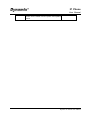
2.1
Keypad description
Key Name
1
Description
Note
“1”, “-“, “ ٫”, “!”, “?”
2
“2”, “a”, “b”, “c”, “A”, “B”, “C”
3
“3”, “d”, “e”, ”f”, “D”, “E”, “F”
4
“4”, “g”, “h”, “I”, “G”, “H”, “I”
5
“5”, “j”, “k”, “l”, “J”, “K”, “L”
6
“6”, “m”, “n”, “o”, “M”, “N”, “O”
7
“7”, “p”, “q”, “r”, “s”, “P”, “Q”, “R”, ‘S”
8
“8”, “t”, “u”, “v”, “T”, “U”, “V”
9
“9”, “w”, “x”, “y”, “z”, “W”, “X”, “Y”, “Z”
0
“0”, “space”
*
“*”, “•”, “:”, “@”
#
Start the dialing process.
Conf
This is the three way conference function.
Trans
Transfer calls to other phone numbers.
Redial
Redial the previous number that was keyed in.
Hold
This is the “HOLD” function that holds the
conversation channel.
Line1~Line3 The 3 separate lines that the phone can
accommodate.
MENU
Enters the Menu screen, IP Phone configuration
options are listed here.
VMS
This is the “Voice Mail” function.
CALL IN
Displays the incoming call list.
CALL OUT Displays the outgoing call list.
DND
This is the “Reject” function used to block all
incoming calls.
FORWARD This is the “Forward” function; forwarding options
can be configured here.
SPEED
This is the “Speed Dial” function.
PHONEBOOK
This is the “Phone Book” function.
Mute
This is the “Mute” function.
This is the “Delete” button, used to delete the
C
number dialed or alphabets keyed.
OK
This is the “OK” button, used as an enter button to
accept settings in the LED user interface.
UP/DOWN Up↑ and Down↓ keys used to navigate the user
interface.
LEFT/RIGHT Left← and Right→ keys used to navigate the user
interface.
SPK
This is the Speaker Phone.
6/54
Dynamix IP Phone User Manual
IP Phone
User Manual
Volume -/+
Volume buttons used to increase/decrease the
volume that is heard from the phone and speaker
phone.
7/54
Dynamix IP Phone User Manual
IP Phone
User Manual
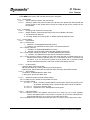
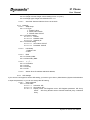
2.2
Keypad Function and Setting List
Press MENU to access it and view the list from the LCD panel.
2.2.1 Phone Book
2.2.1.1
Search: Search entries in the phone book.
2.2.1.2
Add entry: Add a new phone number to the phone book. Speed dial: Add a speed dial
phone number to the speed dial list. Erase all: Erase all the phone numbers in the
Phone Book.
2.2.2 Call history
2.2.2.1
Incoming calls: Show all incoming calls.
2.2.2.2
Dialed numbers: Show all dialed calls. Erase record: Delete call history.
1. All: Delete all call histories.
2. Incoming: Delete all incoming calls. 3. Dialed: Delete all dialed out calls.
2.2.3 Phone setting
2.2.3.1
Call forward
2.2.3.1.1 All Forward.
1. Activation: To Enabled/Disabled this function.
2. Number: The speed dial number that the call will be forward to.
2.2.3.1.2 Busy Forward.
1. Activation: To Enabled/Disabled this function.
2. Number: The speed dial number that the call will be forward to.
2.2.3.1.3 No Answer Forward. Activation: To Enabled/Disabled this function.
2. Number: The speed dial number that the call will be forward to.
2.2.3.1.4 Ring Timeout: Set the number of ring back tones that will be heard before the no
answer forward function will take place, e.g. if this option is set at 2, the phone will
ring twice, if no one answers the phone by that period, the no answer forward
function will forward the phone call to the number specified by the user.
2.2.3.2
Do Not Disturb
1. Always: Block all incoming calls
2. By Period: Block all incoming calls during a certain period
3. Period Time: Set the start time and end time when incoming calls will be blocked
2.2.3.3
Alarm setting
1. Activation: Enable/Disable the alarm clock
2. Alarm time: Specify the alarm time.
2.2.3.4
Date/Time setting: Date and Time Setting.
2.2.3.4.1 Date & Time: Set the IP Phone Date and Time.
2.2.3.4.2 SNTP setting
2.2.3.4.2.1 SNTP : Enabled / Disable SNTP. Primary SNTP: Set Primary SNTP server
IP address. Secondary SNTP: Set Secondary SNTP server IP address.
2.2.3.4.2.2 Time zone: Set Time zone.
2.2.3.4.2.3 Adjustment Time: Set adjustment time period.
2.2.3.5
Volume and Gain
2.2.3.5.1 Handset volume: Set Handset volume from 0~15 (max.) for you to hear. Speaker
volume: Set Spearer phone volume from 0~15 (max.) for you to hear. Handset Gain:
Set Handset Gain from 0~15 (max.) for the other site to haer.
2.2.3.5.2 Speaker Gain: Set Spearer phone Gain from 0~15 (max.) for the other site to haer.
8/54
Dynamix IP Phone User Manual
IP Phone
User Manual
2.2.3.6
Ringer
2.2.3.6.1 Ringer volume: Ringer volume setting from 0~15 (max.).
2.2.3.6.2 Ringer type: Ringer tone selection from 1~4.
2.2.3.7
Auto Dial: Set Auto Dial time from 3~9 seconds.
2.2.4 Network
2.2.4.1
WAN Setup
2.2.4.1.1 IP Type
1. Fixed IP client:
2. DHCP client: DHCP
3. PPPoE client: PPPoE
2.2.4.1.2 Fixed IP setting
2.2.4.1.2.1 Host IP:
2.2.4.1.2.2 Network mask:
2.2.4.1.2.3 Gateway IP:
2.2.4.1.3 PPPoE setting
2.2.4.1.3.1 User name: PPPoE
2.2.4.1.3.2 Password: PPPoE
2.2.4.2
LAN Setup
1. Bridge: LAN.
2. NAT:
2.2.4.3
DNS
2.2.4.3.1 Primary DNS:
2.2.4.3.2 Secondary DNS:
VLAN
2.2.4.4
2.2.4.4.1 Activation
2.2.4.4.2 VID
2.2.4.4.3 Priority
2.2.4.4.4 CFI
2.2.4.5
2.2.5
Status: Show IP address and MAC address,
SIP Settings
If you want to use keypad to set the SIP setting, you have to go to item 7 (Administrator) System Authentication
to input the password, or you can not change the SIP setting.
2.2.5.1
Service domain
2.2.5.1.1 First realm
2.2.5.1.1.1 Activation: SIP
2.2.5.1.1.2 User name: SIP
2.2.5.1.1.3 Display name: SIP Register name: SIP Register password: SIP Proxy
server:
SIP Proxy Domain server: Domain Outbound proxy: Outbound
Proxy
9/54
Dynamix IP Phone User Manual
IP Phone
User Manual
1.
2.
3.
4.
5.
6.
2.2.5.1.2 Second realm
2.2.5.1.2.1 Activation: SIP
2.2.5.1.2.2 User name: SIP
2.2.5.1.2.3 Display name: SIP
2.2.5.1.2.4 Register name: SIP
2.2.5.1.2.5 Register password: SIP
2.2.5.1.2.6 Proxy server
Proxy:
2.2.5.1.2.7 Domain server: Domain Outbound proxy: Outbound Proxy
2.2.5.1.3 Third realm
2.2.5.1.3.1 Activation: SIP User name: SIP
2.2.5.1.3.2 Display name SIP:
2.2.5.1.3.3 Register name: SIP Register password: SIP
2.2.5.1.3.4 Proxy server
Proxy: Domain server: Domain
2.2.5.1.3.5 Outbound proxy: Outbound Proxy
2.2.5.2
Codec
2.2.5.2.1 Codec type
G.711 uLaw: G.711 uLaw
G.711 aLaw: G.711 aLaw
G.723: G.723.1
G.729: G.729A
G.726-16: G.726 16Kbps G.726-24: G.726 24KbpG.726-32: G.726 32Kbps
G.726-40: G.726 40Kbps
2.2.5.2.2 VAD: Voice Active Detection Enable/Disable.
2.2.5.3
RTP setting
2.2.5.3.1 Outband DTMF: Outband DTMF
2.2.5.3.2 Duplicate RTP
1. No duplicate: 0
2. One duplicate: 1
3. Two duplicate: 2
2.2.5.4
RPort Setting: RPort Enabled/Disabled RPORT
2.2.5.5
Hold by RFC: (RFC3261)
2.2.5.6
Status: Show the SIP Proxy register status. You can use UP/Down key to check each
Realm’s status. SIP Proxy
1. First Realm: SIP
2. Second Realm: SIP
3. Third Realm: SIP
2.2.6 NAT Transversal
2.2.6.1
STUN setting
2.2.6.1.1 STUN: STUN
2.2.6.1.2 STUN server: STUN
10/54
Dynamix IP Phone User Manual
IP Phone
User Manual
2.2.7 Administrator
2.2.7.1
Auto Config
2.2.7.1.1 Config Mode: You can select Disable/TFTP/FTP to do the auto config function. This
function must work with the Auto Config Server.
2.2.7.1.2 TFTP server: Setting the TFTP server IP address.
2.2.7.1.3 FTP server: Setting the FTP server IP address.
2.2.7.1.4 FTP Login Name: Setting the login name to the FTP server.
2.2.7.1.5 FTP Password: Setting the Password to the FTP server.
2.2.7.2
Upgrade system
2.2.7.2.1 Upgrade Now.
2.2.7.2.2 Status.
2.2.7.3
Default setting: You can restore to the default setting.
2.2.7.4
System Authentication: To do the SIP setting from Keypad, need to input the
password first. Default is blank “”.
2.2.7.5
Version: This will show the system’s firmware version.
2.2.7.6
Watch Dog: You can use this to enable Watch Dog function to do the debugging.
2.2.7.7
Restart: You can use this function to restart your IP Phone.
11/54
Dynamix IP Phone User Manual
IP Phone
User Manual
3
Setup the DW IP Phone by Web Browser
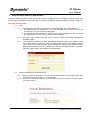
The DW IP Phone provides a built-in web server. You can use Web browser to configure the DW IP Phone. First
please input the IP address in the Web page. In the end of IP address, please add the port number “:9999”. Ex:
http://192.168.123.1:9999
3.1
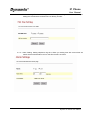
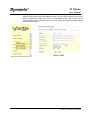
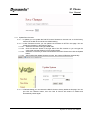
Login.
3.1.1
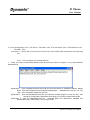
Please input the username and password into the blank field. The default setting is:
1. For Administrator, the username is: root; and the password is: test. If you use the
account login, you can configure all the setting.
2. For normal user, the username is: system or user; and the password is: null. If you use
the account login, but you can not configure the SIP setting.
3.1.2
Click the “Login” button will move into the DW IP Phone web based management
information page.
If you change the setting in the Web Management interface, please do remember to click
the “Submit” button in that page. After you finished the change of the setting, click the
“Save” function in the left side, and click the Save Button. When you finished the setting,
please click the Reboot function in the left side, and click the Reboot button in that page.
After the system restart, all the setting can work properly.
3.1.3
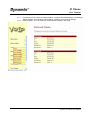
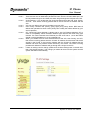
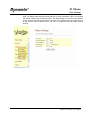
3.2
System Information for the DW IP Phone.
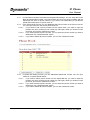
3.2.1
3.2.2
When you login the web page, you can see the DW IP Phone current system information
like firmware version, company… etc in this page.
Also you can see the function lists in the left side. You can use mouse to click the function
you want to set up.
12/54
Dynamix IP Phone User Manual
IP Phone
User Manual
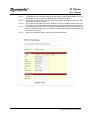
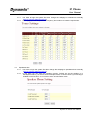
3.3
Phone Book
3.3.1
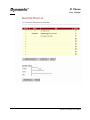
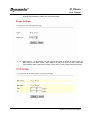
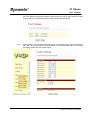
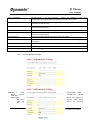
In Phone Book contains Phone Book and Speed Dial Settings. You can setup the Phone
Book and Speed Dial number. The Phone Book can store 140 phone numbers and the
Speed Dial can store 10 phone numbers. If you want to use Speed Dial you just dial the
speed dial number (from 0~9) then press “#”.
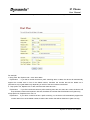
3.3.2 In the Phone Book function you can add/delete the phone number in the phone book list.
You can input maximum 100 entries phone book list.
3.3.2.1
If you need to add a phone number into the phone book, you need to input the
position, the name, and the phone number (by URL type). When you finished a new
phone list, just click the “Add Phone” button.
3.3.2.2
If you want to delete a phone number, you can select the phone number you want to
delete then click “Delete Selected” button.
3.3.2.3
If you want to delete all phone numbers, you can click “Delete All” button.
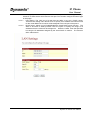
3.3.3
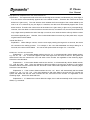
In Speed Dial setting function you can add/delete Speed Dial number. You can input
maximum 10 entries speed dial list.
3.3.3.1
If you need to add a phone number into the Speed Dial list, you need to input the
position, the name, and the phone number (by URL type). When you finished a new
phone list, just click the “Add Phone” button.
3.3.3.2
If you want to delete a phone number, you can select the phone number you want to
delete then click “Delete Selected” button.
3.3.3.3
If you want to delete all phone numbers, you can click “Delete All” button.
13/54
Dynamix IP Phone User Manual
IP Phone
User Manual
14/54
Dynamix IP Phone User Manual
IP Phone
User Manual
3.4
Phone Setting
3.4.1
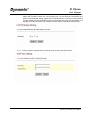
In Phone Setting contains Call Forward, SNTP Settings, Volume Settings, Melody Settings,
DND Settings, Dial Plan Settings, Call waiting Settings, Soft-key Setting, Hot line Settings,
Alarm Settings.
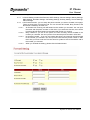
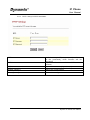
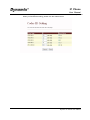
3.4.2 Call Forward function: you can setup the phone number you want to forward in this page.
There are three type of Forward mode. You can choose All Forward, Busy Forward, and
No Answer Forward by click the icon.
3.4.2.1
All Forward: All incoming call will forward to the number you choosed. You can input
the name and the phone number in URL field. If you select this function, then all the
incoming call will direct forward to the speed dial number you choose.
3.4.2.2
Busy Forward: If you are on the phone, the new incoming call will forward to the
number you choosed. You can input the name and the phone number in URL field.
3.4.2.3
No Answer Forward: : If you can not answer the phone, the incoming call will forward
to the number you choosed. You can input the name and the phone number in URL
field. Also you have to set the Time Out time for system to start to forward the call to
the number you choosed.
3.4.2.4
When you finished the setting, please click the Submit button.
15/54
Dynamix IP Phone User Manual
IP Phone
User Manual
3.4.3
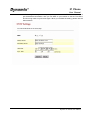
SNTP Setting function: you can setup the primary and second SNTP Server IP Address, to
get the date/time information. Also you can base on your location to set the Time Zone,
and how long need to synchronize again. When you finished the setting, please click the
Submit button.
16/54
Dynamix IP Phone User Manual
IP Phone
User Manual
3.4.4
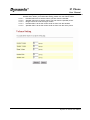
Volume Setting function: you can setup the Handset Volume, Ringer Volume, and the
Handset Gain. When you finished the setting, please click the Submit button.
3.4.4.1
Handset Volume is to set the volume you hear from the handset.
3.4.4.2
Speaker Volume is to set the volume you hear from the speaker phone.
3.4.4.3
Ringer Volume is to set the ringer volume.
3.4.4.4
Handset Gain is to set the volume send out from from the handset.
3.4.4.5
Speaker Gain is to set the volume send out from from the micro phone.
17/54
Dynamix IP Phone User Manual
IP Phone
User Manual
3.4.5
Melody Setting function: you can select the melody for the incoming call. When you
finished with the setting, please click the Submit button.
3.4.6
DND function: In this section, you can choose two types of options for DND, these are
DND Always and DND Period. DND Always will block all incoming calls, while DND
Period allows users to specify the period of time when incoming calls should be blocked.
18/54
Dynamix IP Phone User Manual
IP Phone
User Manual
3.4.7
Dial Plan Setting: Allows users to set prefixes that can be applied to dialed numbers.
For example:
1: Drop prefix: No, Replace rule 1: 002, 8613+8662
Explanation : If you dial a number that has a prefix matching 8613 or 8662, the device will automatically
append the number 002 in front of the dialed number, therefore the number that will be dialed out is
[002+8613+xxx] or [002+8662+xxx] depending on which of the two numbers were dialed.
2:Drop prefix: Yes, Replace rule 2: 006, 002+003+004+005+007+009;
Explanation : If you dial a number that has a prefix matching 002, 003, 004, 005, 007 or 009, the device will
drop all these numbers and replace it with 006, therefore the number that will be dialed out is [006+xxx].
3:Drop prefix: No, Replace rule 3: 009, 12
Explanation: If you dial a number that has a prefix matching 12, the device will automatically append the
number 009 in front of the dialed number, therefore the number that will be dialed out is [009+12+xxx].
19/54
Dynamix IP Phone User Manual
IP Phone
User Manual
4:Drop prefix: No, Replace rule 4: 007, 5xxx+35xx+21xx
Explanation: This replacement rule will check if the first digit of the number is 5 followed by any three digits, if
it is, the device will automatically append 007 to the dialed number. Therefore the number that will be
dialed out is [007+5xxx].
This rule will also check whether the first two digits of the number dialed by the
user is 35 or 21 followed by any two digits, if it matches, the device will automatically append 007 to the
dialed number. Therefore the number that will be dialed out is [007+35xx] or [007+21xx] correspondingly.
However, if the user dials a number that does not match the rule, for instance 534, the device will detect that
only 2 digits were inputted to the end of the digit 5, not three, as a result the device will only dial the number
534 without appending 007. Likewise, if the number dialed does not match any of the prefix rules, only the
original number will be dialed.
5:Auto Dial Time: 5
Explanation: While dialing a number, once the user stops pressing the keypad for 5 seconds, the device
will commence the dialing process. For example, if the user dials 58946869 and stops dialing for 5
seconds, this number will be dialed. You can set this option within the range of 3 – 9 seconds.
6:Dial now: *xx+#xx+11x+xxxxxxxx
Explanation 1: If the number dialed matches the rule “*xx”, it will automatically dial the dialed number,
e.g. *00, *01, *02… *99. If the user happens to dial more digits in the end such as *001111, the system will
detect that the first two matches the rule, and send out the number *00 regardless of the remaining digits.
Hence the name Dial Now.
Explanation 2: If the number dialed matches the rule”#xx”, it will automatically dial the dialed number,
e.g. #00, #01, #02… #99. If the user happens to dial more digits in the end such as #001111, the system
will detect that the first two matches the rule, and send out the number #00 regardless of the remaining digits.
Hence the name Dial Now.
Explanation 3: If the number dialed matches the rule “11x”, then it will automatically dial the dialed
number, e.g. 110, 111, 112…119. If the user happens to dial more digits in the end such as 1101234 the
system will detect that the first three matches the rule, and send out the number 110 regardless of the
remaining digits. Hence the name Dial Now.
Explanation 4: If it detects the number dialed is 8 digits, then it will automatically send out the number
dialed, e.g. 12345678.
20/54
Dynamix IP Phone User Manual
IP Phone
User Manual
3.4.8
Call Waiting Setting: You can Enable/Disable the Call Waiting function, When you are
talking with someone, there is a new incoming call, you will hear the call waiting tone.
When you finished the setting, please click the Submit button. If there is nothing need to
change, please click the Save Change Item in the left side, then click the Save button. The
change you made will save into the system and the system will Reboot automatically.
3.4.9
Soft-key Setting: Special function code for Pick up and Voice Mail function.
21/54
Dynamix IP Phone User Manual
IP Phone
User Manual
3.4.10 Hot line Setting: This function is support auto dial to you setting hot line number, when you
setting this function device should can not dial any number.
3.4.11 Alarm Setting: Setting telephone ring time, When you setting time with current time are
match device should produce a ring ,this time format is 24 hours.
22/54
Dynamix IP Phone User Manual
IP Phone
User Manual
3.5
Network
3.5.1
3.5.2
In Network you can check the Network status, configure the WAN Settings, LAN Settings,
DDNS settings, VLAN Settings, DMZ Setting, Virtual Server and PPTP Settings.
Network Status: You can check the current Network setting in this page.
23/54
Dynamix IP Phone User Manual
IP Phone
User Manual
3.5.3 WAN Settings: You can configure the DW IP Phone Network setting in this page.
3.5.3.1
The Bridge Item is to setup the DW IP Phone Bridge mode Enable/Disable. If you set
the Bridge On, then the two Fast Ethernet ports will be transparent.
3.5.3.2
LAN Mode: Set NAT mode, the port of LAN will support to assgin Private IP to other
device which insert to LAN port.
3.5.3.3
The TCP/IP Configuration item is to setup the LAN port’s network environment. You
may refer to your current network environment to configure the DW IP Phone properly.
3.5.3.4
The PPPoE Configuration item is to setup the PPPoE Username and Password. If you
have the PPPoE account from your Service Provider, please input the Username and
the Password correctly.
3.5.3.5
When you finished the setting, please click the Submit button.
24/54
Dynamix IP Phone User Manual
IP Phone
User Manual
3.5.4
LAN Setting: If you choose NAT option in LAN mode, the port of LAN can support to assign
Private IP to other device which insert to LAN port. You can also configure Private IP type
on this page.
3.5.4.1
LAN Setting: The LAN port of lp-399 has the ability to act as a DHCP server.
Therefore this setting menu allows users to specify an IP address and subnet mask
for the virtual DHCP server which will be assigned to the LAN port of the phone.
3.5.4.2
DHCP Server: Allows you to Enable/Disable the virtual DHCP server function. The
Start IP and End IP fields provides users the option to specify the range of IP
addresses that the hosts will be assigned to. While the Lease Time field specifies
how long the IP addresses assigned by the virtual DHCP is valid for. The format is
dd:hh (days/hours).
25/54
Dynamix IP Phone User Manual
IP Phone
User Manual
3.5.5
DDNS Setting: You can configure the DDNS setting in this page. You need to have the
DDNS account and input the informations properly. You can have a DDNS account with a
public IP address then others can call you via the DDNS account. But now most of the
VoIP applications are work with a SIP Proxy Server. When you finished the setting, please
click the Submit button.
26/54
Dynamix IP Phone User Manual
IP Phone
User Manual
3.5.6 VLAN: You can set the VLAN setting in this page. Set the packets related to the LP399,
3.5.6.1
There are two kind of destination packets will come from the LP399’s WAN port, one
kind of packets will go to the LP399, the other will go through the LAN port to the PC.
3.5.6.2
VLAN Packets: if you enable the first VLAN Packets and set the VID, User Priority,
and CFI, then all the incoming packets will be check with the IP Address and the
VID.
3.5.6.3
VID: You can follow your service provider to set your VID.
3.5.6.4
User Priority: Defines user priority, giving eight (2^3) priority levels. IEEE 802.1P
defines the operation for these 3 user priority bits. Usually this will be defined by your
service provider.
3.5.6.5
CFI: Canonical Format Indicator is always set to zero for Ethernet switches. CFI is
used for compatibility reason between Ethernet type network and Token Ring type
network. If a frame received at an Ethernet port has a CFI set to 1, then that frame
should not be forwarded as it is to an untagged port.
3.5.6.6
When you enable the first VLAN Packets and set the VID, User Priority, and CFI,
then all the incoming packets with the LP399’s IP address and the same VID will be
accept by the LP399. If the incoming packets with the LP399’s IP address but the
different VID then the packets will be discard by the LP399. The Other incoming
packets with different IP address will go through the LAN port to the PC.
3.5.6.7
If there is nothing need to change, please click the Save Change Item in the left side,
then click the Save button. The change you made will save into the system and the
system will Reboot automatically.
27/54
Dynamix IP Phone User Manual
IP Phone
User Manual
3.5.7
DMZ
DMZ Setting: If you enable it, all packets will send to the specific IP( except SIP packets)
DMZ Host IP
Submit [Button]
Default setting is Off (not executed). When
activated, all packets (excluding SIP related
packets) will be sent to the designated IP
address
Input the special IP address of the DMZ host.
Saves the configuration
Reset [Button]
Erases the configuration
28/54
Dynamix IP Phone User Manual
IP Phone
User Manual
3.5.8
Virtual Server:
Virtual Server Page
Num
Enable
Protocol
In Port
Ex Port
Server IP
Select
Enable
Selected
[Button]
Delete
Selected
[Button]
Delete All [Button]
Reset [Button]
Num [Button]
To browse through different pages, click on the drop down box and select
the page number you wish to view.
This column displays the serial numbers, ranging from 0-23. There are
24 records in total.
Click on the check box to enable this option, the default option is
unchecked (disabled).
Displays the TCP and UDP port information.
Displays the internal port number.
Displays the external port number.
Shows the IP address of the Server.
To select a specific Virtual Server and perform configurations, click on the
check box according to the server that you wish to configure.
Enable the selected server.
Delete the selected server.
Delete all data.
Clean all data.
Specify which record to insert the server on the table. The allowable
range is 0-23.
29/54
Dynamix IP Phone User Manual
IP Phone
User Manual
3.5.9
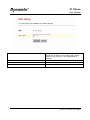
PPTP: Sets your PPTP information.
PPTP Username
PPTP Password
Submit [Button]
Default setting is Off (not executed). When set
to On (executed), PPTP function will be
activated.
Input the IP address of the PPTP server’s
location.
Input the username (login details).
Input the password (login details).
Saves the configuration
Reset [Button]
Erases the configuration
PPTP
PPTP Server
30/54
Dynamix IP Phone User Manual
IP Phone
User Manual
3.6
SIP Settings
3.6.1
In SIP Settings you can setup the Service Domain, Port Settngs, Codec Settings, Codec ID
Settings, RTP Setting, RPort Setting and Other Settings. If the VoIP service is provided by
ISP, you need to setup the related informations correctly then you can register to the SIP
Proxy Server correctly.
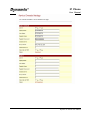
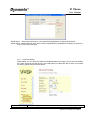
3.6.2 In Service Domain Function you need to input the account and the related informations in
this page, please refer to your ISP provider. You can register three SIP account in the DW
IP Phone. You can dial the DW IP Phone to your friends via first enable SIP account and
receive the phone from these three SIP accounts.
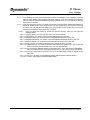
3.6.2.1
First you need click Active to enable the Service Domain, then you can input the
following items:
3.6.2.1.1 Display Name: you can input the name you want to display.
3.6.2.1.2 User Name: you need to input the User Name get from your ISP.
3.6.2.1.3 Register Name: you need to input the Register Name get from your ISP.
3.6.2.1.4 Register Password: you need to input the Register Password get from your ISP.
3.6.2.1.5 Domain Server: you need to input the Domain Server get from your ISP.
3.6.2.1.6 Proxy Server: you need to input the Proxy Server get from your ISP.
3.6.2.1.7 Outbound Proxy: you need to input the Outbound Proxy get from your ISP. If your ISP
does not provide the information, then you can skip this item.
3.6.2.1.8 You can see the Register Status in the Status item. If the item shows “Registered”,
then your DW IP Phone is registered to the ISP, you can make a phone call direcly.
3.6.2.1.9 If you have more than one SIP account, you can following the steps to register to the
other ISP.
3.6.2.1.10 3.2.6.2.1.10 When you finished the setting, please click the Submit button.
3.2.6.2.1.11 MWI: Just support “Subscribe MWI mode”.
31/54
Dynamix IP Phone User Manual
IP Phone
User Manual
32/54
Dynamix IP Phone User Manual
IP Phone
User Manual
3.6.3
Port Settings: you can setup the SIP and RTP port number in this page. Each ISP provider
will have different SIP/RTPport setting, please refer to the ISP to setup the port number
correctly. When you finished the setting, please click the Submit button.
3.6.4
Codec Settings: You can setup the Codec priority, RTP packet length, and VAD function in
this page. You need to follow the ISP suggestion to setup these items. When you finished
the setting, please click the Submit button.
33/54
Dynamix IP Phone User Manual
IP Phone
User Manual
3.6.5
Codec ID Settings: You can set the Codec ID to meet the other device’s requirement.
When you finished the setting, please click the Submit button.
34/54
Dynamix IP Phone User Manual
IP Phone
User Manual
3.6.6
DTMF Setting: You can setup the RFC2833 Out-Band DTMF, Inband DTMF and Send
DTMF SIP Info in this page. To change this setting, please following your ISP information.
When you finished the setting, please click the Submit button.
3.6.7
RPort Function: You can setup the RPort Enable/Disable in this page. To change this
setting, please following your ISP information. When you finished the setting, please click
the Submit button.
35/54
Dynamix IP Phone User Manual
IP Phone
User Manual
3.6.8
Other Settings: You can setup the Hold by RFC, Voice/SIP QoS and SIP expire time in this
page. To change these settings please following your ISP information. When you finished
the setting, please click the Submit button. The QoS setting is to set the voice packets’
priority. If you set the value higher than 0, then the voice packets will get the higher priority
to the Internet. But the QoS function still need to cooperate with the others Internet
devices.
36/54
Dynamix IP Phone User Manual
IP Phone
User Manual
3.7
NAT Trans
3.7.1
3.7.2
3.8
In NAT Trans. you can setup STUN function. These functions can help your DW IP Phone
working properly behind NAT.
STUN Setting: you can setup the STUN Enable/Disable and STUN Server IP address in
this page. This function can help your DW IP Phone working properly behind NAT. To
change these settings please following your ISP information. When you finished the
setting, please click the Submit button.
Others.
3.8.1
3.8.2
3.8.3
3.8.4
In Others you can setup Auto Config and ICMP Setting function. The function can
configure your DW IP Phone automatically.
Auto Config: you can setup the Auto Configuration Enable/Disable and auto configuration
by FTP or TFTP. You need to select the way to do the Auto Configurationand set the
Server IP address in this page. This function can automatically download the configure file
to setup your DW IP Phone. When you finished the setting, please click the Submit button.
When you finished the setting, please click the Submit button.
If there is nothing need to change, please click the Save Change Item in the left side, then
click the Save button. The change you made will save into the system and the system will
Reboot automatically.
37/54
Dynamix IP Phone User Manual
IP Phone
User Manual
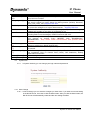
Auto Configuration
Default setting is Off (not executed). Specify the methods on how auto
configuration will be performed, the options are TFTP, FTP or HTTP.
TFTP Server
Set the TFTP Server’s location, you can input IP address or Domain Name
information in this text box.
HTTP Server
Set the HTTP Server’s location, you can input IP address or Domain Name
information in this text box.
HTTP Path
Specify the path to store data, for e.g. /123/
FTP Server
Set the FTP Server’s location, you can input IP address or Domain Name
information in this text box.
FTP Username
Enter the relevant Username to log on to the FTP Server。
FTP Password
Enter the relevant password associated with the inputted username to log on to the
FTP Server
File Path
Specify the path to store data, for e.g. /123/
Submit [Button]
Saves the configuration
Reset [Button]
Erases the configuration
3.8.5
Auto configuration example
Configuration: HTTP ,
192.168.1.50 , HTTP
Example 1:
Auto
HTTP
Server:
Path: /file/。
Explanation
:
the HTTP
path and
file。
device will connect to
Server’s /file/ folder
search the matching
38/54
Dynamix IP Phone User Manual
IP Phone
User Manual
2:Auto Configuration: FTP,FTP Server: 192.168.1.150,FTP Username: test,FTP Password: test,
File Path: /file/。
Comment 1:device will connect to the FTP Server’s /file/ folder path and search the matching
file 。
3.8.6 How to produce auto Configuration file
1: Firstly, you need to find the MAC address of the device that you want to configured,for e.g. MAC Address:
00059e812118。
Explanation 1:open the [MACList.txt] file then enter the these information in order[MAC Address, Display
Name, User Name, Register Name, Register Pass](example :00059e812118, UN_DO, 105, 105,
105),when completed, please save your file.
Explanation 2:open the [StandardCFG.dat] file (use Windows notepad program to open the file),then
change the configurations parameters accordingly, once finished, please save the file。
Explanation 3 : open the [MakeMACF.exe] file , download [MAC File: MACList.txt, Standard File:
StandardCFG.dat],select [Start],then encrypt the file。
39/54
Dynamix IP Phone User Manual
IP Phone
User Manual
Explanation 4:the program will produce a encrypted string [00059e812118.dat] as the filename。
Explanation 5:please insert the name of the newly encrypted filename [00059e812118.dat] to your [HTTP or
FTP or TFTP Server] file path。
3.8.7 Advanced Setting
ICMP Setting: you can setup the ICMP echo Enable/Disable in this page. This function can disable
echo when someone ping this device, it can avoid haker try to attack the device. When you finished
the setting, please click the Submit button.
ICMP Not Echo
Default setting is No (do not activate). Once activated all ping messages
40/54
Dynamix IP Phone User Manual
IP Phone
User Manual
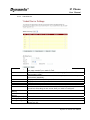
Send Anonymous
CID
Billing Signal (*)
CPC Delay
CPC Duration
Send Flash event
SIP Encrypt
PPPoE retry period
(*)
System Log Server
(*)
System Log Type
(*)
Submit [Button]
Reset [Button]
3.9
will not be responded.
Default setting is No (do not activate). Once activated the device will not
send its own number.
Default setting is Disabled (do not activate). Once activated the device
will send a signal to notify about the billing status (Polarity Reversal,
Tone_12K, Tone_16k) Support FXS Port
Default is 2 seconds, allows the system the ability to adjust the time taken
to lower the voltage to 0V upon disconnection. Support FXS Port
Default value is 0ms (do not lower any voltage). Specifies how long the
voltage will remain in ms when it is lowered to 0V.
Default setting is Disabled (do not activate). Provides two methods for
sending flash event messages; DTMF Event and SIP Info.
Default setting is Disabled (do not activate). SIP’s encryption method,
four options to choose from; INFINET, AVS, WALKERSUN1,
WALKERSUN2. Only works under environments that provide these
services.
Default value is 5 seconds, range is from 5~255. Specifies the time
taken to redial when PPPoE dialing fails.
Specifies the location of the System log server where log information will
be stored.
Default setting is None (do not activate). Specifies the format of system
log messages, four to choose from; None, Call Statistics, Debug
Information and Both.
Save setting value.
Clean all setting.
System Auth.
3.9.1
In System Authority you can change your login name and password.
3.10 Save Change
3.10.1 In Save Change you can save the changes you have done. If you want to use new setting
in the DW IP Phone, You have to click the Save button. After you click the Save button, the
DW IP Phone will automatically restart and the new setting will effect.
41/54
Dynamix IP Phone User Manual
IP Phone
User Manual
3.11 Update Rom firmware:
3.11.1 In Update you can update the DW IP Phone’s firmware to the new one or do the factory
reset to let the DW IP Phone back to default setting.
3.11.2 In New Firmware function you can update new firmware via HTTP in this page. You can
ugrade the firmware by the following steps:
3.11.2.1 Select the firmware code type, ROM code.
3.11.2.2 Click the “Browse” button in the right side of the File Location or you can type the
correct path and the filename in File Location blank.
3.11.2.3 Select the correct file you want to download to the DW IP Phone then click the Update
button.
3.11.2.4 After finished the update firmware process, the system will Reboot automatically.
3.11.3 In Default Setting you can restore the DW IP Phone to factory default in this page. You can
just click the Restore button, then the DW IP Phone will restore to default and
automatically restart again.
42/54
Dynamix IP Phone User Manual
IP Phone
User Manual
3.12 Reboot
3.12.1 Reboot function you can restart the DW IP Phone. If you want to restart the DW IP Phone,
you can just click the Reboot button, then the DW IP Phone will automatically.
43/54
Dynamix IP Phone User Manual
IP Phone
User Manual
4
Engineering webpage
4.1
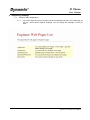
Engineer usage webpage list
4.1.1
You have to login the system first then change the webpage manually. In this webpage you
will see the list about engineer webpage. You can change the webpage to what you
want.
44/54
Dynamix IP Phone User Manual
IP Phone
User Manual
4.2
Toneset.htm
4.2.1
4.2.2
4.3
You have to login the system first then change the webpage to toneset.htm manually
(http://ip address:9999/toneset.htm).
In this page you can setup the Tone frequency and cadence to meet the requirement.
Speakerset.htm
4.3.1
4.3.2
You have to login the system first then change the webpage to speakerset.htm manually
(http://ip address:9999/toneset.htm).
In this page you can setup the Speaker function. Default we set the speaker is in
half-duplex mode. If you want to set to full-duplex mode, it need to check if your housing is
suitable for this function. Or you have to set it as half-duplex mode.
45/54
Dynamix IP Phone User Manual
IP Phone
User Manual
4.4
BusyTonePTset.htm
4.4.1
4.4.2
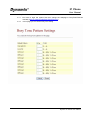
You have to login the system first then change the webpage to BusyTonePTset.htm
manually (http://ip address:9999/BusyTonePTset.htm)
In this page you can set the busy tone setting
46/54
Dynamix IP Phone User Manual
IP Phone
User Manual
4.5
factory.htm
4.5.1
4.5.2
You have to login the system first then change the webpage to factory.htm manually
(http://ip address:9999/factory.htm).
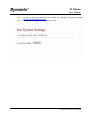
In this page you save your current settings to a file.
47/54
Dynamix IP Phone User Manual
IP Phone
User Manual
4.6
Using CLI command to configure the DW IP Phone
4.6.1
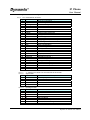
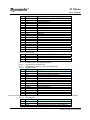
CLI command list as below:
Itno
Command
Description
1
?
Show CLI Command
2
arp
ARP Configuration
3
ipconfig
Interface Configuration
4
save
Save to flash
5
reboot
Reboot
6
exit
Exit
7
debugmode
Enter Debug Mode
8
update
Update Flash Code/RAM
9
auth
Change User Name and Password
10
nat
NAT Configuration
11
dns
DNS Configuration
12
ping
ping [-lN] [IP-addr|host-name]
13
sip
SIP Configuration
14
ddns
DDNS Configuration
15
sntp
SNTP Configuration
16
vlan
VLAN Configuration
17
time
Get System Time
18
mactab
Show MAC Learning Table
19
dump
Read/Write Memory
20
book
Edit phone book
21
reload
Reload Factory Setting
22
watchdog
WatchDog Function
23
phone
Phone Setting
24
weblogo
Change Web’s logo
25
dsp
Show dsp type
26
addport
Add Nat Port Mapping
27
cid
Select slic Cid
28
slic
read or write slic registers
29
ver
Firmware Version
4.6.1.1
4.6.1.2
Itno
1
2
3
4
5
“?” function is to show CLI command list in the screen.
arp function
Command
Description
?
Show ‘arp’ Option
-a
Show ARP Table
-d
Delete ARP Table
-s
Set Static ARP Table
(null)
Show ARP Table
4.6.1.3
Itno
1
2
3
4
5
6
7
8
ipconfig function
Command
?
-if0
-if1
-if2
-h
-a
-r
(null)
Description
Show ‘ipconfig’ Option
Interface 0
Interface 1
Interface 2
Set Host Name
Set ARP Cache Expire
Restore Current Setting
Show IP Setting
48/54
Dynamix IP Phone User Manual
IP Phone
User Manual
4.6.1.3.1 ipconfig –ifN function Æ N is 0, 1, 2
Itno
Command
Description
1
?
Show ‘ipconfig -ifN’ Option
2
-t
Set Host Type
3
-m
Set MAC Address
4
-i
Set IP Address
5
-nm
Set Net Mask
6
-g
Set Gateway
7
-dns0
Set Primary DNS server
8
-dns1
Set Secondary DNS server
9
-dr
Set Default Route
10
-nat
Set NAT
11
on
Enable Interface
12
off
Disable Interface
13
-dhcps
DHCP Server Setting
14
-ddns
Set DDNS
15
-bridge
Set Bridge
16
-dev0
Set Device 0 Setting
17
-dev1
Set Device 1 Setting
18
-dev2
Set Device 2 Setting
19
(null)
Show Interface Setting
4.6.1.4
Itno
1
2
3
save function
Command
?
-book
-sys
4.6.1.5
4.6.1.6
4.6.1.7
4.6.1.8
Itno
1
2
3
4
5
6
reboot function is to restart the system.
exit function is to exit the CLI.
debugmode function is to enter the debugmode.
update function
Command
Description
?
Show ‘update’ Option
-os
Update OSImage(IP filename)
-dsp
Update DSP Image(IP filename)
-all
Update All Image(IP filename)
-server
Update Server (IP filename length)
-pcm
PCM(IP filename)
-alaw
alaw (IP filename)
-ulaw
ulaw (IP filename)
-g729
g729 (IP filename)
-g723
g723 (IP filename)
-g726.16
g726.16 (IP filename)
-g726.24
g726.24 (IP filename)
-g726.32
g726.32 (IP filename)
-g726.40
g726.40 (IP filename)
Description
Show ‘save’ Option
Save phone book
Save system setting
IP is the TFTP server’s IP address, and the filename is the image you want to download into the system.
4.6.1.9
auth function
Itno
Command
Description
1
?
Show ‘auth’ Option
2
-admin
Change Administrator user name/password
3
-sys0
Change System user0 user name/password
49/54
Dynamix IP Phone User Manual
IP Phone
User Manual
4
5
6
7
8
9
10
11
12
13
14
-sys1
-sys2
-sys3
-sys4
-norm0
-norm1
-norm2
-norm3
-norm4
-ppp
(null)
Change System user1 user name/password
Change System user2 user name/password
Change System user3 user name/password
Change System user4 user name/password
Change Normal user0 user name/password
Change Normal user1 user name/password
Change Normal user2 user name/password
Change Normal user3 user name/password
Change Normal user4 user name/password
Change PPP user name/password
Show auth Setting
In each item includes
Itno
Command
Description
1
?
Show ‘auth’ Option
2
-user
Change User Name.’auth -sys3 -user xxx ‘
3
-pass
Change Password. ‘auth -sys3 -pass xxx xxx’
4
(null)
Show auth’s System/PPP Setting
If you want to change the password, you need to type the password twice in the CLI.
4.6.1.10
Itno
1
2
3
4
nat function
Command
?
-vs
-dmz
(null)
Description
Show ‘nat’ Option
Set ‘nat -vs’ Option
Set ‘nat -dmz’ Option
Show NAT Setting
Itno
1
2
3
4
5
Command
?
on
off
-ip
(null)
Description
Show ‘nat -dmz’ Option
EnableDMZ
EnableDMZ
Set DMZ IP address
Show DMZ Setting
4.6.1.11
Itno
1
2
3
dns function
Command
?
-q
(null)
Description
Show ‘dns’ Option
DNS query. dns -q domain-name
Show DNS Table
4.6.1.12
Itno
1
2
3
ping function
Command
?
-l
(null)
Description
Show ‘ping’ Option
ping [-l N] [IP-addr|host-name]
ping [IP-addr|host-name]
In DMZ item includes
50/54
Dynamix IP Phone User Manual
IP Phone
User Manual
4.6.1.13
Itno
1
2
3
4
5
6
7
8
9
10
11
12
13
14
15
16
17
18
19
20
21
22
23
24
sip function
Command
?
-proxy0
-proxy1
-proxy2
-upnp
-exts
-extr
-sipp
-rtpp
-stun
-rport
-sserver
-out
-dump
-log
-drtp
-rtpnc
-wanip
-nattype
-hbyrfc
-dereg
-restart
-jbt
(null)
Description
Show ‘sip’ Option
sip -proxy0
sip -proxy1
sip -proxy2
sip -upnp on/off/show
sip -exts sip upnp external-port
sip -extr rtp upnp external-port
sip udp port
sip rtp port
sip -stun on/off
sip -rport on/off
sip -sserver stun-server
sip -out outbound-proxy
sip –dump
sip -log on/off
sip -drtp 0/1/2
sip -rtpnc on/off
sip –wanip
sip –nattype
sip –hbyrfc
sip -dereg
sip -restart
sip -jitter buffer Threshold
Show SIP Setting
4.6.1.14
Itno
1
2
3
4
5
6
7
8
9
10
ddns function
Command
?
-type
-host
-wild
-mx
-backmx
-offline
-user
-pass
(null)
Description
Show ‘ddns’ Option
Set DDNS Type
Set Host Name
Set Wild Card Mode
Set Mail Exchanger
Set Mail Exchanger Mode
Set Offline Mode
Set Login User Name
Set Login Password
Show DDNS Setting
4.6.1.15
Itno
1
2
3
4
5
6
7
8
9
sntp function
Command
?
-on
-off
-ip1
-ip2
-mode
-zone
-adjust
(null)
Description
Show ‘sntp’ Option
Enable SNTP Client
Disable SNTP Client
Set SNTP Server1 IP
Set SNTP Server2 IP
Set SNTP Client Mode
Set GMT Time Zone: [+|-][hour]:[min]
Set Adjustment Time: [second]
Show SNTP Setting
51/54
Dynamix IP Phone User Manual
IP Phone
User Manual
4.6.1.16
Itno
1
2
3
4
vlan function
Command
?
-tx
-rx
(null)
Description
Show ‘vlan’ Option
Tx Vlan setting
Rx Vlan setting
Show Vlan Setting
4.6.1.17
Itno
1
2
3
4
time function
Command
?
-t
-d
(null)
Description
Show ‘Time’ Option
Modify Time: hour:min:sec
Modify date: year:mon:date
Show Data & Time
4.6.1.18
4.6.1.19
Itno
1
2
3
mactab function is to show MAC learning table.
dump function
Command
Description
?
Show ‘dump’ Option
-r
dump -r XXXXxxxx
-w
dump -w XXXXxxxx XX
4.6.1.20
Itno
1
2
3
4
5
book function
Command
?
-a
-c
-s
-p
4.6.1.21
4.6.1.22
Itno
1
2
3
4
reload function is to Reload Factory Setting, please make sure you want to do the
factory reset.
watchdog function
Command
Description
?
Show ‘WatchDog’ Option
on
Enable WatchDog
off
Disable WatchDog
(null)
Show WatchDog Setting
4.6.1.23
Itno
1
2
3
4
5
6
7
phone function
Command
?
-autoanswer
-vol
-block
-ring
-forward
(null)
Description
Show ‘book’ Option
Show answer list
Show call list
speed dial
phone book
Description
Show ‘phone’ Option
phone auto answer
Volume setting
Block Incoming call
Set Melody Ringer
Auto-forward Incall to Phone[0-9] in Book
Show Phone Setting
52/54
Dynamix IP Phone User Manual
IP Phone
User Manual
4.6.1.24
Itno
1
2
3
4
weblogo function
Command
?
-on
-off
(null)
4.6.1.25
4.6.1.26
4.6.1.27
Itno
1
2
3
4
5
6
7
8
9
10
dsp function is to show dsp code type.
addport function is to add Nat Port Mapping
cid function
Command
Description
?
Show ‘cid’ Option
-off
Disable Slic Cid signal
-1
Tx FSK after 1st Ring
-2
Tx FSK before 1st Ring
-3
Tx DTMF before 1st Ring
-4
Tx FSK with Line reversal before 1st Ring
-5
Tx DTMF with Line reversal before 1st Ring
-time
FSK cid with time message
-single
Single type FSK CID
(null)
Show Cid Option
4.6.1.28
Itno
1
2
3
4
5
6
slic function
Command
?
-ring
-r
-w
-a
(null)
4.6.1.29
ver function is to show Firmware Version.
Description
Show ‘weblogo’ Option
Vender Logo
Remove original Logo
Show web logo Setting
Description
Show ‘slic’ Option
Issue Ring signal
read slic addr
write slic addr
read all slic reg
Show slic register
53/54
Dynamix IP Phone User Manual
IP Phone
User Manual
5
Phone function list
When your DW IP Phone is configured properly, you can make a phone call to your friend located in the same
service provider. If you want to make a phone call, you can dial the phone number then press “#” button to start
to dial the phone number or wait for a while then system will dial the number automatically.
The DW IP Phone provides some functions that list as below:
1. Call Hold: You can push the Hold key to hold the current call for a while, then push Hold key again to
keep talking.
2. Call Waiting: When a new call is coming while you are talking, you can push the Flash button to
switch to the new call. You can push the Flash button to switch between the two calls.
3. 3-Way Conference: If you want to make a 3-way conference call, you can make a phone call to the
first phone number. After the call is established, push the Flash/Hold button then you can hear the
Dial tone, then make a phone call to the second phone number. When the second call is established,
press the Flash button again.
4. Call Transfer: Current we can support 3 kind of transfer application. Below is the operation method.
A. Normal Transfer: A call B then transfer to C
Step 1: A call B
Step 2: B press “Flash” then A will be held
Step 3: Make a new call to C
Step 4: After C answer the call the press “Flash” to complete transfer
5.
6.
7.
8.
B.
2 way Transfer: A call B then transfer to C but C is busy or C reject transfer then B want the
call back to A
Step 1: A call B
Step 2: B press “Flash” then A will be held
Step 3: Make a new call to C
Step 4: If C is busy or reject then B hang up the phone
Step 5: Press “Line 1” to restore call with A
C.
Blind Transfer: A call B then transfer to C and do not care about C’s situation
Step 1: A call B
Step 2: B press “Blind transfer” then A will be held
Step 3: Make a new call to C
Step 4: B hang up the phone
Redial: User can push the Redial button to dial the last dialed number.
Flash: User can push the Flash button to make the IP Phone to dial mode.
Speaker Phone: You can use Speaker phone to make a phone call.
Pre Dial: User can dial the number first, after finished then raise the handset or push the speaker
button; the IP Phone will start to dial.
54/54
Dynamix IP Phone User Manual