1
Caution
CAUTION indicates a potentially hazardous situation which, if not avoided, may
result in a minor or moderate injury.
ƈ Leaking, overheating, or damaged battery could result in fire or injury.
ҮUse battery with the correct specification for the camera.
ҮDo not short circuit, heat or dispose of battery in fire.
ҮDo not insert the battery with the polarities reversed.
ƈ Remove the battery when not planning to use the camera for a long period of
time. Otherwise the battery may leak corrosive electrolyte and permanently
damage the camera’s components.
ƈ Do not fire the flash while it is in contact with hands or objects. Do not touch the
flash after using it continuously. It may cause burns.
ƈ Do not move the camera while it is switched on when you are using the AC
Charger. After use, always switch off the camera before unplugging the cable
from the wall socket. Then make sure that any connector cords or cables to
other devices are disconnected before moving the camera. Failure to do so may
damage the cords or cables and cause a fire or electric shock.
ƈ Take care not to touch the lens or lens cover to avoid taking an unclear image
and possibly causing camera malfunction.
ƈ Avoid obstructing the lens or the flash when you capture an image.
ƈ Before inserting any cables or AC adapter, check the directions and do not insert
by force. It may cause breakage of cable or camera.
ƈ Credit cards may be demagnetized if left near a camera case. Avoid leaving
magnetic strip cards near the case.
Contents
ƈHow to use the AUTO mode ōō18
READY
ƈHow to use the PROGRAM modeō18
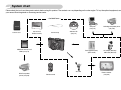
ƃSystem chart ōōōōōōōōō5
ƈHow to use the ASM mode
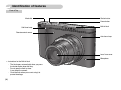
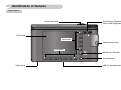
ƃIdentification of features ōōōōō6
ƈHow to use the APERTURE
ƈFront & Topōōōōōōōōōō6
ƈBack & Bottom ōōōōōōōō7
ƈBottomōōōōōōōōōōōō8
18
PRIORITY mode
19
ƈHow to use the SHUTTER
PRIORITY mode
19
ƈSelf-timer lamp ōōōōōōōō8
ƈHow to use the MANUAL modeō19
ƈCamera Status Lamp ōōōōō8
ƈHow to use the ASR (Advanced
ƈMode dial ōōōōōōōōōō9
Shake Reduction) mode ōōōō20
ƈMode iconōōōōōōōōōō10
ƈHow to use the SPECIAL EFFECT modeō20
ƃConnecting to a Power Source ō10
ƈHow to use the SCENE mode ō20
ƈHow to charge the rechargeable
ƈHow to use the MOVIE CLIP modeō21
battery (SLB-1137D) ōōōōō12
ƃInserting the memory card ōōō13
ƃInstructions on using the memory cardō13
ƈTo record a movie clip without voiceō21
ƈPausing while recording a movie clip
(Successive Recording)ōōōōō21
ƈUsing Successive Recording ōō21
ƃThings to Watch Out for When
RECORDING
Taking Pictures ōōōōōōōō22
ƃWhen Using the Camera for the First
Time : Smart button
15
ƃUsing the camera buttons to set
the camera ōōōōōōōōō23
ƃWhen Using the Camera for the First
ƈPOWER button ōōōōōōō23
Time : Setting up the Date / Time and
ƈShutter button ōōōōōōōō23
Language ōōōōōōōōōō16
ƈZOOM W / T buttonōōōōōō24
ƃLCD monitor indicator ōōōōō17
ƃFace recognition(FR) button ōō25
ƃStarting the recording mode ōō18
ŝ3Ş