1
14 - Using your tablet
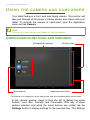
Status and notification area
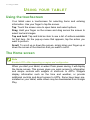
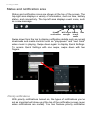
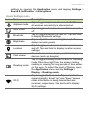
Status and notification icons are shown at the top of the screen. The
top-right area displays a variety of information, such as time, battery
status, and connectivity. The top-left area displays event icons, such
as a new message.
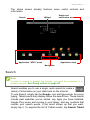
Wi-Fi signal Battery Time
Priority
notifications strength
charge
status
Swipe down from the top to display notification details such as current
downloads and media controls such as "play/pause" and "next track"
when music is playing. Swipe down again to display Quick Settings.
To access Quick Settings with one swipe, swipe down with two
fingers.
Priority notifications
With priority notifications turned on, the types of notifications you’ve
set as important will show up at the top of the notificaiton screen (even
when notifications are muted). You can finetune priority notification