1
1
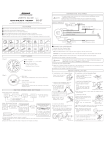
Unpack Package Contents
Unpack the system, all accessories, and
documentation.
Setting Up Your System
5
00
0 00
000
Solu
tions
CD
© 2001
, Iome
ga Corp
orat
ion
Read the
User’s Manual
NOTE: Wait for the blue LED on the
Iomega NAS system to stop
flashing, then insert the Solutions
CD into your CD-ROM drive.
00
000000
Solutions
CD
© 2001,
Iomega
Corporati
on
Detailed instructions are
shown in the User’s Manual on the Solutions CD.
To view the User’s Manual you must have
Microsoft® Internet Explorer® 5.0 or higher or
Netscape® 6.1 or higher installed on your system.
2
System Placement
The system can be stacked,
or rack mounted. See the
User’s Manual on the
Solutions CD for detailed
information.
4
Power Up the System
Turn on the switch on the
back of the system, then press
the diamond-shaped button on
the front of the system.
NOTE: Place the system on a
sturdy surface with sufficient
airflow both in front of and
behind the unit.
3
Connect the Cables
When connecting the system to a network use
the gray cable and connect it to the open LAN
port. Use the red Ethernet crossover cable
when connecting directly to a workstation.
Choose the appropriate power cable for your
country and connect it to the system and a
grounded power outlet.
Iomega Network Storage Quick Setup Guide
Customer Support Options
NAS Configuration
Please see the User’s Manual on the enclosed CD or visit our award winning web
support site for a complete list of worldwide support options including Email,
one-to-one Live Chat, and Customer Support Center phone numbers and hours
of operation.
Iomega Web Site
http://www.iomega.com
Iomega Web Support Site
6
http://www.iomega.com/support
CE (European Community)
Complete the System Setup
1. Register your Iomega
NAS system following
the instructions on
screen. Then select
the NAS Discovery
Utility icon from the
Solutions CD menu.
Select “Click to Open”
to run the software.
7
6-1
2. If the Discovery window
doesn’t list your Iomega
NAS, manually click the
NAS Locator button.
8
Map a Drive
The Iomega NAS system conforms to the following European Directive(s) and
Standard(s): Application of Council Directives: 73/23/EEC, 89/336/EEC. Standards to
which Conformity is declared: EN60950, EN55022, EN55024, EN61000-3-2 and
EN61000-3-3. Importer’s Name: Iomega Netherlands branch of Iomega International,
S.A. Type of Equipment: Information Technology Equipment.
Manufacturer/Responsible Party
Once a valid IP address has
been assigned, click the Drive
Map button. Select a network
drive letter. If the system asks
for a user name before mapping
the drive, enter guest and leave
the password blank. Repeat on
each client computer.
Iomega Corporation
1821 West 4000 South
Roy, UT 84067 U.S.A.
Complete Configuration
The Iomega NAS volume should now be
available for administration.
6-2
3. If Status indicates DHCP, proceed to Step 7. Otherwise, follow the procedure below.
If status is Unknown or Bad,
your network doesn’t have a
DHCP server. The IP address
must be manually assigned, as
described in the following steps.
1. Click the NAS Manager
button.
2. Enter a valid IP address and
subnet mask, or click on the
suggest button and the
system will determine them
for you.
9
6-3
Verify your Nas is Up-to-Date
Check Iomega’s website at
http://www.iomega.com/software/nas.html for the
current system update. See the User’s Manual for
more information on updating your NAS.
3. Enter the Default Gateway, Domain Name, DNS Server, and WINS Server (if
known) or leave them blank and ignore the warning messages.
4. Enter the Iomega NAS password (default is “ADMIN”) in the Password box.
5. Click the Apply button. Wait while Discovery looks for the server. If the Discovery
does not find the server, see Troubleshooting in the User’s Manual on the
Solutions CD.
30913100
3/12/02 h
Copyright © 2002 Iomega Corporation. Iomega, the stylized "i" logo, and the NAS brand block are either
registered trademarks or trademarks of Iomega Corporation in the United States and/or other countries.
Microsoft, Windows, and NT are either registered trademarks or trademarks of Microsoft Corporation in the
United States and/or other countries. Certain other product names, brand names and company names may be
trademarks or designations of their respective owners.
Iomega Network Storage Quick Setup Guide