1
Page: 9
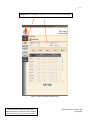
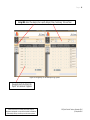
The ‘Add Comments for Selected Pupils’ button offers a series of preset comments for teachers to choose from.
If teachers do not click ‘Add Comments for Selected Pupils’ their comments will be applied to the entire class.
Reports
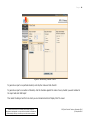
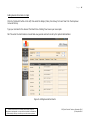
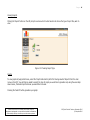
Select the category of report in which you are interested from the menu on the left, then specify it by Academic Year, Term,
Year Group and Class from the drop down menus in the middle of the screen and click ‘Submit’ to generate the report.
Figure 4: Generating Reports
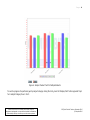
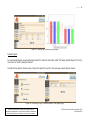
Viewing Class Progress using Tracker Charts
To view an analysis of pupils and class progress, first select ‘Tracker Charts’ on the left-hand menu to reveal:
Please note that SRS is a software product under continual
development and upgrade – screen shots are included as illustrations
of functionality and may not reflect your actual screen experience.
SRS Quick Guide for Teachers, September 2010
© Compubits 2010