1
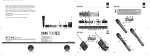
December 2012 Page 4 Please update the software inside the AKG HUB4000 Q: è Download the latest version of Harman System Architect from http://hiqnet.harmanpro.com/downloads.php è Install System Architect è Start System Architect è Start up/power on your wireless system è Start up/power on your HUB4000 Qs è Now the network address negotiation starts. The HUB4000 Qs try to get IP addresses. At first startup the network address negotiation can take some minutes. o If your HUB4000 Qs icons show up at the Venue View then maybe a firmware update of your HUB4000 Q(s) is requested by System Architect. è Proceed by updating all of your HUB4000 Q(s) firmware. o If your HUB4000 Q icons don’t show up your network is configured wrong. è Check out the FAQs (page 13) which describe how to setup and configure your network and/or HUB4000 Qs properly. Create a Master Control Panel: è Select all HUB4000 Q icons at Venue View. è Right click on one of the selected HUB4000 Q icons. è Select from the Context Menu ‘Create Master Control Panel’ – ‘AKG HUB4000 Q’. Then a Master Control Panel for all the selected HUB4000 Qs is created. è The Master Control Panel is able to control all AKG devices of all HUB4000 Qs from a single panel. Please update the software of your wireless devices: è At the Master Control Panel choose ‘Menu / Tools / Firmware Update‘ è Update all wireless devices to the latest firmware version Go to step 3 & 4 - Start working. HUB4000 Q – Quickstart Guide