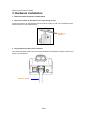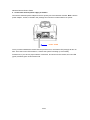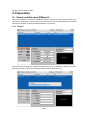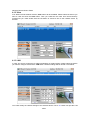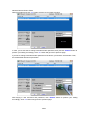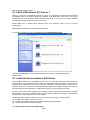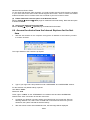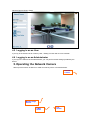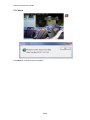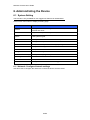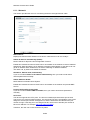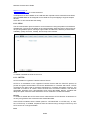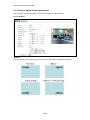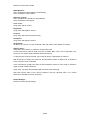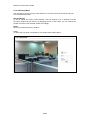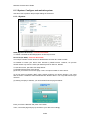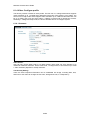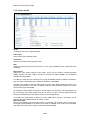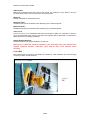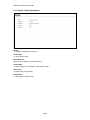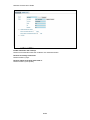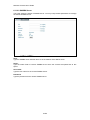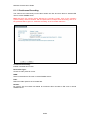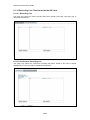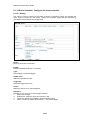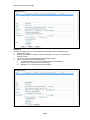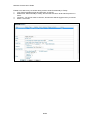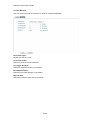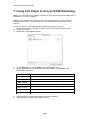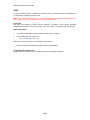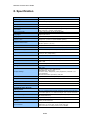
1
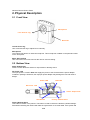
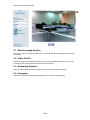
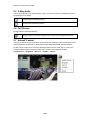
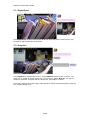
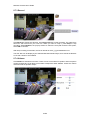
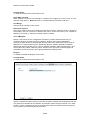
Network Camera User’s Guide To prevent fire or shock hazard, do not expose the unit to rain or moisture. For AC Adaptor to avoid electrical shock, do not open the cabinet. Refer servicing to qualified personnel only. Notice: The changes or modifications not expressly approved by the party responsible for compliance could void the user’s authority to operate the equipment. For customers in the U.S.A. This equipment has been tested and found to comply with the limits for a digital device, pursuant to Part 15 of the FCC Rules. These limits are designed to provide reasonable protection against harmful interference in a residential installation. This equipment generates, uses, and can radiate radio frequency energy and, if not installed and used in accordance with the instructions, may cause harmful interference to radio communications. However, there is no guarantee that interference will not occur in a particular installation. If this equipment does cause harmful interference to radio or television reception, which can be determined by turning the equipment off and on, the user is encouraged to try to correct the interference by one or more of the following measures: Reorient or relocate the receiving antenna. Increase the separation between the equipment and receiver. Connect the equipment into an outlet on a circuit different from that to which the receiver is connected. Consult the dealer or an experienced radio/TV technician for help. You are cautioned that any changes or modifications not expressly approved in this manual could void your authority to operate this equipment. The shielded interface cable recommended in this manual must be used with this equipment in order to comply with the limits for a digital device pursuant to Subpart B of Part 15 of FCC Rules. 2/65 Network Camera User’s Guide Declaration of Conformity This device complies with part 15 of the FCC Rules. Operation is subject to the following two conditions: (1) (2) this device may not cause harmful interference, and this device must accept any interference received, including interference that may cause undesired operation. IMPORTANT NOTE: To comply with the FCC RF exposure compliance requirements, no change to the antenna or the device is permitted. Any change to the antenna or the device could result in the device exceeding the RF exposure requirements and void user’s authority to operate the device. NOTICE TO USERS © 2006~12 All rights reserved. This manual or the software described herein, in whole or in part, may not be reproduced, translated or reduced to any machine readable form without prior written approval. WE PROVIDES NO WARRANTY WITH REGARD TO THIS MANUAL, THE SOFTWARE OR OTHER INFORMATION CONTAINED HEREIN AND HEREBY EXPRESSLY DISCLAIMS ANY IMPLIED WARRANTIES OF MERCHANTABILITY OR FITNESS FOR ANY PARTICULAR PURPOSE WITH REGARD TO THIS MANUAL, THE SOFTWARE OR SUCH OTHER INFORMATION. IN NO EVENT SHALL WE BE LIABLE FOR ANY INCIDENTAL, CONSEQUENTIAL OR SPECIAL DAMAGES, WHETHER BASED ON TORT, CONTRACT, OR OTHERWISE, ARISING OUT OF OR IN CONNECTION WITH THIS MANUAL, THE SOFTWARE OR OTHER INFORMATION CONTAINED HEREIN OR THE USE THEREOF. We reserve the right to make any modification to this manual or the information contained herein at any time without notice. The software described herein may also be governed by the terms of a separate user license agreement. 3/65 Network Camera User’s Guide Table of Contents Overview ........................................................................................................................ 6 Introduction ............................................................................................................ 6 Features .................................................................................................................. 6 Minimum System Requirements............................................................................ 6 1. Package Contents ................................................................................................... 7 2. Physical Description .............................................................................................. 8 2.1 Front View ....................................................................................................... 8 2.2 Bottom View .................................................................................................... 8 3. Hardware Installation ........................................................................................... 10 4. Preparation ........................................................................................................... 12 4.1 Search and Set up by IPWizard II .................................................................. 12 4.1.1 Search ................................................................................................. 12 4.1.2 View .................................................................................................... 13 4.1.3 LAN .................................................................................................... 13 4.2 UPnP of Windows® XP, Vista or 7................................................................ 15 4.3 Install the Device behind a NAT Router ........................................................ 15 4.4 Access the device from the Internet Explorer for the first time .................... 16 4.5 Logging in as an User .................................................................................... 17 4.6 Logging in as an Administrator ..................................................................... 17 5. Operating the Network Camera ........................................................................... 17 5.1 Monitor Image Section .................................................................................. 18 5.2 Video Profile .................................................................................................. 18 5.3 Streaming Protocol ........................................................................................ 18 5.4 Language........................................................................................................ 18 5.5 2-Way Audio .................................................................................................. 19 5.6 Full Screen ..................................................................................................... 19 5.7 ActiveX Control............................................................................................. 19 5.7.1 Digital Zoom ....................................................................................... 20 5.7.2 Snapshot .............................................................................................. 20 5.7.3 Record ................................................................................................. 21 5.7.4 Volume ................................................................................................ 21 5.7.5 About ................................................................................................... 22 6. Administrating the Device ................................................................................... 23 6.1 System Setting ............................................................................................... 23 6.1.1 Network: Configure Network settings ................................................ 23 6.1.1.1 Network.................................................................................... 24 6.1.1.2 IPv6 .......................................................................................... 25 6.1.1.3 HTTPS ..................................................................................... 25 6.1.1.4 DDNS service .......................................................................... 26 6.1.1.5 PPPoE ...................................................................................... 27 6.1.1.6 Streaming ................................................................................. 28 6.1.7 UPnP ........................................................................................... 29 6.1.1.8 Bonjour .................................................................................... 30 6.1.1.9 ONVIF ..................................................................................... 30 6.1.1.10 IP Filter .................................................................................. 31 6.1.1.11 IP Notification ........................................................................ 32 6.1.2 Camera: Adjust Camera parameters.................................................... 34 6.1.2.1 Picture ...................................................................................... 34 4/65 Network Camera User’s Guide 6.1.2.2 Privacy Mask ........................................................................... 36 6.1.3 System: Configure and maintain system............................................. 37 6.1.3.1 System: ..................................................................................... 37 6.1.3.2 Date & Time ............................................................................. 38 6.1.3.3 Maintenance ............................................................................. 39 6.1.4 Video: Configure profile ..................................................................... 42 6.1.4.1 Common................................................................................... 42 6.1.4.2 Video Profile ............................................................................ 43 6.1.4.3 ROI........................................................................................... 44 6.1.5 Audio: Audio parameters .................................................................... 45 6.1.6 User: Manage user name, password and login privilege .................... 46 6.1.7 E-Mail: Setup E-Mail configuration ................................................... 47 6.1.8 Motion detection: Setup motion detection .......................................... 48 6.1.9 Audio detection: Setup audio detection .............................................. 49 6.1.10 Storage: Status and configuration of SD card ................................... 49 6.1.10.1 SD Card .................................................................................. 49 6.1.10.2 SAMBA Server ...................................................................... 51 6.1.11 Continuous Recording: ..................................................................... 52 6.1.12 Recording List: Files list inside the SD Card.................................... 53 6.1.12.1 Recording List ........................................................................ 53 6.1.12.2 Continuous Recording List .................................................... 53 6.1.13 Event Server: Setup FTP/TCP/HTTP/SAMBA server configuration ...................................................................................................................... 54 6.1.13.1 FTP Server ............................................................................. 54 6.1.13.2 TCP Server ............................................................................. 54 6.1.13.3 HTTP Server .......................................................................... 56 6.1.13.4 SAMBA Server ...................................................................... 56 6.1.14 Event Schedule: Configure the event schedule ................................. 58 6.1.14.1 Setting .................................................................................... 58 6.1.14.2 Record .................................................................................... 61 7. Using VLC Player to Access RTSP Streaming ........................................................ 62 8. Specification ............................................................................................................ 64 5/65 Network Camera User’s Guide Overview The user’s guide explains how to operate this camera from a computer. User should read this manual completely and carefully before you operate the device. Introduction The device is accessible via the LAN or Internet connection. Connect your device directly to a local area network or xDSL modem, and with Microsoft® Internet Explorer you get instant, on demand video streams. Within minutes you can set up the device to capture a video sequence to a PC. Features ONVIF compliant Easy installation with setup wizard (IP Wizard II) UPnP device discovery and NAT router transversal for easy installation Dynamic IP Service, DIPS® , to search your IP camera from Internet easily H.264 and MJPEG multi-profile compression simultaneously 1.3 Mega-pixel resolution 1.3 Mega-pixel or 720P mode selectable 8-profile encoder simultaneously UDP / TCP / HTTP / HTTPS protocols selectable Digital zoom Built-in microphone Audio line out Two-way audio Micro SD slot Intelligent motion detection up to 10 zones Voice alerting while event triggered Privacy masks 3D de-noise to improve picture quality at low lux. Image transmission using an FTP or e-mail for event DDNS and PPPoE Minimum System Requirements Microsoft Internet Explorer 6.0 or later Microsoft Media Player 11.0 or later (to playback recorded file) VGA Monitor resolution 1280 x 1024 or higher Pentium-4 3.6 GHz or higher Memory Size: 1GB or more Windows XP, Vista, 7 6/65 Network Camera User’s Guide 1. Package Contents ■ ■ ■ ■ ■ Cube Network Camera CD-ROM (User manual and IP utility) Quick Start Guide Camera mounting kit Power adapter (DC12V) If any of the above items are missing, please contact your dealer immediately. Note: Using a power supply with a different voltage than the one included with the Network Camera will cause damage and void the warranty for this product. 7/65 Network Camera User’s Guide 2. Physical Description 2.1 Front View Microphone Lens & focus ring Micro-SD Lens & focus ring User could use this ring to adjust focus manually. Microphone The Camera has built-in an internal microphone. This microphone is hidden in the pinhole located on the front panel. Micro SD Card Slot User can insert a micro SD card into this slot for event recording. 2.2 Bottom View Audio Output Jack Audio-out Jack allows this device to output audio or alerting sound. DC Power Jack The input power is 12VDC. Note that supply the power to the Camera with the power adapter included in package. Otherwise, the improper power adapter may damage the unit and result in danger. Power LED LAN LED DC Power Jack Audio Output Jack LAN Socket Factory Default Reset Factory Default Reset This button is hidden in the pinhole. This button is used to restore the all factory default settings. Sometimes restarting the camera will make the system back to a normal state. If the system still 8/65 Network Camera User’s Guide got problems after restart, user can restore the factory default settings and install it again. To restore the device, please follow the steps below: 1. Make sure the Camera is ready first. Insert the paper clip or other tool and press and hold the button down continuously. 2. Hold it at least 5 seconds and release the tool while the Camera is operating. Then the device has been restored to default settings and reboot again. Note: Restoring the factory default setting will lose the all previous settings included IP address forever. User needs to run the IPWizard II program to search the device and configure it to let the device work properly again. LAN Socket The LAN socket is a RJ-45 connector for connections to 10Base-T Ethernet or 100Base-TX Fast Ethernet cabling. This Ethernet port built N-Way protocol can detect or negotiate the transmission speed of the network automatically. Please use Category 5 cable to connect the Network Camera to a 100Mbps Fast Ethernet network switch or hub. LAN LED (green color) This LED will be flashing while network accessing via Ethernet. Power This LED is used to indicate whether the camera is ready or not. 9/65 Network Camera User’s Guide 3. Hardware Installation 1. Attach the Camera with the included stand 2. Place the Camera on the table or fix it onto ceiling or wall Use three screws to fix the Network Camera onto the ceiling or wall. You could also put the Network Camera on the table directly. Fixed it by Screws 3. Plug an Ethernet cable into the Camera Connect an Ethernet cable to the LAN socket located on the Network Camera’s bottom and attach it to the network. Ethernet Cable 10/65 Network Camera User’s Guide 4. Connect the external power supply to Camera Connect the attached power adapter to the DC power jack of the Network Camera. Note: Use the power adapter, 12VDC, included in the package and connect it to wall outlet for AC power. Power Cable Once you have installed the camera well and powered it on, the Power LED (orange) will turn on later. Once the Power LED turned on, it means the system is booting up successfully. Furthermore, if you have a proper network connection, and access to the camera, the LAN LED (green) will flash green under wired mode. 11/65 Network Camera User’s Guide 4. Preparation 4.1 Search and Set up by IPWizard II When you installed the Camera on a LAN environment, you have two easy ways to search your Cameras by IPWizard II or UPnP™ discovery. Here is the way to execute IPWizard II to discover Camera’s IP address and set up related parameter in a Camera. 4.1.1 Search When launch the IP Wizard II, a searching window will pop up. IP Wizard II is starting to search Network Cameras on the LAN. The existed devices will be listed as below. 12/65 Network Camera User’s Guide 4.1.2 View If IP Wizard II finds network devices, View button will be available. Please select the device you want to view and click the View button. Then you could see the video from camera directly. Furthermore you could double click the left button of mouse to link to the network device by browser. 4.1.3 LAN In case you want to change the IP related parameters of wired interface, please select the device you want to configure and click the LAN button. Relative settings will be carried out as below. You could modify the relative settings of the selected device. Click “<<” button will quit the LAN 13/65 Network Camera User’s Guide setting procedure and click “>>” button will move to next page as below. In case, you do not want to change username and/or password, then just click “Submit” button to perform your setting accordingly. Click “<<” button will go back to previous page. If you like to change username and/or password of the device, just click the check button. Then, the related fields will show up as below. After keying in new username and password, click “Submit” button to perform your setting accordingly. Click “<<” button will go back to previous page. 14/65 Network Camera User’s Guide 4.2 UPnP of Windows® XP, Vista or 7 UPnP™ is short for Universal Plug and Play, which is a networking architecture that provides compatibility among networking equipment, software, and peripherals. This device is an UPnP enabled device. If the operating system, Windows XP, Vista or 7, of your PC is UPnP enabled, the Network Camera will be very easy to be found. Please make sure to enable UPnP settings first if your operating system of PC is running Windows XP. Note: Windows 2000 does not support UPnP feature. To discover your device, go to your Desktop and click My Network Places. Click the targeted Device. Then Internet Explorer will connect to this Network Camera automatically. 4.3 Install the Device behind a NAT Router Once installed, the device is accessible on your LAN. To access the device from the Internet you must configure your broadband router to allow incoming data traffic to the device. If the device is installed on the LAN with a router, then it may get a dynamic IP address from the DHCP server. However, if the device wants to be accessed from the WAN, its IP address needs to be setup as fixed IP, also the port forwarding or Virtual Server function of router needs to be setup. However, if your NAT router supports UPnP feature, it can be very easy to achieve NAT traversal automatically. To do this, enable the NAT-traversal feature, which will attempt to automatically configure the router to allow access to the camera. Installing the device with an UPnP router on your network is an easy 3–step procedure: (1) Enable UPnP option of your NAT router (2) Enable UPnP NAT traversal option of the Network Camera (default) (3) Access your Network Camera by DIPS (1) Enable UPnP option of your NAT router 15/65 Network Camera User’s Guide To use UPnP IGD function (NAT traversal), you need to make sure the UPnP function is enabled in your router. Most new home routers should support this function. Some of routers are default enable and others are not. Please check user’s manual of your NAT router for detail. (2) Enable UPnP NAT traversal option of the Network Camera Refer to Setting Network UPnP page for detail NAT traversal setting. Note that this option is default enabled. (3) Access your Network Camera by DIPS Refer to Setting System System page for detail DIPS information. 4.4 Access the device from the Internet Explorer for the first time 1. Start the web browser on the computer and type the IP address of the Camera you want to monitor as below: The Login Window of the Camera is prompted: 2. Type in your login name and password under “USERNAME” and “PASSWORD” textbox. For the first time use (default value), input the User Name: admin Password: 1234 That’s, type in “admin” on the “USERNAME” as a default name and leave PASSWORD textbox blank. Click “OK” button to start the main menu. 3. According your browser’s security setting, the IE Web Page may prompt the “Security Warning” window. If so, select “Yes” to install and run the ActiveX control into your PC. Otherwise, the system will load the ActiveX silently. 4. After the ActiveX control was installed and ran, the first image will be displayed. 16/65 Network Camera User’s Guide 4.5 Logging in as an User If you log in the Camera as an ordinary User, “Setting” function will be not accessible. 4.6 Logging in as an Administrator If you log in the Camera as the Administrator, you can perform all the settings provided by the device. 5. Operating the Network Camera Start-up screen will be as follow no matter an ordinary users or an administrator. ActiveX Control Monitor Image Section 2-Way 17/65 Audio Full Screen Network Camera User’s Guide 5.1 Monitor Image Section The image shot by the device is shown here. The date and time are displayed at the top of the window. 5.2 Video Profile The device supports multi-profile function for H.264 and MJPEG simultaneously. User can chose the proper and/or preferred profile which is listed here. 5.3 Streaming Protocol User can select proper streaming protocol according to networking environment. 5.4 Language The device could provide multiple languages to meet customer’s requirement. 18/65 Network Camera User’s Guide 5.5 2-Way Audio The device supports 2-way audio function. User can chose to enable or disable this function by toggling the icon below. Disable audio uploading function. Enable audio uploading function. 5.6 Full Screen Enlarge video to full screen display. Enlarge video to full screen display. Press “ESC” key to disable this function. 5.7 ActiveX Control The plug-in ActiveX control supports a lot of functions by clicking the left mouse button. Note that this feature only supports on the ActiveX control within Microsoft® Internet Explorer. On the ActiveX control icon, click the Left Mouse Button, then a menu pop-up. This menu provides features that are unique to the ActiveX control. These features include: “Digital Zoom”, “Snapshot”, “Record”, “Volume”, “About” 19/65 Network Camera User’s Guide 5.7.1 Digital Zoom Click Digital Zoom to active this function as above. User can drag or scale the box over the video to adjust zoom ratio and position. 5.7.2 Snapshot Click Snapshot to activate this function. Press Snapshot button to take a picture. The image file is saved as JPEG format into your local PC. Select Browser, the pop-up window to select the save path and file name prefix, select OK to continue. If you like to retrieve the saved image, select the file to display the saved image by using any one of graph editing tools. 20/65 Network Camera User’s Guide 5.7.3 Record Click Record to activate this function. Press Record button to start recording. The video file is saved as ASF format into your local PC. While you want to stop it, press Stop to stop recording. Select Browser, the pop-up window to select the save path and file name prefix, select OK to continue. After stop recording, list the files, this file is named as Video_yyyymmddhhmmss.avi The ASF files can be display by the standard Windows Media Player, but it needs the DixectX 9.0 or later version to be installed. 5.7.4 Volume Click Volume to activate this function. There are two control bars for speaker and microphone volume respectively. Scroll these control bars to adjust the audio attribute. Check the volume mute will mute the speaker output. 21/65 Network Camera User’s Guide 5.7.5 About Click About to show this ActiveX information. 22/65 Network Camera User’s Guide 6. Administrating the Device 6.1 System Setting This function is only available for user logged into Camera as administrator. Click on each menu name to display its setting page. Item Action Network Configure Network settings such as DHCP, DDNS, 3GPP, PPPoE and UPnP Camera Adjust camera parameters, position, and set camera tour System Configure system information, date & time, maintenance, and view system log file. Video Configure bit rate and frame rate of video profiles Audio Configure audio parameters User Setup user name, password and login privilege E-Mail Setup E-Mail configuration Event Detection Setup Event detection Storage Status and configuration of SD card Continuous Recording Configure storage type and path Recording List Files list inside the SD Card Event Server Setup FTP/TCP/HTTP server for event Event Schedule Configure the schedule while event triggered 6.1.1 Network: Configure Network settings Use this menu to configure the network to connect the device and the clients. 23/65 Network Camera User’s Guide 6.1.1.1 Network This section provides the menu for connecting the device through Ethernet cable. MAC address: Displays the Ethernet MAC address of the device. Note that user can not modify it. Obtain IP address automatically (DHCP): DHCP: Stands for Dynamic Host Configuration Protocol. Enable this checked box when a DHCP server is installed on the network to issue IP address assignment. With this setting, the IP address is assigned automatically. If this device can not get an IP address within limited tries, the device will assign a default IP address, 192.168.0.100, by itself as the default IP address. IP address, Subnet mask, and Gateway: If you do not select Obtain an IP address automatically, then you need to enter these network parameters manually. Obtain DNS from DHCP: DNS: Stands for Domain Name System. Enable this checked box when a DHCP server is installed on the network and provide DNS service. Primary DNS and Secondary DNS: If you do not select Obtain DNS from DHCP, then you need to enter these parameters manually. HTTP Port: The device supports two HTTP ports. The first one is default port 80 and this port is fixed. This port is very useful for Intranet usage. The second HTTP port is changeable. Users could assign the second port number of http protocol, and the WAN users should follow the port number to login. If the http port is not assigned as 80, users have to add the port number in back of IP address. For example: http://192.168.0.100:8080. Therefore, the user can access the device by either 24/65 Network Camera User’s Guide http://xx.xx.xx.xx/, or http://xx.xx.xx.xx:xxxx/ to access the device. If multiple devices are installed on the LAN and also required to be accessed from the WAN, then the HTTP Port can be assigned as the virtual server port mapping to support multiple devices. Click “OK” to save and enable the setting. 6.1.1.2 IPv6 The IP communication protocol used for current Internet is having the problem of insufficient IP addresses. The one-for-all solution is the new-generation internet protocol, IPv6. IPv6 has 16-byte long address space, offering a huge number of addresses, and also provides better scalability, quality of service, mobility, and security to the network. IPv6: To enable or disable the IPv6 service here. 6.1.1.3 HTTPS HTTPS: Stands for Hypertext Transfer Protocol Secure HTTPS is a combination of the Hypertext Transfer Protocol with the SSL/TLS protocol to provide encrypted communication and secure identification of a network web server. HTTPS connections are often used for sensitive transactions in corporate information systems. The main idea of HTTPS is to create a secure channel over an insecure network. This ensures reasonable protection from eavesdroppers and man-in-the-middle attacks, provided that adequate cipher suites are used and that the server certificate is verified and trusted. HTTPS: To enable or disable the HTTPS service here. Note that the HTTPS function of this device is not only encrypted the web content but also audio/video data. If the HTTPS is enabled, there is further option for “HTTP&HTTPS” or “HTTPS only”. In case, the “HTTPS only” is enabled, all packets from the Camera will go through HTTPS only and HTTP service is no longer available. Port: 25/65 Network Camera User’s Guide Choose the HTTPS port. The default value is 443. 6.1.1.4 DDNS service DDNS: Stands for Dynamic Domain Name Server Your Internet Service Provider (ISP) provides you at least one IP address which you use to connect to the Internet. The address you get may be static, meaning it never changes, or dynamic, meaning it’s likely to change periodically. Just how often it changes, depends on your ISP. A dynamic IP address complicates remote access since you may not know what your current WAN IP address is when you want to access your device over the Internet. One of the possible solutions to the dynamic IP address problem comes in the form of a dynamic DNS service. A dynamic DNS service is unique because it provides a means of updating your IP address so that your listing will remain current when your IP address changes. There are several excellent DDNS services available on the Internet. One such service you can use is www.DynDNS.org. You’ll need to register with the service and set up the domain name of your choice to begin using it. If your device is connected to xDSL directly, you might need this feature. However, if your device is behind a NAT router, you will not need to enable this feature because your NAT router should take care of this job. As to xDSL environment, most of the users will use dynamic IP addresses. If users want to set up a web or a FTP server, then the Dynamic Domain Name Server is necessary. 26/65 Network Camera User’s Guide DDNS: To enable or disable the DDNS service here. Server name: Choose one of the built-in DDNS servers. DDNSHost: The domain name is applied of this device. User name: The user name is used to log into DDNS. Password: The password is used to log into DDNS. 6.1.1.5 PPPoE PPPoE: Stands for Point to Point Protocol over Ethernet A standard builds on Ethernet and Point-to-Point network protocol. It allows your device with xDSL or cable connects with broadband network directly, then your device can dial up and get a dynamic IP address. For more PPPoE and Internet configuration, please consult your dealer or ISP. The device can directly connect to the xDSL, however, it should be setup on a LAN environment to program the PPPoE information first, and then connect to the xDSL modem. Power on again, then the device will dial on to the ISP connect to the WAN through the xDSL modem. The procedures are Connect to a LAN by DHCP or Fixed IP Access the device, enter Setting Network PPPoE as below 27/65 Network Camera User’s Guide PPPoE: To enable or disable the PPPoE service here. User name: Type the user name for the PPPoE service which is provided by the ISP. Password: Type the password for the PPPoE service which is provided by the ISP. IP address, Subnet mask, and Gateway (read only): Shows the IP information got from PPPoE server site. Status: Shows the Status of PPPoE connection. 6.1.1.6 Streaming RTSP is a streaming control protocol, and a starting point for negotiating transports such as RTP, multicast and Unicast, and for negotiating codecs. RTSP can be considered a "remote control" for controlling the media stream delivered by a media server. RTSP servers typically use RTP as the protocol for the actual transport of audio/video data. RTSP Port: Choose the RTSP port. The RTSP protocol allows a connecting client to start a video stream. Enter the RTSP port number to use. The default value is 554. RTP Port: Specify the range of transmission port number of video stream. The default range is 50000 to 50999. User can specify a number between 1024 and 65535. 28/65 Network Camera User’s Guide 6.1.7 UPnP UPnP is short for Universal Plug and Play, which is a networking architecture that provides compatibility among networking equipment, software, and peripherals. This device is an UPnP enabled Network Camera. If your operating system is UPnP enabled, the device will automatically be detected and a new icon will be added to “My Network Places.” If you do not want to use the UPnP functionality, it can be disabled. In addition, this device also provides UPnP IGD function for NAT traversal easily. Use NAT traversal when your device is located on an intranet (LAN) and you wish to make it available from the other (WAN) side of a NAT router. With NAT traversal properly configured, all HTTP traffic to an external HTTP port in the NAT router will be forwarded to the device. UPnP: To enable or disable the UPnP service here. 29/65 Network Camera User’s Guide Friendly Name: To show the friendly name of this device here. UPnP NAT Traversal When enabled, the device will attempt to configure port mapping in a NAT router on your network, using UPnP™. Note that UPnP™ must be enabled in the NAT router first. Port Range: The port range will open in NAT router. External IP address: Show the IP address and port for WAN access through Internet. If NAT traversal is configured successfully, user can use this IP address and port to access this device. The external IP address is not shown in case NAT traversal function is failed. 6.1.1.8 Bonjour Bonjour, also known as zero-configuration networking, enables automatic discovery of computers, devices, and services on IP networks. Bonjour uses industry standard IP protocols to allow devices to automatically discover each other without the need to enter IP addresses or configure DNS servers. Specifically, Bonjour enables automatic IP address assignment without a DHCP server, name to address translation without a DNS server, and service discovery without a directory server. Bonjour is an open protocol which Apple has submitted to the IETF as part of the ongoing standards-creation process. Bonjour: To enable or disable the Bonjour service here. Friendly Name: To show the friendly name of this device here. 6.1.1.9 ONVIF ONVIF is a global and open industry forum with the goal to facilitate the development and use of a global open standard for the interface of physical IP-based security products. Or in other words, to create a standard for how IP products within video surveillance and other physical security areas can communicate with each other. 30/65 Network Camera User’s Guide ONVIF: To enable or disable the ONVIF interface here. And select the ONVIF version to match client’s supported version. 6.1.1.10 IP Filter You can enter different user’s IP address which are allowing enter or denying by the device. IP Filter: To enable or disable the IP filter function here. IP Filter Policy: Choose the filter policy where is denying or allowing. 31/65 Network Camera User’s Guide 6.1.1.11 IP Notification In case the IP address is changed, system is able to send out an email to alert someone if the function is enabled. SMTP Notification (e-mail): If enable this function, then the “Send to” and “Subject” fields need to be filled. Send To: Type the receiver’s e-mail address. This address is used for reply mail. Subject: Type the subject/title of the E-mail. TCP Notification: If enable this function, then the “TCP Server”, “TCP Port”, and “Message” fields need to be filled. TCP Server: Type the server name or the IP address of the TCP server. TCP Port: Set port number of TCP server. Message: The message will be sent to FTP server. HTTP Notification: If enable this function, then the fields below need to be filled. URL: Type the server name or the IP address of the HTTP server. HTTP Login name: Type the user name for the HTTP server. HTTP Login Password: Type the password for the HTTP server. 32/65 Network Camera User’s Guide Proxy Address: Type the server name or the IP address of the HTTP Proxy. Proxy Port: Set port number of Proxy. Proxy Login name: Type the user name for the HTTP Proxy. Proxy Login Password: Type the password for the HTTP Proxy. Custom parameter: User can set specific parameters to HTTP server. Message: The message will be sent to HTTP server. 33/65 Network Camera User’s Guide 6.1.2 Camera: Adjust Camera parameters Use this menu to set the functions of the camera parameters of the device. 6.1.2.1 Picture Rotation: Turn the “Mirror” and “Vertical Flip” On or OFF. The image will be overturned as below. 34/65 Network Camera User’s Guide White Balance: Auto: will adjust the white balance automatically. Hold: will hold the white balance. Exposure Control: Auto: will adjust the internal gain automatically. Hold: will hold the internal gain. Color Level: Large value will be colorful. Brightness: Large value will brighten camera. Contrast: Large value will contrast camera heavily. Sharpness: Large value will sharpen camera. 3D De-Noise: De-Noise can remove or lower unwanted noise and preserve fine details and edges. Image Control: Use built-in photo sensor or manual to control image color. In case user selects manual mode, there are 4 modes: B/W, Color, Auto or Schedule. This function is very useful under low illumination environment. In case the Auto mode is selected, user needs to specify 3 parameters in advance: B/W Threshold (0~10000): this value set the threshold to switch to B/W mode. It should be lower or equal to Color Threshold. Color Threshold (0~10000): this value set the threshold to switch to Color mode. It should be higher or equal to B/W Threshold. Delay Time: The delay time between B/W and Color mode switching. Note that Current Value is the current luminance from the captured video. It’s a useful reference to set B/W and Color Threshold. Default Settings: Restore to factory image settings. 35/65 Network Camera User’s Guide 6.1.2.2 Privacy Mask Use this page to specify privacy mask window 1 to window 8 and set the name and gray level for selected window. Add and Delete: To add or delete the privacy mask windows, user can specify up to 7 windows to mask the video captured by this device. By dragging mouse on the image, you can change the position and size of the selected window accordingly. Name: Name of the specified privacy window. Level To define the gray level of mask block. The smaller value will be darker. 36/65 Network Camera User’s Guide 6.1.3 System: Configure and maintain system Use this menu to perform the principal settings of the device. 6.1.3.1 System: DIPS (Dynamic IP Service): -Function DiscardedTo enable or disable the DIPS® (Dynamic IP Service) function. Device ID (for DIPS): -Function DiscardedIt’s a unique number of each device for identification and this ID is used for DIPS. It’s feasible to locate your device from Internet by DDNS service. However, we provide another easier way to do the same job called Dynamic IP Service, DIPS® . To use this service, just follow four steps below: (1) Enable DIPS function of the device (2) Check your Device ID from this page. This is a unique number for each device. (3) If your device is behind a NAT router, please configure your device properly. You could refer to section “Install the Camera behind a NAT Router” above. You only need to do this job one time. (4) Visiting company’s website, you can find DIPS service page as below: Enter your Device Number and press “OK” button. Then, a new web page will pop up and link to your device accordingly. 37/65 Network Camera User’s Guide You will see that DIPS is a much easier service than DDNS. Device Title: You can enter the name of this unit here. It’s very useful to identify the specific device from multiple units. The information will be shown on IPWizard II once the device is found. Software Version: This information shows the software version of the device. Network(LAN) LED: To turn on or off Network(LAN) LED. Power LED (Wireless LED): To turn on or off the Power LED (wireless LED if WLAN model). Log: User can check the system log information of the device, including the Main Info, Appended Info, Operator IP, and so on … Reload: Click this button; user can refresh the log information of the device. 6.1.3.2 Date & Time You can setup the device or make it synchronized with PC or remote NTP server. Also, you may select your time zone in order to synchronize time locally. Server Date & Time: Displays the date and time of the device. PC Time: Displays the date and time of the connected PC. Adjust: Synchronize with PC: Click this option to enable time synchronization with PC time. Manual setting: Click this option to set time and date manually. Synchronize with NTP: Click this option if you want to synchronize the device’s date and time with those of time server called NTP server (Network Time Protocol). NTP Server: Type the host name or IP address or domain name of the NTP server. NTP sync. Interval: Select an interval between 1 and 24 hours at which you want to adjust the device’s time referring to NTP server Time zone: Set the time difference from Greenwich Mean Time in the area where the device is installed. Daylight Saving: Disable or enable the daylight saving adjustment. 38/65 Network Camera User’s Guide 6.1.3.3 Maintenance Hard Factory Default (Include the network setting): Recall the device hard factory default settings. Note that click this button will reset all device’s parameters to the factory settings (including the IP address). Factory Default (Except the network setting): The unit is restarted and most current settings are reset to factory default values. This action will not reset the network setting. Backup Setting: To take a backup of all of the parameters, click this button. If necessary, it will then be possible to return to the previous settings, if settings are changed and there is unexpected behavior. Restore Setting: Click the “Browse” button to locate the saved backup file and then click the “Restore Setting” button. The settings will be restored to the previous configuration. 39/65 Network Camera User’s Guide Firmware Upgrade: The device supports new firmware upgrade (the software that controls the operation in the device). Please contact your dealer for the latest version if necessary. Download the latest firmware file from our website or your dealer. Unzip this firmware file to binary file and store it into your PC. Then follow the steps as bellow carefully: 1. Close all other application programs which are not necessary for firmware update. 2. Make sure that only you access this device while firmware updating. 3. Disable all event trigger and/or schedule trigger functions first. 4. In this web page, click “Browse” button. Select the Firmware binary file. 5. Once the firmware file was selected, click “Firmware Upgrade” button. 6. The upgrade progress information will be displayed. Once the uploading process completed, the device will reboot the system automatically. 7. Please wait for timer countdown, and then you can use IPWizard II to search the device again. 40/65 Network Camera User’s Guide Warning!!! The download firmware procedure cannot be interrupted. If the power and/or network connection are broken during the download procedure, it WILL cause serious damage to the device. Strongly suggest that DO NOT upgrade firmware via Wireless LAN due to high error rate possibly and don't allow any other clients to access this unit during updating procedure. Be aware that you SHALL NOT turn off the power during updating the firmware and shall wait for finish message. Furthermore, the firmware upgrade procedure is always risky and do not try to upgrade new firmware if it’s not necessary. System Restart: The device is restarted without changing any of the network settings. It means the IP address of the device will not change after firmware upgrade. 41/65 Network Camera User’s Guide 6.1.4 Video: Configure profile This device provides 2 modes of video profile. The first one is 1.3 Mega mode which supports video resolution up to 1.3 Mega-pixel. Maximum frame rate of this mode is up to 30fps. The second one is 720p mode which supports video resolution up to 1280x720 but frame rate can be up to 30fps. User only can select either 1.3 Mega or 720p mode to operate the camera. Switching 1.3 Mega and 720p mode, the device will take time to re-configure system. 6.1.4.1 Common Video Profile: User can only choose either 720p or 1.3 Mega modes. 720p mode can serve streams up to 1280x720 resolution maximum. On the other hand, 1.3 Mega mode, it can streams up to 1280 x 1024 resolution (depend on model) maximum. Text Overlay Setting: There are some important information can be embedded into image, including date, time, and/or text. User also can change the font color, background color, or Transparency. 42/65 Network Camera User’s Guide 6.1.4.2 Video Profile Name: To assign a name to the selected profile. Video Type: Video codec of the selected profile. Resolution: Show the resolution of the selected profile. ROI: Assign the selected profile as a ROI stream or not. (Only available for the profiles with max resolution) Rate Control: Defines the rate control method of this profile. There are four options: Constant Bit Rate (CBR), Variable Bit Rate (VBR), Enhanced Constant Bit Rate (ECBR), and Enhanced Variable Bit Rate (EVBR). For CBR, the video bit rate is between low to high bandwidth based on different resolutions. User can set the desired bit rate to match the limitation of bandwidth. For VBR, user should choose the quality level to set the video quality rather than bit rate. The quality level is between 1 and 100. The higher value can reach the better quality but of course will consume higher bandwidth. For ECBR, the video bitrate is based on normal CBR mode. However, the target bitrate can be increased to max target bitrate while lots of motion in video. The max target bitrate will keep a pre-defined time period and then back to normal CBR bitrate. For EVBR, the video bitrate is based on normal VBR mode. However, the bitrate can be limited to the max bitrate while lots of motion in video. Max Frame Rate: Defines the targeted frame rate of this profile. For example, set the frame rate to 15 fps, then the image will be updated for 15 frames per second as possible. User need to set reasonable max frame rate versus video quality under the limited bandwidth. 43/65 Network Camera User’s Guide GOP Control: Defines the Intra/Inter-frame (I/P) ratio of this profile. For example, set the GOP to 30, then the video stream will have one Intra-frame every 30 frames. Multicast: Enable or disable the multicast function. Multicast Video: IP address and port for multicast video streaming of the selected profile. Multicast Audio: IP address and port for multicast audio streaming of the selected profile. Time to live: Time to live (TTL) is a mechanism that limits the lifespan of data in a computer or network. Once the prescribed event count or time span has elapsed, data is discarded. TTL prevents a data packet from circulating indefinitely. Always Enable Multicast: Multicast streaming is always enabled or by request. Warning!!! To enable the multicast streaming, you shall make sure your Intranet does support multicast function. Otherwise, your Intranet may occur network storm seriously. 6.1.4.3 ROI ROI means Region of Interest. This feature is available in 1.3M resolution only. Use this page to specify location of ROI windows. 44/65 Network Camera User’s Guide 6.1.5 Audio: Audio parameters Audio: To enable or disable audio function Audio Type: To select audio codec Mute While PT: Mute the audio while pan and/or tilt motion Audio Mode: To select Simplex or Full duplex (2-way audio) mode Input Gain: To adjust gain of input audio Output Gain: To adjust gain of output audio 45/65 Network Camera User’s Guide 6.1.6 User: Manage user name, password and login privilege Use this menu to add, update, or remove the usernames and passwords of the Administrator and viewer. Access Right: Administrator can access every function in this device. However, Viewers only can view the video and access limited function. Add, update, and remove of Users account: Manage the user’s account of viewer user. 46/65 Network Camera User’s Guide 6.1.7 E-Mail: Setup E-Mail configuration User may setup SMTP mail parameters for further operation of Event Schedule. That’s, if users want to send the alarm message out, it will need to configure parameters here first and also add at least one event schedule to enable event triggering. SMTP Server: Type the SMTP server name or the IP address of the SMTP server. Test: Send a test mail to mail server to check this account is available or not. SMTP Port: Set port number of SMTP service. SSL: Enable SSL function or not. SMTP Authentication: Select the authentication required when you send an e-mail. Disable: if no authentication is required when an e-mail is sent. Enable: if authentication is required when an e-mail is sent. Authentication User name: Type the user name for the SMTP server if Authentication is Enable. Authentication Password: Type the password for the SMTP server if Authentication is Enable. E-mail From: Type the sender’s E-mail address. This address is used for reply e-mails. E-mail To: Type the receiver’s e-mail address. E-mail Subject: Type the subject/title of the e-mail. 47/65 Network Camera User’s Guide 6.1.8 Motion detection: Setup motion detection Use this menu to specify motion detection window 1 to window 10 and set the conditions for detection while observing a captured image. Add and Del: To add or delete the motion windows. User can specify up to 10 Included and/or Excluded windows to monitor the video captured by this device. By dragging mouse on the image, you can change the position and size of the selected motion window accordingly. Included or Excluded Window: These windows can be specified as Included or Excluded type. Included windows target specific areas within the whole video image Excluded windows define areas within an Include window that should be ignored (areas outside Include windows are automatically ignored) Name: Name of the specified motion window. Object Size: Defines the object size of motion detection. The higher object size will only larger objects trigger motion detection. The lower object size will even small objects trigger motion detection too. Generally speaking, the smaller size will be easier to trigger event. Sensitivity Defines the sensitivity value of motion detection. The higher value will be more sensitivity. 48/65 Network Camera User’s Guide 6.1.9 Audio detection: Setup audio detection Use this menu to specify audio alarm level. Event will be triggered if detected audio volume exceeds the alarm level. Audio Alarm Level: Move the slide to specify the audio alarm level. The level bar will change accordingly in the picture below and current detected volume is displayed in blue. 6.1.10 Storage: Status and configuration of SD card 6.1.10.1 SD Card This page shows the status of attached SD card. You may setup related parameters to manage the attached SD card also. 49/65 Network Camera User’s Guide Enable automatic disk cleanup: Delete old recorded files while the conditions are reached as below. Remove recordings order than: Delete old files by days. Remove oldest recordings when disk is: Delete old files by left capacity. 50/65 Network Camera User’s Guide 6.1.10.2 SAMBA Server This page shows the status of SAMAB server. You may setup related parameters to manage the remote SAMBA server. Host: Type the SAMBA server domain name or the IP address of the SMTP server. Share: Type the share folder of remote SAMBA server which the camera will upload files to this space. User name: Type the user name for the remote SAMBA server. Password: Type the password for the remote SAMBA server. 51/65 Network Camera User’s Guide 6.1.11 Continuous Recording: The camera can continuously record video stream into files and save them to attached SD card or remote SAMBA server. Note that there are various factors affecting the recording results, such as the camera’s system loading, network condition, SD card performance, multiple client accessing, and so on. No guarantee will be given to “seamless recording” in the recorded video files. Continuous Recording: Enable or disable this function. Record File Type: Choose a video profile to record. DISK: Save recorded files to SD card or remote SAMBA server. Path: Define the folder path for the recorded files. Restart: Be careful, click this button will delete all continuous files recorded in SD card or remote SAMBA server. 52/65 Network Camera User’s Guide 6.1.12 Recording List: Files list inside the SD Card 6.1.12.1 Recording List This page only shows the event recording files which stored in SD card. User may play or delete the selected file. 6.1.12.2 Continuous Recording List This page only shows the continuous recording files which stored in SD card or remote SAMBA server. User may play or delete the selected file. 53/65 Network Camera User’s Guide 6.1.13 Event Server: Setup FTP/TCP/HTTP/SAMBA server configuration 6.1.13.1 FTP Server You may setup FTP parameters for further operation of Event Schedule. That’s, if users want to send the alarm message to an FTP server, it will need to configure parameters here and also add at least one event schedule to enable event triggering as SMTP. Name: User can specify multiple FTP paths as wish. Therefore, user needs to specify a name for each FTP setting. FTP Server: Type the server name or the IP address of the FTP server. Test: Check the FTP server whether this account is available or not. FTP Login name: Type the user name for the FTP server. FTP Login Password: Type the password for the FTP server. FTP Port: Set port number of FTP service. FTP Path: Set working directory path of FTP server. FTP Passive Mode: Select passive or active mode connecting to FTP server. 6.1.13.2 TCP Server In addition to send video file to FTP server, the device also can send event message to specified TCP server. 54/65 Network Camera User’s Guide Name: User can specify multiple TCP servers as wish. Therefore, user needs to specify a name for each TCP server setting. TCP Server: Type the server name or the IP address of the TCP server. TCP Port: Set port number of TCP server. 55/65 Network Camera User’s Guide 6.1.13.3 HTTP Server The device also can send event message to specified HTTP server. Name: User can specify multiple HTTP servers as wish. Therefore, user needs to specify a name for each HTTP server setting. URL: Type the server name or the IP address of the HTTP server. Test: Check the HTTP server whether it is available or not. HTTP Login name: Type the user name for the HTTP server. HTTP Login Password: Type the password for the HTTP server. Proxy Address: Type the server name or the IP address of the HTTP Proxy. Proxy Login name: Type the user name for the HTTP Proxy. Proxy Login Password: Type the password for the HTTP Proxy. Proxy Port: Set port number of Proxy. 6.1.13.4 SAMBA Server The device also can send video stream to specified SAMBA server. 56/65 Network Camera User’s Guide Name: User can specify multiple HTTP servers as wish. Therefore, user needs to specify a name for each HTTP server setting. SAMBA Server: Type the server name or the IP address of the SAMBA server. Test: Check the SAMBA server whether this account is available or not. SAMBA Login name: Type the user name for the SAMBA server. SAMBA Login Password: Type the password for the SAMBA server. SAMBA Path: Set working directory path of SAMBA server. 57/65 Network Camera User’s Guide 6.1.14 Event Schedule: Configure the event schedule 6.1.14.1 Setting This menu is used to specify the schedule of Event or Schedule Trigger and activate the some actions provided by this device. Where the Schedule Trigger will be activated by user-define interval without event happened. Name: Name of the Event or Schedule. Enable: Enable or disable this Event or Schedule. Type: Event trigger or Schedule trigger. Enable Time: Define the feasible time slot. Trigger by: Select the triggered sources. Action: Define the actions once event triggered. Example 1: Send file to FTP server by motion triggered always: 1. Select event trigger 2. Enable time: start from 00:00 to 24:00 every day 3. Trigger by: Motion Area (Added in Event Detection page) 4. Action : Send FTP (Add in Event Server -> FTP Server page) 58/65 Network Camera User’s Guide Example 2: Send file to E-Mail server by motion triggered from Friday 18:00 to Saturday 06:00 1. Select event trigger. 2. Enable time: start from Friday 18:00 and keep work in 12 hours, so it will stop on Saturday 06:00. 3. Trigger by : Motion Area (Added in Event Detection page) 4. Action : Send e-mail (Add in E-Mail page) i、 To email address: You need to input the receiver email address. ii、 Subject: You could specify the email subject. iii、 Message: You could specify the email content. Example 3: 59/65 Network Camera User’s Guide Enable Voice Alert every 10-minute during 18:00 to 24:00 from Monday to Friday. 1. Type: Select schedule trigger and interval is 10-minute. 2. Enable time: Select Monday to Friday, and set start time from 18:00 and keep work in 6 hours. 3. Trigger by : You do not need to choose it, because this will be triggered every 10 minute 4. Action : Voice Alert 60/65 Network Camera User’s Guide 6.1.14.2 Record User can choose the type of record file for event or schedule application. Record File Type: Choose a profile to record. Record File Prefix: Define the prefix of recorded filename. Pre-Trigger Duration: Define the maximum duration of pre-alarm. Best Effort Duration: Define the best effort duration of post-alarm. Max File Size: Define the maximum buffer size of record file. 61/65 Network Camera User’s Guide 7. Using VLC Player to Access RTSP Streaming Note 1: This information is provided for convenience only. We will not provide support for the installation or use of VLC software. Note 2: The IP address used in the document are the default URLs and are provided for example purposes only. You will need to use an IP address that is appropriate for your network. To use VLC player to view RTSP streaming, follow these step to proceed: 1. Download and install VLC Player (version 1.0.5) from http:\\www.videolan.org\vlc. 2. Launch VLC Player 3. Click Media _Open Network Stream. 4. 5. 6. 7. On the ‘Network’ tab, choose RTSP under the ‘Protocol’ menu. Enter the IP address of the stream that you want to view in the ‘Address’ field. Default URL is as below: H.264 Profile1 rtsp://192.168.1.30:554/media/media.amp?streamprofile=Profile1 MJPEG Profile2 rtsp://192.168.1.30:554/media/media.amp?streamprofile=Profile2 H.264 Profile3 rtsp://192.168.1.30:554/media/media.amp?streamprofile=Profile3 MJEPG Profile4 rtsp://192.168.1.30:554/media/media.amp?streamprofile=Profile4 H.264 Profile5 rtsp://192.168.1.30:554/media/media.amp?streamprofile=Profile5 MJPEG Profile6 rtsp://192.168.1.30:554/media/media.amp?streamprofile=Profile6 H.264 Profile7 rtsp://192.168.1.30:554/media/media.amp?streamprofile=Profile7 MJPEG Profile8 rtsp://192.168.1.30:554/media/media.amp?streamprofile=Profile8 Enter the login ID and password (admin and 1234 by default). Click Play and you will see the image streaming. 62/65 Network Camera User’s Guide 3GPP To use the 3GPP function, in addition to previous section, you might need more information or configuration to make this function work. Note that to use the 3GPP function, it strongly recommends to install the Networked Device with a public and fixed IP address without any firewall protection. RTSP Port: Port 554 is the default for RTSP service. However, sometimes, some service providers change this port number for some reasons. If so, user needs to change this port accordingly. Dialing procedure: 1. Choose a verified player (Packet Video or Real player currently) 2. Use the following URL to access: rtsp://host/mpeg4/media.3gp Where host is the host name or IP address of the camera. 3. Enter the login ID and password (admin and 1234 by default). Compatible 3G mobile phone: Please contact your dealer to get the approved list of compatible 3G phone. 63/65 Network Camera User’s Guide 8. Specification Video Sensor Type 1/4" image sensor Active Pixels 1280 x 1024 (HxV) Compression H.264 /Motion JPEG Streaming Simultaneously multi-profile streaming Resolution SXGA, VGA, QVGA, 160x120 (1.3 Mega Mode); 720P, 640x360, 160x90 (720p Mode) Max. Frame Rate 1.3MP (1280x1024) at 30 fps (NTSC/PAL) Day/Night Digital D/N Control Day/Night Mode Night Mode / Day Mode / Auto / Schedule Shutter Time Range from 1/120s to 1/5s Selectable (60Hz); Range from 1/100s to 1/4s Selectable (50Hz) Minimum Illumination 1.6 Lux @50IRE (Shutter speed: 1/15 sec) Bit Rate Control Multi-profile bit rate control: CBR/ VBR/ ECBR/ EVBR Lens Type, Focal Length, F-number Built-in Fixed lens, f=4.3 mm, F1.8 (Mega pixel lens) View Angle H: 50°/ V: 38° (1.3MP Mode) H: 50°/V: 26° (720p Mode) Audio Audio Communication Simplex or Full duplex (2-way audio) Selectable Compression RTSP: G.711 64kbps, G.726 32kbps Selectable 3GPP: AMR Audio In/Out Built-in microphone Image Enhancement Image Settings AWB, AES Exposure Mode: Auto/ Hold/Manual; White Balance: Auto/ Hold; Exposure Value, Sharpness, Color, Brightness, Contrast: 101 level sensitivity 3D Noise Reduction (De-Noise): Off/ On Privacy Zone Yes; customized threshold privacy zone (up to 8) Image Orientation Mirror, Flip Frequency Control 50Hz, 60Hz Date & Time Stamp Yes Test Overlay Yes Intelligent Video & Event Management Motion Detection Smart Encoding Up to 10 customized threshold detection windows with included or excluded options, 101 detected object size or level sensitivity Up to 2 Configurable ROI for better picture quality and bandwidth efficiency Others Snapshot, e-PTZ, Optimized i-frame setting, Video Buffer Events Motion, Audio detection Event Actions File upload via FTP, SMTP, SAMBA(NAS) and SD Card; Notification via voice alert, email, HTTP and TCP; Video and audio recording to SD Card or SAMBA 64/65 Network Camera User’s Guide Store Category Motion / Schedule Stores video clips and snapshots Local Storage Memory Card Slot Micro SD / Micro SDHC Card up to 32 GB Memory Card Overwrite Yes Network Protocol IPv4, TCP/IP, UDP, HTTP, SMTP, DNS, DHCP, NTP, FTP, RTP, RTSP, RTCP, ICMP, UPnP, IPv6, HTTPS, DDNS, DIPS, ARP, Bonjour, IGMP, PPPoE, 3GPP, SAMBA Ethernet 10/100Mbps; 10Base-T/100Base-TX Ethernet connection for LAN / WAN, RJ-45 Wireless - PoE - ONVIF YES Browser IE Browser 6.0 or above Security Two-level access with password protection; IP address filtering; HTTPS encrypted data transmission I/O & Controls Power DC Jack (2.0mm) Network RJ-45 with network LED x2 (Green & Orange) Audio In/Out 3.5mm Phone Jack 1 out Reset More than 5 sec for loading default Power Power Requirement DC 12V ± 10% Power Consumption (Max.) 3W Mechanical Dimensions(WxDxH) 52.6 x 35 x 74.5 mm (2.07” x 1.38” x 2.93”) Weight 70g (Without Bracket) Environmental Operating Temperature 0ºC ~ 40ºC (32ºF ~ 104ºF) Operating Humidity 20~ 80% RH Storage Temperature -20°C ~ 60°C (-4°F ~ 140°F) Regulatory Approvals CE, FCC, RoHS 65/65