1
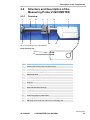
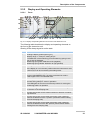
Overview Menu
8.3.2.3
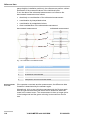
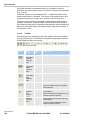
Status Bar
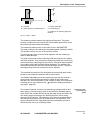
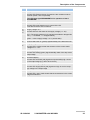
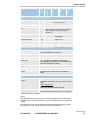
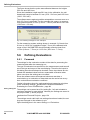
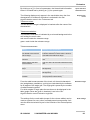
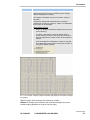
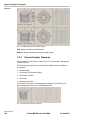
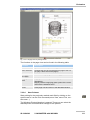
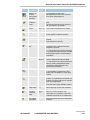
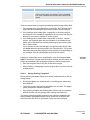
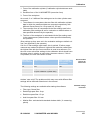
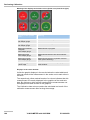
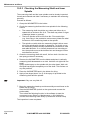
The status bar gives the user context-sensitive information about the
command inputs. Also, messages are output and information about the
system calibration and the measuring probe displayed.
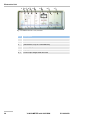
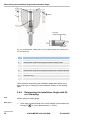
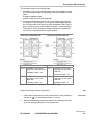
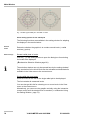
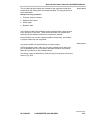
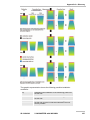
Figure 8-7: Status bar
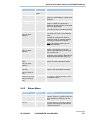
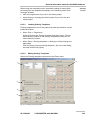
Description (from left to right):
Field in status bar
Description
Help text - example:
Prints the active measurement
Display short information texts and descriptions for commands and functions
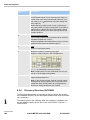
Status system calibration
Green: Calibration data are active or were
used for the current measurement
Red: Calibration data are not active or were
not used for the current measurement
Note: Move the cursor directly over the icon
then an additional window containing information about the used calibration measurement is displayed.
Information about the measuring probe
Display of type (V80) and serial number (in
brackets) of the currently used measuring
probe
Demo = simulation mode
Display of an info text about the current action in the measuring run or the status of the
measuring probe (example: the 2nd radial
scan is currently running)
Progress bar for graphic display of the chronological process of the current action
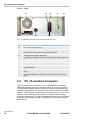
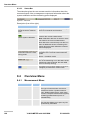
8.4
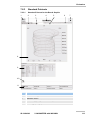
Overview Menu
8.4.1
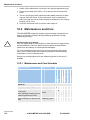
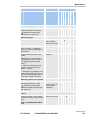
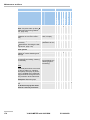
Measurement Menu
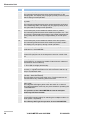
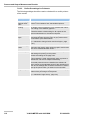
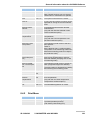
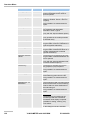
Command
Keyboard Description
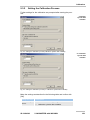
New...
Start a new measurement
The type of measurement must be selected from the list: Cylinder measurement, Radial measurement, Axial measurement, Complete measurement (option)
or Bearing measurement (not for VINCOMETER)
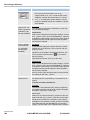
Open...
Ctrl + O
Load a saved file
This function allows you to open any file
generated by INCOWIN.
128
V-INCOMETER with INCOWIN
ID 10034503