1
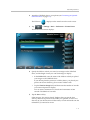
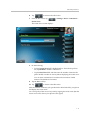
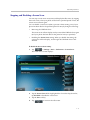
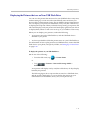
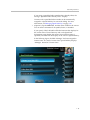
User Guide for the
Polycom® VVX™ 1500 Phone
for 8x8 Virtual Office Pro
PM529/1014
SIP 3.2.3
| July, 2011 | Rev. A
Trademark Information
POLYCOM®, the Polycom “Triangles” logo and the names and marks associated with Polycom’s products are
trademarks and/or service marks of Polycom, Inc. and are registered and/or common law marks in the United States
and various other countries. All other trademarks are property of their respective owners. No portion hereof may be
reproduced or transmitted in any form or by any means, for any purpose other than the recipient’s personal use, without
the express written permission of Polycom.
Patent Information
The accompanying product is protected by one or more U.S. and foreign patents and/or pending patent applications
held by Polycom, Inc.
Disclaimer
Some countries, states, or provinces do not allow the exclusion or limitation of implied warranties or the limitation of
incidental or consequential damages for certain products supplied to consumers, or the limitation of liability for personal
injury, so the above limitations and exclusions may be limited in their application to you. When the implied warranties
are not allowed to be excluded in their entirety, they will be limited to the duration of the applicable written warranty. This
warranty gives you specific legal rights which may vary depending on local law.
Copyright Notice
Portions of the software contained in this product are:
Copyright © 1998, 1999, 2000 Thai Open Source Software Center Ltd. and Clark Cooper
Copyright © 1998 by the Massachusetts Institute of Technology
Copyright © 1998-2003 The OpenSSL Project
Copyright © 1995-1998 Eric Young ([email protected]). All rights reserved
Copyright © 1995-2002 Jean-Loup Gailly and Mark Adler
Copyright © 1996-2004, Daniel Stenberg, <[email protected]>
Permission is hereby granted, free of charge, to any person obtaining a copy of this software and associated
documentation files (the “Software”), to deal in the Software without restriction, including without limitation the rights to
use, copy, modify, merge, publish, distribute, sublicense, and/or sell copies of the Software, and to permit persons to
whom the Software is furnished to do so, subject to the following conditions:
The above copyright notice and this permission notice shall be included in all copies or substantial portions of the
Software.
THE SOFTWARE IS PROVIDED “AS IS”, WITHOUT WARRANTY OF ANY KIND, EXPRESS OR IMPLIED,
INCLUDING BUT NOT LIMITED TO THE WARRANTIES OF MERCHANTABILITY, FITNESS FOR A PARTICULAR
PURPOSE AND NONINFRINGEMENT. IN NO EVENT SHALL THE AUTHORS OR COPYRIGHT HOLDERS BE
LIABLE FOR ANY CLAIM, DAMAGES OR OTHER LIABILITY, WHETHER IN AN ACTION OF CONTRACT, TORT OR
OTHERWISE, ARISING FROM, OUT OF OR IN CONNECTION WITH THE SOFTWARE OR THE USE OR OTHER
DEALINGS IN THE SOFTWARE.
© 2011 Polycom, Inc. All rights reserved.
Polycom, Inc.
4750 Willow Road
Pleasanton, CA 94588-2708
USA
No part of this document may be reproduced or transmitted in any form or by any means, electronic or mechanical, for
any purpose, without the express written permission of Polycom, Inc. Under the law, reproducing includes translating
into another language or format.
As between the parties, Polycom, Inc., retains title to and ownership of all proprietary rights with respect to the software
contained within its products. The software is protected by United States copyright laws and international treaty
provision. Therefore, you must treat the software like any other copyrighted material (e.g., a book or sound recording).
Every effort has been made to ensure that the information in this manual is accurate. Polycom, Inc., is not responsible
for printing or clerical errors. Information in this document is subject to change without notice.
ii
About This Guide
Thank you for choosing the Polycom® VVX™ 1500 phone. The phone is a
business media phone that combines advanced business telephony, one-touch
video, real-time presence, and integrated business applications into one
seamless, lifelike communications experience.
The phone provides a powerful, yet flexible IP communications solution,
delivering excellent video and voice quality. The high-resolution color graphic
display supplies content for call information, multiple languages, directory
access, and system status. The phone supports advanced functionality,
including multiple calls, HTTPS secure provisioning, presence, custom ring
tones, and local audio and video conferencing.
Some of the key features include:
•
Seven inch diagonal color touch screen
•
Support for Polycom HD Voice™ technology
•
Privacy shutter for the video camera
•
Adjustable base, display, and camera angle
•
USB port
•
Ability to use a Power over Ethernet (PoE) power source
•
Support for Electronic Hookswitch (EHS) with select partner headsets
This guide provides everything you need to quickly use your new phone. Be
sure to verify with your system administrator that your network is prepared
for configuring your phone. As well, be sure to read the Parts List and
Safety Notices sections in this guide before you set up and use the phone. This
information can also be found at http://www.8x8.com/Support.aspx.
For day to day phone use, refer to the 8x8 version of the Quick User Guide
available at
http://www.8x8.com/Support/BusinessSupport/Documentation.aspx, and
keep a printed copy available as a quick reference.
iii
Contents
About This Guide. . . . . . . . . . . . . . . . . . . . . . . . . . . . . . . . . . . . . . iii
1 Getting Started with Your Phone. . . . . . . . . . . . . . . . . . . . . . . . 1-1
Parts List . . . . . . . . . . . . . . . . . . . . . . . . . . . . . . . . . . . . . . . . . . . . . . . . . . . . . . 1-2
Setting Up the Phone . . . . . . . . . . . . . . . . . . . . . . . . . . . . . . . . . . . . . . . . . . . . 1-3
Adjusting the Stand . . . . . . . . . . . . . . . . . . . . . . . . . . . . . . . . . . . . . . . . . 1-3
Attaching Ferrite Clamps . . . . . . . . . . . . . . . . . . . . . . . . . . . . . . . . . . . . 1-5
Connecting Network and Power Sources . . . . . . . . . . . . . . . . . . . . . . . 1-5
Connecting the Handset and Handset Cord . . . . . . . . . . . . . . . . . . . . 1-8
Connecting Optional Components . . . . . . . . . . . . . . . . . . . . . . . . . . . . 1-8
Adjusting the Screen . . . . . . . . . . . . . . . . . . . . . . . . . . . . . . . . . . . . . . . 1-12
Adjusting the Camera . . . . . . . . . . . . . . . . . . . . . . . . . . . . . . . . . . . . . . 1-13
Features of the Phone . . . . . . . . . . . . . . . . . . . . . . . . . . . . . . . . . . . . . . . . . . 1-14
Before You Use the Phone . . . . . . . . . . . . . . . . . . . . . . . . . . . . . . . . . . . . . . 1-18
Touch Screen Components . . . . . . . . . . . . . . . . . . . . . . . . . . . . . . . . . . 1-18
Phone Icons . . . . . . . . . . . . . . . . . . . . . . . . . . . . . . . . . . . . . . . . . . . . . . . 1-21
Navigating Menus, Lists, and Fields . . . . . . . . . . . . . . . . . . . . . . . . . . 1-22
Entering Data and Editing Fields . . . . . . . . . . . . . . . . . . . . . . . . . . . . . 1-25
Tips for When You’re in Video Calls . . . . . . . . . . . . . . . . . . . . . . . . . . 1-29
Cleaning the Touch Screen . . . . . . . . . . . . . . . . . . . . . . . . . . . . . . . . . . . . . . 1-29
2 Customizing Your Phone . . . . . . . . . . . . . . . . . . . . . . . . . . . . . . 2-1
Configuring Basic Settings . . . . . . . . . . . . . . . . . . . . . . . . . . . . . . . . . . . . . . . 2-2
Changing the Language . . . . . . . . . . . . . . . . . . . . . . . . . . . . . . . . . . . . . . 2-3
Changing the Appearance of Time and Date . . . . . . . . . . . . . . . . . . . . 2-3
Enabling Headset Memory Mode . . . . . . . . . . . . . . . . . . . . . . . . . . . . . 2-7
Using Electronic Hookswitch . . . . . . . . . . . . . . . . . . . . . . . . . . . . . . . . . 2-8
Updating the Background Picture . . . . . . . . . . . . . . . . . . . . . . . . . . . . . 2-8
Setting Up a Screen Saver . . . . . . . . . . . . . . . . . . . . . . . . . . . . . . . . . . . 2-10
Stopping and Disabling a Screen Saver . . . . . . . . . . . . . . . . . . . . . . . . 2-13
iv
Contents
Displaying the Pictures that are on Your USB Flash Drive . . . . . . . 2-14
Setting One of Your Own Pictures as the Background Picture . . . . 2-16
Enabling the Phone to Automatically Answer Calls . . . . . . . . . . . . . 2-16
Setting the Call Rate for Video Calls . . . . . . . . . . . . . . . . . . . . . . . . . . 2-18
Changing the Backlight Intensity . . . . . . . . . . . . . . . . . . . . . . . . . . . . . 2-19
Updating the Ring Tone . . . . . . . . . . . . . . . . . . . . . . . . . . . . . . . . . . . . 2-22
Disabling and Stopping Video . . . . . . . . . . . . . . . . . . . . . . . . . . . . . . . 2-24
Updating Video Settings . . . . . . . . . . . . . . . . . . . . . . . . . . . . . . . . . . . . 2-26
Updating Power Saving Settings . . . . . . . . . . . . . . . . . . . . . . . . . . . . . 2-36
Muting the Microphone . . . . . . . . . . . . . . . . . . . . . . . . . . . . . . . . . . . . . . . . 2-42
Adjusting the Volume . . . . . . . . . . . . . . . . . . . . . . . . . . . . . . . . . . . . . . . . . . 2-43
Using Call Lists . . . . . . . . . . . . . . . . . . . . . . . . . . . . . . . . . . . . . . . . . . . . . . . 2-43
Viewing Call Lists . . . . . . . . . . . . . . . . . . . . . . . . . . . . . . . . . . . . . . . . . . 2-44
Managing Call Lists . . . . . . . . . . . . . . . . . . . . . . . . . . . . . . . . . . . . . . . . 2-44
Managing Contacts . . . . . . . . . . . . . . . . . . . . . . . . . . . . . . . . . . . . . . . . . . . . 2-46
Viewing Contact Directory . . . . . . . . . . . . . . . . . . . . . . . . . . . . . . . . . . 2-46
Accessing Corporate Directory . . . . . . . . . . . . . . . . . . . . . . . . . . . . . . . 2-47
Adding Contacts to Your Local Contact Directory . . . . . . . . . . . . . . 2-47
Searching for Contacts . . . . . . . . . . . . . . . . . . . . . . . . . . . . . . . . . . . . . . 2-52
Searching for Contacts in a Corporate Directory . . . . . . . . . . . . . . . . 2-53
Updating Contacts in Your Local Contact Directory . . . . . . . . . . . . 2-54
Deleting Contacts from Your Local Contact Directory . . . . . . . . . . . 2-56
Placing Calls to Contacts . . . . . . . . . . . . . . . . . . . . . . . . . . . . . . . . . . . . 2-57
Managing Incoming Calls . . . . . . . . . . . . . . . . . . . . . . . . . . . . . . . . . . . . . . 2-58
Distinguishing Calls . . . . . . . . . . . . . . . . . . . . . . . . . . . . . . . . . . . . . . . . 2-58
Rejecting Calls . . . . . . . . . . . . . . . . . . . . . . . . . . . . . . . . . . . . . . . . . . . . . 2-58
Diverting Calls . . . . . . . . . . . . . . . . . . . . . . . . . . . . . . . . . . . . . . . . . . . . 2-60
3 Using the Basic Features of Your Phone . . . . . . . . . . . . . . . . . . 3-1
Handling Calls . . . . . . . . . . . . . . . . . . . . . . . . . . . . . . . . . . . . . . . . . . . . . . . . . 3-2
Handling Video Calls . . . . . . . . . . . . . . . . . . . . . . . . . . . . . . . . . . . . . . . . 3-3
Placing Calls . . . . . . . . . . . . . . . . . . . . . . . . . . . . . . . . . . . . . . . . . . . . . . . . . . . 3-7
Placing Calls Using the Handset . . . . . . . . . . . . . . . . . . . . . . . . . . . . . . 3-9
Placing Calls Using the Speakerphone . . . . . . . . . . . . . . . . . . . . . . . . . 3-9
Placing Calls Using the Headset . . . . . . . . . . . . . . . . . . . . . . . . . . . . . 3-10
Placing Calls Using Speed Dial . . . . . . . . . . . . . . . . . . . . . . . . . . . . . . 3-11
Answering Calls . . . . . . . . . . . . . . . . . . . . . . . . . . . . . . . . . . . . . . . . . . . . . . . 3-13
Ending Calls . . . . . . . . . . . . . . . . . . . . . . . . . . . . . . . . . . . . . . . . . . . . . . . . . . 3-16
Redialing Numbers . . . . . . . . . . . . . . . . . . . . . . . . . . . . . . . . . . . . . . . . . . . . 3-16
Placing Calls on Hold . . . . . . . . . . . . . . . . . . . . . . . . . . . . . . . . . . . . . . . . . . 3-17
v
Contents
Hosting Voice Conference Calls . . . . . . . . . . . . . . . . . . . . . . . . . . . . . . . . . 3-20
Setting Up Voice Conference Calls . . . . . . . . . . . . . . . . . . . . . . . . . . . 3-20
Holding and Resuming Voice Conference Calls . . . . . . . . . . . . . . . . 3-23
Ending Conference Calls . . . . . . . . . . . . . . . . . . . . . . . . . . . . . . . . . . . . 3-24
Splitting Conference Calls into Two Calls on Hold . . . . . . . . . . . . . 3-24
Managing Conference Call Participants . . . . . . . . . . . . . . . . . . . . . . . 3-24
Handling Video During Voice Conference Calls . . . . . . . . . . . . . . . . 3-27
Using Voice Conference Bridges . . . . . . . . . . . . . . . . . . . . . . . . . . . . . . . . . 3-27
Creating Virtual Room Multiparty Video Conferences . . . . . . . . . . . . . . 3-28
Creating Virtual Room with Polycom VVX Video Phone . . . . . . . . . . . . 3-29
Transferring Calls . . . . . . . . . . . . . . . . . . . . . . . . . . . . . . . . . . . . . . . . . . . . . 3-34
Forwarding Calls . . . . . . . . . . . . . . . . . . . . . . . . . . . . . . . . . . . . . . . . . . . . . . 3-38
Online Call Forwarding . . . . . . . . . . . . . . . . . . . . . . . . . . . . . . . . . . . . . 3-38
Phone-based Call Forwarding . . . . . . . . . . . . . . . . . . . . . . . . . . . . . . . 3-38
Enabling Do Not Disturb . . . . . . . . . . . . . . . . . . . . . . . . . . . . . . . . . . . . . . . 3-43
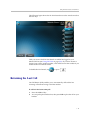
Returning the Last Call . . . . . . . . . . . . . . . . . . . . . . . . . . . . . . . . . . . . . . . . . 3-44
Using the Intercom . . . . . . . . . . . . . . . . . . . . . . . . . . . . . . . . . . . . . . . . . . . . 3-45
Using the Auto Attendant . . . . . . . . . . . . . . . . . . . . . . . . . . . . . . . . . . . . . . 3-45
Parking a Call . . . . . . . . . . . . . . . . . . . . . . . . . . . . . . . . . . . . . . . . . . . . . . . . . 3-45
Using Call Queues (Call Queue Users Only) . . . . . . . . . . . . . . . . . . . . . . . 3-45
Call Recording . . . . . . . . . . . . . . . . . . . . . . . . . . . . . . . . . . . . . . . . . . . . . . . . 3-46
Managing Speed Dial Keys . . . . . . . . . . . . . . . . . . . . . . . . . . . . . . . . . . . . . 3-46
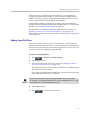
Adding Speed Dial Keys . . . . . . . . . . . . . . . . . . . . . . . . . . . . . . . . . . . . 3-47
Updating Speed Dial Keys . . . . . . . . . . . . . . . . . . . . . . . . . . . . . . . . . . 3-48
Accessing Voice Mail . . . . . . . . . . . . . . . . . . . . . . . . . . . . . . . . . . . . . . . . . . . 3-49
Restarting Your Phone . . . . . . . . . . . . . . . . . . . . . . . . . . . . . . . . . . . . . . . . . 3-51
4 Troubleshooting Your Phone . . . . . . . . . . . . . . . . . . . . . . . . . . . 4-1
Troubleshooting Power and Startup Issues . . . . . . . . . . . . . . . . . . . . . . . . . 4-2
Troubleshooting Dialpad Issues . . . . . . . . . . . . . . . . . . . . . . . . . . . . . . . . . . 4-2
Troubleshooting Access Issues . . . . . . . . . . . . . . . . . . . . . . . . . . . . . . . . . . . 4-3
Troubleshooting Call Issues . . . . . . . . . . . . . . . . . . . . . . . . . . . . . . . . . . . . . . 4-4
Troubleshooting Display Issues . . . . . . . . . . . . . . . . . . . . . . . . . . . . . . . . . . 4-6
Troubleshooting Audio Issues . . . . . . . . . . . . . . . . . . . . . . . . . . . . . . . . . . . . 4-7
Troubleshooting Video Issues . . . . . . . . . . . . . . . . . . . . . . . . . . . . . . . . . . . . 4-7
Testing Phone Hardware . . . . . . . . . . . . . . . . . . . . . . . . . . . . . . . . . . . . . . . . 4-8
vi
Contents
Safety Notices . . . . . . . . . . . . . . . . . . . . . . . . . . . . . Safety Notices-1
End-User License Agreement for Polycom® Software
vii
1
Getting Started with Your Phone
This chapter provides basic installation instructions and information for
obtaining the best performance with the Polycom VVX 1500 phone.
The topics include:
•
Parts List on page 1-2
•
Setting Up the Phone on page 1-3
•
Features of the Phone on page 1-14
•
Before You Use the Phone on page 1-18
•
Cleaning the Touch Screen on page 1-29
To customize your phone, see Customizing Your Phone on page 2-1. To read
about the phone’s basic features, see Using the Basic Features of Your Phone
on page 3-1.
If you require additional information or assistance with your new phone,
contact your system administrator.
1-1
Getting Started with Your Phone
Parts List
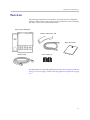
The following components are included in your Polycom VVX 1500 phone
package. Check to ensure that you have received each item. If you are missing
any items, contact your system administrator.
Polycom VVX 1500 phone
Handset and handset cord
Quick Start Guide
Network cable
Ferrite clamps (2)
For information on connecting optional accessories, see Connecting the Phone
Using AC Power on page 1-7 and Connecting Optional Components on page
1-8.
1-2
Getting Started with Your Phone
Setting Up the Phone
To set up the phone, do the following:
1.
Adjust the stand. See Adjusting the Stand, below.
2.
Connect the ferrite clamps to the network cable (and to the optional
computer cable, if you are connecting a computer to your phone). See
Attaching Ferrite Clamps on page 1-5.
3.
Connect the phone to the network and a power source. See Connecting
Network and Power Sources on page 1-5.
4.
Connect phone components. See Connecting the Handset and Handset
Cord on page 1-8 and Connecting Optional Components on page 1-8.
5.
Adjust the screen and camera. See Adjusting the Screen on page 1-12 and
Adjusting the Camera on page 1-13.
Adjusting the Stand
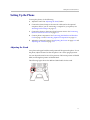
Your phone is shipped with the stand positioned flat against the phone. To use
the phone, adjust the stand so that the phone is in a more upright position.
You can adjust the stand to one of five positions. The lowest position is labeled
MIN, and the highest position is labeled MAX.
The following figure shows the MIN and MAX labels for the stand.
1-3
Getting Started with Your Phone
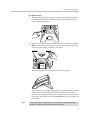
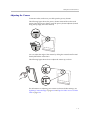
To adjust the stand:
1.
With the back of the phone (and the stand) facing you, push the button
protruding from the side of the phone. When you push the button, the
stand unlocks and can move.
2.
Lift the stand until it touches the back of the phone (the position labeled
MIN), and then release the button to lock the stand in place. This is the
lowest, and most stable, position for your phone.
The following figure shows the phone in its lowest position.
There are four, more upright, positions for your phone. Starting with the
stand in its lowest position, push the button, slowly move the stand
forward, and then release the button to lock the stand in the next position.
Do not force the stand to move past the MAX position, or your phone will
be unstable.
Note
If you need to store or ship your phone, you can move the stand past the MAX
position so that the stand lies toward the front of the phone.
1-4
Getting Started with Your Phone
Attaching Ferrite Clamps
Your phone package includes two ferrite clamps. You must attach a ferrite
clamp to the network cable and to the computer cable (if you are connecting a
computer to your phone) before you attach the cables to your phone.
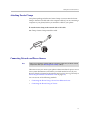
To attach a ferrite clamp to the network cable or PC cable:
>> Clamp a ferrite clamp around the cable.
Connecting Network and Power Sources
Note
Before you connect the network cable to your phone, make sure you attach a ferrite
clamp to the cable (see Attaching Ferrite Clamps, above).
There are two ways to connect your phone to the network and a power source.
Your system administrator will advise you which method to use. (If your
phone is already connected to the network and a power source, go directly to
Connecting the Handset and Handset Cord on page 1-8.)
You can use one of the following methods:
•
Connecting the Phone Using a Power Over Ethernet Source
•
Connecting the Phone Using AC Power
1-5
Getting Started with Your Phone
Connecting the Phone Using a Power Over Ethernet Source
Using the supplied network cable, the phone can be powered from a
Power over Ethernet (PoE) compliant switch or hub. Power over Ethernet is
the default connection for your phone.
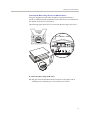
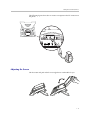
The following figure shows how to connect the phone using a PoE source.
To connect the phone using a PoE source:
>> Plug the network cable between the LAN jack on the phone and an
available power and data port on the in-line power switch.
1-6
Getting Started with Your Phone
Connecting the Phone Using AC Power
To connect the phone using AC power, you require the optional AC Power Kit,
containing a Power Adapter and Regional Power Cord.
The regional power cord is country-specific. The power cord shown below may
differ from the one in your kit.
Note
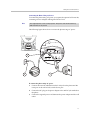
The following figure shows how to connect the phone using AC power.
2
3
1
To connect the phone using AC power:
1.
Connect the network cable between the LAN jack on the phone and the
LAN port on the wall or hub/switch device port.
2.
Connect the DC plug on the power adapter to the 48V DC jack marked on
the phone.
3.
Connect the regional power cord between the power adapter and the wall
outlet.
1-7
Getting Started with Your Phone
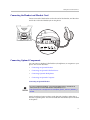
Connecting the Handset and Handset Cord
Connect one end of the handset cord to the end of the handset, and the other
end of the cord to the Handset jack on the phone.
Connecting Optional Components
You can connect a headset, USB flash drive, headphones, or computer to your
phone. This section describes:
•
Connecting an Optional Headset
•
Connecting an Optional USB Flash Drive
•
Connecting Optional Headphones
•
Connecting an Optional Computer
Connecting an Optional Headset
For a list of supported headsets, see Technical Bulletin 37477, SoundPoint IP
Family and Polycom VVX 1500 Headset Compatibility List, at
http://www.polycom.com/support/voice/soundpoint_ip/VoIP_Technical_Bulletins_p
ub.html.
Attach a headset to listen to phone audio through a headset, rather than a
handset or speakerphone. You attach a headset to the Headset jack on the back
of the phone.
1-8
Getting Started with Your Phone
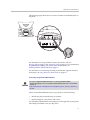
The following figure shows how to connect a headset to the Headset jack on
the phone.
For information on using a headset to place and answer calls, see
Placing Calls on page 3-7 and Answering Calls on page 3-13. For information
on permanently enabling your phone to use headset mode, see
Enabling Headset Memory Mode on page 2-7.
For information on connecting and using a headset that supports electronic
hookswitch, see Using Electronic Hookswitch on page 2-8.
Connecting an Optional USB Flash Drive
For a list of supported USB flash drives, see Technical Bulletin 38084,
Supported USB Devices for SoundPoint IP 650 and 670 and Polycom VVX 1500
Phones, at
http://www.polycom.com/support/voice/soundpoint_ip/VoIP_Technical_Bulletins_p
ub.html.
Attach a removable USB flash drive to your phone to do the following:
•
Record and play back audio from your phone.
•
Display images on your phone’s idle screen.
You attach the USB flash drive to the USB port on the right side of your phone.
The USB port is behind a door you flip down.
1-9
Getting Started with Your Phone
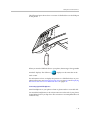
The following figure shows how to connect a USB flash drive to the USB port
on the phone.
When you attach a USB flash drive to your phone, the message “Storage media
attached” displays. The USB icon,
, displays on the status bar on the
touch screen.
For information on how to display the pictures on a USB flash drive on your
phone’s idle screen, see Setting Up a Screen Saver on page 2-10 and Displaying
the Pictures that are on Your USB Flash Drive on page 2-14.
Connecting Optional Headphones
Attach headphones to your phone to listen to phone audio or recorded calls.
You attach the headphones to the 3.5mm connector on the side of your phone,
located behind a door you flip down. The connector is an unamplified line-out
connector only.
1 - 10
Getting Started with Your Phone
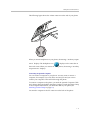
The following figure shows the 3.5mm connector on the side of your phone.
When you attach headphones to your phone, the message “Auxiliary output
active” displays. The headphone icon,
, displays on the status bar on
the touch screen. When you remove the headphones, the message “Auxiliary
output inactive” displays.
Connecting an Optional Computer
You can connect a computer to your phone. You may want to connect a
computer, for example, if you only have one LAN port and you want to
connect your computer to the network through the phone.
To connect a computer to the phone, you need the optional Computer Cable
and a ferrite clamp (included in the phone package). Attach the ferrite clamp
to the Computer Cable before you attach the cable to your phone (see
Attaching Ferrite Clamps on page 1-5).
You attach a computer to the PC connector on the back of the phone.
1 - 11
Getting Started with Your Phone
The following figure shows how to connect a computer to the PC connector on
the phone.
Adjusting the Screen
Lift the screen and push it back to an angle that is comfortable for you.
1 - 12
Getting Started with Your Phone
Adjusting the Camera
To transmit video, make sure you slide open the privacy shutter.
The following figure shows the privacy shutter centered above the touch
screen. Open the privacy shutter using the privacy shutter adjuster (located
along the top edge, above the camera).
You can adjust the angle of the camera by rolling the camera barrel located
directly behind the camera lens.
The following figure shows how to adjust the camera up or down.
For information on adjusting your camera to achieve the best settings, see
Updating Camera Settings on page 2-34 and Tips for When You’re in Video
Calls on page 1-29.
1 - 13
Getting Started with Your Phone
Features of the Phone
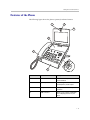
The following figure shows the phone’s primary hardware features.
6
7
5
2
1
4
3
2
Feature
Description
1
Handset and cord
Provides audio output for calls that
use the handset.
2
Speakerphone
Provides ringer and hands-free
(speakerphone) audio output.
3
Headphone connector
Allows you to connect headphones to
the phone.
4
USB connector
Allows you to connect a USB flash
drive to display pictures on your
phone.
1 - 14
Getting Started with Your Phone
5
Feature
Description
LED indicator
The LED flashes red to indicate the
following:
•
The software is booting
•
A message is waiting
•
The phone is in power-saving
mode (slow-flashing red)
6
Privacy Shutter Adjuster
Opens and closes the privacy shutter.
7
Camera
Provides near-site video.
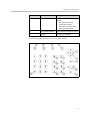
The following figure shows the keys on the phone console.
1 - 15
Getting Started with Your Phone
Feature
1
Arrow Keys
Description
Allow you to:
•
Scroll through displayed
information.
•
Enable and disable fields.
•
Return to the previous menu
(Left arrow key only).
•
Scroll through active and inactive
calls.
2
Select Key
Selects an item in a list.
3
Delete Key
Deletes displayed data.
4
Volume Keys
Adjusts the volume of the handset,
headset, speaker, and ringer.
5
Mute Key
Mutes audio transmission locally
during calls and conferences. The
button glows red when activated.
6
Video Key
Controls the size, position, and
transmission of video images.
7
Redial Key
Dials the most recently dialed party.
8
Transfer Key
Transfers the current call to another
party.
9
Conference Key
Allows connection with another party
for a conference.
1 - 16
Getting Started with Your Phone
Feature
Description
10
Hold Key
Holds an active call or resumes a
held call.
11
Do Not Disturb Key
Cancels ringing and directs incoming
calls to your voice mail (if supported).
The button glows red when activated.
12
Headset Key
Allows you to place and receive calls
through an optionally connected
headset. The button glows green
when headset mode is selected.
13
Speakerphone Key
Allows for hands-free communication
during calls. The button glows green
when speakerphone mode is
selected.
14
Applications Key
Allows you to access the Web
browser (if supported).
15
Menu Key
Allows you to access local (your
phone) and global (your organization)
features.
16
Directories Key
Allows you to access directories and
call lists.
17
Messages Key
Allows you to access and manage
messages.
18
Dialpad Keys
Provide the 10 digits, alphabetic
characters, and special characters
available in context-sensitive
applications.
1 - 17
Getting Started with Your Phone
Before You Use the Phone
Note
Since you can customize your phone in many different ways, and your system
administrator can enable and disable certain features, the user interface that
displays on your phone may differ from the figures that appear in this guide.
Before you use the phone, you need to understand the touch screen layout,
which icons display on the touch screen, how to navigate menus and fields,
and how to enter data. You also need to know how to obtain the best
performance when you conduct video calls and conferences. This section
describes the following:
•
Touch Screen Components on page 1-18
•
Phone Icons on page 1-21
•
Navigating Menus, Lists, and Fields on page 1-22
•
Entering Data and Editing Fields on page 1-25
•
Tips for When You’re in Video Calls on page 1-29
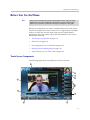
Touch Screen Components
The following figure shows what displays on the touch screen.
1
10
9
8
2
7
3
6
4
5
1 - 18
Getting Started with Your Phone
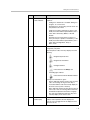
1
Feature
Description
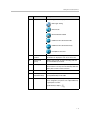
Status bar
The following icons can display:
—Messages waiting
—Missed calls
—Do Not Disturb enabled
—USB flash drive attached and idle
—USB flash drive attached and busy
—Headphones attached
2
Active call
window
Displays the active call. During a video call, the active
call window can display the near site or the far site.
3
Inactive call
group
Displays calls on hold, as well as incoming calls that
are not immediately answered.
4
Soft keys
Keys on the touch screen that you can tap to access
phone functions. The keys are automatically labeled to
identify their context-sensitive functions.
5
Main Menu key
Opens the Main Menu.
6
Line Keys and
Speed Dial Keys
See Speed Dial Keys in this table.
7
Speed Dial Keys
See Line Key in this table.
Use these keys to activate up to five speed dials that
can be assigned to your phone. Use a Speed Dial Key
to quickly dial a contact.
Speed Dial Keys display
.
1 - 19
Getting Started with Your Phone
8
9
Feature
Description
Line Key
status indicator
A Line Key can have one of the following status
indicators:
Line Key
•
Solid green—A dial-tone is available, dialing is in
progress, or a call is active.
•
Flashing green—An incoming call. Or, the far site
has placed a call on hold.
•
Solid red—A remote shared line is active, or the
buddy associated with the Speed Dial Key has a
status that is either Busy, Offline, or Do Not
Disturb.
•
Flashing red—You have placed a call (one or
more) on hold (on a private or shared line), or the
buddy associated with the Speed Dial Key has a
status that is Be Right Back, Away, or
Out to Lunch.
Use these keys to activate up to six lines that can be
assigned to your phone.
When the phone is idle, Line Keys display one of the
following:
•
—Registered, private lines.
•
—Registered, shared lines.
•
—Unregistered lines
•
—Lines that have the Always call
forwarding type enabled.
•
—Lines that have Do Not Disturb enabled.
Line keys are either blue or green:
10
Picture-in-Picture
window (PIP)
•
Green—Indicates that the Line Key has an active
call or an incoming call. A green Line Key is
associated with the calls that currently display on
the touch screen (active or inactive).
•
Blue—Indicates that the Line Key doesn’t have an
active call, or has an incoming call that has been
minimized and placed in the inactive call group.
The calls associated with a blue Line Key don’t
currently display on the touch screen.
The small window in the corner of the touch screen that
displays video. By default, the PIP displays the
near site. You can toggle the PIP to display the near
site or the far site.
1 - 20
Getting Started with Your Phone
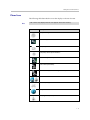
Phone Icons
The following table describes the icons that display on the touch screen.
Note
Call counters only display when the icon appears next to the Line Key.
Icon
Description
Call (audio-only)
Call with Polycom HD Voice
Call (video)
Call (video) with Polycom HD Voice
Call on hold (private line)
Call on hold (shared line)
Call without Polycom HD Voice (private line)
Do Not Disturb enabled
Forward (Always)
Headphones attached
Line (registered, private)
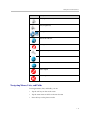
1 - 21
Getting Started with Your Phone
Icon
Description
Line (registered, shared)
Line (unregistered)
Message indicators
Missed calls indicator
Mute applied
Speed Dial Key
USB device attached and idle
USB device attached and busy
Video stopped
Video stopped and audio muted
Navigating Menus, Lists, and Fields
To navigate menus, lists, and fields, you can:
•
Tap the soft keys on the touch screen
•
Tap the menu items or fields on the touch screen
•
Press the keys on the phone console
1 - 22
Getting Started with Your Phone
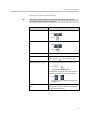
To operate your phone, follow these tips:
Note
After 20 seconds of inactivity, the menu system automatically exits to the idle
screen unless an edit session is in progress.
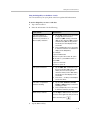
If you want to ...
Then do this ...
Enter the Main Menu
Do one of the following:
Return to the idle screen
Return to the previous menu
•
Tap
•
Press
.
.
Do one of the following:
•
Tap
•
Press
.
.
Tap the Back soft key or press the Left arrow key.
Scroll through menu items
Tap
Scroll through lists or fields
or
, or press an arrow key.
To scroll item by item, do one of the following:
•
Tap
or
.
•
Press the Up or Down arrow key.
To Page Down or Page Up (when lists appear on
more than one page), do one of the following :
Scroll through values for a
field
•
Tap
or
.
•
Press the * key (to Page Up) or the # key (to
Page Down).
Tap the field’s highlighted grey box. From the
drop-down list, tap one of the scroll arrows to go to
the top or bottom of the list.
1 - 23
Getting Started with Your Phone
If you want to ...
Then do this ...
Select a menu item
Do one of the following:
•
Tap the menu item.
•
Use an arrow key to scroll to the menu item,
and then tap the Select soft key.
•
Press the dialpad key that corresponds to the
item in a numbered menu list.
For example, if an item has a number next to
it, press the corresponding number on the
dialpad.
Select a field
Do one of the following:
•
Tap the field.
•
Scroll to the field using the Up or Down arrow
key.
Select a soft key
Tap the soft key.
View additional soft keys
Tap the More soft key.
Enable or disable fields
Do one of the following:
•
Tap the field name, and then tap the field’s
highlighted box. From the drop-down list, tap
Enabled or Disabled.
•
Scroll to a field using the Up or Down arrow
key, and then use the Right or Left arrow key
to toggle between Enabled or Disabled.
1 - 24
Getting Started with Your Phone
Entering Data and Editing Fields
You can enter data and edit fields in these two ways:
•
Using a “keyboard” that displays on the touch screen.
•
Using the dialpad keys on the phone console.
Using the “Keyboard” on the Touch Screen
You can use the phone’s “keyboard” to quickly update field information.
To use the “keyboard” on the touch screen to enter or edit data:
1.
To update a field, tap the field.
The keyboard icon,
, displays next to the screen title.
The following screen shows the keyboard icon next to the screen title.
2.
Tap
.
The “keyboard” displays on the touch screen.
1 - 25
Getting Started with Your Phone
The following figure shows the keyboard that displays on the touch screen
when you update a directory entry.
3.
Enter the information. Do the following:
If you want to...
Then do this...
Enter uppercase (A) characters,
lowercase (a) characters, or a
combination of uppercase and
lowercase characters
1.
If a keyboard with characters
does not display, tap
(on the keyboard).
2.
Tap the abc, ABC, 123, or Abc
soft keys to toggle between
lowercase, uppercase,
numerical, and titlecase modes.
3.
Using the keyboard on the touch
screen, tap the letter(s) you want.
You can also tap
or
to toggle between entering
characters in uppercase mode or
lowercase mode.
1 - 26
Getting Started with Your Phone
If you want to...
Then do this...
Enter numbers
1.
If a keyboard with numbers does
not display, tap
2.
.
Using the keyboard on the touch
screen, tap the number(s) you
want.
You can also tap the abc, ABC, 123,
or Abc soft keys to toggle between
lowercase, uppercase, numerical,
and titlecase modes.
Enter special characters
1.
If a keyboard with special
characters does not display, tap
.
Enter text in a particular character
encoding
Delete data you entered
2.
Using the keyboard on the touch
screen, tap the special
character(s) you want.
1.
Tap the Latin, Katakana,
Unicode, Cyrillic or ASCII
soft key to select the encoding
you want. The touch screen’s
keyboard changes to display the
encoding you chose.
2.
Using the keyboard on the touch
screen, tap the character(s) you
want.
Tap
Delete an entire field of data
.
Double-tap the field of data, so that
the data is highlighted. Then, tap
.
4.
To confirm the updates, tap
.
1 - 27
Getting Started with Your Phone
Using the Dialpad Keys on the Phone Console
You can use the keys on your phone console to update field information.
To use the dialpad keys to enter or edit data:
1.
Tap a field to select it.
2.
Enter the information. Do the following:
If you want to...
Then do this...
Enter only numbers (1),
uppercase (A) characters,
lowercase (a) characters, or
titlecase (Abc) characters
1.
Tap the abc soft key one or more times
to toggle between and select
uppercase (ABC soft key), numerical
(123 soft key), titlecase (Abc soft key),
and lowercase (abc soft key) modes.
The mode you select displays in the
screen title.
2.
Press a dialpad key one or more times
to enter the characters or number that
display on the dialpad key.
For example:
If you’re in ABC mode:
To enter “A,” press 2. To enter “B,” press
22. To enter “C,” press 222. To enter “2,”
press 2222.
If you’re in 123 mode:
To enter “2,” press 2.
Enter special characters
Enter text in a a particular
character encoding
Delete text you entered
1.
Tap the ABC, Abc, or 123 soft key so
that you’re in either ABC, Abc, or abc
mode. (You can’t access special
characters when you’re in 123 mode.)
The mode you select displays in the
screen title.
2.
Press the 1, *, or 0 key on the dialpad
one or more times.
1.
Tap the Latin, Katakana, Unicode,
Cyrillic or ASCII soft key to select the
encoding you want
2.
Press a dialpad key one or more times
to enter the character you want.
Use the Right or Left arrow key to position
the cursor to the right of the text you want to
delete, and then press
3.
.
Tap the Save soft key.
1 - 28
Getting Started with Your Phone
Tips for When You’re in Video Calls
Use these tips when you are in a video call or conference:
•
Check the near-site video to make sure it is clear, bright, and sharp. For
information on adjusting camera settings, see Updating Camera Settings
on page 2-34.
•
Use the handset or a headset if you are in an open environment.
•
Be aware of latency when speaking.
•
Avoid bright lights or windows behind you (backlight). If the camera faces
a window or bright lights, you may have to adjust the camera settings. To
adjust camera settings, see Updating Camera Settings on page 2-34.
•
Avoid wearing bright colors, all-light or all-dark clothing, or “busy”
patterns (such as small checks or narrow stripes). Light pastels and muted
colors look the best on the screen.
•
In a conference call, mute your microphone when you’re not speaking,
especially in noisy environments.
•
Avoid tapping the microphone or rustling papers near the microphone.
•
Make sure that you can see and hear the far-site participants.
•
Speak in your normal voice without shouting.
•
Use natural gestures when you speak.
Cleaning the Touch Screen
Periodically, you may need to clean the touch screen. Fingerprints tend to
show up more on a color display.
Before you clean the touch screen, disable the screen so you do not activate
phone features while you wipe the glass. While the touch screen is disabled,
all soft keys are disabled. You can enable the touch screen again by pressing
any key on the phone console.
To answer a call while the touch screen is disabled, pick up the handset. Or, to
use the speakerphone, press
, and then tap the Answer soft key.
1 - 29
Getting Started with Your Phone
To clean the touch screen:
1.
Tap
> Settings > Basic > Screen Clean.
The screen is disabled. The message “Touch screen is disabled. Press any
key to exit” displays.
2.
Wipe the glass with a clean, lint-free cloth.
3.
To enable the touch screen again, press any key on the phone console.
1 - 30
2
Customizing Your Phone
You can customize your Polycom VVX 1500 phone by adjusting certain
settings, such as how the time and date display and the ring type you use for
incoming calls. You can also customize your phone’s directory, specify how to
handle calls from contacts, change the background image that displays, or
enable a screen saver.
This chapter provides basic operating instructions for customizing your
phone. The topics include:
•
Configuring Basic Settings on page 2-2
•
Muting the Microphone on page 2-42
•
Adjusting the Volume on page 2-43
•
Using Call Lists on page 2-43
•
Managing Contacts on page 2-46
•
Managing Incoming Calls on page 2-58
To read about the phone’s basic features, see Using the Basic Features of Your
Phone on page 3-1.
If you require additional information or assistance with your new phone,
contact your system administrator.
2-1
Customizing Your Phone
Configuring Basic Settings
This section outlines the basic settings you can configure through the
Main Menu. The topics include:
•
Changing the Language on page 2-3
•
Changing the Appearance of Time and Date on page 2-3
•
Enabling Headset Memory Mode on page 2-7
•
Using Electronic Hookswitch on page 2-8
•
Updating the Background Picture on page 2-8
•
Setting Up a Screen Saver on page 2-10
•
Stopping and Disabling a Screen Saver on page 2-13
•
Displaying the Pictures that are on Your USB Flash Drive on page 2-14
•
Setting One of Your Own Pictures as the Background Picture on page 2-16
•
Enabling the Phone to Automatically Answer Calls on page 2-16
•
Setting the Call Rate for Video Calls on page 2-18
•
Changing the Backlight Intensity on page 2-19
•
Updating the Ring Tone on page 2-22
•
Disabling and Stopping Video on page 2-24
•
Updating Video Settings on page 2-26
•
Updating Power Saving Settings on page 2-36
2-2
Customizing Your Phone
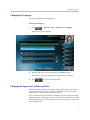
Changing the Language
Your phone supports several languages.
To change the language:
1.
Tap
> Settings > Basic > Preferences > Language.
The Language screen displays.
2.
Tap the language you want, and then tap the Select soft key.
The text on the screen changes to the language that you selected.
3.
Tap
to return to the idle screen.
Changing the Appearance of Time and Date
The time and date appear on the graphic display of the phone. If the phone
cannot obtain a time and date, the display will flash. Contact your system
administrator if either the time or date is incorrect.
You can select from various formats for the time and date display, including
whether the time or date displays first (clock order). You can also turn the time
and date display off, so it doesn’t display on the screen. Select and set options
that are right for you.
2-3
Customizing Your Phone
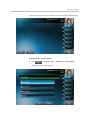
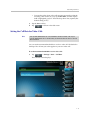
The following figure shows the default format for the time and date display.
To update the time and date display:
1.
Tap
> Settings > Basic > Preferences > Time & Date.
The Time & Date screen displays.
2-4
Customizing Your Phone
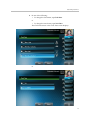
2.
Do one of the following:
— To change the date format, tap Clock Date.
or
— To change the time format, tap Clock Time.
The Clock Date screen or the Clock Time screen displays.
or
2-5
Customizing Your Phone
3.
Tap the format you want, and then tap the Select soft key.
4.
Tap
to return to the idle screen.
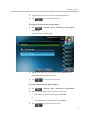
To change the order of the time and date display:
1.
Tap
> Settings > Basic > Preferences > Time & Date >
Clock Order.
The Clock Order screen displays.
2.
Tap the clock order you want, and then tap the Select soft key.
The default setting is date before time.
3.
Tap
to return to the idle screen.
To enable or disable the time and date display:
1.
Tap
> Settings > Basic > Preferences > Time & Date.
2.
From the Time & Date screen, do one of the following:
— To disable the time and date display, tap Disable.
or
— To enable the time and date display, tap Enable.
3.
Tap
to return to the idle screen.
2-6
Customizing Your Phone
Enabling Headset Memory Mode
For a list of supported headsets, see Technical Bulletin 37477, SoundPoint IP and
Polycom VVX 1500 Headset Compatibility List, at
http://www.polycom.com/support/voice/soundpoint_ip/VoIP_Technical_Bulletins_p
ub.html.
This feature is useful for permanent or full-time headset users. You can set up
your phone so that all incoming and outgoing calls use your headset. At any
time, you can switch to handset or speakerphone mode.
To use Headset Memory Mode, you must enable, and then activate,
Headset Memory Mode. If you switch to handset or speakerphone mode, you
deactivate Headset Memory Mode. To switch back to Headset Memory Mode,
you must activate it again.
To enable Headset Memory Mode:
1.
Tap
> Settings > Basic > Preferences > Headset >
Headset Memory.
The Headset Memory Mode screen displays.
2.
Tap Enabled, and then tap the Select soft key.
3.
To activate Headset Memory Mode, press
twice.
2-7
Customizing Your Phone
All calls will now go to your headset. If you tap the Line Key with the flashing
green status indicator or the Answer soft key to receive a call, the call will
connect to your headset automatically.
If you switch to the speakerphone or the handset, you deactivate
Headset Memory Mode (calls no longer automatically go to your headset,
unless you choose this mode). To have calls go to your headset again, activate
Headset Memory Mode by pressing
twice.
Using Electronic Hookswitch
For information on supported headsets to provide electronic hookswitch features to
place, answer, and end calls, see Technical Bulletin 37477,
SoundPoint IP and Polycom VVX 1500 Headset Compatibility List, at
http://www.polycom.com/support/voice/soundpoint_ip/VoIP_Technical_Bulletins_p
ub.html.
If you use a headset that supports electronic hookswitch, you can place,
answer, and end calls by pressing the hookswitch button on your headset.
For detailed information about how to use electronic hookswitch, see
Technical Bulletin 35150, Using an Electronic Hookswitch with SoundPoint IP and
Polycom VVX 1500 Phones, at
http://www.polycom.com/support/voice/soundpoint_ip/VoIP_Technical
_Bulletins_pub.html.
Updating the Background Picture
Note
Updating the background picture is an optional feature and may not be supported
on your particular system. For more information, see your system administrator.
You can change the background picture that displays on your phone. By
default, your screen displays a blue-patterned background that is named
“Default.”
Your system administrator sets up the background images for your phone. If
no background images are set up, only the blue-patterned background
(“Default”) is available. If you want, you can set up a picture of your own as
the background image. For more information, see Setting One of Your Own
Pictures as the Background Picture on page 2-16.
2-8
Customizing Your Phone
To update the background picture:
1.
Tap
> Settings > Basic > Preferences > Background.
The Background screen displays.
Note
Depending on how your system is set up, you may have to tap
> Settings > Basic > Preferences > Background >
Select Background. The Select Background screen displays instead.
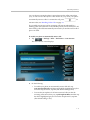
The following figure shows a sample Background screen. (Your screen
will have the Default option, as well as other options that your system
administrator may have added to your phone. If you set an image on your
USB flash drive as your background image, the image will display in the
list as “Local File.”)
2.
Tap the background image you want, and then tap the Select soft key.
3.
Tap
to return to the idle screen.
2-9
Customizing Your Phone
Setting Up a Screen Saver
Note
Adding a screen saver to your phone is an optional feature and may not be
supported on your system. For more information, see your system administrator.
Note
You may want to view your pictures like a slide show (or just view one picture)
without setting up a screen saver that automatically starts each time your phone is
idle a certain amount of time. This is the Picture Frame feature. For more
information, see Displaying the Pictures that are on Your USB Flash Drive on page
2-14.
You can set up a screen saver to display the pictures stored on a USB flash
drive. The screen saver will automatically start each time your phone is idle a
certain amount of time. You can stop the screen saver at any time and return
to the idle screen by tapping the touch screen. If your phone is idle again (for
a specified period of time), the screen saver will start again.
To set up a screen saver of your pictures, you need to set up certain screen
saver settings, place your pictures on a USB flash drive, and attach the
USB flash drive to the phone. The phone can only display the screen saver
when the USB flash drive is attached to the phone.
For a list of supported USB flash drives, see Technical Bulletin 38084,
Supported USB Devices for SoundPoint IP 650 and 670 and Polycom VVX 1500
Phones, at
http://www.polycom.com/support/voice/soundpoint_ip/VoIP_Technical_Bulletins_p
ub.html.
For information on stopping and disabling a screen saver, see Stopping and
Disabling a Screen Saver on page 2-13.
To set up a screen saver of your pictures:
1.
Place one or more pictures on a USB flash drive, either in the root
directory or in a folder.
The pictures must have the following file type and size:
File type: BMP, JPEG, or PNG
Maximum size: 9999 x 9999 pixels
Note
The phone will not display images that have a progressive JPEG, .JPE, or .JFIF
format.
2 - 10
Customizing Your Phone
2.
Attach the USB flash drive to your phone (see Connecting an Optional
USB Flash Drive on page 1-9).
The USB icon,
3.
Tap
, displays on the status bar on the touch screen.
> Settings > Basic > Preferences > Picture Frame.
The Picture Frame screen displays.
4.
Specify the folder in which you stored your images on the USB flash
drive, and the length of time you want each image to display:
— In the Folder field, enter the name of the folder in which you placed
your images on the USB flash drive.
If you did not place the pictures in a folder (that is, you placed your
pictures in the root directory), do not enter a folder name.
— Tap the Time Per Image field, and then enter the number of seconds
you want each picture to display.
You can enter a minimum of 3 seconds and a maximum of 300
seconds. The default is 5 seconds.
5.
Tap the Save soft key.
If the message “No pictures found” displays after you tap the Save
soft key, there are no pictures in the folder you specified, or in the root
directory (if you did not enter a folder name). Go back and make sure the
information you entered is correct.
2 - 11
Customizing Your Phone
6.
Tap
to return to the idle screen.
7.
From the idle screen, tap
> Settings > Basic > Preferences >
Screen Saver.
The Screen Saver screen displays.
8.
Do the following:
— Tap the Screen Saver field’s highlighted box. From the drop-down
list, tap Enabled to enable a screen saver.
— Tap the Wait Time field, and then enter the number of minutes the
phone should wait after no activity before displaying the screen saver.
You can enter a minimum of 1 minute and a maximum of 9999
minutes. The default is 15 minutes.
9.
Tap the Save soft key.
10. Tap
to return to the idle screen.
After the number of minutes you specified in the Wait Time field, your phone
will display the screen saver.
You can stop the screen saver at any time by tapping the touch screen (but the
screen saver will re-start if your phone is idle again).
2 - 12
Customizing Your Phone
Stopping and Disabling a Screen Saver
You can stop a screen saver at any time, and display the idle screen, by tapping
the touch screen. After your phone is idle for the specified period of time, the
screen saver will start again.
You can disable a screen saver (that is, prevent it from starting, even if your
phone has been idle for the specified period of time) by doing the following:
•
Removing the USB flash drive.
The screen saver will not display until you attach the USB flash drive again
(and your phone has been idle for the period of time you specified).
•
Disabling the Screen Saver setting. When you disable the setting, the
screen saver will not display, even though the USB flash drive is still
attached.
To disable the Screen Saver setting:
1.
Tap
> Settings > Basic > Preferences > Screen Saver.
The Screen Saver screen displays.
2.
Tap the Screen Saver field’s highlighted box. From the drop-down list,
tap Disabled to disable the screen saver.
3.
Tap the Save soft key.
4.
Tap
to return to the idle screen.
2 - 13
Customizing Your Phone
Displaying the Pictures that are on Your USB Flash Drive
You can view the pictures that are stored on your USB flash drive at any time,
without setting up a screen saver that automatically starts each time your
phone is idle a certain amount of time. This is called the Picture Frame feature.
You can display your pictures as thumbnails, one-by-one (like a slide show),
or display just one picture. When you decide to stop viewing your pictures, the
idle screen displays, and your pictures will not display again until you choose
to display them (unless a screen saver is set up, or you enable a screen saver).
Before you can display your pictures, confirm the following:
•
Your pictures are on the USB flash drive, and the USB flash drive is
attached to your phone.
•
You have specified the folder the pictures are in on your USB flash drive.
For information on how to place pictures on a USB flash drive, connect the USB
flash drive to your phone, and specify a folder, see Setting Up a Screen Saver
on page 2-10.
To display the pictures on your USB flash drive:
>> Do one of the following:
— From the idle screen, tap
> Picture Frame.
or
— Tap
> Features > Removable Storage Media >
Picture Frame.
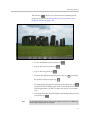
Your pictures will display one-by-one (like a slide show). Six keys display
beneath your pictures.
The following figure shows a picture that is stored on a USB flash drive,
and the six keys that display so you can display the pictures on your
USB flash drive as thumbnails, one-by-one, or one picture only.
2 - 14
Customizing Your Phone
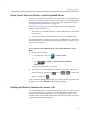
The sixth key,
, allows you to set the picture as the background
image for your phone (see Setting One of Your Own Pictures as the
Background Picture on page 2-16).
— To view thumbnails of your pictures, tap
— To go to the previous picture, tap
— To go to the next picture, tap
.
.
.
— To pause and display the current picture only, tap
the pictures one-by-one again, tap
. To display
.
— To stop displaying the pictures and return to the idle screen, tap
.
The pictures will not display again until you access the Picture Frame
feature again (unless you have a screen saver set up, or you enable
one).
— To set the picture that currently displays as the background picture for
your phone, tap
Note
.
To remove the six keys from the touch screen, tap the touch screen. To display the
six keys again, tap the touch screen again.
2 - 15
Customizing Your Phone
Setting One of Your Own Pictures as the Background Picture
You can set a picture that is stored on your USB flash drive as the background
picture on your phone. When you set one of your pictures as the background
picture, the picture will display as “Local File” in the Backgrounds list (see
Updating the Background Picture on page 2-8).
Before you can set a picture on your USB flash drive as the background
picture, confirm the following:
•
The picture is on the USB flash drive, and the USB flash drive is attached
to your phone.
•
You have specified the folder the picture is in on your USB flash drive.
For more information on placing a picture on your USB flash drive, connecting
the USB flash drive to your phone, and specifying a folder, see Setting Up a
Screen Saver on page 2-10 .
To set a picture on your USB flash drive as the background picture on your
phone:
1.
Do one of the following:
— From the idle screen, tap
> Picture Frame.
or
— Tap
> Features > Removable Storage Media >
Picture Frame.
Your pictures will display, one-by-one.
2.
To set a picture as the background picture for your phone, wait for the
picture to display, and then tap
picture, and then tap
. Or, tap
or
to display the
.
To re-set the default background image, see Updating the Background Picture
on page 2-8, but select Default for the background image.
Enabling the Phone to Automatically Answer Calls
You can enable the phone to automatically answer a call, so you don’t have to
tap a soft key, Line Key, or other key to answer the call. If you enable this
feature, the call automatically directs to your speakerphone after a certain
number of rings. Your system administrator sets how many times your phone
rings before the call is auto-answered.
2 - 16
Customizing Your Phone
You can choose to mute the phone’s microphone (so the caller cannot hear
you), as well as mute video (so the caller cannot see you), when your phone
automatically answers calls. To unmute the call, press
. To
transmit video, see Handling Video Calls on page 3-3.
If you enable auto answer and an incoming calls arrives (indicated by a
flashing green status indicator on the Line Key) while you are already in a call,
the incoming call will be automatically answered if you end the current call or
place it on hold.
To enable your phone to automatically answer calls:
1.
Tap
> Settings > Basic > Preferences > Auto Answer.
The Auto Answer screen displays.
2.
Do the following:
— To enable your phone to automatically answer SIP calls, tap
Auto Answer SIP Calls, and then tap the field’s highlighted grey box.
From the drop-down list, tap Yes. (The default setting is No.)
— To mute the microphone for all auto-answered calls (so that the
incoming caller cannot hear you), tap Microphone Mute, and then tap
the field’s highlighted grey box. From the drop-down list, tap Yes.
(The default setting is Yes.)
2 - 17
Customizing Your Phone
— To mute the video when video calls are auto-answered (so that the
incoming caller cannot see you), tap Video Mute, and then tap the
field’s highlighted grey box. From the drop-down list, tap Yes. (The
default setting is No.)
3.
Tap the Save soft key.
4.
Tap
to return to the idle screen.
Setting the Call Rate for Video Calls
Note
Your system administrator can set a maximum call rate for video calls. If your
system administrator sets a call rate limit, you will not be able to select a call rate
above this limit.
You can set the maximum bandwidth to use for a video call. The default is
768 kbps. The call rate you select applies to your next video call.
To set the maximum bandwidth to use for video calls:
1.
Tap
> Settings > Basic > Call Rate.
The Call Rate screen displays.
2 - 18
Customizing Your Phone
2.
Tap the field’s highlighted grey box. From the drop-down list, tap the
maximum call rate you want to use for video calls. (To scroll through all
the call rates, tap one of the scroll arrows.)
You can choose a call rate between 128 kbps and 1024 kbps. (The default
setting is 768 kbps.)
3.
Tap the Save soft key.
4.
Tap
to return to the idle screen.
Changing the Backlight Intensity
Backlight intensity on the phone has three components:
•
Backlight On
•
Backlight Idle
•
Maximum Intensity
You can modify the Backlight On intensity and the Backlight Idle intensity
separately. You can select high, medium, low, and off levels for both.
When you modify the Maximum Intensity, you modify the entire backlight
intensity scale. For example, if you decrease the Maximum Intensity, the low,
medium, and high levels for both Backlight On and Backlight Idle intensities
decrease.
The Backlight On intensity applies to following events:
•
Any key press
•
Incoming calls
•
Ending a call, holding a call, resuming a call by the other party
•
A voice message received
If you do not press any keys on the phone, after 20 seconds of the backlight
turning on, the backlight dims (or changes) to medium in the following cases:
•
A call is in progress
•
A call is on hold
•
There is an incoming call (ringing)
•
There is an outgoing call (ringing back)
•
Any menu shows on the display
In all other cases, the Backlight Idle intensity applies.
2 - 19
Customizing Your Phone
To modify the backlight intensity:
1.
Tap
> Settings > Basic > Backlight Intensity.
2.
Tap Backlight On Intensity.
The Backlight On Intensity screen displays.
3.
Tap the intensity you want, tap the Select soft key, and then tap the
Save soft key.
The default level is High.
2 - 20
Customizing Your Phone
4.
Tap Backlight Idle Intensity.
The Backlight Idle Intensity screen displays.
5.
Tap the intensity you want, tap the Select soft key, and then tap the
Save soft key.
The default level is Low.
6.
Tap Maximum Intensity.
The Maximum Intensity screen displays.
2 - 21
Customizing Your Phone
7.
Tap the Up or Down soft keys to increase or decrease the backlight
intensity.
8.
Tap the Ok soft key.
9.
Tap
to return to the idle screen.
Updating the Ring Tone
You can select from many different ring types to distinguish lines or to
distinguish your phone from your neighbor’s phone. You can also set
distinctive incoming ring tones for contacts in your local directory so you can
identify callers when your phone rings.
Selecting a Ring Tone for Your Phone
You can choose a distinctive ring tone for your phone to identify it when it
rings. Or, you can choose distinctive ring tones for different lines on your
phone.
To select a ring tone for your phone or a specific line:
1.
Tap
> Settings > Basic > Ring Type.
The Ring Type screen displays.
(If multiple lines are configured on your phone, the Line Select screen
displays instead, and you have to select the line to which to apply the ring
type. Then, the Ring Type screen displays.)
2 - 22
Customizing Your Phone
2.
Tap the ring type you want, and then tap the Select soft key. To hear the
ring type before you change it, tap the Play soft key.
The default ring type is Low Trill.
3.
Note
Tap
to return to the idle screen.
If you set up your phone with a silent ring, tap the ringing Line Key or the
Answer soft key to answer the call. If your handset is off hook, the call is routed to
the handset. If your handset is on hook, the call is routed to the speaker.
Setting Ring Tones for Contacts
Note
Your company’s settings may override this feature. For more information, contact
your system administrator.
You can set a distinctive ring tone for each contact in your Contact Directory
so you can distinguish callers.
To set a distinctive ring tone for a contact:
1.
Tap
> Features > Contact Directory.
The Directory screen displays.
2 - 23
Customizing Your Phone
2.
Tap the contact for whom you want to assign a distinctive ring tone, and
then tap the Edit soft key.
The Edit Contact screen displays.
3.
Note
Tap the Ring Type field, and then enter a number corresponding to one
of the ring types available.
To exit this screen and determine the number associated with a ring type, press the
Menu key twice, and then tap Settings > Basic > Ring Type. Each ring type has a
number associated with it.
4.
Tap the Save soft key.
5.
Tap
to return to the idle screen.
Disabling and Stopping Video
You can disable or stop the transmission of near-site video. However, you
cannot disable or stop far-site video. If your phone receives far-site video, your
phone always displays far-site video.
By default, your phone always transmits near-site video, unless you do the
following:
•
Stop the transmission of near-site video on a call-by-call basis. During a
call, you can choose to start and stop video at any time. For more
2 - 24
Customizing Your Phone
information, see Handling Video Calls on page 3-3.
•
Disable your phone from automatically transmitting near-site video at the
start of all calls. (If you disable your phone in this way, you still have the
option to start and stop video during the call.) For more information, see
Updating Video Settings on page 2-26.
If you stop or disable video,
will display next to near-site video.
The following figure shows what the touch screen looks like when you
stop or disable video.
2 - 25
Customizing Your Phone
The following figure shows what the touch screen looks like when the
far-site stops or disables video.
Note
Your system administrator can configure your phone so that your phone cannot
transmit and receive video at all, even on a call-by-call basis.
Updating Video Settings
Note
When you adjust video settings, the changes will affect the next call.
Video settings allow you to update:
•
Video Call Settings—to enable or disable near-site video at the start of all
calls, and to choose to display incoming video calls on the full screen or in
the window in the center of the touch screen. See Updating Video Call
Settings on page 2-27.
•
Video Screen Mode—to change the way video appears in the window in
the center of the screen and on the full screen. See Updating the Way Video
Displays in the Window in the Center of the Screen and on the Full Screen
on page 2-30.
•
Local Camera View—to view full screen video with or without the PIP,
and whether the PIP should display next to, or over, the full screen video.
See Updating the Way the PIP displays on page 2-31.
•
Camera Settings—to change the clarity of near-site video, including the
brightness, contrast, and sharpness. See Updating Camera Settings on
page 2-34.
2 - 26
Customizing Your Phone
Updating Video Call Settings
You can customize video in these ways:
•
Disable video so that your phone does not transmit near-site video for all
calls.
•
Choose to view all incoming video calls using a full screen layout.
To change the video settings:
1.
Tap
> Settings > Basic > Video > Video Call Settings.
The Video Call Settings screen displays.
2.
Tap, and then adjust, the following video settings:
— Audio Start Video Tx
This setting automatically enables your phone to transmit video at the
start of all calls. When disabled, your phone will not automatically
transmit video at the start of all calls, and
will display next to
near-site video during video calls.
2 - 27
Customizing Your Phone
The following figure shows what the touch screen looks like during a
video call when the setting is disabled.
The following figure shows what the touch screen looks like when the
far site has disabled the setting.
2 - 28
Customizing Your Phone
To enable or disable this setting, tap the Auto Start Video Tx field’s
highlighted box. From the drop-down list, tap Enabled or Disabled.
The default setting is Enabled.
Note
If you disable this setting, you can still transmit video on a call-by-call basis. To
transmit video during a specific call, see Handling Video Calls on page 3-3.
However, your phone will not automatically transmit video at the start of the next
call, unless you enable the setting beforehand.
If you enable or disable this setting, the change will affect the next call, not the
current call.
— Auto Video Full Screen
This setting automatically enables your phone to display far-site video
on the full screen when you answer a call from a video endpoint.
When you disable this setting, far-site video will display in the
window in the center of the touch screen.
To enable or disable this setting, tap the field name, and then tap the
field’s highlighted box. From the drop-down list, tap Enabled or
Disabled.
The following figure shows what displays when you enable your
phone to display far-site video on the full screen when you answer a
call from a video endpoint. (Depending on the video endpoint, you
may or may not see black bars.)
2 - 29
Customizing Your Phone
Updating the Way Video Displays in the Window in the Center of the Screen and
on the Full Screen
Adjust the appearance of video images so that the video that displays in the
window in the center of the touch screen, and on the full screen, display
normal, full, or cropped images.
Note
Depending on the video endpoint, black bars may appear on the top, bottom, or
sides of the video image.
To update the way video displays in the window in the center of the screen and on
the full screen:
1.
Tap
> Settings > Basic > Video > Video Screen Mode.
The Video Screen Mode screen displays.
2 - 30
Customizing Your Phone
2.
Tap, and then adjust the following settings:
— Video Screen Mode (Window)
Adjusts the video image that displays in the window in the center of
the touch screen. You can select these settings:
Normal—The video image is displayed using correct proportions. If
necessary, black bars appear on the top, bottom, or sides of the
window to maintain the correct aspect ratio.
Full—The video image is stretched to fill the window.
Crop—Black bars do not appear, and the video image is re-sized to
maintain the correct aspect ratio. Any parts of the image that do not fit
within the window are cropped.
To select the setting you want, tap the field name, and then tap the
field’s highlighted box. From the drop-down list, tap the setting you
want.
The default setting is Normal.
— Video Screen Mode (Full Screen)
Adjusts the video image that displays on the full screen. You can select
these settings:
Normal—The video image is displayed using correct proportions. If
necessary, black bars appear on the top, bottom, or sides of the
touch screen to maintain the correct aspect ratio.
Full—The video image is stretched to fill the touch screen.
Crop—Black bars do not appear, and the video image is re-sized to
maintain the correct aspect ratio. Any parts of the image that do not fit
within the touch screen are cropped.
To select the setting you want, tap the field, and then tap the field’s
highlighted box. From the drop-down list, tap the setting you want.
The default setting is Normal.
3.
Tap the Save soft key.
Updating the Way the PIP displays
You can update the way the PIP displays. For example, when you are in full
screen mode (that is, viewing the far or near site on the full screen), you can
disable the PIP so the PIP doesn’t display. When you are in full screen mode,
you can also enable the PIP to display next to (“side-by-side” mode), rather
than over (“PIP” mode), the full screen video.
2 - 31
Customizing Your Phone
The following figure shows the PIP disabled in full screen mode. (Depending
on the video endpoint, you may or may not see black bars.)
The following figure shows the PIP when it displays next to (“side-by-side”
mode), rather than over, full screen video.
2 - 32
Customizing Your Phone
The following figure shows the PIP when it displays over (“PIP” mode), rather
than next to, full screen video. (Depending on the video endpoint, you may or
may not see black bars.)
To update the way the PIP displays:
1.
Tap
> Settings > Basic > Video > Local Camera View.
The Local Camera View screen displays.
2 - 33
Customizing Your Phone
2.
Tap, and then adjust the following settings:
— Local Camera View (Full Screen)
Enables or disables the PIP from displaying when you view the near
or far site on the full screen.
To select the setting you want, tap the field, and then tap the field’s
highlighted box. From the drop-down list, tap Enabled or Disabled.
The default setting is Enabled.
— Local Camera View Mode (Full Screen)
Sets whether you want the PIP to display over or next to full screen
video.
You can select these settings:
Side-by-Side—Displays the PIP next to (rather than over) the full
screen video.
PIP—Displays the PIP over the full screen video.
The default setting is side-by-side.
Note
If you select “PIP,” as well as update the way full screen video displays (by choosing
“Full” or “Crop” mode), the full screen video will display on the entire screen (without
black sidebars). To choose “Full” or “Crop” mode, see Updating the Way Video
Displays in the Window in the Center of the Screen and on the Full Screen on page
2-30.
To select the setting you want, tap the field, and then tap the field’s
highlighted box. From the drop-down list, tap Side-by-Side or PIP.
3.
Tap the Save soft key.
Updating Camera Settings
You can change the clarity of near-site video, including the brightness,
contrast, and sharpness levels of the video image. These settings affect how
near-site video displays on your phone and on other phones.
Note
If you place your phone so that the camera faces a bright light source (for example,
a bright window), you may need to increase the camera’s brightness, contrast, and
sharpness levels so the far site can see you better. To see how you will look to the
far site, view the PIP.
2 - 34
Customizing Your Phone
To change the clarity of near-site video:
1.
Tap
> Settings > Basic > Video > Camera Settings.
The Camera Settings screen displays.
2.
Note
Tap, and then adjust, the following camera settings:
If your camera points to a bright light source, increase the brightness, contrast, and
sharpness levels so the near site will be more clear.
— Target Frame Rate—sets how smooth near-site video displays.
Tap the Up or Down soft key to set the rate, and then tap the Save soft
key.
You can set a rate between 5 (least smooth) and 30 (most smooth). The
default rate is 25.
— Brightness Level—sets how bright near-site video will be.
Tap the Up or Down soft key to set the level, and then tap the Save
soft key.
You can set a level between 0 (dimmest) and 6 (brightest). The default
level is 3.
2 - 35
Customizing Your Phone
— Saturation Level—sets how much color near-site video displays.
Tap the Up or Down soft key to set the level, and then tap the
Save soft key.
You can set a level between 0 (lowest) and 6 (highest). The default
level is 3.
— Contrast Level—sets the difference in brightness between the light
and dark areas of near-site video.
Tap the Up or Down soft key to set the level, and then tap the
Save soft key.
You can set a level between 0 (no contrast increase) and 4 (noise
reduction contrast). The default level is 0.
— Sharpness Level—sets the clarity of detail in near-site video.
Tap the Up or Down soft key to set the level, and then tap the
Save soft key.
You can set a level between 0 (lowest) and 6 (highest). The default
level is 3.
— Flicker Avoidance—adjusts the flickering (caused by AC power) of
near-site video captured by the camera sensor.
Tap the Select Environment field’s highlighted box. From the
drop-down list, tap Auto (to automatically detect flicker), 50 Hz
(flicker avoidance for Europe and Asia), or 60 Hz (flicker avoidance
for North America). Then, tap the Save soft key.
The default is Auto.
Updating Power Saving Settings
Your phone is set up with a power-saving mode that turns off the touch screen
to conserve energy. Your phone enters power-saving mode after it has been
idle for a certain period of time and its camera doesn’t detect motion. Your
phone will not enter power-saving mode if it detects motion (for example, if
you are near the phone), even if the phone has been idle for the period of time
you specified.
You can configure the period of time that the phone is idle (“idle timeout”)
before the touch screen turns off (if the camera does not detect motion). You
can configure different idle timeouts for office hours and off hours (evenings
and weekends).
2 - 36
Customizing Your Phone
During off hours, the touch screen displays “Off Hours Mode” on the status
bar.
During power-saving mode, the LED on the top-right of the phone slow-blinks
red to indicate that the phone has power and is ready to use, but is in
power-saving mode. Your phone will exit power-saving mode if the camera
detects motion or a phone event occurs (for example, an incoming call or
message).
If a screen saver is enabled on your phone, power-saving mode will still occur.
For example, if a screen saver is set up to display after the phone is idle for five
minutes, and power-saving mode is set up to turn off the touch screen after the
phone is idle for 15 minutes, the touch screen will turn off 10 minutes after the
screen saver starts (if the camera doesn’t detect motion).
The power-saving settings you can update are:
•
Office Hours—When you start work and how long you are in the office
each day.
•
Timeouts—The period of time the phone should be idle before the touch
screen turns off.
•
User Detection—The sensitivity of the camera to detect motion so that the
phone can enter power-saving mode (if it doesn’t detect motion) or exit
power-saving mode and display the idle screen (if it detects motion).
2 - 37
Customizing Your Phone
Updating Office Hours
Update your office hours so the phone will know when you are in the office.
Your office hours determine when the phone applies certain timeouts and
when the camera should be most sensitive at detecting your presence. When
you update your office hours, you specify when you start, and how long you
work each day.
To update your office hours:
1.
Tap
> Settings > Basic > Power Saving > Office Hours >
Start Hour.
The Start Hour screen displays.
2.
Tap the day(s) of the week you want to update, and then enter your start
time(s).
Enter a start time using the 24-hour clock. You can enter a start time from
0 to 23. The default start time is 8.
3.
Tap the Save soft key.
2 - 38
Customizing Your Phone
4.
Tap Duration.
The Duration screen displays.
5.
Tap the day(s) of the week you want to update, and then enter the
number of hours you work for a particular day.
You can enter a duration of 0 to 12 hours per day. The default duration is
10 hours per day (for Monday to Friday) and 0 hours per day (for Saturday
and Sunday).
6.
Tap the Save soft key.
Updating Timeouts
You can update the period of time the phone will be idle before the touch
screen turns off (if the camera doesn’t detect motion). You can specify different
timeouts for office hours (Office Hours Idle Timeout) and non-office hours
(Off Hours Idle Timeout). By default, the Office Hours Idle Timeout is much
longer than the Off Hours Idle Timeout.
You can also specify a separate timeout period that applies after you press a
key or soft key on the phone (User Input Idle Timeout). You may choose to set
a higher User Input Idle Timeout (than the Office Hours and Off Hours Idle
Timeouts) so that when you are actively using the phone, power-saving mode
won’t initiate as often.
Note
If you press a key or tap a soft key (user input) on your phone, the idle timeout
period that applies (User Input Idle Timeout or Office Hours/Off Hours Idle Timeout)
will be the timeout with the highest value.
2 - 39
Customizing Your Phone
To update timeouts:
1.
Tap
> Settings > Basic > Power Saving > Timeouts.
The Timeouts screen displays.
2.
For the Office Hours Idle Timeout field, enter the number of minutes the
phone should wait after being idle (during office hours) before starting
power-saving mode.
You can enter a number between 1 minute and 600 minutes. The default is
10 minutes.
3.
Tap Off Hours Idle Timeout, and then enter the number of minutes the
phone should wait after being idle (during off-hours) before starting
power-saving mode.
You can enter a number between 1 minute and 10 minutes. The default is
1 minute.
4.
Tap User Input Idle Timeout, and then enter the number of minutes the
phone should wait after being idle after a key press (during office hours
or off-hours) before starting power-saving mode.
You can enter a number between 1 minute and 10 minutes. The default is
10 minutes.
5.
Tap the Save soft key.
2 - 40
Customizing Your Phone
Updating User Detection Settings
You can specify how sensitive the camera should be at detecting motion. If the
camera detects motion (for example, if you are near the phone), your phone
will not initiate power-saving mode, even if an idle timeout has been reached.
If the camera detects motion, power-saving mode will terminate and the idle
screen will display. If the camera sensitivity is high (five or higher), the phone
will display the idle screen when you are near the phone. If the camera
sensitivity is low (between one and four), you will have to wave your hand at
the camera for the idle screen to display. By default, camera sensitivity is set
higher during office hours. If you want, you can disable the user detection
feature altogether.
Note
The camera will detect any source of motion in front of it, not just a person or people
nearby. For example, the camera will detect flying objects or rapidly-changing light
conditions. Therefore, even if you are away from the phone, your phone may detect
other sources of motion, and won’t initiate power-saving mode.
In addition, since your phone’s camera detects motion, if you close the camera
shutter, point the camera at the ceiling, or set the camera sensitivity to 0, the phone
will not detect your presence (even if you are nearby).
To update user detection settings:
1.
Tap
> Settings > Basic > Power Saving > User Detection.
The User Detection screen displays.
2 - 41
Customizing Your Phone
2.
For the Office Hours Sensitivity field, enter how sensitive you want the
camera to be while you are in your office.
You can enter a number between 0 (no sensitivity) and 10 (high
sensitivity). The default sensitivity is 7.
If you set a sensitivity between 1 and 4, you will have to wave your hand
at the camera to exit power-saving mode. As well, power-saving mode
may be initiated when you are in your office, but not close to your phone.
(If you enter 0, the user detection feature is disabled and you will have to
press a key on your phone to exit power-saving mode.)
3.
Tap Off Hours Sensitivity, and then enter how sensitive you want the
camera to be while you are not in the office.
You can enter a number between 0 (no sensitivity) and 10 (high
sensitivity). The default sensitivity is 2.
If you set a sensitivity between 1 and 4, you will have to wave your hand
at the camera to exit power-saving mode. As well, power-saving mode
may be initiated when you are in your office, but not close to your phone.
(If you enter 0, the user detection feature is disabled and you will have to
press a key on your phone to exit power-saving mode.)
4.
Tap the Save soft key.
Muting the Microphone
During a call (including a conference call), press
button glows red, and
. The Mute
displays next to near-site video. The other party
(or parties) cannot hear you.
Microphone Mute applies to all modes: Handset, Headset, and Speakerphone.
You can still hear all other parties while mute is enabled.
To turn off Microphone Mute, press
behind the Mute button turns off, and
again. The red light
no longer displays next to
near-site video.
2 - 42
Customizing Your Phone
Adjusting the Volume
To adjust the speaker volume:
>> During a call, press either
or
.
To adjust the ringer volume:
>> When the phone is in the idle state, press either
Note
or
.
Handset volume will return to a preset level after each call. Headset and hands-free
(speakerphone) volume will be remembered after each call. This configuration can
be changed by 8x8 Support.
Using Call Lists
Your phone maintains lists of missed, received and placed calls. Each list can
hold up to 100 entries.
If you miss one or more calls, the status bar will display an icon,
, with
a counter indicating the number of new missed calls you have. To view
information about the missed call(s), tap the icon on the touch screen, or
navigate (see Viewing Call Lists on page 2-44), to your Missed Calls list. After
you view the missed calls, the icon on the touch screen disappears.
The following figure shows the missed calls icon on the touch screen.
2 - 43
Customizing Your Phone
Viewing Call Lists
You can access any call list from the Call Lists menu, or you can quickly access
missed calls from the idle screen.
To view a call list:
>> Do one of the following:
•
Tap
> Features > Call Lists > Missed Calls, Received Calls,
or Placed Calls.
or
•
From the idle screen, use these shortcuts:
— To view the received calls list, press the Left arrow key.
— To view the missed calls list, press the Down arrow key. Or, if you
haven’t viewed a recently-missed call yet, tap the missed call icon,
, that displays on the status bar on the touch screen.
— To view the placed calls list, press the Right arrow key.
Managing Call Lists
You can clear all the records in a call list, or just one record. You can also
choose a record in a list and return the call, store the call details in your local
Contact Directory, or view detailed information about the particular call.
2 - 44
Customizing Your Phone
To manage a call list:
1.
Tap
> Features > Call Lists.
The Call Lists screen displays.
2.
Do one of the following:
— To clear the records in a call list, tap Clear, and then tap either
Missed Calls, Received Calls or Placed Calls.
A message displays indicating that the call list is cleared. For example,
“Missed Calls Cleared!”
Note
To manually clear all calls in all call lists, restart the phone. See Restarting Your
Phone on page 4-36.
— To view and manage a call list, tap either Missed Calls, Received
Calls or Placed Calls. Your call list information displays.
To manage your call list, tap one of the calls in the list. You can do the
following:
— To place the call, tap the Dial soft key.
— To edit the phone number (if necessary) before you place the call or
store the call details in your Contact Directory, tap the Edit soft key.
— To return to the call list, tap the Back soft key.
— To remove the call from the list, tap the Clear soft key.
2 - 45
Customizing Your Phone
— To store the contact in your local Contact Directory, tap the Save soft
key.
— To view information about the call, such as the phone number, the
time and duration of the call, and the name of the caller, tap the
Information soft key.
3.
Tap
to return to the idle screen.
Managing Contacts
You can store a large number of contacts in your phone’s local
Contact Directory. Contact your system administrator for the exact number.
You can dial and search for contacts in this directory. You may be able to add,
edit, and delete contacts. Contact your system administrator to see if you have
read-only access to your local Contact Directory, or if you can update it.
If your system administrator sets up Corporate Directory on your phone, you
may have read-only access to portions of your Corporate Directory. Your
system administrator determines which contacts you can see. You can search
for contacts in the Corporate Directory. For more information, see
Searching for Contacts in a Corporate Directory on page 2-53
Note
You cannot update the contacts in your Corporate Directory. You can only search
for and dial contacts, and add contacts from your Corporate Directory to your local
Contact Directory.
Viewing Contact Directory
To view your local Contact Directory:
>> Do one of the following:
— Tap
> Features > Contact Directory.
or
— Press
, and then tap Contact Directory.
2 - 46
Customizing Your Phone
The Directory screen displays, listing all the contacts in your directory.
Accessing Corporate Directory
To access your Corporate Directory:
1.
Do one of the following:
— Tap
> Applications > Directory Listing.
or
— Press
2.
, and then tap Directory Listing.
Browse up and down the directory list and select the person you wish to
call (speed dial).
Adding Contacts to Your Local Contact Directory
You can add contacts to your local Contact Directory in the following ways:
•
Manually (if you have permission to update your local Contact Directory)
•
From a call list
2 - 47
Customizing Your Phone
Adding Contacts Manually
You can update your local Contact Directory manually, instead of importing
contact information from a call list or a Corporate Directory.
To add a contact manually:
1.
Tap
> Features > Contact Directory.
The Directory screen displays.
2 - 48
Customizing Your Phone
2.
To add a contact to your phone’s database, tap the Add soft key.
The Add To Directory screen displays.
3.
Note
Enter the contact information:
Your phone may not display all the following fields. For more information, see your
system administrator.
— (Optional.) In the First Name field, enter the first name of the contact
(see Entering Data and Editing Fields on page 1-25).
You can enter a maximum of 32 characters.
— (Optional.) Tap the Last Name field, and then enter the last name of
the contact (see Entering Data and Editing Fields on page 1-25).
You can enter a maximum of 32 characters.
— (Required.) Tap the Contact field, and then enter the contact’s phone
number.
You can enter a maximum of 128 characters. The phone number must
be unique, and must not already exist in the directory. If you save an
entry with a non-unique phone number, the entry will not be saved.
— (Optional.) Tap the Speed Dial Index field, and then update the speed
dial index number.
The speed dial index number is automatically assigned to the next
available index value. If you want, you can change the speed dial
index value. The speed dial index value can be any value between the
next available number and a maximum value of 9999.
2 - 49
Customizing Your Phone
If you assign a speed dial index number that is already taken, the
message “Speed dial index already exists” displays.
Contacts with a speed dial index number can be automatically
assigned to a Speed Dial Key for one-touch dialing. For more
information, see Managing Speed Dial Keys on page 3-46.
— (Optional.) Tap the Label field, and then enter a label for the contact.
You can enter a maximum of 32 symbols, letters, or numbers.
If you specify a label, the label will be the first item that displays for
the contact in the Contact Directory and on the Speed Dial
Information screen (before the contact’s first and last names, if
specified). The label will also display on the contact’s Speed Dial Key.
In the following figure, the label “Manager” has been assigned to
Lauren Gates. As a result, Lauren Gates’ Speed Dial Key displays
“Manager” instead of “Lauren Gates.”
2 - 50
Customizing Your Phone
— (Optional.) Tap the Ring Type field, and then enter the number that
corresponds to the ring type you want to use for the contact.
To find the number associated with a ring type, see Updating the Ring
Tone on page 2-22.
— (Optional.) Tap the Divert Contact field, and then enter the phone
number of the third party to which you want this contact’s calls sent.
You can enter a maximum of 32 characters.
— (Optional.) Tap the Auto Reject field, and then tap the field’s
highlighted grey box. From the drop-down list, tap Enabled or
Disabled. (The default setting is Disabled.)
If you set the Auto Reject field to enabled, each time the contact calls,
the call will be directed to your voice mail system (if one is set up).
Note
If you do not have a voice mail system set up, enabling the Auto Reject field will
have no effect. Each time the contact calls, your phone will ring (unless you choose
to divert the contact’s calls, or enable call forwarding or Do Not Disturb on your
phone).
— (Optional.) Tap the Auto Divert field, and then tap the field’s
highlighted grey box. From the drop-down list, tap Enabled or
Disabled. (The default setting is Disabled.)
If you set the Auto Divert field to enabled, each time the contact calls,
the call will be directed to the third party you specified in the
Divert Contact field.
4.
Tap the Save soft key.
5.
Tap
to return to the idle screen.
Adding Contacts from Call Lists
You can save call information from a call list to your local Contact Directory.
The contact’s first and last names (if available) and contact number are saved.
To add a contact to the local Contact Directory from a call list:
1.
Do one of the following:
— To select a call list, tap
> Features > Call Lists > Missed
Calls, Received Calls, or Placed Calls.
or
— From the idle screen, press the Left arrow key, the Down arrow key,
or the Right arrow key to quickly view a call list.
2 - 51
Customizing Your Phone
2.
If the call with the call information you want to save is not already
highlighted, tap the call.
3.
To save the caller to your Contact Directory, tap the Save soft key.
The message “Saved” displays.
If the contact already exists in your Contact Directory, “Contact already
exists” displays.
4.
Note
Tap
to return to the idle screen.
You may want to go to the Contact Directory to see if the contact was saved
correctly and to add any missing contact information. To view your Contact
Directory, see Managing Contacts on page 2-46. To update missing contact
information, see Adding Contacts Manually (step 3) on page 2-48.
Searching for Contacts
You can search for contacts in your local Contact Directory or in a
Corporate Directory.
Searching for Contacts in Your Local Contact Directory
Search for a contact by scrolling through the directory, or entering specific
search criteria.
2 - 52
Customizing Your Phone
To search for a contact in the local Contact Directory:
1.
Tap
> Features > Contact Directory.
The Directory screen displays.
2.
Tap the Search soft key. Then, enter the first few characters of the
contact’s first or last name, and then tap the Search soft key again.
The screen displays a list of successful matches.
3.
Tap
to return to the idle screen.
Searching for Contacts in a Corporate Directory
To search for a contact in the Corporate Directory:
1.
Tap
> Applications > Directory Search.
The Corporate Directory search screen displays.
2.
Input name, extension, or other data into the search field, then select
Search.
3.
Select the matching entry to speed dial the user.
4.
Tap
to return to the idle screen.
2 - 53
Customizing Your Phone
Updating Contacts in Your Local Contact Directory
You can update contact information for contacts in your local
Contact Directory. You cannot update information for contacts in your
Corporate Directory.
To update a contact in your local Contact Directory:
1.
Tap
> Features > Contact Directory.
The Directory screen displays.
2.
Tap the contact whose information you want to update. Or, search for the
contact (see Searching for Contacts in Your Local Contact Directory on
page 2-52).
2 - 54
Customizing Your Phone
3.
Tap the Edit soft key.
The Edit Contact screen displays.
4.
Update the contact information.
For information on the fields you can update, see Adding Contacts
Manually (step 3) on page 2-48.
5.
Tap the Save soft key.
6.
Tap
to return to the idle screen.
2 - 55
Customizing Your Phone
Deleting Contacts from Your Local Contact Directory
You can delete contacts from your local Contact Directory, but not from your
Corporate Directory.
To delete a contact from the local Contact Directory:
1.
Tap
> Features > Contact Directory.
The Directory screen displays.
2.
Tap the contact you want to delete. Or, search for the contact (see
Searching for Contacts in Your Local Contact Directory on page 2-52).
3.
Tap the Delete soft key.
The contact is deleted from the directory.
4.
Tap
to return to the idle screen.
2 - 56
Customizing Your Phone
Placing Calls to Contacts
You can place calls to contacts from your local Contact Directory or from the
Corporate Directory.
To place a call to a contact in the local Contact Directory:
1.
Tap
> Features > Contact Directory.
The Directory screen displays.
Note
2.
Tap the contact you want to call. Or, search for the contact (see Searching
for Contacts in Your Local Contact Directory on page 2-52).
3.
To place the call, tap the Dial soft key.
If a contact is highlighted, you can automatically place a call to the contact by
picking up the handset.
2 - 57
Customizing Your Phone
Managing Incoming Calls
You can manage incoming calls from the contacts in your directory by doing
the following:
•
Setting up a distinctive ring tone for a contact.
•
Rejecting calls from a particular contact by sending the call to your voice
mail system. (If you do not have a voice mail system set up, the call will
still ring on your phone.)
•
Diverting calls from a particular contact to another party.
Distinguishing Calls
You can customize your phone so that you can distinguish callers by certain
ring tones. For information on setting a distinctive ring tone for a particular
contact, see Setting Ring Tones for Contacts on page 2-23.
Rejecting Calls
You can customize your phone so that incoming calls from a particular party
are immediately sent to your voice mail system. (If you do not have one set up,
the call will still ring on your phone.)
2 - 58
Customizing Your Phone
To send incoming calls from a particular contact directly to voice mail:
1.
Tap
> Features > Contact Directory.
The Directory screen displays.
2.
Tap the contact whose information you want to update, and then tap the
Edit soft key.
The Edit Contact screen displays.
2 - 59
Customizing Your Phone
3.
Tap the Auto Reject field, and then tap the field’s highlighted grey box.
From the drop-down list, tap Enabled.
4.
Tap the Save soft key.
5.
Tap
to return to the idle screen.
Diverting Calls
You can customize your phone so that incoming calls from a particular party
are transferred directly to a third party.
To divert incoming calls from a contact to a third party:
1.
Tap
> Features > Contact Directory.
The Directory screen displays.
2 - 60
Customizing Your Phone
2.
Tap the contact for whom you want to transfer calls.
The Edit Contact screen displays.
3.
Tap the Divert Contact field, and then enter the number of the party to
whom you want to divert the call.
4.
Tap the Auto Divert field, and then tap the field’s highlighted grey box.
From the drop-down list, tap Enabled.
5.
Tap the Save soft key.
6.
Tap
to return to the idle screen.
2 - 61
3
Using the Basic Features of Your
Phone
This chapter provides basic operating instructions for the
Polycom VVX 1500 phone. The topics include:
•
Handling Calls on page 3-2
•
Placing Calls on page 3-7
•
Answering Calls on page 3-13
•
Ending Calls on page 3-16
•
Redialing Numbers on page 3-16
•
Placing Calls on Hold on page 3-17
•
Hosting Voice Conference Calls on page 3-20
•
Using Voice Conference Bridges on page 3-27
•
Virtual Room Multiparty Video Conferences on page 3-28
•
Transferring Calls on page 3-34
•
Forwarding Calls on page 3-38
•
Enabling Do Not Disturb on page 3-43
•
Returning the Last Call on page 3-44
•
Using the Intercom on page 3-45
•
Using the Auto Attendant on page 3-45
•
Parking a Call on page 3-45
•
Using Call Queues (Call Queue Users Only) on page 3-45
3-1
Using the Basic Features of Your Phone
•
Managing Speed Dial Keys on page 3-46
•
Accessing Voice Mail on page 3-49
•
Restarting Your Phone on page 3-51
To customize your phone, see Customizing Your Phone on page 2-1.
If you require additional information or assistance with your new phone,
contact your system administrator.
Handling Calls
At any time, only one active call can be in progress on your phone. The active
call is the one that has audio or video associated with it. There may be multiple
other calls on hold, or in an “Incoming call” or “Ringing” state.
Your phone can handle a maximum of 24 concurrent calls. At most, your
phone can handle one active call with 23 calls on hold, or 24 calls on hold.
Your phone displays all active incoming and outgoing calls in a large window
in the center of the screen. Inactive calls (calls on hold, or incoming calls that
you don’t immediately answer) for a particular Line Key display in a row
above the soft keys (the “inactive call group”).
The following figure shows one active and four calls on hold for Line Key 1952.
3-2
Using the Basic Features of Your Phone
To select a call on hold, tap the call on hold. New soft keys will display that
apply to the selected call. If there are more than three calls on hold, tap
or
to view and select the additional calls on hold. You can also
press the Right arrow key or the Left arrow key to view and select a call on
hold.
The touch screen only displays calls for one Line Key at one time. The calls that
currently display on the touch screen are associated with the Line Key that is
green.
To display and access the calls on another Line Key, tap that Line Key. When
you tap a Line Key, the first call on hold in the inactive call group for that
Line Key will automatically resume.
The number of calls associated with a Line Key is indicated by a counter,
, on the Line Key.
A Line Key will either be green or blue:
•
Green—Indicates that the Line Key has an active call or an incoming call.
A green Line Key is associated with the calls that currently display on the
touch screen (active or inactive).
•
Blue—Indicates that the Line Key doesn’t have an active call, or has an
incoming call that has been minimized and placed in the inactive call
group. The calls associated with a blue Line Key do not currently display
on the touch screen.
Line Keys also have a status indicator (a vertical bar on the far-right of the
Line Key),
. The status indicator can be:
•
Solid green—A dial-tone is available, dialing is in progress, or a call is
active.
•
Flashing green—An incoming call.
•
Solid red—A remote shared line is active.
•
Flashing red—A call (one or more) is on hold.
Handling Video Calls
Note
Your phone can exchange video with a video endpoint other than a Polycom VVX
1500 phone. For a list of compatible endpoints, see your system administrator.
Your phone displays video in two windows: a small picture-in-picture (PIP)
window located on the top-right of the screen, and a larger window centered
in the middle of the touch screen. By default, the near site displays in the PIP,
3-3
Using the Basic Features of Your Phone
and the far site displays in the window in the center of the touch screen.
Information about the call, such as the phone number of the party with whom
you are talking and the duration of the call, appears next to the far site when
it is displayed in the window in the center of the touch screen.
The following figure shows the near site in the PIP, and the far site, together
with call information, in the larger window in the center of the touch screen.
You can tap the PIP to swap the windows the sites display in. When the near
site displays in the window in the center of the touch screen, “Local camera”
displays next to it.
3-4
Using the Basic Features of Your Phone
The following figure shows the near site in the window in the center of the
touch screen and the far site in the PIP.
During a video call, you can tap the Video soft key or press
to
display soft keys that allow you to access video features. The Video soft key is
only available when a video call is active. If you press
during an
audio-only call, the video soft keys will not display.
During a video call, you can tap the Video soft key to display the following
video soft keys:
•
Stop Video/Start Video—Starts and stops the transmission of near-site
video. When you tap the Stop Video soft key, the far-site will no longer
see you.
When you tap the Stop Video soft key, the stop video icon,
, displays
next to the near site, in either the PIP or in the larger window in the center
of the touch screen.
Note
If you want, you can disable video across all calls, not just for the current call. For
information on disabling video for all calls, see Disabling and Stopping Video on
page 2-24.
You cannot start and stop far-site video. When your phone receives far-site video,
your phone will always display the far site.
3-5
Using the Basic Features of Your Phone
•
Full Screen—Displays the video that is in the center of the screen on the
full screen. The PIP still displays in the corner, but the soft keys are hidden.
(Depending on the video endpoint, you may or may not see the black
bars.)
To display the site in the center of the touch screen and to access soft keys
again, tap the touch screen outside of the PIP. (If you tap the PIP, you will
just swap the windows the sites display in.)
Note
You don’t have to access the video soft keys to display video on the full screen.
During a video call, tap the window in the center of the touch screen to display the
site on the full screen. To display the site in the center of the touch screen again,
tap the touch screen outside of the PIP.
•
Note
Swap—Switches the windows the sites display in. For example, the site in
the PIP will display in the window in the center of the touch screen, and
the site in the window in the center of the touch screen will display in the
PIP.
You don’t have to access the video soft keys to swap the windows the sites display
in. During a video call, tap the PIP to swap the windows the sites display in. To
swap windows again, tap the PIP again.
If you want, you can set up your phone to automatically display the far site on the
full screen. For more information, see Updating Video Settings on page 2-26.
•
Back—Displays the call soft keys again (Hold, End Call, Transfer, and
Conference).
3-6
Using the Basic Features of Your Phone
For more information on using video and updating video settings, see
Updating Video Settings on page 2-26.
Placing Calls
You can place a call in various ways using your phone:
•
Using the handset
•
Using the speakerphone
•
Using the headset
You can dial the number first, and then choose the method to speak to the
other party (handset, speakerphone, or headset), or choose the method first,
and then dial the number. You can also place a call using a URL or IP address.
During a call, you can alternate between handset, headset, or speakerphone
modes by picking up the handset, or pressing
or
. For
example, if you are using the handset, you can switch to headset mode by
pressing
, or switch to speakerphone mode by pressing
.
Your phone monitors the duration of all calls through a local call timer. You
can view the call timer for the active call and for calls on hold.
3-7
Using the Basic Features of Your Phone
In the figure below, the active call to Jack Jones has lasted for 21 minutes, 19
seconds. The calls to James and Jacklyn have lasted for 41 minutes, 21 seconds
and 41 minutes, 39 seconds respectively.
Note
Instead of entering a phone number from memory, you can access call lists,
directories, and speed dial lists to display and dial numbers for you. You can also
redial numbers. For more information, see Using Call Lists on page 2-43, Managing
Contacts on page 2-46, Placing Calls Using Speed Dial on page 3-11, and
Redialing Numbers on page 3-16.
3-8
Using the Basic Features of Your Phone
Placing Calls Using the Handset
Dialing Numbers Using the Handset
To dial a number using the handset:
>> Do the following:
— Pick up the handset, and then enter the phone number.
— Tap the Send soft kay.
Note
Your system administrator sets up your phone to automatically place the call after
you enter a certain number of digits. If your phone does not automatically place the
call after you enter a phone number, tap the Send soft key.
or
— Enter the phone number, tap the Dial soft key, and then pick up the
handset.
Placing Calls Using the Speakerphone
Dialing Numbers Using the Speakerphone
To dial a number using the speakerphone:
>> With the handset on-hook, do one of the following:
— Tap the New Call soft key or the Line Key, or press
to obtain
a dial tone. Then, enter the phone number.
3-9
Using the Basic Features of Your Phone
Note
Your system administrator sets up your phone to automatically place the call after
you enter a certain number of digits. If your phone does not automatically place the
call after you enter a phone number, tap the Send soft key.
or
— Enter the phone number, and then tap the Dial soft key or the
Line Key, or press
.
Dialing URLs or IP Addresses Using the Speakerphone
To dial a URL or IP address using the speakerphone:
1.
Tap the New Call soft key or the Line Key, or press
.
2.
Tap the URL soft key.
3.
Enter the URL or IP address. (See Entering Data and Editing Fields on
page 1-25.)
4.
Tap the Send soft key.
Placing Calls Using the Headset
Note
To permanently enable your headset, see Enabling Headset Memory Mode on
page 2-7.
Dialing Numbers Using the Headset
To dial a number using the headset:
>> With the optional headset connected, do one of the following:
— Tap the New Call soft key or the Line Key to obtain a dial tone. Then,
press
Note
, and then enter the phone number.
Your system administrator sets up your phone to automatically place the call after
you enter a certain number of digits. If your phone does not automatically place the
call after you enter a phone number, tap the Send soft key.
or
— Enter the phone number, tap the Dial soft key, and then press
.
3 - 10
Using the Basic Features of Your Phone
Dialing URLs or IP Addresses Using the Headset
To dial a URL or IP address using the headset:
1.
Tap the New Call soft key or the Line Key to obtain a dial tone.
2.
Press
3.
Tap the URL soft key.
4.
Enter the URL or IP address. (See Entering Data and Editing Fields on
page 1-25.)
5.
Tap the Send soft key.
.
Placing Calls Using Speed Dial
Note
A contact may not have a speed dial number. To find out what a contact’s speed dial
index number is, or to assign or update a speed dial index number, see Updating
Contacts in Your Local Contact Directory on page 2-54.
You can quickly “speed dial” a contact by doing one of the following:
•
Tapping the contact’s Speed Dial Key.
Not all contacts have a Speed Dial Key. For information on
Speed Dial Keys, see Managing Speed Dial Keys on page 3-46.
•
Accessing the Speed Dial Information screen.
To place a call to a contact using speed dial:
>> Do one of the following:
— Tap the contact’s Speed Dial Key.
3 - 11
Using the Basic Features of Your Phone
In the following figure, Speed Dial Keys are assigned to Lauren Gates,
Jack Jones, Milton Stone, Teresa Swift, and Z Wong.
or
— From the idle screen, press the Up arrow key. From the Speed Dial
Information screen, tap the contact.
Note
During a call, you cannot access the Speed Dial Information screen by pressing the
Up arrow key.
or
— If the contact has a speed dial index number that is equal to or less than
99, enter the speed dial index number from the idle screen, and then
press
(on the phone console). From the Speed Dial Information
screen, tap the Dial soft key.
The call is placed.
Note
If you highlight a contact, you can automatically place a call to the contact by
picking up the handset.
3 - 12
Using the Basic Features of Your Phone
Answering Calls
When you are not in another call, you can answer a call in three ways:
•
Using the handset
•
Using the speakerphone
•
Using the headset
Note
Your phone distributes incoming calls for lines that have multiple Line Keys evenly
across all Line Keys.
Note
If you don’t want to answer a call, or you want to delay answering a call, do the
following:
Note
•
To remove the incoming call window in the center of the touch screen, minimize
it, and place it in the inactive call group (so you can still answer it, if you want),
tap the Ignore soft key.
•
To remove the incoming call window and the opportunity to answer the call, tap
the Reject soft key (for private lines), the Silence soft key (for shared lines) or
press the DND key (Do Not Disturb) when your phone rings. The Do Not Disturb
mode stays active until you press the DND key again.
•
To forward incoming calls to another phone, tap the Forward soft key (see
Forwarding Calls Dynamically on page 3-43). (If your phone is set up with
shared lines, there is no Forward soft key.)
If you set up your phone with a silent ring, tap the Line Key with the status indicator
that is flashing green, or tap the Answer soft key, to answer the call. If your handset
is off-hook, the call is routed to the handset. If your handset is on-hook, the call is
routed to the speaker.
3 - 13
Using the Basic Features of Your Phone
Answering When Not in Another Call
In all cases, the active call will appear on the screen and display the call
duration and who the call is from.
The following figure shows an active video call.
To answer a call using the handset:
>> Pick up the handset.
To answer a call using the speakerphone:
Note
If your speakerphone does not work, your system administrator may have disabled
the speakerphone on your phone. Handle calls using a handset or headset instead.
If your system administrator disables the speakerphone on your phone, “Handsfree
mode disabled” appears on the touch screen after you press the SP PHONE key.
>> With the handset on-hook, do one of the following:
— Tap the incoming call window that displays in the middle of the touch
screen.
(After 10 seconds, the incoming call is placed in the inactive call group,
and you have to tap the Answer soft key to answer it.)
— Tap the Answer soft key.
— Tap the Line Key with the status indicator that is flashing green.
— Press
.
3 - 14
Using the Basic Features of Your Phone
To answer a call using the headset:
>> Do one of the following:
— Press
.
or
— If Headset Memory Mode is activated, tap the Line Key with the status
indicator that is flashing green, or tap the Answer soft key.
Answering When in Another Call
If you have an active call and an incoming call arrives (on the same or a
different Line Key), the following happens:
•
Note
A call waiting tone beeps.
A “beep” is the default call waiting tone. Your system administrator can change the
tone to another sound, or make it silent.
•
The status indicator on the Line Key indicator associated with the
incoming call flashes green.
•
The call counter for the Line Key associated with the incoming call
increments by one (showing the number of calls associated with the
Line Key, including the incoming call).
•
Caller information for the incoming call displays in a window in the center
of the touch screen, and the Line Key associated with the incoming call
glows green. After a certain length of time, the window is minimized and
placed in the inactive call group, and the Line Key associated with the call
glows blue (if there is an active call on another Line Key).
To answer an incoming call when you are in another call:
>> Tap the Line Key with the status indicator that is flashing green, or tap the
Answer soft key. The original call is automatically placed on hold, and the
incoming call becomes the active call.
Note
If you wait too long, the incoming call window is minimized and placed in the
inactive call group (along the bottom of the touch screen), and the active call
reappears in the window in the center of the touch screen. To answer the incoming
call, tap the Line Key with the status indicator that is flashing green, or tap the
Hold soft key to place the active call on hold, and then tap the Answer soft key.
3 - 15
Using the Basic Features of Your Phone
To answer an incoming call on a shared line:
Note
1.
Tap the Line Key with the status indicator that is flashing green, or tap
the Answer soft key.
2.
Tap the Hold soft key or press
.
If you wait too long, the incoming call window is minimized and placed in the
inactive call group (along the bottom of the touch screen), and the active call
reappears in the window in the center of the touch screen. To answer the incoming
call, tap the Line Key with the status indicator that is flashing green, or tap the
Hold soft key to place the active call on hold, and then tap the Answer soft key.
Anyone on another phone configured to use the same shared line may take the
call by tapping the Line Key associated with the held call (represented by a
flashing red status indicator).
Ending Calls
To end a call:
>> Do one of the following:
— Tap the End Call soft key.
— If you are in handset mode, replace the handset.
— If you are in speakerphone mode, press
— If you are in headset mode, press
.
.
Redialing Numbers
Redial a number by pressing
, or accessing your placed calls list.
To redial the last call placed from your phone:
>> Press
.
A call to your last placed call is attempted.
3 - 16
Using the Basic Features of Your Phone
To redial a previously placed call:
1.
Do one of the following:
— Tap
> Features > Call Lists > Placed Calls.
or
— From the idle screen, press the Right arrow key.
The Placed Calls list displays.
Note
You can also place a call from the Missed Calls and Received Calls lists. To access
the Missed Calls list, press the Down arrow key. To access the Received Calls list,
press the Left arrow key.
2.
Tap the call you want to dial, and then tap the Dial soft key.
Placing Calls on Hold
To place a call on hold, tap the Hold soft key or press
during an
active call. When you place a call on hold, the following happens:
•
The hold icon,
, will display on the Line Key.
•
The Line Key status indicator will flash red.
•
The call’s window is minimized and placed in the inactive call group
(above the soft keys). The inactive call window displays “Hold.”
3 - 17
Using the Basic Features of Your Phone
The following figure shows a call with Joan Smith on hold. The hold icon, and
the flashing red status indicator, display on the Line Key.
Tap the Resume soft key, or press
again, to retrieve the call.
If you have more than one call on hold, tap the call you want to resume, and
then tap the Resume soft key. If you tap the Line Key, the first call in the
inactive call group for the Line Key will automatically resume.
Note
The Hold feature typically generates music or a beeping tone. Therefore, avoid
placing a conference call on hold.
Multiple Calls on Hold
Your phone displays all calls for a Line Key by displaying multiple windows
on the screen. The phone only displays the calls for one Line Key at a time.
The active call (if any) displays in a window in the center of the touch screen.
Held calls or incoming calls display in minimized windows above the phone’s
soft keys (the “inactive call group”). The Line Key associated with the
displayed calls is green. The Line Key displays a counter showing the number
of calls for the Line Key. If all the calls for a Line Key are inactive, the status
indicator for the Line Key glows red. If the Line Key has an active call, the
status indicator glows green.
3 - 18
Using the Basic Features of Your Phone
The following figure shows one active call and four calls on hold for Line Key
1952.
To select a call on hold, tap the call on hold. New soft keys will display that
apply to the selected call. To resume the call, tap the Resume soft key or press
.
If there are more than three calls on hold, tap
or
to display
additional calls on hold. You can also press the Right arrow key or the
Left arrow key to select a call on hold.
To access the calls on another Line Key, tap that Line Key. When you tap a
Line Key, the first call on hold in the inactive call group for that Line Key will
automatically resume.
3 - 19
Using the Basic Features of Your Phone
Hosting Voice Conference Calls
Note
For multiparty video conference calls, please review 8x8 Virtual Room User Guide
at http://sims.8x8.com/GetDocument.aspx?docid=710595
You can create a voice conference with two other parties using the phone’s
local conference feature. During a conference call, your phone can exchange
video with only one conference participant (even if more than one participant
can send video). The participant with whom you exchange video depends on
how you set up the conference. You also have the option of choosing the
participant with whom to exchange video (see Managing Conference Call
Participants on page 3-24).
During a conference, you have access to the conference management feature.
This feature allows you to manage each participant in the conference call. You
can mute, hold, and remove individual participants, as well as choose the
conference participant with whom to exchange video. For more information,
see Managing Conference Call Participants on page 3-24.
This section provides the following instructions:
•
Setting Up Voice Conference Calls on page 3-20
•
Holding and Resuming Voice Conference Calls on page 3-23
•
Ending Conference Calls on page 3-24
•
Splitting Conference Calls into Two Calls on Hold on page 3-24
•
Managing Conference Call Participants on page 3-24
•
Handling Video During Voice Conference Calls on page 3-27
Setting Up Voice Conference Calls
Note
Your system administrator configures the maximum number of parties allowed in a
conference call. The default value is three (including yourself). For more
information, contact your system administrator.
You can set up a conference in one of two ways:
•
Using the Conference soft key or
. The participant with whom
you will exchange video is the participant you most recently added to the
conference (if the party can exchange video).
•
Using the Join soft key, if you have an active call and one call on hold (on
the same or another Line Key). The participant with whom you will
3 - 20
Using the Basic Features of Your Phone
exchange video is the party who was previously on hold (if the party can
exchange video).
Note
If the site for which you view video changes to a different site after you set up a
conference, the message “Video can only be active with one party at a time”
displays.
To choose the participant with whom to exchange video, see Managing Conference
Call Participants on page 3-24.
To set up a voice conference call using the Conference soft key or key:
1.
Call the first party. See Placing Calls on page 3-7.
2.
Tap the Conference soft key or press
to create a new call. The
active call is placed on hold.
The Conference with: screen displays.
3.
Call the second party. See Placing Calls on page 3-7.
4.
When the second party answers, tap the Conference soft key or press
again to join all parties in the conference.
Note
If configured for single key-press conferences, you do not need to tap the
Conference soft key again.
If the second participant can exchange video, you will exchange video
with the second participant. If the second participant cannot exchange
3 - 21
Using the Basic Features of Your Phone
video, but the first participant can, you will exchange video with the first
participant.
The Conference window displays.
To set up a voice conference call with an active call and a call on hold:
Note
You can only set up a conference with an active call and a call on hold if you only
have one call on hold. If you have more than one call on hold, you have to set up a
conference using the Conference key or soft key.
3 - 22
Using the Basic Features of Your Phone
>> If you have an active call and a call on hold (either on the same Line Key
or a different Line Key), tap the Join soft key.
The Conference screen displays.
A conference is created with the active call, the call on hold, and yourself.
The conference call takes place on the Line Key from which you handled
the last active call.
If the participant who was previously on hold can exchange video, you
will exchange video with that participant. If the participant who was on
hold cannot exchange video, you will exchange video with the other
participant.
Holding and Resuming Voice Conference Calls
When you place a conference call on hold, you place all other conference
participants on hold.
To place a specific participant on hold, see Managing Conference Call
Participants on page 3-24.
To place a conference call on hold:
>> During a conference call, tap the Hold soft key.
The other participants in the conference call are placed on hold. The
Conference window is minimized and placed in the inactive call group.
3 - 23
Using the Basic Features of Your Phone
To resume the conference call, tap the Resume soft key. To end the conference
call and place all other conference call participants on hold, tap the Split soft
key.
Ending Conference Calls
You can end a conference, and your connection to the other participants, by
tapping the End Call soft key. When you tap the End Call soft key, the other
participants remain connected.
To end a conference call:
>> During a conference call, tap the End Call soft key.
The other parties remain connected.
Splitting Conference Calls into Two Calls on Hold
When a conference is established, a Split soft key is available. When you split
a conference, you end the conference and place all parties on hold. The Split
soft key is available during conference calls, and when a conference call is on
hold.
To split a conference call:
>> During a conference call, tap the Split soft key. (If a conference call is on
hold, tap the conference call window, and then tap the Split soft key.)
The conference ends, and all calls are split into individual calls and placed on
hold.
Managing Conference Call Participants
When you manage conference call participants, you can do the following:
•
Mute a participant.
•
Place a participant on hold.
•
Remove a participant from the conference.
•
Obtain information about a participant.
•
Choose the participant with whom to exchange video.
To manage a participant, tap the window of the participant you want to
manage. The soft keys update to show Far Mute, Hold, Remove, Information,
and Back.
3 - 24
Using the Basic Features of Your Phone
The following figure shows the soft keys that display when you manage a
conference call participant. If the participant you tapped is not the participant
with whom you are exchanging video, the Select Video soft key also displays.
To manage a conference call:
1.
During a conference call, tap the window of the conference call
participant you want to manage.
The soft keys update so you can manage the participant.
You can access the following soft keys:
— Far Mute—Mutes the selected participant. The muted participant can
hear all participants, but no participant can hear the muted
participant.
— Select Video—Selects the conference call participant as the “active”
conference participant. This is the participant with whom you will
exchange video.
(The Select Video soft key does not display if you are currently
exchanging video with the selected participant, or if the participant is
not calling from a video endpoint.)
— Hold—Places a selected conference participant on hold. The held
party cannot hear any participant, and no participant can hear the
held party.
3 - 25
Using the Basic Features of Your Phone
— Remove—Removes the selected conference participant from the
conference, ends the conference call, and creates an active call between
you and the other participant.
— Information—Provides additional information about the selected
conference participant.
— Back—Displays the conference call soft keys again (Hold, End Call,
Manage, Split, Video).
2.
Do one of the following:
— To mute a conference participant, tap the participant, and then tap the
Far Mute soft key.
The muted party can hear all participants, but no participant can hear
the muted party. The far mute icon,
, displays in the muted
party’s window.
(If you press
instead of tapping the Far Mute soft
key, all other participants can hear each other, but they cannot hear
you. The red mute icon,
, displays next to near-site video.)
To un-mute the muted party, tap the UnMute soft key.
— To select a conference participant as the “active” participant (the
participant with whom you will exchange video), tap the participant,
and then tap the Select Video soft key.
— To place a conference participant on hold, tap the participant, and
then tap the Hold soft key.
The held party cannot hear any participant, and no participant can
hear the held party.
To return the participant to the conference, tap the Resume soft key.
(If the held party taps the Hold soft key or presses
on their
phone, the participant will still be held within the conference even if
you tap the Resume soft key.)
To place a conference call on hold, see Holding and Resuming Voice
Conference Calls on page 3-23.
— To remove a conference participant from the conference, tap the
Remove soft key.
3 - 26
Using the Basic Features of Your Phone
Handling Video During Voice Conference Calls
During a conference call that includes a video endpoint, you can tap the
Video soft key (if you aren’t managing a conference participant) or press
to display soft keys that allow you to start and stop near-site video,
display video on the full screen, or swap the windows that near-site and
far-site video display in. For more information, see Handling Video Calls on
page 3-3.
Using Voice Conference Bridges
A key business tool, the conference bridge allows users with an extension and
voicemail passwords to schedule and manage conference calls.
Basic functionality includes the ability to create and log into conference
bridges. There are also administrator modes that allow calling out and
dropping parties from the bridge.
Conference bridge supports up to 20 connected callers. An unlimited number
of conference bridges can be in session at the same time.
To call into a conference bridge:
Internal:
1.
Press the ConfServ softkey.
2.
Follow the Conference Bridge voice prompts.
External:
1.
Call direct DID to Conference Bridge (only if a DID is assigned to
Conference Bridge).
2.
Call in Auto Attendant and select Menu Option that is assigned to
Conference Bridge.* (e.g. Option 4 > Conference Bridge)
Conference Menu Options
Enter a Conference - (Option 1):
1.
Enter your extension then press # .
2.
Enter conference ID then press # .
3.
Please record first and last name then press # .
3 - 27
Using the Basic Features of Your Phone
Create a Conference - (Option 2):
1.
Enter your extension then press # .
2.
Enter your password then press # . (Voicemail Password)
• Create a conference that expires in 2 weeks press 1
• Create a non expiring conference press 2
• Create a conference with a custom expiration date press 3
Delete Existing Conference - (Option 3):
1.
Enter your extension then press # .
2.
Enter your password then press # . (Voicemail Password)
3.
Enter the conference ID you want to delete then press # .
Creating Virtual Room Multiparty Video Conferences
With Virtual Office, you can set up and manage virtual meetings through the
VVX 1500 Phone.
To manage and run Virtual Room Multiparty Conferences:
1.
Tap
> Applications > Virtual Room.
2.
Tap New Meeting.
3.
Set the parameters for the virtual meeting, including the start and end
time.
4.
Tap Submit.
To see your list of scheduled Virtual Room meetings, tap My Meetings.
You can invite participants, and setup options for, and manage your virtual
meetings through your Virtual Office Online dashboard at
http://virtualoffice.8x8.com
For detail instructions, please refer to 8x8 Virtual Room documentation at:
http://www.8x8.com/Support/BusinessSupport/Documentation.aspx.
3 - 28
Using the Basic Features of Your Phone
Creating Virtual Room with Polycom VVX Video Phone
Reserving a Virtual Room from the VVX 1500 is simple and you will receive an
email confirmation immediately. To invite other Polycom VVX or HDX
Virtual Room participants, simply forward your email to the other users as an
invitation.
1.
Tap the Menu key on screen or press the App button on the phone.
2.
Tap the Applications button.
3 - 29
Using the Basic Features of Your Phone
3.
Tap the Virtual Room button.
4.
Tap on the New Meeting button
3 - 30
Using the Basic Features of Your Phone
5.
In the Meeting Name field, type in your meeting name.
6.
The on-screen keyboard makes it easy to type in the meeting subject.
3 - 31
Using the Basic Features of Your Phone
7.
If you have more than one Virtual Room, select the room name from the
drop down list.
8.
Selecting Video Bridge creates a Virtual Room video conference.
Selecting Audio Bridge creates a Virtual Meeting for an audio
conference.
3 - 32
Using the Basic Features of Your Phone
9.
Select the date, time and duration of the meeting. Room availability is
automatically checked on the Virtual Room calendar. Select the Return
key and your meeting is scheduled.
You have successfully scheduled a Virtual Room meeting as shown below.
Note
Virtual Rooms reserved from the Polycom VVX 1500 reference the same calendar
as reservations made using Virtual Office Pro. You can reserve a Virtual Room from
either interface.
3 - 33
Using the Basic Features of Your Phone
Transferring Calls
A call can be transferred in one of three ways:
•
Consultative —The party to whom you want to transfer the call answers
their phone before you transfer the call or hang up. You can consult with
them before completing the transfer. You also have the option of
transferring the call before the party answers.
— Performing a Consultative Transfer on page 3-34.
•
Blind —The call is automatically transferred after you dial the number of
the party to whom you want to transfer the call. You do not have the
option of talking to the party.
— Performing a Blind Transfer on page 3-36.
•
Attended —Conference call parties are automatically connected to each
other after you exit a conference.
— Set up a conference call and then end your participation. For more
information, see Ending Conference Calls on page 3-24.
Performing a Consultative Transfer
Perform a consultative transfer if you want to talk to the party to whom you
are transferring the call. Or, you can choose not to talk to the party. In this case,
you wait for the party’s ring-back sound, and then transfer the call.
3 - 34
Using the Basic Features of Your Phone
To perform a consultative transfer:
1.
During a call, tap the Transfer soft key or press
placed on hold.
. The active call is
The Transfer to: screen displays.
2.
Place a call to the party to whom you want to transfer the call. See
Placing Calls on page 3-7.
3.
When you hear the ring-back sound, tap the Transfer soft key or press
. If you want to talk privately to the person to whom you are
transferring the call before the transfer is complete, wait until the person
answers the call, talk to the person, and then tap the Transfer soft key or
press
.
If you are using a handset, the transfer can be completed by putting the
handset on the cradle.
You can cancel the transfer before the call connects by tapping the
Cancel soft key.
3 - 35
Using the Basic Features of Your Phone
Performing a Blind Transfer
When you use a blind transfer, you transfer a call without speaking to the
party to whom you are transferring the call. The call is automatically
transferred as soon as you dial the party’s number.
To perform a blind transfer:
1.
During a call, tap the Transfer soft key or press
.
The Transfer to: screen displays, with the Blind soft key.
3 - 36
Using the Basic Features of Your Phone
2.
Tap the Blind soft key.
The Blind transfer to: screen displays.
3.
Place a call to the party to whom you want to transfer the call. See
Placing Calls on page 3-7.
If you want to cancel the transfer (before the call is placed), and return to
the original call, press the Cancel soft key.
The call automatically transfers to the party you specified.
3 - 37
Using the Basic Features of Your Phone
Forwarding Calls
You can configure your phone so that all incoming calls are forwarded to
another party. You can also forward calls while your phone rings.
You can forward all incoming calls to another party while Do Not Disturb is
enabled on your phone. For more information, contact your system
administrator.
The Polycom 1500 phone offers two methods of call forwarding:
Note
•
Online Call Forwarding
•
Phone-based Call Forwarding
8x8 recommends using online call forwarding instead of phone-based call
forwarding so that your call forwarding instructions are stored online instead of on
your phone. If you set your call forwarding rules on your phone, they will not be in
effect if your phone is disconnected from an Internet connection..
Online Call Forwarding
To enable online call forwarding:
1.
Log on to your Virtual Office Online dashboard at
http://virtualoffice.8x8.com
2.
Select the Settings button, and then select the My Rules tab.
3.
Update your Call Forwarding Rules and press Save.
You can return to Virtual Office Online at any time to update your Call
Forwarding Rules.
Phone-based Call Forwarding
Forwarding Calls Statically
You can set up your phone to forward all calls to another number.
To forward all incoming calls to another party:
1.
Do one of the following:
— Tap
> Features > Forward.
or
3 - 38
Using the Basic Features of Your Phone
— From the idle screen, tap the Forward soft key.
If your phone is set up with a single line, the Forwarding Type Select
screen displays.
If your phone is set up with multiple lines, the Line Select screen displays.
3 - 39
Using the Basic Features of Your Phone
Tap the line for which you want to forward calls. The Forwarding Type
Select screen displays.
2.
Tap the forwarding type you want. The options are:
— Always—To forward all incoming calls.
— No Answer—To forward all unanswered incoming calls.
— Busy—To forward calls that arrive when you are already in a call.
3.
Do one of the following:
— If you selected Always, enter a number to forward all future incoming
calls to.
— If you selected No Answer, do the following:
— In the Contact field, enter a number to forward all unanswered
incoming calls to.
— Tap the Forward After Rings field, and then enter how many
rings to wait before forwarding the call (one ring is approximately
six seconds). A value of 2 is recommended.
— If you selected Busy, enter a number to forward all future incoming
calls to when you are already in another call.
Note
You can also enter the URL or IP address. For more information on using a URL or
IP address, see Placing Calls on page 3-7.
4.
Tap the Enable soft key to confirm call forwarding.
If you chose to always forward calls, the Line Key displays the forwarding
icon,
, to indicate that the Always forwarding type is enabled. If you
enabled the Busy or No Answer forwarding type, the Line Key icon does not
change.
3 - 40
Using the Basic Features of Your Phone
The following figure shows Line 1952 with the Always forwarding type
enabled.
To disable call forwarding:
1.
Do one of the following:
— Tap
> Features > Forward.
or
— From the idle screen, tap the Forward soft key.
3 - 41
Using the Basic Features of Your Phone
If your phone is set up with a single line, The Forwarding Type Select
screen displays.
If your phone is set up with multiple lines, the Line Select screen displays.
Tap the line for which you want to disable call forwarding. The
Forwarding Type Select screen displays.
2.
Tap the forwarding type you want to change, and then tap the
Disable soft key.
3 - 42
Using the Basic Features of Your Phone
Forwarding Calls Dynamically
You can manually forward a call to another number while your phone rings.
To forward an incoming call to another party:
1.
While your phone rings, tap the Forward soft key.
2.
Enter the phone number to forward the incoming call to.
Your phone displays the last number you forwarded calls to (either
statically or dynamically).
3.
Tap the Forward soft key.
The incoming call is forwarded to the other party. If call forwarding is
disabled, all future calls will not be forwarded and forwarding will remain
disabled.
Enabling Do Not Disturb
Note
Do Not Disturb is an optional feature that your system administrator sets up. Your
system may not support it. For more information, contact your system administrator.
To prevent the phone from ringing, press
Disturb, the Do Not Disturb icon,
. When you enable Do Not
, displays on the status bar and on
each Line Key, and the Do Not Disturb button,
, glows red.
3 - 43
Using the Basic Features of Your Phone
The following figure shows the Do Not Disturb icon on the status bar and on
the Line Key.
Calls you receive while Do Not Disturb is enabled are logged in your
Missed Calls list (see Using Call Lists on page 2-43). If you have chosen to
forward your calls to another number, calls will be sent to that number if you
enable the Do Not Disturb feature.
To disable Do Not Disturb, tap
or press
.
Returning the Last Call
Last Call Return (LCR) enables you to automatically call back the last
incoming call without having to dial the number.
To call back the last incoming call:
1.
Press the LCR soft key.
2.
You can pick up the handset first, then press LCR to place the call on your
handset
3 - 44
Using the Basic Features of Your Phone
Using the Intercom
You can use the Intercom key to automatically connect with a remote
extension.
To automatically connect with a remote extension:
1.
Press the Intercom soft key.
2.
Dial the number you wish to Intercom to and then press the Enter soft
key.
If you are receiving an intercom call, the phone rings, then automatically
connects to your speakerphone.
Using the Auto Attendant
To access the Auto Attendant:
1.
Press the AA softkey. (Press the More softkey if the AA softkey is
hidden.)
2.
Follow Auto Attendant voice prompts.
•
During a call, press the Park soft key. A recording will tell you which
extension the call is parked on (your other party is placed on hold until the
parked call is picked up).
•
To pick up a parked call, just dial the extension the call is parked at.
Parking a Call
Using Call Queues (Call Queue Users Only)
Phones on 8x8 Call Queues can log in and out of Call Queues if the Call Queue
Admin has granted log in/out permission to the user.
To enter or exit a Call Queue:
1.
Tap
> Applications > Call Queues.
2.
Select Log In All to enter all your Call Queues (or Log Out to exit your
Call Queues).
3 - 45
Using the Basic Features of Your Phone
If you are not a member of a Call Queue set up by your administrator, you will
get a message you do not belong to any Call Queues.
Call Recording
Call Recording must first be enabled in Virtual Office Pro to use this feature.
1.
Make a call.
2.
Tap
3.
When Call Recording is active, video viewing will be temporarily
disabled on your VVX.
4.
Tap
5.
When call recording is stopped, video viewing will resume.
on the VVX to start recording the call.
again to stop recording the call.
Managing Speed Dial Keys
You can associate contacts with Speed Dial Keys for single touch dialing of
frequently used numbers. Speed Dial Keys display
.
3 - 46
Using the Basic Features of Your Phone
When a new entry is added to the Contact Directory, it is automatically
assigned a speed dial index number, as well as the next available position
under the Line Key(s). The phone populates all available positions with the
contacts that have the lowest speed dial index numbers.
Speed Dial Keys display consecutively according to the speed dial index
number (the lowest speed dial index number displays first). To re-order Speed
Dial Keys, see Updating Speed Dial Keys on page 3-48.
For information on assigning or updating speed dial index numbers, see
Updating Contacts in Your Local Contact Directory on page 2-54. For
information on placing calls using speed dials, see Placing Calls Using Speed
Dial on page 3-11.
Adding Speed Dial Keys
Each time you add a contact to your Contact Directory, a speed dial index
number is automatically assigned to the contact. If a position is available under
the Line Key(s), the contact is automatically assigned to it, and you can place
a call to the contact by tapping the Speed Dial Key.
To assign a new Speed Dial Key:
1.
Tap
> Features > Contact Directory.
2.
Tap the Add soft key.
3.
Add contact information for the new contact (see Adding Contacts to
Your Local Contact Directory on page 2-47).
The speed dial index can be any value between the next available number
and a maximum value of 9999.
If you assign a speed dial index number that is already taken, the message
“Speed dial index already exists” displays.
Polycom recommends that you assign speed dial index values consecutively.
For example, if you assign the third position to the speed dial index value “2,” assign
the fourth position to the speed dial index value “3.”
4.
Tap the Save soft key.
5.
Tap
to return to the idle screen.
3 - 47
Using the Basic Features of Your Phone
Updating Speed Dial Keys
Update a Speed Dial Key to remove or re-order the Speed Dial Keys on your
phone. You update a Speed Dial Key by updating a contact’s speed dial index
number. If you delete a speed dial index number for a contact, the contact’s
Speed Dial Key is replaced by the contact who has the closest speed dial index
number.
To update a speed dial index for an existing contact:
1.
Tap
> Features > Contact Directory.
2.
Tap the contact whose speed dial index you want to update, and then tap
the Edit soft key.
The Edit Contact screen displays.
3.
Tap the Speed Dial Index field, and then enter or update the speed dial
index number.
The speed dial index can be any value between the next available index
value and a maximum value of 9999.
4.
Tap the Save soft key.
5.
Tap
to return to the idle screen.
3 - 48
Using the Basic Features of Your Phone
Accessing Voice Mail
You can access voice mail messages from your phone. Your mail is saved in a
centralized location.
Your phone may indicate mail by the following:
•
An icon,
, on the status bar. The icon has a counter indicating the
number of unviewed messages you have.
•
An icon,
, next to the Line Key.
•
A fast flashing LED indicator.
•
An audible alert (if your phone is on-hook).
To access voice or video messages:
1.
Do one of the following:
— To review new messages, tap
> Message Center.
or
— To review old messages, tap
Message Center. Or, press
> Features > Messages >
, and then tap Message Center.
3 - 49
Using the Basic Features of Your Phone
The Messages screen displays.
2.
To access your mail, tap the Connect soft key, and then follow the voice
or visual prompts.
To clear the message counters, tap the Clear soft key.
3.
Tap
to return to the idle screen.
3 - 50
Using the Basic Features of Your Phone
Restarting Your Phone
Periodically, you may need to restart your phone so the phone can accept a
new configuration.
Note
If your phone malfunctions, you may be able to restore normal operation without
restarting it. Before you restart your phone, contact your system administrator.
Call lists are automatically cleared when you restart the phone.
To restart the phone:
1.
Tap
> Settings > Basic > Restart Phone.
The Restart Phone screen displays. The message “Are you sure?” displays.
2.
If you still want to restart the phone, tap the Yes soft key.
The restart process begins. The process ends when the idle screen displays.
3 - 51
4
Troubleshooting Your Phone
This chapter contains general troubleshooting information to help you solve
any problems you might encounter when you use your Polycom VVX 1500
phone. The tables in this chapter list possible trouble symptoms, the likely
causes of these problems, and the recommended corrective actions to take.
The topics include:
•
Troubleshooting Power and Startup Issues
•
Troubleshooting Dialpad Issues
•
Troubleshooting Access Issues
•
Troubleshooting Call Issues
•
Troubleshooting Display Issues
•
Troubleshooting Audio Issues
•
Troubleshooting Video Issues
To obtain more detailed troubleshooting information, you can access certain
menus on your phone that test your phone hardware. For more information,
see Testing Phone Hardware on page 4-8.
If you require additional assistance, contact your system administrator.
4-1
Troubleshooting Your Phone
Troubleshooting Power and Startup Issues
Symptom
Problem
Corrective Action
There are power issues.
The phone has no power.
•
Verify that no lights appear on the
phone when it is powered up.
•
Check if the phone is properly plugged
into a functional AC outlet, if
applicable.
•
Make sure that the phone isn't
plugged into a plug controlled by a
light switch that is off.
•
If the phone is plugged into a power
strip, try plugging it directly into a wall
outlet instead.
•
Try the phone in another room where
the electricity is known to be working
on a particular outlet.
Troubleshooting Dialpad Issues
Symptom
Problem
Corrective Action
The dialpad does not work.
The dialpad on the phone does
not respond.
•
Check for a response from other
feature keys.
•
Place a call to the phone from a known
working telephone. Check for display
updates.
•
Check if the LAN port is active or
> Status >
inactive. Tap
Network > Ethernet. From the
Ethernet page, scroll to LAN port and
verify that it is active.
•
Check the termination at the switch or
hub end of the network LAN cable.
Ensure that the switch/hub port
connected to the telephone is
operational (if not accessible, contact
your system administrator).
Note: Before restarting your phone,
contact your system administrator. Your
system administrator may want to
troubleshoot your phone in more detail
before restarting the phone and losing
current status information.
4-2
Troubleshooting Your Phone
Troubleshooting Access Issues
Symptom
Problem
Corrective Action
There is no response when you
press a feature key.
The phone is not in an active
state.
•
Press the keys more slowly.
•
Check with your system administrator
to see if the key has been mapped to
a different function or is disabled.
•
Place a call to the phone to check that
inbound call display and ringing is
normal. If successful, try to press
feature keys within the call to access
the Main Menu, for example.
•
To confirm that the line is active, tap
> Status > Lines >
Line Information. From the
Line Information page, verify that your
phone line is registered.
•
To attempt re-registration to the call
server, reboot your phone. For more
information, see your system
administrator.
•
Check termination at the switch or hub
(furthest end of the cable from the
phone).
•
Check that the switch or hub is
operational (flashing link/status lights)
or contact your system administrator.
•
Check if the LAN port is active or
inactive. Tap
> Status >
Network > Ethernet. From the
Ethernet screen, scroll to LAN port
and verify that it is active.
•
To attempt re-registration to the call
server, reboot your phone. For more
information, see your system
administrator.
The display shows “Network Link
is Down.”
The LAN cable is not properly
connected.
4-3
Troubleshooting Your Phone
Troubleshooting Call Issues
Symptom
Problem
Corrective Action
There is no dial tone.
Power is not correctly applied to
the phone.
•
Check that the display is illuminated.
•
Make sure the LAN cable is inserted
properly at the rear of the phone (try
unplugging and re-inserting the
cable).
•
If using Power over Ethernet (PoE),
have your system administrator check
that the switch is supplying power to
the phone.
•
Switch between Handset, Headset (if
present) or Speakerphone modes to
see if the dial tone is present on other
paths.
•
If the dial tone exists on another path,
connect a different handset or
headset to isolate the problem.
Dial tone is not present on one of
the audio paths.
4-4
Troubleshooting Your Phone
Symptom
Problem
Corrective Action
The phone does not ring.
Ring volume is low.
While the phone is idle, adjust the ringing
level by pressing
Outbound or inbound calling is
unsuccessful.
or
.
•
Place a call to the phone under
investigation. Check that the display
indicates incoming call information.
•
Lift the handset. Ensure the dial tone
is present and place a call to another
extension or number. Check that the
display changes in response.
The phone has a Silent ring tone.
Choose a ring tone other than Silent. See
Updating the Ring Tone on page 2-22.
“Service Unavailable” appears
on the graphic display.
The user tapped the New Call
soft key, dialed a number with the
handset on-hook, or attempted to
make a call from the contact
directory when the phone was
not registered.
Check with your system administrator to
see when your phone will be registered.
You cannot place a call.
The call was placed using the
incorrect protocol.
Verify that you are using a line that is
registered to use the appropriate protocol.
Do the following:
1.
Tap
> Status > Lines.
2.
Select the line you used to make the
call.
The following figure shows three
registered lines and the protocol used for
each line.
4-5
Troubleshooting Your Phone
Troubleshooting Display Issues
Symptom
Problem
Corrective Action
There is no display.
Power is not correctly applied to
the phone.
•
Check that the display is illuminated.
•
Make sure the LAN cable is inserted
properly at the rear of the phone (try
unplugging and re-inserting the
cable).
•
If using Power over Ethernet (PoE),
have your system administrator check
that the switch is supplying power to
the phone.
•
Place a call to the phone under
investigation. Check that the display
indicates incoming call information.
•
Lift the handset. Ensure the dial tone
is present and place a call to another
extension or number. Check that the
display changes in response.
A certain type of older
fluorescent lighting causes the
display to appear to flicker.
•
Move the phone away from the lights.
•
Replace the lights.
The phone’s power saving
settings are not set correctly.
Adjust the phone’s power-saving settings
(for example, office hours, timeouts, and
user detection settings). For more
information, see Updating Power Saving
Settings on page 2-36.
The USB flash drive has been
removed.
•
Make sure the USB flash drive is
correctly attached to your phone. For
more information, see Connecting an
Optional USB Flash Drive on page
1-9.
•
Make sure the Screen Saver setting
is enabled. For more information, see
Setting Up a Screen Saver on page
2-10.
The display is incorrect.
The display has bad contrast.
Outbound or inbound calling is
unsuccessful.
The display flickers.
The touch screen turns off too
frequently.
The touch screen is always off
when I arrive at work.
The screen saver no longer
displays.
The Screen Saver setting has
been disabled.
4-6
Troubleshooting Your Phone
Troubleshooting Audio Issues
Symptom
Problem
Corrective Action
There is no audio on the
headset.
The connections are not correct.
•
Ensure the headset is plugged into the
jack marked Headset on the back of
the phone. For more information, see
Connecting an Optional Headset on
page 1-8.
•
Ensure the headset amplifier (if
present) is turned on and/or the
volume is correctly adjusted. If the
amplifier uses batteries, check that
they are fully charged.
Headset Memory Mode is
enabled, but calls are not going
to the headset.
Headset Memory Mode is not
activated.
Activate Headset Memory Mode by
(Headset Memory Mode is
deactivated whenever the
speakerphone or handset is
activated.)
pressing
twice. For more
information, see Enabling Headset
Memory Mode on page 2-7.
Troubleshooting Video Issues
Symptom
Problem
Corrective Action
The phone does not
automatically transmit near-site
video at the start of all calls.
A video call setting has been
disabled.
Enable the Audio Start Video Tx setting
so that the phone will automatically
transmit near-site video at the start of all
calls. For more information, see Updating
Video Call Settings on page 2-27.
Near-site video is not very clear.
Camera settings are not correct.
Adjust the camera settings to improve the
brightness, contrast, and sharpness levels
of the video image. For more information,
see Updating Camera Settings on page
2-34.
The camera may be facing a
bright light source.
4-7
Troubleshooting Your Phone
Testing Phone Hardware
Your system administrator may ask you to access a diagnostics menu on your
phone to test your phone hardware. From the diagnostics menu, you can test
your phone’s microphones, speaker, handset, third-party headset (if present),
keypad mappings, and LCD display. See your system administrator for
instructions on how to perform these tests.
To test your phone hardware:
>> Tap
> Status > Diagnostics > Test Hardware >
Audio Diagnostics, Keypad Diagnostics, or Display and Touch Screen
Diagnostics.
4-8
Safety Notices
Service Agreements
Please contact your Polycom Authorized Reseller for information about service agreements applicable to your
product.
Governing Law
This Limited Warranty and Limitation of Liability shall be governed by the laws of the State of California, U.S.A., and
by the laws of the United States, excluding their conflicts of laws principles. The United Nations Convention on
Contracts for the International Sale of Goods is hereby excluded in its entirety from application to this Limited
Warranty and Limitation of Liability.
All rights reserved under International and Pan-American Copyright Conventions. No part of the contents of this
manual may be copied, reproduced, or transmitted in any form or by any means, or translated into another language
or format, in whole or part, without written consent from Polycom, Inc. Do not remove (or allow anybody else to
remove) any product identification, copyright or other notices.
Limitations of Liability
LIMITATION OF LIABILITY. TO THE FULL EXTENT ALLOWED BY LAW, POLYCOM EXCLUDES FOR ITSELF
AND ITS SUPPLIERS ANY LIABILITY, WHETHER BASED IN CONTRACT OR TORT (INCLUDING
NEGLIGENCE), FOR INCIDENTAL, CONSEQUENTIAL, INDIRECT, SPECIAL, OR PUNITIVE DAMAGES OF
ANY KIND, OR FOR LOSS OF REVENUE OR PROFITS, LOSS OF BUSINESS, LOSS OF INFORMATION OR
DATA, OR OTHER FINANCIAL LOSS ARISING OUT OF OR IN CONNECTION WITH THE SALE,
INSTALLATION, MAINTENANCE, USE, PERFORMANCE, FAILURE, OR INTERRUPTION OF ITS PRODUCTS,
EVEN IF POLYCOM OR ITS AUTHORIZED RESELLER HAS BEEN ADVISED OF THE POSSIBILITY OF SUCH
DAMAGES, AND LIMITS ITS LIABILITY TO REPAIR, REPLACEMENT, OR REFUND OF THE PURCHASE
PRICE PAID, AT POLYCOM’S OPTION. THIS DISCLAIMER OF LIABILITY FOR DAMAGES WILL NOT BE
AFFECTED IF ANY REMEDY PROVIDED HEREIN SHALL FAIL OF ITS ESSENTIAL PURPOSE.
Safety Notices - 1
Safety Notices
Polycom Limited Warranty and Limitation Liability
LIMITED WARRANTY. Polycom warrants to the end user (“Customer”) that this product is expected to be free from
defects in workmanship and materials, under normal use and service, for one year from the date of purchase from
Polycom or its authorized reseller.
Polycom’s sole obligation under this express warranty is at Polycom’s option and expense, to repair the defective
product or part, deliver to Customer an equivalent product or part to replace the defective item, or if neither of the
two foregoing options are reasonably available, Polycom may, on its sole discretion, refund to Customer the
purchase price paid for the defective product. All products that are replaced will become the property of Polycom.
Replacement products or parts may be new or reconditioned.
Polycom is expected to warrant any replaced or repaired product or part for ninety (90) days from shipment, or the
remainder of the initial warranty period, whichever is longer. Products returned to Polycom must be sent prepaid
and packaged appropriately for safe shipment, and it is recommended that they be insured or sent by a method that
provides for tracking of the package. Responsibility for loss or damage does not transfer to Polycom until the
returned item is received by Polycom. The repaired or replaced item will be shipped to Customer, at Polycom’s
expense, not later than thirty (30) days after Polycom receives the defective product, and Polycom will retain risk of
loss or damage until the item is delivered to Customer.
The product software comes with 90-day software warranty, providing for software updates (minor releases/bug
fixes). To continue to receive support, purchasing a maintenance contract is the most economical solution.
Exclusions
Polycom will not be liable under this limited warranty if its testing and examination disclose that the alleged defect or
malfunction in the product does not exist or results from:
• Failure to follow Polycom’s installation, operation, or maintenance instructions.
• Unauthorized product modification or alteration.
• Unauthorized use of common carrier communication services accessed through the product.
• Abuse, misuse, negligent acts or omissions of Customer and persons under Customer’s control; or
• Acts of third parties, acts of God, accident, fire, lightening, power surges or outages, or other hazards.
Warranty Exclusive
IF A POLYCOM PRODUCT DOES NOT OPERATE AS WARRANTED ABOVE, CUSTOMER’S SOLE REMEDY
FOR BREACH OF THAT WARRANTY SHALL BE REPAIR, REPLACEMENT, OR REFUND OF THE PURCHASE
PRICE PAID, AT POLYCOM’S OPTION. TO THE FULL EXTENT ALLOWED BY LAW, THE FOREGOING
WARRANTIES AND REMEDIES ARE EXCLUSIVE AND ARE IN LIEU OF ALL OTHER WARRANTIES, TERMS,
OR CONDITIONS, EXPRESS OR IMPLIED, EITHER IN FACT OR BY OPERATION OF LAW, STATUTORY OR
OTHERWISE, INCLUDING WARRANTIES, TERMS, OR CONDITIONS OF MERCHANTABILITY, FITNESS FOR
A PARTICULAR PURPOSE, SATISFACTORY QUALITY, CORRESPONDENCE WITH DESCRIPTION, AND
NON-INFRINGEMENT, ALL OF WHICH ARE EXPRESSLY DISCLAIMED. POLYCOM NEITHER ASSUMES NOR
AUTHORIZES ANY OTHER PERSON TO ASSUME FOR IT ANY OTHER LIABILITY IN CONNECTION WITH THE
SALE, INSTALLATION, MAINTENANCE OR USE OF ITS PRODUCTS.
Safety Notices - 2
Safety Notices
Safety and Compliance
Part 15 FCC Rules
This device is compliant with Part 15 of the FCC Rules. Operation is subject to the following two conditions:
1. This device may not cause harmful interference, and
2. This device must accept any interferences received, including interference that may cause undesired operation.
Class B Digital Device or Peripheral
Note: This equipment is tested and complies with the limits for a Class B digital device, pursuant to Part 15 of the
FCC Rules. These limits are designed to provide reasonable protection against harmful interference in a residential
installation. This equipment generates, uses, and can radiate radio frequency energy and, if not installed and used
in accordance with the instructions, may cause harmful interference to radio communications. However, there is no
guarantee that interference will not occur in a particular installation. If this equipment does cause harmful
interference to radio or television reception, which can be determined by turning the equipment off and on, the user
is encouraged to try to correct the interference by one or more of the following measures:
1. Reorient or relocate the receiving antenna.
2. Increase the separation between the equipment and receiver.
3. Connect the equipment into an outlet on a circuit different from that to which the receiver is connected.
4. Consult the dealer or an experienced radio/TV technician for help.
Modifications
In accordance with Part 15 of the FCC Rules, the user is cautioned that any changes or modifications not expressly
approved by Polycom, Inc. could void the user’s authority to operate the equipment. This equipment may not be
used on a coin service or party line.
Installation Instructions
Installation must be performed in accordance with all relevant national wiring rules.
L’Installation doit être exécutée conformément à tous les règlements nationaux applicable au filage électrique.
When using Power over Ethernet (PoE), the equipment is to be connected only to PoE networks without
connections to the outside plant.
Plugs Acts as Disconnect Device
The socket outlet to which this apparatus is connected must be installed near the equipment and must always be
readily accessible.
La prise électrique à laquelle l’appareil est branché doit être installée près de l’équipement et doit toujours être
facilement accessible.
Industry Canada (IC)
This Class [B] digital apparatus complies with Canadian ICES-003.
Cet appareil numérique de la classe [B] est conforme à la norme NMB-003 du Canada.
CE and VCCI Mark
This Polycom VVX 1500 phone is marked with the CE mark. This mark indicates compliance with EC Directives
2006/95/EC and 2004/108/EC. A full copy of the Declaration of Conformity can be obtained from Polycom Ltd., 270
Bath Road, Slough, Berkshire, SL1 4DX, UK.
Safety Notices - 3
Safety Notices
Safety and Compliance (continued)
WARNING Electrical Safety
To avoid electric shock, do not connect safety extra low voltage (SELV) circuits to teleconference station network
(TNV) circuits. LAN ports contain SELV circuit, and WAN ports contain TNV circuits. Some LAN and WAN ports
both use RJ-45 connectors. Use caution when connecting cables.
This product is rated 48Vdc, 0.375A. When used with the optional external power supply, the power supply shall be
a Listed power supply with a LPS output, rated 48V, min. 0.375A.
Russian Compliance
Ministry of Information Technologies & Communication of the Russian Federation - Declaration of Conformity
DoC # Д-СПД-2626. Expiry 17/11/2011.
New Zealand Telepermit
PTC General Warning
The grant of a Telepermit for any item of terminal equipment indicates only that Telecom has accepted that the item
complies with minimum conditions for connection to its network. It indicates no endorsement of the product by
Telecom, nor does it provide any sort of warranty. Above all, it provides no assurance that any item will work
correctly in all respects with another item of Telepermitted equipment of a different make or model, nor does it imply
that any product is compatible with all of Telecom’s network services.
The Use of IP Networks through the PSTN
Internet Protocol (IP) by its nature introduces delay into speech signals as each data packet is formulated and
addressed. Telecom Access Standards recommends that suppliers, designers and installers using this technology
for calls to or from the PSTN refer to ITU E Model requirements in the design of their networks. The overall aim is to
minimise delay, distortion and other transmission impairments, particularly for those calls involving cellular and
international networks, which already suffer extensive delay.
Echo cancellation
Echo cancellers are not normally required in the Telecom PSTN because geographic delays are acceptable where
CPE return loss is maintained within Telepermit limits. However, those private networks making use of
Voice over IP technology are required to provide echo cancellation for all voice calls. The combined effect of
audio / VoIP conversion delay and IP routing delay can cause the echo cancellation time of 64 mS to be required.
Connection of this Polycom VVX 1500 VoIP Video Telephone to the Telecom network
All samples of this Polycom VVX 1500 VoIP Video Telephone connected to the Telecom network must be modified
as described in KTL Test Report number 8A1710ANZ1 failure to do so will lead to the cancellation of this
Telepermit.
Safety Notices - 4
End-User License Agreement for Polycom® Software
This End-User License Agreement (“Agreement”) is a legal agreement between you (either an individual
or a single entity) and Polycom, B.V for the Polycom Software Product licensed by Polycom B.V in Europe,
the Middle East, Africa, and Asia Pacific or Polycom, Inc., for the Polycom Software Product licensed by
Polycom, Inc. in the rest of the world (collectively, “Polycom”). The Software Product includes the
computer software included herewith and may include associated media, printed materials and online or
electronic documentation (“Software Product”). By clicking ‘I agree’ or by installing, copying, or otherwise
using the Software Product, you agree to be bound by the terms of this Agreement. If you do not agree to
the terms of this Agreement, do not install or use the Software Product, and return it to your place of
purchase for a full refund.
The Software Product is protected by copyright laws and international copyright treaties, as well as other
intellectual property laws and treaties. The Software Product is licensed (not sold) to you, and its use is
subject to the terms of this Agreement.
1.
GRANT OF LICENSE.
Subject to the terms of this Agreement, Polycom grants to you a nonexclusive license to install and use the
Software Product included with the Polycom product that incorporates or uses the Software Product (the
“Product”). You may use the Software Product only in connection with the use of the Product. You are not
permitted to lease, rent, distribute or sublicense the Software Product or to use the Software Product in a
time-sharing arrangement or in any other unauthorized manner. Further, no license is granted to you in
the human readable code of the Software Product (source code). Except as provided below, this License
Agreement does not grant you any rights to patents, copyrights, trade secrets, trademarks, or any other
rights in respect to the Software Product.
2.
DESCRIPTION OF OTHER RIGHTS AND LIMITATIONS.
2.1 Limitations on Reverse Engineering, Decompilation, and Disassembly. You may not reverse
engineer, decompile, or disassemble the Software Product, except and only to the extent that such activity
is expressly permitted by applicable law notwithstanding this limitation. The Software Product is licensed
as a single product. Its component parts may not be separated for use on more than one Product.
2.2 Backup. Except as expressly provided for under this Agreement, you may not copy the Software
Product, except, however, you may keep one copy of the Software Product and, if applicable, one copy of
any previous version for back-up purposes, only to be used in the event of failure of the original. All
copies of the Software Product must be marked with the proprietary notices provided on the original
Software Product. You may not reproduce the supporting documentation accompanying the Software
Product.
2.3
Modifications. You may not modify, translate, or create derivative works of the Software Product.
2.4 Proprietary Notices. You may not remove or obscure any proprietary notices on or in the Software
Product or the supporting documentation.
2.5 Software . You may permanently transfer all of your rights under this Agreement provided you
retain no copies, you transfer all of the Software Product (including all component parts, the media, any
printed materials, any upgrades, this Agreement, and, if applicable, the Certificate of Authenticity), and
any recipient agrees to the terms of this Agreement. If the Software Product is an upgrade, any transfer
must include all prior versions of the Software Product. However, if the Software Product is marked “Not
for Resale” or “NFR,” you may not resell it or otherwise transfer it for value.
2.6 Copyright. All title and copyrights in and to the Software Product (including, but not limited to, any
images, photographs, animations, video, audio, music, text, and “applets” incorporated into the Software
Product), the accompanying printed materials, and any copies of the Software Product are owned by
Polycom or its suppliers. The Software Product is protected by copyright laws and international treaty
provisions. Title, ownership rights, and intellectual property rights in the Software Product shall remain In
Polycom or its suppliers. Title and related rights in the content accessed through the Software Product is
the property of such content owner and may be protected by applicable law. This Agreement gives you no
rights in such content.
2.7 Confidentiality. The Software Product contains valuable proprietary information and trade secrets
of Polycom and its suppliers and you shall protect the confidentiality of, and avoid disclosure and
unauthorized use of, the Software Product.
2.8 Dual-Media Software. You may receive the Software Product in more than one medium.
Regardless of the type or size of medium you receive, you may use only one medium that is appropriate
for your single Product. You may not use or install the other medium on another Product.
2.9 Reservation. Polycom reserves all rights in the Software Product not expressly granted to you in this
Agreement.
3.
SUPPORT SERVICES.
Polycom may provide you with support services related to the Software Product (“Support Services”). Use
of Support Services is governed by the Polycom policies and programs described in the
Polycom-provided materials. Any supplemental software code provided to you as part of the Support
Services is considered part of the Software Product and is subject to the terms and conditions of this
Agreement. With respect to technical information you provide to Polycom as part of the Support Services,
Polycom may use such information for its business purposes, including for product support and
development. Polycom will not utilize such technical information in a form that personally identifies you.
4.
TERMINATION.
Without prejudice to any other rights, Polycom may terminate this Agreement if you fail to comply with
any of the terms and conditions of this Agreement. In such event, you must destroy all copies of the
Software Product and all of its component parts. You may terminate this Agreement at any time by
destroying the Software Product and all of its component parts.
5.
UPGRADES.
If the Software Product is labeled as an upgrade, you must be properly licensed to use the software
identified by Polycom as being eligible for the upgrade in order to use the Software Product. A Software
Product labeled as an upgrade replaces and/or supplements the software that formed the basis for your
eligibility for the upgrade. You may use the resulting upgraded Software Product only in accordance with
the terms of this Agreement. If the Software Product is an upgrade of a component of package of software
programs that you licensed as a single product, the Software Product may be used and transferred only as
part of that single Software Product package and may not be separated for use on more than one Product.
6.
WARRANTY AND WARRANTY EXCLUSIONS.
6.1 Limited Warranty. Polycom warrants that (a) the Software Product will perform substantially in
accordance with the accompanying documentation for a period of ninety (90) from the date of receipt by
you, and (b) any Support Services provided by Polycom shall be substantially as described in applicable
written materials provided to you by Polycom, and Polycom support engineers will make commercially
reasonable efforts to solve any problem issues. Polycom does not warrant that your use of the Software
Product will be uninterrupted or error free, or that all defects in the Software Product will be corrected.
Polycom’s sole obligation under this express warranty shall be, at Polycom’s option and expense, to
refund the purchase price paid by you for any defective software product which is returned to Polycom
with a copy of your receipt, or to replace any defective media with software which substantially conforms
to applicable Polycom published specifications. Any replacement Software Product will be warranted for
the remainder of the original warranty period or thirty (30) days, whichever is longer.
6.2 Warranties Exclusive. If this Software Product does not operate as warranted above, your sole
remedy for breach of that warranty shall be repair, replacement, or refund of the purchase price paid, at
Polycom’s option. TO THE FULL EXTENT ALLOWED BY LAW, THE FOREGOING WARRANTIES AND
REMEDIES ARE EXCLUSIVE AND ARE IN LIEU OF All OTHER WARRANTIES, TERMS OR
CONDITIONS, EXPRESS OR IMPLIED, EITHER IN FACT OR BY OPERATION OF LAW, STATUTORY
OR OTHERWISE, INCLUDING WARRANTIES, TERMS OR CONDITIONS OF MERCHANTABILITY,
FITNESS FOR A PARTICULAR PURPOSE, SATISFACTORY QUALITY, CORRESPONDENCE WITH
DESCRIPTION, AND NON-INFRINGEMENT, ALL OF WHICH ARE EXPRESSLY DISCLAIMED.
POLYCOM NEITHER ASSUMES NOR AUTHORIZES ANY OTHER PERSON TO ASSUME FOR IT ANY
OTHER LIABILITY IN CONNECTION WITH THE SALE, INSTALLATION, MAINTENANCE, OR USE
OF THIS SOFTWARE PRODUCT.
POLYCOM SHALL NOT BE LIABLE UNDER THIS WARRANTY IF ITS TESTING AND EXAMINATION
DISCLOSE THAT THE ALLEGED DEFECT OR MALFUNCTION IN THE SOFTWARE PRODUCT DOES
NOT EXIST OR WAS CAUSED BY YOUR OR ANY THIRD PERSON’S MISUSE, NEGLECT, IMPROPER
INSTALLATION OR TESTING, UNAUTHORIZED ATTEMPTS TO MODIFY THE PRODUCT, OR ANY
OTHER CAUSE BEYOND THE RANGE OF THE INTENDED USE, OR BY ACCIDENT, FIRE,
LIGHTNING, POWER CUTS OR OUTAGES, OTHER HAZARDS, OR ACTS OF GOD.
7.
LIMITATION OF LIABILITY.
TO THE MAXIMUM EXTENT PERMITTED BY APPLICABLE LAW, IN NO EVENT SHALL POLYCOM
OR ITS SUPPLIERS BE LIABLE FOR ANY SPECIAL, INCIDENTAL, INDIRECT, OR CONSEQUENTIAL
DAMAGES WHATSOEVER (INCLUDING. WITHOUT LIMITATION, DAMAGES FOR LOSS OF
BUSINESS PROFITS, BUSINESS INTERRUPTION, LOSS OF BUSINESS INFORMATION, OR ANY
OTHER PECUNIARY LOSS) ARISING OUT OF THE USE OR INABILITY TO USE THE SOFTWARE
PRODUCT OR THE PROVISION OF OR FAILURE TO PROVIDE SUPPORT SERVICES, EVEN IF
POLYCOM HAS BEEN ADVISED OF THE POSSIBILITY OF SUCH DAMAGES. IN ANY CASE,
POLYCOM’S ENTIRE LIABILITY SHALL BE LIMITED TO THE GREATER OF THE AMOUNT
ACTUALLY PAID BY YOU FOR THE SOFTWARE PRODUCT OR U.S. $5.00; PROVIDED, HOWEVER, IF
YOU HAVE ENTERED INTO A POLYCOM SUPPORT SERVICES AGREEEMNT, POLYCOM’S ENTIRE
LIABILITY REGARDING SUPPORT SERVICES SHALL BE GOVERNED BY THE TERMS OF THAT
AGREEMENT.
8.
DISCLAIMER.
Some countries, states, or provinces do not allow the exclusion or limitation of implied warranties or the
limitation of incidental or consequential damages for certain products supplied to consumers, or the
limitation of liability for personal injury, so the above limitations and exclusions may be limited in their
application to you When the implied warranties are not allowed to be excluded in their entirety, they will
be limited to the duration of the applicable written warranty. This warranty gives you specific legal rights
which may vary defending on local law.
9.
EXPORT CONTROLS.
The Software Product may not be downloaded or otherwise exported or re-exported (i) into (or to a
national or resident of) Cuba, North Korea, Iran, Syria, Sudan, or any other country to which the U.S. has
embargoed goods; or (ii) to anyone on the U.S Treasury Department’s List of Specially Designated
Nationals or the U.S. Commerce Department’s Table of Denial Orders. By downloading or using this
Software Product, you are agreeing to the foregoing and you are representing and warranting that you are
not located in, under the control of, or a national or resident of any such country or on any such list. If you
obtained this Software Product outside of the United States, you are also agreeing that you will not export
or re-export it in violation of the laws of the country in which it was obtained.
10. MISCELLANEOUS.
10.1 Governing Law. This Agreement shall be governed by the laws of the State of California, as such
laws are applied to agreements entered into and to be performed entirely within California between
California residents, and by the laws of the United States. The United Nations Convention on Contracts for
the International Sale of Goods (1980) is hereby excluded in its entirety from application to this
Agreement.
10.2 General. This Agreement represents the complete agreement concerning this license and may
amended only by a writing executed by both parties. If any provision of this Agreement is held to be
unenforceable, such provision shall be reformed only to the extent necessary to make it enforceable.
10.3 Contact. If you have any questions concerning this Agreement, or if you desire to contact Polycom
for any reason, please contact the Polycom office serving your country.
10.4 U.S. Government Restricted Rights. The software and documentation provided by Polycom
pursuant to this Agreement are “Commercial Items,” as the term is defined at 48 C.F.R. §2.101, consisting
of “Commercial Computer Software” and “Commercial Computer Software Documentation,” as such
terms are used in 48 C.F.R. §12.212 or 48 C.F.R. §227.7202, as applicable. Consistent with 48 C.F.R. §12.212
or 48 C.F.R. §§227.7202-1 through 227.7202-4, as applicable, the Commercial Computer Software and
Commercial Computer Software Documentation are licensed to United States Government end users (1)
only as Commercial Items and (2) with only those rights as are granted to all other users pursuant to the
terms of this Agreement.
www.polycom.com
Corporate Headquarters:
4750 Willow Road, Pleasanton, CA 94588,
USA
Phone: 925.924.6000
Israel Office:
94 Derech Em Hamoshavot P.O.B. 3654,
Petach-Tikva 49130, Israel
Phone: +972 3 925 1444
Fax: +972 3 921 1571
Netherlands Office:
Tarnspolis Park, Siriusdreef 41, 2132 Wt
Hoofddorp Netherlands
Phone: 31-0-230-2600