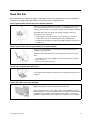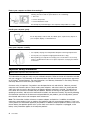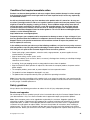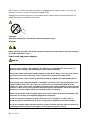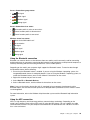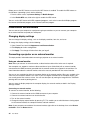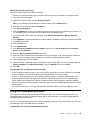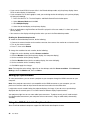
1
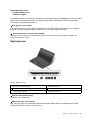
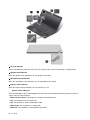
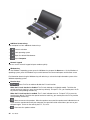
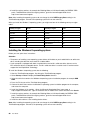
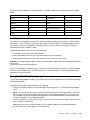
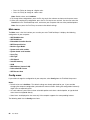
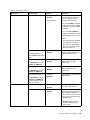
5 Numeric keypad
11 Screen (multi-touch screen on some models)
6 Fingerprint reader
1
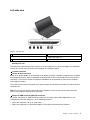
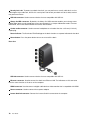
Camera
Use the camera to take pictures or hold a video conference. For details, see Using the camera.
2
Microphones
The built-in microphones capture sound and voice when used with an application program capable of
handling audio.
3
Fan louvers
The fan louvers and internal fan enable air to circulate in the computer and ensure proper cooling, especially
the cooling of the microprocessor.
Notes:
• The fan louvers are located behind the hinge.
• To ensure proper airflow, do not place any obstacles in front of the fan louvers.
4
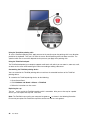
Power button
Use the power button to turn on the computer.
To turn off the computer, use the Start menu shutdown option on the Microsoft ® Windows® 7 operating
system. For the Microsoft Windows 8 operating system, move the pointer to the top-right or bottom-right
corner of the screen to bring up the charms. Then click Settings ➙ Power ➙ Shut down.
If your computer stops responding and you cannot turn it off, press and hold the power button for four
seconds or more. If the computer still is not responding, remove the ac power adapter or the supported
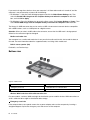
ThinkPad OneLink Dock and reset the computer by inserting a needle or a straightened paper clip into the
emergency reset hole to turn off the computer. To locate the emergency reset hole, see Bottom view.
You also can program the power button so that by pressing the power button you can shut down the
computer or put it into sleep or hibernation mode. To achieve this, you need to change your power plan
settings. To access power plan settings, do the following:
• For Windows 7: Start the Power Manager program and then click the Power Plan tab. For instructions
on how to start the Power Manager program, see Accessing Lenovo programs on the Windows 7
operating system
• For Windows 8: Right-click the battery status icon from the Windows notification area and click More
power options ➙ Choose what the power buttons do.
5
Numeric keypad
Your computer has a numeric keypad that can be used to quickly input numbers.
6
Fingerprint reader
Fingerprint authentication technology provides a simple and secure user access by associating your
fingerprint with a password. For more information, see Using the fingerprint reader.
7
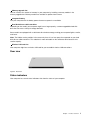
System status indicator (illuminated ThinkPad logo)
The illuminated ThinkPad logo on the palm rest functions as a system status indicator. Your computer has
several status indicators. For information about the location and meaning of each indicator, see Status
indicators.
2
User Guide