1
K1 RG.fm Page 20 Thursday, September 27, 2007 10:24 AM
Picture menu
Picture menu
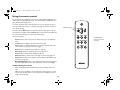
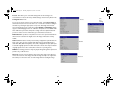
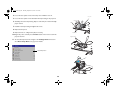
To adjust the following settings, highlight the setting, press Select, use the up and
down arrows to adjust the values, then press Select to confirm the changes.
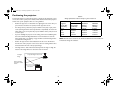
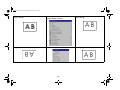
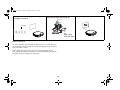
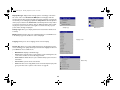
Keystone: adjusts the image vertically and makes a squarer image. Tilt the projector up or down to adjust for keystone before using the digital keystone correction
in the menu.
Image Shift: moves the image vertically. Use to shift the image, or to mask artifacts or bars on the top or bottom of the image.
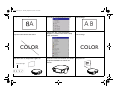
Contrast: controls the degree of difference between the lightest and darkest
parts of the picture.
increasing keystone
Brightness: changes the intensity of the image.
Color: adjusts a video image from black and white to fully saturated color.
Tint: adjusts the red-green color balance in the image of NTSC video images. The
tint setting applies to NTSC video sources only.
Auto Image: resynchs the projector to the source.
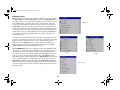
Aspect ratio
Aspect Ratio: Aspect ratio is the ratio of the image width to image height. HDTV
and most DVDs are 16:9. TV screens are usually 4:3. The projector’s default is
16:9. See “Choosing the aspect ratio” on page 6 for more information.
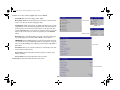
Select Native to see the unmodified input with no resizing by the projector.
Select 16:9 to watch enhanced widescreen DVDs. Select Letterbox to preserve the
16:9 aspect ratio. If you have a 16:9 source and screen, the image fills the screen. If
your source is letterboxed, the image is expanded to fill the screen. Select Natural
Wide to stretch a 4:3 image to fill the entire 16:9 screen. The center two-thirds of
the image is unchanged; the edges of the image are stretched. For more information regarding Aspect Ratio, see page 6.
20
decreasing keystone