1
Contents
Topaz Adjust
User Manual
I. Installation
A. How to Install
B. Entering Your Key
C. Host-Specific Installation
1. Paint Shop Pro
2. Photo Impact
3. Irfanview
D. Uninstalling
3
3
3
4
5
6
7
II. Introduction
A. Topaz Adjust
1. Primary Functions
B. New Adjust Features
8
8
9
III. Work Area
A. Interface
B. Preview
C. Presets
1. Applying Presets
2. Adding Presets
3. Deleting Presets
4. Importing Presets
5. Exporting Presets
6. Sharing Presets
D. Tools
E. Menu
1. Preferences
2. Check for Update
3. Enter Key
4. What’s This?
5. User Guide
6. Tech Support
7. Product Info
8. Adjust Gallery
9. MyTopaz
10. About
10
14
16
16
16
17
18
18
18
19
20
20
20
21
21
21
21
21
21
21
21
IV. Settings & Parameters
A. Exposure
1. Adaptive Exposure
2. Regions
3. Contrast
4. Brightness
5. Highlights
6. Shadows
B. Details
1. Strength
2. Boost
3. Threshold
4. Radius
5. Sharpen
C. Color
1. Adaptive Saturation
2. Regions
3. Saturation
4. Saturation Boost
5. Hue
D. Noise
1. Suppression
2. Amount
22
22
23
25
26
26
26
26
27
27
27
27
27
27
27
27
28
28
28
28
28
28
VI. Work Flow
A. Sample Project #1
B. Sample Project #2
29
34
VII. Additional Resources
A. Glossary
B. FAQ’s
C. Shortcut Keys
D. Connect
E. Company Info
38
40
42
43
44
2
Installation
Topaz Adjust
User Manual
Topaz Adjust is a Photoshop plug-in, which means it
won’t run by itself and requires a compatible host program.
To Install
1. Close Photoshop or other image editing program if
you are using it.
2. Open the Topaz Adjust zip file, double-click on the
Topaz Adjust installer, and then follow the on-screen
instructions.
Mac Dmg
Windows Zip
3. Your Topaz Adjust plug-in will automatically be installed in your Photoshop plug-ins folder.
4. After the installation, you will need to enter your
license or trial key.
Important for Mac Users:
After installation, Topaz Adjust will be installed in the
following folder: “ Macintosh HD -> Library -> Application Support -> Topaz Labs -> Adjust 4”.
If your Photoshop is installed in a customized location,
you will need to manually create a shortcut (alias) link
inside folder “<Photoshop install folder> -> Plug-ins”
that links to “ Macintosh HD -> Library -> Application
Support -> Topaz Labs -> Adjust 4 -> Plug-ins”.
Entering Your Key
Entering your trial key allows you to save your projects
and print them during your evaluation period. Entering
your license key allows you do the same, except without any time limitations.
1. Start by opening up an image in Photoshop.
2. Go to Filters -> Topaz Labs -> Adjust 4 -> Menu ->
Enter key.
3. You can then copy and paste or type your key in.
Important: To install the product on a second computer, you will need to download Topaz Adjust and then
enter your same license key.
Host-Specific Installation
Topaz Adjust is also compatible with Lightroom, Aperture and iPhoto. To use Adjust in any of these programs you will need to download and install the free
Topaz Fusion Express compatibility add on. You can
get it online at: www.topazlabs.com/downloads
In Windows, Topaz Adjust is supported by most host
applications that support Photoshop plug-ins. This
includes Paint Shop Pro, Photo Impact, Painter, and
Irfanview, although there are additional host programs
that may also support Topaz Adjust.
To install Adjust in either Paint Shop Pro, Photo Impact,
or Irfanview first download Topaz Adjust to the default
location. Then, to configure it into each program, follow the host-specific instructions on the next page.
3
Topaz Adjust
User Manual
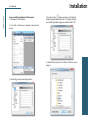
How to install Topaz Adjust in Paintshop Pro
1. First launch PaintShop Pro / Photo Impact.
Installation
3. Choose C:\Program Files\Topaz Labs\Topaz Adjust 4
plug-ins and click “OK”.
2. Go to Menu file -> Preferences -> File Locations.
Select “Plug-ins” from the “File Types” list and click
“Add”.
4
4. Topaz Adjust 4 is now available to use. Simply go to
Effects -> Plug-ins and select “Topaz Adjust 4”.
Topaz Adjust
User Manual
How to install Topaz Adjust in Photo Impact
1. First launch Photo Impact.
2. Go to File -> Preferences -> General or use shortcut
key F6.
Installation
Then click on the
button and browse to find the
Adjust 4 plug-in folder located in: C:\Program Files\Topaz Labs\Topaz Adjust 4 plug-ins and then click “OK”.
4. Restart Photo Impact. Go to Menu -> Effect to access
plug-in.
3. Select Plug-ins from the Categories list.
5
Topaz Adjust
User Manual
How to install Topaz Adjust in Irfanview
1. Make sure that you have downloaded and installed
the 8bf plug-in add-on, available on the Irfanview
webpage. (http://www.software.com/irfanview-plugin)
Installation
3. In the screen that pops up, select “Add 8BF filters”
and navigate to the C:\Program Files\Topaz Labs\Topaz Adjust 4 \Plug-ins folder and click “OK”. You will
then see “Topaz Adjust 4” in the Available/Loadable
8BF Filters section.
6
2. Open Irfanview and go to Image -> Effects -> Adobe
8BF filters.
4. To use Topaz Adjust 4 in the future, simply go to
Image -> Effects> Adobe 8BF filters again and select
“Topaz Adjust 4”.
Uninstalling
Topaz Adjust
User Manual
To uninstall Topaz Adjust follow these instructions:
3. Select Programs, then Uninstall a Program.
Mac
1. Quit Photoshop (or other editing program).
4. Select Topaz Adjust and click remove.
2. Navigate to the Topaz Labs support files and frames
located at: Macintosh HD -> Library -> Application Support -> Topaz Labs.
Windows 7*
1. Quit Photoshop (or other editing program).
3. Locate the Topaz Adjust file and move it to the
trash. You will need to enter your system password to
OK this change.
4. Navigate to your Photoshop plug-ins folder located
at: Applications -> Photoshop -> Plug-ins
5. Locate any leftover Topaz Adjust files and move it
to the trash.
2. Click on the Start Menu and select Control Panel ->
Programs -> Programs and Features.
3. Select Topaz Adjust and click uninstall.
*Please note that if you also have the 64-bit version
of Adjust installed, then you will need to first uninstall
this version before you can uninstall the regular version.
Windows XP*
1. Quit Photoshop (or other editing program).
2. Click on the Start Menu and select Control Panel.
3. Double-click on Add / Remove programs.
4. Select Topaz Adjust and click remove.
Windows Vista*
1. Quit Photoshop (or other editing program).
2. Click on the Start Menu and select Control Panel.
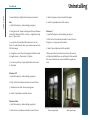
Before Topaz Adjust
After Topaz Adjust
7
Introduction
Topaz Adjust
User Manual
Topaz Adjust
With Topaz Adjust, you can achieve a variety of effects
and adjustments such as:
About Topaz Adjust
Topaz Adjust is a corrective and creative enhancement
program designed to help you achieve a variety of
advanced color, exposure, tone and detail techniques
quickly and easily.
• Tone mapping
• Exposure correction
• Contrast adjustment
• Pseudo HDR
• Vibrancy adjustment
• Shadow adjustment
• Highlight adjustment
Some of the popular looks you can achieve with
Adjust include: HDR, painting-like, stylistic, detailed,
cartoon-like and the grungy-HDR look as made popular by Dave Hill.
• Extreme color
• Desaturated color
• Hard light
• Soft light
• Simplified details
• Extreme details
The Primary Functions of Topaz Adjust Include:
1. Dynamically and creatively make your images pop.
2. Rescue the integrity of dull images by introducing
vibrant color and detail effects.
3. Intelligent detail enhancement / reduction with innovative detail manipulation functions.
4. Basic noise reduction.
Before Topaz Adjust
5. Equalize image exposure to result in everything from
balanced and well-exposed images to edgy and exciting image effects.
6. Unique color effects via advanced color processing.
Visit the Adjust Gallery to see Topaz Adjust at work:
http://gallery.topazlabs.com/keyword/adjust
After Topaz Adjust
8
Introduction
Topaz Adjust
User Manual
New Adjust Features
12. Speed Improvement. Speed increase for processing large images.
Topaz Adjust 4 Features
13. Larger Image Capabilities. Processes larger images.
1. Auto Updater. Get software updates instantly.
14. Noise Update. Improved noise reduction tool.
2. New user interface.
3. Snap / Recall buttons. Save up to 99 snapshot settings for comparison.
4. Undo / Redo buttons.
5. Collapsible side panels. Expand and collapse the
preset panel and the tool panel for an adjustable
workspace.
9
6. Collapsible tabs. Open and close the parameter
tabs as you need them.
7. Preset Enable / Disable option. Option to enable
or disable the preset preview processing at program
startup.
Before Topaz Adjust
8. Presets Layout. New preset format with single
preset preview window.
9. Preset Navigation. Use the up / down arrow keys
to navigate the preset list and display the selected
preset thumbnail (in preset preview window). Use
the return (Enter) key to apply the currently selected
preset.
10. Enable / Disable Tool Tips. Option to enable or disable the pop up tool tips.
11. Quick Slider Reset. Double click on the slider name
to reset default slider values.
After Topaz Adjust
Work Area
Topaz Adjust
User Manual
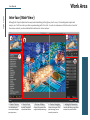
Interface (Main View)
Although the Topaz Adjust interface may look intimidating at first glance, don’t worry: it’s actually quite simple and
easy to use. You’ll soon be a pro after experimenting with it for a bit. In order to make sense of the function of each of
the various controls, we have divided the interface into a few sections:
1
4
3
2
5
1. Presets Preview
2. Presets Panel
3. Preview Window
4. Preview Navigator
5. Settings & Parameters
The removable preview window displays
preset previews.
Provides “snapshots”
of pre-defined effects.
Displays the preview of the
original and adjusted image.
Displays the region of the
preview image you are
currently focused on.
Controls the editing using sliders
to adjust the various effects.
10
Topaz Adjust
User Manual
Work Area
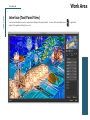
Interface (Tool Panel View)
Use the small white arrows to expand and collapse the preset panel. You
ou can click the white arrow
edge of the panel and drag it in or out.
or grab the
11
Topaz Adjust
User Manual
Work Area
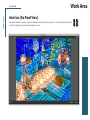
Interface (No Panel View)
Use the small white arrows to expand and collapse the preset and tool panels. You
ou can click the white arrows
or grab the edge of the panels and drag them in or out.
12
Topaz Adjust
User Manual
Work Area
Interface (Preset Panel View)
Use the small white arrows to expand and collapse the tool panel. You
ou can click the white arrow
edge of the panel and drag it in or out.
or grab the
13
Work Area
Topaz Adjust
User Manual
Preview Section
The Preview section is the main window that is centered in the Adjust interface. The preview section
shows you the original image and the processed preview of the image. Click on the image in the preview
window (or use the Original and Preview buttons) to
switch between the Original and Preview tabs and
compare the filtered and un-filtered images.
To pan the preview image, click and hold the left
mouse button on the preview image and drag it
around. When you let go of the mouse button, the
new portion of the image will be processed and the
result will be displayed.
You can also use SPACE bar or your numbered shortcut
keys “1” and “2” to switch back and forth between your
filtered and unfiltered image in the preview window.
1
14
Work Area
Topaz Adjust
User Manual
15
You can zoom in or out of the preview image by clicking the “+”, or “-” buttons below the preview image.
You can also resize the window as well by dragging
the bottom right corner in and out.
The “Fit” button will fit the entire image into the preview window.
The “Ctrl +” and “Ctrl –” keys zoom in and out of the
image, just like in Photoshop.
You can use the arrow keys to adjust the value of the
slider that is currently selected.
A complete list of the shortcut keys can be found in
the Shortcut Keys section later in this manual.
The “100%” button will zoom to 100% view.
If zoomed below 100% the preview image will be internally resized in order to speed up preview updating.
Use Adjust’s creative enhancement presets to easily
make your digital images pop.
Photoshop and other host software support many Image
Modes, such as Grayscale, RGB, LAB, CMYK, etc. Images
can also be 8, 16, or 32 bits per channel. Topaz Adjust
supports both 8 bits per channel and 16 bits per channel.
Topaz Adjust supports RGB mode only. To work on blackand-white images, first convert them to RGB mode.
Work Area
Topaz Adjust
User Manual
Presets
1
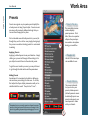
1. Presets Preview
Presets are a great way to speed up and simplify the
whole process of using Topaz Adjust. Presets are set
previews with previously defined settings that you
can recall and reapply at any time.
We’ve included some default presets for you and, although they won’t work for every single photograph,
they serve as excellent starting points for customized
tweaking.
The removable preview
window displays
preset previews. Click
Hide / Show to expand or
collapse the preset preview window at anytime
during your workflow.
2
Applying Presets
Applying a default preset is easy and intuitive. Simply
clicking on a preset will change all the settings in Topaz Adjust to match those in the selected preset.
2. Presets List
Lists all of the saved presets available for use.
To get the exact results you want, you may still want
to go through the tabs and tweak the parameters.
Adding Presets
Sometimes it’s convenient to be able to define presets and save your settings for later use. To do this,
first adjust the Topaz Adjust parameters until you’re
satisfied with the result. Then, click on “Save”.
Remember that you can easily expand or collapse the presets
panel by clicking on the small white arrow on the edge of the
panel or by grabbing the panel edge and dragging it in or out.
3. Preset Options
The preset options allow you to save your
presets, delete presets
(default presents cannot
be deleted), import new
presets and export your
saved presets to share
with your friends.
3
16
Topaz Adjust
User Manual
Work Area
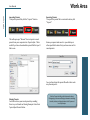
Next, enter a preset name, select the type of image
that it is good for and then enter a description and
click “OK”. You can also select a second image category type that the preset is good for.
Note that if the name you’ve entered is the same as a
preset you’ve already defined then you will be asked if
overwrite the previous one.
Your preset will be automatically saved as a new file
with a “.tpp” extension in the Topaz Adjust Presets
menu and the preview is automatically generated.
To apply it later, just click it like any other preset.
Deleting Presets
If you’d like to delete a preset, use the Delete option
with your desired preset selected.
Please Note: Default presents cannot be overriden or
deleted. Once you delete a preset it or overwrite it, it
cannot be retrieved.
Saved presets are located in the Topaz Adjust “Presets” folder:
C:\Program Files\Topaz Labs \ Topaz Adjust \ Presets unless
you’ve opted to install Topaz Adjust into a different directory.
Mac users have this folder at: HD / Library / ApplicationSupport /
TopazLabs / Adjust / Presets.
17
Topaz Adjust
User Manual
Importing Presets
To import a preset file, click the “Import” button.
This will open up a “Browse” box to import a saved
preset from your computer into Topaz Adjust. This is
useful if you have downloaded a preset file that you’d
like to use.
Work Area
Exporting Presets
To export the preset file to a certain location, click
“Export”.
Name your preset and save it to your desktop or
other specified location that you have reserved for
saved presets.
18
You can then share this preset file with others who
may then import it.
Sharing Presets
Feel free to share your saved presets by emailing
them to your friends and having them put it into their
Topaz Adjust Presets folder.
Visit the Topaz Labs Blog which features the latest
Photography, software and design information including
tutorials, videos, and thoughts about both Topaz and
non-Topaz topics.
Work Area
Topaz Adjust
User Manual
Tools
1
You will use the various tools in the tools panel during
your workflow to make your image adjustments.
1. Preview Navigator - Displays the region of the
preview image you are currently focused on.
2. Zoom Buttons - Use the zoom buttons to zoom in
and out of your image. Or you can also set your image
to fit the preview window or to view it at 100%.
2
3
3. Undo and Redo buttons
5
4. Snap and Recall buttons. Save up to 99 snapshot
settings for comparison.
19
5. Sliders and Parameters - Controls the editing process using sliders to adjust the various effects.
6. Additional Slider Controls - Use the “Reset All” button to reset all of the sliders values back to zero. Use
the “I Feel Lucky!” button to apply randomized
settings to your image. This is useful when you
want to experiment with different settings.
Have more questions about Topaz Adjust 4 or any of the
other Topaz software programs?
Check out the new Topaz Knowledge Base online at:
www.topazlabs.com/support/kb
4
6
Topaz Adjust
User Manual
Menu
Work Area
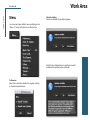
Check for Update
Checks for available Topaz Adjust updates.
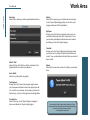
You can access Topaz Adjust’s menu by clicking on the
“Menu…” button at the bottom of the interface.
20
Click the Show Details button to get find out what’s
included in the update before you install.
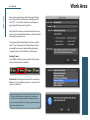
Preferences
Select this to enable or disable the program tool tips
or the Auto-Update feature.
Topaz Adjust
User Manual
Enter Key
Select this to enter your trial or purchased license key.
Work Area
Gallery
Select this to open up your Internet browser and go
to the Topaz Adjust image gallery to see other user
images enhanced with Topaz Adjust.
MyTopaz
Brings you to the Topaz community where you can
connect and interact with other Topaz users. Here
you can also participate in discussions and contests,
and share your favorite Topaz images.
What’s This?
Select this (or click F1) then click on a feature in the
Adjust interface to learn more about it.
Users Guide
Select it to pull up this user guide.
Tutorials
Brings you to the Topaz Adjust tutorials page where
you can access a variety of helpful video and text tutorials. You can also submit tutorials that you created
here as well.
About
Select this to see what version of Adjust you currently
have.
Tech Support
Brings you to the Topaz Labs support page where
you can request assistance from our support specialists, contact our customer service team, retrieve lost
license keys, or browse through our Knowledge Base.
Product Info
Select this to go to the Topaz Adjust web page to
learn more about the Topaz Adjust plug-in.
To connect with other Topaz users, participate in Topaz
contests and to see the latest tips, tricks and tutorials sign
up for the new Topaz Forum online at:
www.topazlabs.com/forum
21
Settings & Parameters
Topaz Adjust
User Manual
Parameters
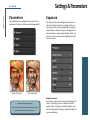
Topaz Adjust has four settings tabs and a total of 20
parameters to help you achieve optimal image results.
Exposure
The Exposure tab uses an adaptive technique to enhance the dynamic range of your image. Here you
can apply a variety of tone mapped effects using the
unique sliders to adjust the range of the highest and
lowest luminance regions where detail is visible. You
can also correct exposure, balance lighting and redefine tonal values.
22
Before Topaz Adjust
After Topaz Adjust
Need to reset your slider values?
Simply double-click on the slider name above the slider
control to instantly reset the slider value to 0.
Adaptive Exposure
Corrects the exposure of an image by balancing tonal
values. This setting works in conjunction with the
Regions slider. A setting of 0 disables adaptive exposure balancing while a setting of 1 applies full adaptive
exposure balancing.
Settings & Parameters
Topaz Adjust
User Manual
Regions
The number of regions to divide the image into for
Adaptive Exposure processing. The larger this number
is, the more local contrast and detail enhancement
you’ll get.
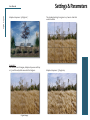
Adaptive Exposure: .4; Regions: 1; When the Region is 1,
the entire image is the region.
So how exactly is a region determined within an image?
For each image, take the longest side, whether horizontal or vertical...divide this side into sections. How
many sections is determined by the region slider. Then,
using those sections divide the image into squares.
Each square is considered a region, and the contrast is
then adjusted in that local region (based on the pixels).
So let’s take a closer look at Regions in action so we
can see just how they work. Please follow along with
the examples below.
Example 1:
For the first set of images, the adaptive exposure is set
at .4, and the only slider moved was the regions slider.
Original Image
23
Now we will change the Regions to 7 - this shows how
the regions are determined:
Settings & Parameters
Topaz Adjust
User Manual
Adaptive Exposure: .4; REgions: 7
The standard setting for regions is 4...here is what that
would look like:
24
Example 2:
For this next set of images, Adaptive Exposure will stay
at .5, and the only slider moved is the Regions.
Original Image
Adaptive Exposure: .5; Regions: 4
Topaz Adjust
User Manual
Then change the Regions to 40...
Settings & Parameters
Contrast
Controls whether the exposure equalizations tend to
take more of a “u” (valley) shape or more of a “n” (hill)
shape on the histogram. Please note, this is not the
same as your standard contrast adjustment.
25
Adaptive Exposure: .5; Regions: 40
Low Contrast Setting
High Contrast Setting
Settings & Parameters
Topaz Adjust
User Manual
Brightness
Standard brightness adjustment parameter. Increasing
this parameter increases the overall brightness of the
image.
Highlights
Built-in protection from highlight (the lightest tones)
blowout. Increasing this parameter reduces the harshness of highlights and reveals previously obscured detail in highlight areas. A setting of 0 disables high- light
protection.
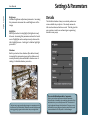
Details
The Details tab makes it easy to creatively enhance or
remove details in your photo. Previously unseen details can be enhanced and recovered. This tab gives the
user creative control over enhancing or suppressing
details in many ways.
Shadows
Built-in protection from shadows (the darkest tones).
Increasing this parameter opens up the shadows and
reveals previously obscured detail in shadow areas. A
setting of 0 disables shadow protection.
26
Process details independent of exposure
The best way to get great-looking images is to experiment with
the filter until you’re satisfied. Despite the number of sliders and
settings, getting a great result is easier than you might think!
Allows you to adjust exposure and details separately.
When this box is checked, only underlying exposure will be
adjusted when you use the Exposure tab. The details will
only be adjusted through the Details tab. This gives you extra flexibility in your image and tends to reduce the overall
noise and amount of “dirty area” in the final image.
Settings & Parameters
Topaz Adjust
User Manual
Strength
Determines the degree of detail enhancement applied
to stronger details in the image. Works in conjunction
with the “Details Threshold” value. A value greater
than 1.0 strengthens the details in the image while a
value less than 1.0 reduces and smooths details.
Boost
The amount of detail enhancement applied to the
smaller details in the image. A value higher than 1.0
strengthens the weaker details in the image while a value less than 1.0 reduces the strength of smaller details.
This parameter affects mostly weak details. Strong
details should be adjusted using the Strength slider.
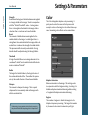
Color
The Color tab applies adaptive color processing. It
pretty much works the same as the Exposure tab
except it works on the image’s color rather than exposure. Interesting color effects can be created here.
Threshold
A larger threshold allows more image elements to be
considered “details” and a smaller threshold limits elements considered “details”.
Radius
The larger the Details Radius is, the larger the size of
the enhanced details will be. The smaller this parameter is, the smaller the size of the enhanced details.
Sharpen
The amount to sharpen the image. This is a quick
sharpener that conveniently deals with images with
mild-to-moderate blur.
If sharpening is your greatest priority then be sure to try
the powerful detail and sharpening tools in Topaz Detail.
27
Adaptive Saturation
Balances saturation in the image. This setting works
in conjunction with the Regions setting. A setting of 0
disables adaptive saturation balancing while a setting
of 1 applies full adaptive saturation balancing.
Regions
The number of regions to divide the image into for
Adaptive Exposure processing. The larger this number
is, the more local contrast in saturation you’ll get.
Topaz Adjust
User Manual
Saturation
Standard parameter to increase or decrease the overall
saturation (richness and brightness ) of the image.
Saturation Boost
Increase or decrease the saturation of less saturated
colors in an image.
Hue
Controls the distinct color of the spectrum - red, green,
yellow, orange, blue, etc...
Settings & Parameters
Suppression
The suppression tab controls the amount of noise removed. A value of 1 removes what Topaz Adjust calculates to be the correct amount of noise in an image. A
higher value removes more noise (relative to the noise
map) and a lower value removes less. This filter is generally good at detecting, so it is best to start off with a
setting of 1 and gradually work from there.
Amount
The degree of noise suppression applied to the image.
A setting of 0 turns noise reduction off and 1 turns it on
fully. This is similar to the “Opacity” setting in Photoshop for the noise map.
Noise
The Noise tab offers basic noise removal options. This
is necessary because enhancing image detail can often
bring in added noise. Adjust gives you the ability to
clean up that noise effectively.
This is a basic noise reduction. For advanced noise reduction, color noise reduction, dual-debanding technology
and shadow tone restoration check out the new Topaz
DeNoise 5 online at: www.topazlabs.com/denoise
28
Additional Noise reduction notes:
Preview zoom MUST be 50% or more or the Deblur
feature will not be accessible and you will see the
message below:
Use Topaz DeNoise
You will notice a check box option in the Noise tab that
will allow you to process your noise reduction options using Topaz DeNoise. Disabling this feature will make your
noise reduction process fast but simple, and will suppress
more detail. If you enable this feature then it will use an
advanced algorithm, similar to the one in the DeNoise 5
program, to remove image noise. This feature is slower
but it will preserve more detail in your image.
Workflow
Topaz Adjust
User Manual
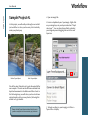
Sample Project #1
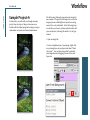
In this section, we will walk you through a sample
project, step-by-step, to help you become more
familiar with the Adjust program focusing on using a
combination of presets and manual adjustments.
We will be using this under exposed scenic image for
our example. The goal for this image is to correct the
image exposure while brighten it up and recovering
some of the color and details. In the following steps,
we will show you how to achieve optimal results with
your own photos, following this model. So, let’s get
started.
1. Open an image file.
2. Create a duplicate layer of your image. Right-click
on your image layer in your layers and select “Duplicate Layer”. You can also achieve this by selecting
your image layer and dragging it down to the new
layer icon.
Before Topaz Adjust
After Topaz Adjust
29
Topaz Adjust
User Manual
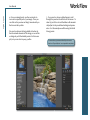
3. To begin working on your image go to Filters ->
Topaz Labs -> Adjust 4.
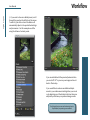
4. Once your image loads, use the zoom tools to
zoom in on a specific part of your image. Then you
can click on the preview and drag it around until you
find an area that you like.
Workflow
We want to correct the exposure of this image which
will also allow us to recover color and detail. For this
example we will be working with the presets and detail sliders, but you can start any way you like.
30
Topaz Adjust
User Manual
Workflow
5. If you want to choose a default preset, scroll
through the panel on the left side of the screen.
To select it, just click on it and the sliders will
automatically adjust to the pre-defined settings
and parameters. For this example we will be
using the Enhance Contrast preset.
31
If you are satisfied with the preset adjustments then
you can click “OK” to process your image and save it
back to Photoshop.
If you would like to make some additional adjustments to your enhancement settings then you can do
so by adjusting any of the sliders in the four tabs manually until you achieve your preferred image results.
Don’t forget that you can use the shortcut keys in
Topaz Adjust 4 to speed up your workflow.
Topaz Adjust
User Manual
Workflow
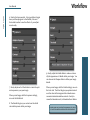
6. Start in the Exposure tab. It is a good idea to begin
here, and then progress to the Details, Color and
Noise tabs in order to see the effects of your adjustments easily.
32
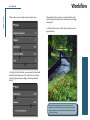
9. Gently adjust the Detail sliders to reduce or intensify the appearance of details within your image. You
can also use the Sharpen slider to define your image
details.
7. Slowly adjust each of the sliders to create the optimal exposure in your your image.
When you are happy with the Exposure settings,
move to the Details tab.
8. The Details tab gives you control over the detail
size and sharpness within your image.
When you are happy with the Detail settings, move to
the Color tab. The Color tab gives you optimal control
over the colors in the image and also includes some
convenient saturation and hue controls. Gently increase the Saturation and / or Saturation Boost sliders.
Another great way to reduce the appearance of noise is
to lower the small boost slider under the Details tab.
Topaz Adjust
User Manual
This is where you can really make your photo pop.
Workflow
*Remember that in order to access the sliders in the
Noise tab you will need to be zoomed into your image
at least 50%.
11. All that’s left now is to click OK and watch your image transform.
33
10. Finally, in the Noise tab, you can raise the Threshold
until the noise disappears. Be careful not to raise the
level to high, because too high a level may diminish
detail.
Topaz Adjust 4 gives you basic noise reduction tools.
However, if you are looking for more extensive noise reduction, be sure to check out the newly-released version
of Topaz DeNoise 5.
Workflow
Topaz Adjust
User Manual
Sample Project #2
1. Open an image file.
In this project, we will walk you through a second Adjust workflow to show you how easy it is to instantly
make your photo pop.
2. Create a duplicate layer of your image. Right-click
on your image layer in your layers and select “Duplicate Layer”. You can also achieve this by selecting
your image layer and dragging it down to the new
layer icon.
34
Before Topaz Adjust
After Topaz Adjust
We will be using this photo of a pool side waterfall for
our example. You can see the difference in detail and
depth enhancement in the Before and After shots. In
the following steps, we will show you how to achieve
optimal results with your own photos, following this
model. Let’s get started.
Please visit the Topaz Adjust website at http://www.topazlabs.com/adjust for video tutorials, tips, and tricks!
3. To begin working on your image go to Filters ->
Topaz Labs -> Adjust 4
Topaz Adjust
User Manual
4. Once your image loads, use the zoom tools to
zoom in on a specific part of your image. Then you
can click on the preview and drag it around until you
find an area that you like.
We want to enhance the large details to better define the natural elements of this image, so we will be
working only with the default presets for this example, but you can start any way you like.
Work Flow
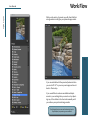
5. If you want to choose a default preset, scroll
through the panel on the left side of the screen. To
select it, just click on it and the sliders will automatically adjust to the pre-defined settings and parameters. For this example we will be using the Detail
Strong preset.
For more color, exposure and detail tips be sure to
check out Topaz Adjust at: www.topazlabs.com/adjust
35
Topaz Adjust
User Manual
Work Flow
With a wide variety of presets you will often find that
a single selection will give you optimal image results.
36
If you are satisfied with the preset adjustments then
you can click “OK” to process your image and save it
back to Photoshop.
If you would like to make some additional adjustments to your settings then you can do so by adjusting any of the sliders in the four tabs manually until
you achieve your preferred image results.
Don’t forget that you can use the shortcut keys in
Topaz Adjust 4 to speed up your workflow.
Work Flow
Topaz Adjust
User Manual
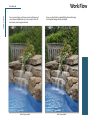
Once you are happy with your preset selection and
your manual adjustments you are ready to click OK
and watch your image transform.
Now you should have a beautifully enhanced image
with optimal image detail and depth.
37
Before Topaz Adjust
After Topaz Adjust
Topaz Adjust
User Manual
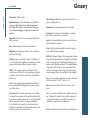
Achromatic - Without color.
Adjustment Layer – A layer that allows you to adjust the
look of an original image with out making it permanent.
With adjustment layers you can make various changes to
a layer without damaging it and go back and readjust it at
anytime.
Algorithm - Any bit of code or programming that defines a process.
Blur - Make or become unclear or less distinct.
Brightness - The degree to which a color sample appears to reflect light.
Chroma - Purity or intensity of color. The difference
of a color against the brightness of another color that
appears white under similar viewing conditions.
CMYK - Cyan, magenta, yellow, and black. A color
model commonly used for 4-color printing by printers
to define and mix all of the colors they are capable of
outputting.
Color - The human perceptual response to different
wavelengths of light impinging on the photo receptors in the retina.
Color channel - The visual component of a color digital image that represents all the pixels in that picture
made up of a specific primary color. In a typical digital
photo, the primary colors of red, green and blue
(from the RGB color model) create all the colors in
that photo, which may be represented by three color
channels, each of red, green or blue.
Glossary
Color Profile - defines the range of colors that can appear in a digital photo.
Desaturate - Decreasing the intensity of a color (hue).
Download - The process of transmitting or transferring data from one device to another.
Export - Outbound data transfer in a format that can
be used by other programs.
Grain - Lightly-speckled noise that is used to apply a
more natural look to an image.
HDR (High Dynamic Range) - Allows a greater dynamic
range of luminances between the lightest and darkest
areas of an image than standard digital imaging techniques or photographic methods. This wider dynamic
range allows HDR images to more accurately represent the wide range of intensity levels found in real
scenes, ranging from direct sunlight to faint starlight.
Hue - One of the main properties of a color, described
with names such as “red”, “yellow”, etc.
Import - Inbound data transfer into a file or document.
ISO - The amount of sensitivity of a digital camera sensor. A higher ISO enables faster shutter speeds and /
or better performance in low light, but is more susceptible to experiencing increased noise.
Noise - Visible effects of interference in an image from
38
Glossary
Topaz Adjust
User Manual
a digital camera. Often appearing as random colored
dots sprinkled throughout the image or uneven coloration in what should be smoothly-colored areas. It
is most likely to show up in the darker or shadowed
areas of an image. Noise can be an undesirable effect
that detracts from overall image quality or something
you can choose to create artistically.
Opacity – The amount of transparency a layer has.
Pan and Zoom - A useful function that allows users to
magnify the captured image in the preview and then,
by using the cursor, to move or pan around the image.
Typically Pan and Zoom allows users to magnify the
image 2x or 4x time. By magnifying the images and
zeroing in on a specific section, you can see details
not visible when the entire image is sized to fit the
preview.
Parameter - A numerical or other measurable factor
forming one of a set that defines a system or sets the
conditions of its operation.
Photo-editing or Imaging software – Programs in
which you can alter your photos and / or create digital
images. Depending on the software, you can improve
exposure, color and other attributes of your picture,
paint on it, add type, apply special effects, remove
noise, resize it, combine it with other pictures, prepare it for e-mail or posting on the web, output it to a
printer, or do any number of other manipulations or
edits.
Plug-in - A computing feature with the ability to be
added to a system to give extra features or functions.
Preset - A pre-defined combination of parameters and
settings that is saved into a folder within Topaz Adjust
4. Topaz provides default presets. A preview of each
preset can be seen in the preset preview window located at the top left hand side of the interface above
the preset list.
Preview- Shows the processed preview of the image.
RAW image - An image file format that contains untouched, “raw” pixel information straight from the
digital camera’s sensor. It has yet to translate the information in each pixel into the full color information,
so this format offers more control over how the final
JPEG or TIFF image is generated.
Reduce Blur - An de-blur function that uses deconvolution technology rather than simple sharpening
techniques.
Refine – Improve (something) by making small changes to
make it more subtle and accurate.
RGB - Red, Green, Blue. The color model that is used
in digital cameras and by computer monitors.
Saturation - The difference of intensity within a specific hue.
Shadow - A dark area or shape produced by a body
coming between the rays of light and a surface.
Sharpness - The clarity of detail in a photo.
Smoothing - To make a surface more regular or consistent; free from perceptible projections, lumps, or
39
Topaz Adjust
User Manual
“I need a Topaz Adjust trial key.”
Visit http://www.topazlabs.com/downloads for a trial
key. Please check your Spam folder because your
Spam filter sometimes filters out the automated email.
If you need more time to evaluate, please contact us at:
www.topazlabs.com/support for an extended trial key.
“I can’t find Topaz Adjust in the Photoshop Filters
menu.”
If you’re using Windows:
1. Go to C:\Program Files\Topaz Labs\Topaz Adjust 4\
Plugins. Right click the file “tladjust4.8bf” and click
“Copy”.
2. Go to your Photoshop Plug-Ins folder, usually located
at C:\Program Files\Adobe\Adobe Photoshop CSx\PlugIns. First, delete anything that is currently there that
has to do with Topaz Adjust 4 This includes any folder
that might be labeled “Topaz Adjust 4” or any
tladjust4.8bf file. After doing that, right-click on any
empty space and click “Paste”.
3. Quit and restart Photoshop and Topaz Adjust will appear in your Filters menu.
If you’re using Mac:
1. Go to /Library/Application Support/Topaz Labs/Adjust4/Plugins and right-click Topaz_Adjust4.plugin. Click
“Copy”.
2. Go to Applications/Adobe Photoshop CSx/Plug-Ins
(or wherever your Photoshop Plug-Ins folder is located). Delete any current reference to Topaz Adjust 4.
Afterwards, right-click any
Frequently Asked Questions
empty spot and paste the Topaz_Adjust4.plugin file
into the Photoshop Plug-Ins folder.
3. Quit and restart Photoshop and Topaz Adjust 4 will
appear in your Filters menu.
“Do you have any other Adjust tutorials?”
Yes, please see pages 29 and 34 of this Topaz Adjust
user guide, and also visit: http://www.topazlabs.com/
tutorials/adjust
“I do not have Photoshop, will Adjust work with my
Elements, Aperture, Lightroom, iPhoto Paint Shop
Pro, Photo Impact or Irfanview?”
Yes, you can use Topaz Adjust with any of the above
host programs. However, to use Adjust in Aperture,
Lightroom or iPhoto, you will need to download the
free Topaz Fusion Express plug-in. For more information please visit: www.topazlabs.com/fusion
“What are the limitations of the trial version of your
software?”
The only limit on the trial versions of the Topaz plug-ins
is time. The free trial versions are designed to enable
you to experience the full functionality of our plug-ins
for a 30-day trial period. After the trial period is up, you
will only be able to use the Topaz software by purchasing it. You will then receive a license key to activate the
plug-in, and the trial version will automatically become
the full version with no time limitations.
40
Topaz Adjust
User Manual
“If I use the 30-day trial version will I need to uninstall
the trial version before I upgrade to a full version?”
No, the Topaz trial software is designed to be unlocked
to become the full version simply by entering a license
key. The full license key will be e-mailed to you immediately after you purchase the software.
“Where do I enter my key?”
To enter your key please open an image in Photoshop
and go to Filter -> Topaz Labs -> Adjust 4 -> Menu ->
Enter Key. You can then copy & paste or type in your
license key and then select OK.
“I had Topaz Adjust as a trial, then I purchased. How
do I enter my new license key?”
You can enter your new license key by opening up an
image in Photoshop and go to Filter -> Topaz Labs ->
Adjust 4 -> Menu -> Enter Key. Please remove the trial
key and enter your new purchased license key, then
select OK and you are all set.
“My Topaz Adjust key doesn’t work!”
There are a couple of reasons why Topaz Adjust might
think your upgraded key is invalid.
First, make sure that your key is in the proper format.
It’ll be in the format “xxxxxx-xxxxxx-xxxxxx-xxxxxxxxxxxx” and will be all numbers in 30 digits in five
groups of six (no letters).
Second, make sure that as you’re entering the key
Frequently Asked Questions
there is nothing in the space beforehand. This means
clicking, pressing Ctrl-A, and hitting delete to make sure
that absolutely nothing is in that field before you paste
in the key.
If it doesn’t work when you copy and paste, try typing
it out, and vice versa.
My Topaz filters are grayed out in the filter menu.
Please make sure that you are using a 8-bit or 16-bit
image that is in RGB color mode. Also, if your project
includes adjustment layers please make sure that you
are not on an adjustment layer. You will need to select
the image layer. This will allow you to access your Topaz programs.
My Noise tab sliders are grayed out!
Please make sure that your image preview is zoomed in
to 50% or more and this will enable the Noise sliders.
I have a question not listed here.
Please visit our knowledge base online at:
http://www.topazlabs.com/support/kb/
If you are not able to find the answer there then contact our support specialists online at: www.topazlabs.
com/support or e-mail customer support at: help@
topazlabs.com
41
Shortcut Keys
Topaz Adjust
User Manual
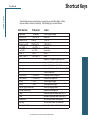
Topaz Adjust uses some shortcut keys to speed up your workflow. Many of these
keys are similar to those in Photoshop. The following keys work at all times.
MAC Shortcut Spacebar
CMD-ALT-R
PC Shortcut Spacebar
CTRL-ALT-R
Action
View Original Image
Reset All
Zoom to Fit
Zoom to 100%
CMD-0
CMD-ALT-0
CTRL-0
CTRL-ALT-0
+ or CMD - +
- or CMD - - CMD -Z CMD - Shift - Z
+ or CTRL - + - or CTRL - Ctrl - Z
Ctrl - Shift - Z Zoom In
Zoom Out
Undo
Redo
E
D
C
N
S
CMD-Shift-P
CTRL-Shift-P CMD-Shift-N
CTRL-Shift-N
CMD-1
CTRL-1
CMD-2
CTRL-2
Left or Right Arrow Key
Return (enter) key
[ key ] key
Home Key End Key
Double-click slider name
Expands / Collapses Exposure Tab
Expands / Collapses Detail Recovery Tab
Expands / Collapses Color Tab
Expands / Collapses Noise Reduction Tab
Takes a Snapshot
Recalls previous Snapshot
Recalls next Snapshot
View Original Image
View Adjusted Image
Scrolls through presets
Applies selected preset
Reduces selected slider value by 0.1
Increases selected slider value by 0.1
Set the slider value to minimum
Set the slider value to maximum
Resets the slider to it’s default value
Mac and PC Shortcuts are the same unless indicated otherwise.
42
Topaz Adjust
User Manual
Connect with Topaz
Check out our new Forum and our blog for
tutorials, tips and updates from Topaz Labs!
43
Follow us on Twitter for notifications of
recent news and easily get in touch with us
whenever you feel like it!
Find us on our Facebook page and network
with other Topaz users!
Participate in the entirely user-led Topaz
Flickr group for a helpful and highly active
community for Topaz Photoshop plug-ins!
Subscribe to our YouTube channel to keep
up with any newly released product video
tutorials!
Topaz Adjust
User Manual
Contact Information
Topaz Labs LLC
5001 Spring Valley Road
Suite 400 East
Dallas, TX 75244
Technical Support
Visit: http://topazlabs.com/support/
Email: [email protected]
For more information
[email protected]
Topaz Labs LLC, a privately owned company in Dallas, Texas, focuses on developing advanced video and image enhancement technology. With today’s widespread use of digital still cameras, digital video cameras, and HDTV, the need for highquality digital images and videos has greatly increased. Topaz Labs’ mission is to bring practical state-of-the-art image and
video enhancement technology to both professionals and consumers.
Copyright © 2010 Topaz Labs, LLC. All rights reserved. http://www.topazlabs.com
44
Topaz Adjust
User Manual
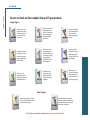
Be sure to check out the complete line up of Topaz products.
Image Plug-ins
Advanced JPEG artifact
reduction filters eliminate JPEG compression
artifacts while preserving image detail like
never before.
3 levels of intricate and
specific detail enhancement for naturally
enhanced images with
no halos.
Advanced noise reduction filters noise while
maximizing and retaining image detail simply
and effortlessly.
Specializes in overall
image improvement.
Features sharpening, reconstructing, enlarging,
high-quality noise
removal and JPEG artifact damage tools.
Remove unwanted
backgrounds from your
digital images quickly
and easily with the new
Topaz ReMask.
Takes any of your
regular photos and effortlessly turn them into
beautiful works of art.
Specializes in creating crisp and stylized
images. Also features
extensive smoothing
capabilities.
Ultimate control over
image exposure, detail,
and color gives you the
power to make your
photos pop.
Bring the power of
Topaz to your Aperture,
iPhoto and Lightoom
workflow with the new
Fusion Express plug-in.
Video Plug-ins
Increase video quality with this suite
of video enhancement filters utilizing
super-resolution technology.
Easily and efficiently capture video
frames and significantly increase their
quality and resolution with this standalone Windows application.
Go to http://www.topazlabs.com/downloads to get your 30-day free trial!
45