1
32
VoiceBlast Help & User Manual
Typing a Calling List into QuickCreate
In the QuickCreate function, after entering a Campaign Name, selecting a
Campaign Date, and choosing a Campaign Message stored in your
account, you can create a new calling list by typing or pasting the phone
numbers into the text box provided.
NOTE: The system will automatically save your new calling list under the
campaign name.
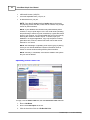
To type in your calling list:
1. Click the check box for Type Numbers.
2. Click your cursor in the text box below.
3. Type in the phone numbers of the individuals or businesses you
want to contact, making sure to follow these three requirements:
a. Include the area code for each number, but not a "1" before the
area code (example: 2305554567) so that each phone number
only includes 10 digits;
b. Do not use parentheses, dashes, hyphens, or periods to
separate digits (example: 2305554567);
c.
Separate the phone numbers with either a comma (,), the
"pound" or "number" sign (#), or by a return (enter key) on your
keyboard. Do not use spaces.
4. When you are finished, click Go to launch your campaign.
NOTE: In QuickCreate, only Calling Lists can be created or added.
Do Not Call Lists must be created or added under the Phone Lists
tab, Add New List, either by typing, pasting or uploading.
Pasting a Calling List into QuickCreate
To paste in your calling list:
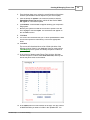
1. On your computer, open the database file that includes your calling
list in its native application (such as Excel), and select the column
holding the phone numbers. The selected column should appear
highlighted.
2. Copy the column of phone numbers by choosing Edit/Copy on the
top menu bar, Control+c on your keyboard, or right-click/Copy on
your mouse.
3. Go back to QuickCreate in VoiceBlast screen, and click the check
box for Type Numbers.
4. Click your cursor into the text box below.
5. Paste the numbers into the text box by choosing Edit/Paste from
the top menu bar, Control+v on your keyboard, or rightclick/Paste on your mouse. (In processing the data, the system will
automatically delete any parentheses, dashes, hyphens, spaces or
periods.)
6. When you are finished, click Go to launch your campaign.
VoiceBlast Help v 1.1 © 2007 SmartReply