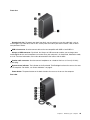
1
1
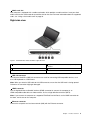
Security-lock slot
To protect your computer from theft, purchase a security cable lock that fits this security-lock slot to lock
your computer to a stationary object.
2
Fan louvers
The fan louvers and the internal fan enable air to circulate in the computer to ensure proper cooling,
especially the cooling of the microprocessor.
Note: To ensure proper airflow, do not place any obstacle in front of the fan louvers.
3
Always on USB connector
By default, the Always On USB connector enables you to charge some mobile digital devices and
smartphones in the following situations:
• When your computer is on or in sleep mode
• When your computer is in hibernation mode or is turned off, but connected to ac power
If you want to charge these devices when your computer is in hibernation mode or is turned off, and the
computer is not connected to ac power, do the following:
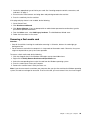
• For Windows 7: Start the Power Manager program and click the Global Power Settings tab. Then
select the Enable USB charge from the computer battery even when the computer is off check
box, and click OK or Apply.
• For Windows 8.1: Press the Windows key to go to the Start screen. Click Lenovo Settings ➙ Power. In
this area, move the switch to the On position in the Enable Always On USB area and select Enable even
when the computer is off, and click OK or Apply.
Attention: When you attach a USB cable to this USB connector, ensure that the USB mark is facing upward.
Otherwise the connector might get damaged.
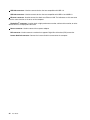
4
Combo audio connector
To listen to the sound from your computer, connect headphones or a headset that has a 3.5 mm, 4-pole plug
to the combo audio connector.
Notes:
• If you are using a headset with a function switch, do not press this switch while using the headset. If
you press it, the headset microphone will be disabled, and the integrated microphones on the computer
will be enabled instead.
• The combo audio connector does not support a conventional microphone. For more information, see
“Using audio features” on page 37.
Chapter 1. Product overview
5