1
Kalimba
ARP POP-UP CONTROL WINDOW
SOUNDIRON
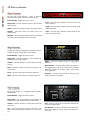
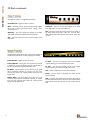
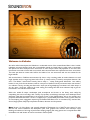
The Arp pop-up panel is an advanced arpeggiation design tool included in nearly all of this library’s presets. We also often call
this system the “Uberpeggiator”. You can choose from multiple cycling modes, chord and scale constraints, directional
variables, tempos and beat divisions and even set up your own custom arpeggiation velocity step sequences. It’s also great for
creating simulated drum rolls with the EZ-Roll Mode. You can also save and load your own custom arpeggiation settings using
the Save and Load buttons.
Mode
This knob controls the Arpeggiator
mode. Choosing Off disables the Arp
system entirely.
• On sets it to respond only while a
note is pressed, cycling through all held
notes as it arpeggiates.
• Hold sets it to automatically sustain
one note at a time, (monophonic) so
that changing keys changes the note
that is repeating.
• Hold +- sets it to allow new notes to
be added to the automated chain of
repeats.
• EZ Roll is a special mode that allows
easy single-stroke roll creation, based
on your tempo, rhythm and the
amount of swing and randomization
you want on the timing and velocity of
each stroke. Most other controls are
bypassed. You can use the velocity table
or use incoming velocities “As Played”.
Repeat Setting
This sets the direction of the up or down
repeats.
Rhythm
This sets the speed of arpeggiation, as
measured in musical time, ranging from
whole bars to 128th notes. Fast settings
can yield interesting results, but keep in
mind that the faster the speed, the more
voices you use.
Key Selector Knob
Binds the arpeggiation scale you’ve
chosen to a specific key.
Note Order Menu
This drop-down menu allows you to
select any number of simple or complex
cycle patterns that the arpeggiation will
follow as it plays through the sequence of
notes you have triggered. Choosing “As
Played” will cause it to follow the original
order you played the notes in, with the
newest note always added to the end of
the chain.
Free/Constrain Button
Limits and adjusts any new note to the
currently selected scale and key.
Scale Selector
Binds the arpeggiation sequence to a
specific scale that you can choose by
turning the knob.
Velocity Graph Sequencer
This graph allows you to draw the
velocities that you want each step in your
arpeggiation sequence to play at.
Reset
This button resets all steps in the graph
to a default value of 0 (blank).
Swing
This sets the amount of rhythmic offset
(swing) between notes. Values below zero
cause the notes to play ahead of the
beat. Values above zero cause the notes
to play after the beat.
Hits and Hit % Knobs
Hits sets the number of repeats of each
note BEFORE moving on to the next
note in the arp sequence, and Hit % sets
the intensity fall-off rate for each repeat,
before resetting for the next note.
5
Pitch
Sets the pitch up or down in quartertone intervals for each repeat after the
initial note is pressed and it remains in a
pseudo legato state as long as any key is
held down. Changing this setting in realtime allows extreme stair-step effects and
creative groove , tuning and beat
alterations.
Steps
This setting determines the number of
sequencer steps (2 - 32) that can be set
with the velocity graph step sequencer.
Duration
This knob allows the user to fine-tune
the length of each note. Using this, one
can shorten the note to staccato-like
pulses or extend them beyond the
normal beat length. When used with
sustaining roll articulations, this controls
the length of the roll before it is released
for each arpeggiated step.
Velocity Sequencer On/Off
The round button on the lower left
corner of the Velocity Sequencer Graph
window activates the sequence. When
active, the arpeggiation follows the
velocities that you’ve drawn on the graph
from left to right. When it is bypassed,
each note is played at the velocity that
you play it at.
Random
This knob humanizes timing parameters
to loosen the performance and create
more natural variation in the rhythm.
Save & Load
The “disk” icon button allows you to save
your Arp panel settings. The “folder” icon
button allows you to load previously
saved Arp panel settings.