1
Antivirus and Anti-Malware
Scanning for viruses and malware
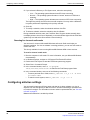
5 Right-click on entries and choose from the following actions:
• Delete the file
• Quarantine the file
• Submit Virus to Fortinet
• Submit as false positive to Fortinet
6 To view the log file for the scan, select View Log.
7 Click Close to close the FortiClient Scan Progress window.
To perform a full system scan
1 Go to AntiVirus > Scan.
2 In the File System Scan section, click Full System Scan.
3 Select Network drives or Removable media if you want them included in the scan.
Optionally, you can change the relative priority of virus scanning compared to other
processes.
4 Click Start.
The FortiClient Scan Progress window opens, displaying the scanning process and
results.
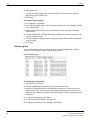
5 Click Show Details to view the Infected file list. The Infected file list displays the names
of any infected files.
6 Right-click on entries and choose from the following actions:
• Delete the file
• Quarantine the file
• Submit Virus to Fortinet
• Submit as false positive to Fortinet
7 To view the log file for the scan, select View Log.
8 Click Close to close the FortiClient Scan Progress window.
To manage scan schedules
1 Go to AntiVirus > Scan.
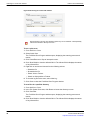
2 In the Scheduled Scan area, click Add.
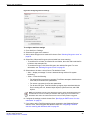
3 In the New Schedule window, set up a new schedule.
You can set up daily, weekly, or one-time schedules. You can also specify which folder
to scan.
4 Select the type of scan:
•
Directory scan — Click Browse and select the directory to scan. This type will only
scan the selected directory.
•
Full system scan — Select the Network Drives or Removable Media options. Select
the scan priority. This type will scan the entire computer.
•
Quick scan — You cannot set a scan priority for Quick Scans. This type scans only
running processes.
FortiClient Endpoint Security Version 4.0 MR2 User Guide
04-420-116429-20100108
http://docs.fortinet.com/ • Feedback
49