1
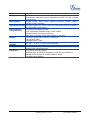
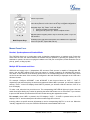
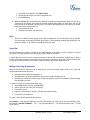
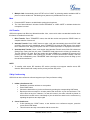
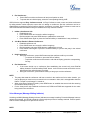
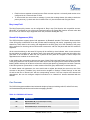
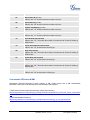
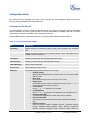
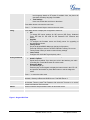
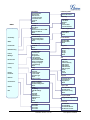
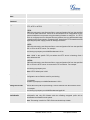
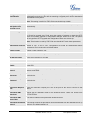
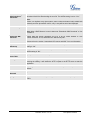
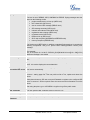
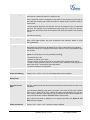
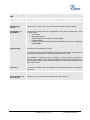
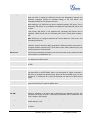
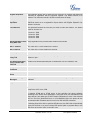
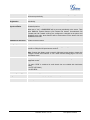
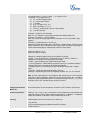
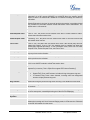
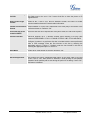
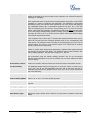
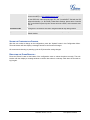
Dutch which are built in the phone. Users could select Automatic for local language based on IP location if available. Also, the phone will download secondary language if available. Time Settings Users can set the date and time on the phone. Press Menu button to choose the menu item Press “←” or follow the soft keys to return to the main menu Config Press Menu button to display the configuration selections: Factory Functions Network Call Features SIP To change SIP server settings for SIP account (SIP Proxy, Outbound Proxy, SIP User ID, SIP Auth ID, SIP Password, SIP Transport and Audio). Upgrade To configure the firmware server and Config server for upgrading or provisioning the phone. Factory Reset Key in the physical/MAC address on the back of the phone. Press OK softkey to reset to FACTORY DEFAULT setting. Do not use Factory Reset unless you want to restore factory settings. Layer 2 QoS Configure 802.1Q/VLAN Tag and priority value. Press Menu to display the factory function items including Audio Loopback Speak into the handset. If you hear your voice in the handset, your audio is working fine. Press Menu button to exit the mode. Diagnostic Mode All LEDs will light up. Press any key on the keypad, to display the button name in the LCD. Lift and put back the handset or press Menu button to exit the diagnostic mode. Press „←‟ to return the main menu To select IP mode (DHCP/Static IP/PPPoE); to setup PPPoE, IP address, Netmask, Gateway address and DNS Server 1 and DNS Server 2. To enable/disable and configure Forward All, Forward Busy, Forward No Answer, No Answer Timeout, press Call Features and select the Account x to set the forward call features on this account. Reboot Select on Reboot and press Menu button to reboot the device. Exit Exit from this menu Figure 1: Keypad GUI Flow Grandstream Networks, Inc. GXP2124 User Manual Firmware version: 1.0.3.19 Page 20 of 46 Last Updated: 02/2012