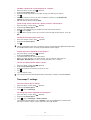
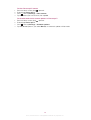
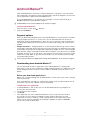
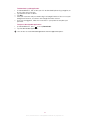
1
Sony Ericsson W8
Walkman™ phone
Extended User guide
Contents
User support.................................................................................6
Important information..................................................................7
Getting started..............................................................................8
Assembly............................................................................................8
Turning the phone on and off..............................................................9
Screen lock.........................................................................................9
Setup guide........................................................................................9
Getting to know your phone......................................................11
Phone overview.................................................................................11
Battery..............................................................................................11
Using the hardware keys...................................................................13
Using the touch screen.....................................................................14
Home screen....................................................................................16
Managing applications......................................................................17
Status bar.........................................................................................21
Notification panel..............................................................................22
Notification LED................................................................................23
Entering text......................................................................................23
SIM card...........................................................................................24
Memory............................................................................................24
Stereo portable handsfree.................................................................25
Adjusting the volume.........................................................................25
Phone settings overview....................................................................26
Internet and messaging settings........................................................28
Data traffic........................................................................................29
Network settings...............................................................................29
Calling..........................................................................................31
Emergency calls................................................................................31
Call handling.....................................................................................31
Voicemail..........................................................................................32
Multiple calls.....................................................................................32
Conference calls...............................................................................33
Call settings......................................................................................33
Contacts .....................................................................................35
Getting contacts into your phone......................................................35
Managing your contacts....................................................................36
Communicating with your contacts...................................................38
Favourites ........................................................................................39
Sharing your contacts.......................................................................39
2
This is an Internet version of this publication. © Print only for private use.
Messaging...................................................................................40
Using text and multimedia messaging...............................................40
Text and multimedia message options..............................................41
Email............................................................................................42
Using email.......................................................................................42
Using email accounts........................................................................44
Gmail™ and other Google services ..................................................44
Google Talk™ ............................................................................45
Sony Ericsson Timescape™......................................................46
Timescape™ main view....................................................................46
Timescape™ widget.........................................................................46
Using Timescape™...........................................................................47
Timescape™ settings........................................................................48
Android Market™.......................................................................50
Payment options...............................................................................50
Downloading from Android Market™................................................50
PlayNow™ service.....................................................................52
Before you download applications and content.................................52
Registering for a PlayNow™ account................................................52
Payment options...............................................................................52
Downloading from the PlayNow™ service.........................................53
Getting organised.......................................................................54
Calendar...........................................................................................54
Calendar month view........................................................................55
Calendar reminders...........................................................................55
Synchronising your calendar.............................................................56
Notes................................................................................................56
Alarm clock.......................................................................................56
Synchronising.............................................................................58
Sony Ericsson Sync..........................................................................58
Google Sync™ synchronisation service.............................................59
Synchronising with a Microsoft® Exchange Server using the
RoadSync™ application....................................................................60
Connecting to wireless networks.............................................61
Wi-Fi®..............................................................................................61
Virtual private networks (VPNs)..........................................................63
Web browser...............................................................................64
Toolbar.............................................................................................64
Browsing the web.............................................................................64
Navigating web pages.......................................................................65
Managing web pages........................................................................65
3
This is an Internet version of this publication. © Print only for private use.
Managing bookmarks.......................................................................65
Managing text and images................................................................66
Multiple windows..............................................................................66
Downloading from the web...............................................................67
Browser settings...............................................................................67
Connecting your phone to a computer....................................68
Transferring and handling content using a USB cable........................68
PC Companion.................................................................................68
Media Go™ .....................................................................................69
Bluetooth™ wireless technology..............................................70
Phone name.....................................................................................70
Pairing with another Bluetooth™ device............................................70
Sending and receiving items using Bluetooth™ technology...............71
Backing up and restoring..........................................................73
Types of content you can back up....................................................73
Walkman™..................................................................................75
Copying media files to your memory card..........................................75
Using the Walkman™ player.............................................................75
Podcasts...........................................................................................79
TrackID™ technology........................................................................79
FM radio......................................................................................81
FM radio overview.............................................................................81
Moving between radio channels........................................................81
Using your favourite radio channels...................................................81
Making a new search for radio channels............................................82
Switching between the speaker and the handsfree...........................82
Videos .........................................................................................83
Copying media files to your memory card..........................................75
Using the video player.......................................................................83
YouTube™........................................................................................84
Taking photos and recording videos........................................85
Viewfinder and camera controls........................................................85
Using the still camera........................................................................86
Using the video camera.....................................................................88
Camera album............................................................................89
Sharing photos and videos................................................................90
Location services.......................................................................91
Using GPS technology......................................................................91
Google Maps™.................................................................................91
Getting driving directions...................................................................92
4
This is an Internet version of this publication. © Print only for private use.
Locking and protecting your phone.........................................93
IMEI number.....................................................................................93
SIM card protection..........................................................................93
Screen unlock pattern.......................................................................94
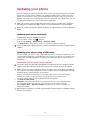
Updating your phone.................................................................95
Updating your phone wirelessly.........................................................95
Updating your phone using a USB cable...........................................95
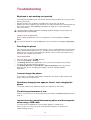
Troubleshooting.........................................................................96
My phone is not working as expected...............................................96
Resetting the phone..........................................................................96
I cannot charge the phone................................................................96
No battery charging icon appears when I start charging the phone. . .96
The battery performance is low.........................................................96
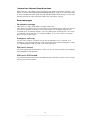
I cannot transfer content between my phone and the computer,
when using a USB cable...................................................................96
I cannot use Internet-based services.................................................97
Error messages.................................................................................97
Legal information.......................................................................98
Index............................................................................................99
5
This is an Internet version of this publication. © Print only for private use.
User support
Access user support directly in your phone through the Support application. For example,
you can open a User guide with instructions on how to use your phone. You can also get
troubleshooting and other help from the Sony Ericsson support zone, and from our contact
centres.
•
Support application features:
• User guide in the phone – read and search an extended User guide.
• Phone optimizer – enhance battery and software performance, and improve
connectivity.
• Educate yourself – read tips and tricks, get the latest news, and watch how-to-videos.
• Email support – send an email to our support team.
• Software updates – download the latest software.
• Support zone – visit www.sonyericsson.com/support from your computer to get the most
from your phone.
• Troubleshooting – find common problems and error messages at the end of our User
guides and on the support zone.
• Call centre – if all else fails. The relevant number is listed in the supplied Important
information leaflet.
The extended User guide is also available at www.sonyericsson.com/support.
1
2
To use the support application
From the Home screen, flick through the horizontal list of widgets and tap
Support .
Find and tap the required support item.
6
This is an Internet version of this publication. © Print only for private use.
Important information
Please read the Important information leaflet before you use your mobile phone.
Some of the services and features described in this User guide are not supported in all countries/
regions or by all networks and/or service providers in all areas. Without limitation, this applies to
the GSM International Emergency Number 112. Please contact your network operator or service
provider to determine availability of any specific service or feature and whether additional access
or usage fees apply.
7
This is an Internet version of this publication. © Print only for private use.
Getting started
Assembly
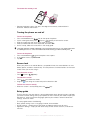
To remove the battery cover
•
Insert the tip of your finger or a thin object firmly into the opening on the side of the
phone, between the phone and the battery cover. Then lift up the cover slowly.
Do not use sharp objects that may damage parts of the phone.
To insert the SIM card and the memory card
•
Remove the battery cover, then insert the SIM card and the memory card in the
relevant slots.
To insert the battery and attach the cover
1
1
2
3
2
Insert the battery with the connectors facing each other.
Place the cover over the back of the phone so that the camera lens hole in the cover
is aligned with the camera lens.
Press down gently on all edges of the battery cover to make sure it gets attached
on both sides.
8
This is an Internet version of this publication. © Print only for private use.
To remove the memory card
•
Remove the battery cover, then press the edge of the memory card and draw it
outwards. Release and remove.
Turning the phone on and off
1
2
3
4
5
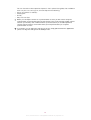
To turn on the phone
Press and hold down the
key on the top of the phone.
If your screen goes dark, press
or press
briefly to activate the screen.
Drag the screen lock icon across the screen to unlock it.
Enter your SIM card PIN, when requested, and select OK.
At first startup, follow the instructions in the setup guide.
Your SIM card PIN is initially supplied by your network operator, but you can change it later from
the Settings menu. To correct a mistake made while entering your SIM card PIN, press .
1
2
3
To turn off the phone
until the options menu opens.
Press and hold down
In the options menu, tap Power off.
Tap OK.
Screen lock
When your phone is on and left idle for a set period of time, the screen darkens to save
battery power, and locks automatically. This lock prevents unwanted actions on the touch
screen when you are not using it.
•
To activate the screen
Press
or press
briefly.
1
2
To unlock the screen
Press
to activate the screen.
icon along the screen lock path to the other side.
Drag the
•
To lock the screen manually
When the screen is active, briefly press the
key.
Setup guide
The first time you start your phone, a setup guide explains basic phone functions and helps
you enter essential settings. Set up your phone so that it works to your needs. Import your
old contacts, select your phone language, optimise your wireless network connection
settings, and much more.
The setup guide covers the following:
•
•
•
Basic phone settings such as language, Internet, time and date.
Wi-Fi® settings – speed up your connection and decrease data transfer costs.
Application settings – helps you with email setup, online service accounts, and contact
transfers.
9
This is an Internet version of this publication. © Print only for private use.
You can also refer to the respective chapters in the in-phone User guide, also available at
www.sonyericsson.com/support, for more help with the following:
•
•
•
•
Info on your phone’s hard keys
Entering text
Wi-Fi®
Sony Ericsson Sync
Before you can import contacts via a synchronisation account, you first need to set up the
synchronisation account and back up your old contacts to it. If you do not want existing contacts
saved on your memory card or SIM card to be synchronised, then you should import these
contacts from the memory card or SIM card to your new phone before you set up the
synchronisation account.
If you prefer, you can skip some steps and access the setup guide later from the applications
panes or change the settings from the Settings menu.
10
This is an Internet version of this publication. © Print only for private use.
Getting to know your phone
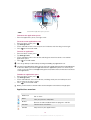
Phone overview
1
3.5 mm headset connector
2
Power key/Screen lock
3
Connector for charger/USB cable
4
Proximity sensor
5
Ear speaker
6
Notification LED (Battery status)
7
Light sensor
8
Touch screen
9
Menu key
10
Home key
11
Back key
12
Camera lens
13
Volume key
14
Camera key
15
Speaker
16
Strap holder
3
2
9
10
1
4
5
6
7
8
11
12
13
14
15
16
To attach a strap to the strap holder
1
2
3
Remove the cover.
Wrap the strap around the strap holder.
Attach the cover.
Battery
Your Android™ phone keeps you connected and updated wherever you are. This affects
the battery life of your phone. Below are some tips on how to prolong battery life while still
staying connected and up to date.
11
This is an Internet version of this publication. © Print only for private use.
Battery performance
Standby time is the amount of time the battery can power your phone when calls are not being
received or made. The more time your phone is in standby, the longer the battery lasts.
The following tips can help you improve battery performance:
•
•
•
•
•
•
•
•
•
•
Charge your phone often.
Downloading data from the Internet is power consuming. Turn off all data connections by
disabling the Data traffic option from the status bar when you're not using the Internet.
Set synchronisation applications (used to synchronise your email, calendar and contacts),
to synchronise manually. You can also synchronise automatically but increase the intervals.
Check the battery usage menu in the phone to see which applications use the most power.
Your battery consumes more power when you use video and music streaming applications
such as YouTube™. Some Android Market™ applications also consume more power. Limit
your use of such applications if your battery is running low.
Increase the interval between updates or set the interval to manual for Facebook™ and
Twitter™ updates.
Turn off GPS, Bluetooth™ and Wi-Fi® when you don't need these features. You can turn
them on and off more easily by adding the Power control widget to your Home screen. You
do not need to turn off 3G.
Lower the screen display brightness level.
Turn off your phone or use Flight mode if you are in an area with no network coverage.
Otherwise, your phone repeatedly scans for available networks, and this consumes power.
Use a handsfree device to listen to music. This consumes less battery than when you listen
through the phone's loudspeakers.
Visit www.sonyericsson.com/support or go to the Sony Ericsson Support
application
in your phone for an extended User guide. Here you can also find a video on how to
maximise the battery performance.
Lowering the screen display brightness and keeping the Bluetooth™ and Wi-Fi® enabled even
though not in use, have a minor impact on the available battery life.
1
2
To turn off all data connections
From the Home screen, drag the status bar downwards to open the Notification
panel.
Tap Data traffic, then uncheck the Data traffic checkbox to turn off all data
connections.
Data connections are active when the Data traffic
icon appears in the status bar.
1
2
To access the battery usage menu
From the Home screen, drag
upwards.
Find and tap Settings > About phone > Battery use to see which installed
applications consume the most battery power.
1
2
3
To add the Data traffic widget to your Home screen
From the Home screen, press .
Tap Arrange widgets > Add widget.
Select the Data traffic widget. You can now turn on and off all data connections
more easily.
1
2
3
To add the Power control widget to your Home screen
From the Home screen, press .
Tap Arrange widgets > Add widget.
Select the Power Control widget. You can now turn on and off Wi-Fi™, Bluetooth
and GPS more easily.
12
This is an Internet version of this publication. © Print only for private use.
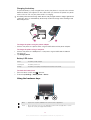
Charging the battery
The phone battery is partly charged when you buy the phone. It may take a few minutes
before the battery icon appears on the screen when you connect the phone to a power
source. You can still use your phone while it is charging.
The battery will start to discharge a little after it is fully charged and then charges again after a
certain time. This is to extend battery life and may result in the charge status showing a level
below 100 percent.
2
•
1
2
1
To charge the phone using the power adapter
Connect the phone to a power outlet using the USB cable and the power adapter.
To charge the phone using a computer
Connect the phone to a USB port on a computer using the USB cable included in
the phone kit.
Tap Charge phone.
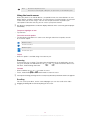
Battery LED status
1
2
Green
The battery is fully charged
Flashing red
The battery level is low
Orange
The battery is charging. The battery level is between low and full
To check the battery level
upwards.
From the Home screen, drag
Find and tap Settings > About phone > Status.
Using the hardware keys
Menu
•
Home •
•
Open a list of options available in the current screen or application
Go to the Home screen or to the applications panes from any application or screen
Open the recently used applications window
13
This is an Internet version of this publication. © Print only for private use.
Back
•
•
Go back to the previous screen
Close the on-screen keypad, a dialog box, an options menu, or the Notification panel
Using the touch screen
When your phone is on and left idle for a set period of time, the screen darkens to save
battery power, and locks automatically. This lock prevents unwanted actions on the touch
screen when you are not using it. You can also set personal locks to protect your
subscription and make sure only you can access your phone content.
This phone is equipped with a conductive display. Moisture on the screen may prevent proper
functionality.
•
•
To open or highlight an item
Tap the item.
To mark or unmark options
Tap the relevant checkbox or in some cases the right side of the list option, to mark
or unmark an option.
Marked checkbox
Unmarked checkbox
Marked list option
Unmarked list option
•
To pan
When this option is available, drag the screen to pan.
Zooming
There are two ways to zoom. The zoom alternative depends on the application you are
and
, while the Camera album uses
using. For example, the Web browser uses
the touch, hold and drag alternative.
•
•
To zoom
When available, tap
or
to zoom in or out.
Touch, hold and drag upwards or downwards to zoom in or out.
You may have to drag your finger on the screen (in any direction) to make the zoom icons appear.
Scrolling
You can scroll up or down, and on some webpages you can also scroll to the sides.
Dragging or flicking will not activate anything on the screen.
14
This is an Internet version of this publication. © Print only for private use.
To scroll
•
Drag your finger up or down on the screen to scroll.
To flick
•
To scroll more quickly, flick your finger up or down on the screen. You can wait for
the scrolling movement to stop by itself, or you can stop it immediately by tapping
the screen.
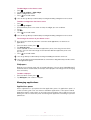
Lists
You can browse through alphabetical lists by using the index icon.
15
This is an Internet version of this publication. © Print only for private use.
11:37
:
K
L
M
1
2
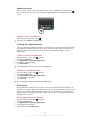
To use the index icon
From any alphabetical list, flick up or down to make appear.
Touch, hold and drag up or down to browse to an index letter.
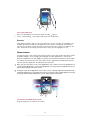
Sensors
Your phone includes a light sensor and a proximity sensor. The light sensor detects the
ambient light level and adjusts the brightness of the screen accordingly. The proximity
sensor turns the touch screen off when your face touches the screen. This prevents you
from unintentionally activating phone functions when you are engaged in a call.
Home screen
The Home screen is the starting point of your phone. You can personalise the Home screen
by adding widgets, or by changing the wallpaper and the applications in the corners.
When you add more than one widget, the Home screen extends beyond the screen width.
The corners on the Home screen are used to access applications or bookmarks quickly.
You can add any application or bookmark to the corners.
When you go to the Home screen, some applications may continue to run in the background. If
you do not want applications to run in the background, you should exit each application you have
opened before going to the Home screen.
A widget is a part of an application on the Home screen. It displays important information from
a particular application. For example, the Sony Ericsson Timescape™ widget displays incoming
messages and the Media widget allows you to start playing music directly.
Janua 7
January
7, 2010
0
•
To view the extended Home screen
Drag your finger to the sides of the screen.
16
This is an Internet version of this publication. © Print only for private use.
1
2
3
4
To add widgets to the Home screen
Press .
Tap Arrange widgets > Add widget.
Select a widget from the list.
Press
to exit edit mode.
You can also go directly to edit mode by touching and holding a widget for a few seconds.
1
2
3
4
5
6
To delete a widget from the Home screen
Press .
Tap Arrange widgets.
Flick horizontally across the screen and tap the widget you want to delete.
Tap .
Tap Yes.
Press
to exit edit mode.
You can also go directly to edit mode by touching and holding a widget for a few seconds.
To rearrange the corners of your Home screen
The icons in the corners of your Home screen are actual applications, not shortcuts to
applications.
1
2
3
4
From the Home screen, press .
Tap Arrange icons.
Touch and hold an item in one of the applications panes, then drag it to one of the
corners. You can also interchange an item between different application panes and
any corner.
Press
to exit edit mode.
You can go directly to edit mode by touching and holding the relevant corner icon.
You can also add your favourite bookmarks as corner items or drag them away from the corners
to the applications panes.
Wallpapers
Brighten up your Home screen with animated wallpapers. You can go to Android Market™
and other sources to download, for example, live wallpapers that change with the changing
hours of the day.
1
2
To add a wallpaper
From the Home screen, press .
Tap Wallpaper, then select a wallpaper.
Managing applications
Applications panes
Access applications in your phone from the applications panes. An applications pane is a
screen containing icons that are shortcuts to different applications. These panes extend
beyond the regular screen width, so you might have to flick left or right to find what you are
looking for. You can create new panes and arrange the applications according to your own
preferences.
17
This is an Internet version of this publication. © Print only for private use.
Shows which applications pane you are in
•
To browse the applications panes
From the applications panes, flick right or left.
1
2
3
4
To create a new applications pane
From the Home screen, press .
Tap Arrange icons.
Touch and hold an item in the last pane until it vibrates and then drag it to the right.
to exit the edit mode.
Press
1
2
3
4
To move an application
From the Home screen, press .
Tap Arrange icons.
Touch and hold an item until it vibrates and drag it to one of the corners or to another
applications pane.
Press
to exit edit mode.
You can go directly to edit mode by touching and holding any application icon.
The items in the applications panes are not shortcuts to applications but the actual applications
themselves. When you move an application from the applications panes to a corner of your
screen, or vice versa, the actual application gets moved, not the shortcut. There are no shortcuts
to the applications.
1
2
3
4
To delete an applications pane
From the Home screen, press .
Tap Arrange icons.
Touch and hold each item until it vibrates, and drag one by one to the left pane until
the last pane to the right is empty.
to exit the edit mode.
Press
Before you move items to the left make sure that the pane to the left has enough space.
Applications overview
Alarm Clock
Set an alarm
Album
View your pictures and photos
Browser
Browse the web and download new programs and files
Calculator
Perform basic calculations
Calendar
Keep track of your appointments
18
This is an Internet version of this publication. © Print only for private use.
Camera
Take photos and record video clips
Contacts
Keep track of your friends and colleagues
Data monitor
Keep track of the amount of data your phone sends and
receives
Dataviz® RoadSync
Reach your corporate email, calendar and contacts (if on a
Microsoft® Exchange server)
Phone
Make and receive calls, switch between calls, set up conference
calling and view your call history
Email
Send and receive emails
FM radio
Listen to the radio in your phone
Gmail™
An email application that supports Gmail™
Talk
Chat online
Market
Go to Android Market™ to download free and paid applications
for your phone
Messaging
Send and receive text and multimedia messages
Walkman™
Play music and playlists
Notes
Take notes
TrackID™
A music recognition service
Video
View videos saved in your phone
PlayNow™
Download a variety of exciting content to your phone
YouTube
Share and view videos from around the world
Maps
View your current location, find other locations and calculate
routes
Timer
Count down time
Settings
Tailor phone settings to your own liking
Stopwatch
Keep track of time
Sony Ericsson Sync
Synchronise your contacts, calendar and more
Timescape™
Keep track of all daily communication
Touchnote
Send printed postcards to your family and friends
Support
Find out more on how to use your phone
Some applications are not supported by all networks and/or service providers in all areas.
Applications you download appear in the applications panes.
Recently used applications window
You can view and access recently used applications from this window.
•
To open the recently used applications window
From any application, press and hold down .
19
This is an Internet version of this publication. © Print only for private use.
Application menu
You can open a menu at any time when you are using an application by pressing the
key on your phone. The menu will look different depending on which application you are
using.
•
To open a menu in an application
While using the application, press .
A menu is not available in all applications.
Clearing your application data
You may sometimes need to clear data for an application. This might happen if, for example,
the application memory becomes full, or you want to clear high scores for a game. You
might also want to erase incoming email, text and multimedia messages in some
applications.
1
2
3
4
5
To clear all cache for an application
upwards.
From the Home screen, drag
Find and tap Settings.
Tap Applications > Manage applications.
Tap the desired application.
Tap Clear cache.
It is not possible to clear the cache for some applications.
1
2
3
4
5
To delete an installed application
upwards.
From the Home screen, drag
Find and tap Settings.
Tap Applications > Manage applications.
Tap the desired application.
Tap Uninstall.
It is not possible to delete some preinstalled applications.
Permissions
Some applications need to access parts of your phone to be able to work properly. For
example, a navigation application needs permissions to send and receive data traffic, and
access your location. Some applications might misuse their permissions by stealing or
deleting data, or reporting your location. Make sure you only install and give permissions
to applications you trust.
1
2
3
4
5
To view permissions of an application
upwards.
From the Home screen, drag
Find and tap Settings.
Tap Applications > Manage applications.
Tap the desired application.
Scroll down to view Permissions.
20
This is an Internet version of this publication. © Print only for private use.
Installing applications from unknown sources
Installing applications of unknown or unreliable origin can damage your phone. By default,
your phone is set to block such installations. However, you can change this setting and
allow installations from unknown sources.
To allow the installation of applications from unknown sources
1
2
3
From the Home screen, drag
upwards.
Find and tap Settings > Applications.
Mark the Unknown sources checkbox.
Status bar
A status bar at the top of the screen displays phone status information and notifications.
Notification icons appear on the left side of the status bar. Phone status icons appear on
the right side. From the status bar you can access the notification panel.
11:37
Phone status icons
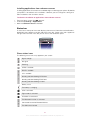
The following status icons may appear on your screen:
Signal strength
No signal
Roaming
GPRS is available
EDGE is available
3G is available
Sending and downloading GPRS data
Sending and downloading EDGE data
Sending and downloading 3G data
Battery status
The battery is charging
GPS is activated
Flight mode is activated
A headset is connected
The Bluetooth function is activated
Connected to another Bluetooth device
The SIM card is locked
21
This is an Internet version of this publication. © Print only for private use.
The microphone is muted
The speakerphone is on
The phone speaker is muted
Vibrate mode
An alarm is set
Data traffic notification is on
Notification icons
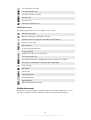
The following notification icons may appear on your screen:
New email message
New text message or multimedia message
Problem with text message or multimedia message delivery
New instant message
New voicemail
An upcoming calendar event
A song is playing
Problem with sign-in or synchronisation
The memory card is full
The Wi-Fi® connection is enabled and wireless networks are available
The phone is connected to a computer with a USB cable
Error message
Missed call
Call on hold
Call forwarding on
Downloading data
Uploading data
More (undisplayed) notifications
Notification panel
Notification icons are displayed in a detailed view. You can open notifications, such as
messages, reminders, or event notifications directly from the Notification panel.
22
This is an Internet version of this publication. © Print only for private use.
To open the Notification panel
11:37
•
Drag the status bar downwards.
•
•
To close the Notification panel
Press
.
Drag the Notification panel upwards.
•
To open a running application from the Notification panel
From the Notification panel, tap the icon for the running application to open it.
•
To clear the Notification panel
From the Notification panel, tap Clear.
Notification LED
The Notification LED (Light-emitting diode) is located at the top of the phone. It provides
information on the phone status and on pending notifications. If it is flashing green, there
is a pending message for you, or a missed call.
If the phone battery level is low, pending notifications are not indicated by the LED.
Entering text
Using the keyboard
When you start an application or select a field that requires text or numbers, the keyboard
appears.
•
To display the keyboard to enter text
Tap a text entry field.
•
To hide the keyboard
When you enter text, tap
•
To use the landscape keyboard
When you enter text, turn the phone sideways.
.
For the keyboard to support this feature, landscape mode must be supported by the application
you are using, and your screen orientation settings must be set to automatic.
•
•
To enter text
To enter a character visible on the keyboard, tap the character.
To enter a letter variant, touch and hold a regular keyboard letter to get a list of
available options, then select from the list. For example, to enter "é", touch and hold
"e" until a list appears, then select "é" from the list.
23
This is an Internet version of this publication. © Print only for private use.
•
To shift between upper-case and lower-case letters
Before you enter a letter, tap
to switch to upper-case
•
To turn on the caps lock
Before you type a word, tap
•
To enter numbers or symbols
When you enter text, tap . A keyboard with numbers and symbols appears.
1
2
To insert a smiley
When you enter text, touch and hold
Select a smiley.
•
To delete characters
Tap to place the cursor after the character you want to delete, then tap
1
2
To edit text
When you enter text, touch and hold the text field until the Edit text menu appears.
Select an option.
or
until
, or vice versa.
appears.
.
.
Keyboard settings
You can select settings for the keyboard, such as writing language and automatic
prediction.
•
1
2
3
4
1
2
3
To access the keyboard settings
When you enter text, tap . If you have selected more than one writing language,
touch and hold
instead.
To change writing language
When you enter text, tap , or touch and hold .
Tap Writing languages.
Select the languages you want to use for writing. When you are finished, press
repeatedly to return to entering text.
If you have selected more than one input language, tap
to switch between the
selected writing languages.
To change quick text settings
When you enter text, tap , or touch and hold
Tap Quick text settings.
Select the desired settings.
.
SIM card
The SIM (Subscriber Identity Module) card, which you get from your network operator,
contains information about your subscription. Always turn off your phone and detach the
charger before you insert or remove the SIM card.
PIN
You may need a PIN (Personal Identification Number) to activate the services and functions
in your phone. Each PIN digit appears as *, unless it starts with emergency number digits,
for example, 112 or 911. You can call an emergency number without entering a PIN.
Memory
You can save content on a memory card and in the phone memory. Music, video clips and
photos are saved on the memory card while applications, contacts and messages are
saved in the phone memory.
24
This is an Internet version of this publication. © Print only for private use.
Memory card
You may have to purchase a memory card separately.
Your phone supports a microSD™ memory card, which is used for media content. This
type of card can also be used as a portable memory card with other compatible devices.
Without a memory card you cannot use the camera, nor can you play or download music files
and video clips.
Formatting the memory card
The memory card in your phone may be formatted in order to, for example, free memory.
All content on the memory card will be lost. Make sure you have made backups of everything
you want to save before formatting the memory card. To backup your content you can copy it to
your computer. For more information, refer to the chapter Connecting your phone to a
computeron page 68 .
1
2
3
To format the memory card
From the Home screen, drag
upwards.
Find and tap Settings > SD card & phone storage settings > Unmount SD
card.
After you have unmounted the memory card, tap Format SD card > Erase
everything.
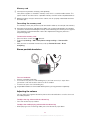
Stereo portable handsfree
1
2
3
To use a handsfree
Connect a portable handsfree.
To answer a call, press the call handling key. If you listen to music, it stops when
you receive a call and resumes when the call has ended.
To end a call, press the call handling key.
If a portable handsfree is not included with the phone, you may purchase it separately.
Adjusting the volume
You can adjust the ringtone volume for phone calls and notifications as well as for music
and video playback.
•
To adjust the ring volume with the volume key
Press the volume key up or down.
•
To adjust the media playing volume with the volume key
When playing music or watching video, press the volume key up or down.
25
This is an Internet version of this publication. © Print only for private use.
1
2
To set the phone to silent and vibrating mode
Press the volume key down to minimum. The phone, even though silent, is in
vibrating mode. The icon
appears in the status bar.
Press the volume key further one step down to turn off the vibrating mode. The icon
appears in the status bar.
Phone settings overview
You can set up the phone to suit your requirements, for example, Date & time, Wireless
& networks and Accounts & sync.
1
2
To access the phone settings
upwards.
From the Home screen, drag
Tap Settings.
1
2
To access the setup guide
From the Home screen, drag
Tap Setup guide.
upwards.
Time and date
You can change the time and date in your phone.
1
2
3
4
5
6
To set the date manually
From the Home screen, drag
upwards.
Find and tap Settings > Date & time.
Unmark the Automatic checkbox, if it is marked.
Tap Set date.
Tap or to adjust the date.
Tap Set.
1
2
3
4
5
6
7
To set the time manually
upwards.
From the Home screen, drag
Find and tap Settings > Date & time.
Unmark the Automatic checkbox, if it is marked.
Tap Set time.
Tap or to adjust the hour and minute.
Tap AM to change to PM or vice versa.
Tap Set.
If you want to use AM and PM, you have to unmark Use 24-hour format.
1
2
3
4
5
To set the time zone
From the Home screen, drag
upwards.
Find and tap Settings > Date & time.
Unmark the Automatic checkbox, if it is marked.
Tap Select time zone.
Select an option.
1
2
3
To set the hour format
upwards.
From the Home screen, drag
Find and tap Settings > Date & time > Use 24-hour format.
Mark the checkbox to shift between 12 hour and 24 hour format.
1
2
3
To set the date format
upwards.
From the Home screen, drag
Find and tap Settings > Date & time > Select date format.
Select an option.
26
This is an Internet version of this publication. © Print only for private use.
Ringtone settings
1
2
3
To set a phone ringtone
From the Home screen, drag
upwards.
Find and tap Settings > Sound & display > Phone ringtone.
Select a ringtone.
If the phone is in Silent mode, unmark the Silent mode checkbox before you set the ringtone.
1
2
3
To enable touch tones
From the Home screen, drag
upwards.
Find and tap Settings > Sound & display.
Select the Audible touch tones or Audible selection.
1
2
3
To select a notification ringtone
From the Home screen, drag
upwards.
Find and tap Settings > Sound & display > Notification ringtone.
Select a ringtone and tap OK.
1
2
3
To set the vibrating alert
upwards.
From the Home screen, drag
Find and tap Settings > Sound & display.
Mark the Phone vibrate checkbox.
Screen settings
1
2
3
4
1
2
1
2
3
To adjust the screen brightness
upwards.
From the Home screen, drag
Find and tap Settings > Sound & display > Brightness.
To decrease the screen brightness, drag the slider to the left. To increase the screen
brightness, drag the slider to the right.
Tap OK.
To set the screen to vibrate
upwards.
From the Home screen, drag
Find and tap Settings > Sound & display > Haptic feedback. In some applications,
the screen vibrates when you tap it.
To adjust the idle time before the screen turns off
From the Home screen, drag
upwards.
Find and tap Settings > Sound & display > Screen timeout.
Select an option.
To turn off the screen quickly, briefly press the power key
1
2
3
.
To keep the screen on while charging the phone
From the Home screen, drag
upwards.
Find and tap Settings > Applications > Development.
Mark the Stay awake check box.
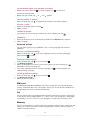
27
This is an Internet version of this publication. © Print only for private use.
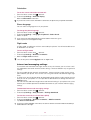
Orientation
1
2
3
To set the screen orientation to automatic
From the Home screen, drag
upwards.
Find and tap Settings > Sound & display.
Mark the Orientation check box.
If you do not set the screen orientation to automatic, the phone stays in portrait orientation.
Phone language
You can select a language to use in your phone.
1
2
3
To change the phone language
upwards.
From the Home screen, drag
Find and tap Settings > Language & keyboard > Select locale.
Select an option.
If you choose the wrong language and cannot read the menu texts, go to
www.sonyericsson.com/support for help.
Flight mode
In Flight mode, no radio transmissions are made by the phone. You will not be able to turn
on Bluetooth™ or Wi-Fi®.
1
2
3
To turn on Flight mode
upwards.
From the Home screen, drag
Find and tap Settings > Wireless & networks.
Mark the Flight mode checkbox.
You can also press and hold
to turn on Flight mode.
Internet and messaging settings
To send text and multimedia messages and to access the Internet, you must have a 2G/
3G mobile data connection and the correct settings. There are different ways to get these
settings:
•
•
•
For most mobile phone networks and operators, Internet and messaging settings come
preinstalled on your phone. You can then start using the Internet and send messages right
away.
In some cases you will get the option to download Internet and messaging settings the first
time you turn on your phone. It is also possible to download these settings later from the
Settings menu.
You can manually add and change Internet and network settings in your phone at any time.
Contact your network operator for detailed information on your Internet and messaging
settings.
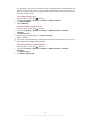
1
2
To download Internet and messaging settings
upwards.
From the Home screen, drag
Find and tap Settings > Sony Ericsson > Settings download.
1
2
3
To view the current Access Point Name (APN)
From the Home screen, drag
upwards.
Find and tap Settings > Wireless & networks > Mobile networks.
Tap Access Point Names.
If you have several available connections, the active network connection will be indicated by a
marked button to the right.
28
This is an Internet version of this publication. © Print only for private use.
1
2
3
4
5
6
7
8
To configure Internet settings manually
From the Home screen, drag
upwards.
Find and tap Settings > Wireless & networks > Mobile networks > Access Point
Names.
Press .
Tap New APN .
Tap Name and enter the name of the network profile you want to create.
Tap APN and enter the access point name.
Tap and enter all other information required by your network operator.
Press
and tap Save .
Contact your network operator for detailed information about your network settings.
1
2
3
4
To reset the default Internet settings
From the Home screen, drag
upwards.
Tap Settings > Wireless & networks > Mobile networks > Access Point
Names.
Press .
Tap Reset to default .
Data traffic
Turning off data traffic
You can disable all data connections over 2G/3G networks with your phone to avoid any
unwanted data downloads and synchronisations. Contact your network operator if you
need detailed information about your subscription plan and data traffic costs.
When data traffic is turned off, you can still use Wi-Fi® and Bluetooth™ connections. You can
also send and receive multimedia messages.
1
2
3
To turn off all data traffic
upwards.
From the Home screen, drag
Find and tap Settings > Wireless & networks > Mobile networks.
Unmark the Data traffic checkbox.
Data roaming
Depending on your network operator, it might be possible to allow mobile data connections
via 2G/3G outside of your home network (roaming). Please note that data transmission
charges may apply. Contact your network operator for more information.
Applications may sometimes use the Internet connection in your home network without any
notification, for example, when sending search and synchronisation requests. Additional charges
may apply for data roaming. Consult your service provider.
1
2
3
To activate data roaming
upwards.
From the Home screen, drag
Find and tap Settings > Wireless & networks > Mobile networks.
Mark the Data roaming checkbox.
You can’t activate data roaming when data traffic is turned off.
Network settings
Your phone automatically switches between networks depending on availability. Some
network operators allow you to switch networks manually, for example, if you are travelling
abroad and want to use a particular network.
29
This is an Internet version of this publication. © Print only for private use.
To save battery, you can limit your phone to only use GSM networks. Data downloads and
uploads will however be slower. If you are going to download or upload large amounts of
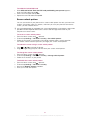
data, we recommend that you change to another network mode or connect to the Internet
through a Wi-Fi® network.
1
2
3
4
1
2
3
4
5
To use GSM networks only
From the Home screen, drag
upwards.
Find and tap Settings > Wireless & networks > Mobile networks.
Tap Network Mode.
Select GSM only.
To select another network manually
From the Home screen, drag
upwards.
Find and tap Settings > Wireless & networks > Mobile networks > Network
operators.
Tap Search mode.
When a popup window appears, tap Select manually.
Select a network.
If you select a network manually, your phone will not search for other network, even if you move
out of range of the manually selected network.
1
2
3
4
To activate automatic network selection
upwards.
From the Home screen, drag
Find and tap Settings > Wireless & networks > Mobile networks > Network
operators.
Tap Search mode.
Tap Select automatically.
30
This is an Internet version of this publication. © Print only for private use.
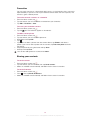
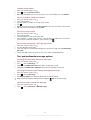
Calling
Emergency calls
Your phone supports international emergency numbers, for example, 112 or 911. You can
normally use these numbers to make emergency calls in any country, with or without the
SIM card inserted, if you are within range of a network.
1
2
To make an emergency call
From the Home screen, tap .
Enter the emergency number and tap
. To delete a number, tap
.
You can make an emergency call without a SIM card inserted.
1
2
To make an emergency call while the SIM card is locked
Tap Emergency call.
Enter the emergency number and tap . To delete a number, tap
.
Call handling
1
2
3
To make a call
From the Home screen, tap .
If the call log is shown, tap to enter the dial pad view.
Enter the number of the recipient and tap . To delete a number, tap
•
To end a call
Tap .
1
2
3
.
To make an international call
From Home screen, tap .
Touch and hold down 0 until a “+” sign appears.
Enter the country code, area code (without the first 0) and phone number, then tap
.
To answer a call
•
Drag
to the right across the screen.
•
To decline a call
to the left across the screen.
Drag
•
To mute the ringtone for an incoming call
When you receive the call, tap .
•
To change the ear speaker volume during a call
Press the volume key up or down.
•
To turn on the loudspeaker during a call
Tap .
•
To mute the microphone during a call
Tap .
31
This is an Internet version of this publication. © Print only for private use.
1
2
To enter numbers during a call
During a call, tap . A keypad appears.
Enter numbers.
Recent calls
In the call log, you can view missed
, received
and dialled
calls.
2
To view missed calls
When you have missed a call,
appears in the status bar. Drag the status bar
downwards.
Tap the notifications for missed calls to open them in the call log.
1
2
3
To call a number from the call log
From the Home screen, tap .
to enter the call log view.
If the dial pad is shown, tap
Tap the number you want to call.
1
1
2
3
4
5
To add a number from the call log to your contacts
From the Home screen, tap .
to enter the call log.
If the dial pad is shown, tap
Tap
next to the number you want to add.
Tap an existing contact to add the number to that contact, or tap
contact.
Edit the contact details and tap Save.
for a new
Voicemail
If your subscription includes an answering service, callers can leave a voicemail message
when you cannot answer a call. Usually, the voicemail number is saved on the SIM card. If
not, contact your service provider to get your voicemail number. You can then enter the
number manually.
1
2
3
4
To enter your voicemail number
From the Home screen, drag
upwards.
Find and tap Settings > Call settings > Voicemail settings.
Enter your voicemail number.
Tap OK.
1
2
To call your voicemail service
From the Home screen, tap .
Touch and hold down 1.
Multiple calls
If you have activated call waiting, you can handle multiple calls at the same time. When it
is activated, you will be notified by a beep if you receive another call.
1
2
3
To activate or deactivate call waiting
From the Home screen, drag
upwards.
Find and tap Settings > Call settings > Additional settings.
To activate or deactivate call waiting, tap Call waiting.
•
To reject a second call
When you hear repeated beeps during a call, tap Busy.
•
To answer a second call and end the ongoing call
When you hear repeated beeps during a call, tap Replace.
32
This is an Internet version of this publication. © Print only for private use.
•
To answer a second call and put the ongoing call on hold
When you hear repeated beeps during a call, tap Answer.
1
2
3
To make a second call
During an ongoing call, tap .
Enter the number of the recipient and tap .
If the recipient answers, the first call is put on hold.
The same procedure applies to subsequent calls.
•
•
To switch between multiple calls
To switch to another call and put the current call on hold, tap the desired number
or contact.
To end the ongoing call and return to the next call on hold
Tap .
Conference calls
With a conference or multiparty call, you can have a joint conversation with two or more
persons.
1
2
3
4
To make a conference call
During an ongoing call, tap .
Dial the number of your second participant and tap .
If the second participant answers, the first call is put on hold.
Tap .
To add more participants, repeat steps 1 to 4.
•
To end a conference call
During the call, tap .
Call settings
Forwarding calls
You can forward calls, for example, to another phone number, or to an answering service.
1
2
3
4
To forward calls
upwards.
From the Home screen, drag
Find and tap Settings > Call settings > Call forwarding.
Select an option.
Enter the number you want to forward the calls to and tap Enable.
1
2
3
4
To turn off call forwarding
upwards.
From the Home screen, drag
Find and tap Settings > Call settings > Call forwarding.
Select an option.
Tap Disable.
Showing or hiding your phone number
You can select to show or hide your phone number on call recipients' devices when you
call them.
33
This is an Internet version of this publication. © Print only for private use.
1
2
3
To show or hide your phone number
From the Home screen, drag
upwards.
Find and tap Settings > Call settings > Additional settings > Caller ID.
Select an option.
Fixed Dialling Numbers
If you have received a PIN2 code from your service provider, you can use a list of Fixed
Dialling Numbers (FDN) to restrict outgoing and incoming calls.
1
2
3
4
1
2
To enable or disable fixed dialling
From the Home screen, drag
upwards.
Find and tap Settings > Call settings > Fixed dialling numbers.
Tap Activate fixed dialling or Deactivate fixed dialling.
Enter your PIN2 and tap OK.
To access the list of accepted call recipients
From the Home screen, drag
upwards.
Find and tap Settings > Call settings > Fixed dialling numbers > Fixed dialling
numbers.
34
This is an Internet version of this publication. © Print only for private use.
Contacts
Use the Contacts application to store and manage all your contacts. Keep your phone
numbers, email addresses, and other contact data in one place. Contacts shows you all
communication with a particular contact. Just tap on the contact to access this information
in one easy overview.
You can add new contacts in your phone and synchronise them with the contacts in your
Sony Ericsson Sync account, Google™ account, Microsoft® Exchange ActiveSync®
account, or other accounts that support syncing contacts. Contacts automatically tries to
join new addresses with existing contacts, to create a single entry. You can also manage
this process manually.
Getting contacts into your phone
If you want to transfer contacts from your old phone to your new phone using any of the methods
described below you should first refer to the User guide of your old phone. Also, remember that
you need to back up your old contacts first before you can import them to your new phone. You
can do this either by synchronising your old phone contacts with a synchronisation account, or
by exporting the contacts to your SIM card or to a memory card.
You can get existing contact information into your phone using several methods:
•
•
•
•
•
Use a synchronisation service, such as Sony Ericsson Sync or Google Sync™. This way,
you can manage your contacts both directly in the phone and from a computer.
Import contacts from a SIM card. You may not be able to transfer all information from one
phone to another using this method because of limited memory on the SIM card. Also,
some phones do not support the export of contacts to a SIM card.
Import contacts from a memory card. Please note that it is not always possible to transfer
contacts from one phone to another using this method, since some phones do not support
the import or export of contacts from/to a memory card.
Use a Bluetooth™ connection to transfer contacts from one phone to another. Both phones
need to be switched on. In some phones, Bluetooth™ only works when a SIM card is
inserted.
You can send contacts via messaging services such as SMS, MMS or email. Not all phones
support the sending of contacts via messaging services.
To synchronise your phone contacts with a synchronisation account
1
2
3
From the Home screen, tap .
Press , then tap Accounts & sync.
To set up a synchronisation account, tap Add account and follow the on-screen
instructions. To synchronise with an account you have already set up, tap the
account name.
To import contacts from a SIM card
1
2
3
4
Insert the SIM card containing the contacts you want to import, then start the phone.
From the Home screen, tap .
Press , then tap Import/export > Import SIM contacts.
Tap OK.
To import contacts from a memory card
1
2
3
4
Insert the memory card and start your phone.
From the Home screen, tap .
Press , then tap Import/export > Import from memory card.
Select an option and tap OK.
To receive contact data sent using Bluetooth™ technology
35
This is an Internet version of this publication. © Print only for private use.
1
2
3
Make sure you have the Bluetooth™ function turned on and your phone set to visible.
If not, then you cannot receive data from other devices.
When you are asked to allow a Bluetooth™ connection to your phone from the
device sending the contact data, tap OK.
When you are asked to save the contact data, tap OK
To receive contacts sent using a messaging service
1
2
When you receive a new text message, multimedia message, or email message,
open the message.
The received contact data appears as a vCard attachment. Tap, or touch and hold
the vCard file to open a menu so you can save the contact data.
Managing your contacts
Create, edit and synchronise your contacts in a few simple steps. Select to display only the
contacts you want to use in the phone. If you synchronise your contacts with more than
one account, you can join contacts in your phone to avoid duplicates.
Some synchronisation services, for example some social networking services, do not allow you
to edit contact details.
1
2
3
1
2
3
4
5
6
7
8
9
To select which contacts to display
From the Home screen, tap .
Press , then tap Contacts to view.
In the list that appears, mark and unmark the desired options. If you have
synchronised the contacts with an account, that account appears in the list. You
can tap the account to expand the list of options further. When you are finished, tap
OK.
To add a contact
From the Home screen, tap .
Tap .
If you have synchronised your contacts with an account, select if you want to use
this contact for the account, or if you want to use it only in the phone.
Tap Name, enter the name and tap Next.
Enter the phone number and tap Done.
To add an additional information field, such as an email adress or another phone
number, tap Add more and select the desired address type.
and select a picture or take a photo.
To add a contact picture, tap
To select a contact ringtone, scroll down, tap Add more > Ringtone, select a
ringtone and tap Done.
When you are finished, scroll up and tap Save.
The phone number type is selected automatically when you enter the number. You can tap the
number type field to change it, for example, from Mobile to Home.
If you add a plus sign and the country code before a contact phone number, you can use the
number when you make calls from other countries.
36
This is an Internet version of this publication. © Print only for private use.
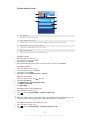
Contact details screen
4
1
2
3
5
Ellen Ackland
+46 132 445 00
6
7
8
1
Contact picture
2
Indicates the contact is a favourite
3
Phone number of the contact
4
Infinite button for access to all communication with the displayed contact in Timescape™
5
Indicates web services the contact is linked to
6
Send a text or multimedia message to the contact
7
Edit contact information
8
Send contact's details and choose transfer method
1
2
3
4
To edit a contact
From the Home screen, tap .
Tap the contact you want to edit.
Scroll down and tap Edit.
Edit the desired information. When you are finished, scroll up and tap Save.
1
2
3
4
To delete a contact
From the Home screen, tap .
Tap the contact you want to delete.
Scroll down and tap Edit.
Scroll down and tap Delete contact > Delete.
1
2
3
4
5
To delete all contacts
upwards.
From the Home screen, drag
Find and tap Settings.
Tap Applications > Manage applications.
Tap Contacts Storage.
Tap Clear data.
1
2
3
To export contacts to the SIM card
From the Home screen, tap .
Press , then tap Import/export > Export to SIM card.
Tap OK.
When you export contacts to your SIM card, the amount and the type of information you can
transfer for each contact is limited. This is due to limited memory on SIM cards.
1
2
3
To export all contacts to the memory card
From the Home screen, tap .
Press , then tap Import/export > Export to memory card.
Tap OK.
37
This is an Internet version of this publication. © Print only for private use.
Avoiding duplicate entries in your Contacts
If you synchronise your contacts with a new account or import contact information in other
ways, you could end up with duplicate entries in your Contacts. If this happens, you can
join such duplicates to create a single entry. And if you join entries by mistake, you can
separate them again later.
5
To join contacts
From the Home screen, tap .
Tap the contact you want to join with another contact, then tap Edit.
Press , then tap Join contacts.
Select the contact you want to join with from the list of suggestions, or tap All
contacts and select from all contacts.
Tap OK.
1
2
3
4
To separate joined contacts
From the Home screen, tap .
Touch and hold the joined contact you want to edit, then tap Edit contact.
Press , then tap Separate.
Tap OK.
1
2
3
4
Communicating with your contacts
5
To search for a contact
From the Home screen, tap .
Tap Search.
Enter the first letters of the contact name you are searching for.
The hits appear in a list. If you get more than one hit, tap the down arrow to see the
full list of hits.
Scroll to and tap the desired contact.
1
2
3
To call a contact
From the Home screen, tap .
Tap the contact.
Tap the desired phone number of the contact.
1
2
3
4
To send a text or multimedia message to a contact
From the Home screen, tap .
Tap the contact.
Tap
next to the desired phone number of the contact.
Edit the message and tap Send.
1
2
3
4
You can only send text messages and multimedia messages to mobile phone numbers.
1
2
3
4
1
2
3
4
To send an email message to a contact
From the Home screen, tap .
Tap the contact.
Tap the desired email address for the contact.
Edit the message and tap Send.
To view all communication with a contact in Timescape
From the Home screen, tap .
Tap the contact you want to view the communication for.
Tap . If you have never used Timescape before, tap Continue.
All missed calls, text and multimedia messages, Facebook and Twitter updates from
the contact are displayed in Timescape.
38
This is an Internet version of this publication. © Print only for private use.
Favourites
You can mark a contact as a favourite for quick access. In the favourites view, a contact is
represented by its picture. If one of your favourite contacts does not have a picture, that
contact is given a default picture.
1
2
3
To mark or unmark a contact as a favourite
From the Home screen, tap .
Tap the contact you want to add to or remove from your favourites.
Tap Edit > Favourite > Save.
1
2
To access your favourite contacts
From the Home screen, tap .
tab. The favourites appear as thumbnails.
Tap the
1
2
3
4
5
6
7
To add a contact picture
From the Home screen, tap .
Tap the contact you want to add a picture to.
Scroll down and tap Edit.
Tap .
If you want to select a picture from the camera album, tap Photos and select a
photo. If you want to take a photo with the camera, tap Take new photo and take
the picture.
Crop the picture by using the frame and tap Save.
Scroll up and tap Save.
You can also add a picture to a contact from Album.
Sharing your contacts
1
2
3
To send a contact
From the Home screen, tap .
Tap the contact you want to send, then tap Send contact.
Select an available transfer method, and follow the on-screen instructions.
1
2
3
To send all contacts
From the Home screen, tap .
Press , then tap Send all contacts.
Select an available transfer method, and follow the on-screen instructions.
39
This is an Internet version of this publication. © Print only for private use.
Messaging
Using text and multimedia messaging
You can send and receive text messages from your phone using SMS (Short Message
Service). If your subscription includes MMS (Multimedia Messaging Service), you can also
send and receive messages that contain media files, for example, pictures and videos. A
single text message may contain up to 160 characters. If you exceed 160 characters, then
all your single messages are linked and sent together. You are charged for each 160character message sent. When you view your messages, they appear as conversations,
which means that all messages to and from a particular person are grouped together.
To send multimedia messages, you need the correct MMS settings in your phone. See Internet
and messaging settings on page 28.
1
2
3
4
5
6
7
To create and send a message
From your Home screen, tap
.
Tap New message.
Tap Write message, enter your message text and tap Next.
To add a recipient, you need to select a contact or enter the full number manually in
the text input field, and then tap Done.
and select an option.
If you want to add a media file, tap
If you want to add or remove recipients before sending the message, press . To
add a recipient, tap Add recipient. To remove a recipient, tap Edit recipients and
tap next to a recipient field. When you are finished, tap Done.
To send the message, tap Send.
If you exit a message before sending, it gets saved as a draft. The conversation gets tagged with
the word Draft.
1
2
3
To read a received message
.
From your Home screen, tap
Tap the desired conversation.
If the message is not yet downloaded, tap the message, then tap Download
message.
When you receive a text or multimedia message,
appears in the status bar. To read the
message, you can also drag the status bar downwards and tap the received message when the
status bar is open.
1
2
3
1
2
3
4
5
1
2
3
To reply to a message
.
From your Home screen, tap
Tap the desired conversation.
Enter your reply and tap Send.
To forward a message
From your Home screen, tap
.
Tap the desired conversation.
Touch and hold the message you want to forward, then tap Forward message.
Select a recipient from the list, or tap New conversation to add a recipient who is
not in the list.
Edit the message and tap Send.
To delete a message
.
From your Home screen, tap
Tap the desired conversation.
Touch and hold the message you want to delete, then tap Delete message >
Yes.
40
This is an Internet version of this publication. © Print only for private use.
1
2
3
To delete conversations
From your Home screen, tap
.
Press , then tap Delete several.
Mark the checkboxes for the conversations you want to delete, then tap Delete.
1
2
3
4
5
6
To save a sender's number to a contact
From your Home screen, tap
.
Tap a conversation.
Tap the sender's number at the top of the screen.
Tap .
Select an existing contact, or tap New contact if you want to create a new contact.
Edit the contact information and tap Save.
1
2
3
4
To call a message sender
.
From your Home screen, tap
Tap a conversation.
Tap the recipient at the top of the screen.
If the recipient is saved in your contacts, tap the phone number you want to call. If
you have not saved the recipient in your contacts, tap .
1
2
3
To save a file contained in a message you receive
.
From your Home screen, tap
Tap the desired conversation.
If the message has not been downloaded yet, tap the message, then tap Download
message.
Touch and hold the file you want to save, then select the desired option.
4
Text and multimedia message options
1
2
3
4
To change the notification settings for messages
.
From your Home screen, tap
Press , then tap Settings.
If desired, tap Notification tone and select a notification sound.
If desired, tap Notification vibration and mark the checkbox to activate.
1
2
3
To change the delivery report settings for outgoing messages
.
From your Home screen, tap
Press , then tap Settings.
Tap Delivery report to activate or deactivate the delivery report.
When a message has been delivered to the recipient,
1
2
appears in the message.
To view messages saved on the SIM card
.
From your Home screen, tap
Press , then tap Settings > SIM messages.
41
This is an Internet version of this publication. © Print only for private use.
Email
You can use your phone to send and receive emails through your regular email account.
You can set up synchronisation with a Microsoft® Exchange Server by using the Dataviz®
RoadSync™ application in your phone. You can then use the RoadSync Mail application in your
phone with your Microsoft® Exchange Server email account. Go to www.dataviz.com for more
information.
1
2
3
4
To set up an email account in your phone
upwards.
From your Home screen, drag
Find and tap Email.
Enter your email address and password, then tap Continue.
If the settings for the email account cannot be downloaded automatically, you can
complete the setup manually.
If you need to enter the settings manually, contact your email service provider for the correct
email account settings. For example, you need to know if the server type is POP3 or IMAP.
To set up more than one email account, see To add an extra email account in your phone on
page 44.
.
Using email
1
2
3
4
5
6
7
8
9
1
2
3
4
5
To create and send an email message
upwards.
From your Home screen, drag
Find and tap Email.
If you are using several email accounts, tap the account you want to send the
message from.
Tap Write new.
Tap To: and enter the recipient's address, then tap Done. You can add more
recipients by repeating this step, or you can delete a recipient by tapping .
Tap Subject, enter the email subject and tap Done.
Tap Write email, enter the message text and tap Done.
. Tap the type of file to attach, then tap the file you want to
To attach a file, tap
attach from the list of files that appears.
Tap Send.
To receive and read email messages
upwards.
From your Home screen, drag
Find and tap Email.
If you are using several email accounts, tap the account that you want to check for
new messages, then tap Inbox.
To download new messages, tap .
Tap the message you want to read.
If you press
when you are viewing your list of email accounts in step 3, you will update the
inboxes for all email accounts.
1
2
3
4
To view an email message attachment
upwards.
From your Home screen, drag
Find and tap Email.
Find and tap the desired message.
If necessary, tap the attachment to download it. Then tap the attachment to open
it.
If you want to edit a picture attachment, tap the icon in the left corner and select an option.
42
This is an Internet version of this publication. © Print only for private use.
1
2
3
4
5
6
7
To save a sender's email address to your contacts
From the Home screen, drag
upwards.
Find and tap Email.
Find and tap the desired message.
Tap the sender's field at the top of the screen.
Tap the email address under From:, then tap Save contact.
Select an existing contact, or tap New contact if you want to create a new
contact.
Edit the contact information and tap Save.
5
6
To reply to an email message
upwards.
From the Home screen, drag
Find and tap Email.
Find and tap the message you want to reply to.
Scroll down the message and tap Reply or, if there are many recipients, Reply
all.
Tap the message text field, enter the message text and tap Done.
Tap Send.
1
2
3
4
5
6
7
To forward an email message
From the Home screen, drag
upwards.
Find and tap Email.
Find and tap the message you want to forward.
Scroll down the message and tap Forward.
Tap To:, enter the recipient's address and tap Done.
Tap the message text field, enter the message text and tap Done.
Tap Send.
1
2
3
4
5
To delete email messages
upwards.
From the Home screen, drag
Find and tap Email.
Find and tap the folder containing the messages you want to delete.
Press , then tap Delete several.
Mark the checkboxes for the messages you want to delete, then tap Delete.
1
2
3
4
To change the email checking frequency
From your Home screen, drag
upwards.
Find and tap Email.
If you have set up more than one email account, tap the account you want to adjust.
Press , then tap Account settings > Email check freq. and select an option.
1
2
3
4
To change the inbox size of a phone email account
From your Home screen, drag
upwards.
Find and tap Email.
If you have several email accounts, tap the account you want to edit.
Press , then tap Account settings > Inbox size and select an option.
1
2
3
4
The number of messages that can be displayed in an email inbox in your phone is limited. Only
the most recently received messages appear.
43
This is an Internet version of this publication. © Print only for private use.
Using email accounts
1
2
3
4
5
1
2
3
4
5
To add an extra email account in your phone
From your Home screen, drag
upwards.
Find and tap Email.
Press , then tap Add account.
Enter your email address and password, then tap Continue.
If the settings for the email account cannot be downloaded automatically, you need
to complete the setup manually.
To set an email account as your default account
upwards.
From your Home screen, drag
Find and tap Email.
Tap the account you want to set as the default account for composing and sending
email.
Press , then tap Account settings.
Mark the Default account checkbox.
If you only have one email account, then this account is automatically the default account.
1
2
3
4
5
To remove an email account from your phone
upwards.
From your Home screen, drag
Find and tap Email.
If you have several email accounts, tap the account you want to delete.
Press , then tap Account settings.
Press , then tap Delete account > OK.
Gmail™ and other Google services
If you have a Google™ account, you can use the Gmail™ application in your phone to read,
write and organise email messages. After you set up your Google™ account to work in
your phone, you can also chat to friends using the Google Talk™ application, synchronise
your phone calendar application with your Google Calendar™, and download applications
and games from Android Market™.
1
2
3
4
To set up a Google™ account in your phone
From the Home screen, drag
upwards.
Find and tap Settings > Accounts & sync > Add account > Google™.
Follow the registration wizard to create a Google™ account, or sign in if you already
have an account.
Your phone is now ready to use with Gmail™, Google Talk™ and Google
Calendar™.
It is also possible to set up, or create, a Google™ account from the setup wizard the first time
you start your phone. You can also create a Google™ account by going to
www.google.com/accounts in the web browser of your computer.
1
2
To open the Gmail™ application
upwards.
From the Home screen, drag
Find and tap Gmail™ .
44
This is an Internet version of this publication. © Print only for private use.
Google Talk™
You can use Google Talk™ instant messaging in your phone to chat with friends who also
use this application.
1
2
To start Google Talk™
From the Home screen, drag
Find and tap Talk.
1
2
To reply to an instant message with Talk
appears in the status bar.
When someone contacts you on Talk,
Drag the status bar downwards, then tap the message and begin to chat.
upwards.
45
This is an Internet version of this publication. © Print only for private use.
Sony Ericsson Timescape™
Sony Ericsson Timescape™ changes the way you interact with others by collecting all your
communications into one view. Every event – Facebook or Twitter updates, text and
multimedia messages, missed calls – appears as a tile in a chronological flow on the screen.
You can see a snack-size preview of an event before choosing to view the full content. You
can also filter by event type to view all communications with a particular contact.
The services and features described in this chapter may not be supported in all countries or
regions, or by all networks and/or service providers in all areas.
1
2
3
To start Timescape™
upwards.
From the Home screen, drag
Find and tap Timescape™.
The first time you start Timescape, you can tap Log in and log in to your Facebook or
Twitter account to receive Facebook and Twitter updates in Timescape. If you do
not want to log in, tap Skip.
If you are already logged in to Facebook, Twitter, or another online service while setting up the
phone for the first time, when you start Timescape™, the welcome screen will not be displayed
and you are not required to log in again.
If you are not logged in and you tap Skip, then you can always log in from the Home screen by
tapping Settings > Sony Ericsson > Timescape™ settings > Services.
Timescape™ main view
1
3
5
6
4
2
1
Filter icon
2
Status update icon
3
Contact icon
4
Refresh icon (only visible if you are logged in to a web service account)
5
Timescape™ tiles (in chronological order)
6
Tile content icon (displays the content you are currently viewing)
Timescape™ widget
For quick access, the Timescape™ widget can be added on the Home screen. See Home
screen on page 16.
46
This is an Internet version of this publication. © Print only for private use.
Using Timescape™
•
To scroll through tiles in Timescape™
Touch and hold a tile, then drag it up or down.
Tile icons
The following icons on a tile indicate types of events. When you are previewing a tile, you
can tap the icon or the tile to view the related event.
A missed call
A text or multimedia message
Updates from your Twitter contacts
Updates from your Facebook contacts
1
2
3
4
5
To log in to Facebook™ or Twitter™ from Timescape™
From the Home screen, drag
upwards.
Find and tap Timescape™.
Press , then tap Settings > Services.
Tap the service you want to log in to.
Enter your login details.
When you have logged in to a web service, you can update your status or view updates from
the web service in Timescape™.
6
To update your Facebook™ or Twitter™ status in Timescape™
upwards.
From your Home screen, drag
Find and tap Timescape™.
Tap .
Tap Select services.
Tap the service for which you want to update your status. If you not are logged in to
the service, you need to enter your login details. When you have selected the desired
service, tap Done.
Tap Edit status, enter your new status, and tap Send.
1
2
3
4
To log out of Facebook™ or Twitter™ from Timescape™
upwards.
From the Home screen, drag
Find and tap Timescape™.
Press , then tap Settings > Services.
Tap the service you want to log out of, then tap Log out.
1
2
3
To view an event in Timescape™
From your Home screen, drag
upwards.
Find and tap Timescape™.
Scroll to the tile for the desired event.
1
2
3
4
To call back from Timescape ™ when you have a missed call
upwards.
From the Home screen, drag
Find and tap Timescape™.
Scroll to the tile representing the missed call, then tap the tile.
In the list of calls, tap the desired number.
1
2
3
4
To reply to a text or multimedia message in Timescape™
From the Home screen, drag
upwards.
Find and tap Timescape™.
Scroll to a text or multimedia message tile, then tap the tile.
Edit the message and tap Send.
1
2
3
4
5
47
This is an Internet version of this publication. © Print only for private use.
1
2
3
4
5
6
1
2
3
4
5
1
2
3
To add a number from a Timescape tile to a contact
From the Home screen, drag
upwards.
Find and tap Timescape™.
Scroll to the tile containing the number you want to add to your contact.
Tap .
Select the contact to which you want to add the number, or tap Create new
contact to create a new contact.
Edit the contact details and tap Save.
To link a web service contact to a phone contact in Timescape™
From the Home screen, drag
upwards.
Find and tap Timescape™.
Scroll to a tile representing an update from the web service contact.
Tap , then tap OK.
Tap the phone contact which you want to link to the web service contact, then tap
OK.
To refresh the Timescape™ main view
From your Home screen, drag
upwards.
Find and tap Timescape™.
Tap .
When you refresh the main view, your phone connects to the Internet to update information from
the email and web service accounts you have linked to Timescape™.
1
2
3
4
1
2
3
4
5
To filter the events displayed in Timescape™
upwards.
From the Home screen, drag
Find and tap Timescape™.
Tap the tile filter icon on the top left corner.
Select the types of events you want to view. You can filter on web services,
Messages, Missed calls, or view all communications with a contact.
To view all communication with a contact
upwards.
From the Home screen, drag
Find and tap Timescape™.
Scroll to the tile for the contact you want to view.
Tap .
Tap the contact name.
You can only view all communication with a contact if the contact is saved in Contacts.
Timescape™ settings
1
2
3
1
2
3
4
To access Timescape™ settings
upwards.
From the Home screen, drag
Find and tap Timescape™.
Press , then tap Settings.
To change the events displayed in Timescape™
From the Home screen, drag
upwards.
Find and tap Timescape™.
Press , then tap Settings > Select content.
Tap the desired checkboxes, then tap Done. If you are not logged in to a web service
you want to select, tap the service and enter your login details.
48
This is an Internet version of this publication. © Print only for private use.
1
2
3
4
To clear Timescape™ content
From the Home screen, drag
upwards.
Find and tap Timescape™.
Press , then tap Settings > Clear content.
Tap the content you want to clear, then tap OK.
1
2
3
4
To schedule web service content updates in Timescape™
From the Home screen, drag
upwards.
Find and tap Timescape™.
Press , then tap Settings > Schedule updates.
Tap the desired option. If you select Manual, no automatic updates will be made.
49
This is an Internet version of this publication. © Print only for private use.
Android Market™
Open Android Market™ and enter a world of applications and games. You can browse
these applications and games through "top downloads" and other categories. You can also
rate an application or game and send feedback on it.
To use Android Market™, you need to have a Google ™ account. See To set up a
Google™ account in your phone on page 44.
Android Market™ may not be available in all countries or regions
1
2
To open Android Market™
From the Home screen, drag
Find and tap Market.
upwards.
Payment options
When you download paid applications from Android Market™, your purchase is handled
through Google Checkout™. In some cases, you can download free trial versions of
applications through Android Market™, but if you want to continue using the application,
the download and payment of the full version must be made through the manufacturer's
website.
•
Google Checkout™ – Google Checkout is an online payment processing service. It offers,
for example, information about your purchase history and gives you protection from credit
card fraud by not giving your full credit card number to the vendor. You can use your Google
email account to log in to Google Checkout from your phone. If you do not have a Google
Checkout account, you can sign up for a new account from your phone. Payment can be
made with a credit, debit, or gift card. Some vendors may also accept payment through
your phone billing account.
It may not be possible to buy applications through Android Market™ in all countries or regions.
Downloading from Android Market™
You can download all kinds of applications from Android Market™, including free
applications. If you pay for an application through Google Checkout, the application is tied
to your Google account so that it can be installed an unlimited amount of times on any
device.
Before you download applications
Before you start downloading from Android Market™, make sure that you have a working
Internet connection.
Also, remember that you might incur data traffic charges when you download content to
your phone. Contact your operator for more information.
1
2
3
4
To download a free application
In Android Market™, find an item you wish to download by browsing categories, or
by using the search function.
Tap the item to view its details.
Tap Install.
If the application you want to download requires access to your data or control of
any functions on your phone, an additional screen appears telling you what the
application can access. Read this screen carefully because the functionality of your
phone may be seriously affected if you proceed. Tap OK if you agree, or Cancel if
you wish to cancel the download.
50
This is an Internet version of this publication. © Print only for private use.
1
2
3
4
5
1
2
To download a paid application
In Android Market™, find an item you wish to download by browsing categories, or
by using the search function.
Tap the item to view its details.
Tap Buy.
Enter your username and password to log in to Google Checkout. You can use your
Google email account, or create a new Google Checkout account.
Once you are logged in, follow the instructions in your phone to complete your
purchase.
To open a downloaded application
In Android Market™, press , then tap Downloads.
Tap the downloaded application.
You can also access downloaded applications from the applications panes.
51
This is an Internet version of this publication. © Print only for private use.
PlayNow™ service
You can use the PlayNow™ service to download applications, games and music. The
PlayNow™ service offers both free and non-free downloads. You can download items from
your phone, or from your computer.
The PlayNow™ service is not available in all countries.
Before you download applications and content
Before you download, make sure that you have an Internet connection. Also, you may need
to have a memory card inserted in your phone to download content, such as music,
ringtones and themes.
When you download content to your phone, you might be charged for the amount of data
transferred. Contact your operator for information about data transfer rates in your country.
1
2
To start PlayNow™
From the Home screen, drag
Find and tap .
upwards.
Registering for a PlayNow™ account
You can download content from the PlayNow™ service without registering for an account,
but registration will give you some benefits. You will be able to pay using your credit card,
and review your purchase and download history. You can also download all your music
twice; once to your mobile and once in high-quality MP3 format to your computer. By
registering, you will be able to redeem vouchers.
1
2
3
To register a PlayNow™ account
Tap , then press .
In the menu, tap Login > Sign up.
Enter your personal information, and then tap Sign up.
Payment options
There are two ways to pay for applications and other content you purchase from the
PlayNow™ service:
•
•
Credit card – pay with your credit card. You need to be logged in to your PlayNow™
account to be able to pay with your credit card. If you pay by credit card, the price will be
lower than if you pay using Premium SMS. All your personal data is securely transferred
using Secure Sockets Layer (SSL) encryption. When your purchase has been validated,
the download will start automatically.
Premium SMS – pay using SMS when you are in your home country. You do not have to
be a registered user to pay for content using the Premium SMS method. Your purchased
items will be automatically downloaded to your phone.
Both payment options are not always available in all countries, or with all service providers.
Vouchers
Vouchers are codes to access content such as music, applications and games offered in
a campaign.
You can access the vouchers option, when you register for PlayNow. Ask your network
operator for more information on voucher offerings and their codes in a specific campaign.
Vouchers and campaigns are not available in all countries and on all networks. The vouchers
option will still be visible in your phone, even if the voucher service is not available in your country.
52
This is an Internet version of this publication. © Print only for private use.
1
2
3
4
To redeem a voucher
From the PlayNow™ screen, press
Tap Voucher.
Enter the voucher code.
Tap Redeem voucher.
.
Vouchers are not offered in all countries or on all networks.
Downloading from the PlayNow™ service
You can download content from the PlayNow™ service both from your phone and from
your desktop browser. Choose from a variety of applications, games and music.
1
2
3
1
2
To download an item from your phone
Open the PlayNow™ service and find an item you want to download by browsing
categories, or by using the search function.
Tap the item to view its details.
Select to buy the item using your credit card or premium SMS. The item will start to
download automatically.
To access a downloaded item
In the PlayNow™ service, press
Tap the downloaded item.
, then tap Downloads.
53
This is an Internet version of this publication. © Print only for private use.
Getting organised
Calendar
Your phone has a calendar for managing your time schedule. If you have a
Sony Ericsson account or a Google™ account, you can also synchronise your phone
calendar with your web calendar. See Synchronising on page 58.
You can set up synchronisation with a Microsoft® Exchange Server by using the Dataviz®
RoadSync™ application in your phone. You can then use the RoadSync Calendar application
in your phone with your Microsoft® Exchange Server calendar. Go to www.dataviz.com for more
information.
1
2
To open the Calendar application
upwards.
From the Home screen, drag
Find and tap Calendar.
When you open the Calendar application for the first time, it opens in month view.
1
2
3
4
5
6
7
8
9
10
11
To create a calendar event
upwards.
From the Home screen, drag
Find and tap Calendar.
Tap .
Tap Subject, enter a subject and tap Done.
Tap Time. Tap a number field and scroll up or down to select the desired hour or
minute. Tap Done.
Tap Date. Tap a number field, then scroll up or down and tap the desired date. Tap
Done.
If you synchronise your phone calendar with multiple calendars, tap Calendar, then
tap the desired calendar for the appointment and tap Done.
Tap Reminder. Tap a number field, then scroll up or down and tap the desired
number. Tap Done.
Tap Location and Description if you want to enter such details.
If you want to set a recurring appointment, tap Recurrence, mark the desired option
and tap Done.
Tap Save.
When the appointment time approaches, your phone plays a short sound to remind you. Also,
appears in the status bar.
1
2
3
To view a calendar event
From the Home screen, drag
upwards.
Find and tap Calendar.
Navigate to the desired day, then tap the event.
1
2
3
4
To edit a calendar event
upwards.
From the Home screen, drag
Find and tap Calendar.
Navigate to the desired day, then tap the event.
Tap Edit, edit the information and tap Save.
1
2
3
4
5
To delete a calendar event
upwards.
From the Home screen, drag
Find and tap Calendar.
Navigate to the desired day, then tap the event.
Tap Edit.
Scroll down and tap Delete appointment at the bottom of the screen.
54
This is an Internet version of this publication. © Print only for private use.
Calendar month view
1
5
2
3
13
4
1
2
•
1
View current month (only available when viewing another month than the current)
2
Select a month
3
Current day
4
Meetings indicator. A completely white bar indicates meetings throughout the day
5
Add appointment
To switch between day and month view
To switch from month view to day view, tap the desired day.
.
To switch from day view to month view, press
To view other days and months
In the month view and day view, flick left to view the previous day or month, or flick
right to view the next day or month.
In the month view, you can also tap the month selector at the top of the screen to change the
month.
Calendar reminders
•
1
2
3
1
2
3
4
5
To view an event reminder
appears in the status bar, drag the status bar
When the reminder icon
downwards, then tap the event reminder.
To dismiss an event reminder
When the reminder icon
appears in the status bar, drag the status bar
downwards. The Notification panel opens.
Tap the desired event.
Press
.
To disable an event reminder
appears in the status bar, drag the status bar
When the reminder icon
downwards. The Notification panel opens.
Tap the desired event.
Tap Edit.
Scroll down and tap Reminder.
Tap (No reminder) > Done > Save.
55
This is an Internet version of this publication. © Print only for private use.
Synchronising your calendar
If you have a Sony Ericsson account or a Google™ account, you can also synchronise your
phone calendar with your web calendar. See Synchronising on page 58.
If you synchronise with Google Calendar™ and have access to multiple shared calendars in
Google Calendar™, all appointments from all of the shared calendars will appear in the calendar
view of your phone.
Notes
You can use the Notes application to write short messages and lists. You can also set
reminders for notes you enter.
5
6
To add a note
From the Home screen, drag
upwards.
Find and tap Notes.
Tap Add note, enter some text and then tap
.
If you want to set a reminder, tap . To change a number, tap the number, then
scroll to and tap the desired number. When you are finished, tap Done.
If you want the note to appear on the Home screen, tap .
.
When you are finished, press
1
2
3
4
5
6
To view and edit a note
From the Home screen, drag
upwards.
Find and tap Notes.
Scroll to and tap the note you want to edit.
Tap the note again and edit the relevant text.
.
Tap
.
When you are finished, press
1
2
3
4
•
1
2
3
4
To view a note reminder
appears in the status bar, drag the status bar
When the reminder icon
downwards, then tap the note reminder.
To delete a note
From the Home screen, drag
upwards.
Find and tap Notes.
Scroll through the notes and tap the note you want to delete.
Tap , then tap Delete.
Alarm clock
You can use your phone as an alarm clock. You can use any sound in your phone as an
alarm signal. If the phone is set to silent mode, the alarm signal will still sound.
1
2
To open the alarm clock
From the Home screen, drag
Find and press Alarm.
1
2
3
4
To set a new alarm
From the Home screen, drag
Find and tap Alarm.
Tap Add new.
Set the time and tap Done.
upwards.
upwards.
56
This is an Internet version of this publication. © Print only for private use.
1
2
3
4
5
To edit an existing alarm
From the Home screen, drag
upwards.
Find and tap Alarm.
To adjust an existing time, tap it, scroll the bar up or down, and tap the desired time.
If you use 12-hour format, tap am or pm and select an option.
Tap Done.
The phone's general time settings determine whether a 12- or 24-hour format is displayed for
the alarm.
1
2
3
To deactivate an alarm
From the Home screen, drag
upwards.
Find and tap Alarm.
Drag the slider button to the left to grey out the alarm clock icon. The alarm is now
deactivated.
1
2
3
To activate an existing alarm
From the Home screen, drag
upwards.
Find and tap Alarm.
Drag the slider button to the right to turn on the alarm.
1
2
3
4
To delete an alarm
From the Home screen, drag
Find and tap Alarm.
Tap the desired alarm.
Tap Delete.
1
2
3
4
5
6
To set the alarm signal
From the Home screen, drag
Find and tap Alarm.
Tap the desired alarm.
Tap Alarm signal.
Select an option.
Tap Done.
1
2
3
4
5
To set a recurring alarm
upwards.
From the Home screen, drag
Find and tap Alarm.
Tap the desired alarm.
Tap Recurrence.
Mark the checkboxes for the desired days, then tap Done.
1
2
3
4
5
To set a title for an alarm
upwards.
From the Home screen, drag
Find and tap Alarm.
Tap the desired alarm.
Tap Alarm text and write something in the text field.
Tap Done.
•
upwards.
upwards.
To turn off or snooze an alarm when it sounds
When the alarm signal is ringing, drag the slider to the right to turn it off, or tap
Snooze to snooze it.
57
This is an Internet version of this publication. © Print only for private use.
Synchronising
Synchronising information between your phone and a computer is an easy and practical
way to share the same contacts, messages or calendar events on both devices. You can
use the applications in your phone to synchronise different information:
•
•
•
Sony Ericsson Sync – synchronise your phone contacts with your personalised
Sony Ericsson website. The contacts are safely stored in one place and you can use them
with several phones.
Google Sync™ – synchronise your phone with your Gmail™, Google Calendar™ and
Google™ contacts.
RoadSync™ – synchronise your phone with your corporate Microsoft® Exchange email,
contacts and calendar to keep them with you all the time.
Sony Ericsson Sync
Use Sony Ericsson Sync to synchronise your phone contacts with a personalised
Sony Ericsson website at www.sonyericsson.com/user.
At this website you can safely store and edit your contacts in one place. With
Sony Ericsson Sync you can synchronise the contacts with several phones or a new phone.
You need to have a Sony Ericsson account to use the website. See To set up a Sony
Ericsson account in your phone on page 58.
1
2
3
4
5
6
7
1
2
3
4
1
2
3
4
5
1
2
3
4
5
To set up a Sony Ericsson account in your phone
upwards.
From the Home screen, drag
Tap Settings > Accounts & sync.
Tap Add account > Sony Ericsson Sync.
Follow the registration wizard to create a Sony Ericsson account, or sign in if you
already have one.
Tap Sync interval and select how often you want the phone to synchronise
automatically.
Tap Done.
Tap your newly created Sony Ericsson Sync account and mark the checkboxes for
the items you want to synchronise.
To synchronise manually using Sony Ericsson Sync
upwards.
From the Home screen, drag
Tap Settings > Accounts & sync.
Tap Sony Ericsson Sync.
Press , then tap Sync now.
To edit your Sony Ericsson account
From the Home screen, drag
upwards.
Tap Settings > Accounts & sync.
Tap Sony Ericsson Sync.
Mark or unmark the checkboxes for the items you want to synchronise.
If you need to change your account settings, tap Account settings, edit the desired
information and tap Done.
To set a synchronisation interval
upwards.
From the Home screen, drag
Tap Settings > Accounts & sync.
Tap Sony Ericsson Sync.
Tap Account settings.
Tap Sync interval and select an interval option that suits you.
58
This is an Internet version of this publication. © Print only for private use.
1
2
3
4
5
To remove a Sony Ericsson account from your phone
From the Home screen, drag
upwards.
Tap Settings > Accounts & sync.
Tap Sony Ericsson Sync.
Tap Remove account.
Tap Remove account again to confirm.
The account is removed from your phone, but it still exists on the Sony Ericsson server. You can
use it to log in to the Sony Ericsson website at www.sonyericsson.com/user.
Google Sync™ synchronisation service
You can use the Google Sync™ synchronisation service to synchronise your phone with
your Gmail™, Google Calendar™ and Google™ contacts.
To synchronise with your Google™ account, the account needs to be set up in your phone. See
To set up a Google™ account in your phone for synchronisation on page 59.
1
2
3
4
5
6
To set up a Google™ account in your phone for synchronisation
From the Home screen, drag
upwards.
Tap Settings > Accounts & sync.
Tap Add account > Google™.
Follow the registration wizard to create a Google™ account, or sign in if you already
have an account.
If you want the phone to synchronise automatically with your Google™ account,
make sure Auto-sync is selected.
Tap your newly created Google™ account and mark the checkboxes for the items
you want to synchronise.
What items you can synchronise depend on which Google™ services you have activated in your
phone.
1
2
3
4
To synchronise manually with your Google™ account
upwards.
From the Home screen, drag
Tap Settings > Accounts & sync.
Tap the Google™ account you want to synchronise.
Press , then tap Sync now.
1
2
3
4
To change your Google™ synchronisation settings
From the Home screen, drag
upwards.
Tap Settings > Accounts & sync.
Tap the Google™ account you want to edit.
Mark or unmark the checkboxes for the items you want to synchronise.
1
2
3
4
5
To remove a Google™ account from your phone
upwards.
From the Home screen, drag
Tap Settings > Accounts & sync.
Tap the Google™ account you want to remove from the accounts list.
Tap Remove account.
Tap Remove account again to confirm.
You can remove all your Google™ accounts from the accounts list, except for the first one. To
remove the first account, you have to make a complete reset of the phone. See Resetting the
phone on page 96.
59
This is an Internet version of this publication. © Print only for private use.
Synchronising with a Microsoft® Exchange Server using the
RoadSync™ application
You can use the RoadSync™ application in your phone to synchronise phone content with
a Microsoft® Exchange Server. This way you can access all of your corporate emails,
calendar events and contacts from your phone.
Once you set up the service, your emails, calendar events and contacts will be wirelessly
synchronised with the RoadSync™ application in your phone. You can then set up new
emails to be automatically pushed to your phone. It is also possible to set up automatic
synchronisation schedules for peak hours and off peak hours.
For more information on the RoadSync™ application, go to www.dataviz.com.
To set up RoadSync™ synchronisation
Contact your Microsoft® Exchange Server administrator for the correct account settings.
1
2
3
4
1
2
3
1
2
3
4
upwards.
From the Home screen, drag
Find and tap RoadSync.
Follow the on-screen instructions to set up a Microsoft® Exchange Server
synchronisation.
Once you have entered your account settings, you can change the account
preferences. When finished, press , then tap Done.
To read emails in Roadsync
upwards.
From the Home screen, drag
Find and tap RoadSync > E-mail.
Tap a message to read it.
To view calendar events in RoadSync Calendar
upwards.
From the Home screen, drag
Find and tap RoadSync > Calendar.
Press .
Select whether you want to display your agenda, the current day, the current week
or the current month.
1
2
3
4
To manually synchronise RoadSync Mail
From the Home screen, drag
upwards.
Find and tap RoadSync > E-mail.
Press .
Tap Sync.
1
2
3
4
To change the synchronisation schedule for the RoadSync™ applications
From the Home screen, drag
upwards.
Find and tap RoadSync > Settings > Sync Schedule.
Tap any setting to change it.
When finished, tap Set.
60
This is an Internet version of this publication. © Print only for private use.
Connecting to wireless networks
You can access the Internet wirelessly from your phone using Wi-Fi® technology. This way
you can browse the web and access cheaper call and data rates.
If your company or organisation has a virtual private network (VPN) you can connect to this
network with your phone. This way you can, for example, access intranets and other internal
services at your company.
Wi-Fi®
Using Wi-Fi® technology you can access the Internet wirelessly with your phone. To access
the Internet using a Wi-Fi® connection, you first need to search for and connect to an
available Wi-Fi® network. The signal strength of the Wi-Fi® network may differ depending
on your phone's location. Moving closer to the Wi-Fi® access point may increase the signal
strength.
1
2
3
To turn on Wi-Fi®
From the Home screen, drag
upwards.
Find and tap Settings > Wireless & networks.
Mark the Wi-Fi checkbox. The phone will now scan for available Wi-Fi® networks.
It may take a few seconds before Wi-Fi® gets enabled.
1
2
3
4
To connect to a Wi-Fi® network
upwards.
From the Home screen, drag
Find and tap Settings > Wireless & networks > Wi-Fi settings.
Available Wi-Fi® networks are displayed under Wi-Fi networks. The available
networks may be open or secured. Open networks are indicated by and secured
networks are indicated by next to the Wi-Fi® network name.
Tap a Wi-Fi® network to connect to it. If you are trying to connect to a secure WiFi® network, you are asked to enter the password. is displayed in the status bar
once you are connected.
Your phone remembers Wi-Fi® networks you connect to. The next time you come within reach
of a previously connected Wi-Fi® network, your phone automatically connects to it.
In some locations, open Wi-Fi® networks require you to log in to a web page before you can
get access to the network. Contact the relevant Wi-Fi® network administrator for more
information.
1
2
3
To connect to another Wi-Fi® network
From the Home screen, drag
upwards.
Find and tap Settings > Wireless & networks > Wi-Fi settings. Detected Wi-Fi®
networks are displayed in the Wi-Fi networks section.
Tap another Wi-Fi® network to connect to it.
Wi-Fi® network status
When you are connected to a Wi-Fi® network or when there are Wi-Fi® networks available
in your vicinity, it is possible to see the status of these Wi-Fi® networks. You can also enable
the phone to notify you whenever an open Wi-Fi® network is detected.
1
2
3
4
To enable Wi-Fi® network notification
Make sure Wi-Fi® is turned on.
upwards.
From the Home screen, drag
Find and tap Settings > Wireless & networks > Wi-Fi settings.
Mark the Network notification checkbox.
61
This is an Internet version of this publication. © Print only for private use.
1
2
3
4
5
To scan for Wi-Fi® networks manually
From the Home screen, drag
upwards.
Find and tap Settings > Wireless & networks > Wi-Fi settings.
Press .
Tap Scan . The phone scans for Wi-Fi® networks and displays them in the Wi-Fi
networks section.
Tap a Wi-Fi® network in the list to connect to the network.
Advanced Wi-Fi® settings
Before you add a Wi-FI® network manually, you need to turn on the Wi-Fi® setting in your
phone.
1
2
3
4
5
6
7
To add a Wi-Fi® network manually
From the Home screen, drag
upwards.
Find and tap Settings > Wireless & networks > Wi-Fi settings.
Tap Add Wi-Fi network.
Enter the Network SSID for the network.
Tap the Security field to select a security type.
If required, enter a password.
Tap Save.
Contact your Wi-Fi® network administrator to get the Network SSID name and Wireless
password.
1
2
3
To view detailed information on a connected Wi-Fi® network
upwards.
From the Home screen, drag
Find and tap Settings > Wireless & networks > Wi-Fi settings.
Tap the Wi-Fi® network that you are currently connected to. The detailed network
information will be displayed.
Wi-Fi® sleep policy
By adding a Wi-Fi® sleep policy, you can disable the Wi-Fi® functionality in your phone
when the screen turns off. This will maximise your phone's battery performance. You can
also set the phone to never turn off the Wi-Fi® functionality, or to never turn it off when you
are charging your phone.
If you are not connected to a Wi-Fi® network, the phone uses a 2G/3G mobile data connection
to access the Internet (if you have set up and enabled a mobile data connection in your phone).
1
2
3
4
5
6
To add a Wi-Fi® sleep policy
upwards.
From the Home screen, drag
Find and tap Settings > Wireless & networks > Wi-Fi settings.
Press .
Tap Advanced .
Tap Wi-Fi sleep policy.
Select a Wi-Fi sleep policy to use.
Using a static IP address
You can set up the phone to connect to a Wi-Fi® network using a static IP address.
62
This is an Internet version of this publication. © Print only for private use.
1
2
3
4
5
6
7
To set up a static IP address
From the Home screen, drag
upwards.
Find and tap Settings > Wireless & networks > Wi-Fi settings.
Press .
Tap Advanced .
Mark the Use static IP checkbox.
Tap and enter the information needed for your Wi-Fi® network:
• IP address
• Gateway
• Netmask
• DNS 1
• DNS 2
and tap Save .
Press
Virtual private networks (VPNs)
Use your phone to connect to virtual private networks (VPNs), which allow you to access
resources inside a secured local network from outside the actual network. For example,
VPN connections are commonly used by corporations and educational institutions for users
who need to access intranets and other internal services when they are outside of the
internal network, for example, when they are traveling.
VPN connections can be set up in many ways, depending on the network. Some networks
may require you to transfer and install a security certificate in your phone. See Connecting
your phone to a computer on page 68 for more information on how to transfer content
to your phone. For detailed information on how to set up a connection to your virtual private
network, please contact the network administrator of your company or organisation.
1
2
3
4
5
6
To add a virtual private network
upwards.
From the Home screen, drag
Find and tap Settings > Wireless & networks > VPN settings.
Tap Add VPN.
Select the type of VPN to add.
Enter your VPN settings.
and tap Save.
Press
1
2
3
4
5
To connect to a virtual private network
From the Home screen, drag
upwards.
Find and tap Settings > Wireless & networks > VPN settings.
In the list of available networks, tap the VPN you want to connect to.
Enter the required information.
Tap Connect.
1
2
To disconnect from a virtual private network
Drag the status bar downwards.
Tap the notification for the VPN connection to turn it off.
63
This is an Internet version of this publication. © Print only for private use.
Web browser
Use your web browser to view and navigate web pages, add pages as bookmarks, and
create shortcuts to them from the applications panes. You can open several browser
windows at the same time and use the zoom function when navigating a web page.
1
2
To open the web browser
From the Home screen, drag
Find and tap Browser .
upwards.
Toolbar
The toolbar options make browsing easy:
Open a new browser window
Add, open or edit a bookmark. View your most visited web pages or open web pages from the browser
history
View open windows
Refresh the current web page. This option is only visible in landscape mode
Go forward one page in the browsing history
Open a menu to see more options
•
To open the toolbar
From the browser, press
.
Browsing the web
Search and address bar
Use the search and address bar to browse the web:
1
2
http://www.sonye...
3
1 View the download progress of the current web page
2 Enter a search word to search for a web page, or enter a web page address to load a web page
3 Cancel the download of the current web page
When a page has finished downloading, you can bookmark it by tapping the bookmark icon
next to the search and address bar.
1
2
3
To go to a web page
Tap the search and address text field to activate the keypad.
Enter a web address.
Tap Go.
1
2
3
To search a web page
Tap the search and address text field to activate the keypad.
Enter a search word.
Tap Go.
64
This is an Internet version of this publication. © Print only for private use.
•
To exit the web browser
While browsing, press .
When you open the browser again, the browser appears exactly as it did before you exited, that
is, with the same number of windows, position and zoom levels.
Navigating web pages
•
To select a link
To select a link in a web page, tap the link. The selected link is highlighted in orange,
and the web page is loaded when you release your finger.
If you select a link by mistake before releasing your finger, you can deselect it by dragging your
finger away until the link is no longer highlighted.
•
1
2
To go to the previous page while browsing
Press
.
To zoom in or out on a web page
Drag your finger in any direction on the screen to activate the zoom controls on the
web page.
icon to zoom out, or tap
to zoom in.
Tap the
Double-tap anywhere on the web page to quickly zoom in or out.
1
2
To reload the current web page
Press .
Tap Refresh
Managing web pages
1
2
3
4
To create a shortcut to the current web page
When viewing a web page, press .
Tap More > Add shortcut to Home.
Edit the predefined shortcut name, if desired.
Tap Add to add the shortcut to the applications panes.
1
2
3
To share a link to the current web page
While browsing, press .
Tap More > Share page.
Select an available transfer method, and follow the on-screen instructions.
Managing bookmarks
Bookmarks let you access your favourite and frequently visited web pages quickly.
Depending on your network operator, some bookmarks may be pre-installed on your
phone.
1
2
3
4
To bookmark a web page
While you are viewing a web page, press .
Tap Bookmarks > Add.
If desired, you can edit the name and the web address.
When you are done, tap OK.
To quickly bookmark a web page you can also tap the
icon to the right of the search and
address field.
65
This is an Internet version of this publication. © Print only for private use.
1
2
3
To open a bookmark
From the Browser screen, press .
Tap Bookmarks.
Tap the bookmark you want to open.
1
2
3
4
5
6
To edit a bookmark
From the Browser screen, press .
Tap Bookmarks.
Tap and hold your finger on a bookmark to open a menu.
Tap Edit bookmark.
Edit name and web address, as desired.
Tap OK.
1
2
3
4
To delete a bookmark
From the Browser screen, press .
Tap Bookmarks.
Tap and hold your finger on a bookmark to open a menu.
Tap Delete bookmark to delete the selected bookmark.
1
2
3
4
To bookmark a previously visited web page
From the Browser screen, press .
Tap Bookmarks.
Tap the History tab, or the Most visited tab, to view a list of previously visited web
pages.
icon to the right of the web page you want to add as a bookmark.
Tap the
Managing text and images
5
To find text within a web page
When you are viewing a web page, press .
Tap More > Find on page
Enter the search word and press Done.
Matching characters will be highlighted in green. Tap the left or right arrow to go to
the previous or next matching item.
Tap to close the search bar.
1
2
To save an image
Tap and hold your finger on the desired image until a menu appears.
Tap Save image.
1
2
3
4
Multiple windows
Your browser can run in up to eight different windows at the same time. You can, for
example, log in to your webmail in one window and read today's news in another. You can
easily switch from one window to another.
1
2
To open a new browser window
From the Browser screen, press .
Tap New window.
1
2
To open a link in a new browser window
Tap and hold your finger on a link until a menu appears.
Tap Open in new window.
1
2
3
To switch between browser windows
From the Browser screen, press .
Tap Windows to see a list of all open windows.
Tap the window you want to switch to.
66
This is an Internet version of this publication. © Print only for private use.
Downloading from the web
You can download applications and content when you browse the web using the web
browser in your phone. Usually you have to touch a download link for the desired file and
the download then starts automatically.
1
2
To view your downloaded files
From the Browser screen, press
Tap More > Downloads.
1
2
3
4
To cancel an ongoing download
From the Browser screen, press .
Tap More > Downloads.
Tap and hold your finger on a file download to open a menu.
Tap Cancel download.
.
Browser settings
1
2
To change your browser settings
From the Browser screen, press .
Tap More > Settings.
Auto-fitting web pages
The auto-fit option makes it easier for you to read large websites with text and images, such
as news sites. For example, if you zoom in on a web page when auto-fit is enabled, the
text automatically adjusts to the new screen size. If auto-fit is disabled, you might need to
scroll sideways to read a full sentence.
1
2
To auto-fit web pages
From the Browser screen, press .
Tap More > Settings > Auto-fit pages.
67
This is an Internet version of this publication. © Print only for private use.
Connecting your phone to a computer
By connecting your phone to a computer you can transfer and handle files such as pictures
and music. You may not be allowed to exchange some copyright-protected material.
You can connect your phone to a computer with a USB cable or by using Bluetooth™
wireless technology. When connecting your phone to a computer with a USB cable you
will be able to install and use the PC Companion application on your computer. With the
PC Companion application you can access additional applications to transfer and organise
media files, update your phone and more.
Transferring and handling content using a USB cable
You can connect your phone to a computer with a USB cable in order to manage files on
your phone. From your computer's file explorer, you can then drag and drop content
between your phone and the computer. Use the Media Go™ application on your computer
when you transfer music, video and pictures or any other media files, to make sure they
get adapted and transferred to your phone in a correct and convenient way.
If you are running an application on your phone and the application is using the memory card,
you may need to close the application in order to access the memory card.
1
2
3
4
To drag and drop content between your phone and a computer
Connect your phone to a computer using a USB cable.
Phone: Tap Connect your phone.
Computer: Open Windows Explorer from the desktop and wait until your phone's
memory card appears as an external disk in Windows Explorer.
Computer: Drag and drop the desired files between your phone and the computer.
Your phone cannot access the memory card while the card is being accessed by the computer.
During this time, some applications in the phone, such as the camera, may not be accessible.
The above transfer method works with most devices and operating systems supporting a USB
Mass Storage interface.
To disconnect the USB cable safely
Do not disconnect the USB cable when transferring content as this may corrupt the content.
1
2
Computer: Make sure that the hardware is safely removed.
Disconnect the USB cable.
Computer instructions may vary depending on your operating system. See the documentation
of your computer's operating system for more information.
PC Companion
PC Companion enables you to access and use additional features and services connected
to your phone, for example, the Media Go™ application, to transfer music, video and
pictures. You can also update your phone to get the latest software available.
You need one of these operating systems to use the PC Companion application:
•
•
•
Microsoft® Windows 7
Microsoft® Windows Vista®
Microsoft® Windows® XP, Service Pack 3 or higher
Connect your phone and computer with a USB cable to install and use PC Companion.
1
2
3
To install PC Companion
Connect your phone to a computer using a USB cable.
Tap Install PC Companion.
Computer: PC Companion automatically starts on your computer after a few
seconds. Follow the on-screen instructions to install PC Companion.
68
This is an Internet version of this publication. © Print only for private use.
1
2
3
To use PC Companion
Connect your phone to a computer using a USB cable.
Phone: Tap Connect your phone.
Computer: PC Companion automatically starts on your computer after a few
seconds.
If PC Companion does not start automatically, you can start it from the start menu of your
computer.
Media Go™
The Media Go™ computer application helps you transfer and manage media content in
your phone and computer. Install the Media Go™ application from the PC Companion
application. See PC Companion on page 68 for more information.
You need one of these operating systems to use the Media Go™ application:
•
•
•
Microsoft® Windows 7
Microsoft® Windows Vista®
Microsoft® Windows® XP, Service Pack 3 or higher
To be able to transfer files between Media Go™ and your phone, you must first connect a
USB cable between your phone and a computer. You must also enable your phone to
connect to the computer. See To drag and drop content between your phone and a
computer on page 68 for more information.
To learn more about how to use the Media Go™ application, see the help section in the main
menu of the Media Go™ application.
1
2
3
4
To transfer content using the Media Go™ application
Connect your phone to a computer using a USB cable.
Tap Connect your phone.
Computer: In PC Companion, click to start Media Go™. If it is the first time you start
Media Go™ it may need to install before you move on to the next step.
Move files between your phone and the computer in the Media Go™ application.
Media Go™ can also be downloaded from www.sonyericsson.com/support.
69
This is an Internet version of this publication. © Print only for private use.
Bluetooth™ wireless technology
Turn on the Bluetooth™ function in your phone and create wireless connections to other
Bluetooth™ compatible devices such as computers, handsfree accessories, and phones.
Bluetooth™ connections work better within a 10 meter (33 feet) range, with no solid objects
in between. In some cases you have to manually pair your phone with other Bluetooth™
devices. Remember to set your phone to discoverable if you want other Bluetooth™
devices to detect it. Alternatively, you can send files to other devices by email, or transfer
them to your computer using a USB cable connection.
Interoperability and compatibility among Bluetooth® devices vary.
1
2
3
4
5
To turn on the Bluetooth™ function and make your phone visible
upwards.
From the Home screen, drag
Find and tap Settings > Wireless & networks.
Mark the Bluetooth checkbox.
appears in the status bar.
Tap Bluetooth settings.
Mark the Discoverable checkbox. The phone will now be visible to other devices
for 120 seconds.
Phone name
You can give your phone a name. This name is shown to other devices after you have
turned on the Bluetooth™ function and your phone is set to visible.
1
2
3
4
5
To enter a phone name
Make sure the Bluetooth™ function is turned on.
upwards.
From the Home screen, drag
Find and tap Settings > Wireless & networks > Bluetooth settings > Device
name.
Enter a phone name of your choice.
Tap OK.
Pairing with another Bluetooth™ device
When you pair your phone with another device, you can, for example, connect your phone
to a Bluetooth™ handsfree or a Bluetooth™ car kit and use these devices to make and
receive calls.
Once you have paired your phone with a Bluetooth™ device the phone will remember this
pairing. When pairing the phone with a Bluetooth™ device, you may need to enter a
passcode. Your phone will automatically try the generic passcode 0000. If this does not
work, refer to your Bluetooth™ device documentation for the device passcode. You do not
need to re-enter the passcode the next time you connect to a paired Bluetooth™ device.
Some Bluetooth™ devices, for example, most Bluetooth™ headsets, require you to both
pair and connect with the other device.
You can pair your phone with several Bluetooth™ devices, but you can only connect to
one Bluetooth™ profile at the same time.
70
This is an Internet version of this publication. © Print only for private use.
1
2
3
4
5
6
To pair your phone with another Bluetooth™ device
From the Home screen, drag
upwards.
Find and tap Settings > Wireless & networks > Bluetooth settings.
Tap Scan for devices. The Bluetooth™ devices found will be listed under Bluetooth
devices.
Tap the Bluetooth™ device that you want to pair with your phone.
Enter a passcode, if required.
The phone and the Bluetooth™ device are now paired. With some devices you also
need to connect before you can start using them. The status of the pairing and
connection is shown below the name of the Bluetooth™ device in the Bluetooth
devices list.
Make sure that the device you want to pair your phone with has the Bluetooth™ function activated
and Bluetooth™ visibility turned on.
To connect your phone to another Bluetooth™ device
Some Bluetooth™ devices, for example, most Bluetooth™ headsets, require you to first pair and
then connect with other Bluetooth™ devices before a successful connection can be established.
1
2
3
4
1
2
3
4
From the Home screen, drag
upwards.
Find and tap Settings > Wireless & networks > Bluetooth settings.
In the Bluetooth devices list, touch and hold the Bluetooth™ device that you want
to connect to your phone.
Tap Connect.
To disconnect a Bluetooth™ device
From the Home screen, drag
upwards.
Find and tap Settings > Wireless & networks > Bluetooth settings.
In the Bluetooth devices list, touch and hold the name of the connected Bluetooth
device.
Tap Disconnect.
Even if you disconnect a Bluetooth™ device, the device is still paired with your phone. To remove
the pairing, you need to tap Disconnect & unpair.
1
2
3
4
To unpair a Bluetooth™ device
From the Home screen, drag
upwards.
Find and tap Settings > Wireless & networks > Bluetooth settings.
In the Bluetooth devices list, touch and hold the name of the connected
Bluetooth™ device.
Tap Unpair.
Sending and receiving items using Bluetooth™ technology
Share items with other Bluetooth™ compatible devices such as phones or computers. You
can send and receive several kinds of items using the Bluetooth™ function, such as:
•
•
•
•
Photos and videos
Music and other audio files
Contacts
Web pages
71
This is an Internet version of this publication. © Print only for private use.
1
2
3
4
5
6
7
8
9
10
1
2
3
4
5
6
7
8
9
10
11
To send items using Bluetooth™
Receiving device: Make sure the Bluetooth™ device you want to send the item to
has Bluetooth™ turned on and is in discoverable mode.
In your phone, open the application which contains the item you want to send and
scroll to the item.
Depending on the application and the item you want to send, you may need to, for
example, touch and hold the item, open the item or press . Other ways to send
an item may exist.
Select a share or send menu item.
In the menu that appears, select Bluetooth.
Turn on Bluetooth™, if you are asked to do so.
Under Bluetooth devices, tap the name of the receiving device.
Receiving device: If asked, accept the connection.
If asked, enter the same passcode on both devices, or confirm the suggested
passcode.
Receiving device: Accept the incoming item.
To receive items using Bluetooth™
From the Home screen, drag
upwards.
Find and tap Settings > Wireless & networks.
Mark the Bluetooth checkbox.
appears in the status bar.
Tap Bluetooth settings.
Mark the Discoverable checkbox. The phone will now be visible to other devices
for 120 seconds.
Sending device: Send one or more items to your phone using Bluetooth™.
If asked, enter the same passcode on both devices, or confirm the suggested
passcode.
When you are notified of an incoming file to your phone, drag the status bar
downwards and tap the notification to accept the file transfer.
Tap Accept to start the file transfer.
To view the progress of the transfer, drag the status bar downwards.
To open a received item straight away, drag the status bar downwards and tap the
relevant notification.
Your phone must have a memory card inserted to be able to receive items using Bluetooth™
wireless technology.
72
This is an Internet version of this publication. © Print only for private use.
Backing up and restoring
Use the Backup and restore application to make backups of phone content to your memory
card. Such backups can be used to restore your content and some phone settings in cases
where your data gets lost or deleted.
If your phone is running Android version 1.6, you need to back up your data before updating to
a higher version.
Types of content you can back up
The following types of data can be backed up using the Backup and restore application:
•
•
•
•
•
•
•
Bookmarks
Call log
Contacts
Market applications
Multimedia messages
System settings (such as alarms, ringer volume)
Text messages
Music files, and photos or videos taken with the phone camera are automatically saved on the
memory card and do not need to be backed up.
You may incur additional data transmission charges when you restore Market applications.
1
2
3
4
5
1
2
3
4
5
To back up phone content manually
upwards.
From your Home screen, drag
Find and tap Backup and restore.
Tap Back up.
If you want to create a new backup file, tap Add new, enter a name for the backup
file and tap Continue. If you want to replace the content of a previous backup file,
tap the desired backup file, then tap Replace.
Mark the checkboxes for the content you want to back up, then tap Continue.
To schedule the automatic backup of phone content
upwards.
From your Home screen, drag
Find and tap Backup and restore.
Tap Schedule.
Select the desired recurrence frequency and start time for the backup, then tap
Continue.
Mark the checkboxes for the content you want to back up, then tap Continue.
Every time a scheduled automatic backup file is created, the previous version of the backup file
is overwritten.
1
2
3
To disable the scheduled backup of phone content
upwards.
From your Home screen, drag
Find and tap Backup and restore.
Tap Schedule > Never > Continue.
To restore phone content
Remember that any changes you make to your data and settings after you create a backup will
get deleted during a restore procedure.
73
This is an Internet version of this publication. © Print only for private use.
1
2
3
4
5
From your Home screen, drag
upwards.
Find and tap Backup and restore.
Tap Restore.
Tap the backup file you want to restore from.
Mark the checkboxes for the content you want to restore, then tap Continue.
You may be asked to restart your phone for the restore procedure to take effect.
1
2
3
4
To delete a backup file from the memory card
upwards.
From your Home screen, drag
Find and tap Backup and restore.
Tap Back up.
Touch and hold the backup file you want to delete, then tap Delete.
74
This is an Internet version of this publication. © Print only for private use.
Walkman™
Get the most out of your Walkman™ player. Listen to music, audio books and podcasts,
or use the infinite button and explore more media content about an artist you’re listening
to.
Install the Media Go™ application on your computer and transfer content to and from the
memory card in your phone. Media Go™ can be downloaded from
www.sonyericsson.com/support. For more information, see Connecting your phone to a
computer on page 68.
Copying media files to your memory card
Copy all your favourite media content from computer to phone and start using your phone's
entertainment features to the full. It's easy to transfer music, photos, videos and other files.
Just connect your phone to a computer with a USB cable and use one of the following
methods:
•
•
Use a file manager application, for example, Windows Explorer. See To drag and drop
content between your phone and a computer on page 68
Use the Media Go™ computer application. See Media Go™ on page 69
See Connecting your phone to a computer on page 68 for more general information about
connecting your phone and transfering files.
Using the Walkman™ player
1
2
3
4
5
To play audio content
. If
does not appear on the Home
From the Home screen screen, tap
screen, drag
upwards, then find and tap Walkman™
.
Tap .
Tap
to browse audio by artist. Tap
to use playlists. Tap
to browse audio
by track.
Scroll up or down and browse to a track.
Tap a track to play it.
75
This is an Internet version of this publication. © Print only for private use.
Walkman™player overview
1
9
2
3
4
8
5
7
6
1
Browse the music on the memory card
2
Infinite button: find related material online
3
Cover art (if available)
4
Go to the previous track in the current play queue, or rewind
5
Play/Pause button
6
Progress indicator: fast forward or rewind by dragging or tapping
7
Time remaining of current track
8
Go to the next track in the current play queue, or fast forward
9
View the current play queue
4
To browse your audio content
. If
does not appear on the Home screen,
From the Home screen, tap
upwards, then find and tap Walkman™
.
drag
Tap .
Tap
to browse audio by artist. Tap
to use playlists. Tap
to browse audio
by track.
Scroll up or down and browse to a track.
•
To change tracks
In the Walkman™ player, tap
•
To pause a track
In the Walkman™ player, tap
1
2
3
or
.
.
76
This is an Internet version of this publication. © Print only for private use.
•
To fast forward and rewind music
In the Walkman™ player, touch and hold
or
.
You can also drag the progress indicator marker right or left.
•
To adjust the audio volume
Press the volume key.
•
To view a current play queue
In the Walkman™ player, tap .
1
2
To listen to the Walkman™ player while using other applications
or
to leave the Walkman™ player.
Press
Open and use other applications while the Walkman™ player is playing in the
background.
Alternatively, you can press and hold down
1
2
to access the most recently used applications.
To return to the Walkman™ player when it is playing in the background
Drag the status bar downwards to open the Notification panel.
Tap the track title to open the Walkman™ player.
Alternatively, if you have recently used the Walkman™ player, you can press and hold down
and then tap Walkman™
to open it.
1
2
To delete a track
When browsing your tracks in the Walkman™ player library, touch and hold a track
title.
Tap Delete.
You can also delete albums and playlists this way.
1
2
3
4
5
1
2
3
To delete one or more tracks at the same time
In the Walkman™ player, tap .
Press .
Tap Delete several.
Tap one or more tracks that you want to delete.
Tap Delete.
To share a track
When browsing your tracks in the Walkman™ player library, touch and hold a track
title.
Tap Send.
Select an available transfer method, and follow the on-screen instructions.
You can also share albums and playlists this way.
You might not be able to copy, send or transfer copyright-protected items.
1
2
3
4
5
To share one or more tracks at the same time
When browsing your tracks in the Walkman™ player library, press .
Tap Send several.
Tap one or more tracks that you want to share.
Tap Send.
Select an available transfer method, and follow the on-screen instructions.
You might not be able to copy, send or transfer copyright-protected items.
77
This is an Internet version of this publication. © Print only for private use.
Playing music in random order
You can play tracks in playlists in random order. A playlist can be, for example, a playlist
you have created yourself or an album.
1
2
3
4
To play tracks in random order
In the Walkman™ player, tap .
Tap
and navigate to an album, or tap
and browse to a playlist.
Open the album or playlist by tapping its name.
Tap .
Playlists
The Walkman™ player automatically creates smart playlists on the playlist tab
in the
audio library. The Walkman™ player also creates a playlist (called Top tracks) of the most
played songs of each artist in your audio library. You can use the Media Go™ application
to maintain your music library, and to create playlists on your computer. For more
information, see Connecting your phone to a computer on page 68.
Playlists that you create yourself can be copied from the memory card or created in the
application. When you connect the phone to your computer using the USB cable, the memory
card appears in the Media Go™ application.
1
2
3
4
To play smart playlists
In the Walkman™ player, tap .
Tap .
Under Smart playlists, tap a playlist.
Tap a track to play it.
1
2
3
4
To play the most played songs of an artist
In the Walkman™ player, tap .
and tap an artist.
Tap
Tap Top tracks. Up to ten tracks by the artist are displayed.
Tap a track to play it.
1
2
3
4
5
To create your own playlist
In the Walkman™ player, tap .
Tap .
Under My playlists, tap Create new playlist.
Mark the tracks and tap Create.
Enter the name for your playlist, and tap OK.
1
2
3
4
To play your own playlists
In the Walkman™ player, tap .
Tap .
Under My playlists, tap a playlist.
Tap a track to play it.
1
2
3
4
To edit a playlist
In the Walkman™ player, tap .
Tap .
Under My playlists, touch and hold a playlist.
Tap Edit.
78
This is an Internet version of this publication. © Print only for private use.
1
2
3
4
5
6
To add tracks to a playlist
In the Walkman™ player, tap .
Tap .
Under My playlists, touch and hold a playlist.
Tap Edit, and tap Add tracks.
Mark the track that you want to add.
Tap Add > Save.
1
2
3
4
To delete a playlist
In the Walkman™ player, tap .
Tap .
Under My playlists, touch and hold a playlist.
Tap Delete.
1
2
3
4
5
To copy playlists to your memory card
Computer: Start the Media Go™ application on your computer.
Phone: Connect your phone to a computer using a USB cable. If you are asked to
install PC Companion, press
. PC Companion can be set up later, to help you
manage your phone on your computer.
Phone: Drag the status bar downwards and tap USB connected > Mount.
Computer: Locate the memory card in the Media Go™ application.
Computer: Copy existing playlists from your computer to the memory card by
dragging and dropping the playlists between the phone and the computer.
Exploring related music content
When using the Walkman™ player, you can find and explore online media content related
to an artist you are listening to by tapping the Infinite button .
1
2
3
To explore related audio content
In the Walkman™ player, tap .
Flick left or right to view results on available online services (operator-dependent).
.
To return to the Walkman™ player, press
Podcasts
Podcasts consist of media content, for example, radio programs, which you can subscribe
to using web feeds (RSS). You can download such content to your computer using the
podcast feature in the Media Go™ application. You can then copy the podcast to the
memory card in your phone using the Media Go™ application on your computer. If you
install an RSS reader in your phone, you can also start a subscription to a site which has
audio feeds. For more information, see Connecting your phone to a computer on
page 68.
1
2
3
4
To play podcasts in your phone
Files you have downloaded via audio podcasts, for example, radio programs, can
be found in the Walkman™ player audio library. In the Walkman™ player, tap .
or .
Tap
Scroll up or down and browse to a title.
Tap a title to play it.
TrackID™ technology
Use the TrackID™ music recognition service to identify a music track you hear playing in
your surroundings. Just record a short sample of the song and you’ll get artist, title and
album info within seconds. You can also purchase tracks identified by TrackID™. For best
79
This is an Internet version of this publication. © Print only for private use.
results, use TrackID™ technology in a quiet area. If you have problems using this
application, see I cannot use Internet-based services on page 97.
The TrackID™ application and the TrackID™ service are not supported in all countries/ regions,
or by all networks and/or service providers in all areas.
1
2
1
2
To open the TrackID™ application
From the Home screen, drag
upwards.
Find and tap TrackID™ .
To search for track information
When the TrackID™ application is open, tap Record.
Hold the phone towards the music source. The results are shown in the result
screen.
Using TrackID™ technology results
Track information appears when a track is recognised after a search and also in a history
list. When a track has been recognised by TrackID™ technology, you can purchase the
track, mark it as your favorite, recommend it, or find related content for the track on the
YouTube™ service.
1
2
To buy a track using TrackID™ technology
Tap one of the keys in the track information screen to purchase, recommend, or
view the track on the YouTube™ service.
To open the track information screen from the history list, tap a track. To open the
track information screen from any of the charts, tap Charts.
The displayed list and chart is set to your own region. Tap
in other countries.
to see the popular search by people
The track purchase feature may not be supported in all countries/ regions, or by all
networks and/or service providers in all areas.
80
This is an Internet version of this publication. © Print only for private use.
FM radio
You can browse and listen to FM radio stations, and save them as favourites. You can listen
to the radio either through a portable handsfree or headphones, or through the speaker in
the phone. You have to connect a portable handsfree or headphones, as they work as the
antenna for the FM radio. When you open the FM radio, available channels appear
automatically. If a channel has RDS information, it appears a few seconds after you start
listening.
1
2
3
To open the FM radio
Connect a portable handsfree or headphones to the phone.
upwards.
From the Home screen, drag
Find and tap FM radio . The available channels appear as you scroll through the
frequency band.
You have to connect a portable handsfree or headphones, which work as the antenna.
FM radio overview
7
1
2
6
94.0
93.3
SR P2
5
4
3
1
Scan for new channels
2
The tuned frequency
3
Radio on/off key
4
Move downwards to the next favourite (available when favourites are saved)
5
RDS (Radio Data System) information – not available in all countries/regions
6
Assign or unassign a channel as a favourite
7
Move upwards to the next favourite (available when favourites are saved)
Moving between radio channels
You can move between radio channels along a frequency band by:
•
•
•
Flicking up and down.
Dragging.
Tapping a channel or, if available, the RDS information (station identification).
Using your favourite radio channels
You can save the radio channels you most frequently listen to as favourites. By using
favourites you can quickly return to a radio channel.
81
This is an Internet version of this publication. © Print only for private use.
1
2
To save a channel as a favourite
When the radio is open, navigate to the channel that you want to save as a favourite.
Tap .
2
To remove a channel as a favourite
When the radio is open, navigate to the channel that you want to remove as a
favourite.
Tap .
•
To move between favourite channels
or .
When the radio is open, tap
1
To move between favourites, you need to save at least two channels as favourites.
Making a new search for radio channels
If you have moved to a new location or the reception has improved in your current location,
you can start a new scan for radio channels.
Any favourites you have saved are not affected by a new scan.
•
To start a new search for channels
When the radio is open, tap . The radio scans the whole frequency band, and all
available channels are displayed.
Switching between the speaker and the handsfree
You can choose to listen to the radio either through the portable handsfree or headphones,
or through the speaker in the phone.
1
2
3
To switch between the speaker and handsfree
When the radio is open, press .
Tap Play in speaker.
To play the sound through the portable handsfree or headphones again, press
and tap Play in handsfree.
82
This is an Internet version of this publication. © Print only for private use.
Videos
Use the video player to browse and view your favourite videos, including streaming videos.
You'll also find video in the camera album, which stores material you've recorded yourself
using the phone camera. Streaming videos can be started by tapping a link on an active
web page in your web browser. You can also view streaming videos using the YouTube™
application.
Copying media files to your memory card
Copy all your favourite media content from computer to phone and start using your phone's
entertainment features to the full. It's easy to transfer music, photos, videos and other files.
Just connect your phone to a computer with a USB cable and use one of the following
methods:
•
•
Use a file manager application, for example, Windows Explorer. See To drag and drop
content between your phone and a computer on page 68
Use the Media Go™ computer application. See Media Go™ on page 69
See Connecting your phone to a computer on page 68 for more general information about
connecting your phone and transfering files.
Using the video player
1
2
3
To browse videos
From the Home screen, drag
upwards.
Find and tap Video
Scroll up or down to browse your videos.
You can find videos you recorded using the camera in Album
1
2
3
4
.
To play a video
upwards.
From the Home screen, drag
Find and tap Video .
Scroll up or down to browse your videos.
Tap a video to play it. The controls disappear after a few seconds. You can tap the
screen to make them reappear.
1
2
To pause a video
When a video is playing, tap the screen to display the controls.
Tap
.
•
To fast forward and rewind a video
Drag the progress bar marker right or left.
•
To exit the video player
Press
or .
1
2
3
•
To resume playing a video
If you have recently used the video player, press and hold down .
Tap Video .
Browse to the video and tap it. The video resumes playing from where you previously
stopped the video.
To adjust the volume of a video
Press the volume key.
83
This is an Internet version of this publication. © Print only for private use.
1
2
To delete a video
When browsing your videos in the video player library, touch and hold a video title.
Tap Delete.
1
2
3
4
To delete one or more videos at the same time
When browsing your videos in the video player library, press
Tap Delete several.
Tap one or more videos that you want to delete.
Tap Delete.
1
2
3
To share a video
When browsing your videos in the video player library, touch and hold a video title.
Tap Send.
Select an available transfer method, and follow the on-screen instructions.
.
You might not be able to copy, send or transfer copyright-protected items.
1
2
3
4
5
To share one or more videos at the same time
When browsing your videos in the video player library, press .
Tap Send several.
Tap one or more videos that you want to share.
Tap Send.
Select an available transfer method, and follow the on-screen instructions.
You might not be able to copy, send or transfer copyright-protected items.
YouTube™
You can watch videos in your phone by using the YouTube™ application. You can search
for videos or upload your own videos.
The YouTube™ application and the YouTube™ service are not supported in all countries/
regions, or by all networks and/or service providers in all areas.
1
2
3
To view streaming content in the YouTube™ application
upwards.
From the Home screen, drag
Find and tap YouTube .
to view a menu where you can search for videos, handle your account, and
Press
upload your own videos.
84
This is an Internet version of this publication. © Print only for private use.
Taking photos and recording videos
Start taking photos and recording videos with a simple press of the camera key. Improve
your chances of getting a better shot: use Scenes feature before you take a photo. Share
what you capture with friends, or upload your photos and videos to a web service. From
the viewfinder, you can view an album containing all photos and videos you have taken
using the camera.
Viewfinder and camera controls
1
2
3
9
8
4
5
7
6
1
Camera key: Activate the camera/Take photos/Record videos
2
Switch to video camera (still camera)
3
Go back one step or exit the camera
4
Select a scene (still camera)
5
Switch to still camera (video camera)
6
Select video format (video camera)
7
View photos and videos (video camera)
8
View photos and videos (still camera)
9
Geotag icon: Indicates whether geotagging only is turned on, or whether your location also has been
determined. No icon indicates that geotagging is turned off
•
To activate the camera
Press the camera key.
•
To switch between the still and video cameras
In the camera viewfinder, tap
or .
•
To close the camera
.
Press
85
This is an Internet version of this publication. © Print only for private use.
Using the still camera
4
To take a photo
Activate the camera.
If the still camera is not selected, tap .
Point the camera towards the subject and press the camera key. The photo is
automatically saved on the memory card. The photo appears in review mode.
Press the camera key to return to the viewfinder to take another photo.
1
2
To view previously taken photos
In the camera viewfinder, tap the photo thumbnails at the bottom left.
Flick left or right to browse the photos and videos. Videos are identified by
1
2
To delete a photo
When you are viewing a photo, tap the screen if no controls are displayed.
Tap
.
1
2
3
To share a photo
When you are viewing a photo, tap the screen if no controls are displayed.
Tap .
Select one of the available transfer methods.
1
2
3
.
Adding the geographical position to your photos
Turn on geotagging to add the approximate geographical location (a geotag) to photos
when you take them. The geographical location is determined either by wireless networks
appears in the viewfinder,
(mobile or Wi-Fi® networks) or GPS technology. When
geotagging is turned on but the geographical position has not been found. When
appears, geotagging is turned on and the geographical location is available, so your photo
can get geotagged. When neither of these two symbols appears, geotagging is turned off.
1
2
3
To turn geotagging on or off
From the Home screen, drag
upwards.
Find and tap Settings > Sony Ericsson > Camera > Geotagging.
Tap the checkbox to turn geotagging on or off.
To use geotagging you must also enable location features in Settings. See Location services on
page 91 for information on how to enable the location features for GPS and wireless networks.
Viewing your photos on a map
If a geotag was added to your photo, you can view the photo on a map. Show friends and
family where you were, or find your way back to the location another time.
To view a photo taken by the camera on a map, you must turn on geotagging in the camera
settings before you take the photo. You must also enable location features in Settings.
1
2
3
4
5
6
7
To view your photos on a map
From the Home screen, drag
upwards.
Find and tap Geotags.
Drag the map in any direction to locate your photos.
to zoom in.
Tap
Tap a thumbnail to view photos. If more photos are at the same location, they are
grouped under a thumbnail.
.
To close a group of photos, tap
Tap a photo to view it in a larger size.
86
This is an Internet version of this publication. © Print only for private use.
1
2
3
4
To switch between map and satellite views
From the Home screen, drag
upwards.
Find and tap Geotags.
Press .
Tap Map mode and select an option.
Improving photos with Scenes
Before you take a photo, you can set up the camera for common situations using preprogrammed scenes. The Scenes feature determines a number of settings for you to fit the
selected scene, ensuring the best possible photo.
Scenes settings
Auto
The camera uses settings that fit most conditions
Twilight
Use when taking landscape photos at night or in poorly lit environments. Due to longer exposure time,
the camera must be held still or placed on a stable surface
Beach/snow
Use in bright environments to avoid underexposed photos
Sports
Use for photos of fast-moving objects. Short exposure time minimises motion blurring
1
2
3
4
To select scenes
Activate the camera.
If the still camera is not selected, tap .
Tap the active scene key at the bottom right in the viewfinder, for example,
Tap a scene and take the photo.
.
Tips when using the camera
Rule of thirds
Don’t place your subject in the middle of the frame. By placing it a third of the way in, you
achieve a better result.
Hold it steady
Avoid blurry photos by holding the camera steady. Try to steady your hand by leaning it
against a solid object.
Get closer
By getting as close as possible to your subject, you can fill the viewfinder with your subject.
Consider variety
Think about different angles, and move towards the subject. Take some vertical photos.
Try different positions.
Use a plain background
A plain background helps highlight your subject.
Keep your lens clean
Mobile phones are used in all kinds of weather and places, and carried in pockets and bags.
This results in the camera lens becoming dirty and covered with fingerprints. Use a soft
cloth to clean the lens.
87
This is an Internet version of this publication. © Print only for private use.
Using the video camera
1
2
3
4
5
6
To record a video
Activate the camera.
If the video camera is not selected, tap .
Press the camera key to start recording.
Press the camera key to stop recording. The video appears in review mode.
To view the video, tap .
To record another video, press the camera key.
1
2
To view previously recorded videos
In the camera viewfinder, tap the thumbnails at the bottom left.
Flick left or right to browse the photos and videos. Videos are identified by
1
2
3
4
5
.
To record a video suitable for multimedia messages (MMS)
Activate the camera.
If the video camera is not selected, tap .
Tap the video format icon at the bottom right of the viewfinder.
Tap For MMS .
Press the camera key to start recording. The recording time of this video format is
limited and is most suited for sending in multimedia messages. You can monitor the
recording time limit in a progress bar in the upper part of the viewfinder.
88
This is an Internet version of this publication. © Print only for private use.
Camera album
In Album you'll find all the photos and videos you shot using your phone camera. From
here, you can share your favourite content with friends, and save photos as wallpaper and
contact pictures. Use the Media Go™ application on your computer if you want to transfer
photo and video content to and from the memory card in your phone. For more information,
see Media Go™ on page 69.
1
2
3
To browse your photos and videos
upwards.
From the Home screen, drag
Find and tap Album
.
Scroll up or down to browse your photos and videos. Photos and videos are shown
in chronological order. Videos are indicated by .
Videos that were not shot using your camera are saved in Video
1
2
3
4
5
•
1
2
.
To view photos
From the Home screen, drag
upwards.
Find and tap Album
Scroll up or down to browse your photos and videos. Videos are indicated by .
To view a photo in a larger size, tap the thumbnail.
In the photo viewer, flick left to view the next photo or video. Flick right to view the
previous photo or video.
To view the photo viewer controls
In the photo viewer, tap the screen.
To zoom a photo
When you are viewing a photo in the photo viewer, touch and hold an area on the
screen until the magnifying symbols appear.
Drag upwards to zoom in and drag downwards to zoom out.
You can also double-tap a photo to zoom it in or out. Then drag the photo to view different parts
of it.
1
2
3
4
5
6
1
2
3
4
1
2
3
4
5
6
To play videos recorded using the camera
upwards.
From the Home screen, drag
.
Find and tap Album
Scroll up or down to browse your videos and photos. Videos are indicated by .
To play a video, tap a video thumbnail.
Tap .
In the viewer, flick left to view the next video or photo. Flick right to view the previous
video or photo.
To delete your photos or videos
When browsing your photos and videos in Album
, press
Tap Delete several.
Tap one or more photos or videos that you want to delete.
Tap Delete.
.
To use a photo as a contact picture
When you are viewing a photo in the photo viewer, tap the screen to display the
controls.
Tap .
Tap Contact picture.
Resize the photo if needed.
Tap Save.
Tap the contact you want to assign the photo to.
89
This is an Internet version of this publication. © Print only for private use.
1
2
3
1
2
3
4
5
To crop a photo
When the crop frame appears, touch and hold the edge of the frame to adjust it.
When crop arrows appear, drag inward to or outward from the centre of the crop
frame to resize it.
To move the crop frame to another area of the photo, touch and hold inside the
frame, then drag it to the desired position.
To save the cropped photo, tap Save.
To use a photo as wallpaper
When you are viewing a photo in the photo viewer, tap the screen to display the
controls.
Tap .
Tap Wallpaper.
Resize the photo if needed.
Tap Save.
Sharing photos and videos
You can send photos and videos you have shot using the camera via Bluetooth™ wireless
technology, email or MMS (Multimedia Messaging Service), or upload them to web services,
for example, Picasa™ or YouTube™.
The YouTube™ application and the YouTube™ service are not supported in all countries/
regions, or by all networks and/or service providers in all areas.
1
2
3
4
5
6
To share your photos or videos
upwards.
From the Home screen, drag
Find and tap Album
.
Tap a photo or video thumbnail.
Tap the screen to display the controls, if needed.
Tap .
Select an available transfer method, and follow the on-screen instructions.
1
2
3
4
5
6
To upload a photo to a web album
From the Home screen, drag
upwards.
Find and tap Album
.
Tap a photo thumbnail.
Tap the screen to display the controls, if needed.
Tap .
Select a photo sharing service and follow the on-screen instructions.
90
This is an Internet version of this publication. © Print only for private use.
Location services
You can get your location determined either by using wireless networks or GPS technology.
Wireless networks technology determines your position fast but accuracy may vary. If you
use GPS technology it may take a little longer, but it will find your exact position. You can
enable both wireless networks and GPS to benefit from both technologies when trying to
find your position.
Using GPS technology
Your phone has a GPS receiver that uses satellite signals to calculate your location. Some
GPS features use the Internet. Data rates and charges may apply.
When you use features that require the GPS receiver to find your location, make sure you
have a clear view of the sky. If the GPS receiver does not find your location after a few
minutes, you should move to another location. To help the search, stand still and do not
cover the GPS antenna. The position of the GPS antenna is shown in the image below. The
first time you use the GPS receiver it may take up to 10 minutes before your location is
found.
If you cannot use some GPS features, see I cannot use Internet-based services on page 97.
Sony Ericsson does not warrant the accuracy of any location services including but not limited
to navigational services.
1
2
3
To enable the GPS receiver
From the Home screen, drag
upwards.
Tap Settings > Location & security.
Mark the Use GPS satellites checkbox.
1
2
3
To use wireless networks to find your position
upwards.
From the Home screen, drag
Tap Settings > Location & security.
Mark the Use wireless networks checkbox.
Google Maps™
The Google Maps™ application lets you view your current location, find other locations and
calculate routes. When you start the Google Maps™ application, your approximate location
91
This is an Internet version of this publication. © Print only for private use.
is shown using information from mobile networks in your vicinity. Your location is updated
with a more precise position when the GPS receiver finds your location.
Make sure you enable the location settings before trying to get your position.
If the screen orientation does not change automatically when you turn the phone sideways, you
can change this in the display settings of your phone.
1
2
To use Google Maps™
From the Home screen, drag
Find and tap Maps.
upwards.
The Google Maps™ application may not be available in every market, country or region.
Getting driving directions
The Wisepilot™ application gives you turn-by-turn voice instructions on how to get places.
It also helps you manage trips and share routes and locations with friends via SMS,
Twitter™ or Facebook™.
You can download and save maps to your memory card before taking trips. This way you
can avoid high roaming costs when you travel outside your network.
Sony Ericsson does not warrant the accuracy of any directional services, including Wisepilot™.
Also, Wisepilot may not be available in every market. For more information, including a Wisepilot
User manual, go to www.sonyericsson.wisepilot.com.
1
2
To start Wisepilot™
From the Home screen, drag
Find and tap Wisepilot.
upwards.
92
This is an Internet version of this publication. © Print only for private use.
Locking and protecting your phone
IMEI number
Every phone has a unique IMEI (International Mobile Equipment Identity) number. You
should keep a copy of this number. If your phone is stolen, your network provider can use
your IMEI number to stop the phone from accessing the network in your country.
To view your IMEI number
•
You can find the IMEI number under the battery.
1
2
3
To view your IMEI number in the phone
upwards.
From the Home screen, drag
Find and tap Settings > About phone > Status.
Scroll to IMEI to view the IMEI number.
SIM card protection
The SIM card lock only protects your subscription. Your phone will still work with a new
SIM card. If the SIM card lock is on, you have to enter a PIN (Personal Identity Number). If
you enter your PIN incorrectly more times than the maximum number of attempts allowed,
your SIM card will become blocked. You need to enter your PUK (Personal Unblocking Key)
and then a new PIN. Your PIN, PIN2 and PUK are supplied by your network operator.
1
2
3
To enable the SIM card PIN lock
From the Home screen, drag
upwards.
Find and tap Settings > Location & security > Set up SIM card lock > Lock SIM
card.
Enter the SIM card PIN and tap OK.
3
4
5
To change the SIM card PIN
upwards.
From the Home screen, drag
Find and tap Settings > Location & security > Set up SIM card lock > Change
SIM PIN.
Enter the old SIM card PIN and tap OK.
Enter the new SIM card PIN and tap OK.
Re-type the new SIM card PIN and tap OK.
1
2
3
4
5
To change the SIM card PIN2
upwards.
From the Home screen, drag
Find and tap Settings > Call settings > Fixed dialling numbers > Change PIN2.
Enter the old SIM card PIN2 and tap OK.
Enter the new SIM card PIN2 and tap OK.
Confirm the new PIN2 and tap OK.
1
2
93
This is an Internet version of this publication. © Print only for private use.
1
2
3
To unblock a locked SIM card
When SIM card locked. Enter the PUK code provided by your operator appears,
enter the PUK code and tap OK.
Enter a new PIN code and tap OK.
Repeat the new PIN code and tap OK.
Screen unlock pattern
You can secure data in your phone with a screen unlock pattern that only you know how
to draw. Your phone stores this pattern, and when you start your phone or activate the
screen, you are asked to draw it.
It is very important that you remember your screen unlock pattern. If you forget it, it may not be
possible to restore important data such as contacts and messages. Please refer to your
Sony Ericsson contact centre.
1
2
3
To create a screen unlock pattern
From the Home screen, drag
upwards.
Find and tap Settings > Location & security > Set unlock pattern.
Follow the instructions in your phone. You will be asked to select a security question
that will be used to unlock the phone if you forget your screen unlock pattern.
1
2
To unlock the screen using a screen unlock pattern
or
to activate the phone.
Press
Drag your finger along the path and then draw your screen unlock pattern.
1
2
3
To change the screen unlock pattern
upwards.
From the Home screen, drag
Find and tap Settings > Location & security > Change unlock pattern.
Follow the instructions in your phone.
1
2
3
4
To disable the screen unlock pattern
From the Home screen, drag
upwards.
Find and tap Settings > Location & security.
Unmark the Require pattern checkbox.
Draw your screen lock pattern.
94
This is an Internet version of this publication. © Print only for private use.
Updating your phone
You can update your phone to the most recent software for optimal performance and to
get the latest enhancements. Updates can be downloaded wirelessly directly from your
phone via the Internet by using a 2G/3G mobile data connection, or by using a Wi-Fi®
network connection. By connecting your phone to a computer with a USB cable, you can
also download updates from the PC Companion application.
When you are using a 2G/3G mobile data connection to connect to Internet from your phone,
data transmission charges may apply. Contact your network operator for more information.
Make sure you back up and save all data contained in your phone before you start updating the
phone.
Updating your phone wirelessly
1
2
3
To download software updates wirelessly
upwards.
From the Home screen, drag
Find and tap Settings > About phone > Software update.
Tap Update now. Follow the on-screen instructions to update your phone.
Select the Auto search option if you want your phone to automatically inform you about software
updates.
Updating your phone using a USB cable
You can update your phone using a USB cable with the PC Companion application. The
PC Companion application is available when you connect your phone to a computer with
a USB cable. See PC Companion on page 68 for more information on how to start PC
Companion.
To download software updates using a USB cable
Do not disconnect the USB cable when updating your phone as this may corrupt the content.
Make sure that the hardware is safely removed from your computer when you are finished.
Before you can carry out the instructions below, you need to have PC Companion installed on
your computer. To install PC Companion, connect your phone to the computer using a USB cable
and follow the on-screen instructions in your phone.
1
2
3
4
Connect your phone to a computer using a USB cable. If you have just installed PC
Companion, make sure you disconnect your phone from the computer and
reconnect it again before trying to download software updates.
Tap Connect your phone.
Computer: Wait a few seconds for PC Companion to start. If PC Companion does
not start automatically, you can start it from the start menu of your computer.
Click Support Zone > Software Update and follow the on-screen instructions to
update your phone.
While using PC Companion, you will also get notifications whenever there are available software
updates for your phone.
95
This is an Internet version of this publication. © Print only for private use.
Troubleshooting
My phone is not working as expected
If you experience problems with your phone, check these tips before you try anything else:
•
•
•
•
Restart your phone.
Remove and re-insert the battery and SIM card. Then restart your phone.
Update your phone. Updating your phone ensures optimal performance and provides the
latest enhancements. See Updating your phone on page 95 for more information.
Reset your phone.
Be patient while resetting your phone. Restarting the phone during a reset procedure may
damage the phone permanently.
•
To force close an application
When a popup window tells you that an application is not responding, tap Force
close.
If you do not want to force stop an application, you can wait for it to respond by tapping Wait.
Resetting the phone
You can reset your phone to its original settings, with or without deleting all your personal
data and downloaded applications. It is possible to reset the phone to the state it was in
before you first turned it on. But before you perform a reset, make sure to back up any
important data saved on your phone.
1
2
3
4
To reset the phone
From the Home screen, drag
upwards.
Find and tap Settings > Privacy.
Tap Settings reset to reset applications such as email to their default values without
changing your personal data and accounts.
Tap Factory data reset > Reset phone > Erase everything to erase all personal
data from your phone, including your Google™ account and downloaded
applications.
I cannot charge the phone
The charger is not properly connected or the battery connection is poor. Remove the
battery and clean the connectors.
No battery charging icon appears when I start charging the
phone
It may take a few minutes before the battery icon appears on the screen.
The battery performance is low
Follow our smart tips on how to get more out of your battery. See Battery performance on
page 12.
I cannot transfer content between my phone and the computer,
when using a USB cable
The software or the USB drivers have not been properly installed. Go to
www.sonyericsson.com/support for more detailed installation instructions and
troubleshooting sections.
96
This is an Internet version of this publication. © Print only for private use.
I cannot use Internet-based services
Make sure your subscription covers data downloads and that the Internet settings in your
phone are correct. See Internet and messaging settings on page 28 for more information
on how to enable data traffic, data roaming, and download Internet settings. Contact your
network operator for more information about your subscription settings.
Error messages
No network coverage
•
•
•
Your phone is in flight mode. Make sure flight mode is off.
Your phone is not receiving any network signal, or the received signal is too weak. Contact
your network operator and make sure that the network has coverage where you are.
The SIM card is not working properly. Insert your SIM card in another phone. If this works,
it is probably your phone that is causing the problem. In this case, contact the nearest
Sony Ericsson service center.
Emergency calls only
You are within range of a network, but you are not allowed to use it. However, in an
emergency, some network operators allow you to call the international emergency number
112. See Emergency calls on page 31 for more information.
SIM card is locked.
You have entered your PIN incorrectly 3 times in a row. To unlock the phone, you need the
PUK provided by your operator.
SIM card is PUK-locked.
You have entered your PUK (Personal Unblocking Key) incorrectly 10 times in a row. Please
contact your service provider.
97
This is an Internet version of this publication. © Print only for private use.
Legal information
Sony Ericsson E16i/E16a
This User guide is published by Sony Ericsson Mobile Communications AB or its local affiliated company, without any
warranty. Improvements and changes to this User guide necessitated by typographical errors, inaccuracies of current
information, or improvements to programs and/or equipment, may be made by Sony Ericsson Mobile Communications
AB at any time and without notice. Such changes will, however, be incorporated into new editions of this User guide.
All rights reserved.
©Sony Ericsson Mobile Communications AB, 2010
Publication number: 1250-5769.1
Your mobile phone has the capability to download, store and forward additional content, e.g. ringtones. The use of
such content may be restricted or prohibited by rights of third parties, including but not limited to restriction under
applicable copyright laws. You, and not Sony Ericsson, are entirely responsible for additional content that you
download to or forward from your mobile phone. Prior to your use of any additional content, please verify that your
intended use is properly licensed or is otherwise authorized. Sony Ericsson does not guarantee the accuracy, integrity
or quality of any additional content or any other third party content. Under no circumstances will Sony Ericsson be
liable in any way for your improper use of additional content or other third party content.
This User guide may reference services or applications provided by third parties. Use of such programming or services
may require separate registration with the third party provider and may be subject to additional terms of use. For
applications accessed on or through a third-party website, please review such websites’ terms of use and applicable
privacy policy in advance. Sony Ericsson does not warrant or guarantee the availability or performance of any thirdparty websites or offered services.
Remove the battery to see regulatory information such as the CE mark.
All product and company names mentioned herein are the trademarks or registered trademarks of their respective
owners. Any rights not expressly granted herein are reserved. All other trademarks are property of their respective
owners.
All illustrations are for illustration only and may not accurately depict the actual phone.
This product is protected by certain intellectual property rights of Microsoft. Use or distribution of such technology
outside of this product is prohibited without a license from Microsoft.
Content owners use Windows Media digital rights management technology (WMDRM) to protect their intellectual
property, including copyrights. This device uses WMDRM software to access WMDRM-protected content. If the
WMDRM software fails to protect the content, content owners may ask Microsoft to revoke the software's ability to
use WMDRM to play or copy protected content. Revocation does not affect unprotected content. When you download
licenses for protected content, you agree that Microsoft may include a revocation list with the licenses. Content owners
may require you to upgrade WMDRM to access their content. If you decline an upgrade, you will not be able to access
content that requires the upgrade.
This product is licensed under the MPEG-4 visual and AVC patent portfolio licenses for the personal and noncommercial use of a consumer for (i) encoding video in compliance with the MPEG-4 visual standard ("MPEG-4 video")
or the AVC standard ("AVC video") and/or (ii) decoding MPEG- 4 or AVC video that was encoded by a consumer
engaged in a personal and non-commercial activity and/or was obtained from a video provider licensed by MPEG LA
to provide MPEG-4 and/or AVC video. No license is granted or shall be implied for any other use. Additional information
including that relating to promotional, internal and commercial uses and licensing may be obtained from MPEG LA,
L.L.C. See http://www.mpegla.com. MPEG Layer-3 audio decoding technology licensed from Fraunhofer IIS and
Thomson.
End-user license agreement for Sun Java Platform, Micro Edition.
1. Restrictions: Software is confidential copyrighted information of Sun and title to all copies is retained by Sun and/
or its licensors. Customer shall not modify, decompile, disassemble, decrypt, extract, or otherwise reverse engineer
Software. Software may not be leased, assigned, or sublicensed, in whole or in part.
98
This is an Internet version of this publication. © Print only for private use.
Index
A
cropping
photos .............................................................90
adjusting volume .....................................................77
alarm ........................................................................56
album
for photos and videos .....................................89
Android Market ........................................................50
animated wallpaper .................................................17
answering service ....................................................32
applications
managing .........................................................17
overview ..........................................................18
audio
adjusting volume .............................................77
playing .............................................................75
playing music in random order ........................78
podcasts ..........................................................79
audio books .............................................................75
D
data protection ........................................................94
data traffic ...............................................................29
date
format ..............................................................26
deleting
an alarm ...........................................................56
tracks ...............................................................77
videos ..............................................................84
widget ..............................................................16
download
Internet settings ...............................................28
driving directions .....................................................92
E
email ........................................................................42
more than one account ...................................44
emergency numbers ................................................31
entering text ............................................................23
events
calendar ...........................................................54
exporting contacts to SIM card ...............................37
B
backing up content .................................................73
battery .....................................................................13
cover ..................................................................8
remove ..............................................................8
Bluetooth™ wireless technology .............................70
brightness ................................................................27
browsing - see web browser
F
Facebook™ .............................................................46
logging in to .....................................................47
status update ..................................................47
favourites
moving between in the radio ...........................82
removing radio channels as ............................82
saving radio channels as .................................82
films .........................................................................83
fixed dialling ............................................................34
FM radio
favourites .........................................................82
C
calendar ...................................................................54
create an event ................................................54
synchronising ..................................................56
calling ......................................................................25
calls ...................................................................31, 34
diverting ...........................................................33
emergency .......................................................31
forwarding .......................................................33
log ....................................................................32
missed .............................................................32
multiple ............................................................32
settings ............................................................33
waiting .............................................................32
camera ...............................................................85, 86
album ...............................................................89
closing .............................................................85
geotagging ......................................................86
keys .................................................................85
recording videos ..............................................88
scenes .............................................................87
taking photos ..................................................86
video ................................................................88
viewfinder ........................................................85
viewing photos ................................................86
viewing videos .................................................88
caps lock .................................................................23
changing tracks .......................................................76
charging ...................................................................13
chat ..........................................................................45
conference calls ......................................................33
contacts ...................................................................35
exporting to SIM card .....................................37
favourite ...........................................................39
importing from SIM card .................................35
join contact information ...................................38
linking to web service contacts .......................48
picture .......................................................39, 89
sending ............................................................39
sharing .............................................................39
creating playlists ......................................................78
G
geotagging
of photos .........................................................86
geotags ....................................................................86
Gmail™ ....................................................................44
Google Maps™ .......................................................91
Google Sync™ synchronisation service ..................59
Google Talk™ ..........................................................45
Google™ account setup .........................................44
GPS .........................................................................91
H
handsfree .................................................................25
using ................................................................25
hardware keys .........................................................13
Home screen ...........................................................16
I
importing SIM contacts ...........................................35
infinite button ...........................................................79
music ...............................................................79
input method ...........................................................23
instant messaging ...................................................45
Internet
settings ............................................................28
web browser ....................................................64
K
keyboard .................................................................23
settings ............................................................24
99
This is an Internet version of this publication. © Print only for private use.
keypad .....................................................................23
L
language ..................................................................28
writing ..............................................................24
LCD backlight control ..............................................27
location services ......................................................91
locks
activating the screen .........................................9
locking the screen .............................................9
pattern .............................................................94
screen lock ........................................................9
screen unlock pattern ......................................94
M
mail See email
Media Go™ .............................................................69
messages
in Timescape™ ...............................................46
settings ............................................................28
Microsoft® Exchange Server synchronisation ........60
MMS
recording videos suitable for ...........................88
settings ............................................................28
music ...........................................................25, 75, 81
adding tracks to playlists ................................79
adjusting volume .............................................77
audio books .....................................................75
browsing ..........................................................76
changing tracks ...............................................76
deleting ............................................................77
exploring related content ................................79
infinite button ..................................................79
my playlists ......................................................78
pausing a track ................................................76
playing .............................................................75
playing in random order ..................................78
podcasts ....................................................75, 79
related media content .....................................79
sharing .............................................................77
using handsfree ...............................................25
music player ............................................................76
deleting tracks .................................................77
N
navigation ................................................................14
notification
panel ................................................................22
ringtone ...........................................................27
O
orientation ...............................................................28
overview
Walkman™player ............................................76
P
pausing a track ........................................................76
personal information ................................................35
phone
battery .............................................................12
performance ....................................................12
update .............................................................95
phonebook ..............................................................35
photo sharing services
uploading to ....................................................90
photos .........................................................86, 89, 90
add to contact .................................................39
adding the geographical position ....................86
cropping ..........................................................90
deleting ............................................................89
sharing .......................................................86, 90
taking .........................................................85, 86
taking using Scenes ........................................87
uploading to a web album ...............................90
using as a contact picture ...............................89
using as wallpaper ..........................................90
viewing ......................................................86, 89
viewing on a map ............................................86
zooming in photo viewer .................................89
PIN .....................................................................24, 93
playing
music ...............................................................75
videos recorded using the camera ..................89
playlists ....................................................................78
adding a track .................................................79
copying to memory card .................................79
deleting ............................................................79
playing your own .............................................78
smart (auto-generated) ....................................78
top tracks ........................................................78
podcasts ..................................................................79
playing .............................................................79
power ........................................................................9
presets
removing radio channels as ............................82
saving radio channels as .................................82
protecting data ........................................................94
PUK .........................................................................93
purchasing
music ...............................................................80
R
radio ........................................................................81
favourites .........................................................82
listening through the speaker ..........................82
moving between channels ..............................81
navigating ........................................................81
opening ...........................................................81
overview ..........................................................81
searching for channels ....................................82
selecting channel ............................................81
receiving items using Bluetooth™ ...........................71
recently used applications window .........................19
recording videos ......................................................88
reset .........................................................................96
restoring content .....................................................73
ringtone ...................................................................56
S
scenes
in camera .........................................................87
settings ............................................................87
screen ......................................................................27
lock ..................................................................93
lock pattern .....................................................93
searching
music using TrackID™ technology .................80
track information .............................................79
sending ..............................................................86, 90
contacts ...........................................................39
photos and videos ...........................................90
sending items using Bluetooth™ ............................71
settings ......................................................................9
call ...................................................................33
Internet ............................................................28
messaging .......................................................28
MMS ................................................................28
Timescape™ ...................................................48
setup guide ................................................................9
sharing
music ...............................................................77
photos .............................................................86
100
This is an Internet version of this publication. © Print only for private use.
photos and videos ...........................................90
videos ..............................................................84
shuffle music ...........................................................78
silent mode ..............................................................25
SIM card ..................................................................93
exporting contacts to ......................................37
importing contacts from ..................................35
inserting .............................................................8
smart playlists
playing .............................................................78
social networking services ......................................46
social web services
link phone contact to .......................................48
Sony Ericsson Sync ................................................58
SOS See emergency numbers
status bar ................................................................21
still camera ........................................................85, 86
scenes .............................................................87
streaming
using YouTube™ .............................................84
switching
cameras ...........................................................85
symbols ...................................................................23
synchronising ..........................................................58
Google Sync™ ................................................59
Microsoft® Exchange Server ..........................60
Sony Ericsson Sync ........................................58
T
telephony See calls
text input .................................................................23
tiles ....................................................................46, 47
time ..........................................................................26
time management ....................................................54
Timescape™ ...........................................................46
screen overview ..............................................46
settings ............................................................48
tile icons ..........................................................47
widget ..............................................................46
top tracks
playing .............................................................78
TrackID™ technology ..............................................79
buying a track ..................................................80
opening ...........................................................80
searching for track information .......................80
using results ....................................................80
troubleshooting .......................................................96
turning off ..................................................................9
turning on ..................................................................9
Twitter™ ..................................................................46
logging in to .....................................................47
status update ..................................................47
pausing ............................................................83
playing .......................................................83, 89
recorded by the camera ..................................89
recording ...................................................85, 88
recording for MMS ..........................................88
sending ............................................................84
sharing .......................................................84, 90
viewing ............................................................88
watching on YouTube™ ..................................84
viewfinder ................................................................85
viewing
photos .............................................................86
videos recorded using the camera ..................88
voicemail .................................................................32
volume
adjusting video ................................................83
key ...................................................................25
W
Walkman™
player overview ...............................................76
Walkman™ player
deleting tracks .................................................77
minimising .......................................................77
using in the background ..................................77
wallpaper
using a photo as ..............................................90
web browser ............................................................64
managing bookmarks ......................................65
settings ............................................................67
toolbar .............................................................64
Wi-Fi® .....................................................................61
widget
Timescape™ ...................................................46
Wisepilot™ ..............................................................92
Y
YouTube™ ..............................................................84
Z
zooming
photos in photo viewer ....................................89
U
update
status ...............................................................47
updating phone .......................................................95
USB connection ......................................................68
V
vibration .............................................................27, 56
video camera .....................................................85, 88
video player
browsing videos ........................................83, 89
exiting ..............................................................83
pausing a video ...............................................83
playing videos .................................................83
videos ................................................................83, 90
adjusting volume .............................................83
browsing ....................................................83, 89
deleting ......................................................84, 89
fast forward and rewind ..................................83
101
This is an Internet version of this publication. © Print only for private use.