1
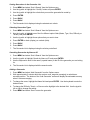
Sorting Geocaches in the Geocache List
1. Press MENU and select ‘Sort & Search’ from the Options menu.
2. Use the joystick to highlight the “Sort By” button and press ENTER.
3. Use the joystick to highlight the criteria that you want the geocache list sorted by.
4. Press ENTER.
5. Press BACK.
6. Press BACK.
7. The Geocache List is displayed using the selected sort criteria.
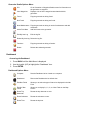
Selecting Geocaches Types
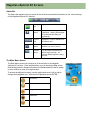
1. Press MENU and select ‘Sort & Search’ from the Options menu.
2. Use the joystick to highlight one of the five different option fields (Status, Type, Size, Difficulty, or
Terrain) and press ENTER.
3. Use the joystick to highlight those options that you want to view.
4. Press ENTER to check (display) or uncheck (hide).
5. Press BACK.
6. Press BACK.
7. The Geocache List is displayed using the criteria you defined.
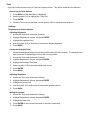
Searching Geocaches by Name or ID
1. Press MENU and select ‘Sort & Search’ from the Options menu.
2. Use the joystick to highlight ‘Search by Name or ID’ and press ENTER.
3. Use the keyboard to enter in the name (or partial name) or the ID of the geocache you are looking
for.
4. The Geocache List is displayed with the search results.
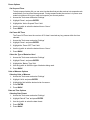
Adding a Geocache
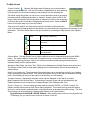
1. Press MENU and select ‘Add Geocache’ from the Options menu.
2. Wait approximately 2 minutes while the receiver uses ‘waypoint averaging’ to calculate an
accurate position. The bottom of the “Add Geocache” screen will display the estimated accuracy
when it is done averaging.
3. To change the name, highlight the Name field and press ENTER. Use the keyboard to enter the
desired name.
4. To change the Difficulty, Terrain, or Size move the highlight to the desired field. Use the joystick
left or right to change the setting.
5. Press MENU and select ‘Save’ to save the geocache.