
1
ENTHUSIASTIC SOFTWARE Software Documentation: Version 1.3 ® CTESTAR User Manual SOFTWARE DOCUMENTATION: VERSION 1.3 REVISION T CTESTAR® User Manual Copyright © 2003-2006, 2008, by Enthusiastic Software All Rights Reserved U.S. Patent Pending. CTESTAR is a registered trademark of Enthusiastic Software 185 E. Main Street • Suite 300 Benton Harbor • MI • 49022 Phone 269.927.8088 • Fax 269.927.1010 E-Mail [email protected] Table of Contents CHAPTE R 1, INTRODU CTION CHAPTE R 4, CREATIN G A NEW CTESTAR® COURSE CTESTAR® for Windows 1 Starting the CTESTAR® for Palm OS 3 Creating a New Course 40 CTESTAR® Data Warehouse 3 Selecting a Course 45 CTESTAR® Certificate and Student Task Achievement Importing from the CTEIS Download 48 Program 38 Reports 3 Manually Adding and Deleting Students 52 Additional Reports 4 Add a New Student 53 Progress Report 4 Deleting an Existing Student 56 Course Task List 4 Importing a Task Assessment by Competency Summary4 Curriculum Cross-Reference with Assessment Curriculum Cross-Walk 5 Documentation 5 CTESTAR® Task List from the Master Task List Database 4 Importing a CTESTAR® 58 Task List from Another Course 62 CHAPTE R 5, EDITING A TASK CHAPTE R 2, SYSTEM REQUIRE MENTS LIST Creating a New Task List 65 Windows Requirements 8 Task List Components 66 Palm Requirements 8 Adding Items to a Task List 67 Adding a New Topic 67 Adding a New Performance Element 69 CHAPTE R 3, INSTALL ATION Adding a New Measurement Criteria 71 Installing CTESTAR® 12 Revising Task List Items 73 Script Based Installation Sequence 13 Revising a Topic 74 Uninstalling CTESTAR® 18 Revising a Performance Element 75 MSI Installation Sequence 21 Revising a Measurement Criterion 75 MSI Error Dialogs 32 Deleting Task List Items 77 MSI Un-Installation Sequence 34 Deleting a Topic or Performance Element and All Contained Items 77 C T E S T A R U S E R M A N U A L Element 79 CHAPTE R 9, ASSES SING STUD ENTS HANDHE LD Changing the Order of Task List Items 81 Launching CTESTAR® 119 Form Components 121 Changing the Order of Performance Elements and Form Title 123 Measurement Criteria within an Item Course Selection Pull-Down 123 Data Area 123 Scroll Button 123 Student/Task Selector 123 Deleting a Measuremet Criterion within a Performance Changing the Order of Topics within the Task List 81 83 CHAPTE R 6, ASSES SING STUD ENTS ON A Assessment Criteria 87 Two Basic Ways to Assess 123 Two Basic Ways to Assess 88 Course Selection 124 Assessing a Task Across Students 88 Assessing a Task Across Students 125 Assessing a Student Across Tasks 94 Assessing a Student Across Tasks 128 Exiting the Program 130 CHAPTE R 7, PRINTING REPOR TS Report Generation 101 CHAPTE R 10, CURRICU LUM Report Review 104 Importing a Curriculum Framework Report Print 105 Cross-Walking a Measurement Criterion 133 Task List Report 107 Cross-Walking a Curriculum Framework Item Progress Report 107 Task Achievement Report 108 Certificate Report 110 Summary Report 110 CHAPTE R 11, CTEST AR ® DATA Curriculum Cross-Walk Report 110 Installing the Data Warehouse 139 Academic Years 142 Export Differences 148 Generate Course Files 152 CHAPTE R 8, SYNCHR ONIZING COURSE CRO SS-WALK 131 135 DATA Verify CTESTAR® Transfer to Your Handheld WAREHO USE Generate Year-End Reports 152 111 Moving Students Between Courses 152 Synchronize Course Data 111 Mid-Year Procedures 152 HotSync Configuration 113 Beginning-of-Year Procedures 152 Synchronize the Files 115 End-of-Year Procedures 152 Desktop Overwrites Handheld 115 Backup Procedures 152 Handheld Overwrite Desktop 116 Do Nothing 116 Synchronization Summary 116 APPENDI X A, SAMPLE REPORT S Course Task List, First Page ii 154 Course Task List, Following Pages 155 Sample Course Progress Report, First Page156 Sample Student Certificate 157 Sample Student Task Achievement Record Report, First Page 158 Sample Student Task Achievement Record Report, Following Pages 159 Sample Summary Report Page 160 Sample Cross-Walk Report 161 APPENDI X INCLUDE D B, TASK Included Task Lists APPENDI X C, MSI INSTALL Properties LISTS 163 PR OPERTIE S 171 iii 1 Chapter Introduction Overview of the CTESTAR® Program T he purpose of the CTESTAR® software application is to generate student certificates, and task achievement reports for students enrolled in any of the various Career Technical Education courses. Additional reports, such as the curriculum cross-walk report, may also be generated. Data entry is accomplished via a Microsoft Windows workstation application, and/or a Palm OS Handheld application. Once entered, this data is archived with the data warehouse application. From the warehouse application, data from prior years may be searched, analyzed, and reprinted. Each application is briefly discussed below. CTESTAR® for Windows The CTESTAR® for Windows application is a 32-bit Microsoft Windows application. This application runs on Microsoft Windows 95, 98, ME, 2000, and XP with a minimum of 64 mb RAM. The application is loaded on the user’s workstation from an install CD, which will also install a database containing the standard task lists for a number of courses, possibly augmented by the Career Technical Education staff of the Intermediate School District (ISD). Once the application and this data have been loaded onto the workstation, a list of students may be loaded from a download supplied on diskette by the CTE staff of the ISD. This data imports the name, identification number, and program entry/exit dates for the student. By selecting from the various courses presented by the software from the data contained in this download, a teacher’s student records are loaded on to the workstation. This saves the teacher from manually entering all the initial students into his/her database. Subsequent enrollment changes, after the initial data load, must be manually entered by the teacher. The teacher is able to select the tasks that are to be assessed for his/her courses from the installed database of task descriptions. If necessary, they may add their own task definitions. Task lists for the sixteen nationally standardized program clusters have 1 C T E S T A R U S E R M A N U A L been included, along with the Michigan Health Care Standards, and the Van Buren ISD standards. The Michigan Curriculum Framework of 1996 has also been included for generating the Curriculum Cross-Walk reports. Once the students have been loaded, and the tasks selected, the teachers may begin assessing students. Options are provided to assess all of the students in a course against a specific task, and a specific student in the course against all of the tasks in the course. The assessment criteria are numbered zero through four. These assessments correspond to the following proficiencies: Assessment Proficiency Level 0 Not Covered 1 Aware of Task 2 Completes with Help 3 Completes without Help 4 Can Demonstrate to Others Additional data to be entered for each student are: the program entry and exit dates, and an assessment of the student’s attendance. The required course data is: pathway, number, name, section, instructor, and host school. An optional facility is also available. By combining the student and course data, the Student Task Achievement Record (STAR) may be printed. Additional reports which may be printed from the workstation include the Task Progress by Class, and Blank Task List reports. An alternate approach to course database initialization is for the CTE administrator or staff to provide each teacher with a diskette containing all of their courses with students already imported, and an initial task list. The data warehouse application can be used to build this diskette. By adding a curriculum framework to a task list, CTESTAR® for Windows may also be used to cross-walk the curriculum against the framework. The user identifies whether each task in the task list applies to the framework element. The Curriculum Cross-Walk report lists the tasks that apply to an individual framework element in task list/framework order. 2 I N T R O D U C T I O N CTESTAR® for Palm OS The purpose of the CTESTAR® for Palm OS application is to facilitate data entry from a portable, easy to use, handheld PDA utilizing Version 4.1 of the Palm OS, and incorporating a minimum of 8 mb RAM. (The Palm m130 and Tungsten E are inexpensive PDA’s that satisfy these requirements.) This application functions in conjunction with CTESTAR® for Windows on the workstation. Once the course, task, and student data have been defined on the workstation, this data may be downloaded to the PDA via the standard Palm OS synchronization utilities. Student assessment data may then be edited on the PDA. As in the workstation application, the teacher may grade all students across an individual task, or an individual student across all tasks. Once data has been edited on the PDA, it may be uploaded to the workstation through the standard Palm OS synchronization utilities. Note that because the CTESTAR® for Palm OS application relies on the standard Palm OS utilities, the Palm OS utilities should be installed on the workstation before CTESTAR® for Palm OS is installed on the workstation. All reports must be printed from the CTESTAR® for Windows or CTESTAR® Data Warehouse applications. CTESTAR® Data Warehouse The CTESTAR® Data Warehouse application archives all student, course, and task list data. Additionally, this application may be used to print CTESTAR® Certificates and CTESTAR® Task Lists. At the beginning of the year, this application may be used to create data diskettes for each teacher. At the end of the year, data from each of the workstation applications will be saved to diskette. This data from these diskettes will then be imported back into the warehouse application. The warehouse application should be installed on a centrally located computer. In the event a student loses their certificate or task list, this application can be used to print a new one. By backing up this application, all data may be archived. The data issearchable by student name. The warehouse application can be used to generate year-end file copies of all reports, however, this functionality is not supported on Microsoft Windows 95, or Microsoft Windows 98. These reports are saved as PDF files which can then be backed up to CD. CTESTAR® Certificate and Student Task Achievement Reports The primary purpose of the CTESTAR® application suite is to produce a record of each individual student’s proficiency in all of the individual tasks covered within the course. These two reports demonstrate this proficiency. The workstation and warehouse applications will print certificates in the format illustrated in Appendix A. The student name, partial id, program entry and exit dates, attendance assessment, 3 C T E S T A R U S E R M A N U A L course pathway, name, instructor, host school, and optionally facility are all printed on the certificate. A separate Student Task Achievement Report is also generated. This report includes the student name, id, program entry and exit dates, attendance assessment, course pathway, name, instructor, host school, and optionally facility. A list of all task descriptions along with the corresponding proficiency will be printed for the student. A legend defining the assessment criteria is printed at the bottom of this report. Both reports are presented in a visually appealing format suitable for presentation, and use in a job interview. Additional Reports In addition to the CTESTAR® Certificate and Task List reports, five additional reports are provided. These are the Progress Report, Course Task List, Task Assessment by Competency Summary, Curriculum Cross-Reference with Assessment, and Curriculum Cross-Walk reports. A brief summary of each follows. Progress Report The Progress Report is a concise summary of task proficiencies for each student in the class. This report may be printed with or without student names. Each student is identified by either student id number, or name, in the first column of a row. Rows of data represent individual student’s task proficiencies. Subsequent columns of data represent all of the proficiencies for an individual task. Additional pages of columnar data, as well as additional pages with rows of student data, are generated as necessary. Individual rows of student data are sorted by the identification field. Appendix A illustrates this report printed with student names. Course Task List The Course Task List report is similar to the Student Task Achievement Report, however, it does not include any student proficiencies or demographic information. A sample of this report is included in Appendix A. Task Assessment by Competency Summary The Task Assessment by Competency Summary report summarizes the number of students attaining each competency level for each individual task in a course. This report is useful in analyzing the curriculum. Appendix A includes a sample page from this report. Curriculum Cross-Reference with Assessment The Curriculum Cross-Reference with Assessment report is generated from the CTESTAR® Data Warehouse application. For each item of the selected task list, all of the courses that include the item are listed, along with the teacher name and a summary of student achievement. 4 I N T R O D U C T I O N Curriculum Cross-Walk The Curriculum Cross-Walk report summarizes the relationship between the task list and the selected curriculum frameworks. The report used to document where each task fits into the framework, and how much of the framework is covered. Documentation Program documentation is supplied in PDF format only, and will be installed along with the application. All procedures, such as beginning of year, end of year, and printing will be documented. Program usage is also documented. 5 2 Chapter System Requirements Insure that CTESTAR® is compatible with your computer and handheld T he CTESTAR® for Windows program has been designed to operate on the following versions of Microsoft Windows, with the indicated upgrade, memory (RAM), and browser requirements. As the following table indicates, Microsoft Windows 95 may need to have two additional components installed, along with a browser upgrade. Microsoft Windows 98 may require only one component upgrade, plus the browser. As these components are required by many newer programs, they may have been already installed on your computer. If they, or later versions, have already been installed on your computer, the CTESTAR® installation program will not re-install them. Installing each of these upgrade components may necessitate rebooting your computer. The warehouse application can be used to generate year end file copies of all reports, however, this functionality is not supported on Microsoft Windows 95, or Microsoft Windows 98. Thus for full support of the warehouse application, avoid these versions of Microsoft Windows. 7 C T E S T A R U S E R M A N U A L Windows Requirements Operating System Installation Requirements RAM Browser Upgrade Microsoft Windows 95 DCOM95 1.3 MDAC 2.5 SP2 64 MB Internet Explorer 5.5 SP1 Microsoft Windows 95 (OSR2) DCOM95 1.3 MDAC 2.5 SP2 64 MB Internet Explorer 5.5 SP1 Microsoft Windows 98 MDAC 2.5 SP2 64 MB Microsoft Windows 98 (SE) MDAC 2.5 SP2 64 MB Microsoft Windows ME - 64 MB Microsoft Windows 2000 - 64 MB Microsoft Windows XP - 128 MB Although the CTESTAR® Installation program will install the DCOM and MDAC upgrades, it will not upgrade your browser. If you are uncertain of this task, consult your system administrator. Palm Requirements The CTESTAR® for Palm OS requires a Palm handheld device with at least version 4.1 of the Palm OS, with a minimum of 8 mega-bytes of memory. The current version has been tested extensively on the Palm m130 which meets these requirements. Version 4.0.1 or later of the Palm Desktop software, (supplied with the m130,) is also required. If you plan to use CTESTAR® for Palm OS, install the Palm Desktop software, and insure that your Palm device hotsync’s correctly before installing CTESTAR®. Although CTESTAR® for Palm OS may work earlier Palm devices, this configuration is not officially supported. If you are trying to use a different Palm device, the Palm Desktop software must be upgraded to at least version 4.0.1 for the synchronization and installation software to work correctly. All current Palm devices ship with this version, or a later version, of the Palm Desktop software. 8 9 3 Chapter Installation Installing and Uninstalling the CTESTAR® Program W hen the installation CD is inserted into your CD drive, the following screen should appear. If it does not, AutoRun has probably been disabled on your drive. If this is the case, or if the screen does not appear, browse to the drive, and execute the BROWSE program. If you can not browse to the CD, or the BROWSE program does not appear, check to insure that you have correctly inserted the CD into your drive. (Depending upon the configuration of your computer, the program name may appear as BROWSE.EXE.) When the BROWSE program is executed, the following screen will appear. 11 C T E S T A R U S E R M A N U A L Figure 1 Installing CTESTAR® From this screen, a number of tasks may be performed. To install any of the CTESTAR® applications, click the Install CTESTAR® button. The Browse CD Contents button brings up an explorer view of the CD contents. This allows you to see what files are actually included on the CD. (Additional documentation for each of the sixteen national career clusters is also included on the CD.) The View Presentation button launches a presentation on CTESTAR®. The View Documentation button will display the program manual (this document), however, the Adobe Acrobat Reader must be installed before the file can be viewed. If your computer does not already have the Adobe Acrobat Reader installed, the Install Acrobat Reader button can be used to install the reader. The Contact Us button will display contact information for Enthusiastic Software, the organization which created the CTESTAR® program. Lastly, the Exit button may be used to exit the BROWSE program. Once the Install CTESTAR® button is clicked, one of two install programs is run. If the screen looks like Figure 2, follow the Script Based Installation Sequence instructions, otherwise, follow the MSI Installation Sequence instructions found later in the chapter. 12 Script Based Installation Sequence Once the Install CTESTAR® button has been clicked, the Setup program searches your hard drive for any previously installed program components, and insures that all required updates to Microsoft Windows have been installed. Depending on the size of your hard drive, it may take a few minutes for this search to complete. (If your computer has network drives mapped, searching your entire network can consume considerable time. If this is the case, be patient, the search will eventually complete.) While searching, a small dialog is displayed. Once this search is complete, if Setup determines that your version of Windows must be updated, the required updates are installed. (Refer to the prior chapter, System Requirements to determine the updates which will be installed.) Installation of these updates may reboot your computer a number of times. Follow the directions carefully. After all of these updates have been installed, the following dialog is displayed. The purpose of this dialog is to confirm that you want to install any of the CTESTAR® program components. To continue with the installation of any of the CTESTAR® applications, click the Next button. Figure 2 After clicking the Next button in the prior dialog box, the following Destination Location dialog should appear (Figure 3). This dialog indicates the folder where the CTESTAR® application components will be installed, and presents an option to 13 C T E S T A R U S E R M A N U A L change this location. If previously installed components were found in the prior search of your system, the program will default to the folder where they were found. If these components were not found, the program will default to the \Program Files\ESX\CTESTAR folder on your system drive. Unless your system administrator directs otherwise, accept the default destination folder, and click the Next button. Figure 3 Once the Destination Location dialog has been dismissed, the following Select Components dialog (Figure 4) will be displayed. This dialog allows you to select which components of the CTESTAR® application suite are installed. “Checked” components will be installed. Note that before installing the CTESTAR® for Palm OS application, the Palm Desktop software must have been installed on your computer. Failure to install the Palm Desktop before installing the CTESTAR® for Palm OS component will result in a failed installation of the Palm OS components of CTESTAR®, and will necessitate a reinstallation of this component. If the Palm Desktop software has not been installed, exit the installation immediately by clicking the Cancel button, install the required Palm software, and restart the CTESTAR® installation. Unless you know that your computer already has version 9 or later of Crystal Reports installed, or your system administrator directs otherwise, you should install the Crystal Reports Runtime components. The Crystal Reports Runtime components are required to 14 generate and view all CTESTAR® reports. To access any of the standard task lists included with the software, the Task Lists component must be installed. (Note that both of these are enabled by default.) Once you are confident of your selections, and that sufficient disk space is available in the destination folder, click the Next button to proceed to the Start Installation dialog (Figure 5). NOTE: The CTESTAR® Data Warehouse component should be installed only on a single central computer and not on individual teacher workstations. Figure 4 As a final check before the installation begins, the Start Installation dialog will again prompt you. This is your last chance to confirm that you want to install the selected CTESTAR® components into the selected destination location. If you want to review these selections, you may click the Back button to return to prior installation dialogs. When you are sure of your decision, click the Next button and the installation will begin. 15 C T E S T A R U S E R M A N U A L Figure 5 When the installation process begins, the following Installing dialog will appear (Figure 6). As the installation proceeds, the progress bars should both fill. If the installation program encounters any problems, an error dialog will be displayed. The installation of some components may necessitate rebooting your computer. Such component installations will precede the CTESTAR® components installation. 16 Figure 6 If you have elected to install the CTESTAR® for Palm OS application component, additional Palm dialogs may appear asking you to select a Palm user (Figure 7). This determines which Palm user configuration the Palm OS components are installed for. When the selected user is next HotSync’d, the CTESTAR® for Palm OS application will be downloaded to your Palm OS handheld computer. Once the application has been downloaded, subsequent HotSync’s will download any created course data to the handheld. Two HotSync’s are required before a full configuration will be downloaded to the handheld. Figure 7 17 C T E S T A R U S E R M A N U A L The following dialog confirms that the CTESTAR® application has been successfully installed (Figure 8). To exit the installation, and return to the BROWSE program on the installation CD, click the Finish button. Once you have returned to the BROWSE program, click the Exit button and totally exit the installation program. Assuming that you installed the CTESTAR® for Windows program, you may execute it from the Start Menu, or from an icon installed on your desktop. Look for the “yellow star” labeled “Shortcut to CTESTAR.EXE” (Figure 39) on your desktop. Figure 8 Uninstalling CTESTAR® If you should need to uninstall CTESTAR®, click on the Windows Add/Remove Programs icon. This icon is found in the Control Panel. If you have trouble finding the Control Panel, consult your Windows documentation. (Windows XP labels this icon Add or Remove Programs.) Once you have double clicked the Add/Remove Programs icon, a dialog similar to the following will be displayed (Figure 9). Highlight CTESTAR as shown, and click the Change/Remove button. 18 Figure 9 Clicking the Change/Remove button launches the CTESTAR® un-installation program. The following Select Uninstall Method dialog is displayed (Figure 10). Select the Automatic option, then click the Next button. 19 C T E S T A R U S E R M A N U A L Figure 10 Once the uninstall method has been selected, the Perform Uninstall dialog is displayed (Figure 11). This is your last opportunity to confirm your intent. Clicking the Finish button will immediately begin to uninstall all CTESTAR® components. Course data which you have created will not be uninstalled, however, you will not be able to access the files without the CTESTAR® program. If you need to transfer your data to diskette, do this before uninstalling CTESTAR®. 20 Figure 11 After clicking the Finish button, the uninstall program displays a progress dialog which disappears once the uninstall program has finished. You will be notified of any uninstallation problems during this phase of the un-installation. MSI Installation Sequence The following screens illustrate the install sequence with the MSI install package. When you first start the install sequence, the following screen is displayed (Figure 12). Figure 12 21 C T E S T A R U S E R M A N U A L If all proceeds without error, the following screen will automatically be displayed (Figure 13). Figure 13 Finally, the following screen should automatically be displayed (Figure 14). These screens all appear automatically without user intervention. 22 Figure 14 At this point, click the Next> button to proceed with the installation. If you started the installation by mistake, click the Cancel button. When you click the Next button, the following screen will appear (Figure 15). Figure 15 23 C T E S T A R U S E R M A N U A L At this point enter the user’s full name, and the organization name. Usually these will default to appropriate values. Then, select the users that you intend to install this application for. If you select Anyone who uses this computer, the advertising features of MSI will allow other users that use the workstation to automatically access the software when they log in to this workstation. If you only want the current user to use the software, select the Only for me option. Click the Next> button, and the following screen will appear (Figure 16). Figure 16 Unless there is some conflict with the default sub-directory, accept it and click the Next> button. If you click the Next> button, the screen in Figure 18 will appear. If you click the Browse button, the following screen (Figure 17) will appear. 24 Figure 17 If you clicked the Browse button on the screen in Figure 16, the prior screen (Figure 17) appeared. Browse to and/or create the appropriate directory. When you click the OK button, the following screen will appear (Figure 18). Figure 18 The installed components for each type of install are defined in the following table. The custom installation supports user selection of individual components. 25 C T E S T A R U S E R M A N U A L Component Typical Complete Custom CTESTAR® for Windows Yes Yes Selection Crystal Reports Runtime Yes Yes Selection Task Lists Yes Yes Selection CTESTAR® for Palm OS Yes Yes Selection CTESTAR® Data Warehouse Yes Selection Demo Data Yes Selection Note that if CTESTAR® for Palm OS is to be installed, the Palm HotSync application must have been previously installed, and the user should have already HotSync’d at least once. If this has not been done, the installation will fail and the rollback will be executed. You will then need to repeat the installation. The ESXINSTPALMAPP property determines whether the Palm files will be configured. By setting it to zero, the Palm files will be installed, however, their configuration will not be executed and the install will succeed. This is useful if you want to install the files on a server which does not have the Palm software installed, however, before any workstation can use these files, it must register them with the Palm HotSync Manager. Installation without configuration can be executed via the following command line: msiexec /i d:\CTESTARDemo.msi ESXINSTPALMAPP=0 Replace the path to the MSI file with the path appropriate for your environment. Palm configuration to register the conduit, notifier, and set the application for download can then be accomplished with the following command: \Program Files\ESX\CTESTAR\Palm\IPA -Install Where necessary, substitute the appropriate path to the Palm sub-directory. If you select the Typical or Complete installation type, the program will proceed to the screen in Figure 22. If you select the Custom installation type, the following dialog will be presented (Figure 19). 26 Figure 19 Once the prior dialog appears (Figure 19), click the ‘+’ (plus sign) next to Complete to expand the feature set. Click on the appropriate item and select from the pull down box to select/deselect any necessary items. Items displayed with a red ‘X’ will not be installed. Avoid the Feature will be installed when required option. The following screen (Figure 20) depicts the configuration of the Demo Data feature. 27 C T E S T A R U S E R M A N U A L Figure 20 The following screen (Figure 21) depicts an installation where the all of the CTESTAR® features except the Data Warehouse and the Demo Data will be installed. It should be noted that this is equivalent to the Typical installation. Figure 21 28 After selecting the features, click the Next> button, and the following screen will be displayed (Figure 22). This is your last chance to correct any configuration parameters before beginning the installation. To go back and fix any configuration problems, click the <Back button. To proceed, click the Next> button. Figure 22 When you click the Next> button in the screen of Figure 22, the installation will begin and a sequence of dialogs will be presented. The next (Figure 23) illustrates the file copy process. 29 C T E S T A R U S E R M A N U A L Figure 23 The next screen (Figure 24) will be presented if you have chosen to install the Palm OS components. Any Palm configuration problems will show up here. If you have not selected the Palm OS feature, the next screen will be that of Figure 26. Figure 24 30 If more than one Palm HotSync user is configured, the following dialog (Figure 25) will be presented. Select the user that the CTESTAR® for Palm OS feature should be installed for, and click OK. If only one Palm HotSync user is configured, the program will proceed directly to the screen of Figure 26. Figure 25 Once the correct Palm OS HotSync user has been selected, and you click the OK button, the following dialog (Figure 26) will appear. Figure 26 The prior screen (Figure 26) indicates that the installation has been completed successfully. 31 C T E S T A R U S E R M A N U A L MSI Error Dialogs If the installation process encounters an error, a sequence of dialogs will be presented. This particular sequence indicates what happens when the CTESTAR® for Palm OS feature is installed, but the Palm HotSync Manager software has not been previously installed. The following dialog (Figure 27) will appear after the dialog in the prior Figure 24. Figure 27 Once the dialog of Figure 27 is acknowledged via clicking the OK button, the MSI installer will present the following dialog (Figure 28). Figure 28 Once the dialog of Figure 28 is acknowledged via clicking it’s OK button, the following dialog (Figure 29) will appear, and the rollback will begin. The rollback will undo everything that the installation has done up to this point. 32 Figure 29 When the rollback completes, the following dialog (Figure 30) will be displayed. Figure 30 Clicking the OK button in this final dialog (Figure 30) will complete the rollback and the failed installation. At this point correct the problem that generated the error, and repeat the installation. When installing on Microsoft Windows 95, or Windows 98, you may see one of the following error dialogs: Figure 31, Figure 32, or Figure 33. If so, click the Ignore button. CTESTAR® should still function properly. 33 C T E S T A R U S E R M A N U A L Figure 31 Figure 32 Figure 33 MSI Un-Installation Sequence The easiest way to begin the un-installation sequence is from the Add/Remove Programs dialog illustrated below (Figure 34). 34 Figure 34 After clicking the Remove button, the following dialog appears (Figure 37). Figure 35 Once you affirm that you want to remove CTESTAR® from your computer by clicking the Yes button, the following dialog appears (Figure 36). Figure 36 The following dialog (Figure 37) will appear automatically as the MSI installation package determines which files, registry entries, and programs to remove. 35 C T E S T A R U S E R M A N U A L Figure 37 As the actual application components are removed, the following dialog will be displayed (Figure 38). Figure 38 When the last dialog (Figure 38) disappears, the un-installation is complete. 36 C R E A T I N G A 4 Chapter N E W C O U R S E Creating a New Course Creating a new course database within CTESTAR® for Windows or Importing a supplied course file T he steps required for you to create a new course file depend on the files which have been provided to you. You may be provided a CTEIS download file, CTESTAR® course files, or possibly, no files. Each of these possibilities will be discussed below. If you have been provided with a CTEIS download file, you must create course databases corresponding to each of your courses. After creating these course databases, you must import the students into each course. The students are imported from the CTEIS download. After importing the students, you can then import and edit the task list for each course. If you are provided with CTESTAR® course files, you need to import the CTESTAR® course onto your workstation. Some staff member has already taken the time to create the database, and add the students to it. You may still need to import and edit the task list for each course, however, you will not need to import the students from the CTEIS download file. As a last resort, you may have been provided with no files. In this case, you must create the course databases, and manually add the students to the courses, before you import and edit the task list for each course. Alternatively, the data may have been loaded on to your workstation already. If the data has already been loaded, you can proceed to editing your task list. Ideally, your support staff will tell you which data they have provided. If not, you must examine the media they have provided. If you have been provided with a CTEIS download, your media will include a file named CTEIS.TXT. This file will contain all of your students for all of your courses. To use this file, you must import the data for a specific course number. If you do not see this file, look for files with the .CTE file name extension. These are CTESTAR® course databases. If these files have been 37 C T E S T A R U S E R M A N U A L provided to you, one should have been provided for each of your courses. These files can be imported to your workstation. If the files supplied to you are neither of these two options, and no files have been already supplied on your workstation, contact your support staff. If you teach multiple sections of the same course, ie. more than one class with the same task list, the best strategy is to create a file for one of the courses. Once you have finalized this course’s task list through importing, adding, and deleting, you can then import the task list to each of the other courses that use the same task list. After you have begun to assess students within these courses, this strategy is not viable. Once you have begun to assess students, you will need to make any Important subsequent task list changes to each of the courses affected individually. Therefore, it is important that you finalize your task list before you begin to assess your students. Teachers that teach different sections of a common course should create a common task list to share among themselves exporting it to/from diskette. Students that need to be transferred to another course section can only be done so if the course task lists are identical. This is why teachers should share a common task list.  Starting the CTESTAR® Program When the CTESTAR® program was installed on your computer, a desktop short-cut was created. This shortcut should appear as follows: Figure 39 To start CTESTAR®, just double-click this icon. Alternatively, if you have deleted this icon, you may start the program from the start menu as illustrated below: 38 C R E A T I N G A N E W C O U R S E Figure 40 Once you have started CTESTAR®, the following screen should appear. Figure 41 This screen shows that no courses are selected, and that none have been created. 39 C T E S T A R U S E R M A N U A L Creating a New Course To create a new course, confirm that you have started CTESTAR®. The previously illustrated screen should appear (Figure 41). If you have already created or imported some courses, they will appear. Otherwise, the screen should appear exactly as previously shown. The left hand pane contains a “tree-view”. Anytime you see a small “+” (plus) next to an item, clicking the plus will reveal more items nested beneath the plus. Similarly clicking a “-” (minus) will collapse the items contained within the item. Items may also be nested. When you expand one item, it may reveal additional items that can be expanded. This is like an outline where you can control the expansion of individual items. All of the items contained within an item are connected via lines. Think of these as branches. The items revealed are leaves. Every time that you click a plus, you reveal more branches and leaves. When you click a minus, you conceal the leaves and branches, but they are still there. By clicking the pluses and minuses, you can control how much information is displayed in the tree view. To create a new course, click the New Course … item within the Course List. If the course list is not expanded, you must first click the plus next to it to reveal the New Course … item as shown above. When you click the New Course … item, the following screen will appear: Figure 42 40 C R E A T I N G A N E W C O U R S E From this illustration (Figure 42), you can see that the New Course … item remains high-lighted in the selection tree-view on the left of the screen, and a data entry screen appears on the right side of the screen. In general, all data entry in CTESTAR® is done in this right-hand window. To create a new course once the data entry screen has been displayed, enter all of the course data and click the Add New Course button. The most important field is the course number. This must be the unique number that is assigned to your course. The length of this field has been tailored to match the numbers used in your district. You should also select one of six pathways from the pull-down list. To view these pathways, click the downward facing triangle at the end of the pathway field. The following illustration (Figure 43) depicts part of the pathway list after this triangle has been clicked with the mouse. Figure 43 Once you have selected one of the pathways, by sliding the mouse cursor over it, and clicking with the left mouse button, proceed to enter the rest of the data. The following screen illustrates the data entered for a fictional welding course. Note that the facility field is optional. If the facility is identical to the host school, leave the facility field empty. 41 C T E S T A R U S E R M A N U A L Figure 44 Double check the data that you have entered—especially the course number. Most of this data will appear on the Student Achievement Certificate, so check your spelling and punctuation carefully. Once you are satisfied that all of this information is correct, click the Add New Course button, and the new course will be created. The following screen should appear (Figure 45). 42 C R E A T I N G A N E W C O U R S E Figure 45 Note in the above dialog (Figure 45), that the new course has been created, and is displayed in the left-hand tree-view. Of the data entry fields, only the course number has been cleared. This makes it easy to create sub-sequent sections of the same course by simply entering a new course number, possibly editing the section field, and clicking the Add New Course button again. In this case, a second section of the same course will be created with course number 12346. After doing so, the screen appears as follows (Figure 46): 43 C T E S T A R U S E R M A N U A L Figure 46 The preceding process can be repeated as often as is necessary to create all of the required course files. If you specify a bad course number, a dialog such as the following may appear: Figure 47 If such a dialog appears, click the OK button, correct the course number, and click the Add New Course button again. In this case, the error message has been displayed because the course number is only four digits long, and this district requires five-digit course numbers. Remember, the length of the course number depends on your district, and should be consistent with other reports and programs you may use. 44 C R E A T I N G A N E W C O U R S E Selecting a Course Selecting a course is necessary before editing, importing, viewing, or printing any course specific data. To select a course, first insure that you have started CTESTAR®. If you have difficulty starting CTESTAR®, refer to the preceding section, Starting CTESTAR®. When you initially start CTESTAR®, and have courses available for selection, the screen will appear as follows (Figure 48). (Note, your screen will reflect the actual courses that you have imported or created, not these fictional ones.) Figure 48 This screen reflects the two courses that were created in the prior section. Initially the Course List item is highlighted. To select one of your available courses, single click the course name/description with the left mouse button. When you do this, the course name/description will be highlighted, and the title bar will be changed to reflect the name/description of the selected course. The following screen illustrates the CTESTAR® program after course Welding 1, Block 1 – 12345 has been selected. Observe how the title bar changes to indicate which course is selected. 45 C T E S T A R U S E R M A N U A L Figure 49 Most of the data on the right hand data entry pane of the dialog box should appear familiar. It is the data that was entered when the course was created. To change any of these fields, simply click in the field with the left mouse button, and use the Insert, Delete, Backspace, Left-Arrow, and Right-Arrow keys to edit the data. The additional field displayed on this screen is the file name where the course data is stored. This field can not be edited, and is automatically generated based upon the course number. If you change the course number, this file name will be automatically changed, however, the new number must be a legal number that is not already in use. (If you need to swap the numbers of two files, one of them must be changed to a distinct intermediate third temporary value first.) When a course is selected, three additional sub-categories are displayed: Tasks List Topics, Students, and Curriculum Frameworks. By clicking on the plus next to any of these headings, sub-headings are revealed. The following screen (Figure 50) illustrates the expansion of the Students heading. As no students have been added to this class yet, only the New Student … sub-heading is available. 46 C R E A T I N G A N E W C O U R S E Figure 50 To select a different course, simply click on the course name in the left-hand tree-view window. You may need to scroll the tree-view if the desired course is out of view. Use the vertical scroll bars to make the course visible. If the tree-view is to narrow to display all of the required information, a horizontal scroll bar will also be available. The following screen (Figure 51) illustrates a more complex configuration with a vertical scroll bar. 47 C T E S T A R U S E R M A N U A L Figure 51 Importing from the CTEIS Download To import a list of students into a course, you must first start the CTESTAR® program, and select a course. If you have difficulty launching CTESTAR®, refer to the prior section, Starting CTESTAR®. To create and select a course, refer to the prior sections Creating a New Course, and Selecting a Course. CTESTAR® will only import students into the currently selected course. Furthermore, the course number/name must also be selected in the left-hand tree-view window. After you have selected a course, execute the Import CTEIS Students command from the Import sub-menu of the main File menu. The following screen (Figure 52) illustrates the path to this menu command. 48 C R E A T I N G A N E W C O U R S E Figure 52 If you have not selected a course and highlighted the course number/name in the treeview, this command will not be available. You must select the course first. When you select this menu option, the following dialog will appear (Figure 54). 49 C T E S T A R U S E R M A N U A L Figure 53 From this dialog, click the Browse … button to select the CTEIS download file. When you click the Browse … button, a dialog similar to the following appears. Figure 54 50 C R E A T I N G A N E W C O U R S E From this window, browse to your CTEIS.TXT file. If the file was supplied on diskette, and you have inserted the diskette into drive A:, browse and select the file as shown in the following screen (Figure 55). Figure 55 After you have browsed to and selected the file, click the Open button. When you click the Open button, CTESTAR® scans the file and builds a list of course names and numbers from the file. If there are any problems with the file, you will be notified at this point. If CTESTAR® notifies you of errors while reading your download file, contact your system administrator. When the CTESTAR® program has completely scanned the file, the import dialog will be updated to reflect the location of the download file, and the courses found therein. Select the correct course from the course drop down list. The results for this example course are shown below (Figure 56). 51 C T E S T A R U S E R M A N U A L Figure 56 To begin importing students from the selected course, click the Import button. When the program has completed importing the students for the selected download course into the currently selected CTESTAR® course, the Import ISD Student File dialog will disappear. To review the students, click the plus next to Students in the selection treeview. The students should be listed in alphabetic order. It is important to note that when students are imported, they are added to the students in the course. If you have made a mistake and imported the wrong students, you will either need to delete the incorrect students one by one, delete the entire course and start again, or click the Undo button. It is also important to remember that each student must be assigned a unique student id number. When importing students, if a student with the same number already exists in the course, the new student will be ignored. When a student is ignored for this reason, a dialog will be displayed notifying you of the duplicate student number. If this occurs, dismiss the dialog, and contact your system administrator to determine why you have duplicate student id numbers in your data. Manually Adding and Deleting Students Throughout the year, it may be necessary to manually add or delete students to or from a course. Your data download may only be available at the beginning of the year. If a student transfers into your course mid-year, you will need to manually add the student. If a student transfers out of your course, you may want to delete the student. 52 C R E A T I N G A N E W C O U R S E If you delete a student, insure that you print any required reports first. After a student has been deleted, their assessment data is no longer available. Alternatively, you may move a student to a different course, as long as both the original and the new courses have identical task lists. Add a New Student To manually add a student, insure that you have selected the course to which the student will be added. Expand the Students heading in the selection tree-view. After expanding the Students heading, a New Student … item should be revealed. If you already have students in the course, you may need to vertically scroll the tree-view to select it. The New Student … item will always appear at the end of the list of existing students. Single click the New Student … heading with the left mouse button. The following screen should appear (Figure 57). Figure 57 In the right-hand data entry window, enter the data for the new student. Note that each student must have a unique id number. The length of the Id has been tailored to your district, and should match other reports and programs that you use. The name should be entered in a specific format. The format is last name, followed by a comma, then a space, followed by the first name. If a middle initial is available, follow the pattern shown below. If there are any name suffixes, such as “Jr.”, add another comma to the end of the first name, add a space, and then add the suffix. The following table illustrates the correct way to enter a few sample names. 53 C T E S T A R U S E R M A N U A L Name Correct Entry into CTESTAR® John Smith Smith, John John Q. Smith Smith, John Q. John Smith Jr. Smith, John, Jr. John Q. Smith Jr. Smith, John Q., Jr. The Id field should contain the student id number assigned by your ISD or district. A unique number must be entered. If you attempt to add a student with an id equal to that of a student already in the course, CTESTAR® will inform you of the duplicate id. To add such a student, you must edit the id until it is unique. The Entry and Exit fields denote the program entry and exit dates. As these dates will print on the certificate, be sure to enter the correct dates. The format is the traditional month/day/year format common in North America. CTESTAR® will prevent you from entering illegal dates. To move between the date components, use either the tab key, or the mouse. To use the mouse, left click in the field that you wish to modify. The Attendance field is used to assess each student’s attendance. The options are excellent, good, fair, and poor. You should enter a value based upon your school district’s attendance policies. You may choose to leave this value at the default NonAssessed value until the end of the school year. Viewing the Non-Assessed value will remind you that you need to review the student’s attendance, and enter the appropriate value before printing any reports. In any case, this field will print on the student’s certificate and Student Task Achievement Report, so you should enter a value before the certificate and student task achievement reports are printed. A sample record, ready to be added, is shown below (Figure 58). This entry assumes that the attendance field will be edited later. The Comment field is for entry of comments unique to each individual student. This field is not printed on any of the reports, and can be used for any purpose, such as storing an alternative college student id, if your courses are taught in conjunction with a local college. If you have no data to enter in to the Comment field, leave it blank. 54 C R E A T I N G A N E W C O U R S E Figure 58 To add the student to the course, click the Add New Student button. The student list will immediately update to include the new student. The list is resorted automatically, as is shown in the following screen (Figure 59). The student named John Smith has been added between the students Gary D. Schermer and Russ L. Summers. 55 C T E S T A R U S E R M A N U A L Figure 59 After adding the student, the name and id are erased. When entering a list of students, the last Entry and Exit dates are preserved. This minimizes the data entry burden when you add a number of students which all share the same entry and exit dates. When you add a new student to a course already containing tasks, the new student’s assessments for all of the tasks are initialized to zero (Not Covered). Deleting an Existing Student To delete a student, click on the student name in the left-hand selection tree-view. When you select a student, the right-hand data entry pane will show either the student’s assessment data, or their demographic data (name, id, entry date, exit date, attendance, and comment). To toggle between the two views, click the tabs at the top of the data entry screen. When the Edit Student tab is selected, the Delete button (fourth from the left) is enabled. To delete a student, insure that the Edit Student tab has been clicked so that the demographic data is displayed, and click the Delete button. When a student is deleted, all of their assessment and demographic data is irretrievably lost. If you delete the wrong student, you may immediately “undo” the operation, however, once a different course has been selected, the operation cannot be undone. The following screen (Figure 60) shows a student selected, along with their assessment data. In this case, no task items have actually been assessed—they are all zero. The Delete button is not enabled. 56 C R E A T I N G A N E W C O U R S E Figure 60 The following screen (Figure 61) shows a student ready for deletion. Note that the Edit Student tab has been selected, and the Delete button is enabled. 57 C T E S T A R U S E R M A N U A L Figure 61 When the student is deleted, the tree-view in the left-hand window collapses removing the student name from the list and all assessment data from the database. If you accidentally delete the wrong student, click the Undo button to restore the student along with their assessments. (Once the course has been closed, the ability to “undo” the deletion is gone, so you must “undo” the deletion before you select a different course or close the program.) Importing a CTESTAR® Task List from the Master Task List Database As when importing from the CTEIS download, the first steps are to start CTESTAR®, and select the correct course. If you teach more than one section of the same course, the best strategy is to select one course. Import the task list into that course. Perform any task list edits that may be required. Once you are satisfied that the task list is accurate, it should then be imported into all of the other course sections. Updating the data in this way will minimize the effort required to edit the data. If you and another teacher teach the same course, you may want to share your task list once you have verified its accuracy. Remember, to promote students between two courses and preserve the student’s assessment data, the courses must share the same task list 58 C R E A T I N G A N E W C O U R S E To import from the master task list database, once you have selected the course, execute the Tasks from Task List menu command found on the Import sub-menu of the File menu command. The following screen (Figure 62) illustrates the path to this command. Figure 62 When you execute this command, a dialog similar to the following (Figure 63) is displayed. 59 C T E S T A R U S E R M A N U A L Figure 63 The Select Task List to Import dialog defaults to the Task List database folder. Within this folder are a number of sub-folders representing the National Career Cluster task lists, as well as optional additional task lists. The sixteen national cluster task lists are organized by cluster in separate folders for each cluster. The Michigan Health Sciences tasks are in their own folder, as are any additional task lists. The “16 Clusters Combined” folder contains a second copy of all of the national task lists combined into a single folder. (This makes it easier to review the available national task lists.) Double click a folder, such as “Michigan Health Sciences State Certificates” and you are presented with a dialog like the following (Figure 64). 60 C R E A T I N G A N E W C O U R S E Figure 64 Select the task list that you want to import by browsing to it. When you select it, the file name will then appear in the File name field. Click the Open button, and the task list will be imported. Click the Cancel button if you decide that you do not want to import a new task list. If you have not installed the task list database, or if you have not selected a course, this command will not be available. If you import the wrong task list, click the Undo button before switching to a different course or closing the program. You may import tasks from more than one list into a course, however, you are responsible for deleting any duplicates and sorting the tasks into a meaningful order. When you import a new task list, the imported tasks are added to those already in the course database. The new tasks are added at the end of the list. To re-order the tasks, see the following section entitled Manually Adding, Deleting, and Sorting Tasks. To view the tasks that you have just imported, click the plus next to Task List Topics in the lefthand tree-view. The tree-view will then display all of the task Topics. To view the Performance Elements within a topic, click the plus next to the desired topic. To view the Measurement Criteria within a Performance Element, expand the Performance Element similarly. The following screen (Figure 65) illustrates the display of the tasks imported into the example course after the Tasks List Topics heading, “ARC WELDING PRINCIPLES” Topic, and “Shielded Metal Arc Welding” Performance Element have been expanded. 61 C T E S T A R U S E R M A N U A L Figure 65 To view the contents of more items, expand them by clicking the plus signs next to them. More than one item may be expanded at the same time, however, as more headings are expanded, it may be necessary to scroll the tree-view to view their contents. To collapse a previously expanded topic or performance element, click the minus next to the item. Importing a CTESTAR® Task List from Another Course As when importing any of the other databases, the first steps to importing a task list from another course are to start the CTESTAR® program, and select the course that you want to import the tasks into. This is considered the “destination” course. You will then use the Tasks from Course option of the Import sub-menu of the File menu command to import the task list. The following screen (Figure 66) illustrates the path to this menu command. 62 C R E A T I N G A N E W C O U R S E Figure 66 If you have not selected a course, this command will not be available. Note that in the example, sample course 12346 has been selected. It is the “destination” course. To demonstrate this command, the task list from course 12345 will be imported. It is the “source” course. When you select this menu option, the following dialog (Figure 67) will appear. 63 C T E S T A R U S E R M A N U A L Figure 67 When the Select an Existing Course dialog appears, select the appropriate “source” course (the course that you want to copy the tasks from) in the Course field of this dialog. Click the Import Task List button to import the tasks. In the example illustrated above the “source” course is course 12345. The “destination” course, as seen in the title bar, is course 12346. When you import the task list from another course, all of the tasks from the “source” course are added to those in the “destination” course. If you have already added students to the “destination” course, their assessments for the newly imported tasks will be initialized to zero (Not Covered). Student assessments in the “source” course are ignored. As has been previously discussed, you may find it useful to import the task list from another course when you teach more than one course that shares the same task list. Once you have edited the task list to suit the first course, you can then use it as the “source” course, and import it into the second “destination” course, and any other courses that also use it. In this way, you only need to edit the task list once. Students may only be moved between courses with identical task lists. 64 5 Chapter Editing a Task List Editing an existing task list, or creating a new task list A fter you have imported the tasks from the master task list database, it may be necessary to manually edit the task list. If you teach additional topics that should be listed on the Student Task Achievement Report, you can add topics, performance elements, or measurement criteria to the task list. If the item to be added fits within one of the topics or performance elements already available, you may directly add it to that item. If not, you can create a new topic and/or performance element, and then add your measurement criterion within the new performance element. If the task list was designed for a course that covers more material than yours does, you may want to delete some of the measurement criteria. You may even want to delete an entire topic or performance element—along with all of the items that are contained within it. You may also need to revise the wording of an existing topic, performance element, or measurement criteria. After revising your task list, you may also choose to change the order of the items within the list. This chapter explains how to add, delete, revise, and sort, all of the elements of a task list. Creating a New Task List Usually, one of the task lists included in the task list database is a suitable starting point for a new course. In such a case, you can import the task list as explained in the prior chapter, Creating a New Course, and then revise it. In the event that no suitable starting point is found, you can create an entirely new task list. This process is similar to revising a task list, with the exception that all items must be initially added. You must first create and select the course that the task list is for. You can then skip the task list import steps. You then add topics, performance elements, and measurement criteria as detailed below. All of the commands work identically. The only difference from the examples is that the initial task list will be empty. 65 C T E S T A R U S E R M A N U A L Task List Components A task list is composed of three types of items: Topics, Performance Elements, and Measurement Criteria. This terminology has been adopted from the National Career Cluster standards and benchmarks published at http://www.careerclusters.org. Topic. A Topic is the most general heading category within a task list. Topics are not assessable. Example topics include: Academic Foundations, Communications, and Safety. Many of the topics in the National Career Cluster task lists are common to all task lists. A topic may only contain performance elements. Performance Element. A Performance Element is an organizational heading within a topic. Performance Elements may only be contained by topics. The performance elements within a topic will generally be tailored to the pathway and/or cluster. They are more specific than the topics, and consequently are not broad across all clusters. Performance elements may only contain measurement criteria. For a task list to be aligned with the national standards, it generally must contain all of the topics and performance elements of the national standards, although, the measurement criteria may vary. Measurement Criterion. A Measurement Criterion is an item to be assessed. Measurement Criteria may only be contained by performance elements. The measurement criteria for a pathway or cluster are generally specific to that subject area. Often there are many different ways to measure a student’s proficiency within a performance element. The measurement criteria are the criteria that are actually used. CTESTAR® organizes these task list elements like an outline. Topics are the top level of the outline. Within topics are contained performance elements, and within performance elements are contained measurement criteria. If your task list does not have all three of these elements, you must insert placeholders. CTESTAR® requires all three components in every task list. The outline of these task list items is displayed as a Microsoft Windows “tree-view”. The following screens depict this tree-view. Whenever you see an element with a plus sign (“+”) next to its description, you may click the plus with the mouse to reveal additional contained items. To help you keep the items organized in your mind, lines are used to connect the items in the list to those items that contain them. You can browse the outline expanding items as you go. If an item contains many items, you may need to scroll vertically to see them all. When all of the items within an item are displayed, a minus sign (“-“) is displayed next to the name. To collapse the outline, concealing the items beneath such a heading, click the minus. The minus will change to a plus, and the headings will be hidden. Although hidden, the items are still present. Clicking the plus again will reveal them. Hiding the contents of other items permits you to focus on the items you need to edit or assess. 66 E D I T I N G A T A S K L I S T Adding Items to a Task List Adding a New Topic To add a new topic to an existing course, first select the course. Then expand the Tasks List Topics heading immediately beneath the course name. If necessary, scroll the treeview vertically to expose the New Topic … item. When you click the New Topic … item, the following screen (Figure 68) will appear. Figure 68 Type the topic text into the Description field on the right-hand side of the screen. The maximum number of characters in your topic is approximately 250. You may use the Insert, Delete, Backspace, Up-Arrow, Down-Arrow, Left-Arrow, and Right-Arrow characters to edit the topic. When you are satisfied with the text, click the Add New Topic button. The topic will be added at the end of the list of topics. To move the topic up in the list, see the following section titled Changing the Order of Items within the Task List. The following screen (Figure 69) shows the “Sample Topic” text entered into the Description field, before the Add New Topic button has been clicked. 67 C T E S T A R U S E R M A N U A L Figure 69 The following screen (Figure 70) shows the results of adding a new sample topic to the previously illustrated sample task list by clicking the Add New Topic button. 68 E D I T I N G A T A S K L I S T Figure 70 Note that the newly added topic automatically contains one item, the New Performance Element … option. This item is used to add performance elements to this topic. Adding a New Performance Element To add a new Performance Element to an existing topic, first select the course, then expand the Tasks List Topics heading immediately beneath the course name. If necessary, scroll the tree-view vertically to expose the parent topic. If necessary, scroll vertically within the topic to expose the New Performance Element item. Click the New Performance Element … item. When you click the New Performance Element … item, the following screen (Figure 71) will appear. 69 C T E S T A R U S E R M A N U A L Figure 71 Type the performance element text into the Description field on the right-hand side of the screen. The maximum number of characters in your performance element is approximately 250. You may use the Insert, Delete, Backspace, Up-Arrow, Down-Arrow, Left-Arrow, and Right-Arrow characters to edit the performance element. When you are satisfied with the text, click the Add New Performance Element button. The new performance element will be added at the end of the topic containing the New Performance Element item that you selected. To move the performance element up in the task list, see the following section titled Changing the Order of Items within the Task List. The following screen (Figure 72) shows the results of adding a new sample performance element to the previously illustrated sample task list within the sample topic. 70 E D I T I N G A T A S K L I S T Figure 72 Note that the newly added performance element automatically contains one item, the New Measurement Criteria … option. This item is used to add a measurement criterion to this performance element. Adding a New Measurement Criteria To add a new Measurement Criteria to an existing performance element, first select the course, then expand the Tasks List Topics heading immediately beneath the course name. If necessary, scroll the tree-view vertically to expose the parent topic of the performance element. If necessary, scroll vertically within the topic to expose the parent performance element. Expand the performance element by clicking the plus next to its description, and if necessary, scroll vertically within the performance element to expose the New Measurement Criteria item. Click the New Measurement Criteria … item. When you click the New Measurement Criteria … item, the following screen (Figure 73) will appear. 71 C T E S T A R U S E R M A N U A L Figure 73 Type the measurement criterion text into the Description field on the right-hand side of the screen. The maximum number of characters in your measurement criterion is approximately 250. You may use the Insert, Delete, Backspace, Up-Arrow, Down-Arrow, Left-Arrow, and Right-Arrow characters to edit the measurement criterion. When you are satisfied with the text, click the Add New Measurement Criteria button. The new measurement criterion will be added at the end of the performance element containing the New Measurement Criteria item. To move the measurement criterion up in the list, see the following section titled Changing the Order of Items within the Task List. The following screen (Figure 74) shows the results of adding a new sample measurement criterion to the previously illustrated sample task list within the sample performance element and topic. 72 E D I T I N G A T A S K L I S T Figure 74 Notice in the above example that after the new measurement criterion was added, it was automatically assigned a number. The assessments for this newly added measurement criterion are initialized to zero (Not Covered), for all students in the course. In the example, this criterion was assigned the number “116”. CTESTAR® automatically numbers the measurement criterion in the order they appear in the list. Any tasks following in the list are also renumbered. As you move items around in the task list, their numbers will change, however, student assessments will be preserved. Although ideally the task list should be finalized before you begin to assess students, it is important to note that the student assessments remain with the task item they were assessed against. If you assess the measurement criterion “Sample Measurement Criteria” as number 116, and then insert a new task which becomes number 116, the student assessments assigned to “Sample Measurement Criteria” stay with that criterion even though it has been renumbered. Revising Task List Items To revise a task list topic, performance element, or measurement criterion, you must first browse to it in the tree-view displayed on the left-hand side of the screen. As has been previously discussed, you will need to expand various elements of the list to find the element you want to revise. When you have expanded enough items to expose the item’s description, click the item to select it. 73 C T E S T A R U S E R M A N U A L Revising a Topic In the following example (Figure 75), the Task List Topics heading has been expanded to reveal the list of topics. The topic Sample Topic has been selected, and the right-hand side of the screen has been updated with the topic’s data. Figure 75 To change the description of the topic, edit the Description field. You may use the Insert, Delete, Backspace, Up-Arrow, Down-Arrow, Left-Arrow, and Right-Arrow keys to edit the text. When you click on another item in the tree-view, the data will be automatically updated, and the description displayed in the tree-view will also be updated. The Source-Id field may not be edited. It identifies the source of the original task list. The Modified check-box also indicates whether the original item has been modified. As this item was manually added, the Source-Id and Modified flag are both empty. The following screen (Figure 76) illustrates the sample task list after the above topic has been revised and it’s only performance element has been selected. 74 E D I T I N G A T A S K L I S T Figure 76 Note in the above example (Figure 76), the “Sample Performance Element” item has been selected in the tree-view, and the description of the original topic has been changed from “Sample Topic” to “Revised Sample Topic”. Revising a Performance Element Revising a performance element is similar to revising a topic. Browse to, and select, the performance element instead of the topic. A similar edit screen will be displayed. When you are done revising the text, select another item. The above example (Figure 76) illustrates the Edit Performance Element screen. Revising a Measurement Criterion To revise a measurement criterion, begin by browsing to and selecting the item in the tree-view. If a list of students with assessments is displayed on the right-hand side of the screen, click the Edit Meas. Criteria tab. To edit the description text, click in the field labeled Description. Then use the Insert, Delete, Backspace, Up-Arrow, Down-Arrow, Left-Arrow, and Right-Arrow keys to edit the text. When you click another item in the tree-view, the data will be automatically updated, and the description displayed in the tree-view will also be updated. Editing a measurement criterion description does not affect any of the student assessments that may have already been entered for this item. The following item (Figure 77) illustrates the Edit Meas. Criteria screen. 75 C T E S T A R U S E R M A N U A L Figure 77 The following screen (Figure 78) depicts a list of student assessments. In this screen the Assess Meas. Criteria tab has been selected. Note that the measurement criterion may not be edited from the following screen. 76 E D I T I N G A T A S K L I S T Figure 78 Deleting Task List Items Deleting topics, performance elements, and measurement criteria is similar to revising them. Whenever the appropriate edit screen is displayed, the Delete button at the top of the screen is enabled. As with revising measurement criteria, the Edit Meas. Criteria tab must be selected to delete a measurement criterion. Deleting a Topic or Performance Element and All Contained Items To delete a topic or performance element, first select the item in the tree-view by clicking it with the left mouse button. When the item is selected, Important the Delete button will be enabled. To delete the heading, click the Delete button (fourth from the left near the top of the screen). When you click the Delete button, the item and all items that it contains will be deleted—along with their corresponding assessments. Be very careful! Do not delete the topic or performance element unless you are also willing to discard all of the assessment data for all of the measurement criteria that it contains. (If you delete the wrong item, clicking the Undo button immediately will restore the item and all subordinate items and associated student assessments.) After you click the Delete button, the tree-view will collapse, and the deleted item will be removed from the tree-view, and the course database. The following screen (Figure 79) illustrates the sample task list before deletion of the performance element titled “Sample Performance Element”.  77 C T E S T A R U S E R M A N U A L Figure 79 The following screen (Figure 80) illustrates the same task list after the performance element titled “Sample Performance Element” has been deleted by clicking the Delete button. 78 E D I T I N G A T A S K L I S T Figure 80 Note that after the item was deleted, the measurement criterion titled “General Welding Safety” and all following criteria were renumbered. This is because the measurement criterion titled “Sample Measurement Criteria” was deleted when the performance element titled “Sample Performance Element” was deleted. As is the case when measurement criteria are inserted, measurement criteria are renumbered when a measurement criterion is deleted. However, the assessments for the measurement criterion titled “General Welding Safety”, and all other renumbered measurement criteria in the task list, remain unaltered. Only the assessments for the deleted measurement criteria are removed from the course database. Because this command is very powerful, and has the potential to delete considerable data, be very careful when using it. Deleting a Measuremet Criterion within a Performance Element To delete a measurement criterion from within a performance element, first select the item in the tree-view by clicking it with the left mouse button, Important and then insure that the Edit Meas. Criteria tab is selected. If a list of students with assessments is displayed in the right-hand side of the screen, re-check the Edit Meas. Criteria tab. If the Edit Meas. Criteria tab is not selected, click it with the left mouse button. When the Description field is displayed, the Delete button will also be enabled. To delete the measurement criterion, click the Delete button (fourth from the left near the top of the screen). When you click the Delete button, the measurement criterion and all corresponding assessments will be deleted. Be very  79 C T E S T A R U S E R M A N U A L careful! Do not delete the measurement criterion unless you are also willing to discard all of the assessment data for the item. (If you delete the wrong task, clicking the Undo button immediately will restore the item and all student assessments for the item.) After you click the Delete button, the tree-view will collapse, and the deleted item will be removed from the tree-view, and the course database. The following screen (Figure 81) illustrates the sample task list before deletion of the “Sample Measurement Criteria” measurement criterion. Figure 81 The following screen (Figure 82) illustrates the same task list after the Delete button has been clicked. 80 E D I T I N G A T A S K L I S T Figure 82 Note that after the measurement criterion was deleted, the measurement criterion “General Welding Safety” was renumbered. All following measurement criteria are also renumbered, even though their numbers are not visible in this screen. As is the case when measurement criteria are inserted, measurement criteria are renumbered when a measurement criterion is deleted. However, the assessments for the “General Welding Safety” measurement criterion, and all other renumbered measurement criteria in the task list, remain unaltered. Only the assessments for the deleted item are removed from the course database. Changing the Order of Task List Items To change the order of task list topics, performance elements, and measurement criteria, use the Move Up and Move Down buttons on their respective edit screens. As with revision, this means that the first step is to browse to and select the item to be moved in the tree-view. Then use the buttons enabled on the right-hand side of the screen. It should be noted that when moving topics or performance elements, all of the contained items move with the moved item. As with deletion and insertion, renumbering of measurement criteria is automatic, and preserves assessment data. Changing the Order of Topics within the Task List You may find it necessary to revise the order of the topics, performance elements, or criteria within a task list. Perhaps you have just added a topic to the task list and want 81 C T E S T A R U S E R M A N U A L to move it near the top. Possibly you have merged multiple task lists together, and want to reorder the topics, or merge the performance elements of two identically named topics. To move an item, first select the item in the left-hand tree-view. When you do this, a screen similar to the following (Figure 83) should appear. Figure 83 Notice that the topic text is displayed, as well as two buttons. The Move Up button is used to move the topic up in the list. Each time it is clicked, the topic moves up one position. In this example, the Move Down button is disabled. This is because the topic is already at the end of the task list. It is not possible to move this item down any further. The use of the Move Down button is similar to that of the Move Up button. Each time you click the Move Down button, the topic is moved down below the following topic. Similarly, if this sample topic were moved to the top of the list, the Move Up button would be disabled, as the Move Down button is disabled at the bottom of the list. The following screen (Figure 84) illustrates moving the “Revised Sample Topic” up by clicking the Move Up button once. 82 E D I T I N G A T A S K L I S T Figure 84 Notice that as this topic is no longer the last in the list, the Move Down button has been automatically enabled. The Move Up and Move Down buttons may be used with a newly added item, or with an existing item. If the topic or performance element contains items, they are moved also. Changing the Order of Performance Elements and Measurement Criteria within an Item You may find it necessary to revise the order of the performance elements within a topic, the order of measurement criteria within a performance element, move a performance element to a different topic, or move a measurement criterion to a different performance element. To move such an item, first select the item in the lefthand tree-view. If the item to be moved is a measurement criterion, insure that the Edit Meas. Criteria tab is selected. Then, use the Move Up and Move Down buttons. When you do this, a screen similar to the following (Figure 85) will be displayed. 83 C T E S T A R U S E R M A N U A L Figure 85 If a list of students and assessments is displayed in the right-hand data window, instead of the above edit page, insure that the Edit Meas. Criteria tab is selected. If not, click it once with the left mouse button. When the correct screen is displayed, you will note that the item text is displayed, along with two buttons. The Move Up button is used to move the task item up in the list of task items. The Move Down button is used to move the task down in this list of items. If this is the first item within a topic or performance element, moving the item up will move it to the prior item. If this is the last item within a topic or performance element, moving it down will move it to the next item. If the current item cannot be moved up, the Move Up button will be disabled. Similarly, if the current item cannot be moved down any further, the Move Down button will be disabled. Each time you click the Move Up or Move Down button, the task item is moved one position until you reach either the top or bottom of the list. The following screen (Figure 86) illustrates moving the “Sample Measurement Criteria” measurement criterion up by clicking the Move Up button once. 84 E D I T I N G A T A S K L I S T Figure 86 The Move Up and Move Down buttons may be used with a newly added item, or with an existing item. Further notice that the measurement criterion is renumbered when it is moved. As when adding measurement criteria, it is important to note that the assessments for a measurement criterion stay with the item as it is moved up and down in the list. Ideally the task list is finalized before you begin to assess students. However, if it is not, you can freely move task list items and be assured that the assessment will track the items. Clicking the Move Up button a second time will move the measurement criterion to the prior performance element as in the following screen (Figure 87). 85 C T E S T A R U S E R M A N U A L Figure 87 86 6 Chapter Assessing Students Assessing a Task Across Students, and Assessing a Student Across Tasks After you have created each course, built tasks lists for each course, and assigned students to each course, you are ready to begin assessing the students in each course. If you have installed CTESTAR® for Palm OS, you may begin assessing directly on the Palm. Chapters 7 and 8 document transferring data to the Palm device, and assessing students on the Palm device. This chapter documents assessing students with CTESTAR® for Windows. The basic steps to assessing students using the Windows version of CTESTAR® are identical to those used when assessing using the Palm version of CTESTAR®. The only difference is that the layout, organization, and implementation of the screens is necessarily different. Assessment Criteria All task assessments in CTESTAR® are numerical. The numbers range from zero through four, and correspond to the following proficiencies. Assessment Interpretation Value 0 Not Covered 1 Aware of Task 2 Completes With Help 3 Completes Without Help 4 Can Demonstrate to Others 87 C T E S T A R U S E R M A N U A L These proficiencies do not correspond to the grades ‘A’ through ‘F’, but rather, are designed to reflect the student’s mastery of individual tasks. A legend documents these interpretations on all reports that display them. The zero value, Not Covered, is printed as the hyphen ‘-‘ character rather than a zero. This is to avoid stigmatizing the student as a “zero”. All assessment values are initialized to zero when either a new student is added, or a new task is added to an existing database. CTESTAR® will prevents entry of an invalid value. Numeric data entry via the numeric keypad provides an efficient way to enter student assessment data. Two Basic Ways to Assess There are two basic ways to assess student proficiencies within CTESTAR®. The most common assessment method is to assess a task across all students in the class. The less common method is to assess a student across all tasks in the class. The method you choose depends on your teaching style. If you envision a teacher’s grade book, there are typically rows for each student, and columns for each task. When you assess a task across all students, you pick a column, and enter assessments for each student. When you assess a student across all tasks, you pick a row, and enter assessments for each task. That is the only difference. One entry method is horizontal, the other method is vertical. These are just two different ways of entering the same data. Data entered via one method is visible in the other method. Assessing a Task Across Students The steps to assessing a task across all students begin by selecting the course. Once the course has been selected, expand the Task List Topics item. After expanding the Task List Topics item, expand the topic that contains the performance element of the measurement criterion you wish to assess. After expanding the performance element of the measurement criterion, select the measurement criterion by clicking in the task list tree-view. In the following example, we will assess the measurement criterion titled “Follow verbal instructions”. This measurement criterion is part of the “Orientation” performance element of the “OCCUPATIONAL ORIENTATION” topic. Both the topic and performance element have been expanded. The results for our sample course are as follows (Figure 88). 88 A S S E S S I N G S T U D E N T S Figure 88 More than one topic and/or performance element may be expanded at a time, however, only one measurement criterion may be assessed at a time with this assessment method. To assess the measurement criterion titled “Follow verbal instructions”, click it with the left mouse button. A screen similar to the following (Figure 89) should appear. 89 C T E S T A R U S E R M A N U A L Figure 89 If the “Edit Meas. Criteria” tab is selected, the Description field, Move Up, and Move Down buttons will appear. Insure that the “Assess Meas. Criteria” tab is selected. The following screen (Figure 90) illustrates the wrong screen with the “Edit Meas. Criteria” tab selected. 90 A S S E S S I N G S T U D E N T S Figure 90 Once you have the correct screen displayed as shown in Figure 89 above, verify that the correct measurement criterion is displayed in the field above the student list. Then click one of the student names. The student’s name will highlight. Enter the student’s proficiency for the selected assessment. The following (Figure 91) shows the assessment screen after student “Anthony J. Bird” has been selected. 91 C T E S T A R U S E R M A N U A L Figure 91 After entering a proficiency, hit the Down Arrow key, and the next student will be selected. The following screen (Figure 92) was captured after the proficiency of four was entered for Anthony, and the Down Arrow key was hit once. 92 A S S E S S I N G S T U D E N T S Figure 92 CTESTAR® is now ready to accept the proficiency for Andy at this point. You may use the Up Arrow, Down Arrow, Page Up, Page Down, Home, and End keys to move up and down through the student list. You need not begin with the first student in the list. You can use the scroll bar and click on any student in the course with the left mouse button. If you click on a different measurement criterion in the tree-view, the assessments for the prior measurement criterion will be saved (to memory, not to disk), and the assessments for the new measurement criterion will be displayed. In the following example (Figure 93), the measurement criterion titled “Interpret basic elements of a drawing or sketch.” within the performance element titled “Interpretation” of the “DRAWING AND WELDING SYMBOL INTERPRETATION” topic has been selected. 93 C T E S T A R U S E R M A N U A L Figure 93 When you click the Save button, select a different course, or exit CTESTAR®, the current assessment data will be written out to the course database. Any time that you want to insure that your data has been saved to your hard disk, click the Save button. Assessing a Student Across Tasks The steps to assessing a student across all tasks begin by selecting the course. Once the course has been selected, expand the Students item. After expanding the Students item, scroll the tree-view until the desired student name is visible. In the following example, we will assess the student named “Chris N. Clark”. The results of expanding the Students item for our sample course are as follows(Figure 94). 94 A S S E S S I N G S T U D E N T S Figure 94 To assess Chris, click his name with the left mouse button. The following screen (Figure 95) should appear. 95 C T E S T A R U S E R M A N U A L Figure 95 If the student demographic data (Name, Id, Entry, Exit, Attendance, and Comment) appears, insure that the Assess Student tab is selected. The following screen (Figure 96) illustrates the wrong screen with the Edit Student tab selected. 96 A S S E S S I N G S T U D E N T S Figure 96 Once you have the correct screen displayed as shown in Figure 95 above, verify that the correct student data is displayed above the task list. Then click one of the items. The description will highlight. Enter the student’s proficiency for the selected measurement criterion. CTESTAR® prevents assessment of topics and performance elements. The following figure (Figure 97) shows the assessment screen after the measurement criterion titled “Follow verbal instructions” has been selected. 97 C T E S T A R U S E R M A N U A L Figure 97 After entering a proficiency, hit the Down Arrow key, and the next item will be selected. The following screen (Figure 98) was captured after the proficiency of four was entered for Chris, and the Down Arrow key was hit twice. 98 A S S E S S I N G S T U D E N T S Figure 98 The topic titled “DRAWING AND WELDING SYMBOL INTERPRETATION” is selected. Since topics are not assessable, no number is displayed in the “Assessment” column, and no data entry is possible. To move down to the task titled “Interpret basic elements of a drawing or sketch”, hit the Down Arrow key twice. You may use the Up Arrow, Down Arrow, Page Up, Page Down, Home, and End keys to move up and down through the task list. You need not begin with the first task in the list. You can use the scroll bar and click on any task in the course with the left mouse button. If you click on a different student in the tree-view, the assessments for the prior student will be saved (to memory, not to disk), and the assessments for the new student will be displayed. In the following example (Figure 99), the student named “Anthony J. Bird” has been selected. 99 C T E S T A R U S E R M A N U A L Figure 99 When CTESTAR® switched to new student, it automatically highlighted the same item that was last highlighted for the prior student. As when assessing a task across students, when you click the Save button, select a different course, or exit CTESTAR®, the current assessment data will be written out to the course database. Any time that you want to insure that your data has been saved to your hard disk, click the Save button. 100 7 Chapter Printing Reports Generating Standard CTESTAR® Reports CTESTAR® generates the following six basic reports: the Task List Report, the Progress Report, the Certificate Report, the Task Achievement Report, the Task Assessment by Competency Summary Report, and the Curriculum Cross-Walk Report. These reports will be discussed in this chapter, along with the procedure for generating these reports to the screen, and printing them to paper. Samples for all of these reports are found in Appendix A. Report Generation To generate any of these six reports, begin by starting CTESTAR® and selecting a course. Whenever a course is selected, the Print button (second from the left near the top of the screen,) is enabled. When you click the Print button, the following screen (Figure 100) will be displayed. 101 C T E S T A R U S E R M A N U A L Figure 100 From this screen, select the appropriate report by clicking the “radio” button that is to the left of its name. The selected report is indicated by the circle with the filled in black “dot”. (If you changed the Windows color scheme, the color may not be black.) In the following example (Figure 101), the Student Certificate report has been selected. 102 P R I N T I N G R E P O R T S Figure 101 To generate this report, click the Generate Report button. To return to the course properties without generating any reports, click the Return to Course button. When the Generate Report button is clicked, a dialog similar to the following (Figure 102) will be displayed. Depending upon the speed of your computer, number of students in your course, and available memory, this dialog may take a few minutes to generate. If you don’t see this dialog, check the Windows task bar to insure that the dialog is not obscured by the main program dialog. 103 C T E S T A R U S E R M A N U A L Figure 102 You may review this report on the screen, or you may print it. Report Review To review the report on the screen, refer to the following on screen control reference (Figure 103). Figure 103 In the above example, the icon buttons are as follows. 104 P R I N T I N G Annotation R E P O R T S Function A Go To First Page B Go To Previous Page C Go To Next Page D Go To Last Page E Toggle Group Tree F Magnification Factor When you click one of the “Go To Page” buttons, the report will advance or backup to that page. Clicking the “Toggle Group Tree” button will enable or disable the “Group Tree” screen at the left of the preview window. In this case, the “Group Tree” lists each student in the report. By clicking on a student’s name with the left mouse button, the report will go to the first report page for the selected student. If the “Group Tree” is currently displayed, clicking the toggle will disable it. If the “Group Tree” is not displayed, clicking the toggle will display it. The “Magnification Factor” button controls the zoom factor. Select “Whole Page” to preview the entire report page. Select “Page Width” set the magnification to a size that fills up the full width of the preview window. Note that you can also resize the window with the resize handle in the lower right hand corner of the screen. The resize handle appears as follows (Figure 104). Figure 104 Resizing the window to fill the screen will make it easer to see detail. If the full report page is not visible, use the horizontal and vertical scroll bars to view different portions of it. Report Print Before printing the report, click the Print Setup button. The Print Setup button appears as follows (Figure 105). 105 C T E S T A R U S E R M A N U A L Figure 105 Note that there is a similar button that does not include the yellow wrench. Clicking the Print Setup button will produce the following dialog (Figure 106). Figure 106 From this Print Setup dialog, you can determine which printer the report will print on, and through the Properties button, the printer configuration options. The destination printer is configured in the Printer / Name field. Unless your system administrator directs you otherwise, leave the Paper and Orientation fields as the program initializes them. For use of the Properties pages, consult your Windows or printer documentation. When you have configured the printer settings, click the OK button. The Print Setup dialog will be dismissed. You may see the report reformat itself. This is to accommodate the print parameters of your selected printer. After you have confirmed the printer setup with the Print Setup dialog, click the Print button. The Print button appears as follows (Figure 107). Figure 107 106 P R I N T I N G R E P O R T S Notice that the Print Setup button includes a yellow wrench, the Print button does not include the wrench. When you click the Print button, the following Print dialog (Figure 108) will appear. Figure 108 From this dialog, you determine which report pages will be printed, and how many copies will be printed. When you click the OK button, the pages will print. To dismiss the Print dialog without printing a report, click the Cancel button. Task List Report For a sample of the Task List Report, refer to Appendix A. Sample First and Continuing pages of the Task List Report are supplied. The purpose of this report is to list the Headings and Tasks assigned for the course. This report may be used to review the task list when editing it at the beginning of the year. It may also be used as a syllabus. Handing this report out to each student at the beginning of the year serves as a reference of the topics that will be covered throughout the course. Progress Report For a sample of the Progress Report, refer to Appendix A. From the sample, observe that a row is assigned to each student. Tasks are assigned columns. The task number is displayed at the head of the column. The student’s proficiencies are in the resulting grid. The last two digits of the student id are displayed. In this way, students with identical names can hopefully distinguish their respective records. If the number of tasks requires more columns, additional pages with successive columns of information are generated. If more rows are required, additional pages with successive rows of information are also generated. An option to generate this report without student names, but with student id number also exists. 107 C T E S T A R U S E R M A N U A L Task Achievement Report The first and following page of the Task Achievement for a fictional students is included in Appendix A. This report is generated for each student in the course. The report heading includes both student and course data. The body of the report lists each task heading and description, along with the student’s proficiency at each task. A legend documenting the assessment criteria is included in the footer to the report. As this report can grow quite large, it is important to use the “Group Tree to navigate to sub-reports for individual students. By observing the page numbers displayed in the heading of the report preview window, it is possible to reprint reports for specific students using the Pages option of the Print dialog, and filling in the appropriate From and To fields. As an example, observe from clicking the student “Davis, Ahmad” that the first page of his STAR begins on page 85. (There are 546 total pages in the report.) Figure 109 By clicking on “Denson, Yolanda”, we see that her report begins on page 106 of the report. 108 P R I N T I N G R E P O R T S Figure 110 In the print dialog, we then select the pages option, and specify from 85 to 105 as illustrated below (Figure 111). Figure 111 Clicking the OK button prints the report for the student named “Ahmad Davis”. The From field denotes the first page printed, and the To denotes the last page printed. 109 C T E S T A R U S E R M A N U A L Certificate Report A sample page from the Certificate Report is included in Appendix A. The “watermark” printed behind the student name and course data is based upon the course Pathway field. If this field is not correctly set, the watermark will not be correctly displayed. This report may be printed on plain paper, or alternatively, on certificate paper manufactured by the Ampad Corporation (http://www.ampad.com). It has been designed to work with Item #35526, Blue Certificate format. This paper is available from Staples. For an example of printing an individual certificate, refer to the above section on the Task Achievement Report. Summary Report A sample of the Summary Report is included in Appendix A. This report may be generated for each course. In the summary report, a row is defined for each of the five possible proficiencies (four proficiencies plus “Not Covered”). A column is defined for each task item. Blank columns delineate heading separations. The number of students with a given proficiency for an individual task are tallied at the intersection of each row and column. Curriculum Cross-Walk Report A sample of the Curriculum Cross-Walk Report is included in Appendix A. This report may be generated if you enter curriculum cross-walk data for a course. Each referenced Curriculum Framework component is listed, along with any task criterion that reference it. 110 8 Chapter Synchronizing Course Data HotSyncing with CTESTAR® for Palm OS When you installed the CTESTAR® for Palm OS component of CTESTAR®, additional program components were installed to support direct HotSync’ing of your course data to your Palm device. These components dictate that version 4.0.1 or later of the Palm desktop be installed on the computer that will be used for synchronization with your Palm. If you have not already done so, insure that your software is upgraded before you attempt to synchronize CTESTAR® data with your desktop. Verify CTESTAR® Transfer to Your Handheld When you install CTESTAR® for Palm OS, the program is queued for download. The first time that you hotsync with your Palm device after installation, the CTESTAR® program should have been transferred to your handheld. Verify that the CTESTAR® program has been downloaded to your handheld. The handheld program icon is similar to the CTESTAR® for Windows icon, and is as follows (Figure 112). Figure 112 If you can not find the CTESTAR® program on your handheld, make sure that you have hotsync’ed with the desktop CTESTAR® was installed on, and that you executed the install. If necessary, re-install the CTESTAR® for Palm OS component. Synchronize Course Data After you have successfully transferred the CTESTAR® program to your handheld, you are ready to transfer course data. Whenever the Palm HotSync Manager program finds 111 C T E S T A R U S E R M A N U A L the CTESTAR® program on your handheld, it will automatically synchronize the course data on your workstation with the data on your handheld. Since the Palm application only supports assessment, the master task list database will not be transferred. However, all of the tasks and students in each course will be transferred. On the first transfer, the HotSync Manager will copy the existing data to the handheld. On all subsequent synchronizations, the program will reconcile both databases so that they are identical. Although it is not recommended, you may enter assessment data on the handheld and on the desktop. Whenever you modify an assessment value, CTESTAR® sets a flag that indicates that the value has been modified. The desktop program sets a flag in the desktop database, and the handheld program set a flag in the handheld database. When the desktop data is reconciled with the handheld data, these flags are inspected. If the value on the desktop has been modified, but the value on the handheld has not, the value on the desktop replaces the value on the handheld. If the value on the handheld has been modified, but the value on the desktop has not, the value on the handheld replaces the value on the desktop. If neither value has been modified, the values are not changed—they are already equal. The difficulty is when the value on the desktop has been changed, and the value on the handheld has also been changed. When the values on both the handheld and the desktop have been changed, the program has no way to determine which value should be retained. If they have both been modified to the same value, there is no problem. However, if for example, the desktop was modified from one to two, and the handheld was modified from one to three, which is the proper value? This is the danger that results from careless modification on both the desktop and the workstation. In designing CTESTAR®, the decision was made that desktop modifications over-ride handheld modifications! If you choose to assess on both platforms, this is important to remember. The last step in synchronizing the data files is to clear all of the modification flags. The flags on the desktop are cleared, and the flags on the handheld are also cleared. The assessment values have also been reconciled. At this point, both databases are identical. Consequently, after a hotsync, you can then assess any task on either platform, as long as you don’t assess that same task on the other platform before the next hotsync. In this way, the program prepares for the next time the data is to be synchronized, at which time the process begins all over again by examining the modification flags. It should be noted that there is a modification flag for each assessment value for each student. If you are careful, you should have no problems as long as you never assess the same task for the same student to different values on different platforms between hotsync’s. One last potential hotsync problem must be avoided. If you have CTESTAR® installed on more than one desktop, and synchronize your handheld with multiple desktops, 112 S Y N C H R O N I Z I N G C O U R S E D A T A problems can arise. For this reason, CTESTAR® does not support synchronization with multiple desktops. It is important to remember that you can synchronize your handheld with multiple desktops—you just shouldn’t synchronize CTESTAR® data with multiple desktops. Avoid installing CTESTAR® on the computer in your classroom, your computer at home, and your handheld. Similarly avoid synchronizing your CTESTAR® data with multiple handheld computers. If you must install CTESTAR® on multiple computers, heed the advice of the next section regarding HotSync Configuration. When you attempt to synchronize CTESTAR® data with more than one desktop, it becomes very difficult for CTESTAR® to determine which values have been modified most recently. When you synchronize with the first computer, the modification flags on both the computer and the handheld will be cleared. When you then synchronize with the second computer, the reconciliation algorithms are compromised because the modification flags on the handheld are no longer accurate with respect to the data stored on the second computer. They indicate that no data has been modified on the handheld, and this is true when compared to the data now on the first computer. However, this is not true with respect to the data stored on the second computer. Needless to say, the situation can become very complex. If you must synchronize with more than one desktop or handheld, use the HotSync “Custom” option to manually manage the customization process as explained in the next section. If you suspect that the synchronization process has been compromised, review the file named ‘XHotSync.log’. This file will be found in the CTESTAR® directory of the directory where your user configuration data is stored. The full path to this directory is based upon the directory where you installed your Palm desktop software. On a standard install, this file would typically be found in ‘C:\Palm\Gregg\CTESTAR’, where you replace ‘Gregg’ with your Palm user name. Alternatively, you can use the Windows search program to find the file. The file will log any problems that are found when synchronizing your CTESTAR® course data— including double modify records, and attempts to synchronize with more than one desktop. The file is viewable as a normal text file with Microsoft WordPad, or Microsoft Word. HotSync Configuration The Palm HotSync manager maintains an icon in the Window system tray. This icon appears as follows (Figure 113). Figure 113 113 C T E S T A R U S E R M A N U A L When you click on this icon with the left mouse button, a menu similar to the following (Figure 114) will appear. Figure 114 The menu allows you customize many aspects of the synchronization process. For our purposes, the import option is “Custom…”. When you click the “Custom…” option, a dialog similar to the following (Figure 115) will appear. Figure 115 Find the “Conduit” labeled “CTESTAR Files”, highlight it by clicking it with the left mouse button once. (“Conduit” is the Palm name for the software that reconciles desktop and handheld data files.) After you have highlighted the CTESTAR® conduit, click the Change… button. A dialog similar to the following dialog (Figure 116) will be displayed. 114 S Y N C H R O N I Z I N G C O U R S E D A T A Figure 116 The dialog displayed on your desktop should identify your “user profile”. From this dialog you can configure the actions that will be taken by the CTESTAR® conduit. If you click the “Set as Default” checkbox, the default will be changed for all subsequent hotsync’s. If you leave the “Set as Default” checkbox clear, the configuration will only affect the next hotsync. Once you are satisfied with your configuration, click the Ok button to dismiss the Change HotSync Action dialog box. Your new configuration will be displayed in the Custom dialog. Click the Done button in the Custom dialog to dismiss it. Your configuration changes will be set for the next hotsync between the handheld and this desktop for the specified user profile. The following sections explain the differences between the four synchronization options. Synchronize the Files The “Synchronize the Files” option is the action described in the prior section titled Synchronize Course Data. This option reconciles the handheld data with the desktop data on a value by value basis. This should be the normal default when synchronizing your handheld with your desktop. Desktop Overwrites Handheld When the option “Desktop Overwrites Handheld” is specified, the conduit ignores the assessments found on the handheld, and “overwrites” the data on the handheld with the data from the desktop. If for some reason the data on your handheld has been lost, and you must restore your entire handheld from a backup, use this option to overwrite the restored backup data (assuming the desktop data is the most current). 115 C T E S T A R U S E R M A N U A L Handheld Overwrite Desktop When the option “Handheld Overwrites Desktop” is specified, the conduit ignores the assessments found on the desktop, and “overwrites” the data on the desktop with data from the handheld. If you have been modifying data on both the handheld and the desktop, and become uncertain as to the accuracy of the desktop data, you can use this option to overwrite all of the desktop data with the handheld data. Do Nothing When the “Do Nothing” option is specified, the conduit does not modify and CTESTAR® data. The desktop data will remain as is. The handheld data will remain as is. No assessment values will be reconciled. No modification flags will be cleared. Use this option if you must synchronize your handheld with more than one desktop that has CTESTAR® installed on it. Synchronization Summary The following table summarizes the CTESTAR® synchronization process. 116 S Y N C H R O N I Z I N G C O U R S E D A T A Transaction Desktop Overwrites Handheld Handheld Overwrites Desktop Synchronize Files Do Nothing Desktop Database created Database Copied to Handheld from Desktop Database Deleted from Desktop Database Copied to Handheld from Desktop No Change on Desktop No Change on Handheld Desktop Database deleted Database deleted from Handheld Database Copied to Desktop from Handheld Database deleted from Handheld No Change on Desktop No Change on Handheld Desktop Database renamed Database renamed on Handheld Desktop Database Renamed to Match Handheld Database on Handheld Renamed No Change on Desktop No Change on Handheld Desktop Task Added Handheld Data Overwritten by Desktop Data Desktop Data Overwritten by Handheld Data Task Added to Handheld Database, Assessment Data Copied from Desktop No Change on Desktop No Change on Handheld Desktop Task Deleted Handheld Data Overwritten by Desktop Data Desktop Data Overwritten by Handheld Data Task Deleted from Handheld Database, Assessment Data on Handheld Deleted No Change on Desktop No Change on Handheld Desktop Task Description Edited Handheld Data Overwritten by Desktop Data Desktop Data Overwritten by Handheld Data Task Description on Handheld copied from Desktop, Assessment Data Remains Unchanged No Change on Desktop No Change on Handheld Desktop Task Order Changed Handheld Data Overwritten by Desktop Data Desktop Data Overwritten by Handheld Data Task Order Changed on Desktop Handheld No Change on Desktop No Change on Handheld Desktop Student Added Handheld Data Overwritten by Desktop Data Desktop Data Overwritten by Handheld Data Student Added to Handheld Database, with Assessment Data Copied from Desktop No Change on Desktop No Change on Handheld Desktop Student Deleted Handheld Data Overwritten by Desktop Data Desktop Data Overwritten by Handheld Data Student Deleted from Handheld Database, Assessment Data Deleted No Change on Desktop No Change on Handheld 117 C T E S T A R U S E R M A N U A L Transaction Desktop Overwrites Handheld Handheld Overwrites Desktop Synchronize Files Do Nothing Desktop Student Name/Id Edited Handheld Data Overwritten by Desktop Data Desktop Data Overwritten by Handheld Data Student Name/Id on Handheld Updated Copied from Desktop, Assessment Data Remains Unchanged No Change on Desktop No Change on Handheld Desktop Assessment Changed, Handheld Assessment Unchanged Handheld Data Overwritten by Desktop Data Desktop Data Overwritten by Handheld Data Handheld Assessment Data Copied from Desktop No Change on Desktop No Change on Handheld Desktop Assessment Unchanged, Handheld Assessment Changed Handheld Data Overwritten by Desktop Data Desktop Data Overwritten by Handheld Data Desktop Assessment Data Copied from Handheld No Change on Desktop No Change on Handheld Desktop Assessment Changed, Handheld Assessment Changed Handheld Data Overwritten by Desktop Data Desktop Data Overwritten by Handheld Data Desktop Assessment Data Overwrites Handheld Assessment Data No Change on Desktop No Change on Handheld Desktop Assessment Unchanged, Handheld Assessment Unchanged Handheld Data Overwritten by Desktop Data Desktop Data Overwritten by Handheld Data Desktop Assessment Data Unchanged Handheld Assessment Data Unchanged No Change on Desktop No Change on Handheld In the above table, it should be noted that database transactions affect the entire database, where as assessment transactions only affect the individual records involved 118 9 Chapter Assessing Students on a Handheld Assessing a Task Across Students, and Assessing a Student Across Tasks on a Palm OS Handheld After you have successfully synchronized your handheld with your desktop, and transferred the CTESTAR® for Palm OS program and data to your handheld, you are ready to begin assessing tasks and students on your handheld. If you are unsure whether the CTESTAR® program has been transferred to your handheld, refer to the prior chapter Synchronizing Course Data. Note that the Palm OS refers to each screen of data as a “form”. Consequently, that term will be used in the following discussions. Launching CTESTAR® To confirm that course data has been downloaded, “launch” the CTESTAR® program on your handheld. When you start CTESTAR®, a form similar to the following should appear (Figure 117). 119 C T E S T A R U S E R M A N U A L Figure 117 If you see a form like the following one (Figure 118), your course data has not been correctly synchronized with your desktop. Review the prior chapter titled Synchronizing Course Data. 120 C U R R I C U L U M C R O S S - W A L K Figure 118 If you see the above form (Figure 118), click the OK button. The program will return to the program launch form of the handheld. Review the prior chapter to determine why your data was not synchronized to your handheld. Form Components It is important to identify a number of the most important controls on the CTESTAR® for Palm OS forms. Although the buttons are important, they are easily identified. The following diagram (Figure 119) highlights the most common nonbutton form components. 121 C T E S T A R U S E R M A N U A L B A C D E Figure 119 The following table names each of these form components. Component Description A Form Title B Course Selection Pull-Down C Data Area D Scroll Button E Student/Task Selector 122 C U R R I C U L U M C R O S S - W A L K Each of these form components will be briefly described. Form Title The form title identifies the form. Each unique data entry form has a unique name. In this example form, the title is “Select Task”, and the data area lists a number of tasks. This field will be updated to the name of the currently active form. Course Selection Pull-Down The course selection pull-down is used to select the course. As will be seen, when you tap the downward pointing triangle, a list of courses will be displayed. When you select a different course, the current course is closed, the new course data is displayed, and the course number is updated to reflect that of the newly selected course. The number displayed is always that of the currently selected course. When you start the program, it defaults to the last course selected. If the last course was deleted, or if this is the first time that you have executed the program, it will default to the first course. Data Area The data area contains the most important form data. In this form, the data contains a list of tasks. On a different form, this area might contain a list of students. If all of the data does not fit in the area, scroll buttons are used to scroll the data up or down. Tapping an item in this area with the stylus will select and highlight it. Scroll Button The scroll buttons are used to scroll, or move through, the data in the Data Area. In this example, only a “down” button is depicted, although a similar “up” button near the top of the Data Area might also be displayed. Tap the button with the stylus and the Data Area will move up for an “up” button, or down for a “down” button. Student/Task Selector The student/task selector is used to switch to a different form. The “T” is highlighted to indicate that you are assessing tasks, and are expected to select a task. If you tap the “S”, the “S” will highlight, the “T” will un-highlight, and the “Select Student” form will be displayed. Two Basic Ways to Assess As in CTESTAR® for Windows, there are two basic ways to assess student proficiencies with CTESTAR® for Palm OS. The most common method is to assess a task across all students in the class. The less common method is to assess a student across all tasks in the class. The method you choose depends on your teaching style. If you envision a teacher’s grade book, there are typically rows for each student, and columns for each task. When you assess a task across all students, you pick a column, and enter assessments for each student in the course. When you assess a student across all tasks, you pick a row, and enter assessments for each task in the course. One entry 123 C T E S T A R U S E R M A N U A L method is horizontal, the other method is vertical. These are just two different ways of entering the same data. Data entered via one method is visible in the other method. Course Selection The first step for either assessment method is to select the proper course. Use the course selection pull-down to select a course. To do this, begin by tapping the down arrow (downward facing triangle,) with the stylus. When you do this, a form similar to the following (Figure 120) will appear. Figure 120 In this example, four courses are available. If you do not see data for all of your courses, check the lower right corner of the pop-up window for a scroll button. If you still can’t find all of your courses, consult the prior chapter on synchronization to 124 C U R R I C U L U M C R O S S - W A L K determine the source of the problem. To select a new course, tap the course number with the stylus. When you do this, the current data will be saved, the new course data will be loaded, and the pull-down will update to reflect the name of the newly selected course. Assessing a Task Across Students After you have selected the proper course, insure the Student/Task selector indicates “T” for task. The form title should be “Select Task”. If the form title is “Select Student”, the “S” is highlighted. To correct this situation, tap the “T”. If the form title is “Assess Task”, or “Assess Student”, you are on the assessment form. Tap the Select button to return to the “Select” form, then check the Student/Task selector. When you have the correct form displayed, a list of tasks will be displayed. Use the scroll buttons to find the task that you want to assess. Tap the “down” scroll button to advance to later tasks in the course, tap the “up” scroll button to backup to prior tasks in the course. When the task is on the form, tap it with the stylus. In the following example (Figure 121), the task titled “Prepare Resume” has been selected. 125 C T E S T A R U S E R M A N U A L Figure 121 When you have selected the task, as above, tap the Assess button. When you tap the Assess button, the Assess Task form will be displayed as shown below (Figure 122). 126 C U R R I C U L U M C R O S S - W A L K Figure 122 On the Assess Task form, confirm that the correct task is displayed above the student’s names. To assess a student, tap the student’s name. When the student is selected, it will be highlighted as in the prior figure. (In the example, Alexander is selected.) Write the numeric value in the numeric side of the “graffiti” area (right side). To assess a different student, tap their name. If all of your students do not fit on the form, a scroll bar will be enabled to the right of the assessment values. Use this to scroll through students on the Assess Task form. To select a different task, tap the Select button, and the program will return to the Select Task form. From this form, you can repeat the process for a new task. Note that although you may select a task heading on the Select Task form, you may not assess them. If you inadvertently click the Assess button with a heading selected, the button will flash, however the program will not display the Assess Task form. You must 127 C T E S T A R U S E R M A N U A L select a task before the Assess Task form will display. If you select a new course from the Assess Task form, you will be automatically returned to the Select Task form. Assessing a Student Across Tasks To assess an individual student across all tasks in a course, tap the Student/Task selector on the Select Task form so that the “S” is highlighted. The Select Task form will change to the Select Student form, with a list of students displayed. If necessary, scroll to the desired student, and tap the student’s name. In the following example (Figure 123), the student “Ahmad Davis” has been selected. Figure 123 When you have confirmed that the correct student was selected, tap the Assess button. The Assess Student form will be displayed as shown below (Figure 124). 128 C U R R I C U L U M C R O S S - W A L K Figure 124 On the Assess Student form, the selected student’s name is displayed at the top of the form. Any student proficiencies already assessed will be displayed on the right-hand column of the form. To assess a measurement criterion, tap the description, and write the value in the numeric side of the “graffiti” area (right side). To assess a different measurement criterion, similarly tap and write. This process may be repeated indefinitely. Use the scroll bar on the right-hand side of the form to scroll through the entire task list. The following example (Figure 125) illustrates the sample class after the “Math/Reading Assessment Test” has been assessed. 129 C T E S T A R U S E R M A N U A L Figure 125 To assess a different student, return to the Select Student form by tapping the Select button, and repeating the process. Note that CTESTAR® for Palm OS prevents you from assessing topics and performance elements. It will not permit you to select them on the Assess Student form. Exiting the Program To exit the CTESTAR® for Palm OS program, return to either the Select Task or Select Student form, and click the Home button. Any of the other standard Palm OS buttons that switch to a different application may also be used. 130 10 Chapter Curriculum Cross-Walk Cross-Walking a Task List Against a Curriculum Framework To demonstrate that your tasks lists are consistent with a curriculum framework, CTESTAR® supports “cross-walking” your task list against a curriculum framework. Three curriculum frameworks have been included: The Michigan Curriculum Framework of 1996; The Michigan Technology Framework of 2004, and The Michigan Career and Employability Skills of 2001. No provisions have been made for editing curriculum frameworks. If you need a different curriculum framework, please contact Enthusiastic Software. Importing a Curriculum Framework Importing a curriculum framework into an existing course is similar to importing a task list, however, a different menu command is used. Use the Curriculum Framework menu command found on the Import sub-menu of the File command. The following screen (Figure 126) illustrates the path to this command. 131 C T E S T A R U S E R M A N U A L Figure 126 When you execute this command, a dialog similar to the following (Figure 127) is displayed. Figure 127 132 C U R R I C U L U M C R O S S - W A L K To import one of the frameworks, select it and then click the Open button. The framework will be imported, and the course tree-view will be updated. A “plus” will be displayed next to the “Curriculum Frameworks” label. To import additional frameworks, repeat these steps selecting a different framework file each time. Once you have imported all of the necessary frameworks you may cross-walk the items. The option that you choose depends upon your educational style. If it is easier for you to pick a measurement criterion, and think about which parts of the framework it addresses, choose the Cross-Walking a Measurement Criterion option. If you find it easier to pick a curriculum framework element, and identify the tasks that address that element, follow the Cross-Walking a Curriculum Framework Item procedure. As both procedures edit the same data, you may freely mix these two procedures to enter the data in a way that is easiest for you. Cross-Walking a Measurement Criterion To cross-walk a measurement criterion, begin by selecting the measurement criterion in the left-hand tree-view window. Once you have selected the measurement criterion that you want to cross-walk, select the Cross Walk tab on the right-hand side of the screen. The following screen (Figure 128) illustrates a correctly selected measurement criterion ready for cross-walking. Note that the currently selected measurement criterion text is displayed above the cross-walk entry screen. 133 C T E S T A R U S E R M A N U A L Figure 128 To cross-walk this item, click on the “—“ in the Applies column to indicate that this measurement criterion addresses the indicated framework element. The following screen (Figure 129) illustrates this entry process. 134 C U R R I C U L U M C R O S S - W A L K Figure 129 When you select a different curriculum framework element, the “check box” changes to Yes if the item was checked or “—“ if the item was not checked. When the cross-walk report is generated, checked framework elements will list the associated measurement criteria beneath them to indicate that the measurement criterion addresses the indicated curriculum framework element. Cross-Walking a Curriculum Framework Item To cross-walk a curriculum framework item, begin be selecting the item in the left-hand tree-view window. Once you have selected the framework element to be cross-walked, select the Cross Walk tab on the right-hand side of the screen. The following screen (Figure 130) illustrates a correctly selected curriculum framework item ready for crosswalking. Note that the currently selected framework element text is displayed above the cross-walk entry screen. 135 C T E S T A R U S E R M A N U A L Figure 130 To cross-walk this item, click on the “—“ in the Applies column to indicate that this curriculum framework element is addressed by the indicated measurement criterion. The following screen (Figure 131) illustrates this entry process. 136 C U R R I C U L U M C R O S S - W A L K Figure 131 When you select a different measurement criterion, the “check box” changes to Yes if the item was checked or “—“ if the item was not checked. When the cross-walk report is generated, check measurement criteria are listed beneath the curriculum framework element to indicate that the measurement criterion addresses the associated curriculum framework element. 137 11 Chapter CTESTAR® Data Warehouse Working with the CTESTAR® Data Warehouse application The CTESTAR® Data Warehouse application is designed to be installed on one central computer. Ideally, it will be installed by the CTE Director or a member of their staff. The warehouse provides a repository for all student assessments at the end of each academic year. It is also designed to assist in the preparation of teacher data diskettes at the beginning of the year. It may also be used to transfer students between courses in between semesters. It provides the ability to separate the data between different academic years, and to search through the data for a student’s assessments. An additional command is also implemented to generate PDF versions of the End-Of-Year reports. These PDF files may then be burned to a CD for archival storage purposes. The data warehouse does not synchronize with a handheld PDA. The End-Of-Year report generation is not supported on Microsoft Windows 95, or Microsoft Windows 98. If you intend to use this functionality, Important avoid installing the warehouse application on these versions of Microsoft Windows.  Installing the Data Warehouse If you intend to archive the system reports at the end of the year, you should install the CTESTAR® Data Warehouse application on a computer with at least one of the following operating systems installed Windows ME, Windows 2000, or Windows XP. Later versions of Microsoft Windows should work, however, Windows 95 and Windows 98 will not. This computer should also be capable of burning CD’s, or have some other type of long term data storage. If you do not know whether your computer meets these requirements, consult your system administrator to be used in archiving your data. 139 C T E S T A R U S E R M A N U A L The data warehouse installation is similar to that of the Windows workstation application. You should avoid installing both applications on your computer at the same time, as they store data in different sub-directories. You want to avoid confusion regarding which data set you are working with. As with the workstation version of CTESTAR®, version 9 or later of Crystal Reports is required to generate and view the reports. The task lists should also be installed so that you can initialize the teacher diskettes. When you are presented with the Select Components dialog during installation, you should select the components as illustrated below (Figure 132). Figure 132 When you have successfully installed and executed the warehouse application, the following screen (Figure 133) should be displayed. 140 C T E S T A R D A T A W A R E H O U S E Figure 133 Note that warehouse displays “CTESTAR-DW” on the title bar, that the top-level of the hierarchy, or outline, is “Year List”, and that an additional “Find” button is conditionally available next to the Undo button. 141 C T E S T A R U S E R M A N U A L Academic Years Before creating any courses, you must create an academic year. Each course you create with the warehouse application must be created within an academic year. To create a new academic year, click the New Year … item displayed in the left-hand window pane. When you do so, the following screen (Figure 134) will be displayed Figure 134 142 C T E S T A R D A T A W A R E H O U S E In the Year field, enter the four-digit number of the first year in the academic year. For the academic year of “2003-2004” enter 2003. Then click the Add New Year button. Before you click the Add New Year button, the screen should appear as follows (Figure 135). Figure 135 143 C T E S T A R U S E R M A N U A L After you click the Add New Year button, the screen should appear as follows (Figure 136). Figure 136 144 C T E S T A R D A T A W A R E H O U S E Note that the warehouse application automatically adds the following year, in this case 2004, to the description of the academic year displayed in the left hand selection pane. When you select the newly created academic year, the screen changes to as follows (Figure 137). Figure 137 To create a course within an academic year, click the New Course … item subordinate to the academic year. Each course must be created within an academic year. You should create a new academic year within CTESTAR® at the beginning of each academic year. (To transfer a task list from one year to the next, you can export the course to floppy from the prior year, select the new year, and import the classes from the floppy.) 145 C T E S T A R U S E R M A N U A L After you have accumulated a number of years of data within CTESTAR®, the screen may appear as follows (Figure 138). Figure 138 146 C T E S T A R D A T A W A R E H O U S E The courses within a year will appear as follows (Figure 139). Figure 139 Once the year has been created, follow the procedures outlined in Chapter 4 for creating, editing, and deleting courses. The only change is the addition of the academic year in the left-hand selection window pane. 147 C T E S T A R U S E R M A N U A L Export Differences The File \ Export \ Course(s) to Floppy/Removable command within the CTESTAR® Data Warehouse application differs from that of the workstation application. This command is found in the following menu hierarchy (Figure 140). It is only available when an academic year is selected. Figure 140 148 C T E S T A R D A T A W A R E H O U S E When you execute this command, a dialog similar to the following appears (Figure 141). Figure 141 149 C T E S T A R U S E R M A N U A L By selecting the courses that you want to export, you can export only the courses that a specific teacher needs. An administrator would typically do this at the beginning of the year after creating all courses, and importing their student lists. In the following example (Figure 142), only the “Child Care” courses have been selected for export. Figure 142 150 C T E S T A R D A T A W A R E H O U S E When you click the Export Courses button, you are prompted to select the destination as in the following dialog (Figure 143). Figure 143 Insert a blank diskette into drive A:, and select the “3 ½ Floppy (A:)” item. The CTESTAR® Data Warehouse application will then write the data to the floppy after you click the OK button. When exporting data from the workstation application, all courses on a workstation are automatically exported. 151 C T E S T A R U S E R M A N U A L Generate Course Files Generate Year-End Reports Moving Students Between Courses Mid-Year Procedures Beginning-of-Year Procedures End-of-Year Procedures Backup Procedures 152 A Appendix Sample Reports Sample CTESTAR® for Windows Report Pages The following pages illustrate sample report pages for each of the standard CTESTAR® reports. The reports are indicative of the format and data included in each report, and depict typical sample data. Most reports will contain more pages of additional students and/or tasks. 153 C T E S T A R U S E R M A N U A L Course Task List, First Page 154 A P P E N D I X Course Task List, Following Pages 155 A C T E S T A R U S E R M A N U A L Sample Course Progress Report, First Page 156 A P P E N D I X Sample Student Certificate 157 A C T E S T A R U S E R M A N U A L Sample Student Task Achievement Record Report, First Page 158 A P P E N D I X Sample Student Task Achievement Record Report, Following Pages 159 A C T E S T A R U S E R M A N U A L Sample Summary Report Page 160 A P P E N D I X Sample Cross-Walk Report 161 A C T E S T A R U S E R M A N U A L 162 B Appendix Included Task Lists Standard Task Lists Included with CTESTAR® for Windows Included Task Lists The following task lists are included in the master task list database. Folder Task List 16 Clusters Combined Administration and Administrative Support Administrative & Information Support Agribusiness Systems Animal Systems Audio and Video Technologies Banking & Related Services Biotechnology Research and Development Business Analysis Business Financial Management & Accounting Business Financial Management Buying and Merchandising Construction Consumer Services Correction Services Counseling & Mental Health Services Design-Pre-Construction Diagnostic Services Distribution and Logistics E-Marketing Early Childhood Development & Services Emergency & Fire Management Services Engineering and Technology 16 16 16 16 16 16 Clusters Clusters Clusters Clusters Clusters Clusters Combined Combined Combined Combined Combined Combined 16 Clusters Combined 16 Clusters Combined 16 16 16 16 16 16 16 16 16 16 16 Clusters Clusters Clusters Clusters Clusters Clusters Clusters Clusters Clusters Clusters Clusters Combined Combined Combined Combined Combined Combined Combined Combined Combined Combined Combined 16 Clusters Combined 16 Clusters Combined 163 C T E S T A R U S E R M A N U A L Folder Task List 16 Clusters Combined 16 Clusters Combined Environmental Service Systems Facility and Mobile Equipment Maintenance Family & Community Services Financial & Investment Planning Food Products and Processing Systems Foreign Service Governance Health Infomatics Health, Safety and Environmental Assurance Health, Safety and Environmental Management Human Resources Information Support and Services Insurance Services Interactive Media Journalism and Broadcasting Law Enforcement Services Legal Services Lodging Logistics & Inventory Control Logistics Planning and Management Services Maintenance, Installation & Repair Maintenance-Operations Management and Entrepreneurship Management Manufacturing Production Process Development Marketing & Communications Marketing Communications and Promotion Marketing Information Management and Research National Security Natural Resources Systems Network Systems Performing Arts Personal Care Services Planning Plant Systems Power, Structural & Technical Systems Printing Technologies Production Professional Sales and Marketing Professional Support Services Programming and Software Development 16 16 16 16 16 16 16 Clusters Clusters Clusters Clusters Clusters Clusters Clusters Combined Combined Combined Combined Combined Combined Combined 16 Clusters Combined 16 16 16 16 16 16 16 16 16 16 Clusters Clusters Clusters Clusters Clusters Clusters Clusters Clusters Clusters Clusters Combined Combined Combined Combined Combined Combined Combined Combined Combined Combined 16 16 16 16 16 Clusters Clusters Clusters Clusters Clusters Combined Combined Combined Combined Combined 16 Clusters Combined 16 Clusters Combined 16 Clusters Combined 16 16 16 16 16 16 16 16 16 16 16 16 16 Clusters Clusters Clusters Clusters Clusters Clusters Clusters Clusters Clusters Clusters Clusters Clusters Clusters Combined Combined Combined Combined Combined Combined Combined Combined Combined Combined Combined Combined Combined 164 A P P E N D I X Folder A Task List 16 16 16 16 16 Clusters Clusters Clusters Clusters Clusters Combined Combined Combined Combined Combined 16 16 16 16 16 16 16 16 16 16 16 Clusters Clusters Clusters Clusters Clusters Clusters Clusters Clusters Clusters Clusters Clusters Combined Combined Combined Combined Combined Combined Combined Combined Combined Combined Combined 16 Clusters Combined 16 Clusters Combined 16 Clusters Combined Agriculture, Food Natural Resources Agriculture, Food Natural Resources Agriculture, Food Natural Resources Agriculture, Food Natural Resources Agriculture, Food Natural Resources Agriculture, Food Natural Resources Agriculture, Food Natural Resources Public Management and Administration Quality Assurance Recreation, Amusements & Attractions Regulation Restaurants and Food & Beverage Services Revenue and Taxation Sales and Service Science and Mathematics Security & Protective Services Standard Support Services Teaching-Training Telecommunications Technologies Therapeutic Services Transportation Operations Transportation Systems-Infrastructure Planning, Management and Regulations Travel & Tourism Visual Arts Warehousing and Distribution Center Operations and Agribusiness Systems and Animal Systems and Environmental Service Systems and Food Products and Processing Systems and Natural Resources Systems and Plant Systems and Power, Structural & Technical Systems Architecture and Construction Architecture and Construction Architecture and Construction Construction Arts, Audio-Video Technology and Communications Arts, Audio-Video Audio and Video Technologies Design-Pre-Construction Maintenance-Operations Journalism and Broadcasting 165 C T E S T A R U S E R M A N U A L Folder Task List Technology and Communications Arts, Audio-Video Technology and Communications Arts, Audio-Video Technology and Communications Arts, Audio-Video Technology and Communications Arts, Audio-Video Technology and Communications Business, Management Administration Business, Management Administration Business, Management Administration Business, Management Administration Business, Management Administration Business, Management Administration Performing Arts Printing Technologies Telecommunications Technologies Visual Arts and Administrative & Information Support and Business Analysis and and Business Financial Management & Accounting Human Resources and Management and Marketing & Communications Education and Training Education and Training Education and Training Administration and Administrative Support Professional Support Services Teaching-Training Finance Finance Finance Finance Banking & Related Services Business Financial Management Financial & Investment Planning Insurance Services Government and Administration Government and Administration Government and Administration Government and Administration Government and Administration Government and Public Foreign Service Public Governance Public National Security Public Planning Public Public Management and Administration Public Regulation 166 A P P E N D I X Folder Task List Administration Government and Public Administration Revenue and Taxation Health Science Health Health Health Health Science Science Science Science Hospitality and Tourism Hospitality and Tourism Hospitality and Tourism Hospitality and Tourism Human Services Human Services Human Services Biotechnology Research and Development Diagnostic Services Health Infomatics Support Services Therapeutic Services Lodging Recreation, Amusements & Attractions Restaurants and Food & Beverage Services Travel & Tourism Human Services Human Services Consumer Services Counseling & Mental Health Services Early Childhood Development & Services Family & Community Services Personal Care Services Information Information Information Information Technology Technology Technology Technology Information Support and Services Interactive Media Network Systems Programming and Software Development Law, Public Security Law, Public Security Law, Public Security Law, Public Security Law, Public Security Safety and Correction Services Safety and Emergency & Fire Management Services Safety and Law Enforcement Services Safety and Legal Services Safety and Security & Protective Services Manufacturing Manufacturing Manufacturing Manufacturing Manufacturing Manufacturing Health, Safety and Environmental Assurance Logistics & Inventory Control Maintenance, Installation & Repair Manufacturing Production Process Development Production Quality Assurance 167 A C T E S T A R U S E R M A N U A L Folder Marketing, Service Marketing, Service Marketing, Service Marketing, Service Marketing, Service Marketing, Service Marketing, Service Task List Sales and Buying and Merchandising Sales and Distribution and Logistics Sales and E-Marketing Sales and Management and Entrepreneurship Sales and Marketing Communications and Promotion Marketing Information Management and Research Professional Sales and Marketing Sales and Sales and Michigan Health Sciences State Certificates Michigan Health Sciences State Certificates Michigan Health Sciences State Certificates Michigan Health Sciences State Certificates Michigan Health Sciences State Certificates Michigan Health Sciences State Certificates Michigan Health Sciences State Certificates Michigan Health Sciences State Certificates Michigan Health Sciences State Certificates Michigan Health Sciences State Certificates Michigan Health Sciences State Certificates Michigan Health Sciences State Certificates Michigan Health Sciences State Certificates Michigan Health Sciences State Certificates Michigan Health Sciences State Certificates Michigan Health Sciences State Certificates Michigan Health Sciences State Certificates ACUTE CARE NURSING ASSISTANT ADMINISTRATIVE MEDICAL ASSISTING (AMA) ANATOMY AND PHYSIOLOGY ANESTHESIA ASSISTANT CENTRAL SUPPLY ASSISTANT CERTIFIED NURSE AID (CNA) CLINICAL LABORATORY ASSISTANT CLINICAL MEDICAL ASSISTING Cluster DENTAL ASSISTANT HOME HEALTH CARE NURSE ASSISTANT MEDICAL RADIOLOGIC AIDE MEDICAL RECORDS ASSISTANT OCCUPATIONAL THERAPY ASSISTANT OPTOMETRIC LABORATORY TECHNICIAN OPTOMETRIC-OPHTHALMOLOGY ASSISTANT PHARMACY TECHNICIAN 168 A P P E N D I X Folder Task List Michigan Health Sciences State Certificates Michigan Health Sciences State Certificates Michigan Health Sciences State Certificates Michigan Health Sciences State Certificates Michigan Health Sciences State Certificates PHYSICAL THERAPY ASSISTANT Science, Technology, Engineering and Mathematics Science, Technology, Engineering and Mathematics Engineering and Technology Transportation, Distribution and Transportation, Distribution and Transportation, Distribution and Transportation, Distribution and Transportation, Distribution and Transportation, Distribution and Transportation, Distribution and Facility and Mobile Equipment Maintenance Health, Safety and Environmental Management Logistics Planning and Management Services Sales and Service Logistics Logistics Logistics A RECREATION-ACTIVITY THERAPY ASSISTANT RESPIRATORY THERAPY AIDE (Draft) SURGICAL TECHNOLOGIST ASSISTANT VETERINARY ASSISTANT Science and Mathematics Logistics Transportation Operations Logistics Logistics Logistics Transportation Systems-Infrastructure Planning, Management and Regulations Warehousing and Distribution Center Operations 169 C Appendix MSI Install Properties Implemented CTESTAR® MSI Install Properties Properties If you choose to utilize the included MSI-based install, the following configurable properties are supported. Property Interpretation ESXPATHTODATA This property is used to determine the default path to user created files. Typically this will point to a mapped drive or folder. The special value ‘~’ (a single tilde) is used to indicate that the data should be stored on the local computer in the user’s application data directory (typically \Documents and Settings\logon-id\Application Data\ESX\CTESTAR on Windows 2000). ESXPATHTOREPORTFILE This property is used to determine the default path to generated PDF report files. Typically this will be empty, in which case the files will be generated to the desktop folder (usually \Documents and Settings\logon-id\Desktop). The special value ‘~’ ( a single tilde) is used to indicate that the data should be stored on the local computer in the user’s desktop folder, otherwise, a folder name should be specified. ESXINSTPALMAPP This property determines whether the MSI install executes the Palm\IPA.EXE application when installing CTESTAR® for Palm OS, or when executing a rollback. If the value is 0, the Palm\IPA.EXE application will not be executed, otherwise it will be executed with an 171 C T E S T A R U S E R M A N U A L argument of “-Install” for installations, or “-Uninstall” for rollbacks. This application interacts with the Palm Desktop and sets the CTESTAR.prc for download to the palm, as well as registering the CTESTAR® conduit and a notifier. ESXTASKNUMBERING Determines the default task numbering scheme. Refer to the administration manual for more information on this property. 172 Index Index 1, 1 Index 1, 1 Index 1, 1 Index 1, 1 A G Index 1, 1 Index 1, 1 Index 1, 1 Index 1, 1 Index 1, 1 Index 1, 1 N Index 2, 2 Index 1, 1 Index 1, 1 Index 3, 3 Index 1, 1 Index 1, 1 Index 1, 1 Index 1, 1 Index 1, 1 Index 1, 1 H Index 1, 1 B Index 2, 2 Index 2, 2 Index 1, 1 Index 1, 1 Index 1, 1 Index 1, 1 Index 1, 1 Index 1, 1 Index 1, 1 Index 1, 1 Index 1, 1 R Index 2, 2 Index 2, 2 Index 1, 1 C Index 1, 1 Index 1, 1 Index 1, 1 Index 1, 1 Index 1, 1 S Index 1, 1 Index 1, 1 Index 1, 1 Index 1, 1 Index 1, 1 Index 1, 1 Index 1, 1 Index 1, 1 Index 1, 1 K Index 1, 1 Index 1, 1 Index 1, 1 Index 1, 1 D L Index 1, 1 Index 1, 1 Index 1, 1 Index 2, 2 Index 1, 1 Index 1, 1 Index 2, 2 T Index 2, 2 Index 1, 1 Index 1, 1 Index 1, 1 Index 1, 1 Index 1, 1 Index 1, 1 Index 1, 1 Index 2, 2 Index 1, 1 E Index 1, 1 Index 1, 1 Index 1, 1 Index 1, 1 Index 1, 1 W Index 1, 1 Index 1, 1 Index 1, 1 Index 1, 1 Index 1, 1 M Index 1, 1 Index 1, 1 Index 1, 1 Index 1, 1 Index 1, 1 Index 2, 2 Index 1, 1 Index 2, 2 Index 2, 2 173 Index 1, 1 C T E S T A R U S E R M A N U A L 174







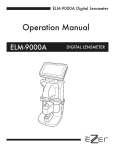
![AGIVEN PROGRAM ]](http://vs1.manualzilla.com/store/data/005708142_1-ae1c6d6b32e7a9016e2dede042b38772-150x150.png)