1
AXIS Q8632-E PT Thermal Network Camera
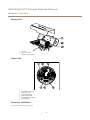
Hardware Overview
Network Connector
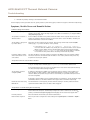
RJ45 Ethernet connector.
NOTICE
TICE
NO
The product shall be connected using a shielded network cable (STP). All cables connecting the product to the network shall
be intended for their specific use. Make sure that the network devices are installed in accordance with the manufacturer’s
instructions. For information about regulatory requirements, see Electromagnetic Compatibility (EMC) on page 2 .
SD Card Slot
NOTICE
TICE
NO
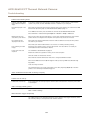
• Risk of damage to SD card. Do not use sharp tools or excessive force when inserting or removing the SD card.
• Risk of data loss. To prevent data corruption, the SD card should be unmounted before removal. To unmount, go to Setup >
System Options > Storage > SD Card and click Unmount.
This product supports microSD/microSDHC/microSDXC cards (not included).
For SD card recommendations, see www.axis.com
Control Button
For location of the control button, see Hardware Overview on page 6 .
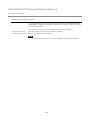
The control button is used for:
•
Resetting the product to factory default settings. See page 51.
•
Connecting to an AXIS Video Hosting System service. See page 44. To connect, press and hold the button for about 3
seconds until the Status LED flashes green.
•
Connecting to AXIS Internet Dynamic DNS Service. See page 44. To connect, press and hold the button for about 3 seconds.
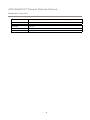
LED Indicators
Note
• The Status LED can be configured to be unlit during normal operation. To configure, go to Setup > System Options > Ports
& Devices > LED. See the online help for more information.
• The Status LED can be configured to flash while an event is active.
• The Status LED can be configured to flash for identifying the unit. Go to Setup > System Options > Maintenance .
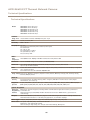
Status LED
Indication
Green
Steady green for normal operation.
Amber
Steady during startup and when restoring settings.
Red
Flashes red for firmware upgrade failure.
Note
The Network LED can be disabled so that it does not flash when there is network traffic. To configure, go to Setup > System
Options > Ports & Devices > LED. See the online help for more information.
Network LED
Indication
Green
Steady for connection to a 100 Mbit/s network. Flashes for network activity.
8