1
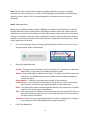
Jurisdiction or General Source – Select the jurisdiction of the record being searched. Is it
a town, county, state, or national record? A Union County, Illinois, death register
would have the jurisdiction of Union County, Illinois, United States. The national
Civil War Pension File Index would have a jurisdiction of United States. A town
record for Cheshire, Connecticut would have the jurisdiction of Cheshire, New
Haven, Connecticut, United States. If the correct place is not yet in the
dropdown, click on the green add button and add what is needed. If the record
was not created by a record-keeping entity with specific jurisdiction, click on the
“General Source” checkbox. For example, a family group sheet, a journal, a
photo, or family letters would not have a jurisdiction.
Scope – Be very thoughtful in describing the scope of your search. Who exactly will you
be looking for? Is the search for a specific person, all members of a family, or
every entry for a surname? Select the appropriate individual, family, or surname.
If the desired option is not yet in the dropdown, click the radio button for
individual, family, or surname, then click the associated green add button to
enter the appropriate person(s) or surname.
Additional scope details – Will the search be limited by time period or any additional
variable? If so, record those details in this field. When conducting the search,
you will need to know exactly what your intent is.
Record Type – It is important to include the record type in order to use this variable in
locating log entries by record type at a later date. Select the appropriate
description from the dropdown, or click on the green add button and enter what
is needed.
Comments – This field is for any additional information that will be helpful when
conducting the search. In addition, needed comments can be added after the
search is completed.
Nil Search – Searching a record with no result is a relatively common occurrence. Many
researchers choose not to record them because it takes so much time. However,
negative results can be as important as positive ones, and you definitely want to
prevent yourself from returning to search the same source over and over. If you
plan your research before visiting the repository, recording a nil search will take
only a few seconds. If the entire search was nil with no results for the scope of
the search, record the date and check the Nil box on the Search template. (A
second way to record Nil searches will be described below in the “Adding
Results” section.)
4.
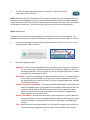
Click “Save Search.”
5.
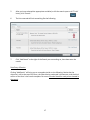
After saving the search, you will be given a choice to return to the home page of the
program, add another search to the same objective, or add results to the search that
was just saved. If you are working on research planning, you may continue to add as
many searches as you would like. If you are focused on one search and are now ready to
record the results of your search, choose the third radio button.
15