1
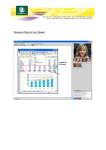
University Duisburg-Essen Faculty of Engineering - Computer Engineering Dr.-Ing. Stefan Werner Pascal A. Klein, M.Sc. © 2014 LAB CSCW & SOFTWARE ENGINEERING EXPERIMENT 4 Desktop Conferences Name: Matriculation Number: First Name: Group Number: Supervisor: Date: Antestat: Trial: As preparation to this experiment: • Study the research papers given so far as appendix to lab 1 ,2, 3 • Study this manual • All questions in section 3 (marked with ) are to be answered as preparation for the experiment. Please write the solutions into the designated fields as far as given and bring them to the practical. During the experiment: • Answer all questions in the Hands on section After the experiment: • Create a Report of the results and start developing your own groupware 1 Introduction 1.1 Desktop Conferencing systems Conferencing systems cover a wide range of interaction between team members. They range from computer conferences to video and desktop conferences. As Videoconferencing has been experienced through lab 3; lab 4 focuses more on desktop conferencing systems. Desktop conferencing is a combination of real-time-computer conferencing and teleconferencing. Normally, people involved in desktop conferences are distributed across several meeting rooms. Between these meeting rooms, there is an audio link and –for the transfer of gestures in case of desktop video conferencing- also a video connection. In addition to audio and video connections, desktop conferencing uses personal computers which support shared applications, thus enabling joint manipulation of common electronic information. The video images are integrated into a screen window. The major focus lies on the integration of the work environments of the geographically dispersed group members rather than on the display of the videos of the group members on the screen. For communication between audio, video and data, a multimedia network is used. 1.2 PASSENGER: a synchronous groupware for desktop conferences Modern software engineering in any case signifies team work. The world-wide extension of the data networks and the continuing globalization add another component to software engineering: the development in worldwide distributed teams. The usage of this forward-looking work method in university education can render a special contribution to future and practice operations of students. Thus, a synchronous groupware named PASSENGER was developed at the University of Duisburg – Essen throughout the last years. The synchronous groupware PASSENGER can support synchronous meetings with up to four members. It provides video- and audio channels for communication purposes, a floor control mechanism to support the course of discussion and several measures for carrying out group awareness information, as explained in the following. The overall PASSENGER concept sees Windows-based systems as its target platform and the global internet as its transport medium. It is implemented as a client/server architecture and several methods of data transfer have been implemented: TCP based unicast connections for reliable client/server-communications and UDP based unreliable multicast connections are implemented as interclientcommunications. Comparing the professional field in software engineering with software engineering education the following aspects have to be put into consideration: Working in a team, dividing the given task into subtasks, discussing temporary results and integrating first results afterwards, already require a certain portion of discipline without using groupware. The usage of videoconference techniques also requires that users work in an unaccustomed scenario. Thus interface design and group awareness support obtains an outstanding meaning. The PASSENGER user interface contains video screens of each member and a CASE-tool (CASE - Computer-Aided Software Engineering) in a public window -1- for the common process of documents editing. Figure 1 shows the PASSENGER user interface of the client software. Figure 1. PASSENGER Client User Interface Each member has the same view of the public window according to the WYSIWISprinciple, but only one of them can alter the document at a certain time. A telepointer serves to elucidate and to present facts. Access to the public window is controlled by a floor control. The design of the floor control is based on an analysis of the group processes during traditional software engineering labs. It aims at maximizing fairness towards access to the floor and at supporting users in their discussion behavior. Each member is also equipped with a private window for trying out ideas. A chat window was implemented so the conference can be ended simultaneously in case of bad transfer circumstances. Concerning group awareness and the setup of partner images and relationship aspects, the following design and implementation steps are taken into account: • • • • • • each member is represented in an individual video screen, the members are always shown in the same video screen, the video screens can not be changed in either size or position, none of the video screens can be covered up by another window, the video screen of the person who has access to the shared resources is always highlighted, the CASE-tool contains a global and local history of changes. The floor control is implemented on the server side and handles the access to floor and shared resources. Furthermore it coordinates the course of communication through an administration of different kinds of permissions, e.g. permissions to speak, permissions to alter the documents. Floor control approaches usually are mainly technically or socially oriented. The PASSENGER approach combines the advantages of technical and social floor passing methods. An essential part of the floor-control implementation is the permission list. This list can have three possible entries. The actual floor holder is followed by the next two clients who requested the floor. Important is that the list never shows two equal entries. Thus two members cannot exclude the third person from the discussion. Furthermore a member can ask -2- to interrupt the actual floor holder. This is done by sending an intermediate call to the actual floor holder. Apart from this a tutor can be called by any user at any time. Therefore the model serves all of the above formulated requirements regarding fairness. Data exchange between clients and server require a reliable service. In the internet such a service is made available by the TCP. The exchange of multimedia data (audio/video) does not compellingly require a reliable service and can principally be conducted over UDP-based services. For this a direct data exchange between the clients involved is selected. Data exchange can take place alternatively via multi unicast or native multicast. For future oriented reasons, the flexibility in relation to extensions and the integration of new services, IP-protocol version 6 is supported. Figure 2 represents the implementations for data exchange. For a better overview, only three clients are represented. reliable unicast service Server unreliable multicast service Internet Client 1 Client 3 Client 2 Figure 2: Client/Server-Architecture of synchronous groupware Passenger -3- 2 PASSENGER Client User Manual 2.1 Network configuration Go to menuÆOptionsÆNetwork Settings or press the hotkey F4. Figure 3 Enter a valid IPv4-address for the Passenger-Server and a valid control-port (1111 is a default-value). Figure 4 2.2 Login to the Passenger-Server. Go to menuÆFileÆLogin or press the hotkey F5. Figure 5 Enter username and password as configured by the Passenger-Administrator. -4- Figure 6 It takes 3 seconds to check the uniqueness of the new multicast-address (if necessary). After login the screen should look like this: Figure 7 2.3 Start video-capture and data stream. Go to menuÆToolÆSend Video or press the hotkey F3. Activation of the video-data transmission automatically starts capturing. Passenger uses the last used settings made by the software which comes with your camera. If there is no picture, check the settings with this software. Figure 8 -5- 2.4 .4 Floor-Control. There are 4 video-screens as maximum for a screen with a resolution of 1024x768 pixels. The local video-screen is always the first (left-hand side) and the tutor-videoscreen is always the last (right-hand side). There are 4 buttons and a pop-up menu to interact with the other participants: a) b) c) d) Figure 9 a) Request rights: Only the one who has the rights can talk to the others and modify the common artifact. If no one has the rights you will get them immediately: Figure 10 If not, the rights are passed according to the order the requests were received. For example: UserA requests the rights (green raised hand), but UserB has the rights (green bar). If UserB pass them, UserA will get them. Figure 11 -6- b) Pass rights: If you have the rights you can pass them to the next one (see Figure 10, blue hand pointing to the right). If there is nobody else, nobody has the rights. c) Intermediate call: If you have a question or comment, which has to be discussed immediately, you can use this button. The one who has the rights must commit your request and pass the rights directly to you. After passing the rights back the normal chain of requests is processed again. Figure 12 d) Call tutor: In a normal situation the tutor-user is not needed. If you think you need help from the tutor press this button. Your video-screen is marked (the tutor’s blackboard is yellow now). If the tutor requests the rights the normal chain of requests is cleared and the tutor gets the rights immediately. Figure 13 -7- 2.5 .5 Selecting a Tool Go to menuÆWindows and select a tool as displayed below. Currently there are just two tools, but the number can increase. Figure 14 2.6 The CASE-Tool. The Computer-Aided-Software-Engieneering-Tool is seperated into 4 areas: 1. Symbols to create a “Ward & Mellor”-diagram 2. The Workspace 3. (Standard) edit-functions 4. History 1 3 2 4 Figure 15 1. The symbols are not explained here. 2. The Workspace is splitted into the “Public”-window and the “Private”-window: The “Public”-window is used to display the common artifact only. The “Private”-windows is used to edit the artifact (offline). If you have the rights, everything is shown to the other users in the “Public”-window. -8- 3. Edit-functions 2 1 4 5 6 3 7 Figure 16 4. The history is splitted into the “Local”-history and the “Global”-history. The “Local”-history is a list of CASE-Tool-Files saved to the workstation’s harddrive. The “Global”-history is a list of CASE-Tool-Files saved to the server’s harddrive. A file from the “Global”-history can be downloaded into the “Private”-window by doubleclicking the list. A local file can be uploaded to the server or can be deleted with a popupmenu. Figure 17 The Edit Functions (see Figure 16) 1. Standard-Windows-function: cut, copy, paste and delete. 2. Switch telepointer on/off. If you have the rights, your Windows-mousepointer is mirrored to the other user’s “Public”-window as a green mouse-pointer if you move the mouse over the “Private”-window. 3. Transfer the common artifact to the “Private”-window to explain (use telepointer) and/or edit it. If you have the rights, your “Private”-window is mirrored to the other’s “Public”window. Your “Public”-window keeps unchanged. Now it is up to you. You can: a) Work with your currently displayed document. b) Load a document from the Local/Global-History (see below). c) Continue with the last common document. In this case you can copy the document from your unchanged “Public”-window to your “Private”window anytime. 4. Deselect all the other buttons. Just move objects in the “Private”-windows. (Normal mode) 5. Clear the “Private”-window to start a new document. 6. UNDO- and REDO-buttons. Currently you can just Undo/Redo one step. 7. Print currectly displayed workspace to a printer or make a bitmap-copy into the clipboard, e.g. to paste it into a Word-Document. -9- 3 Preparation Please answer the following questions as preparation for your experiment. 3.1. ♦ Distinguish between “Real-Time Computer “Teleconferencing” and “Desktop Conferencing” Conferencing”, 3.2. ♦ What is a “role” in the context of a desktop conference? 3.3. ♦ Describe the terms “whiteboard”, “shared context”, “public window” and “private window” in the context of the synchronous groupware PASSENGER. - 10 - 3.4. ♦ How is group awareness implemented in the context of the synchronous groupware PASSENGER? 3.5. ♦ How is Floor Control implemented in the context of the synchronous groupware PASSENGER? 3.6. ♦ Describe the differences between the options “request rights”, “intermediate call” and “call tutor” in the context of the synchronous groupware PASSENGER? - 11 - 4 Hands-On • In this hands-on part of the experiment, you shall gain experiences in the usage of desktop conferencing tools by the example of the synchronous groupware PASSENGER. 4.1. Setting-up a Passenger Environment 4.1.1 Set up a PASSENGER session and connect to it. 4.1.2 Logout and try to login to other Passenger sessions. Explain why you cannot. ___________________________________________________________________ ___________________________________________________________________ ___________________________________________________________________ ___________________________________________________________________ ___________________________________________________________________ ___________________________________________________________________ ___________________________________________________________________ ___________________________________________________________________ ___________________________________________________________________ 4.1.3 Try to change the size of your own communication window and also the sizes of the communication windows of your participants. Try to cover any communication window with other elements (icons) from your desktop. Explain the result. ___________________________________________________________________ ___________________________________________________________________ ___________________________________________________________________ ___________________________________________________________________ ___________________________________________________________________ ___________________________________________________________________ ___________________________________________________________________ ___________________________________________________________________ ___________________________________________________________________ 4.1.4 Each participant shall notice the order of how participants (including yourself) appear on the screen. Discuss the result via PASSENGER. ___________________________________________________________________ ___________________________________________________________________ ___________________________________________________________________ ___________________________________________________________________ ___________________________________________________________________ - 12 - 4.2 Behavior of the synchronous groupware PASSENGER Analyze the behavior of PASSENGER in case a team works commonly on a software design Model. While you are doing tasks 4.2.1 to 4.2.10 notice how the colors of your communication windows are affected by these functions. Experience the following functions of PASSENGER and compare it to the floor control state transition diagram on page 11 of the “Introduction to the Synchronous Groupware PASSENGER”. 4.2.1 Experience the Passenger Functions Request Rights, Pass Rights, 4.2.2 Experience the Passenger Functions Intermediate Call(IC), Accept/Reject IC. 4.2.3 Experience the Passenger Functions Call Tutor (CT). ___________________________________________________________________ ___________________________________________________________________ ___________________________________________________________________ ___________________________________________________________________ ___________________________________________________________________ 4.2.4 Create a state transition diagram of a new floor control: a moderated floor control scheme. Use the original state transition diagram as a basis. Store different versions to save intermediate results. In order to develop it, first discuss the following questions: Who is controlling the floor? When is the floor passing to another person? ___________________________________________________________________ ___________________________________________________________________ ___________________________________________________________________ ___________________________________________________________________ ___________________________________________________________________ Print the final version of the state transition diagram and attach it to your report as another possibility of a hard implemented group protocol. 4.3 Discuss the following questions via PASSENGER 4.3.1 How is conflict handling carried out in PASSENGER? ___________________________________________________________________ ___________________________________________________________________ ___________________________________________________________________ ___________________________________________________________________ ___________________________________________________________________ - 13 - 4.3.2 What are the potentials of PASSENGER? What are the limits? ___________________________________________________________________ ___________________________________________________________________ ___________________________________________________________________ ___________________________________________________________________ ___________________________________________________________________ 4.3.3 How could the GUI be enhanced? ___________________________________________________________________ ___________________________________________________________________ ___________________________________________________________________ ___________________________________________________________________ ___________________________________________________________________ 4.3.4 Which implemented elements are static, which are dynamic and which are shared objects? ___________________________________________________________________ ___________________________________________________________________ ___________________________________________________________________ ___________________________________________________________________ ___________________________________________________________________ 4.3.5 Describe the WYSIWIS principle in PASSENGER! Is it “relaxed” or “strict” WYSIWIS? ___________________________________________________________________ ___________________________________________________________________ ___________________________________________________________________ ___________________________________________________________________ ___________________________________________________________________ 4.3.6 Fill in the following table in which you have to associate every window background color with the roles of the Passenger participants. role Color of the name label - 14 - Color of the buttons to request the Floor 5 After the Lab 5.1 Executive Summary of the results (individual homework) After the accomplishment of Experiment 4, in order to present your results and experiences about Passenger to your company, the report of your insights should be complemented. Add the results from this lab (you may use the results from 4.2 and 4.3) in a new subchapter. (min. 500 words) 5.2 Develop your own Groupware Give a first approach, what your own groupware(s) should achieve to be used inside the software developing process. Make a list with your ideas and attach it to your report. Bring the Report and all other material to the Experiment 5! - 15 -