1
Product Manual
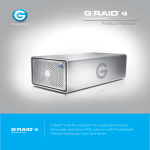
G-RAID USB is a high-performance,
removable dual-drive RAID solution with
Enterprise-class hard drives.
Table of Contents
Table of Contents
Safety & General Use
Maintenance for Your Drive
Safety Precautions.......................................................4
Initialize the Drive for Mac .................................... 29
Backup Your Data ........................................................5
Restore the Drive Icon ............................................ 33
Reformat with Partitions ....................................... 35
About Your G-RAID USB
Replace a Failed Drive Module............................ 40
Introduction ..................................................................7
What’s in the Box ........................................................8 Using Your Drive on Windows
System Requirements................................................8
Windows Use.............................................................. 43
Overview of the Drive ...............................................9
Cross Platform Use .................................................. 43
Activity & Failure LED .............................................. 10
Support & Warranty
Using Your Drive on Mac
Technical Support .................................................... 47
Easy Installation for Mac ........................................ 12
Limited Warranty ...................................................... 48
Optimize Performance ........................................... 12
Copyright ..................................................................... 50
Use With Time Machine ........................................ 13
Disconnect the Drive ............................................. 15
Using RAID Modes
Supported RAID Modes ......................................... 17
The RAID Configuration Utility for Mac ........... 18
Configure the RAID Mode for Mac .................... 19
RAID 1 Degraded Mode & Rebuild (Mac) ....... 22
The RAID Configuration Utility (Windows) .... 23
Configure the RAID Mode for Windows .......... 24
RAID 1 Degraded Mode & Rebuild (Win.)....... 27
p.2
Safety & General Use
• Safety Precautions ....................................p. 4
• Backup Your Data ......................................p. 5
Safety & General Use
Safety Precautions
G-RAID USB‘s warranty may be void as a result of the failure to respect the precautions
listed here. If you detect a problem with your drive, please contact our Technical Support
department.
If the product is returned with damage caused by improper handling, the warranty will be void and liability
will rest with the user. Please read our Limited Warranty.
•
•
•
•
•
Servicing: Your drive contains no user-serviceable parts. If it appears to be malfunctioning,
have it inspected by a qualified Technical Support representative.
Moisture: Place the device away from moisture or liquids. To reduce the risk of damage,
do not expose this drive to rain or moisture. Do not use it in damp or wet conditions. Never
place objects containing liquids on the drive as they may spill into its openings.
Ventilation: Place the device in a vented area. The drive should never be placed near or
over a radiator or heat source.
Temperature: Do not expose this drive to temperatures outside the range of 5°C to
35°C (41°F to 95°F); or to operational humidity beyond 5-80%, non-condensing, or nonoperating humidity beyond 10-90%, non-condensing. Avoid placing your drive near a
source of heat, or exposing it to sunlight (even through a window), or in an environment
that is too cold or humid.
Physical Damage: Do not place heavy objects on the drive. Never use excessive force on
your drive.
p.4
Safety & General Use
Backup Your Data
The disk drives contained in your G-RAID USB device are delicate electronic instruments
and are susceptible to damage due to excessive physical shock. Under no circumstances will
G-Technology be held liable for the recovery or restoration of lost data. Any loss, corruption or
destruction of data while using a G-Technology drive is the sole responsibility of the user.
Make Two Backups
To help prevent the loss of your data, we highly recommend that you keep TWO copies of your
data in separate storage locations. Keep one copy on your G-Technology drive. Keep a second
copy on your internal hard drive, another G-Technology drive or a form of removable storage
media. If possible, it is advisable to keep your data in two physically disparate locations for
added safety.
p.5
About Your G-RAID USB
• Introduction ....................................................p. 7
• What’s in the Box ...........................................p. 8
• System Requirements .................................p. 8
• Overview of the Drive .................................p. 9
• Activity & Failure LED...................................p. 10
About Your G-RAID® USB
Introduction
Thank you for purchasing G-RAID USB from G-Technology. The G-RAID USB hard drive is a highspeed, low-cost RAID that provides an ideal storage solution for content creation professionals.
With its unique industrial design and all-aluminum housing, G-RAID USB is the de facto
standard for many post-production facilities worldwide.
G-RAID USB features a USB 3.0 interface. When connected via the USB 3.0 interface, G-RAID USB
provides data transfer rates up to 400MB/second to support the most demanding professional
content creation applications such as Final Cut Pro®, Avid and Adobe Premiere®.
With its built-in RAID controller, the G-RAID USB is not tied to a single workstation and can be
easily transported for use in the edit bay or on the road. The unit contains an internal RAID
controller and can be configured in RAID 0 (Performance), RAID 1 (Protected) or JBOD mode.
In the RAID 1 or JBOD mode of operation, if a single hard drive failure occurs, your data will still
be safe and accessible (in RAID 1 all your data is safe, whereas in JBOD all your data in the good
drive is safe).
p.7
About Your G-RAID® USB
What’s in the Box
The following items are included in the box:
•
•
•
G-RAID USB storage solution with two removable disk modules
USB cable (3.0; backward compatible with USB 2.0 ports)
External AC power supply and cable
If any items are missing, please contact G-Technology at [email protected]
or call (888) 426-5214.
System Requirements
G-RAID USB supports the following operating systems:
•
•
Mac OS® 10.7 +
Windows® 8.1, 8 and 7 (via reformat)
The drive has been preconfigured in RAID 0 (Performance) mode for use with Mac OS® systems,
formatted as “HFS+ with Journaling.”
p.8
About Your G-RAID® USB
Overview of the Drive
The following diagram shows the helpful features of your G-RAID USB.
The compact and quiet G-RAID USB features two removable HGST 7200 RPM SATA III hard drives. It
has a uniquely designed all-aluminum enclosure with an activity/failure LED in the front panel. The
rear panel features a Kensington™ security slot, a high-speed USB 3.0 port, a DC power in slot and
a soft-touch on/off switch. The features combine to provide universal connectivity and industryleading performance. All cables are included.
IMPORTANT: G-RAID USB has been set up at the factory in RAID 0 (Performance) mode.
To change to RAID 1 (Protected) mode or JBOD mode, read Configure the RAID Mode.
Kensington®
Security Slot
Activity LED
USB 3.0 Port
DC In
On/Off Switch
p.9
About Your G-RAID® USB
Activity and Failure LEDs
G-RAID USB contains LEDs for drive activity (WHITE) and drive failure (RED) that are next to each
other on the front panel and describe the following operations:
•
•
•
•
System initialization
System ready
Disk activity
Disk drive failure
The following table explains the meaning of each combination of LEDs on the drive. When both
LEDs are illuminated, the color turns lighter RED.
State
Activity/Power LED
Drive Failure LED
System Initialization
On
Flashing
System ready
On
Off
Disk Activity
Flashing
Off
Disk 1 or Disk 2 Failure (RAID 0)
On
On (constant RED)
Fail Safe Mode (RAID 1) Disk 1 failure
On
Flashing 1 time/sec
Fail Safe Mode (RAID 1) Disk 2 failure
On
Flashing 4 times/sec
The activity light will glow when power is applied. It will flash brighter as data is
transferred to or from the hard drive.
In the event of a disk drive failure, the RED drive failure LED located on the front panel will
illuminate. In RAID 1 mode - If the red light flashes once per second, it indicates that the top drive
has failed; if the red light flashes four times per second, it indicates that the bottom drive has failed.
If a drive failure occurs in RAID 0 mode then the LED in the front panel turns constant RED.
•
•
•
If configured in protected RAID 1 mode, all the data stored on the system will be intact.
If configured in JBOD mode, only the data in the bad drive will be lost; the rest of the data
will be intact.
If configured in RAID 0 mode, all data will be lost. Please contact Technical Support for
help if the RED LED is constantly lit indicating drive failure.
p.10
Using Your Drive on Mac
• Easy Installation for Mac .........................p. 12
• Optimize Performance ............................p. 12
• Use With Time Machine...........................p. 13
• Disconnect the Drive ...............................p. 15
Using Your Drive on Mac®
Easy Installation for Mac
G-RAID USB attaches to your computer via a USB 3.0 port.
Connect the power cord to the unit and plug the other end into a surge protector or wall outlet.
Press and hold the power button until the unit turns on. The drive will automatically mount on
the desktop if you are running Mac OS X.
Kensington®
Security Slot
USB 3.0 Port
DC In
On/Off Switch
Optimize Performance
G-RAID USB can be connected to any Mac or Windows machine equipped with USB 3.0
or USB 2.0.
If you are going to use the drive on a Windows machine, read Using Your Drive on Windows.
p.12
Using Your Drive on Mac®
Use with Time Machine®
Your G-RAID USB can be easily used as a backup drive via Time Machine when connected to
a Mac. Time Machine is an application that ships with your Mac and provides automatic file
backup. The following steps will quickly set up G-RAID USB with Time Machine.
When you attach your G-RAID USB for the first time, the Time Machine dialog box should
automatically appear. Click the Use as Backup Disk button.
If the Time Machine dialog box does not launch, go to the Apple Menu > System Preferences.
Click on the Time Machine icon. The Time Machine Preference panel will open. Click the Select
Backup Disk button.
p.13
Using Your Drive on Mac®
In the subsequent dialog box, select the G-RAID USB. Click the Use Disk button.
Make sure the Time Machine switch is set to ON. You can set its options by clicking the Options
button. Do this to choose volumes, folders, or files you do NOT want to backup.
G-RAID USB will now backup your important files automatically with Time Machine. It’s really
that easy!
p.14
Using Your Drive on Mac®
Disconnect the Drive
A great feature of G-RAID USB is its ability to connect and disconnect while your computer is
running. To prevent failures and/or data loss, it is important to follow the steps below when
disconnecting or “unmounting” the drive from your computer.
1. Before powering down and disconnecting the drive, unmount the system by dragging the
G-RAID USB icon to the trash located in the dock. Keyboard shortcut: Select the drive icon
and hit Command+E.
2. It is safe to remove the drive from your system when the drive icon is no longer present on
your desktop.
3. To power off G-RAID USB, press and hold the On/Off power button until the unit shuts down.
Helpful links
•TouseG-RAIDUSBonWindows,gotoWindows Use.
•TouseG-RAIDUSBonMacandWindowstogether,gotoCross-Platform Use.
p.15
Using RAID Modes
• Supported RAID Modes ......................................................... p. 17
• The RAID Configuration Utility for Mac ............................ p. 18
• Configure the RAID Mode for Mac ..................................... p. 19
• RAID 1 Degraded Mode and Rebuild for Mac ................ p. 22
• The RAID Configuration Utility for Windows .................. p. 23
• Configure the RAID Mode for Windows ........................... p. 24
• RAID 1 Degraded Mode and Rebuild for Windows ...... p. 27
Using RAID Modes
Supported RAID Modes
G -RAID is preconfigured in RAID 0 (Performance) mode, for use with Mac OS systems.
The drive can also be configured in RAID 1 (Protected) mode or JBOD mode. The following table
explains the advantages and disadvantages for each RAID level.
RAID Level
Description
Advantage
Disadvantage
Ideal For
RAID 0
Disk
Striping
Highest read/write
performance.
Storage capacity is
100% utilized.
No fault tolerance.
Single drive failure
will result in
complete data loss.
Highest storage
capacity utilization and
highest performance.
RAID 1
Disk
mirroring
Complete data
protection in case of
a single drive failure.
Read/write
performance is
reduced to half of
RAID 0 performance.
Sensitive data,
which requires
constant backing up.
High performance
not required.
JBOD
Disks not
RAIDed
Storage capacity is
100% utilized. Partial
data protection if a
single drive fails.
Read/write
performance is
reduced to half of
RAID 0 performance.
Highest storage capacity
utilization when partial
data loss is acceptable.
To change the RAID mode of G-RAID USB, follow the steps in Configure the RAID Mode.
RAID 0 (Performance)
G-RAID USB ships in RAID 0 (Performance) mode. This RAID mode is ideal for maximizing your
throughput when video editing. In RAID 0 mode, the drives are combined and data is split
between the two drives for increased performance.
p.17
Using RAID Modes
RAID 1 (Protected)
RAID 1 is great for protecting and securing data, making it ideal for sensitive data, but it
operates at the speed of a single drive. In RAID 1, the array will be at 50 percent of its total
capacity as the same data is written or mirrored to both drives simultaneously.
JBOD
JBOD mode is great for maximum capacity utilization without fear of losing all your data,
as in the case of RAID 0, but they each operate at the speed of a single drive.
The RAID Configuration Utility for Mac
The G-Technology RAID Configurator is used to change the RAID level of your G-RAID USB. To
configure G-RAID USB, it will need to be the only device connected to your computer.
The RAID Configurator utility is available for download from the G-Technology website at
g-technology.com/support.
Once you have downloaded the RAID Configurator, you should launch it directly from the
mounted disk image.
p.18
Using RAID Modes
Configure the RAID Mode for Mac
You can easily configure G-RAID USB’s RAID mode with the following steps.
Important Note: Changing the RAID level will erase all data on the drive. Be sure
all of the data and files you want to save are backed up to separate media.
1. Launch the G-Technology RAID Configuration utility. A dialog window will ask you to
disconnect all other external hard disks from your computer. This is important to ensure that
the configurator does not affect other eSATA, FireWire or USB devices on your system.
2. Click the Continue button. A window will appear telling you that the utility is searching for
your G-RAID USB.
p.19
Using RAID Modes
3. Once the utility finds your G-RAID USB, the following window will appear. Select your desired
configuration: RAID 1 (Protected), RAID 0 (Performance) or JBOD. Then click the Configure
button to continue.
4. Two warning windows will appear, letting you know that the following step will erase all
your data. Click the Yes buttons to continue.
p.20
Using RAID Modes
5. A window will appear telling you that the configuration is in progress. The next window will
confirm that your G-RAID USB is configured in RAID 1, RAID 0 or JBOD mode.
6. Changing the RAID mode of G-RAID USB will require you to re-initialize the disk with the Disk
Utility application. The disk insertion dialog below should appear. Click the Initialize button to
launch Disk Utility. Then follow the simple steps to initialize G-RAID USB for use with Mac OS.
p.21
Using RAID Modes
7. NOTE: If the Disk Insertion dialog does not appear, go to Application > Utilities and open
the Disk Utility program. Once Disk Utility is open, you are ready to initialize and partition
G-RAID USB for use with Mac.
RAID 1 Degraded Mode and Rebuild for Mac
If your G-RAID USB is in RAID 1 configuration and either a single drive failure occurs or if a
member of the RAID 1 set is removed, then the active drive will operate in degraded mode.
What is Degraded Mode? In a two-drive RAID 1 array, if one of the drives fails or if one of the drives
is removed then the active drive keeps the user data intact but without any fail-safe mechanism until
the RAID array is rebuilt. This state of operation is called degraded mode.
To rebuild the RAID 1 set, please insert a new drive in place of the failed drive or the drive
that has been removed. If this new drive is not formatted then the Disk Utility function will
automatically launch and you can format the drive. If this replacement drive is formatted then
you are ready to rebuild the RAID set. To see how to replace a failed drive, please refer to the
section Replace a Failed Drive Module.
G-RAID USB has an auto rebuild feature built into it. Once you insert a formatted replacement
disk the RAID 1 will start rebuilding automatically. Total rebuild time is dependent on the total
capacity of each drive. The rebuild time is approximately two hours per terabyte.
p.22
Using RAID Modes
The RAID Configuration Utility for Windows
The G-Technology RAID Configurator is used to change the RAID level of your G-RAID USB. To
configure your G-RAID USB, it will need to be the only device connected to your computer.
The RAID Configurator utility is available for download from the G-Technology website at
g-technology.com/support.
Once you have downloaded the RAID Configurator, you should launch it directly from the
zipped package with the application inside.
p.23
Using RAID Modes
Configure the RAID Mode for Windows
You can easily configure G-RAID USB’s RAID mode with the following steps.
Important Note: Changing the RAID level will erase all data on the drive. Be sure
all of the data and files you want to save are backed up to separate media.
1. Launch the G-Technology RAID configuration utility. A dialog window will ask you to
disconnect all other external hard disks from your computer. This is important to ensure that
the Configurator does not affect other eSATA, FireWire or USB devices on your system.
2. Click the Continue button. A window will appear telling you that the utility is searching for
G-RAID USB.
p.24
Using RAID Modes
3. Once the utility finds your G-RAID USB, the following window will appear. Select your
desired configuration: RAID 1 (Protected), RAID 0 (Performance) or JBOD. Then click the
Configure button to continue.
4. Two warning windows will appear, letting you know that the following step will erase all
your data. Click the OK and Yes buttons to continue.
p.25
Using RAID Modes
5. A window will appear telling you that the configuration is in progress. The next window will
confirm that your G-RAID USB is configured in RAID 1, RAID 0 or JBOD mode.
6. Changing the RAID mode of G-RAID USB will require you to re-initialize the disk.
For helpful information on initializing your drive with Windows, please visit
g-technology.com/windows.
p.26
Using RAID Modes
RAID 1 Degraded Mode and Rebuild for Windows
If your G-RAID USB is in RAID 1 configuration and either a single drive failure occurs
or if a member of the RAID 1 set is removed, then the active drive will operate
in degraded mode.
What is Degraded Mode? In a two-drive RAID 1 array, if one of the drives fails or if one of the
drives is removed then the active drive keeps the user data intact but without any fail-safe
mechanism until the RAID array is rebuilt. This state of operation is called degraded mode.
To rebuild the RAID 1 set, please insert a new drive in place of the failed drive or the drive that
has been removed. If this new drive is not formatted. For more information about formatting
your drive to NTFS for Windows please CLICK HERE and you can format the drive. If this
replacement drive is formatted then you are ready to rebuild the RAID set. To see how to replace
a failed drive, please refer to the section Replace a Failed Drive Module.
G-RAID USB has an auto rebuild feature built into it. Once you insert a formatted replacement
disk the RAID 1 will start rebuilding automatically. Total rebuild time is dependent on the total
capacity of each drive. The rebuild time is approximately two hours per terabyte.
p.27
Maintenance for Your Drive
• Initialize the Drive for Mac .....................p. 29
• Restore the Drive Icon .............................p. 33
• Reformat with Partitions.........................p. 35
• Replace a Failed Drive Module .............p. 40
Maintenance for Your Drive
Initialize the Drive for Mac
G-RAID USB is factory formatted or “initialized” for use with Mac OS. You can follow these steps
to reinitialize your drive if you would like to quickly erase the contents of the drive.
1. Open the Disk Utility application. Disk Utility is located on your hard drive under
Applications/Utilities/Disk Utility. The window below will appear. Your G-RAID USB will be
displayed in the left column.
2. Select G-RAID USB by clicking its drive icon in the left column. Information about the drive
will be displayed at the bottom of the window.
3. Select the Erase tab to view the formatting options. By default, the Format pop-up menu is
set to the Mac OS Extended (Journaled) option.
p.29
Maintenance for Your Drive
4. Choose the Format option you prefer.
• Mac OS Extended (Journaled): This basic File System format is intended for generally
formatted drives including Time Machine backup and creating separate bootable
Disk Images.
• Mac OS Extended Case-sensitive and Encryption options: The Case-sensitive option
treats file names that are the same but with different cases as different while the
Encryption option adds an additional layer of security for your personal files.
p.30
Maintenance for Your Drive
5. Click the Erase button in the lower-right corner of the window. A dialog box will appear
asking if you want to erase the G-RAID USB partition.
WARNING: THIS NEXT STEP WILL ERASE ALL DATA ON YOUR DRIVE.
6. Click the Erase button to continue. A progress bar in the lower-right corner of the window
will show the progress of the disk’s reformatting process.
p.31
Maintenance for Your Drive
7. After the drive is re-initialized, you should automatically see the Time Machine dialog box.
•
•
Click the Use as Backup Disk button if you want to use the drive with
Time Machine.
Click the Don’t Use or Decide Later buttons if you do not want to use Time Machine
at this point.
8. Quit the Disk Utility program. After you reinitialize the drive, the custom icon for
G-RAID USB will be erased. You can optionally restore this icon with the steps on the next
page.
p.32
Maintenance for Your Drive
Restore the Drive Icon
If the G-RAID USB drive icon was erased during the configuration process (see the previous
section), you can restore the icon with the following easy steps.
NOTE: This process is not required for the operation of the G-RAID USB. However, it will make
your drive’s appearance on the computer desktop look cleaner and more accurate.
1. To get the G-Technology icon package, go to www.g-technology.com/support and
navigate to your product. There will be a link to download the icons on the product support
page.
2. Once downloaded, the G-Technology icons folder shown below should load automatically.
If not, double-click the zip file to open. Next, double-click the DMG file to open the
G-Technology icons package.
3. Click to select the drive icon for G-RAID USB in the package window. Press Command+C to
copy the icon.
p.33
Maintenance for Your Drive
4. Select the default G-RAID USB drive icon on your desktop and press Command+I. This
opens the Get Info window (below left).
5. Select the default icon in the Get Info window (below left).
6. Press Command+V to paste the custom G-RAID USB icon into the Get Info window (below right).
The icon for your G-RAID USB has been restored and you can close the Get Info window.
Your drive is now ready for use!
p.34
Maintenance for Your Drive
Reformat with Partitions
Partitioning a hard drive is the process of dividing a hard drive into separate, discrete sections
called volumes. Each volume works like a separate disk. You can create up to 16 different
partitions on a hard drive in Mac OS X, and each partition can be a different size and format.
With hard drives getting bigger, it is useful to partition your hard drive so you can use sections
of its space for different purposes. For instance, you can segment user data from backup data,
set up a multi-boot environment with different operating systems, or create a dedicated capture
scratch disk for programs such as Final Cut Pro and Adobe Premiere.
The following steps will guide you through the simple process of partitioning your drive. In this
example, we will partition a 12TB G-RAID USB connected via USB 3.0. The steps will be identical for
your drive, although the name may be different.
1. Open the Disk Utility program. This application is located on your hard drive under
Applications/Utilities/Disk Utility. The window below will appear. Your G-Technology drive
will be displayed in the left column.
p.35
Maintenance for Your Drive
2. Select the USB icon — not the G-Technology drive icon — by clicking it in the left column.
3. Click on the Partition button in the main window.
p.36
Maintenance for Your Drive
4. Select the number of partitions you would like from the Partition Layout menu. Below, we
have selected “2 Partitions” to create two partitions.
p.37
Maintenance for Your Drive
5. Click on the first partition in the Partition Layout area. Your partition will be in a white box
surrounded by blue lines.
•
•
•
In the Name field, type a name for the partition.
From the Format menu, choose your desired disk format. If you will use your drive
primarily on Mac OS, it is recommended to use Mac OS Extended (Journaled). For
details about formats, go here.
In the Size field, type in a size for the partition. Alternately, you can drag the bar
between each partition in the Partition Layout area to quickly change the size.
6. Repeat this process for each partition you have created.
7. Click the Apply button in the lower-right corner of the window. A dialog box will appear
asking if you want to erase the G-Technology drive partition.
WARNING: THE NEXT STEP WILL ERASE ALL DATA ON YOUR DRIVE.
p.38
Maintenance for Your Drive
8. Click on the Partition button to continue. A progress bar in the lower-right corner of the
window will show you the progress of the disk’s reformatting.
9. When partitioning is complete, the multiple partitions will be displayed in the left panel of
Disk Utility.
10. Quit the Disk Utility program. After re-initializing the drive, the custom icon for the
G-Technology drive has been erased. To restore the G-RAID USB icon for each partition follow
the steps from the Restore the Drive Icon section.
11. The multiple partitions of the G-Technology drive will be displayed on your desktop. Your
drive is now set up with two or more partitions and is ready for use.
p.39
Maintenance for Your Drive
Replace a Failed Drive Module
The internal components of G-RAID USB continually monitor the health of each of its disk drives.
In the event of a drive failure, a visual alarm will appear. Read more in Activity and Failure LEDs.
RAID 0: If G-RAID USB was configured in RAID 0 (Performance) mode, a drive failure will result in
data loss.
RAID 1: If G-RAID USB is configured as RAID 1, a single drive failure will not result in data loss.
However, the array is now in a degraded or unprotected state, and the failed drive should be
replaced as soon as possible to avoid data loss.
Read more in Supported RAID Modes.
Follow the steps below to identify and replace a failed drive.
1. With the unit powered on, the flashing RED LED will indicate which drive module failed. For
more information, see Activity and Failure LEDs.
2. Remove the failed drive by pressing the module release button, and gently sliding the drive
module out of the enclosure.
3. Replace the failed drive with a new disk module. Secure it in place by pushing in the drive
and latching the handle.
NOTE: During the 3-Year warranty period, contact G-Technology Technical Support for
replacement of a defective drive module.
p.40
Maintenance for Your Drive
4. If G-RAID USB was set up in RAID 1 mode, the unit will begin rebuilding data on the
drive. During this process, the activity LED will indicate data access. The rebuild time is
approximately two hours per terabyte.
5. Once the rebuild process is complete, G-RAID USB is back to normal and once again
protecting your valuable data. Furthermore the drive LED light will return to a solid white
light visually indicating a healthy RAID 1 set.
Helpful tips
You can continue using G-RAID USB even while the drive volume is being rebuilt. However, it will
run at a slower data rate.
It is good practice to keep at least one spare drive module on hand in case of a disk failure. That
way, you can rebuild your array in hours rather than wait days for a new one to ship.
p.41
Using Your Drive on Windows
• Windows Use ..............................................p. 43
• Cross Platform Use ....................................p. 43
Using Your Drive on Windows®
Windows Use
G-RAID USB is set up at the factory for use with Mac OS systems. A simple initialization will prepare your
drive for use with Windows 7, 8 and 8.1 systems.
For helpful information on configuring and using your drive with Windows, please visit
g-technology.com/windows.
Cross Platform Use
You can set up G-RAID USB for use on both Windows and Mac systems by formatting the drive as
‘exFAT’. To do this, use the Disk Utility application on the Mac system and format the drive to exFAT.
1. First, open the Mac system’s Disk Utility program. This application is located on your
hard drive under Applications/Utilities/Disk Utility. The window below will appear.
Your G-RAID USB will be displayed in the left-hand column.
2. Select the G-RAID USB by clicking on its drive icon in the left-side column. Information about
the drive will be displayed at the bottom of the window.
3. Select the Erase tab to view the formatting options.
p.43
Using Your Drive on Windows®
4. Select exFAT File System from the Format pop-up menu. This will format to exFAT.
NOTE: You may need to rename the drive because exFAT does not support more than 11 letters
in the drive name.
WARNING: THIS NEXT STEP WILL ERASE ALL DATA ON YOUR DRIVE.
5. Click the Erase button in the lower right corner of the window. A dialog box will appear
asking if you want to erase the G-RAID USB partition.
p.44
Using Your Drive on Windows®
6. Click the Erase button in the pop-up dialog box. A progress bar in the lower right corner of
the window will show the progress of the disk’s reformatting. Your drive will be formatted to
its full capacity as exFAT.
7. Quit the Disk Utility program. You are finished!
8. After reinitializing, the custom icon for the G-RAID USB will be erased.
With this format, you will be able to read/write on Windows Vista, Windows 7 and on Mac OS
machines.
p.45
Support & Warranty
• Technical Support .....................................p. 47
• Limited Warranty .......................................p. 48
• Copyright .....................................................p. 50
Support & Warranty
Technical Support
Thank you for purchasing G-RAID USB. If you have any comments or questions about this
manual or the product, please let us know!
As a valued customer, G-Technology strives to provide you with the finest products and support.
If you encounter any difficulties while installing or using you G-RAID USB, our tech support team
members will gladly assist you at: g-technology.com/support.
Helpful information for support
When contacting Technical Support, it’s best to be in front of your computer and have the
following information available:
•
•
•
•
Your G-RAID USB serial number (on bottom of unit)
Operating System and version
Computer model
List of other devices attached to your computer
p.47
Support & Warranty
Limited Warranty
Limited Warranty
HGST, a Western Digital Company including G-Technology for External Hard Disk Drives.
What does this limited warranty cover?
This Limited Warranty applies to new HGST products purchased from an authorized HGST
dealer by the original purchaser for normal use and not for resale. HGST warrants that a
covered product is free from defects in materials and workmanship, with the exceptions stated
below.
How long does limited warranty coverage last?
This limited warranty lasts for 1 year, 2 years, 3 years or 5 years, or a fixed period from date
of purchase, depending on when and where it was originally purchased. To determine the
warranty specifically for your product, visit www.g-technology.com. A valid proof of purchase
may be required to prove eligibility. If you do not have a valid proof of purchase, the limited
warranty period will be measured from the date of sale from HGST to the authorized
distributor.
What does this limited warranty not cover?
The limited warranty does not cover damage resulting from commercial use, misuse, accident,
modification or alteration to hardware or software, tampering, unsuitable physical or operating
environment beyond product specifications, improper maintenance, or failure caused by a
product for which HGST is not responsible.
There is no warranty of uninterrupted or error-free operation. There is no warranty for loss of
data—you must regularly backup the data stored on your product to a separate storage
product. There is no warranty for product with removed or altered identification labels.
HGST DOES NOT PROVIDE ANY OTHER WARRANTIES OF ANY KIND, INCLUDING, BUT NOT
LIMITED TO, THE IMPLIED WARRANTIES OR CONDITIONS OF MERCHANTABILITY AND FITNESS
FOR A PARTICULAR PURPOSE. SOME JURISDICTIONS DO NOT ALLOW THE LIMITATION OF
IMPLIED WARRANTIES, SO THIS LIMITATION MAY NOT APPLY TO YOU. HGST is not responsible
for returning to you product, which is not covered by this limited warranty.
p.48
Support & Warranty
What must you do?
If you are having trouble with a product, before seeking limited warranty service, first follow the
troubleshooting procedures that HGST or your reseller provides.
To obtain limited warranty service, you must first obtain a Return Materials Authorization (RMA)
and ship-to address by contacting G-Technology at http://www.g-technology.com/support.
Please follow the instructions found on the website. You must return the covered hard disk drive
using approved packaging to our logistics center. You must pay any associated transportation
charges, duties and insurance in shipping the drive to our logistics center. You should remove all
personal information from the product prior to its return.
What will HGST do?
HGST will replace the drive with a functionally equivalent replacement product, transportation
prepaid. HGST may replace your product with a product that was previously used, repaired and
tested to meet HGST specifications. You receive title to the replaced product at delivery to the
carrier at HGST’s shipping point. You are responsible for importation of the replaced product,
if applicable. HGST will not return the original drive to consumers; therefore, the consumer is
responsible for moving data to another media before returning. Data Recovery is not covered
under this warranty and is not part of the warranty returns process. HGST warrants that the
replaced products are covered for the remainder of the original product warranty or 90 days,
whichever is greater.
How is our liability limited?
HGST AND ITS AFFILIATES, SUPPLIERS, DISTRIBUTORS, AND RESELLERS ARE NOT LIABLE FOR
ANY OF THE FOLLOWING: 1) THIRD-PARTY CLAIMS AGAINST YOU FOR DAMAGES (OTHER
THAN BODILY INJURY INCLUDING DEATH AND TANGIBLE PERSONAL PROPERTY; 2) LOSS OF,
OR DAMAGE TO, YOUR DATA; OR 3) SPECIAL, INCIDENTAL, OR INDIRECT DAMAGES OR FOR
ANY ECONOMIC CONSEQUENTIAL DAMAGES (INCLUDING LOST PROFITS OR SAVINGS), EVEN IF
INFORMED OF THE POSSIBILITY. SOME JURISDICTIONS DO NOT ALLOW LIMITATION OF LIABILITY,
INCIDENTAL DAMAGES, OR CONSEQUENTIAL DAMAGES, SO THE ABOVE LIMITATIONS MAY NOT
APPLY TO YOU.
How do local laws apply?
THIS LIMITED WARRANTY GIVES YOU SPECIFIC LEGAL RIGHTS, AND YOU MAY ALSO HAVE OTHER
RIGHTS, WHICH VARY FROM JURISDICTION TO JURISDICTION.
p.49
Support & Warranty
CAPACITY DEFINITION AND DISCLAIMER
For G-Technology products 1TB or greater: “One gigabyte (GB) is equal to one billion bytes
and one terabyte (TB) equals 1,000 GB (one trillion bytes). Accessible capacity will vary from the
stated capacity due to formatting and partitioning of the hard drive, the computer’s
operating system, and other factors.”
For G-Technology products less than 1TB: “One gigabyte (GB) is equal to one billion bytes
when referring to hard drive capacity. Accessible capacity will vary depending on the operating
environment and formatting.”
Copyright
Design by G-Technology in California. G-RAID, G-Technology and the G-Technology logo are
registered trademarks of HGST, Inc. and its affiliates in the U.S. and other countries. Apple, Mac,
FireWire, MacBook Pro, Time Machine and the Mac logo are trademarks of Apple, Inc. Microsoft,
Windows, Windows Vista and Windows XP are trademarks or registered trademarks of Microsoft
Corporation in the US and/or other countries. Other trademarks are the property of their
respective owners.
©2015 G-Technology, a division of HGST, Inc. All rights reserved. R0 03/15
p.50