1
© Jones & Bartlett Learning, LLC. NOT FOR SALE OR DISTRIBUTION
3
c h a p t e r
The Computer and Its
Operating System
Environment
Objectives
1.Describe the Windows operating system environment.
2.Perform the boot process.
3.Explain graphical user interfaces.
4.Describe operating system trends in end-user design and functions.
5.Start Windows and log off from Windows.
6.Manipulate windows and manage the desktop.
7.Identify the basic concepts underlying file and disk management, including
file naming conventions.
Introduction
Every computer and mobile device relies on an operating system to function. Computers without a functioning operating system (OS) are just pieces
of hardware (with the exception of simple, single-purpose computers like
those that control microwave ovens). Many operating systems are available
for different types of computers. Here are just a few examples:
Microsoft Windows
Mac OS for Apple computers
■■ UNIX/Linux for workstations and larger computers
■■ iOS for Apple’s iPads
■■ Android OS from Google running on multiple mobile devices like the
Kindle Fire, Nook, and Nexus tablets
■■ Windows RT and 8 Pro for Microsoft’s Surface tablet
■■
■■
ch03.indd 115
© Inga Ivanova/ShutterStock, Inc.
115
5/16/2013 11:29:39 AM
© Jones & Bartlett Learning, LLC. NOT FOR SALE OR DISTRIBUTION
116 chapter 3: The Computer and Its Operating System Environment
This chapter describes the operating system environment that many personal
computers (PCs and laptops) use in the educational and healthcare arena: Microsoft Windows.
Every three to four years, Microsoft and Apple issue a new operating system
or updated version thereof, making modifications to that OS as per users’ needs,
changes in technologies, and changes in the computer world. For example, the
movement now is with mobile devices with increasing functionality and the next
wave may be ubiquitous computing. All operating systems give users the ability
to manage the operating system environment and the user’s own files and folders.
With each version of the operating system, Microsoft and Apple add more functionality, but learning the basic concepts will help in adjusting to the new looks
and functionality of each new version.
The next Microsoft operating system after XP was Vista, which had a short life
span. Following Vista was Windows 7. This version included a redesigned taskbar
that closely resembles Apple’s Dock, a new version of Internet Explorer, a new
Windows Media Center and Windows Media Player, revised interfaces in Paint
and WordPad, improved wireless support, pervasive touch screen support, and
the removal of the side bar. Microsoft released the newer operating system version Windows 8 in late 2012 and only time will tell if it is a success or goes the
way of Vista. Note that most operating system versions are no longer supported or
updated after about 10 years.
The Windows 7 design provides a friendly interface between the user and the
hardware. The intent of this graphical user interface (GUI) is to take advantage
of the computer’s graphic and mouse capabilities and make it easier to use the
commands and applications. The user employs the mouse in a point-and-click
approach to issue commands and manage the interface.
Critical to working in any operating system environment is the ability to
manage files and folders. Files contain data and information, whereas folders are
storage places for files. This chapter includes information on managing files and
folders using Computer (formerly My Computer in earlier versions of Windows).
Computer provides quick access to Windows Explorer used to create and manage
folders.
The Operating System Environment
Operating systems are responsible for many of the computer’s “housekeeping”
tasks. The operating system “wakes” the computer through a set of commands and
routines that make the computer recognize the central processing unit, memory,
keyboard, disk drives, and printers. The purposes of the operating system are to
supervise the operation of the computer’s hardware components and to coordinate the flow and control of data. Without the operating system, the user cannot
run language or application software.
ch03.indd 116
5/16/2013 11:29:39 AM
© Jones & Bartlett Learning, LLC. NOT FOR SALE OR DISTRIBUTION
The Operating System Environment 117
There are several types of operating systems:
Real-time operating systems (RTOS) that control machinery, scientific
instruments, and industrial systems. There is very little user interface or
interaction with the end user.
■■ Single user, single task OS to manage one user and one task at a time. One
example is the OS on Palm devices, which are rarely seen today.
■■ Single user, multitasking OS that permits multiple tasks and applications
running at the same time. This type is the focus of this chapter.
■■ Multiuser, multitask operating systems on large computers like one might
see in a hospital or educational system. An example of this type of OS is
Unix (Franklin, C. and Coustan, D., nd, para 1).
■■
Today, most operating systems (platforms) come preinstalled on the computer
or mobile device. Several versions of the Windows operating system are in use:
XP, VISTA, Windows 7, and Windows 8. For mobile devices, the operating system
resides on a chip. General trends with these versions include the integration of
Internet capabilities, the ability to perform multiple tasks at the same time, the
ability to work in network environments, and increased inclusion of security and
multimedia capabilities.
To become proficient in using the computer, the user needs a basic understanding of how the system works and how to manage the desktop environment.
This means learning how to customize the desktop, manipulate the windows,
switch between applications, and manage files and folders. One needs many of
these same skills for using the mobile operating system environment that relies
more on apps and touch screens.
Starting the Computer: The Boot Process
The boot process refers to turning on the computer or using the restart button
if the computer has one and initiating a series of actions. A cold boot is turning
on a computer that one has turned or powered off. A warm boot is the process of
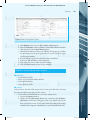
restarting a computer that is already on in one of two ways:
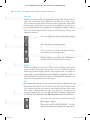
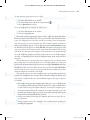
1.Press the Ctrl+Alt+Del keys together and then select the Shut down
options button down arrow on the lower-right side of the screen.
button, Shut down arrow
, and click the
Restart option on the menu.
2.Click the Start
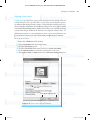
See Figure 3-1 for these two examples. Some computers may have other
options for a warm boot depending on the edition and settings of that OS. Use
a warm boot when you are installing new software or when the computer stops
responding. Some school computers use the Ctrl+Alt+Del option to wake up the
computer for you to login. When you click the Start button, you may see Log off
or Shut down
depending on the configuration of the OS.
ch03.indd 117
5/16/2013 11:29:40 AM
© Jones & Bartlett Learning, LLC. NOT FOR SALE OR DISTRIBUTION
118 chapter 3: The Computer and Its Operating System Environment
Click restart
third
Click Start button first
Click arrow second
Press Ctrl+Alt+Delete first
Click Restart third
Click arrow second
Figure 3-1 Warm Reboot
Power-On Self Test (POST)
When you boot the computer, the power supply sends an electrical signal to the
processor, causing it to reset itself and find the basic input and output system
(BIOS) instructions on the read-only memory (ROM) chip. The BIOS performs a
power-on self-test (POST), which analyzes the buses, clock, memory, drives, and
ports to make sure that all of the hardware is working properly. The system compares the results of this test with data stored in the complementary metal-oxide
semiconductor (CMOS) chip.
System Files and Kernel
Upon completion of the POST test, the software loaded in ROM activates the
computer’s disk drives and looks for a bootable sector of a disk—the part of the
ch03.indd 118
5/16/2013 11:29:41 AM
© Jones & Bartlett Learning, LLC. NOT FOR SALE OR DISTRIBUTION
The Operating System Environment 119
disk containing a program that loads the system files into memory (bootstrap
loader). Generally, this activity involves checking the hard drive. Once found, the
system files are loaded into memory. This central module of the operating system,
called the kernel, is the part of the operating system that loads first and remains in
memory as long as the computer is on. The operating system in memory is now in
control of monitoring system resources.
This startup procedure runs very quickly on most computers. If the computer
finds problems, the computer makes beeping sounds and then stops running. If
all goes well, the user logs into his or her account. On personal computers, the
user may or may not need to log in depending on the configuration of the operating system. The desktop now appears.
Understanding the boot process makes problem solving easier when something goes wrong during this process. If you press the On button and nothing
happens, the computer may have been unplugged or the battery may be dead.
Without a power source to initiate the startup process, the computer can do
nothing. Note that many tablets go to “sleep” but stay on, thus making it quicker
to start using the device. However, you will need to know the specific steps to
wake the computer. This information is provided later in this chapter.
Graphical User Interface (GUI)
Windows, Macintosh OS, and mobile devices use GUIs as the means for the
user to interact with the operating system. Figure 3-2 shows a typical Windows
desktop with its graphical interface. Your desktop may have all or few of the items
shown in Figure 3-2, as individuals and companies often customize the GUI. Your
mobile device may have many or a few icons visible and generally requires you to
swipe to reveal more options.
The focus of this chapter is the Windows operating system and some features
common to both the Windows and Mac operating systems. This chapter does not
cover mobile device operating systems.
Desktop
ch03.indd 119
The desktop is the area on the screen that displays
the icons, folders, files, and taskbar. In the Windows
environment, the desktop is the primary workspace
that fills the screen. The monitor displays the desktop
when you boot the computer or log in. The user may
customize the desktop to suit his/her work style—that
is, the user can change the colors and the location of
objects, add images to the background of the desktop,
add gadgets, and install screen savers.
5/16/2013 11:29:41 AM
© Jones & Bartlett Learning, LLC. NOT FOR SALE OR DISTRIBUTION
120 chapter 3: The Computer and Its Operating System Environment
Icons
Desktop
Files
Shortcuts
Folder
Taskbar
Windows 7 Desktop
iPad Home Screen
Figure 3-2 Windows 7 Desktop and Apple iPad Home Screen
ch03.indd 120
5/16/2013 11:29:42 AM
© Jones & Bartlett Learning, LLC. NOT FOR SALE OR DISTRIBUTION
The Operating System Environment 121
The dialog box is a special, secondary window that
requires the user to make selections from options to
implement the commands. Making a selection may
require
■■ selecting from a list box,
■■ clicking a square or circle to make a selection,
■■ clicking a tab for another option, or
■■ clicking a commit button. See Figure 3-3 for an
example.
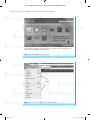
Gadgets are a Windows option for the desktop. Gadgets permit easy access to frequently used tools such
as slideshows of pictures, newsfeeds, or the weather.
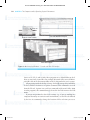
Figure 3-4 shows the gallery of gadget options that
come with the operating system. More gadgets are
available from independent developers but you need
to make sure they come from a trusted source. Use a
search site to find them.
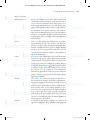
Menus are lists of commands or tasks that become
available when the user selects a command category
from the menu bar. See Figure 3-5 for an example of
a menu and its drop-down menu. While many applications use the menu bar, Office 2010 uses the ribbon
concept covered in Chapter 4.
Dialog Box
Gadgets
Menus
Title Bar
Tab
Circles
List Boxes
Square
Commit Button
Figure 3-3 Example of a Dialog Box
ch03.indd 121
5/16/2013 11:29:44 AM
© Jones & Bartlett Learning, LLC. NOT FOR SALE OR DISTRIBUTION
122 chapter 3: The Computer and Its Operating System Environment
Microsoft took down this
option and no longer hosts
a gallery of gadgets
*If you want to use gadgets, you will need to search online for ones of interest to you
but be careful they are from a trusted source.
Figure 3-4 Add Gadgets for the Desktop
Menu Bar
Menu
Figure 3-5 Menu Bar and Menu in a Typical Window
ch03.indd 122
5/16/2013 11:29:46 AM
© Jones & Bartlett Learning, LLC. NOT FOR SALE OR DISTRIBUTION
The Operating System Environment 123
Mouse/Touch Pad
and Touch Screen
Objects
Pointer
Taskbar
Window
ch03.indd 123
Devices that enable you to select objects and issue
commands include the mouse, touch pad, and touch
screen. The idea behind the use of these devices is to
make issuing commands faster, especially for the nontypist. GUIs depend on these devices to select objects
or commands from menus, ribbons, and toolbars.
Most of the commands that you access in this manner
also have an equivalent keyboard stroke when there
is a keyboard. Refer to Chapter 2 for a description of
mouse actions.
Objects on the desktop are small pictures or graphic
representations of icons, files, folders, and shortcuts.
To select an object place the pointer on it and click.
Double-clicking the object opens it. Right-clicking
an object opens a shortcut menu, sometimes called a
context-sensitive menu. See Figure 3-2 for examples of
objects on the desktop.
A pointer is the symbol that represents the mouse
location on the screen. Many application programs
change the look of the pointer to reflect the process the
system is expecting. For example, the pointer changes
to a double-headed arrow (
) when you hover over
a window border, indicating readiness for resizing
the window. Use the pointer to select commands
from menus and toolbars. This text presents different
pointer shapes as they occur in discussions about
application programs.
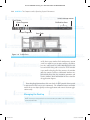
The taskbar is generally the long horizontal bar at
the bottom of the desktop. It combines window management and program launching functions. Use it to
switch between applications and files. All open windows become items on the taskbar. Windows 7 permits you to pin an application to the taskbar for quick
access. Open applications have a border around the
icon of the open applications. In the aero view, you
can also see a thumbnail of the document. Figure 3-6
shows the parts to the taskbar.
A window on the desktop displays the contents of
application programs, files, or folders. Each program
5/16/2013 11:29:47 AM
© Jones & Bartlett Learning, LLC. NOT FOR SALE OR DISTRIBUTION
124 chapter 3: The Computer and Its Operating System Environment
Show Desktop Button
Start Button
Notification Area
Open Programs
Pinned Programs
Aero Peek
Figure 3-6 Taskbar Parts
or file has its own window. Each window may contain
a title bar, menu bar, one or more toolbars, an address
bar, tabs, and a status bar. Office 2010 displays the title
bar and ribbon along with a status bar. If the window
is too small to display all of the contents, the window
will also contain scroll bars. Additional window controls include those that close, maximize, minimize, and
restore windows. More information on this is found in
the application chapters.
Even though applications have their own look, the GUI provides the user with
a consistent feel and easy-to-use commands. The common features and looks
enable the user to adjust quickly to other applications and to move between applications easily.
Managing the Desktop
NOTE: You may not have permission to alter the desktop or taskbar in the clinical environment and school labs.
ch03.indd 124
5/16/2013 11:29:48 AM
© Jones & Bartlett Learning, LLC. NOT FOR SALE OR DISTRIBUTION
Managing the Desktop 125
This section discusses the layout of the desktop and explains how to manage
the desktop in Windows 7. The desktop is the main window visible after logging
on to the computer. Most workers enjoy arranging their desks in a specific way
that makes them more comfortable and productive in their work environment;
they also add personal items to their desks. The computer desktop can mimic an
individual’s personal desktop by permitting each user to customize the desktop if
she/he desires.
When programs open, they run on top of the desktop. To display the desktop
without closing any of the opened programs, click the Show Desktop button
on the far right of the taskbar.
Objects on the Desktop
The desktop displays several objects by default unless the user changes the default.
Default means that the computer uses a certain setting or configuration. Figure 3-2
shows some of these objects: icons, folders, shortcuts, files, and the taskbar.
Icons
Icons or small pictures, represent applications, folders, and files. By default, the
recycle bin is on the desktop. Other icons present on the desktop depend on the
unique configuration of the computer. For example, the school computer may
have the recycle bin, computer, and network icon on the desktop. When you
install a new program, the computer may ask you if you want an icon for the program placed on the desktop.
The Recycle Bin temporarily stores deleted files until
you empty it. The system deletes files that you delete
from external storage devices (such as USB storage
devices) immediately. This icon is present by default.
The top view is an empty Recycle Bin and the bottom
view is one with files in it. You should empty the
Recycle Bin periodically depending on how frequently
you send items to the recycle bin.
This icon may or may not be present on the desktop.
This gives you access to seeing your storage devices and
accessing the files. To add it to the desktop, click Start,
right-click Computer, and click Show on Desktop.
If the computer is connected to a network, the user
has access to the Network icon. It may or may not be
placed on the desktop. Use it for viewing and accessing
network resources.
You may add other icons to the desktop or Quick Launch area of the taskbar as
well as create shortcuts on the desktop.
ch03.indd 125
5/16/2013 11:29:49 AM
© Jones & Bartlett Learning, LLC. NOT FOR SALE OR DISTRIBUTION
126 chapter 3: The Computer and Its Operating System Environment
Shortcuts
Shortcuts are pointers to an actual application, folder, or file. They contain the
path to the executable file for the application, to the folder, or to the file, respectively. Deleting one simply deletes the shortcut, not the application, folder, or file.
Shortcuts have a right curved arrow on the bottom left of the icon. Use shortcuts to provide quick access to commonly used applications, folders, or files. A
later section in this chapter describes the process of creating them. Here are a few
examples of shortcuts:
The icon to the left is a shortcut to the browser Firefox.
This is the shortcut to Google Chrome.
This is a shortcut to a folder called Irene-Shortcut
located down a path on the hard drive.
This last example is a shortcut to a file called Chapter2IJ-Shortcut located on the hard drive in a folder.
Folders
Folders are holding places for files and may be on the desktop or other places
on the hard drive or removable storage devices. Icons that look like manila file
folders represent them. Folders provide a way to organize work—for example, by
storing similar programs and files in them. Subfolders are folders in Folders to
create a hierarchical structure to the system. See Managing Files and Folders as to
the process of creating folders later in this chapter.
Files
Files contain data that users create in applications such as Word, Excel, and
PowerPoint. Files hold or store the work we do. Icons representing each file
type assume the look that one associates with the application that creates them.
For example, a Word file looks like a piece of paper with a W symbol on the
icon representing the file. You create files when you save work in an application
or when you select the Create, New File command from the shortcut menu.
ch03.indd 126
The image to the left shows a Word document file
titled Chapter 2-Figures.
This one is a pdf file titled USCENSUS… The dots
indicate that the file name is longer than what you see.
5/16/2013 11:29:51 AM
© Jones & Bartlett Learning, LLC. NOT FOR SALE OR DISTRIBUTION
Managing the Desktop 127
Taskbar
The taskbar, by default, is at the bottom of the screen. The user may move it to any
screen edge. It is actually three separate components, although it looks like one
object. Figure 3-6 shows the parts of the taskbar.
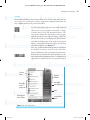
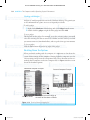
Use the Start button to open the Start menu. This will
allow you to access programs, documents, settings
(Control Panel), help, and shutdown features. The
Start menu contains the user name at the top right
with an icon above it that you can change. On the left
side are the recently accessed programs, pinned items,
and a link to All Programs. To the right are the System
Folders, Control Panel, Help and Support, and the Log
off/Shutdown button. See Figure 3-7.
This setup represents Microsoft’s approach to unclutter
the desktop. A practice exercise at the end of this
chapter demonstrates how to customize the Start menu.
Between the Start button and notification area are the
open and pinned programs/windows. Frequently used
applications are pinned to this area to provide quick
Pinned
Items
Recently
used
programs
System
Folders
Computer
Control Panel
Help
All Programs
Search Box
Log off/Shut
down
Figure 3-7 Start Menu Parts
ch03.indd 127
5/16/2013 11:29:52 AM
© Jones & Bartlett Learning, LLC. NOT FOR SALE OR DISTRIBUTION
128 chapter 3: The Computer and Its Operating System Environment
access to them and to keep an uncluttered desktop.
Open windows also show in this area of the taskbar.
Figure 3-8 shows Excel and Internet Explorer as
pinned programs and PowerPoint Presentation1 document as an open window.
To the far right of the Start button is the notification
area. It contains programs that usually run in the background and need only occasional user input. Examples
of these types of programs are antivirus programs, the
battery charge indicator, the Safely Remove Hardware
utility, the Internet access signal strength, and the volume
control. If the mouse-controlled pointer pauses over one
of these icons, the function or name of that icon appears.
Periodically a small pop-up window will notify you of an
action you should take or consider (e.g., “Your virus protection software needs to be updated.”). See Figure 3-9.
The date and time along with the Show Desktop button
are to the far right on the taskbar.
Pinned and Open Areas Taskbar
Pinned Items Open Window
Figure 3-8 Open and
Pinned Area of Taskbar
Notification Area of Taskbar
Antivirus
Internet Access Strength
Safely Eject Hardware & Media
Figure 3-9 Notification Area of
Taskbar
ch03.indd 128
5/16/2013 11:29:55 AM
© Jones & Bartlett Learning, LLC. NOT FOR SALE OR DISTRIBUTION
Managing the Desktop 129
Pointer Shapes
As mentioned earlier, pointer or cursor shapes may change while the user is
working in the Windows environment. When the pointer changes shape, the
computer expects to complete certain operations and responds accordingly.
or
The ready arrow means that the computer is waiting
for commands. Use it to select objects, double-click
objects, right-click objects, drag objects, or choose
menu or icon commands.
Use the I-beam to insert text. It appears when the
user pauses over a text field, along with the insertion
point (blinking vertical bar). Any text entered will be
inserted at the location of the vertical bar or insertion
point, not the I-beam location (which could be over
any text field).
Window-sizing pointers appear when the cursor is
over a window border. There are four versions: left–
right, up–down, left slanted, and right slanted. Left–
right arrows widen the window. Up–down arrows
lengthen the window. Slanted arrows can widen and
lengthen the window simultaneously.
The moving circle or hourglass indicates that the computer is processing and cannot execute any further
commands until it finishes processing. Wait. Do not
type or click the mouse button until the hourglass disappears. If you click anything before the ready arrow
appears, the computer may freeze, stop working,
or crash.
The hand means that the mouse pointer is over a
linked object or linked text. Clicking the text or object
will bring more information from this site or take you
to another site. Use the hand pointer to obtain additional information.
When the mouse pointer looks like this, the attempted
action is not available. This is the forbidden cursor
shape.
Additional pointer shapes will be discussed in appropriate application
sections elsewhere.
ch03.indd 129
5/16/2013 11:29:57 AM
© Jones & Bartlett Learning, LLC. NOT FOR SALE OR DISTRIBUTION
130 chapter 3: The Computer and Its Operating System Environment
Changing the Appearance of the Desktop
By default, Windows 7 will install the Windows 7 Basic theme on the computer.
Each person with an account on the computer can set up the computer to display his or her own theme. In addition, users may customize or personalize the
background (also called wallpaper) or color scheme. Some users never change the
theme, color, or background; others like change and stimulation in the workday
world, so they change it regularly. Windows provides for both types of users by
letting the user choose the theme, desktop background, and color. If the user
changes the default settings, the new settings are in effect until the user changes
them again. A variety of digital pictures are available as desktop backgrounds.
Some users prefer to use their own personal digital pictures as background wallpaper. Some computer labs and companies may restrict the ability to adjust the
desktop.
HINT: To see additional themes, you must first install them from Microsoft’s Web site or
from the Internet.
To change the default theme:
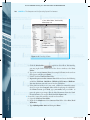
1.Right-click a blank area of the desktop. A shortcut menu appears.
2. From the shortcut menu, select Personalize. The screen shown in Figure 3-10
appears.
3.Click one of the themes and the new theme appears.
To change the desktop background or color scheme:
1.Right-click a blank area of the desktop. A shortcut menu appears.
2. From the shortcut menu, select Personalize. The screen shown in Figure 3-10
appears.
3.Click the Desktop Background or Window Color options.
4.Select a background or window color from the presented options.
5.When satisfied with your choice, click Save changes and close the Personalize window.
A user can also change the desktop from the Control Panel. To access the Control Panel, select the Start button on the taskbar, the Control Panel option, and
Personalization
. Again, Figure 3-10 shows the available choices.
NOTE: The Control Panel is the same place to alter the appearance of the mouse pointer,
to add sounds, and to add screen savers.
ch03.indd 130
5/16/2013 11:29:58 AM
© Jones & Bartlett Learning, LLC. NOT FOR SALE OR DISTRIBUTION
Managing the Desktop 131
Select a Theme
Select a Desktop
Background
Select a Color
Scheme
Select a
Screen Saver
Figure 3-10 Changing the Window Color and Appearance, Desktop
Background, and Theme
Moving Objects on the Desktop
Windows provides an option to change the location of any object on the desktop.
The taskbar can be located on any of the four edges of the screen. The default is to
place the taskbar on the bottom of the screen.
To change the location of the taskbar:
1.Place the mouse pointer on a blank area of the taskbar.
2.Drag the taskbar to the left, right, bottom, or top of the screen.
3.Release the mouse button.
NOTE: When you drag the taskbar, it initially appears not to move. Keep dragging the
mouse toward the edge of the screen, and eventually the taskbar will move unless it is
locked into place. To unlock it, right-click a blank area of the taskbar and select Lock the
taskbar from the menu to remove the check mark next to it.
ch03.indd 131
5/16/2013 11:29:59 AM
© Jones & Bartlett Learning, LLC. NOT FOR SALE OR DISTRIBUTION
132 chapter 3: The Computer and Its Operating System Environment
To change the location of an icon, folder, shortcut, or file:
1.Select the object.
2.Drag it to the new location.
To arrange by name, size, type, and date modified:
1.Right-click a blank area of the desktop.
2.From the shortcut menu, select Sort By and select one of the options.
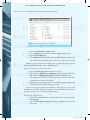
There are four choices in the Arrange Icons By menu: name, size, type, and
date modified. See Figure 3-11. Depending on the option you choose, the icons
will be arranged on the left side of the desktop in the selected order. The disadvantage of using this method of organizing icons is that every time you add a
new object, the objects will appear in different spots on the desktop. Most people
prefer their objects to be found in a consistent place on the desktop so that they
do not need to spend time looking for them.
To align icons in a grid so they are evenly spaced:
1.Right-click a blank area of the desktop.
2.From the shortcut menu, select View, Align to Grid option (Figure 3-11).
The objects (icons) will now be in the general area where you moved them,
but will appear in a straight column or row. Underlying the screen is an invisible
checkerboard. When you issue the command Align to Grid, the icons are snapped
into the closest square to produce straight rows and columns. If the objects
(icons) snap back into place when they should be moveable, right-click a blank
area of the desktop, select Arrange Icons By, and click Auto Arrange to remove
the check mark for that selection. See Figure 3-11. The check mark causes the
icons to snap back into place.
Submenu for the Sort By option
Submenu for the View option
Figure 3-11 Arrangement of Icon Options
ch03.indd 132
5/16/2013 11:30:01 AM
© Jones & Bartlett Learning, LLC. NOT FOR SALE OR DISTRIBUTION
Managing the Desktop 133
Choosing a Screen Saver
Screen savers are moving or static pictures displayed on the desktop when no
activity takes place for a specified time. Screen savers were designed to protect
the monitor from having burned in images. Today, adding decoration seems to be
their primary use in the home. In a healthcare setting screen savers have the added
functionality of providing privacy. Many screen savers come with the operating
system; others may be found on the Internet or in computer software stores. In
addition many people use a personal photo to create a screen saver. Make sure you
pay attention to security issues when downloading anything from the Internet.
To set up a screen saver:
1.Right-click a blank area of the desktop.
2.Choose Personalize from the shortcut menu.
3.Click the Screen Saver option.
4.Click the Screen Saver down arrow, and select a screen saver image.
5.Set the amount of time to wait before activating the screen saver.
6.Click Apply and OK. See Figure 3-12 for the Screen Saver Settings dialog box.
Select One
Set Time
Click Apply and then OK
Figure 3-12 Screen Saver Settings Dialog Box
ch03.indd 133
5/16/2013 11:30:02 AM
© Jones & Bartlett Learning, LLC. NOT FOR SALE OR DISTRIBUTION
134 chapter 3: The Computer and Its Operating System Environment
Working with Gadgets
Gadgets are small programs that run on the Windows desktop. They permit you
to view information at a glance or to access frequently used tools.
To add a gadget:
1.Right-click a blank area of the desktop and select Gadget from the menu.
2.Double-click the gadget or right-click the gadget and click Add.
To use a gadget:
This depends on the gadget. For example, to use the currency gadget, you would
select the currency you want to convert (US dollars) and the currency to which
you want to convert it (Australian dollars), and accept the $1 or type in an amount.
To close a gadget:
Click the Close button (X) on the top right of the gadget.
Shutting Down the System
When you finish working with the computer, it is important to shut down the
system before turning off the computer. Shutting down the computer saves the
current settings and prevents the corruption of files. These directions are for networked, shared computers such as in a computer lab. See Figure 3-13 for a screen
shot of the shutdown options.
Networked Computer Example
Personal Computer Example
Shut down instead
of Log off
Click Start button
Click Log off or Arrow to bring up
the menu to Shut down or Restart
Figure 3-13 Shutting Down or Logging Off
ch03.indd 134
5/16/2013 11:30:03 AM
© Jones & Bartlett Learning, LLC. NOT FOR SALE OR DISTRIBUTION
Shutting Down the System 135
To shut down the system and save your session:
1.Click the Start button on the taskbar.
2. Click the arrow to the right of the Log off button
3. Select Shut down the system.
.
To log off and prepare the computer for another user:
1.Click the Start button on the taskbar.
2.Select the Log off option.
Most of the time, the appropriate option will be either Log off or Shut down.
In most computer laboratories, the user logs off and does not turn off the computer. The computer saves all of the current user settings, closes all programs,
and then prepares to receive another user. The computer remains turned on,
and a login window appears with instructions (press Ctrl+Alt+Del) to log
in. When the next user presses Ctrl+Alt+Del, the login screen appears. The
user types their user ID and password. Some work environments ask you log
off but do not shut down the computer. They sometimes run updates during
the night and if the computer is off, the updates do not run on that computer.
At home, it is probably best to shut the computer down when not in use for a
long time.
If more than one user account exists on a computer, you can switch between
users using Fast User Switching. Both users’ accounts remain open. Here you
would select the Start button, click the arrow to the right of Shut down, and select
Switch User. You can now switch between users by pressing Ctrl+Alt+Delete,
and selecting the correct user. Save any open files because if another user shuts
down the computer, you will lose your work.
The options you see on your computer may vary depending on how the
system was configured. For example, in the network example in Figure 3-13
Switch User is disabled. Here are some additional options that may or may not
be available.
Hibernate or Sleep puts the computer into a low-power state, but will let the
user quickly resume working. With this option, the computer looks like it
is turned off, but the power lights remain on. To restart the computer, press
the power button quickly on the computer or, in some laboratories, press the
spacebar key. For some laptops, pressing the power button will wake up the
computer if it is hibernating or in sleep mode.
■■ Lock prevents others from using the computer unless the user types the correct password.
■■ Restart option restarts the computer. Use it primarily for updating or
installing new programs.
■■
ch03.indd 135
5/16/2013 11:30:03 AM
© Jones & Bartlett Learning, LLC. NOT FOR SALE OR DISTRIBUTION
136 chapter 3: The Computer and Its Operating System Environment
Managing Windows
This section describes the layout of most application windows and the process
of controlling the windows and changing the windows display options. Applications, files, and folders appear in a window, and each window shares similar attributes. To be able to work in the Windows world efficiently, users need to be able
to manage the windows.
Common Windows Layout
Title Bar
Tabs
Menu Bar
Present in most windows, this horizontal bar is at
the top of the window. The title bar contains the file
or folder name and the program name. It may also
include a path to a file or homepage in a browser
window. In Office 2010, one can also pin commands to
the Quick Access Toolbar on the left of the title bar. On
the far right of the title bar are the window control buttons that minimize, maximize, and close the window.
Some programs may also include a search box on the
far right of the title bar. Use the title bar to move (drag)
the window to another location on the desktop.
In some newer versions of software like browsers and
MS Office 2010, Tabs are used instead of menu bars.
They are part of the ribbon in Office 2010. They function just like menu bars as they give the user access to
commands. Later application chapters describe Tabs
more fully.
If the window has a menu bar, it contains names of
available commands (see Figure 3-14). Use the menu
or horizontal bar with words on it to obtain additional
drop-down options. For example, clicking File brings
up such choices as New, Open, Create shortcut, Delete,
Rename, Properties, and Close, depending on the open
program. Any command not available at this time
appears dimmed.
To display the menu bar if it is not showing:
1.Right-click the toolbar, click Menu bar box to place an
X there.
2.Alternatively, you can select Tools option down arrow
on the toolbar, click Toolbars, and then click to place
an X next to menu bar.
ch03.indd 136
5/16/2013 11:30:03 AM
© Jones & Bartlett Learning, LLC. NOT FOR SALE OR DISTRIBUTION
Managing Windows 137
Right Click here
Click here to place a
check mark
OR
Click View, Toolbars, and
Menu bar square
Figure 3-14 Display Menu Bar
Ribbons
Toolbars
ch03.indd 137
If an option on a menu has three periods after it
(ellipsis), a dialog box appears. A dialog box is a
window that requests additional information from
the user before it can implement the command. For
example, in Figure 3-15 the Choose Details and
Customize This Folder commands bring up a dialog
box. Complete the information as appropriate in the
dialog box or accept the defaults. Click OK to execute
the command.
If an option has a right arrow, another menu appears. In
Figure 3-15, the commands Toolbars, Explorer Bar, Sort
By, and so forth all open another menu. This additional
menu is sometimes called a nested menu or a submenu.
In Office 2010, the ribbon is the control center for the
application. It consists of Tabs, Groups, and Commands.
Some windows display one or more toolbars. The
standard toolbar provides access to commonly used
5/16/2013 11:30:04 AM
© Jones & Bartlett Learning, LLC. NOT FOR SALE OR DISTRIBUTION
138 chapter 3: The Computer and Its Operating System Environment
Ellipses
SubMenus
Figure 3-15 Menu Options
Quick Access Toolbar in Microsoft Word 2010
Toolbar in the Snipping Tool
Toolbar for Adobe Reader
Figure 3-16 Toolbar Examples
ch03.indd 138
commands such as Save, New, Copy, etc. depending on
the application (see Figure 3-16 for examples of toolbars). Additional or different commands may appear
in some applications because of the nature of particular programs. For example, the Snipping Tool toolbar
contains New, Save, Copy, Send, Pen, Highlighter, and
Eraser on the toolbar.
If there is a second toolbar, it generally relates to specialty functions like formatting, ruler, and draw. The
5/16/2013 11:30:06 AM
© Jones & Bartlett Learning, LLC. NOT FOR SALE OR DISTRIBUTION
Managing Windows 139
Status Bar
Scroll Bars
second toolbar provides quick access to commands
associated with that task. Windows also gives the user
the ability to display additional toolbars as necessary.
Some applications use a horizontal bar at the bottom
of the window to display such things as the number
of objects in the window, a description of menu commands, the number of pages in a document, the location
of the cursor, and special toggle switches such as overwrite, num lock, and cap lock. Contents of the status
bar depend on what is important in the application. For
example, in Excel it displays the Cell Mode indicator,
the View shortcut, the Zoom, and the Zoom slider,
while in Word it indicates the current page number, the
total number of pages, and the word count as well as
the View shortcut, the Zoom, and the Zoom slider. By
right-clicking the status bar, the Customize Status Bar
menu appears. The check marks on this menu show the
current features that are on and provide an opportunity
to turn on other features of the status bar.
Located along the right and bottom of the window are
the vertical and horizontal scroll bars. They appear
when there is more data than can be displayed in the
window. There are arrows at the top and bottom of the
vertical scroll bar on the right and at the left and right
for the horizontal scroll bar on the bottom with a box
somewhere between them. Clicking the arrow buttons
moves the user slowly through the window. The box or
elevator in the scroll shaft indicates the current location
relative to the total document. Dragging the elevator in
the scroll bar gives more control over viewing the contents of the window. You may also click on the elevator
shaft to go to an approximate location in the document.
At the bottom of the vertical scroll bar are up and
down chevrons
ch03.indd 139
and a select object button (round
circle). By default, the down chevron moves through
the document one page at a time while the up chevron
displays the previous page. The default can be changed
by selecting the round circle and choosing an option.
5/16/2013 11:30:07 AM
© Jones & Bartlett Learning, LLC. NOT FOR SALE OR DISTRIBUTION
140 chapter 3: The Computer and Its Operating System Environment
Opening a Window
You can open a window or program in several different ways:
■■
■■
Double-click the icon representing the window.
Right-click the icon representing the window to be opened, and select Open
from the menu.
Once the window is open, the user can perform the appropriate tasks. Because
more than one window may be opened at a time, the user will need to control the
window display.
Jump Lists
Jump lists are shortcuts to files and commands that one uses frequently. These items
change in accordance with what the user does. See Figure 3-17 for some examples
of jump lists. An item may also be pinned to the Jump List or removed from it.
To view a jump list:
■■
■■
Right-click an icon on the taskbar or
Click the list arrow to the right of a program icon on the Start menu.
Jump List for Word on Taskbar
Jump List for PowerPoint from Start Menu
Figure 3-17 Examples of Jump Lists
ch03.indd 140
5/16/2013 11:30:08 AM
© Jones & Bartlett Learning, LLC. NOT FOR SALE OR DISTRIBUTION
Managing Folders and Files 141
Controlling the Window Size and Placement
Several controls are available for working with windows. Use these controls to
move a window to another location on the desktop, change the size of a window,
or close a window. The resize features permit the user to control the actual size
of the window. The Maximize
and Minimize
buttons use default standards to control the size of the window. Clicking the Maximize button expands
the window to fill the screen. Clicking the Minimize button places a button for
the application on the taskbar and removes the window from the desktop; with
this option, the program remains open, but runs in the background. Clicking the
Restore button returns the window to the size it was before it was maximized.
These buttons are helpful for controlling windows when the user is running
multiple programs, opening multiple windows, or opening several files. They
permit the user to view or work in each window while placing the others in the
background.
In addition, the user may arrange windows on the desktop in cascade, stacked,
or side-by-side style or use the new Aero peek. When many windows are open,
the cascade option works well if it is necessary to see the open windows. With this
option, open windows will cascade from the top of the screen down, with the title
bar of each open window visible to the user. Use the stacked and side-by-side
arrangements to partition the screen into quadrants depending on the number
of open windows. These options are useful when the user wants to drag and drop
data from one window to another. See Figure 3-18 for examples of cascade and
Aero 3D styles and Table 3-1 for specific functions and directions.
Managing Folders and Files
This section deals with the management of files and folders. The file system is
a key element for working efficiently and effectively with a computer. Consequently, knowing how to find, access, and manage files is important to managing the computer system as a whole. Use Computer to access files and folder
options and to see all the folders and subfolders (which indicate the structure of
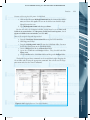
the storage devices). Figure 3-19 shows the Computer window without the folder
option expanded on the left, and with the folder option expanded on the right.
This section first introduces some basic file and folder management concepts.
The specifics of creating, renaming, moving, copying, and deleting files and
folders then follow.
Designating Default Disk Drives
The default drive is the drive that the program uses to find and save files unless
told otherwise. Recall that the drive letter designation for the hard drive is generally C, and sometimes D; for a USB device and DVD or CD-ROMs, the default
ch03.indd 141
5/16/2013 11:30:08 AM
© Jones & Bartlett Learning, LLC. NOT FOR SALE OR DISTRIBUTION
142 chapter 3: The Computer and Its Operating System Environment
Click an
option
Right click the Taskbar
Cascade Window Example
Aero 3D Example
Figure 3-18 Arranging Windows – Cascade and Aero 3D Examples
letters are D, E, F, G, and so forth. Most programs use a default folder on the C
drive to store newly created files. For example, Microsoft Office stores all Microsoft Office files in the Documents folder on the C drive under the user’s account.
All programs provide the ability to change the default storage drive and folder.
To do so, find the Preferences or Options command. This command is accessed
from the File tab, Options icon, and Save command in Microsoft Office 2010;
in other programs, this command may be located in the Tools menu or the Edit
menu.
If you are not permitted to alter these settings (e.g., if you are working in a
computer laboratory or restrictive work environment), use the File tab followed
by the Save As command to change the location of files each time you access
ch03.indd 142
5/16/2013 11:30:10 AM
© Jones & Bartlett Learning, LLC. NOT FOR SALE OR DISTRIBUTION
Managing Folders and Files 143
TABLE 3-1 Controlling Window Size and Placement
Function
Directions (Make sure you have several open windows)
Move a window.
Click a blank area in the title bar of the window to be moved.
Hold down the mouse button while dragging the window to a new location,
and then release the mouse button.
Resize a window.
Select the window to resize by clicking its title bar.
Point to a window border or corner.
When the cursor becomes a double-headed arrow drag the corner or border
until it is the desired size.
Release the mouse button.
Enlarge a window.
Select the window to enlarge by clicking its title bar.
Click the Maximize button in the upper-right corner of the title bar. This
button is a toggle switch and shares space with the Restore button.
Reduce a window.
Select the window to reduce by clicking its title bar.
Click the Minimize button in the upper-right corner of the title bar.
Restore a window.
Select the window to restore by clicking its title bar.
Click the Restore button in the upper-right corner of the title bar. This button
is a toggle switch and shares space with the Maximize button.
Close a window.
Select the window to close by clicking its title bar.
Click the Close button in the upper-right corner of the title bar.
Arrange a window.
Right-click a blank area of the taskbar.
Select the arrange option: Cascade, Stacked, or Side-by-Side.
Aero Peek—Flip 3D
Hold down the windows key and press the tab key to scroll through the open
windows.
the program. In Office 2010 in the Save As dialog box, select the correct storage
device or computer in the Navigation Pane.
Organizing Folders
Most users store files on removable storage media (USB storage devices or CDs
and DVDs), on hard drives, on network file servers, or on the cloud. You must
organize your files into folders to make it easier to locate and retrieve them. Organizing electronic files is analogous to the organization of filing cabinets. Electronic files are organized on the storage media in folders and subfolders.
ch03.indd 143
5/16/2013 11:30:10 AM
© Jones & Bartlett Learning, LLC. NOT FOR SALE OR DISTRIBUTION
144 chapter 3: The Computer and Its Operating System Environment
Hard
Disks
List of files
for BBQ
pics
Removable
Storage
Devices
Expanded
drive with
list of
folders
Figure 3-19 Computer Window without Folder Expanded and with Folder Expanded
Root Level
Folders
Subfolders
ch03.indd 144
The “root” is the top level on which the folders reside.
This level stores files the computer needs to access at
startup. A general rule is that a folder or file listing of
the root level should not occupy more than one screen’s
worth of information.
Folders organize programs and data files. Before creating them, think about the nature of the work and
the programs it requires. Most software programs
automatically make a directory for their program files
during the installation process. Be careful to ensure
that these directories “fit” the organizational structure
of the work world. Customize them during installation
if necessary. A main folder might be the name of the
project; in your case the name of your school.
Subfolders are contained within other folders. They
provide further division or structure to the organization of files. Staying with the above example, you may
create subfolders for each semester and subfolders in
them for each course.
5/16/2013 11:30:12 AM
© Jones & Bartlett Learning, LLC. NOT FOR SALE OR DISTRIBUTION
Managing Folders and Files 145
Some rules/tips for creating and using the folder and subfolder structure are
summarized here:
1.Select your organizational scheme carefully, keeping in mind the nature
of how you work. At work you may not have a choice when working on
project teams, but you may provide some suggestions.
2.Place each application suite in its own folder, with subfolders holding
each application program. This structure makes installation of new versions, deletions of old versions, and maintenance of files easier and is done
by default with some installations. Some suites also create subfolders for
shared suite files and create the necessary structure automatically during
the software installation process.
3.Place programs that don’t belong to application suites in the Program Files
folder in their own subfolder, with an appropriate name representing the
application. For example, Adobe Acrobat Reader should have its own subfolder. Some users create a folder called Downloads and then create subfolders within it for each downloaded program. This is not the same as the
downloads folder that is part of the windows system. These subfolders are
then backed up and used whenever needed. Other users also create a Utility
folder off the root, and then place each utility program in its own subfolder
within the Utility folder. For example, Norton AntiVirus, Norton Utilities,
and WinZip would each have a subfolder in the Utility folder.
4.Create folders for storing data files. Never store data files on the root, as this
structure means that they will get mixed up with essential computer files.
Instead, create a Data folder off the root. This will make it easy to back up
your files. In the Data folder, create subfolders for each user on the system.
Let each user then create the appropriate subfolders in his or her Data folder.
While the hard drive contains Documents, Pictures, Music, and Games
folders under a user account, most people prefer to create their own structure.
On a networked computer, these folders are automatically created under the
user’s name. Computer labs or public spaces may enforce a different scheme.
5.Create a Graphic Library folder off the root or in the Data folder for storing
graphic images. The Graphic Library folder could contain subfolders representing graphic file formats or categories. For example, you might create
subfolders to hold JPG and GIF graphic files or subfolders called Pets,
Cities, and Computers. Some users also create a subfolder to hold photographs, as many users exchange pictures of family and friends.
6.Use appropriate folder names. No two folders in the same level can have the
same name, but subfolders within different folders can have the same name.
ch03.indd 145
5/16/2013 11:30:12 AM
© Jones & Bartlett Learning, LLC. NOT FOR SALE OR DISTRIBUTION
146 chapter 3: The Computer and Its Operating System Environment
It is probably better not to name any folder on the computer with the same
name as another folder. When folders have the same name it is very easy to
forget which folder you are working in and to edit or delete the wrong file.
7.Watch out for long filenames. When using folders and subfolders, file
names can become shorter.
8.Maintain the same structure on all your computers.
These are just a few tips; your work world may require all work to be stored on a
file server on the network. Remember files stored on the local hard drive may not
be routinely backed-up by the IT department. Others on the team will also not
have access to files on the local hard drive.
Creating Folders
Users can organize and manage their files by creating folders and then saving
their work in those folders. The best organization of folders depends on what you
want to do. For example, one folder might contain all files related to a specific
course, another folder might contain personal items, and yet another folder might
contain articles or publications. Storing files in the appropriate folders allows for
easy retrieval and backup of data. Associating files with projects or tasks allows
for easier cleanup upon completion of projects or tasks. By comparison, saving
all files in Documents folders makes retrieving and deleting more difficult and
time-consuming.
To create the folder:
1.Point to a blank area of the desktop or the open storage device window.
2.Click the right mouse button. A shortcut menu appears.
3.Click the menu item New. Another shortcut menu appears.
4.Click the menu item Folder. A new folder appears on the desktop or in the
storage device window. The folder name is highlighted.
5.Type a name for the folder and press Enter. The folder now has the new
name.
NOTE: When a storage device is displayed in the Computer or Documents window, you
can create a new folder by clicking the New Folder
button on the toolbar
and typing the name of the folder. When the menu option is present, select File, New,
Folder from the menu. In addition, some applications include the New Folder button on
a toolbar in the Save As dialog box. Use this same process to place folders within folders
(subfolders) and further organize your work.
ch03.indd 146
5/16/2013 11:30:12 AM
© Jones & Bartlett Learning, LLC. NOT FOR SALE OR DISTRIBUTION
Managing Folders and Files 147
Naming Folders and Files
All folders and files have names. Generally, folder names reflect the essence of
the files to be stored in them. For example, the project name, mHealth. In the
mHealth folder might be subfolders titled Policies, Minutes, References, Plan, and
so forth. Folders do not take on a delimiter or extension.
There are three parts to the file nomenclature: the file name, a delimiter, and a
file extension. For example, in “My Smiley Face.jpg,” the file name is “My Smiley
Face,” the delimiter is a dot (period), and the file extension is “jpg.”
File Name
Delimiter
Extension
ch03.indd 147
In the preceding example, the portion to the left of the
period (“My Smiley Face”) is the file name. File names
may include letters, numbers, or certain special characters, up to a maximum of 255 characters. Legal characters are letters of the alphabet (A–Z), digits (0–9), and
all of the special characters except these: *, ?, < , >, \, /,
“, :, and |. Although Windows permits the use of blank
spaces between the characters of the file name to make
the file name more readable and understandable, use
blanks with caution: Some programs cannot handle file
names with spaces or names longer than eight characters. File names are not case sensitive. You may type
them in all lowercase, a combination of uppercase and
lowercase, or all uppercase. Use a unique file name for
each file; there can be no duplicate file names in the
same folder.
The delimiter is the period that separates the file name
from the extension. Its inclusion is optional; users do
not need to use the delimiter unless they are typing an
extension to the file name.
The portion of the file identifier found to the right of
the delimiter is the extension. Extensions indicate the
nature of the file and its associated application. For
example, “docx” is the extension attached to files created with Word 2010. In most cases, the default option
in the Windows environment is to hide the extensions.
Therefore, the user does not need to type either the
extension or the delimiter; instead, the application that
creates the file assigns the extension by default. In this
5/16/2013 11:30:12 AM
© Jones & Bartlett Learning, LLC. NOT FOR SALE OR DISTRIBUTION
148 chapter 3: The Computer and Its Operating System Environment
environment, Windows uses the extension to identify
which application created the file. When the file name
is double-clicked, the file opens inside the appropriate
application. Users can use the extension to determine
the application used to create a specific file.
Before working with files, think about standards that you should apply when
naming files for personal work, for a clinical area, or for a department. File names
can be structured in many ways, depending on the nature of the work, who does
it, what users are sharing, how they are sharing it (on a network or hard drives),
how they access it, and who retrieves it. The important point here is to use an
understandable convention that will enable users to readily recognize what information the file holds over time—say, after 6 to 12 months have passed. In additon
be sure you know and use any naming protocols required by your professor and
never expect that the naming protocols will be consistent across professors
To name files, follow the directions given in Table 3-2. Folders are given names
when they are created as noted in the previous section.
Viewing Folders and Files
Once the user creates and names the files and folders, the user will need to access
them. In Windows, users view files and folders through the Computer window.
TABLE 3-2 Naming Files
Function
Directions
Name file
(application)
Start an application such as Word or Excel.
Create the file.
Click the File tab or File command from a menu bar; click Save or click the
Diskette icon on the Quick Access toolbar.
Select a location from the Navigation Pane on the top or left or from the
Save in text box.
Type the file name in the File name text box.
Click Save, OK or press Enter on the keyboard.
You can also use the Save as command to give a file another name.
For example, EthicsinNursing-draft or EthicsinNursing-draft2
Name file (on desktop)
Right-click a blank area of the desktop or in a window.
Select New.
Select the Type of file (e.g., Word, Excel).
Type the file name.
Press Enter.
ch03.indd 148
5/16/2013 11:30:13 AM
© Jones & Bartlett Learning, LLC. NOT FOR SALE OR DISTRIBUTION
Managing Folders and Files 149
Double-clicking the Computer icon opens a window that displays the storage
devices and folders stored on this computer (Figure 3-19). If the icon does not
appear on the desktop, click the Start button, Computer option. The screen then
divides into the left pane showing the organizational structure of each storage
device. The default is to collapse the folders. A click on an object on the left changes
the view of the main pane. The top pane shows the bread crumb (term used to show
the path to the files) and one can use it to move up and down the folder structure.
The main pane shows the storage device and when double-clicked files and folders
show. Repeat the double-clicking action to display the correct file or folder.
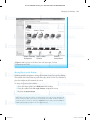
The display of the icons in the window depends on the selected view. See
Figure 3-20. There are multiple options for displaying icons in a window: extralarge, large, medium, small, tiles, list, details, and content. The view used is a
matter of personal preference. Use the list and small icons options to see more
of the information on the storage device; use the details view to see information
about the size and type of file; and use the large, medium, and extra-large icons to
see a thumbnail of the document.
To use Computer follow these directions:
1.Double-click the Computer icon on the desktop or click, Start, Computer.
2.Double-click the storage device where the file is located.
3.Double-click the desired file or double-click the folders until the correct
file appears.
4.Double-click the file.
To change how files and folders look in the
window:
1.Select the View down arrow
from the toolbar bar.
2.Click the desired view.
You may also use the slider on the left
side of the menu to change views. Clicking
the View button will rotate the display
through the view options. Which view you
choose is a personal preference, although
some views are better for specific tasks.
For example, the detail view is better when
you are looking for details about files or
folders, such as date modified and size. The
list view is best for seeing many files at one
time without having to scroll through them.
ch03.indd 149
Views
Slider
Figure 3-20 Computer Window
Views
5/16/2013 11:30:14 AM
© Jones & Bartlett Learning, LLC. NOT FOR SALE OR DISTRIBUTION
150 chapter 3: The Computer and Its Operating System Environment
Copying Folders and Files
The Copy command copies one, several, or all of the folders or files from one
place to another. That means there will be two copies of each folder or file. There
are several ways to copy files and folders: use menu systems, use drag and drop,
or use the shortcut menu. The process for copying files and folders is the same.
When using drag and drop from the F drive to another drive such as C, the default
is to copy. When using drag and drop from the F drive to another folder in the F
drive, the default is to move. You can override the default option by right-dragging the file. When dropping it in its new location, select Copy from the pop-up
menu.
To copy one folder or file using a toolbar or menu bar:
1. Click the folder or file to be copied.
2. Select Organize from the toolbar, Copy from the menu, or Edit, Copy from
the menu bar.
3. Navigate to the new location and click there.
4. Select Organize, Paste from the toolbar or Edit, Paste from the menu bar.
To copy one folder or file from one device to another device using drag and drop:
This works only when the file is being copied from one storage device to a different one.
1. Both the folder or file and the destination must be visible. Use what you
learned about arranging windows.
2. Select the folder or file.
3. Drag it to its new location.
4. Release the mouse button.
To copy one folder or file from one folder to another folder on the same device:
1. Click the folder or file and then right-drag it to its additional location.
2. Release the mouse button.
3. Select Copy here from the shortcut menu.
To copy one folder or file using the shortcut menu:
1. Select the folder or file.
2. Right-click the folder or file.
3. Select Copy.
4. Go to the new location.
5. Right-click in the new location.
6. Select Paste.
ch03.indd 150
5/16/2013 11:30:14 AM
© Jones & Bartlett Learning, LLC. NOT FOR SALE OR DISTRIBUTION
Managing Folders and Files 151
To copy adjacent files:
1. Click the first file in the group.
2. Hold down the Shift key.
3. Click the last file in the group.
4. Release the Shift key.
5. Follow any of the first three sets of directions when all files to be copied
have been selected.
NOTE: List view works best for implementing this technique.
To copy nonadjacent files:
1. Hold down the Ctrl key.
2. Click each file to be copied.
3. Release the Ctrl key.
4. Follow any of the first three sets of directions when all files to be copied
have been selected.
NOTE: An alternative method for selecting multiple folders or files is to draw a box around
them. To do so, go to the upper-left corner of the group of folders or files. Hold down the
left mouse button. Drag the mouse to the opposite corner, and release the mouse button.
Once the folders or files are highlighted, follow any of the first three sets of directions to
copy them.
Moving Folders and Files
Moving files and folders is similar to copying files and folders. The Move command takes a file or folder from one place and puts it in another; it does not duplicate the file in the process. There are several ways to move files and folders: use
menu systems, use drag and drop, or use the shortcut menu. When moving a file
from one storage device to another storage device, use the right-drag option and
select Move from the pop-up menu. Remember that the default for dragging and
dropping a file between different storage devices is to copy the file. When moving
a file from one place on the same storage drive to another place on the same
storage drive, the default is to move the file.
To move one file using the toolbar or menu bar:
1.Select Organize from the toolbar, Cut from the menu that appears, or Edit,
Cut from the menu bar.
ch03.indd 151
5/16/2013 11:30:14 AM
© Jones & Bartlett Learning, LLC. NOT FOR SALE OR DISTRIBUTION
152 chapter 3: The Computer and Its Operating System Environment
2.Go to the new location and click there.
3.Select Organize from toolbar, Paste from the menu, or Edit, Paste from the
menu bar.
To move one file using drag and drop:
1.Select the file.
2.Drag the file to its new location.
3.Release the mouse button.
NOTE: This method works only when the file is going from one folder on a storage device
to a different one on the same storage device. Both the file and the destination must be
visible.
If the file is to be moved from one storage device to another storage device,
follow these directions.
1.Right-drag the file to its new location.
2.Release the mouse button.
3.Select Move here from the shortcut menu.
To move one file using the shortcut menu:
1.Select the file.
2.Right-click the file.
3. Select Cut.
4.Go to the new location.
5.Right-click in the new location.
6.Click Paste.
To move adjacent files:
1.Click the first file in the group.
2.Hold down the Shift key.
3.Click the last file in the group.
4.Release the Shift key.
5.Follow any of the first three sets of directions after all files to be moved have
been selected.
To move nonadjacent files:
1. Hold down the Ctrl key.
2. Click each file to be moved.
ch03.indd 152
5/16/2013 11:30:15 AM
© Jones & Bartlett Learning, LLC. NOT FOR SALE OR DISTRIBUTION
Managing Folders and Files 153
3. Release the Ctrl key.
4. Follow any of the first three sets of directions after all files to be moved have
been selected.
Deleting Folders and Files
The Delete command removes folders and files from the storage device. Use this
command to clean storage devices and discard unneeded folders or files. Several
versions of this command are available, as noted in this section.
When you delete files from a removable storage device such as a USB storage
device, the system does not move them temporarily to the Recycle Bin but instead
deletes them immediately. It only moves files temporarily to the Recycle Bin when
you delete them from the hard drive. Thus, if a user accidentally deletes files
from the hard drive, you may recover those files if you did not empty the Recycle
Bin. Deleted folders appear as empty folders in the Recycle Bin but actually still
contain the old files. Thus, when a user restores a folder from the Recycle Bin, it
restores all of the original files as well.
To delete using the toolbar or menu bar:
1.Select the file.
2.Select Organize from the toolbar, Delete from the menu, or File, Delete
from the menu.
3.Click Yes in response to the message “Are you sure you want to permanently
delete this file?” or click Yes in response to the message “Are you sure you
want to move this file to Recycle Bin?”
To delete using drag and drop:
1.Make both the file or folder and the Recycle Bin visible.
2.Drag the file or folder on top of the Recycle Bin icon.
3.When the icon turns greenish-blue, release the left mouse button.
4.If deleting the file or folder from a removable storage device, click Yes to
confirm the deletion.
To delete using the delete key:
1.Click the file or folder to highlight it.
2.Press the Delete key.
3.Click Yes to confirm its deletion or its move to the Recycle Bin.
To delete using the shortcut menu:
1.Right-click the file or folder to be deleted.
2.Select Delete from the shortcut menu.
3.Click Yes to confirm the file or folder’s deletion or move to the Recycle Bin.
ch03.indd 153
5/16/2013 11:30:15 AM
© Jones & Bartlett Learning, LLC. NOT FOR SALE OR DISTRIBUTION
154 chapter 3: The Computer and Its Operating System Environment
You may select multiple files and folders, as noted in the earlier discussion of
the copy and move operations. Use this same technique to delete multiple files or
folders at once.
After files go to the Recycle Bin, you will periodically need to empty the
Recycle Bin. How often you should empty it depends on how often you delete files
and folders and how many files and folders you delete. Remember deleted files
and folders sitting in the recycle bin take up storage space.
To empty the Recycle Bin:
1.Double-click the Recycle Bin icon.
2.Select Empty Recycle Bin from the toolbar.
3.Click Yes to confirm the emptying of the Recycle Bin.
To restore a deleted file or folder:
1.Double-click the Recycle Bin icon.
2.Select the files or folders to restore (if you want to restore only selected
items).
3.Select Restore all items from the toolbar.
NOTE: This command is not visible once you empty the recycle bin.
Renaming Folders and Files
The Rename command gives a file or folder a new name. Use this command to
reorganize and change the names of files to be consistent with an organizational
structure or to clarify the name because you created additional files or folders.
You will not be able to rename a file if the file is currently open.
To rename a file or folder using the toolbar or menu bar:
1.Select the file or folder to rename.
2.Select Organize from the toolbar, Rename from the menu, or File, Rename
from the menu bar.
3.Type the new name and press Enter.
To rename a file or folder using a shortcut menu:
1.Right-click the file or folder to rename.
2.Click Rename on the shortcut menu.
3.Type the new name and press Enter.
To rename a file or folder using the click-pause-click feature:
1.Click the file or folder name.
ch03.indd 154
5/16/2013 11:30:15 AM
© Jones & Bartlett Learning, LLC. NOT FOR SALE OR DISTRIBUTION
Disk Management Concepts 155
2.Pause, and click again.
3.Type the new name and press Enter.
Disk Management Concepts
This section covers a few disk management concepts that are critical to working
with the computer and the operating system.
Copying a USB Storage Device
Once you create and organize your files and folders on your USB device, it is
critical to make a copy of the disk. The simplest way to do so is to copy all files
and folders on the storage device to another USB storage device, to a CD or
DVD, to your network file server space, to your second hard drive or external
hard drive, and/or to the cloud. Note here that this guidance applies to your
personal data; the rules may be different for confidential data in a hospital setting where no removable storage devices may be allowed. For using the cloud
for storage, follow the directions provided by that service. One advantage of
the cloud is that most of them have an option to synchronize the file copy
function from your device(s) to the cloud automatically. Disadvantages may
be the limited space available for free file storage and the potential security/
privacy issues.
To copy a USB storage device or external portable hard drive:
1.Double-click the storage device in the Computer window.
2.Select all files and folders on the device (Ctrl+A), or select only those files
and folders to which changes were made.
3.Either right-click the selection, select Copy, go to the backup location, and
right-click to select Paste or drag the selection to the backup location.
4.Repeat Step 3 as needed to back up the files. When backing up files and
folders to the same place the second time, you will be prompted to replace
the existing files on the backup storage device. Select the Copy and replace
option.
NOTE: If you are copying files and folders to a new CD/DVD, insert the disc into the writeable drive, select the Burn files to disc option, and type a title for the disc. The computer
will then format the disc to prepare it to receive the files. You can then drag and drop
the files onto the CD/DVD window. Use this option when you need to add/delete files
regularly. The other option is Mastered, which is more like burn once and use many times.
Each has their appropriate use. Here is Microsoft’s URL for deciding on which format to
use when burning files to a CD or DVD player: windows.microsoft.com/en-US/windows7/
Which-CD-or-DVD-format-should-I-use.
ch03.indd 155
5/16/2013 11:30:15 AM
© Jones & Bartlett Learning, LLC. NOT FOR SALE OR DISTRIBUTION
156 chapter 3: The Computer and Its Operating System Environment
Backing Up a Disk
Because of the size of hard drives today, most people no longer back them up.
However, that practice will eventually cause the user problems because of hardware or software failures. The key question to ask is this: How important are the
data? Although you can reinstall applications for the most part, data may be lost
forever if a failure occurs and no backup exists. At the very least, users should
back up all data files, including documents, images, pictures, and, in some cases,
downloaded freeware. Back up anything that you cannot quickly reinstall or recreate. Data stored on the local drive of a networked computer are not routinely
backed up when the network is backed up; instead, only data on the file server are
backed up during this process.
Specific information about hardware, including storage devices such as tape
drives, optical drives, removable hard drives, and the cloud that people can use
for backing up data is covered in Chapter 2. The user needs to seek answers to
questions such as the following:
What type of data do I have that I cannot replace easily? How much data can
I afford to lose?
What capacity do I need for the backup device?
How often do I need to back up my data?
How reliable is the backup medium?
How easy is it to use? Will it backup automatically?
What will it cost?
How secure is the data? Am I storing it in a different location?
If I use a cloud service, what protections are in place and what can they do
with my data?
Ideally, system backup for large operations should be automatic and on a regular basis. This backup does not include the data found on local hard drives on
users’ personal computers, however. For this reason, many organizations require
users to store critical data on the network file sever itself so that they routinely
back up the data as part of the full system backup. Some organizations permit no
critical data to reside on removable or local hard drives. Those users who do store
some data on the local hard drive can regularly back up the data to their personal
space on the file server or copy that data to a removable hard drive, CD/DVD, or
USB removable storage device.
For a home computer or a small business, this kind of backup is more difficult
to do without a managed network. Solutions to this dilemma might include use
of a second hard drive installed internally or use of an external removable hard
drive. With this approach, the user must remember to perform regular backups,
set the timing for automated backups through the Windows Backup Wizard, or
use software such as NovaBACKUP or DT Utilities PC Backup to automate the
ch03.indd 156
5/16/2013 11:30:15 AM
© Jones & Bartlett Learning, LLC. NOT FOR SALE OR DISTRIBUTION
Disk Management Concepts 157
backup process. Automating the backup process requires that you leave the computer on. This approach, however, does not solve the issue unless you store the
backup files in a different place from the originals. Some experts suggest having a
third backup that you regularly place in a safety deposit box or off site in a secured
place.
To backup your files in Windows 7:
1.Click the Start button.
2.Click Control Panel.
3.Click System and Maintenance option.
4.Click Backup and Restore.
5.If you have never used Windows Backup, click Set up backup and follow
the Wizard steps. If you used it before, click Back up now and follow the
directions.
NOTE: Backed up files need to be restored should you need to access them.
Alternatively you can right-click the hard drive in Computer window, select
Properties from the shortcut menu , click the Tools tab, click the Backup now
button, and follow the directions in the Backup Wizard to set up the backup.
Make sure the backup medium has enough space to hold the files.
Another solution is to use an online backup service. Several companies (e.g.,
myPCBackup.com, JustCloud.com, and Backup Genie) now offer backup services
for a small monthly fee. Although this approach might sound like a great solution, it has some drawbacks. Some services discourage users from backing up
certain types of files, such as MP3 files (music), and others limit how frequently
the backups can occur. Some do not have easy-to-use interfaces. This approach
requires a high-speed Internet connection, trust in the security of the servers used
for backup, and trust that the company will not go out of business or not secure
your data. Each user must find a solution for backing up critical data that works
for him or her.
Creating Shortcuts
Shortcuts can save time when you work in the Windows environment. Instead
of forcing you to work with the Computer feature to try to find files, folders, or
programs, shortcuts provide access to frequently used items on the desktop. Files,
folders, application programs, and storage devices can all have shortcuts. Recall
that a shortcut is a pointer to an object; it tells the computer where to find the
object but is not the actual object. Double-clicking the shortcut opens the object
that the shortcut “points to.”
ch03.indd 157
5/16/2013 11:30:16 AM
© Jones & Bartlett Learning, LLC. NOT FOR SALE OR DISTRIBUTION
158 chapter 3: The Computer and Its Operating System Environment
The general rule for using shortcuts is to create them for frequently used
objects or as reminders to complete a task. Many people create shortcuts to their
data files, the printer, Internet Explorer, and selected applications. Do not create
shortcuts to infrequently used items, or your desktop will rapidly become overly
cluttered. In some cases it might make more sense to pin the application to the
Taskbar or Start menu.
A small curved arrow in the lower-left corner of an icon denotes that the icon is
a shortcut. See Figure 3-2. Because it is simply a pointer to an actual object, deleting
the shortcut deletes just the shortcut, not the actual object to which it is pointing.
To create a shortcut on the desktop:
1.Find the executable file to which the shortcut will point. An executable file
is one that starts the application. For example, Word’s executable file is winword.exe.
2.Right-click the executable file.
4.Select Send to.
5. Click Desktop (create shortcut) option.
In addition, some items on the start menu may have the option to Send to,
Desktop (shortcut) by right-clicking the object, clicking Send to, and then
selecting Desktop (Create Shortcut). For example, the objects Documents, Pictures, Computer, and Network Places from the right side of the Start button menu
can be placed on the desktop using the Send to option. Some people also place
shortcuts to frequently used applications on the Quick Launch area of the taskbar
to keep their desktop from too much clutter.
Managing Files with Disk Cleanup, Error-Checking (Scan Disk), and
Defragmenter
Before running any of these programs, use the Disk Cleanup program to remove
any unwanted files. This utility is available only for cleaning a hard drive; it is
not applicable to removable storage devices except for external removable hard
drives. The unwanted files include things such as temporary Internet files and
downloaded program files; these files simply take up space and slow down the
computer. Empty the Recycle Bin to free up even more disk space. Do this on a
weekly basis.
To use the Disk Cleanup program:
1.Right-click the Hard drive icon in Computer.
2.Click the Properties option.
3.Click the General tab.
4.Click Disk Cleanup button.
ch03.indd 158
5/16/2013 11:30:16 AM
© Jones & Bartlett Learning, LLC. NOT FOR SALE OR DISTRIBUTION
Disk Management Concepts 159
Alternatively, you can select Start, All Programs, Accessories, System Tools,
and Disk Cleanup. Select just your files or all files on the computer, and then run
the program.
Next, use an error-checking tool (Scan Disk) to check the file system for errors
and bad sectors. Some technicians recommend using this tool once a week; others
recommend using it once a month, and others recommend never unless you are a
computer repair person. In reality, many users perform an Error Checking (Scan
Disk) diagnostic once or twice a year. Close all programs including any program
running in the background before running Error Checking (Scan Disk). For
example, your anti-virus program runs in the background. If a program is running, Error Checking (Scan Disk) will restart itself over and over. On networked
computers, this tool may not be accessible unless the user is logged on as the
administrator. Figure 3-21 shows the Properties, Tools tab, and the Properties
General tab. Depending on the size of the storage device, this program may take a
while to do its job. Do not use the computer during this time.
To access this error-checking tool:
1.Close all files.
2.Open the Computer window.
Figure 3-21 Disk Management Tools
ch03.indd 159
5/16/2013 11:30:18 AM
© Jones & Bartlett Learning, LLC. NOT FOR SALE OR DISTRIBUTION
160 chapter 3: The Computer and Its Operating System Environment
3.Right-click the storage device.
4.Select Properties and the Tools tab.
5.Click the Check now button in the error-checking part of the screen (see
Figure 3-21).
6.Place a check in the Automatically fix file system errors and scan for and
automatically repair bad sectors squares, and then click the Start button.
The last file management program discussed here is the Defragmentation
utility. This program consolidates fragmented files and folders on the storage
device so that each one is stored in a contiguous space. This consolidated structure provides for performance improvements in accessing files and folders. Once
again, all programs must be closed before this utility is run, as this program
checks and moves data. This tool should be run about two times per month, or
more often if a user loads and deletes programs frequently.
To access the Defragmentation utility:
1.Close all files.
2.Open Computer.
3.Right-click the storage device.
4.Select Properties, and then select the Tools tab.
5.Click the Defragment Now button in the Defragmentation part of the
screen (see Figure 3-21). A message appears stating either that your file
system is fine and does not need to be defragmented now or that it is not
okay and needs to be defragmented now.
6.Click OK if the system doesn’t need attention or click the Defragment Now
button to begin the defragmentation process.
7.Select the drives to defragment and click OK.
Applying Updates and Patches
All software programs—whether programs such as Word, operating systems
such as Windows, or device drivers for printers, monitor, and other hardware
such as the computer itself—involve periodic upgrades or patches. Updates are
generally enhancements to the software that provide additional features or functions, whereas patches are generally fixes for problems discovered in the software
after its original release. Many of these patches focus on fixing security problems inherent in the software that might make the user’s computer vulnerable
to hackers and viruses. The first thing that you should do after installing a software program is to check for updates and patches. Then, every so often, you need
to check for new updates and patches. Some people make these checks once a
month, while others check for updates and patches more frequently; others configure the program to check for such items automatically.
ch03.indd 160
5/16/2013 11:30:19 AM
© Jones & Bartlett Learning, LLC. NOT FOR SALE OR DISTRIBUTION
Reference 161
In Windows 7, the Start menu contains an option: Windows Update that is
either on the main menu or under All Programs. Clicking this option takes the
user to Microsoft’s Web site. Follow the directions for updating the Microsoft programs on the computer. After Microsoft scans the computer, it presents a list of
updates or patches. These items are generally divided into Critical Updates, Windows 7 and Driver Updates, and so forth. Some are labeled not critical. Select the
desired updates and download them to the computer. The computer must have an
active Internet connection to complete this step. Note the size of the files before
downloading them; some of them are quite large and may take substantial time to
download depending on the time of day and speed of the connection. In addition,
a message appears periodically on the right side of the taskbar reminding the user
to check for updates. Most users today configure updates to run automatically.
Windows update will also update your Office programs.
To run Windows update manually:
1.Click the Start button.
2.Click All programs (unless pinned to the start menu).
3.Click Windows update.
4.Click check for updates.
Alternatively, you can go to the Control Panel, click System and Security, click
Windows Update.
Summary
This chapter oriented you to the operating system and the Windows interface,
including the common objects found on the desktop. Desktop management skills
include setting screen savers, changing desktop colors, moving objects, and managing windows. File and folder management concepts are also essential knowledge for today’s users. They need to know the commands to create, rename, move,
copy, and delete files and folders to affect appropriate file and folder management.
This chapter also presented some basic ideas about organizing files and folders
and introduced a few utilities for managing the software.
Whether the operating system is proprietary, such as Windows, or open source,
such Linux, one thing is certain: a user will always need a system for managing
the hardware and interfacing with the system. That system is not static, however,
but rather will evolve to reflect changes in technology and in user needs.
Reference
Franklin, C. and Doustan, D. (nd). How Operating Systems Work. Retrieved on January 1,
2013 from http://computer.howstuffworks.com/operating-system3.htm.
ch03.indd 161
5/16/2013 11:30:19 AM
© Jones & Bartlett Learning, LLC. NOT FOR SALE OR DISTRIBUTION
162 chapter 3: The Computer and Its Operating System Environment
Resources
Microsoft’s websites http://support.microsoft.com/ and http://windows.microsoft.com
/en-US/windows7/help/getting-started contain many help guides and tutorials.
Hanson, M. (2011). Beginners guide to Windows 7. Windows: The Official Magazine, Issue
53 (March 27, 2011) is available online from TechRadar at www.techradar.com/us
/news/software/operating-systems/beginners-guide-to-windows-7-937816.
ch03.indd 162
5/16/2013 11:30:19 AM
© Jones & Bartlett Learning, LLC. NOT FOR SALE OR DISTRIBUTION
Exercises 163
Exercises
Exercise 1 How Do I Manage a Desktop and Windows
■■ Objectives
1. Identify and describe the desktop.
2. Apply a screen saver.
3. Add a gadget to the desktop.
4. Arrange the desktop to work efficiently and effectively.
5. Change the colors of the desktop.
6. Open, close, minimize, maximize, size, and arrange windows.
7. Switch between windows.
ch03.indd 163
© Inga Ivanova/ShutterStock, Inc.
■■ Activity
If necessary, make sure to turn on the computer and log on. You may also need
to turn on the monitor.
1. Look at your desktop and answer these questions but first press the PrintScreen button to capture your desktop. Open Word and press Ctrl+V to
paste the screen shot in the word document. Place your answers to these
questions after the screen shot.
a. How many icons are on the desktop? Describe what each one does.
b. How many shortcuts are on the desktop? What do they do? What happens if I delete a shortcut?
c. How many folders are on the desktop? What is the function of these
folders?
d. How many files are on the desktop? What type of file is each one?
f. How many gadgets are on the desktop? Which ones?
g. Is the taskbar displayed by default or is it hidden and shows when you
place your cursor over it?
h. What items are on the taskbar? Right-click an empty space on the
taskbar. Is it locked?
2. Apply a screen saver.
a. Right-click a blank area of the desktop.
b.Choose Personalize from the shortcut menu.
c. Click the Screen Saver
option on the bottom right of the window.
d. Click the screen saver down arrow, and select 3D Text.
e. Set the amount of time to wait before activating the screen saver to 20
minutes.
f.Click Apply and then OK. Figure 3-22 shows the screen saver dialog box.
5/16/2013 11:30:26 AM
© Jones & Bartlett Learning, LLC. NOT FOR SALE OR DISTRIBUTION
164 chapter 3: The Computer and Its Operating System Environment
1. Click Down Arrow option
and Select 3D Text
2. Set minutes to activate to 20
4. Click OK
3. ClickApply
Figure 3-22 Steps to Activate or Change a
Screen Saver
3. Add a gadget to the desktop (see Figure 3-23).
a. Right-click a blank area of the desktop.
b. Click the Gadgets
icon.
c. Double-click the Weather gadget. It now appears on the desktop.
d. Click the Gadget and then the Options button.
e. Complete the dialog box for your city.
© Inga Ivanova/ShutterStock, Inc.
NOTE: Be cautious with using gadgets; there are some malicious ones out there. Use only
ones from a trusted source. The Weather gadget is from Microsoft’s Web site.
ch03.indd 164
4. Move and arrange objects on the desktop.
a. Drag the Weather Gadget to the top left of the desktop.
b. Drag the Recycle Bin icon
to the lower-left side of the desktop.
c. Right-click a blank area of the desktop. Click Sort by, and then select
Name.
d. What happened to the icons?
5/16/2013 11:30:33 AM
© Jones & Bartlett Learning, LLC. NOT FOR SALE OR DISTRIBUTION
Exercises 165
2. Click the Gadget
3. Click the
Options
button
1. Double click Weather
Figure 3-23 Steps to Add a Gadget
e. Drag the Internet Explorer icon to the upper-right side of the desktop.
f. Drag the Weather Gadget to the upper-right side of the desktop.
g. Right-click a blank area of the desktop. Select View, Align to Grid.
h. What happened?
i. Drag the taskbar to the top of the screen.
j. Rearrange the desktop so the taskbar is back on the bottom, the icons
are in a column on the left going from top to bottom, the shortcuts to
the second column on the left, folders on the last column on the right,
and files to the left of the folders.
HINT: If the icons snap back into place, right-click a blank area of the desktop, select
View, and then select Auto Arrange. This series of actions removes the check mark next
to the Auto Arrange feature and permits you to move the icons. If the taskbar doesn’t
move, right-click the taskbar and select Lock the Taskbar to remove the check mark.
ch03.indd 165
© Inga Ivanova/ShutterStock, Inc.
5. Change the desktop background.
a. Right-click a blank area of the desktop and click Personalize.
b. Click the Desktop background option.
c. Scroll to Landscapes and click a landscape appropriate for the season.
d. Click the Save Changes button and then Close the window.
e. To change the setup back to the default colors, repeat Steps a–d and
select the Windows 7 default.
5/16/2013 11:30:35 AM
© Jones & Bartlett Learning, LLC. NOT FOR SALE OR DISTRIBUTION
166 chapter 3: The Computer and Its Operating System Environment
6. Open, browse, and manage windows.
a. Open the Computer window by double-clicking the Computer
icon.
If this icon is not on the desktop, click the Start button and select Computer from the menu.
b. Using the title bar, drag the Computer window to the right approximately 3 inches and down from the top 3 inches. If it is set to fill the
screen, use the Restore button to make it smaller.
c. Now drag the window towards the top. What happened?
d. Click the Restore
button. What happened to the window?
© Inga Ivanova/ShutterStock, Inc.
e. Click the Minimize
button. What happened?
f. Click the Folder
icon on the taskbar.
g. Place the pointer on the right border of the Computer window.
h. With the double-headed arrow, drag the window border to the right 2
inches.
i. Place the pointer on the lower-right corner of the Computer window.
j. Drag the window border up and to the left, making the window approximately 3 inches square.
k. Which additional bars appeared?
l. Why might you need to know how to open and manage windows?
m.Drag to enlarge the Computer window, making it approximately 6
inches square.
n. Double-click the Local Hard Drive icon (usually C). Double-click the
Windows folder. Notice that the default in Windows is to open each new
folder in the same window.
o. Click the Back button until the Computer window is open and the
storage devices are showing.
7. Change the default folder option and switch between windows.
a. In the Computer window, select Organize from the toolbar, Folder and
Search Options from the menu, or Tools, Folder options. Alternatively,
you can use the menu bar. Click Tools, Folder Options. See Figure 3-24.
b. Click the Open each folder in its own window option under the Browse
Folders section of the dialog box.
c.Click Apply and OK. Now each folder will open in its own window.
d. At the main computer windows, click the Change Folder Views
button.
e.Select details. What information appears about the files from this view?
ch03.indd 166
HINT: If the menu bar is not visible, press the Alt key to display it.
f. To try out the new setting, click Start, Control Panel, and Appearance
and Personalization.
5/16/2013 11:30:36 AM
© Jones & Bartlett Learning, LLC. NOT FOR SALE OR DISTRIBUTION
Exercises 167
Figure 3-24 Changing Folder Options
g.Click Display. Notice how you have multiple windows open.
h. Move the Computer window so that the Control Panel window is visible.
i. Click anywhere in the Control Panel window.
j. Hold down the Alt key and press the Tab key. This brings up a window
for switching between open applications. Use this feature to toggle
between open windows.
k. Press the Tab key again while still holding down the Alt key.
l. Release the Tab and Alt keys. What happened?
m.Why might you want to switch between windows?
n. Click the Close buttons to close all open windows.
Exercise 2 How Do I Manage Folders and Files?
■■ Objectives
1. Create folders and files.
2. Move, copy, and rename folders and files.
3. Delete files and folders.
4. Empty the Recycle Bin.
ch03.indd 167
© Inga Ivanova/ShutterStock, Inc.
■■ Activity
In this exercise, the term “USB storage device” refers to the flash drive. You may
use any removable storage device for this activity.
1. Create a folder and subfolders on a removable storage device.
a. Open the Computer window.
b. Double-click the USB storage device icon. It should be labeled Removable Disk or USB Disk or some other label if you added a label to the
drive, plus a letter such as G, H, I, and so forth depending on the configuration of your computer. Alternatively, use your removable hard drive.
5/16/2013 11:30:37 AM
© Jones & Bartlett Learning, LLC. NOT FOR SALE OR DISTRIBUTION
168 chapter 3: The Computer and Its Operating System Environment
1. Click New Folder. Alternatively
follow steps 1-3.
3. Click Folder
2. Click New
1. Right click
blank area of this
window
© Inga Ivanova/ShutterStock, Inc.
Figure 3-25 Creating a Folder
ch03.indd 168
c. Click the New Folder
option on the toolbar. Alternatively,
you may right-click a blank area of the device window, select New,
Folder.
d. Type your current Semester-Year (for example Fall-2014) in the text box
that appears and then press Enter.
e. Double-click the Semester-Year folder.
f. Repeat the process in the Semester-Year folder and create the following
subfolders: ENGL101, COMP101, CHEM111, PSYC100, and BIOL101.
You may substitute your real courses for these subfolders.
g. If the professor wants to see your work, submit the removable storage
device or open the Computer Class folder displaying the subfolders,
click Print Screen, open Word, type your name, and press Ctrl+ to
paste the print screen image into the Word document. Print the Word
file and submit it. The results should look like Figure 3-26.
2. Create files (empty files and files created in a document).
a. Open the Semester-Year folder.
b. Right-click a blank area of the Semester-Year folder. Select New, Excel
Worksheet.
c.Type MyBudget2014-2015 and then press Enter.
5/16/2013 11:30:39 AM
© Jones & Bartlett Learning, LLC. NOT FOR SALE OR DISTRIBUTION
Exercises 169
Removable Devices with Folder FALL-2013
Subfolders in the FALL
2013 folder
Figure 3-26 Screen Shot of Folder with Subfolders Displaying
d. Create two more files—one Word document and one PowerPoint presentation. Name them with an appropriate name like Joos-assignment1,
Joos-presentation1 (Note: Use your name and not mine).
e.Open WordPad (Start, All programs, Accessories, and WordPad). Type
Isn’t this fun. I never thought of organizing my work in folders.
icon equivalent to File. Click the Save
f. Click the WordPad
command. In the Save as window, locate and select your storage device,
double-click the Semester-Year folder (the one you named), click in
the file name text box, type WordPad-YourLastName, and click Save
button.
g. Submit a print of your work or your USB device as directed by the professor. See Figure 3-27 for a sample of the work.
3. Copy, move, and rename folders and files.
ch03.indd 169
© Inga Ivanova/ShutterStock, Inc.
Copy a file using the clipboard method:
a. Close all open windows except the Computer window.
b. Double-click your removable storage device.
c. Double-click the Semester-Year folder created earlier.
5/16/2013 11:30:40 AM
© Jones & Bartlett Learning, LLC. NOT FOR SALE OR DISTRIBUTION
170 chapter 3: The Computer and Its Operating System Environment
Figure 3-27 Files in Semester-Year Folder
d. Click the YourName-Presentation1 file.
e.Select Organize from the toolbar and then Copy from the menu.
f. Open the PSYC100 folder.
g.Select Organize from the toolbar and then Paste from the menu. A copy
of the YourName-Presentation1 file is now in the Computer Class folder.
Alternately, you can right-click the file, select copy from the menu, open the
folder to which you intend to copy it, and click paste.
Copy a file using the drag and drop method:
a. Open the USB storage device window if necessary.
b. Right-drag the YourName-Assignment1 Word file onto the ENGL101
folder and the MyBudget2014-2015 file into the COMP101 folder.
c.Select Copy here from the shortcut menu. Notice that the YourNameAssignment now exists in both folders.
d. Why do you need to right-drag the icon when copying from a file in USB
storage device to the same USB storage device?
© Inga Ivanova/ShutterStock, Inc.
There are two ways to rename files and folders, and each process is the same
for both files and folders. The first technique uses the command from the shortcut
menu; the second uses the click–pause–click method.
ch03.indd 170
Rename a file using the menu:
a. Right-click the YourName-Presentation1file in the SemesterYear folder.
b.Click Rename.
c.Type YourName-Presentation2 and then press Enter. The file now has
a new name.
5/16/2013 11:30:41 AM
© Jones & Bartlett Learning, LLC. NOT FOR SALE OR DISTRIBUTION
Exercises 171
Rename a file using the click–pause–click method:
a. Click on the file name MyBudget2014-2015 in the SemesterYear folder
once, and then click again. The text in the folder icon should be highlighted, but not the icon.
b.Type MyBudget2015-2016 and then press Enter.
For the next task, the Computer window setting must be set to Show each
folder in its own window (click Organize, Folder and Search options; check
Open each folder in its own window; and click OK).
Move a file using the drag and drop method:
a. Drag the YourName-Presentation2 file on top the PSYC101 folder.
b. What happened? Why?
c. Drag the MyBudget2015-2016 file into the COMP101 folder. You now
decide they don’t belong in the COMP101 folder.
e. Create a Budget folder in the SemesterYear folder.
f. Open the COMP101 and Budget folders. They should look like
Figure 3-28.
g. Select both files in the COMP101 folder and drag to the Budget folder.
The default Copy or Move command can be overridden by right-dragging the
file or folder and selecting the appropriate command. You can also use the Organize menu and select the correct command.
ch03.indd 171
© Inga Ivanova/ShutterStock, Inc.
Figure 3-28 Dragging Between Two Open Windows
5/16/2013 11:30:42 AM
© Jones & Bartlett Learning, LLC. NOT FOR SALE OR DISTRIBUTION
172 chapter 3: The Computer and Its Operating System Environment
4. Delete files and folders.
a. Click the WordPad-Yourname file in the SemesterYear folder.
b. Press the Delete key. Click Yes to confirm the deletion.
c. Close all open windows except the Semester-Year folder. Make sure the
view in the folder is List.
d. Scroll on the left side of the window until you see the Recycle Bin.
e. In the SemesterYear folder, click the first folder in the row or column.
Hold down the Shift key, and click the last item. All of the objects (files
and folders) are now selected.
g. Drag the selected folders and files onto the Recycle Bin in the left
pane.
h. When the Recycle Bin turns greenish-blue, release the mouse button.
i.Click Yes to confirm the permanent deletion of files and folders.
j.Close all windows.
HINT: Files that are deleted from a USB storage device do not go to the Recycle Bin, which
is why the question asking to confirm permanent deletion appears. Files from the desktop
go to the Recycle Bin when they are deleted, so the question doesn’t appear.
5. Empty the Recycle Bin.
When you delete files from internal storage devices such as the C drive or
desktop, you should empty the Recycle Bin periodically. In Windows 7, you can
“see” trash building up in the icon.
a. Create two blank Word documents on the desktop. Call one test and the
other test2.
b. Drag and drop the new files on top of the Recycle Bin.
c. Double-click the Recycle Bin icon. A list of contents appears.
d. Click the Empty the Recycle Bin button on the toolbar or select File,
Empty Recycle Bin from the menu bar if it is displayed (Organize,
Layout, click Menu bar).
e.Click Yes to confirm the deletion.
f. Close the Recycle Bin window.
g. How often should the recycle bin be emptied?
© Inga Ivanova/ShutterStock, Inc.
Exercise 3 How Do I Organize Work with a Mobile OS?
ch03.indd 172
■■ Objectives
1. Use a user manual to review some new feature to your mobile device.
2. Locate a quality site for step-by-step instructions on file management on a
mobile device.
3. Use those instructions to organize your mobile device.
5/16/2013 11:30:43 AM
© Jones & Bartlett Learning, LLC. NOT FOR SALE OR DISTRIBUTION
Exercises 173
■■ Activity
1. Find out if there is a manual or help option on your mobile device. For
example the iPad3 had a user’s manual located at http://ipad3manual.com/.
Select one new feature for your device that you didn’t know was available or
that you didn’t know how to use. Try out the new feature.
2. Search the Internet for a quality site that provides step-by-step directions
on how to create folders and manage files on your mobile device.
3. Discuss in class or in a discussion forum: Why would you trust that site?
What makes it a reputable one? Were the directions easy to understand?
4. Now apply what you learned to organizing a few apps into one folder. For
example, you have four healthcare-related apps. Organize them into one
folder called health apps.
Exercise 4 How Do You Organize Data on the Computer?
■■ Objectives
1. Develop an organizational scheme for data files.
2. Identify appropriate file naming conventions.
3. Support your work with resources.
ch03.indd 173
© Inga Ivanova/ShutterStock, Inc.
■■ Activity A
1. You are serving on a committee to develop the standards for file names that
the committee will use to work on a strategic plan for implementation of an
eHealth initiative at your organization. The charge to the committee also
includes selecting how the committee will organize work on the file server
that the committee will use. Some of the work will include obtaining reference materials, writing white or position papers, keeping minutes, developing a budget, and scheduling meetings.
2. Identify what other information you might collect or develop.
3. Develop a scheme for how the committee should organize the work on the file
server. You will be presenting this to the committee for approval and acceptance. See Figure 3-29 for an example of a faculty member and courses taught.
4. The next task is deciding on the file naming convention. Since the total
committee will have access to this project folder, there needs to be agreement on how the committee members will name the files so all can easily
locate the work.
5. Find two resources to place in the Library folder that talks about file
naming conventions and their importance. Direct the committee members
to review these before the discussions and vote.
6. Develop two sample naming convention schemes for the committee to
vote on.
5/16/2013 11:30:45 AM
© Jones & Bartlett Learning, LLC. NOT FOR SALE OR DISTRIBUTION
174 chapter 3: The Computer and Its Operating System Environment
c:\ijdata\courses
ISTC1005
ISTC2008
NURS100
Exams
Modules
Getting Started
Folder
GRNG510
Subfolder
for each
course
Subfolder for
ISTC2009 course
Figure 3-29 Example Organization of Folders
■■ Activity B
1. As a student just starting in your nursing program, you decide to organize
your electronic files for easy access throughout your program of studies.
You also want to give some thought to naming your files so you may retrieve
them easily. In your senior year you will need to submit an e-portfolio as
part of your graduation requirements.
2. You know you will have the following types of information: courses, finance,
admissions, general college information, health library, etc. You also know
you will be creating electronic files as part of your course work.
3. Develop a structure for your time in school. Decide on file naming convention for your work. Share this scheme with your classmates to obtain feedback and suggestions. Provide feedback to at least two of your classmates on
their structure and names.
4. Adjust your work based on your classmates’ suggestions.
5. Create the structure and a few sample files.
6. Write a short description of your organization and the rationale behind it.
7. Zip the top-level folder and submit it to your professor.
© Inga Ivanova/ShutterStock, Inc.
Exercise 5 How Do I Customize My Start Menu and Taskbar?
ch03.indd 174
■■ Objectives
1. Alter the taskbar.
2. Alter the Start menu look.
3. Pin an item to the Start menu.
5/16/2013 11:30:46 AM
© Jones & Bartlett Learning, LLC. NOT FOR SALE OR DISTRIBUTION
Exercises 175
Some of these tasks may not be available in computer laboratories or in the
work environment unless you are logged on as the administrator.
■■ Directions
How to change the taskbar:
1. Right-click on a blank area of the taskbar and select Properties. The
Taskbar and Start Menu Properties dialog box appear.
2. Click the square to the left of use Aero Peek to preview the desktop to place
a check in the square. Click the Apply and OK buttons.
3. Add a few Microsoft Office icons to the Quick Launch area of the taskbar.
Click the Start button, and select All Programs, MS Office. Right-click MS
Office Word 2010 and select Pin to Taskbar. The Word icon appears in the
Quick Launch area, ready for you to start the program.
NOTE: If the program is open, right-click the program’s button on the taskbar and click
Pin this program to the taskbar.<
4. Repeat Step 3 to add icons for other frequently used Microsoft Office programs to the Quick Launch area.
How to alter the Start menu:
1. Right-click the Start button and click Properties.
2. Click the Start menu tab in the Taskbar and Start Menu Properties dialog
box. If you do not like the new look, you can change it to an old look.
3. Click the Customize button next to the Start menu option.
4. Click to increase the number shown on the Start menu to 10.
5. Scroll down until you see Use large icons. Click to remove the check mark
next to this option.
6.Click OK and then Apply.
7.Click OK to apply the changes. Look at the changes to the Start menu: You
should see small icons and a list of 10 applications.
HINT: Notice the Privacy area in the Taskbar and Start Menu Properties dialog box. If you
do not want someone to see which programs were recently accessed on the computer
or which files were recently opened, remove the check marks next to these options. Also
review the Notification area in the Taskbar tab, which can be customized to change what
it hides or what it shows.
ch03.indd 175
© Inga Ivanova/ShutterStock, Inc.
How to pin an item to the Start Menu:
1.Find MS Office OneNote in the All Programs menu. If you do not have this
program, use another one.
5/16/2013 11:30:46 AM
© Jones & Bartlett Learning, LLC. NOT FOR SALE OR DISTRIBUTION
176 chapter 3: The Computer and Its Operating System Environment
2. Right-click the text and select Pin to the start menu. The program now
appears in the top-left pane of the Start menu; it can be accessed more easily
from this location than by going through several layers. Use this feature for
programs used regularly but not daily.
Some users like to control the All Programs menu so that it does not
become too unwieldy. Doing so requires thinking about how to organize
the programs into appropriate categories and having administration rights
on the computer. Here is one suggestion: Place all like programs together.
For example, create a folder called Multimedia, and place all multimedia
programs in that folder. Create a Utilities folder, and place all utilities in
that folder.
How to organize the All Programs menu on the Start menu:
1. Click the Start menu.
2. Right-click on the All Programs option.
3. Click Open.
4. On the new window, double-click the Programs Folder.
5. Create a new folder and move programs into the new folder. For example,
create a folder called browsers. Now drag and drop all your browser applications into the Browser folder.
Assignments
© Inga Ivanova/ShutterStock, Inc.
Assignment 1 Where Do I Start with Organizing My Desktop?
ch03.indd 176
■■ Directions
1. First, think about how you work and what tools you want to have at your
fingertips on the desktop. You must have at least one shortcut, one icon like
Computer, two folders, and two files. Alternatively, you can create the following objects on the desktop. Refer to the appropriate chapter discussions
if you cannot remember how to create these objects.
a. Shortcuts to the Printer and to the Documents folder
b. A folder for information about your upcoming vacation including pictures when you come back from vacation.
c.A Word file named FileManagement.
d. Computer icon on the desktop.
2. Next, rearrange the desktop placing the taskbar on the right, next to it the
folders, and next to the folders, the file. Place the icon on the left side of the
window with the shortcuts to the right of the icons.
3. Add a desktop background of your choice.
4. Select a screen saver.
5/16/2013 11:30:46 AM
© Jones & Bartlett Learning, LLC. NOT FOR SALE OR DISTRIBUTION
Assignments 177
5. Use the Print Screen button or the Snipping tool to capture these changes,
open WordPad, and place them in the document.
6. Save the file as Chap3-Assign1-LastName- and submit to the professor
according to the directions provided.
7. Restore the desktop and close all open windows.
Assignment 2 Do I Understand Working with Files and Folders?
■■ Directions
1. Create folders.
a. Create a folder on your USB storage device named Chapter 3Assignment 2.
b. Open the folder and create a Graphics folder, a Library folder, a Course
folder, and a Newsletter folder.
2. Find and copy files.
a. Find a JPG file on the hard drive. Click the Start button. Type *.jpg in
the search box and press Enter.
b.Copy two of the files found that have a .jpg extension to the Chapter 3Assignment 2 folder.
3. Create data files in the Chapter 3-Assignment 2 folder.
a. Create a Word file named ANA Newsletter-June2013.
b. Create an Excel file named Unit 5 Budget-2014.
c. Create a PowerPoint file named Health Habits for one of your courses.
4. Move files to the correct folders. Create any new folders that you believe
are needed to complete this step.
5. Rename a file. Rename the Health Habits file to My Nutrition100
Presentation.
6. Zip the Chapter 3-Assignment2 folder and submit to your professor
according to the directions provide
Assignment 3 How Do I Organize Myself?
ch03.indd 177
© Inga Ivanova/ShutterStock, Inc.
■■ Directions
1. Develop an appropriate structure for storing your work this semester.
Include folders representing the courses you are taking this semester as
well as a few subfolders representing the work of each course. You may also
complete this exercise using your personal or work environment.
2. Create your structure on your USB storage device under a folder with your
last name.
5/16/2013 11:30:46 AM
© Jones & Bartlett Learning, LLC. NOT FOR SALE OR DISTRIBUTION
178 chapter 3: The Computer and Its Operating System Environment
3.Find three files created this semester and place them in the appropriate
folders. List the files and their related folders here: ____________________
____________________.
4. Create a folder called Downloads. Go to www.adobe.com and click the Get
Adobe Reader button. Download the Adobe Reader file to an appropriate
folder on your USB storage device.
5. Write a short paragraph on why you selected this organization and store
under the main folder.
6. Compress the main folder (right-click the folder, select Send To, and then
select Compressed folder). Submit this work as directed by the professor.
Assignment 4 When Do I Upgrade to the Next Version of Windows?
© Inga Ivanova/ShutterStock, Inc.
■■ Directions
1. Create a word document and save as Chap3–Assign 4–Your last name.
2. Research the Windows 8 operating system and its new features.
3. Write a short paragraph on what you do on your computer and how each
of the new features in Windows 8 may or may not be of help to you. Some
questions to consider include:
a. Will the next operating system run on my hardware?
b. How easy is the interface to learn? Is it intuitive or will there be a large
learning curve?
c. What features are important to me? Why?
d. Will my current programs function in the new operating system or will I
have to upgrade all of them?
e. Is the system easy to customize to my way of working?
f. Does it support my peripheral devices like printers, scanners, mobile
devices, and so forth. That means are the plug and play features (i.e.,
device drives) compatible with my peripherals?
4. Save and submit the document and your analysis calling it Chap3-Assign4YourName as directed by your professor.
ch03.indd 178
5/16/2013 11:30:47 AM