1
Connect & transfer
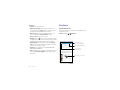
Quick start: Connect & transfer
Tips & tricks
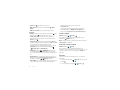
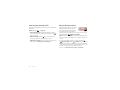
• Bluetooth® devices: To connect a Bluetooth headset,
keyboard, or other device, tap Bluetooth.
Connect accessories, computers, networks, and more.
• Wi-Fi networks: To connect, tap Wi-Fi.
Find it: Tap Apps
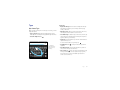
• Wi-Fi hotspot: To make your smartphone a hotspot, tap
More > Tethering & portable hotspot, then check Portable
Wi-Fi hotspot. You can change hotspot security.
>
Settings
• USB cable: Your smartphone’s micro USB port lets you
exchange media and other files with a connected computer.
To change the type of USB connection, tap Apps
Settings > Storage > Menu > USB computer
>
connection.
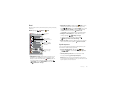
Settings
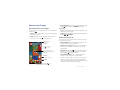
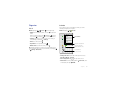
WIRELESS & NETWORKS
Change Wi-Fi settings.
Wi-Fi
ON
Bluetooth
ON
Turn Wi-Fi or Bluetooth
power ON or OFF .
Data usage
More...
Change Bluetooth settings.
DEVICE
Moto Motion
Motorola Connect
Sound
Display
Storage
52
Connect & transfer
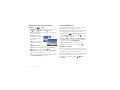
Turn on a portable
Wi-Fi hotspot.
• Automatic connections: When Bluetooth or Wi-Fi power is
ON , your smartphone automatically reconnects to
available devices or networks it has used before.
• Airplane mode: Need to shut down wireless connections
quickly? Drag the status bar down and tap
> AIRPLANE
MODE.
Or, touch and hold the Power key > Airplane mode.
• Print: Want to print your photos, docs, or other things?
Check out “Print” on page 40.