1
Turning On / Turning Off
Turning On
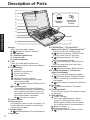
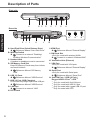
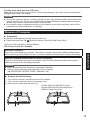
Press and hold the power switch
(è page 4) until the power indicator
(è page 4) lights.
NOTE
Getting Started
l Do not press the power switch repeatedly.
l The computer will forcibly be turned off if you press and hold the power switch for four seconds or longer.
l Once you turn off the computer, wait for ten seconds or more before you turn on the computer
again.
turns off.
l Do not perform the following operation until the drive indicator
• Connecting or disconnecting the AC adaptor
• Pressing the power switch
• Touching the keyboard, touchpad, touchscreen <only for model with touchscreen> or external mouse
• Closing the display
• Turn on/off the wireless switch
Turning Off
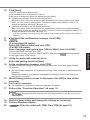
You can shut down the computer by using either of the following steps.
• From the Desktop screen:
at the bottom left corner of the Desktop screen.
ARight-click
B Click [Shut down or sign out] - [Shut down].
•From the Start screen:
- [Shut down].
AClick
• Both the Start screen and Desktop screen:
A Display “Charm” and touch .
B Touch [Power] - [Shut down].
AClick
(Start) - [Shutdown].
NOTE
l
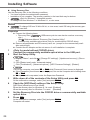
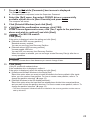
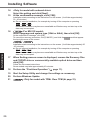
To turn off the computer completely, proceed as follows.
- [Change PC settings] - [Update and recovery] - [Recovery].
A Display “Charm” and click
B Click [Restart now] under “Advanced startup”.
C Click [Turn off your PC].
15