1
Music Player
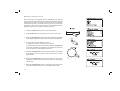
Accessing your audio files via a UPnP server
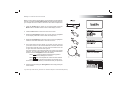
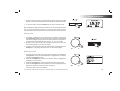
If your computer is running Windows 7, then Windows Media Player
(version 12) includes a UPnP server which will make your files available
to your radio. If you have Windows Vista or XP please see page 96. There
are other UPnP server solutions available for non-Windows users and for
Windows users who may wish to use an alternative (see the preceding page).
Enabling Media Streaming in Windows Media Player 12
It is beyond the scope of this instruction book to cover all possible options
for UPnP. We explain the use of Microsoft's Windows Media Player here
since that will be the first choice for the majority of users.
2
Set up UPnP access with Windows Media Player 12
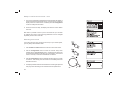
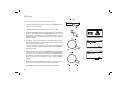
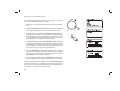
1. Windows Media Player 12 (referred to here as WMP 12) can create a
library from all the media files available to it on your PC. To add new
media files to the library, select 'Library', then 'Music', then 'All music'
or 'Artist', 'Album' etc. This will show you the current library contents.
You may then simply drag and drop files from other locations into the
library. Alternatively, with media files or folders on the screen, you
may right-click on the file or folder and select 'Include in library' and
then select 'Music'. In this way you can quickly add additional content
to your music library.
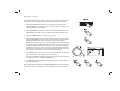
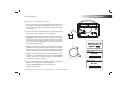
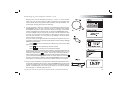
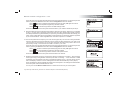
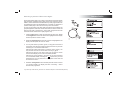
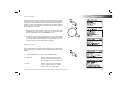
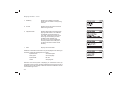
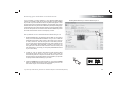
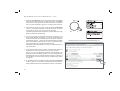
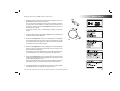
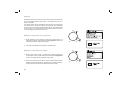
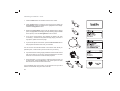
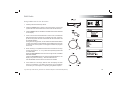
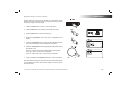
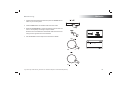
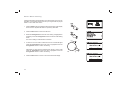
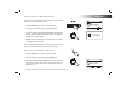
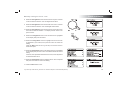
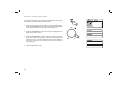
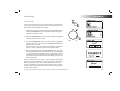
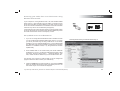
2. In WMP 12, click on 'Stream' (see picture at right) and then select
'Automatically allow devices to play my media'. Then accept the
'Automatically allow all computer and media devices' option. There
are other options (see overleaf) but this is the simplest if you just wish
to quickly enable media streaming to your radio.
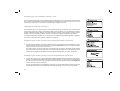
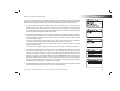
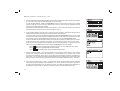
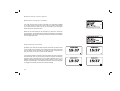
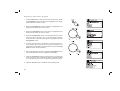
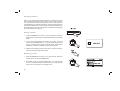
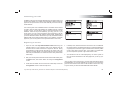
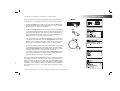
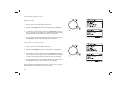
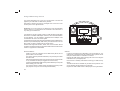
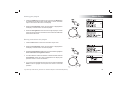
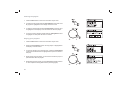
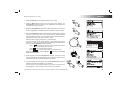
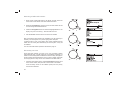
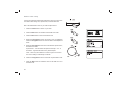
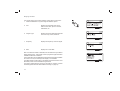
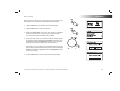
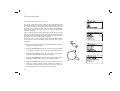
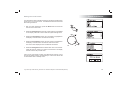
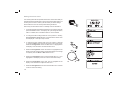
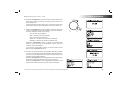
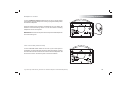
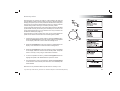
3. Press the On/Off button to switch the radio on. Then press the Mode
button as needed until the Music Player mode display is shown. The
main 'Music Player' menu will then be displayed.
If you need any further advice, please call our Technical Helpline on 020 8758 0338 (Mon-Fri)
3
36