1
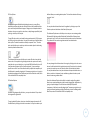
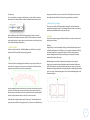
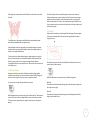
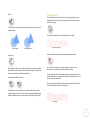
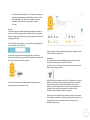
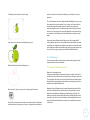
You may conversely create an internal offset condition.
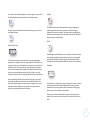
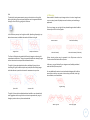
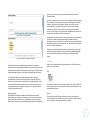
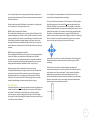
Trace – This option will provide a traced line contour around all parts of the
yellow preview area displayed.
Trace Outer Edge – This option will create a traced line around the outer edge of
the yellow preview area displayed only and ignore any inner parts that may
otherwise be displayed in yellow showing a potential tracing path.
This feature is generally better suited for the creation of internal lines for use
with sketch pens.
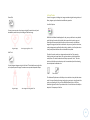
Internal Offset Image
6.13 Tracing Options
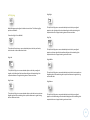
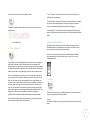
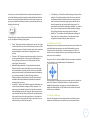
Trace and Detach – This option will trace the outer edge of the yellow preview
areas of the image and detach them from the rest of the background of the raster
image.
7. Library and Online Store
Silhouette Studio® offers a library feature to keep and categorize all of your
downloaded and user-created image for easy reference, as well as an online
store to provide new content for users to download.
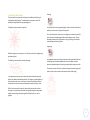
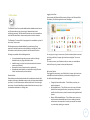
The library and store views may be found on the left-hand side of software
screen and show which panel (workspace, library, or store) is the current
selected active panel.
Tracing options can be used to automatically trace imported external images for
the purpose of creating cut lines. Silhouette America cannot guarantee the
quality of images not created by our company nor support any third-party images
not offered through the Silhouette Online Store. Silhouette Studio® should not be
used to trace licensed or copyrighted images which you do not specifically own.
Once you have opened an external image you own (as discussed in Section 3.4),
you may open the Tracing options and then click on Select Trace Area. This will
allow you to draw a box around the intended area of your imported image you
may wish to trace. This selection area once drawn may be adjusted or moved like
any other object in the program as you may need to expand or refine the trace
area. The trace area selection will provide a preview of the original image with a
yellow area overlay where the trace area would be applied according to the Trace
Settings filters. These filters will provide a more refined or more liberal
application of the intended traced effect depending on the settings selected.
Once the desired tracing effect preview is achieved, you may then opt to apply
the trace method by selecting one of the following:
7.1 Library
The library is where all of your pre-loaded and purchased content is contained
and may be categorized, sorted, and accessed.
Viewing
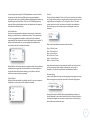
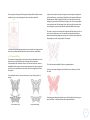
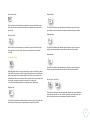
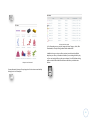
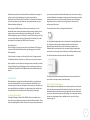
You will be able to either view your images as icons by clicking on the Icon View
option:
34