1
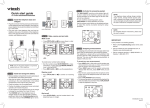
3. Click the button to download and install Skype. Instructions to download
the software and start the installation are provided on the web page.
Follow the instructions in the Setup Wizard to complete the installation.
The first time Skype is launched you will have the option to create an
account, if you don’t already have one.
4. After completing the Skype installation, click the button to download and
install the VTech Cordless Phone Suite software. Instructions to download
the software and start the installation are provided on the web page.
Once the applications have been installed, you will be prompted that the
VTech Cordless Phone Suite software is trying to access Skype. Select
Allow this program to use Skype and then click OK.
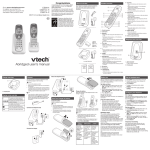
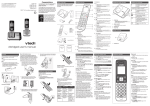
Handset Quick Reference Guide
The Cordless Phone Suite Software will display the status of the usb7100.
All items checked means the phone is ready to use. From the Cordless
Phone Suite software, you can find the user manual and check for software
updates.
Adobe Reader is required to view the USB7100 User Manual. It is likely
that you already have it installed on to your computer. If you don’t, click
the Adobe Reader button to start the Setup Wizard. Follow the instructions on screen to complete the installation.
5. Click Exit to close the Installation CD screen.
96-005943-030-000
5
6
7