1
4.
5.
6.
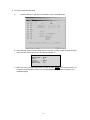
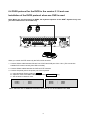
After setting Unit ID, Camera, and RS232/RS485, installing dome camera is basically completed.
Please refer to the manual of DVR for the other installation.
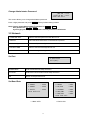
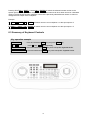
Press the related number of the controller which is correspondent to unit ID of DVR. Then press
DVR button and adjust unit ID of the controller
Make sure if any change is appeared on screen when you press
button of the controllerfor
basic testing. If there’s no change appeared, verify cable connection and setting of installation.
5.2 Install with PC DVR Series
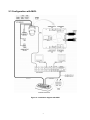
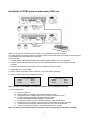
If user wants to connect with PC DVR, please proceed as the following order.
PTZ Control from DVR
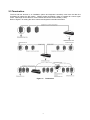
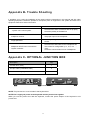
Figure 11 – PC DVR Connection Diagram
1. Connect RS-232C cable between RS-232C Port of PC DVR and RS-232C port of the Keyboard.
(This connection enables PC DVR control remotely from KBD controller)
2. Plug the RS-232C TO RS-485 converter in the RS-232C Port of PC DVR. Connect wires between
the TX(+/-) of converter and DOME2(+/-) of Keyboard. (This connection enables PC DVR PTZ
control from KBD controller)
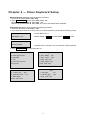
3. How to setup the KBD controller.
A.
Switch the KBD controller ON
B.
Input password (Factory Setting is 9 9 9 9)
C. Open the menu of the KBD controller by pressing CTRL + MENU Key.
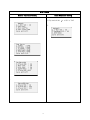
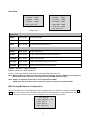
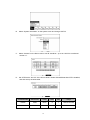
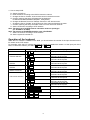
D. Set as below in Network menu.
DOME1
DOME2
RS232
Set Baud Rate
:
9600
:
9600
:
9600
Com Ports
DOME1
:
DOME2
:
RS-232
:
24
Dome
AUX IN
PC-DVR