1
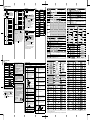
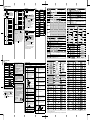
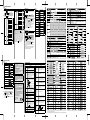
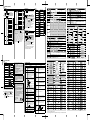
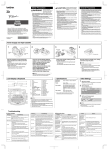
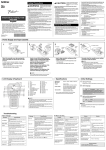
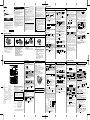
4 FORMATTING KEYS Font Key 1 Press to change the font settings. / Style Press to select the frame design. Refer to the Frame designs table included in this insertion sheet. Normal Bold Select an item Outline 2 Press press Basic Frame Key / . Font I+Bold US I+Outline Florida I+Shadow Belgium Vertical Center Calgary Right Atlanta Justify Brunei Istanbul Sofia Germany Large Medium Small Width Normal ×2 Select a • To cancel operations, press . • If the message ( ) appears on the right side of the display when selecting a frame, it means that frame is only available when using 0.47" (12mm) wide tape cassettes. • You can select the frame design by pressing a number key of the Frame designs table included in this insertion sheet. • After pressing , "Accepted" will be displayed for approximately 1 second. Left Los Angeles - NOTE Brussels Adams Size Italic Alignment / frame Solid Helsinki San Diego / Shadow to select the settings and NOTE • To cancel operations, press . • Refer to the Font samples table included in this insertion sheet. • The actual printed font size depends on the tape width, number of characters and number of input lines. Once characters reach a minimum size, the selected font will default to a custom font which is based on the Helsinki style. This allows labels to be printed using the smallest text possible on narrow or multi-line labels. • After pressing , "Accepted" will be displayed for approximately 1 second. × 1/2 Punctuation Greek Letter Mathematics Number 1 Brackets Number 2 Arrows Number 3 Unit Shape Pictograph Fun Kitchen Family Garden Clothing DIY Vehicle School Sports Office Animal Signs Symbol Key Astrology Datacom/AV Press to select various symbols. Refer to the table of symbols included in this insertion sheet. Event/Season Electrical / Food [History*1/Basic/ Pictograph] category symbol / / Select Choose a NOTE • To cancel operations, press . • *1 Once you select symbols, up to 7 recently used symbols are added to History. • If you choose History, you cannot select the category. • You can also select from basic and pictograph categories by pressing the shortcut keys included in this insertion sheet. 5 HELPFUL HINTS Short Cut File Tab Unit LCD Contrast Clear Should you encounter any problems with your product, please do not return your product to the store. After referring to the User's guide, if you still need assistance, contact Brother Customer Service at: Voice: 1-877-BROTHER Web: www.brother-usa.com Fax: 1-901-379-1210 If you need to locate a service center, please call 1-877-BROTHER or visit us at www.brother-usa.com Language Helpful Tips Clear Feed Print Options Resetting the P-touch You can reset the P-touch labeler when you want to initialize the settings, or in the event it not working properly. All text, settings and stored files are cleared. 1 2 Turn off the P-touch labeler, hold down and and then press to turn the P-touch labeler back on. First release the power button, and then release and . The P-touch labeler turns on with the internal memory reset. Error message 2 1 57 79 • Check that the batteries are correctly inserted. • If the batteries are weak, replace them. • Check that the AD-24ES adapter is correctly connected. 58 80 59 81 When the label is printed out, • See “Setting Margin” in this users guide and there is too select [Half] or [Narrow] to have smaller much margin margins for your label. (space) on both sides of the text. 60 82 61 83 62 84 63 85 64 86 65 87 66 88 67 89 The machine has “locked up” (i.e., nothing happens when • Refer to “Resetting the P-touch”. a key is pressed, even though the machine is on.) 68 90 69 91 70 92 The power turns off when you try to print. 71 93 72 94 73 95 74 96 75 97 76 98 77 99 Problem The batteries are weak. If using AAA alkaline batteries: Replace them with new ones. If using Ni-MH batteries: Charge them fully. Battery Empty! The installed batteries are running low and will need to be changed for continued operation. Invalid! • There is no text above the cursor when you selected [Numbering]. • Invalid character is selected for [Numbering]. • Invalid number is selected for [Tab Length] or [Label Length]. • An invalid value was entered as the label length while using templates. No Text! • You tried to print a text file when there is no data stored in the memory. • • (Battery insulation example) 1. Cellophane tape 2. Alkaline or Ni-MH battery Cause/Remedy Battery Low! NOTE Battery Recommendations • Remove the batteries if you do not intend to use the P-touch labeler for an extended period of time. • Dispose of the batteries at an appropriate collection point, not in the general waste stream. In addition, be sure to observe all applicable federal, state, and local regulations. • When storing or discarding the batteries, wrap it (for example with cellophane tape), to prevent it from short-circuiting. (Refer to the picture on the lower right) 78 What to do when... Message CAUTION USING A COMBINATION OF DIFFERENT BATTERIES (SUCH AS Ni-MH AND ALKALINE), MAY RESULT IN AN EXPLOSION. DISPOSE OF USED BATTERIES ACCORDING TO THE INSTRUCTIONS. 56 Troubleshooting is pressed when no text is entered. + is pressed when no text is entered. • or was pressed when no text was entered while using templates. 2 Line Limit! / 1 Line Limit! • You tried to enter a 3rd line by pressing . • You tried to print or preview two lines of text while 0.13" (3.5mm) or 0.23" (6 mm) tape is installed. Install larger tape size. No Cassette! You tried to print, feed or preview a label when there is no cassette installed. Cutter Pressed Tape cutter lever is pressed in the middle of printing process. Text Full! The maximum number of characters (80 characters for text, 50 characters for templates) have already been entered. Change Length Since the number of entered characters exceeds the label length, reduce the text, or select [Auto] as the label length. No Frame OK? • Printing on 0.13" (3.5mm) tape with invalid Frame setting ON. • Using tape cassette smaller than 0.47"(12mm) wide though you selected a frame which is only available for 0.47"(12mm) wide tape cassettes. (Select to print with no Frame, to cancel.) Feed OK? • Feeding tape after printing when [Chain Print] is selected. Refer to “Setting Margin”. Insert 0.47" • Only 0.47"(12mm) tape cassette is available for templates. Use TZe Tape! • Use a tape cassette with the mark. The machine does not print, or the printed characters are not formed properly. • Check that the tape cassette has been inserted correctly. • If the tape cassette is empty, replace it. • Check the cassette cover is properly closed. The setting has • The batteries may be weak. Replace them. cleared on its • When power is disconnected for more than own. three minutes, all text & formats in the display will be lost. is pressed when no text is entered. • The display stays blank after you have turned on the machine. Solution A blank horizontal line appears through the printed label. • There may be some dust on the print head. Remove the tape cassette and use a dry cotton swab to gently wipe the print head with an up-and-down motion. • The batteries may be weak. Replace them. • Check that the batteries are correctly inserted. • A wrong adapter is used; the recommended adapter is the AD-24ES. The tape does • Check that the end of the tape feeds under not feed the tape guides. properly or the tape gets stuck • The cutter lever is pressed while printing. Do inside the not touch the cutter lever during printing. machine. All text and format settings need to be cleared to create a new label. To change language setting. • Press + [Text&Format]. and select • Press / / • Refer to "Initial Settings". [Clear] [Text&Format] * Images are for illustrative purposes only. * Frames with highlighted numbers are only available when using 0.47" (12mm) wide tape cassettes.