1
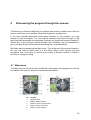
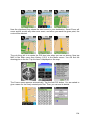
Note: The default reference point for POI search is the current GPS position, if it is
available, or the Cursor, when there is no reliable GPS position.
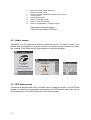
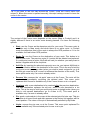
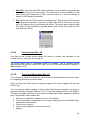
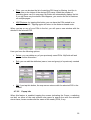
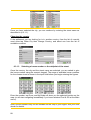
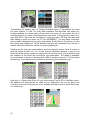
Once you have set the reference point, you have the following options on the Find
POI screen:
•
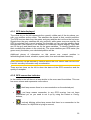
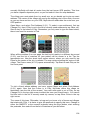
Search in POI subgroups: highlight one of the POI groups by tapping or using
the direction buttons, then press Enter or tap it again to see the list of
subgroups. Using the same action you can move deeper into subgroups.
•
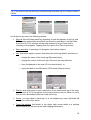
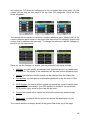
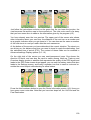
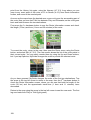
Filter from all the POIs of that level: tapping the Filter button will bring up a text
input screen to let you narrow the list of POIs. If you tap Filter in the list of
subgroups, you will only search in the group you are already in.
•
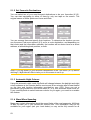
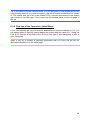
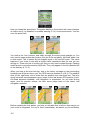
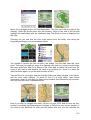
See all POIs of the current group in a list: tapping the All button opens the list
of all points in the group or subgroup you are already in. Use the Next and
Previous buttons to browse through the list.
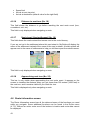
Search results are ordered by their distance from the given reference point (nearest
first).
Note: In the case of POI items that you have created, you can also see the results in
alphabetical order. Push the button with the label ABC that appears between Filter
and the page number.
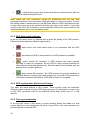
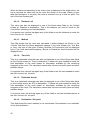
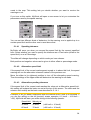
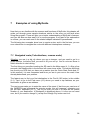
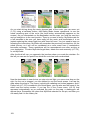
Once the desired POI item is selected, MyGuide will show its details.
Tapping OK will return to the map with the selected POI in the centre (or starts
navigating to it if Find & GO was selected). Tapping the arrow in the top left corner
returns to the search results.
93