1
TRA2 – The Revenge
User’s Manual
Using The Actions
Using The Actions
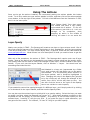
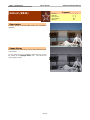
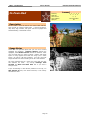
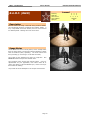
Once you’ve got the actions installed, we recommend putting the actions palette into button
mode. To do this, make sure your actions palette is visible, and then click on the actions palette
menu button, in the top-right of the palette. It’ll look a little different from the illustration in CS2,
but it’s in the same place.
Click “Button Mode” from that menu.
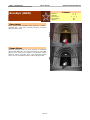
You should now have a very pretty,
color-coded list of actions. To run one
of the actions, just click on it. Let it run
through to its completion, since
stopping an action in the middle of
running will cause it to run weird the
next time, too.
Layer Opacity
Nearly every action in TRA2 – The Revenge will create a new layer or layer set as a result. One of
the most powerful features of the Totally Rad Actions is their tweakability, and the layers palette
is the key to that power. For more on how layers work, in general, check out the video tutorial at
www.gettotallyrad.com. What follows is a brief description of what you need to know to get the
most out of your actions.
With only a few exceptions, the actions in TRA2 – The Revenge don’t require much use of layer
masks. Most of the actions can be tweaked to your heart’s content using just the opacity slider.
The opacity slider can be used to control the strength of each layer, and it’s located in the Layers
Palette. If you can’t see the Layers Palette, click on Window -> Layers. You should now see
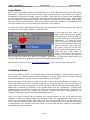
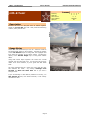
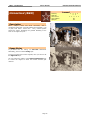
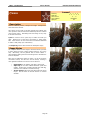
something that looks like this:
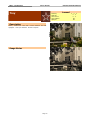
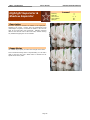
Acid Washed is a layer set (represented by a folder
icon), and is what you’ll get when you run the action
Acid Washed. It is the currently active selection in
the layers palette, and is therefore highlighted in
blue. Changing the value in the Opacity box (pointed
to by the red arrow) will change the strength of the
action, from 100%, all the way down to zero. You
can also click the arrow to the right of the Opacity
box to use a slider to control opacity.
If you wanted to control the opacity/strength of a different layer, you’d simply select it by clicking
on its thumbnail in the Layers Palette, and then use the Opacity slider.
You can also use the number keys to quickly dial in an opacity setting. Select the layer you want
to modify, and then select the Marquee tool (press “m”). Now simply pressing a number on the
keyboard will set the opacity to 10x that number. So pressing “6” will set 60% opacity for the
selected layer. Pressing “2” will give you 20%. If you press two keys in rapid succession, you
can get even finer control. For instance, “4” then “8” will give you 48% opacity.
Page 4