1
The Triple Chamber structure
Upon opening the top panel, you will find the case is divided into three
chambers – the power supply chamber, the motherboard chamber and the HDD
chamber. This triple chamber structure isolates the heat and noise from each
other resulting in much quieter and cooler operation than a traditional desktop case.
Installing the Motherboard
This manual does not cover CPU, RAM, or expansion card installation.
Please consult your motherboard manual for specific mounting instructions and
troubleshooting.
The motherboard is located inside the main chamber with two 120mm TriCool™
fans preinstalled at the side of the case right next to the CPU to cool the hottest
CPU on the market.
1. Lay the case down, with the open side facing up. The drive cages and power
supply should be visible.
2. Make sure you have the correct I/O panel for your motherboard. If the panel
provided with the case isn’t suitable, please contact your motherboard
manufacturer for the correct I/O panel.
3. Line up your motherboard with the standoff holes, and remember which holes
are lined up. Not all motherboards will match with all the provided holes; this is
normal, and won’t affect functionally. (In other words, there will likely be extra
holes.)
4. Remove your motherboard by lifting it up.
5. Screw the brass standoffs into the threaded holes that line up with your
motherboard. Do not overtighten the standoffs. Some standoffs may be
pre-installed for your convenience.
6. Place your motherboard on the brass standoffs.
7. Screw in your motherboard to the standoffs with the provided Philips-head
screws. Your motherboard is now installed.
Connecting the Power and LED
The power supply conforms to the ATX12V Version 2.01 standard. It is also
backwards compatible with most previous ATX12V form factor motherboards.
Before you connect the power supply to any of your devices, please consult the
appropriate user manuals for your motherboard and other peripherals.
Note: this power supply does not provide a –5V line. Few modern motherboards
(and none compliant with ATX12V v2.0 and above) require –5V power, but if
yours does then this power supply may not be compatible with it.
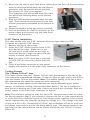
1. Connect the 24-pin Main Power Connector and the 4-pin connector to your
motherboard as needed. If your motherboard uses a
Picture 1
Picture 2
20-pin connector; detach the 4-pin attachment on
the 24-pin power connector (see pictures 1 and 2).
2. Connect the Reset switch (labeled RESET SW) to
your motherboard at the RST connector. Make sure
For 24-pin
For 20-pin
the label always faces the front of the case.
motherboards
motherboards
3. Power LED (labeled POWER LED) connector is
located behind the Reset connector.
4. Power Switch (labeled POWER SW) connects to the PWR connector on the
motherboard.
5. Hard Drive LED (labeled H.D.D. LED) connects to the IDE connector.
2