1
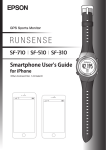
GPS Sports Monitor
iOS User's Guide
mi
Table of contents
Introduction
Run Connect . . . . . . . . . . . . . . . . . . . . . . . . . . . . . . . . . . . 4
Setup
Installing the Epson Run Connect app . . . . . . . . . . . . . 5
Creating a RUNSENSE View account. . . . . . . . . . . . . . 5
Creating a new account. . . . . . . . . . . . . . . . . . . . . . . . 5
Linking an existing account . . . . . . . . . . . . . . . . . . . . 7
Enabling Bluetooth on your mobile device . . . . . . . . . 8
Pairing your RUNSENSE product . . . . . . . . . . . . . . . . . 8
Uploading and checking workouts
Uploading workouts . . . . . . . . . . . . . . . . . . . . . . . . . . . 11
Viewing uploaded workouts . . . . . . . . . . . . . . . . . . . . . 13
About RUNSENSE View . . . . . . . . . . . . . . . . . . . . . 14
Changing product settings
Settings. . . . . . . . . . . . . . . . . . . . . . . . . . . . . . . . . . . . . . . 15
Changing a setting . . . . . . . . . . . . . . . . . . . . . . . . . . . 16
List of Settings . . . . . . . . . . . . . . . . . . . . . . . . . . . . . . 18
Advanced settings. . . . . . . . . . . . . . . . . . . . . . . . . . . . . . 21
Displaying advanced settings. . . . . . . . . . . . . . . . . . 21
Setting the AT Lap Function . . . . . . . . . . . . . . . . . . 22
Setting the Target Pace Function . . . . . . . . . . . . . . 25
Setting waypoints. . . . . . . . . . . . . . . . . . . . . . . . . . . . 28
Setting the Interval Function . . . . . . . . . . . . . . . . . . 30
Reducing GPS positioning time . . . . . . . . . . . . . . . . . . 33
Troubleshooting
Solving problems . . . . . . . . . . . . . . . . . . . . . . . . . . . . . . 35
Unpairing your mobile device . . . . . . . . . . . . . . . . . . . 36
Unpairing on your mobile device . . . . . . . . . . . . . . 36
Unpairing on your product . . . . . . . . . . . . . . . . . . . 38
Where to get help . . . . . . . . . . . . . . . . . . . . . . . . . . . . . . 40
2
Introduction
Introduction
To use the product correctly, make sure you read your product’s Quick Start Guide and online User Manual.
The illustrations and screens shown in this User Manual are the SF-710, but they apply to all models.
Descriptions in the User Manual
c
Important:
Indicates things you must or must not do. Ignoring these instructions or mishandling
this product could cause malfunction or operational problems to the product.
Note:
Indicates additional explanations and related information.
Menu Name
Indicates menu items displayed on the screen of the product.
A/B/C/D
Indicates the product buttons.
See “Descriptions in the User
Manual” on page 3.
Indicates related pages. Click the link in blue text to display the related page.
Trademarks
EPSON is a registered trademark, EPSON Exceed Your Vision is a registered logomark, and Runsense is a
trademark of the Seiko Epson Corporation.
iPhone is a trademark of Apple Inc. registered in the U.S.A. and other countries.
App Store is the name of a service provided by Apple Inc. that allows iPhone users to download application software.
The trademark iOS is used according to the Cisco's licence in the U.S.A. and other countries.
The Bluetooth® word mark and logos are the registered trademarks owned by Bluetooth SIG.
Other product names are the trademarks or registered trademarks of their respective companies.
Caution
We cannot accept any responsibility for any injuries or obstructions that were caused by ignoring the contents of
this guide, inappropriate handling of the product, or repairs or modifications performed by a third party who is not
appointed by us.
Notes
O Unapproved copying of part or all of this guide is strictly forbidden.
O The content of this guide is subject to change without prior notice.
O We cannot accept any responsibility for mishandling due to errors in this guide.
3
Introduction
Run Connect
The Run Connect app allows you to communicate with your RUNSENSE product via Bluetooth® Smart and share
data wirelessly with the RUNSENSE View web app. You can also send and save settings to the product from your
phone.
Note:
This guide describes how you can transfer the data to an iPhone and manage it with the RUNSENSE View web app.
Refer to the User Manual for how you can manage the data via a personal computer.
Supported mobile devices
iPhone 4s, iPhone 5, iPhone 5c, iPhone 5s, iPhone 6, and iPhone 6 Plus
Supported iOS versions
iOS 6 or later
Run Connect app:
Run Connect has the following features
O
Upload measurement data to the RUNSENSE View web app
O
Access the RUNSENSE View web app to view the measurement data
O
Update measurement settings such as AT Lap, Target Pace, Waypoint, and
Interval, user settings, and system settings
O
Reduce GPS positioning time
O
Pair RUNSENSE product and mobile device via Bluetooth Smart
O
Manage your RUNSENSE account settings
4
Setup
Setup
1
Tap the Run Connect icon on your mobile
device.
2
Tap OK.
You need to do the following before you can start using
the Epson Run Connect app with your RUNSENSE
product.
“Installing the Epson Run Connect app” on page 5
“Creating a RUNSENSE View account” on page 5
“Enabling Bluetooth on your mobile device” on
page 8
“Pairing your RUNSENSE product” on page 8
Installing the Epson Run
Connect app
Download and install Epson Run Connect from the
App Store.
Creating a RUNSENSE
View account
Creating a new account
You need to create an account for the RUNSENSE
View web app before you can upload your workouts.
Note:
If you already have a RUNSENSE View account, see
“Linking an existing account” on page 7.
Note:
If you have already opened the app, tap Account
and proceed to step 3.
5
Setup
Read the Terms of Use, tap the checkbox, and
tap Create Account.
[email protected]
[email protected]
3
Tap Create Account.
5
4
Enter a Login ID (your e-mail address) and a
Password.
6
Follow the instruction on the screen to
configure your new account.
Setup
Linking an existing account
3
Enter your Login ID and Password, and then tap
Set.
4
Check that you have configured your account
and tap OK.
If you already have a RUNSENSE View account, you
need to link it to your mobile device before you can
upload workouts.
1
2
Tap the Run Connect icon on your mobile
device.
Tap Account.
7
Setup
3
Enabling Bluetooth on
your mobile device
Enable Bluetooth.
You need to enable Bluetooth settings on your mobile
device before you can pair it with your product
1
Tap Settings on your mobile device.
Pairing your RUNSENSE
product
1
2
Tap Bluetooth.
8
Tap the Run Connect icon on your mobile
device.
Setup
2
Tap Pairing.
Note:
You can also start Bluetooth communication from
the Settings menu on the product. See your product
User Manual for details.
5
3
Tap Start Pairing.
4
Hold down D on your product to start
Bluetooth communication.
9
Tap OK.
Setup
6
Enter the 6-digit passcode on your mobile
device and tap Pair.
Note:
On iOS 6, tap Pairing.
7
Check that pairing has completed and tap OK.
10
Uploading and checking workouts
Uploading and
checking workouts
1
Tap the Run Connect icon.
2
Tap Watch Data.
3
Hold down D on your product to start
Bluetooth communication.
This chapter describes how to upload and check
measurement data.
“Uploading workouts” on page 11
“Viewing uploaded workouts” on page 13
Uploading workouts
You can use Run Connect to quickly upload your
workout data to the RUNSENSE View web app.
You can upload either of the following types of data:
O General workout data
Provides a general overview of the workout,
including the distance, speed, HR, and calories
burned.
O Detailed workout data
Includes all of the data tracked by your product,
including a detailed map of your GPS route.
c
Important:
O You need to log in to RUNSENSE View and
register this product to the iPhone.
See “Setup” on page 5.
O
Enable Bluetooth on the mobile device before
uploading measurement data.
See “Enabling Bluetooth on your mobile device”
on page 8.
Note:
Uploading several hours of workout data (such as a full
marathon) can take over 10 minutes. For faster data
transfer, use the USB cradle connected to your PC. See your
product User Manual for more information.
Note:
You can also start Bluetooth communication from
the Settings menu on the product. See your product
User Manual for details.
11
Uploading and checking workouts
4
Tap OK on your mobile device.
6
Tap the workout that you want to upload
detailed information for, and then tap Upload.
7
Hold down D on your product to start
Bluetooth communication.
Your product’s alarm sounds and the upload
starts.
5
If you have a large number of workouts stored,
tap Get Next Data to add these additional
workouts to the upload.
Note:
You can also start Bluetooth communication from
the Settings menu. Refer to “Settings” in the User
Manual for details.
The general workout data is uploaded to
RUNSENSE View. To upload detailed workout
data, continue to step 6.
Note:
To review general workout data immediately, select
the item you want to check from Watch Data List
and tap RUNSENSE View at the bottom right to
display.
See “About RUNSENSE View” on page 14.
12
Uploading and checking workouts
8
Tap OK on your mobile device.
RUNSENSE View is displayed when the upload
is complete.
Note:
O Try the upload again if it fails.
Your product’s alarm sounds and the upload
starts.
O
The workout is removed from the Watch Data list
after it is uploaded to RUNSENSE View.
O
Repeat steps 6 to 8 if you are uploading more than one
workout from the Watch Data list.
Viewing uploaded
workouts
1
13
Tap the Run Connect icon on your mobile
device.
Uploading and checking workouts
2
Tap Dashboard.
About RUNSENSE View
The RUNSENSE View web app has multiple ways to
manage and analyze your workouts.
Dashboard
Manage your workouts in a calendar format. This
allows you to easily review and organize past runs.
3
Tap the workout that you want to view.
Workout
This displays data such as the distance, pace, HR, and
calories.
Note:
Workouts with the
icon only contain general workout
data. You need to upload the detailed workout data if you
want to view your running route.
See “Uploading workouts” on page 11.
Map
This allows you to review your detailed running route
using GPS information from your RUNSENSE
product.
14
Changing product settings
Changing product
settings
Category
Setting items
Sys. Settings
Distance Units
Clock
DST
Time Zone
You can adjust a variety of settings on your product
directly from the Run Connect app.
c
Date Format
Invert Disp.
Important:
Depending on the firmware version installed on your
product, certain functions may not be available. Visit
epson.com/runsense to download the latest
firmware.
Contrast
Auto Sleep
AT Light
“Settings” on page 15
“Advanced settings” on page 21
“Reducing GPS positioning time” on page 33
Alarm
Key Tones
Meas.Settings
Settings
Activity Type
Interval
AT Lap
You can change various settings on your product from
the Run Connect app.
AT Pause
See “List of Settings” on page 18 for a complete list of
available options.
Waypoint
Available settings may vary depending on the specific
product that you are using.
Tap
Category
Setting items
User Settings
Height
Target Pace
HR
Screen
Weight
DOB
Gender
HR Zone 1 to 5
15
Changing product settings
Changing a setting
1
2
3
Tap Settings.
4
Hold down D on your product to start
Bluetooth communication.
Tap the Run Connect icon on your mobile
device.
Tap Watch Settings.
Note:
You can also start Bluetooth communication from
the Settings menu on the product. See your
product’s User Manual for details.
5
16
Tap OK on your mobile device.
Changing product settings
6
Tap the category of options that you want to
configure.
7
Tap the setting that you want to adjust.
17
8
Tap the option that you want to select.
9
Tap Settings when you have finished making
changes.
10
Hold down D on your product to start
Bluetooth communication.
Changing product settings
11
Tap Write to Watch.
12
Tap OK.
Note:
You can save the current settings as a preset by
tapping Save Settings. You can select the saved
setting by tapping Retrieve Saved Settings. This
allows you to switch between settings to suit your
current exercise.
13
Check that the settings were sent to your
product and tap OK.
List of Settings
User Settings
Available settings may vary depending on the model you are using.
Setting items
Options
Description
Height
Various options
Select your height.
Weight
Various options
Select your weight.
DOB
Various options
Select your date of birth.
Gender
Male*
Select your gender.
Female
18
Changing product settings
Setting items
Options
Description
HR Zone
HR Zone 1
Set the maximum and minimum heart rate for each zone.
30 to 100 bpm*
You can set five zones to suit your exercise intensity.
HR Zone 2
101 to 130 bpm*
HR Zone 3
131 to 160 bpm*
HR Zone 4
161 to 190 bpm*
HR Zone 5
191 to 240 bpm*
*Indicates the default setting
Sys. Settings
Available settings may vary depending on the model you are using.
Setting items
Value
Explanation
Distance Units
km
Adjusts the units for distance.
mile*
Clock
12 Hour*
Select the format for the time.
24 Hour
DST
ON
Adjusts Daylight Savings Time.
OFF*
Time Zone
Date Format
Auto*
Adjusts the time zone for your location.
Manual
When Manual is selected, you can set the time zone within a
range of -12:00 and +14:00.
Day. Month
Selects the format for the date.
Month. Day*
Invert Disp.
ON
Selects whether or not to invert LCD colors.
OFF*
When ON is selected, white text is displayed over a black
background.
When OFF is selected, black text is displayed over a white
background.
Contrast
Various options
Adjusts the LCD screen contrast.
Auto Sleep
ON*
When you do not use the product for a while, this function
automatically puts the product into sleep status.
OFF
AT Light
ON
OFF*
Entering sleep status reduces the amount of power
consumption.
When the screen changes, this function automatically turns on
the light. When a specified time has passed, the light
automatically turns off.
19
Changing product settings
Setting items
Value
Explanation
Alarm
Tones*
Adjusts the alarm type.
Vib.
Tones & Vib.
OFF
Key Tones
ON*
Turns button sounds on or off.
OFF
*Indicates the default setting.
Meas.Settings
Available settings may vary depending on the model you are using.
Setting items
Value
Explanation
Activity Type
Run*
Set when running or jogging.
Walk
Set when walking.
Bike
Set when performing exercises that do not require you to swing
your arms, such as riding a bike.
Interval
SETTING 01 to 03
Set the contents of high-intensity training (sprint) and
low-intensity training (recovery) and the number of times they
are repeated.
AT Lap
SETTING 01 to 05
When a time or distance set in advance is reached, this function
records laps automatically.
OFF*
Set the lap time or distance.
You can set five times or distances within the following range.
Time: 01'00" to 60'00" (in increments of 1 minute)
Distance: 0.1 to 10.0 mi/km (in increments of 0.1 mi/km)
AT Pause
ON
OFF*
Target Pace
SETTING 01 to 03
OFF*
This function automatically stops measuring when you stop
running, and resumes when you continue running.
Set the target time and pace range for one kilometer/mile. An
alarm sounds if you are outside the set pace range.
You can set three target paces within the following range.
Target Pace: 1'00" to 15'00"/mi or km (in increments of 1 second)
Pace Range: 00'05" to 03'00"/mi or km (in increments of 1 second)
Waypoint
HR
ON
OFF*
You can specify a registered waypoint to display the direction,
distance, and altitude difference** to that point. As you approach
the specified point, an alarm sounds.
ON
You can measure your heart rate.
OFF*
For SF-810, the default setting is ON.
20
Changing product settings
Setting items
Value
Explanation
Tap
Lap
(Only for the
measurement screen)
Light
You can perform one of the functions specified in this item by
tapping the screen while measuring.
Screen Chg.
OFF*
Screen
Screen1
Screen2
Screen3
Screen4
When Bike is selected as the Activity Type, the tap function may
operate automatically depending on the condition of the road
surface. If this occurs, we recommend to change the setting to
OFF.
You can display up to four measurement screens. You can
change the screen pattern and the measurement items displayed
for each screen.
You can also change the Display Lap Screen, but this is not
displayed for the interval function.
Display Lap Screen
*Indicates the default setting.
**You have to enter an altitude when setting a waypoint on your mobile device.
Advanced settings
AT Lap
Displaying advanced settings
Use the AT Lap function to automatically record laps
whenever a set time or distance is reached.
See “Setting the AT Lap Function” on page 22.
1
Target Pace
Use the Target Pace function to sound an alarm if you
fall behind your preset pace.
See “Setting the Target Pace Function” on page 25.
Waypoint
Use the Waypoint function to set target locations on
the map.
See “Setting waypoints” on page 28.
Interval
Use the Interval function to record alternating sets of
hard and light exercise.
See “Setting the Interval Function” on page 30.
21
Tap the Run Connect icon on your mobile
device.
Changing product settings
2
5
Tap Watch Settings.
Tap OK on your mobile device.
See “Setting the AT Lap Function” on page 22.
See “Setting the Target Pace Function” on page 25.
See “Setting waypoints” on page 28.
See “Setting the Interval Function” on page 30.
3
Tap Advanced Settings.
Setting the AT Lap Function
Use the AT Lap function to automatically record laps
whenever a set time or distance is reached.
1
Display the Advanced Settings screen.
See “Displaying advanced settings” on page 21.
2
4
Hold down D on your product to start
Bluetooth communication.
Note:
You can also start Bluetooth communication from
the Settings menu on the product. See your product
User Manual for details.
22
Tap AT Lap.
Changing product settings
3
Hold down D on your product to start
Bluetooth communication.
4
Tap OK on your mobile device.
Enter the title using letters, numbers, spaces,
hyphens, and underscores.
7
5
Tap No Data to create a new preset.
Tap a preset to edit an existing entry.
6
Enter or edit the title for the preset.
23
Set Programmable to ON if your preset includes
different settings for multiple laps. Set
Programmable to OFF to automatically repeat
the same lap setting.
Changing product settings
8
Tap the lap and enter the Distance or Time for
the lap.
9
If you want to add any additional laps, tap + to
add a lap and enter the Distance or Time for the
additional laps.
If you set Programmable to OFF, you cannot
add any additional laps.
Note:
You can delete and reorder laps by tapping Edit.
24
10
Tap Back.
11
Tap Write to Watch.
Changing product settings
12
Tap OK.
2
Tap Target Pace.
13
Check that the settings were sent to your
product and tap OK.
3
Hold down D on your product to start
Bluetooth communication.
4
Tap OK on your mobile device.
Setting the Target Pace Function
Use the Target Pace function to sound an alarm if you
fall behind your preset pace.
1
Display the Advanced Settings screen.
See “Displaying advanced settings” on page 21.
25
Changing product settings
5
7
Tap No Data to create a new preset.
Set Programmable to ON if your preset includes
different settings for multiple laps.
Tap a preset to edit an existing entry.
Set Programmable to OFF to automatically
repeat the same lap setting.
6
8
Tap the target pace that you want to update,
select the Time and Distance, and tap Back.
9
If you want to add any additional pace entries,
tap + and enter the Time and Distance for the
additional entries.
Enter or edit the title for the preset.
Enter the title using letters, numbers, spaces,
hyphens, and underscores.
26
Changing product settings
If you set Programmable to OFF, you cannot
add any additional pace entries.
Note:
You can delete and reorder target paces by tapping
Edit.
10
Turn Set Target Pace Range ON to sound an
alarm when you are off the specified pace.
27
11
Select your Target Pace Range. The alarm will
sound if you are off of your target pace by the
amount of time you select.
12
Tap Back.
Changing product settings
13
Tap Write to Watch.
Setting waypoints
Use the Waypoint function to set target locations on
the map.
Available settings may vary depending on the model
you are using.
1
Display the Advanced Settings screen.
See “Displaying advanced settings” on page 21.
14
15
2
Tap Waypoint.
3
Hold down D on your product to start
Bluetooth communication.
Tap OK.
Check the settings were sent to your product
and tap OK.
28
Changing product settings
4
Tap OK on your mobile device.
Enter the title using letters, numbers, spaces,
hyphens, and underscores.
7
5
Either tap and hold at the point on the map to
set the waypoint or tap + and move the pin to
the location you want to set the waypoint.
Tap No Data to create a new waypoints.
Tap the name of a waypoint to edit an existing
entry.
XXXXXX XXXX-XX
Note:
You can specify the altitude by tapping Detailed
Settings. Set the Altitude setting to ON, select the
altitude, and tap Apply.
Note:
You can check all existing waypoints by tapping
View All on Map.
6
Enter or edit the title for the waypoint.
29
Changing product settings
8
10
Tap Back.
Tap OK.
XXXX-XX
9
Tap Write to Watch.
11
XXXX-XX
Check the settings were sent to your product
and tap OK.
Setting the Interval Function
Use the Interval function to record alternating sets of
hard and light exercise.
1
Display the Advanced Settings screen.
See “Displaying advanced settings” on page 21.
30
Changing product settings
2
Tap Interval.
3
Hold down D on your product to start
Bluetooth communication.
5
Tap No Data to create a new interval preset.
Tap the name of an interval preset to edit an
existing entry.
6
Enter or edit the title for the preset.
Enter the title using letters, numbers, spaces,
hyphens, and underscores.
4
Tap OK on your mobile device.
31
Changing product settings
7
Set Programmable to ON if your preset includes
different settings for intervals.
If you set Programmable to OFF, you cannot
add any additional interval presets.
Set Programmable to OFF to automatically
repeat the same interval.
Note:
You can delete and reorder interval presets by
tapping Edit.
8
9
Tap the interval list you want to update, select
the Sprint, Recovery, and Repeat options, and
tap Back.
10
If you want to add any additional interval
presets, tap + and select the Sprint, Recovery,
and Repeat options.
32
Tap Back.
Changing product settings
11
Reducing GPS positioning
time
Tap Write to Watch.
You can reduce GPS positioning time by sending GPS
data from your mobile device to your product before
exercising.
c
12
13
Important:
You don't need to be outdoors for this operation.
1
Tap the Run Connect icon on your mobile
device.
2
Tap AGPS.
Tap OK.
Check the settings were sent to your product
and tap OK.
33
Changing product settings
3
Tap Update.
4
Hold down D on your product to start
Bluetooth communication.
5
Tap OK on your mobile device.
6
34
Tap OK.
Troubleshooting
Troubleshooting
This section explains how to solve problems that occur during use.
“Solving problems” on page 35
“Unpairing your mobile device” on page 36
“Where to get help” on page 40
Solving problems
Where the problem
occurred
Error message displayed on the
screen
Problem
Solution
Watch Data List
Communication with the watch
has been disconnected.
Acquire the list again.
Communication with
the product was
interrupted.
Try the following and tap the
menu item again.
Upload
Watch Settings
O
Charge the watch
AGPS
O
Make sure the product is
properly paired with and
within range of your mobile
device
O
Turn Bluetooth ON in the iOS
If the problem persists even after
you have tried the above, unpair
and pair the product again, and
then tap the menu item.
See “Unpairing your mobile
device” on page 36.
Watch Data List
Watch Settings
AGPS
Cannot communicate
with the watch.
Cannot detect the watch.
Turn on Bluetooth in the settings
on your iOS device, start
Bluetooth communication on the
watch, and then access again.
Cannot access a watch that has
been paired.
Try accessing again.
Cannot read information on the
paired watch.
Upload again.
Try the following and tap the
menu item again.
O
Charge the watch
O
Make sure the product is
properly paired with and
within range of your mobile
device
O
Turn Bluetooth ON in the iOS
If the problem persists even after
you have tried the above, unpair
and pair the product again, and
then tap the menu item.
Cannot access the watch.
Turn on Bluetooth in the settings
on your iOS device, and then
acquire the list again.
See “Unpairing your mobile
device” on page 36.
The watch is not responding.
Start Bluetooth communication
on the watch, and then acquire
the list again.
35
Troubleshooting
Where the problem
occurred
Error message displayed on the
screen
Problem
Solution
Upload
Cannot detect the watch. Turn on
Bluetooth in settings on your iOS
device, start Bluetooth
communication on the watch, and
then upload again.
Cannot communicate
with the watch.
Try the following and tap Upload
again.
Cannot access a watch that has
been paired. Try accessing again.
Cannot read information on the
paired watch. Upload again.
O
Charge the watch
O
Establish the
communications with the
watch and keep close to you
O
Turn Bluetooth ON in the iOS
If the problem persists even after
you have tried the above, unpair
and pair the product again, and
then tap Upload.
Cannot access the watch. Turn on
Bluetooth in the settings on your
iOS device, and then upload
again.
See “Unpairing your mobile
device” on page 36.
The watch is not responding. Start
Bluetooth communication on the
watch, and then upload again.
Unpairing your mobile device
Unpair your mobile device if it is not communicating
properly with your product, or if you want to pair the
mobile device with another product. You can perform
this operation from either your mobile device or your
Runsense product.
Unpairing on your mobile
device
1
36
Tap the Run Connect icon on your mobile
device.
Troubleshooting
2
Tap Pairing.
4
Check that the devices are unpaired and tap OK.
3
Tap Release Pairing.
5
Tap Settings.
37
Troubleshooting
6
Tap Bluetooth.
8
Tap Forget this Device.
7
Tap i for SF Series.
9
Tap Forget Device.
Note that the icon may vary depending on the
version of iOS that you are using.
Unpairing on your product
38
Troubleshooting
1
Hold down B on the Time screen to displays the
Settings menu.
2
Press C/D to select Comm. Settings, and then
press A.
3
Press C/D to select Smart Phone, and then
press A.
6
.
4
Press C/D to select Forget Device, and then
press A.
5
Press A.
39
Hold down A to return to the Time screen.
Troubleshooting
Where to get help
Internet support
Visit epson.com/support/ (U.S.) or
epson.ca/support/ (Canada) for solutions to common
problems. You can get tips, usage information, and
FAQs, download utilities, or e-mail Epson.
Telephone support
Call (800) 241-5789, (562) 276-4394 (U.S.), or
(905) 709-3839 (Canada).
Support hours are 6 AM to 8 PM, Pacific Time, Monday
through Friday, and 7 AM to 4 PM, Pacific Time,
Saturday. Days and hours of support are subject to
change without notice. Toll or long distance charges
may apply.
©2015 Epson America, Inc., 5/15
CPD-42820
40