1
153 | Appendix : Specification
12 APPENDIX : NETWORK SETUP FOR EXTERNAL USAGE
Please note: The following information are general guidelines. These may vary by networkand router specifications. Contact
your installer or ISP for additional information.
If you are not connecting to your DVR from within the same network, you will have to perform port forwarding on your router to
be able to access the DVR externally, via the internet.
8.
1.
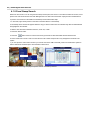
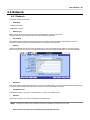
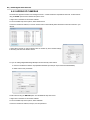
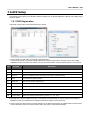
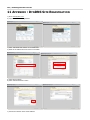
In the [Network] menu set “Network Type” to [Dynamic IP] and click [IP DETECT]. The system will automatically
detect the correct settings for the network where the DVR is installed.
2.
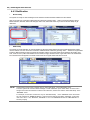
Once the system generates all the information based on your network requirements, change the Network Type to
Static and save all the changes as static.
A static IP address will not be changed by the network. Contact your Internet Service Provider or Network
Administrator for additional information and to obtain a static IP address from them.
3.
Some internet service providers block port 80 in their customer's routers. It is recommended to change the web
port number to 81 or 82.
4.
Access your router by entering its external IP address in your web browser. This information can be found by
running an ipconfig command on your computer's Command Prompt. The router's external IP address is the
GATEWAY address.
5.
Check the DHCP settings in your router and setup the DVR for external connections by performing port forwarding.
It is highly recommended that you contact your Network Administrator for more information and proper handeling of
your router. Port forwarding will tell the router that all data received via those specific ports, will be redirected to the
DVR. For the VMAX960H, you will need to port forward the two following ports:
a.
Mobile Port: 9010 (Default)
b.
Web Port: 81 or 82 (Default was 80)
6.
Visit www.portforward.com for additional information on performing port forwarding on specific router models.
7.
Visit www.yougetsignal.com to test whether the ports have been properly opened. Please allow up to five (5)
minutes for the router to update.
Once the router settings have been configured correctly, open an internet explorer page and enter your router's external IP
address:DVR's port number (Example: 72.243.193.215:81).
You can also connect to the DVR using Google Chrome by installing the ‘IE Tab’ add-on